Understand tags
Overview
Learn how to use Smartcat Editor tags for maintaining original document formatting, with a focus on automatic and manual tagging processes, tag auto-insertion, and the use of shortcuts for efficient translation workflow.
Get a better understanding of Smartcat Editor tags and both automatic and manual tagging
Tags are used on the Smartcat platform to maintain the formatting or internal code, like index entries or cross-references, of your original document.
If the original file that you uploaded for translation contains any tags, such as markup, links, or formatting, they are transferred to the Smartcat Editor.
Note that tags are important to ensure the correct formatting of the document. To keep the formatting of the source document, the tags should be placed in the same order they are placed in the source text.
Automatically applied tags in translation segments
There are instances when Smartcat automatically creates tags for your translations to improve your workflow.
Here are the three primary types of automatic tag:
1. Segment copies
Automatic tags are generated when a segment is a repetition – an exact copy – of another segment that has already been translated within your translation project.
2. Automatic engine auto-tag support
Certain automatic translation engines support tag auto-insertion. For instance, the Google Neural translation engine inserts its translated output into specific segments.
3. Context matches
A segment has a context match in a translation memory applied to the project, and the match is inserted.
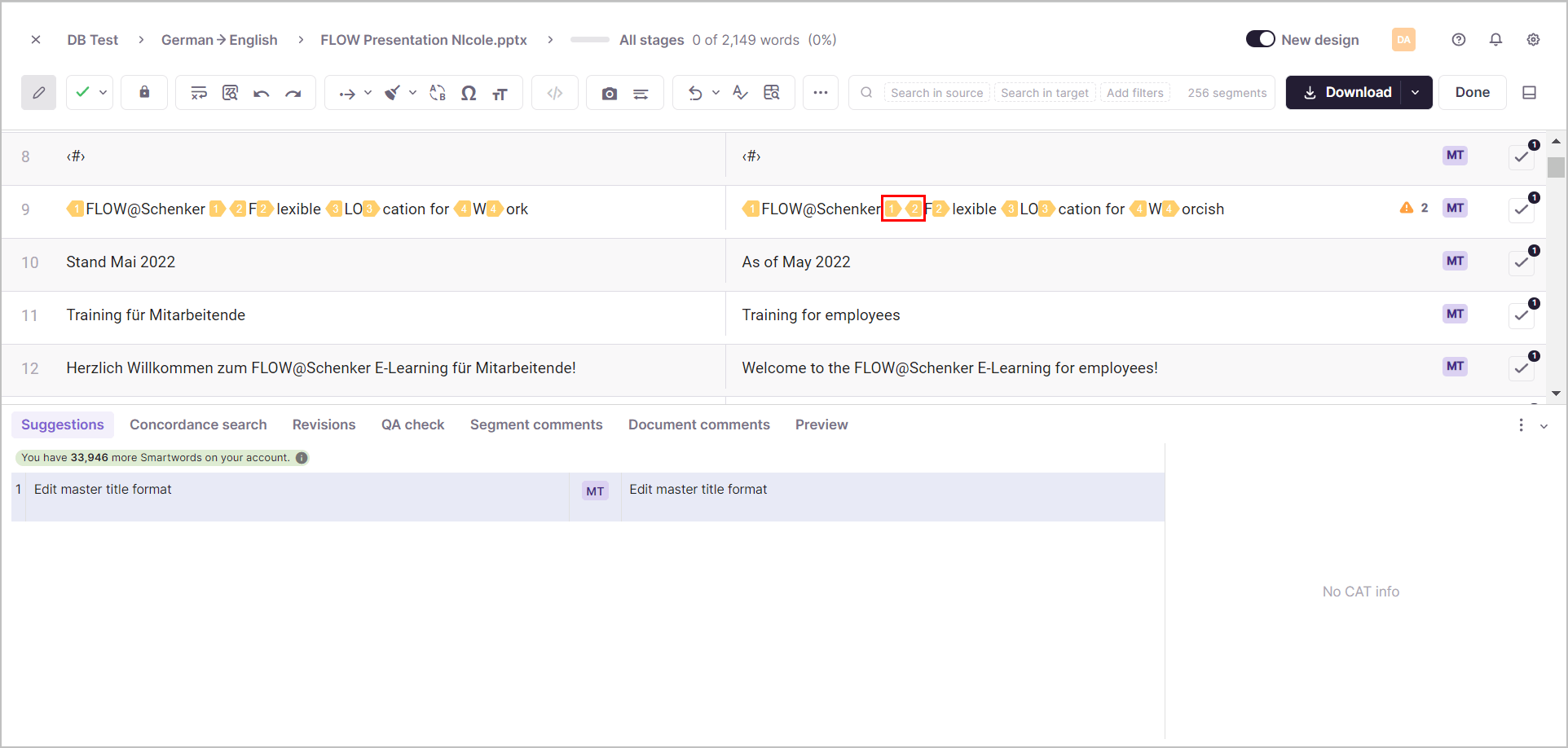
Adding tags manually
Sometimes you may need to add or delete tags manually. If you delete a tag, you can't confirm the segment until you add the tag back to the segment.
If the translation is missing a tag that is present in the source text you can add it quickly and easily yourself.
Follow these instructions to do so:
-
Place the cursor in the translation text where you want to place a tag, or select the target phrase with your cursor.
-
Use the keyboard shortcut of Alt + tag number.
Alternatively you can place the cursor in the translation where you need to put a tag or select the target phrase and click on the tag icon in the source text.
📌If a segment contains multiple tags, they are inserted in the same order as they appear in the source.
Hiding tags (tagless translation)
If a document has many tags, they can make segments harder to read and slow down translation. Smartcat lets you hide tags so you can work in a cleaner, "tagless" view. The tags are still preserved and reapplied to your translation, they are simply hidden from view while you work. Smartcat's Tag Aligner handles reinsertion automatically, placing hidden tags in the correct positions in your translated text.
📌 Tagless editing must be enabled for your workspace and Tagless editing is currently supported for all language pairs excluding Chinese, Japanese, and Korean. Tagless editing is of proven quality for the top 10 most translated languages, but Smartcat recommends human review when translating from or to languages outside the top 10 languages as the tag aligner may misplace tags. If you do not see the show/hide tags controls described below, the feature is not available for your current workspace or language pair.
Show or hide tags in the Editor
Use the Show/Hide tags button in the Editor toolbar to switch between showing and hiding tags. The keyboard shortcut is Shift + F8.
The button gives you two options:
-
Current segment only — show or hide tags in the segment you are working in.
-
All segments — show or hide tags across the whole document.
When tags are hidden, Smartcat keeps track of them in the background and reinserts them into your translation automatically, so the formatting of the final downloaded file is preserved.
📌If Smartcat's quality checks detect a tag alignment problem in a segment, tags are shown automatically for that segment and cannot be hidden until the issue is resolved. This protects the formatting of your final document. These alignment checks are performed by the Tag Aligner, which flags only cases where automatic reinsertion couldn't produce a safe result — so most segments need no manual tag work at all.
Always show tags (Editor settings)
You can also set a default for whether tags are shown. In the Editor, open Settings → Editor Settings → View options, then toggle Show tags in segments by default:
-
On — tags are always visible in every segment.
-
Off — tags are hidden by default, and you can reveal them per segment or for all segments using the Show/Hide tags button.
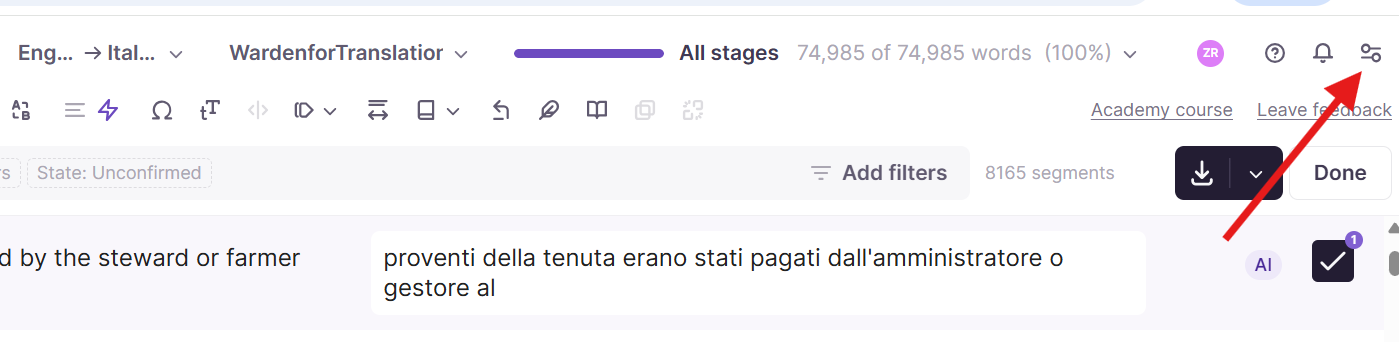
This preference is saved for your account.
Reducing tags in IDML (InDesign) files
Tagless viewing controls the display of tags. If you want to reduce the number of tags generated from an InDesign file, you can adjust the file's tag settings on upload. See Simplify text formatting in IDML files (https://help.smartcat.com/idml-file-tag-settings/), which offers Off / Moderate / Aggressive formatting-simplification options.
⚠️ Tagless mode is not supported for some formats, including several XLIFF-based formats (for example SDL XLIFF, MQ XLIFF, and Storyline/Easygenerator XLIFF). For these formats, tags are always shown.
Want to learn more?
See how Smartcat can transform your localization workflow.
Still need help?
Our support team responds within one business day.