Translating PDF Documents with AI
Smartcat's AI-powered PDF translation feature lets you translate PDF documents while preserving their original layout, formatting, and design. Upload your PDF, select your target language, and receive a fully translated document that looks just like the original.
When to use it
Use PDF translation when you need to:
-
Translate marketing materials, brochures, or flyers
-
Localize product documentation or user manuals
-
Translate reports, whitepapers, or presentations
-
Convert contracts or legal documents to another language (for reference purposes)
How it works
Step 1 — Upload your PDF
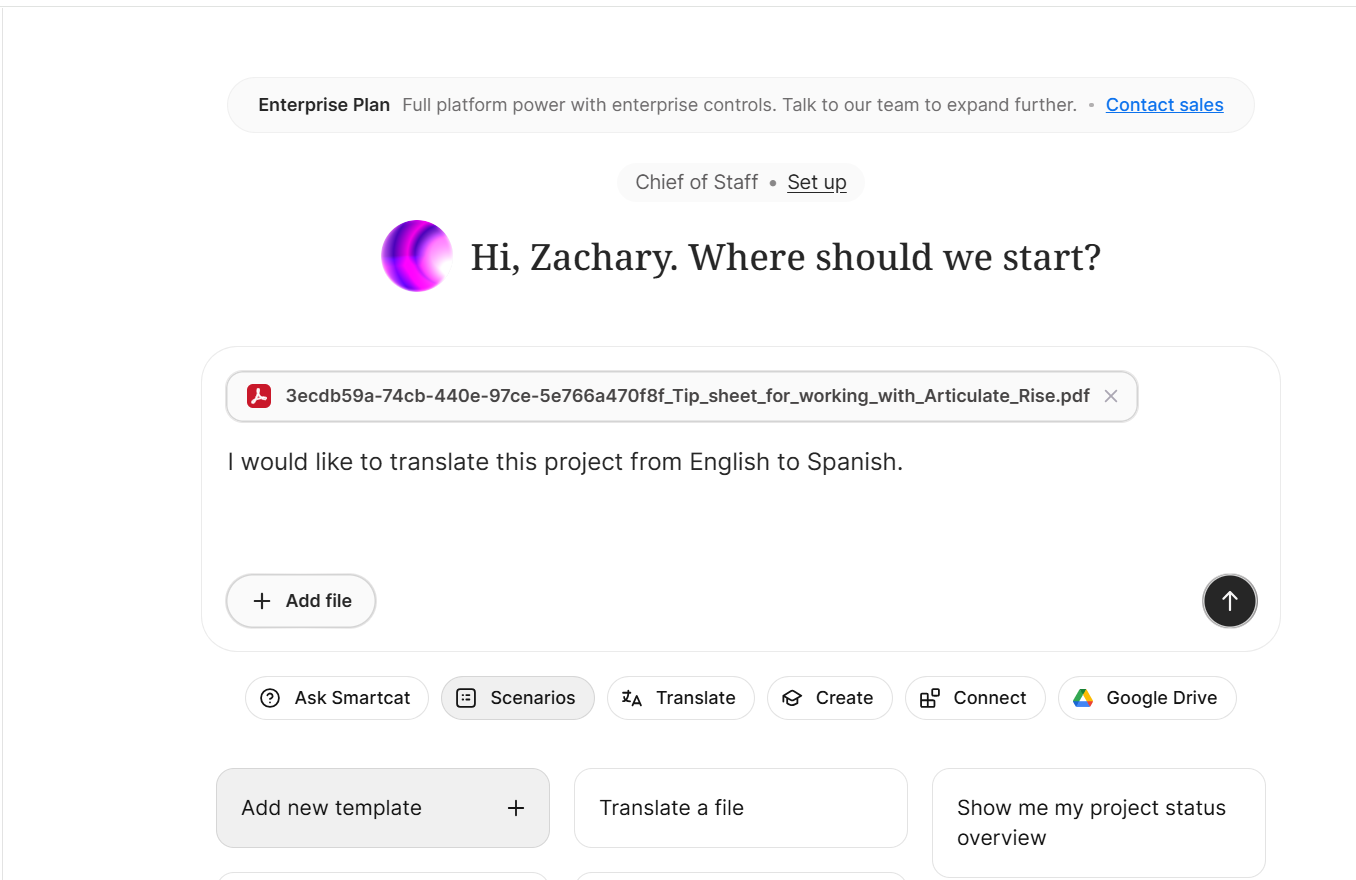
Upload your PDF document to Smartcat. You can drag and drop the file into the Smartcat AI chat window or click + Add file to select it from your computer or Smart Drive, then press Enter or click the arrow to upload the file.
Step 2 — Select your target language
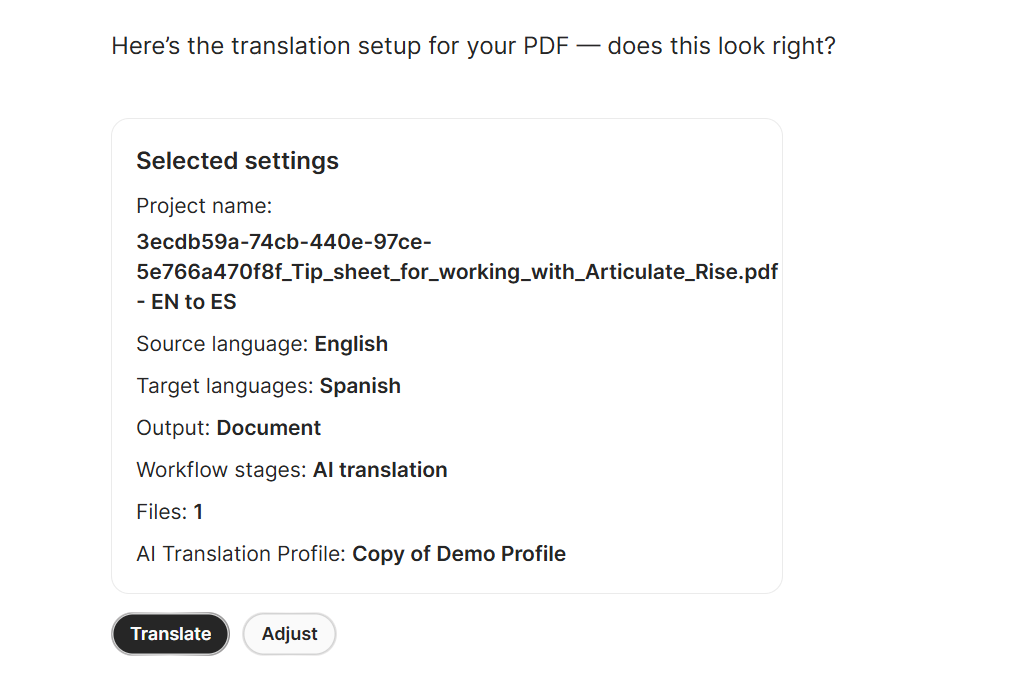
Choose the language you want to translate your document into. In the Smartcat AI chat you can identify the source language and any target languages for the translation. In a project, follow the New Project workflow.
Step 3 — Choose a workflow and start the translation
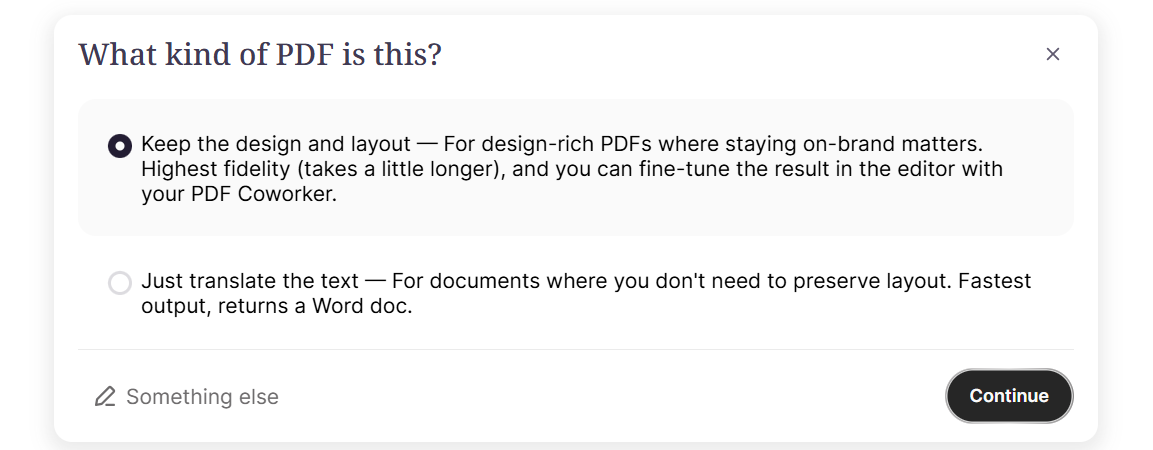
Select a workflow in the project or the Smartcat AI chat, then click Translate to begin. Smartcat's AI analyzes your document page by page, extracting text while preserving the layout. If you created the project through the Smartcat AI chat, it automatically creates a project and begins translating the
Step 4 — Review in real time
Open your project, select the workflow stage (AI translation), click the task, and watch your translated document come together in the live preview. Each page appears as it's completed, so you can see progress in real time.
Step 5 — Download your translated PDF
Once translation is complete, download your finished PDF. The translated document maintains the same layout, images, and formatting as your original.
What you can translate
PDF translation works best with:
-
Text-based PDFs — Documents created from word processors, design software, or other applications
-
Marketing materials — Brochures, flyers, posters, and promotional content
-
Business documents — Reports, presentations, proposals, and whitepapers
-
Product documentation — User guides, manuals, and specification sheets
-
Educational content — Training materials, course handouts, and worksheets
-
Documents with diagrams and icons — Charts, concentric/segmented diagrams, icons, and logos are reproduced faithfully alongside the translated text
Supported features
| Feature | Description |
|---|---|
| Layout preservation | Your translated document keeps the same design, columns, and formatting as the original |
| Image & graphic handling | Images, logos, icons, and vector diagrams are detected and recreated in their original positions, preserving sharpness and placement |
| Multi-page documents | Translate documents of any length |
| Real-time preview | See each page as it's translated |
| Glossary support | Apply your workspace glossary for consistent terminology |
| Translation memory | Leverage your existing translations for consistency |
Tips for best results
Prepare your document
-
Use high-quality PDFs — Documents with clear, selectable text translate more accurately than scanned images
-
Start with a test page — For complex documents, consider translating a single page first to verify formatting before processing the entire document. This lets you catch any layout issues early.
-
Check for embedded fonts — PDFs with standard fonts produce better results
-
Review complex layouts — Documents with unusual formatting may need minor adjustments after translation
Improve translation quality
-
Set up a glossary — Add key terms and their translations to your workspace glossary before translating. The AI will use these terms consistently throughout your document.
-
Build translation memory — If you've translated similar content before, your translation memory helps maintain consistency across documents.
-
Specify context — When starting the translation, you can provide context about the document type or industry to improve accuracy.
After translation
-
Review the output — While AI translation is highly accurate, we recommend reviewing the final document, especially for customer-facing or legal content
-
Check tables and complex layouts — Tables and multi-column layouts may need minor alignment adjustments
-
Verify image placement — Images and logos generally stay in place, but positioning may shift slightly in complex layouts
-
Download promptly — Your translated documents are available for download immediately after completion
Requirements
-
A Smartcat workspace with AI translation enabled
-
PDF files up to 100 MB in size
-
Documents with selectable text (not scanned images)
Limitations
-
Scanned PDFs — Documents that are scanned images rather than text-based PDFs may not translate accurately
-
Handwritten content — Handwritten text within PDFs is not supported
-
Complex interactive elements — Form fields, buttons, and interactive elements may not be preserved
-
Right-to-left languages — Some complex RTL layouts may require manual adjustment
-
Some language pairs — Certain less-common language combinations (e.g., Armenian) may have limited support. If translation fails for a specific language, try an alternative target language.
-
Font handling — Some specialized fonts may be substituted with similar alternatives. Bold/italic formatting is generally preserved, but exact font matching isn't guaranteed.
-
Table formatting — Complex tables may require minor adjustments after translation. The AI preserves table structure but alignment may shift slightly.
-
Text inside images — Text baked into an image (rather than in the document's text layer) is translated using image text recognition. This usually works well, but may be slightly less accurate than the main body text and is worth a quick review.
FAQs
How long does translation take?
Translation time depends on document length and complexity. A typical 10-20 page document takes 15-45 minutes. Longer documents (60+ pages) may take significantly longer. You can watch progress in real time as each page is translated.
Will my formatting be preserved?
Yes. Smartcat's AI analyzes your document's layout and recreates it in the translated version. Text boxes, columns, images, icons, and vector diagrams are detected individually and kept in their original positions, so the translated document matches the look of the original.
Can I edit the translation?
The PDF translation feature produces a final translated document. For documents requiring extensive editing, consider using Smartcat's CAT editor with the original source files.
What languages are supported?
Smartcat supports translation between dozens of language pairs. Check your workspace settings for the full list of available languages.
Can I use my glossary and translation memory?
Yes. When you start a translation, Smartcat automatically applies your workspace glossary and translation memory to ensure consistent terminology.
What if I'm not satisfied with the translation?
You can ask the AI to redo specific pages or make adjustments. For example, you can say 'redo page 3' or 'translate only pages 5-7'. For documents requiring extensive editing, consider using Smartcat's CAT editor with the original source files.
Want to learn more?
See how Smartcat can transform your localization workflow.
Still need help?
Our support team responds within one business day.