Inviting team members and assigning roles
Overview
After your workspace is configured, the next step is to invite your team. Smartcat supports unlimited users on all plans, and you can assign different roles to control what each person can do. This article covers how to invite team members and best practices for enterprise team setup.
For a full explanation of available roles, their permissions, and how to create custom access levels, see User Roles & Access Rights: Preset Roles.
Before you begin
Prerequisites:
-
You must have Administrator permissions in the workspace
-
For Organization Admin capabilities (managing Smartwords across workspaces), your organization must be on an Enterprise plan with Organization Management enabled
Time required: 5–10 minutes per team member
How to invite team members
Step 1: Access the Team section
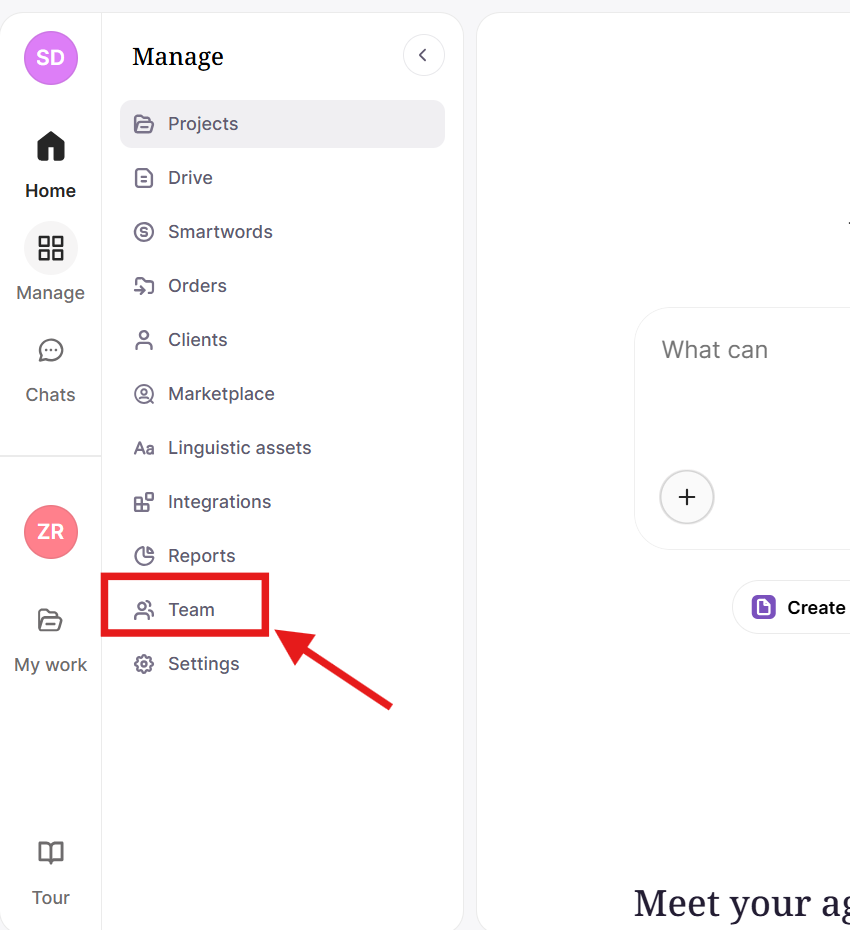
- Click the left sidebar navigation and select Teams
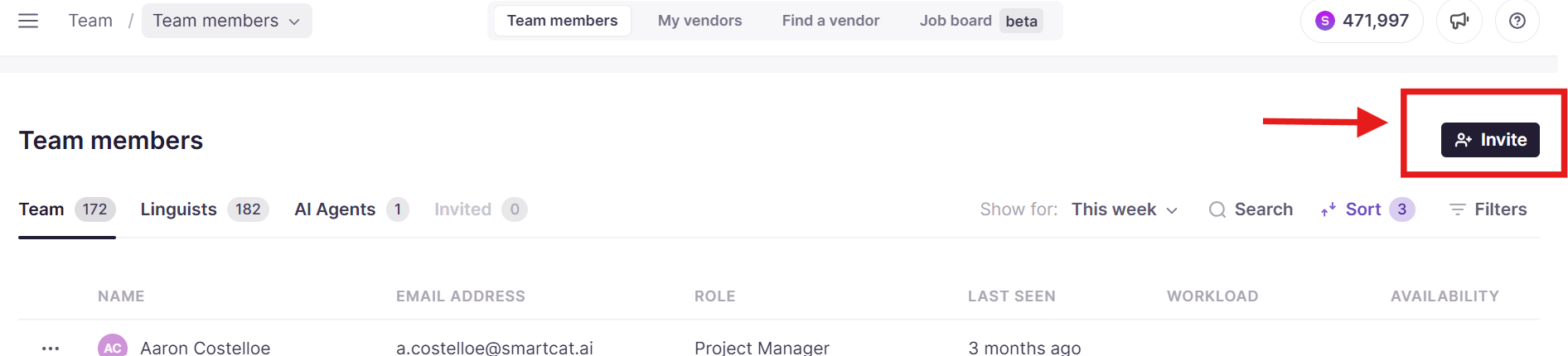
- Click Invite
Step 2: Start the invitation
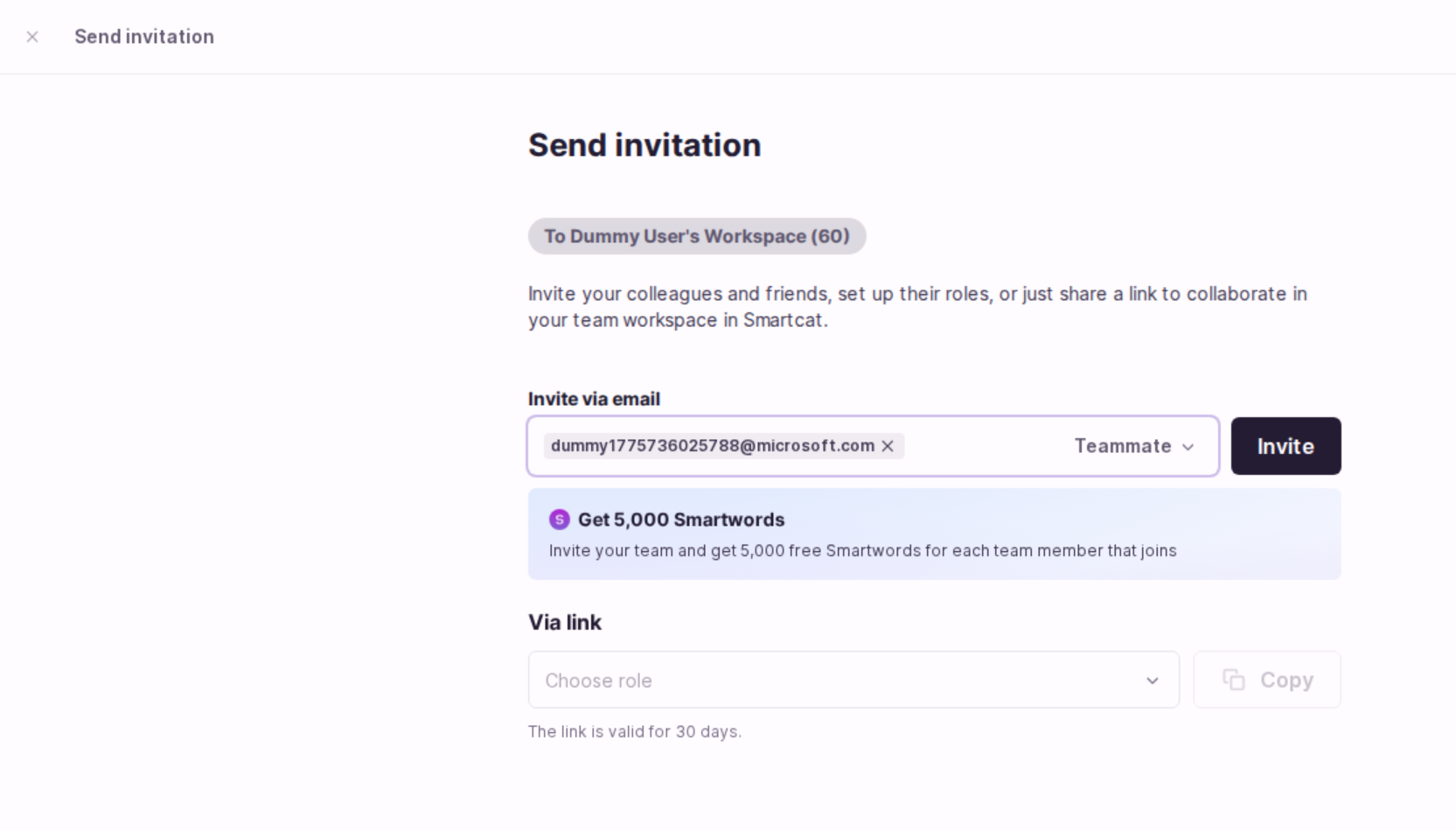
On the Send invitation screen, send invites in one of two ways:
-
Enter the team member's email address. You can enter multiple email addresses at once. Select the role associated with the invitations.
-
Select a role from Via link and click Copy to copy the link to your clipboard.
Step 3: Assign a role
Select the appropriate role for the team member. For a full description of each role and its permissions, see User Roles & Access Rights: Preset Roles.
Step 4: Send the invitation
-
Click Invite to send the invitation via email
-
The invited user receives an email with instructions to join
-
Once they accept, they appear in your Team list
Organization Admin role (Enterprise only)
The Organization Admin role is a special role for Enterprise customers that enables management across multiple workspaces.
What Organization Admins can do
-
Manage Smartwords allocation across workspaces
-
Control which workspaces access shared subscription benefits
-
Enable or disable workspace access to organization-level resources
-
Transfer Smartwords between workspaces
How to get Organization Admin access
The Organization Admin role must be assigned by Smartcat — it cannot be self-assigned.
Process:
-
Your Customer Success Manager (CSM) requests the email of the person who should be Organization Admin
-
CSM creates a support ticket with the organization ID and user email
-
Smartcat Customer Experience team assigns the role
-
The user can then access Organization Management via the three-dot menu next to the organization name
Prerequisites:
-
Organization must be on Enterprise tier
-
Organization Management must be enabled (automatic for new Enterprise subscriptions; manual activation required for existing subscriptions)
-
User must already be a member of the organization
Glossary permissions
Understanding glossary permissions helps you assign the right roles:
| Action | Administrator | Project Manager / Teammate | User / Linguist |
|---|---|---|---|
| Add terms directly | ✅ | ✅ | ❌ |
| Edit terms | ✅ | ✅ | ❌ |
| Delete terms | ✅ | ✅ | ❌ |
| Approve suggested terms | ✅ | ✅ | ❌ |
| Suggest terms | ✅ | ✅ | ✅ |
How term suggestions work:
-
Users and linguists can suggest terms from the Editor
-
Suggested terms appear in the Suggested Terms tab in Linguistic Assets → Glossaries
-
Administrators or teammates with glossary-management rights review and approve or reject suggestions
-
Approved terms become active in the glossary
Note: There are no automatic email notifications for pending term suggestions. Establish a team process for regularly checking the Suggested Terms tab.
Best practices for enterprise teams
1. Plan your role structure before inviting
-
Map out who needs what level of access
-
Consider creating custom roles for specialized needs — see User Roles & Access Rights: Preset Roles for how to create them
-
Document your role assignments for onboarding new team members
2. Use the principle of least privilege
-
Start with lower-permission roles and upgrade as needed
-
Use the Linguist role for external freelancers and vendors who only need task access
-
Reserve Administrator access for those who genuinely need to manage users, billing, and workspace settings
FAQs
Is there a limit to how many users I can invite to my workspace?
No — Smartcat supports unlimited users on all plans; you just assign each person a role that controls what they can do.
What are my two options for inviting someone?
Enter their email address directly (you can add multiple at once) and choose a role, or generate a shareable "Via link" invitation with a preset role for anyone who opens it.
What can an Organization Admin do that a regular Workspace Admin can't?
An Organization Admin (Enterprise plans only) manages Smartwords allocation and workspace access across multiple workspaces, including transferring Smartwords between them — this role can't be self-assigned and must be granted by Smartcat via your Customer Success Manager.
Can a regular team member approve a term a linguist suggested for the glossary?
Only if they have Administrator or Project Manager/Teammate-level glossary permissions — a User/Linguist role can suggest terms but cannot approve, edit, or delete them.
Will I get an email if someone suggests a new glossary term?
No — there are no automatic notifications for pending term suggestions. It's worth setting up a team process to check the Suggested Terms tab regularly.
Want to learn more?
See how Smartcat can transform your localization workflow.
Still need help?
Our support team responds within one business day.