Filter segments in the CAT editor
Overview
In the CAT editor, you can filter segments by various criteria to focus on the work that matters and move through your files faster.
Available filters
Segment status / Key
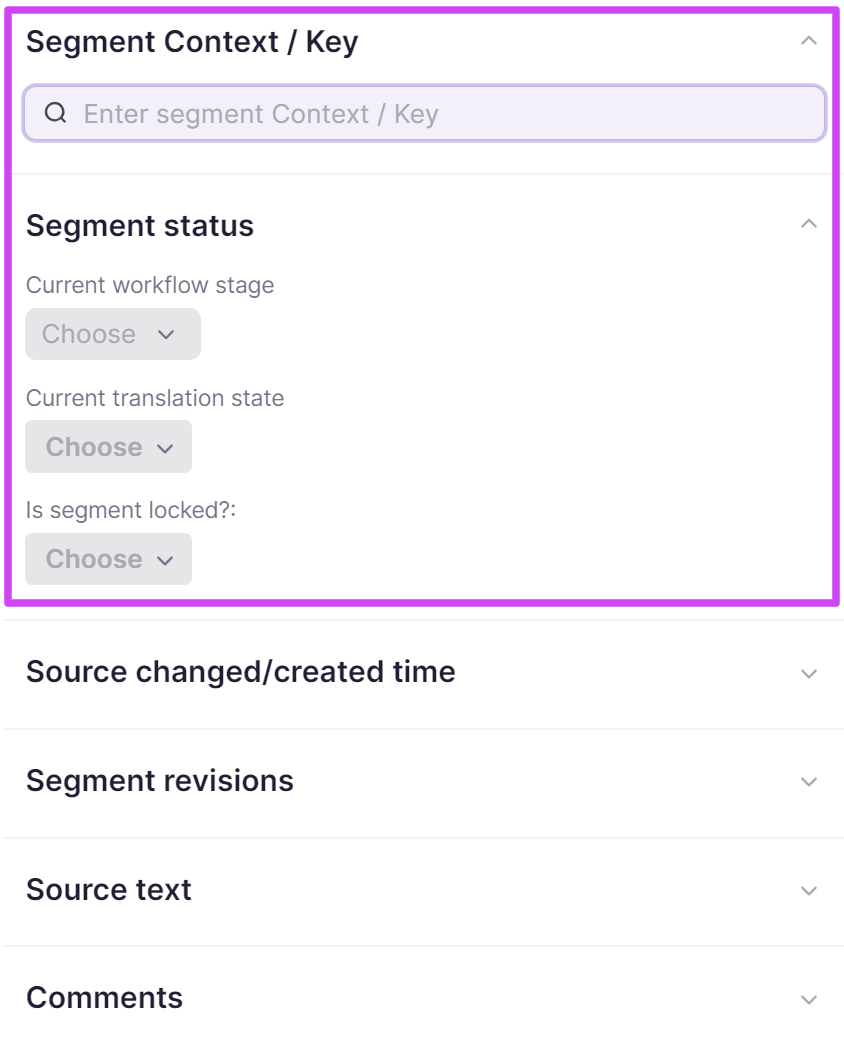
This filter lets you locate segments at a specific workflow stage (translation, post-editing, all) or translation stage (no translation, confirmed, unconfirmed), and exclude locked segments if needed.
Segment revisions
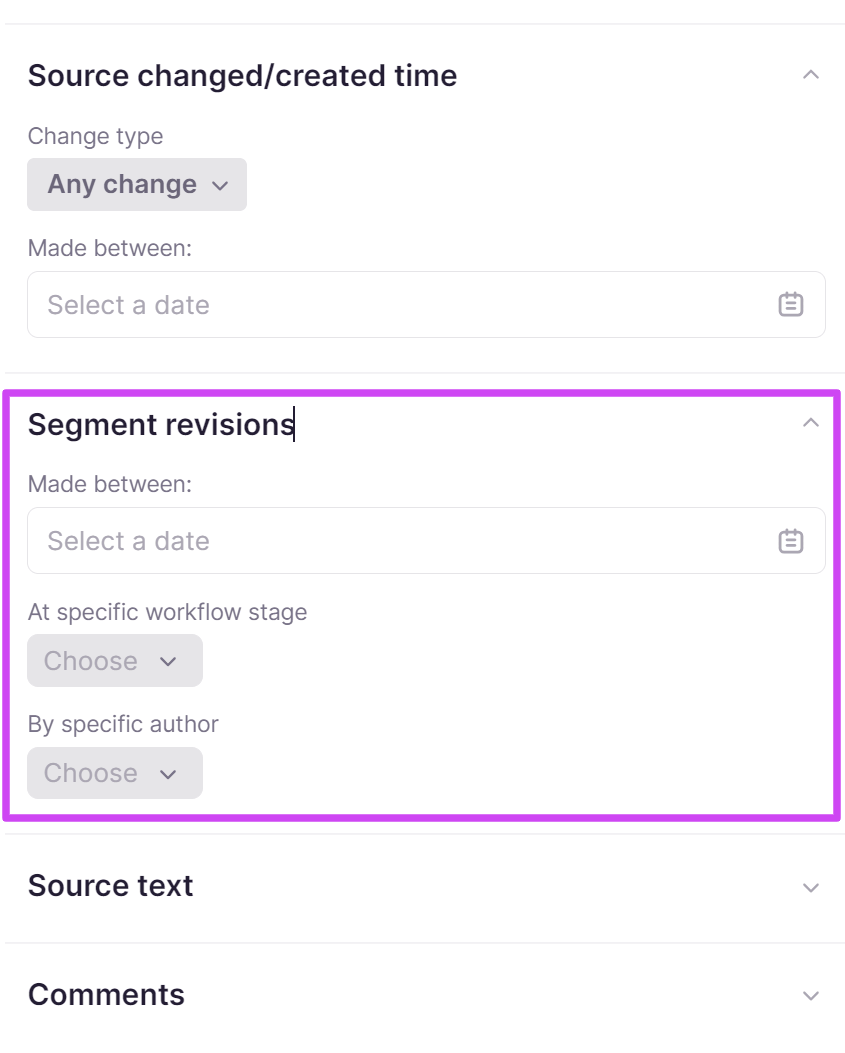
This filter tab helps you find segments by revision dates, workflow stages, and specific authors.
Source text
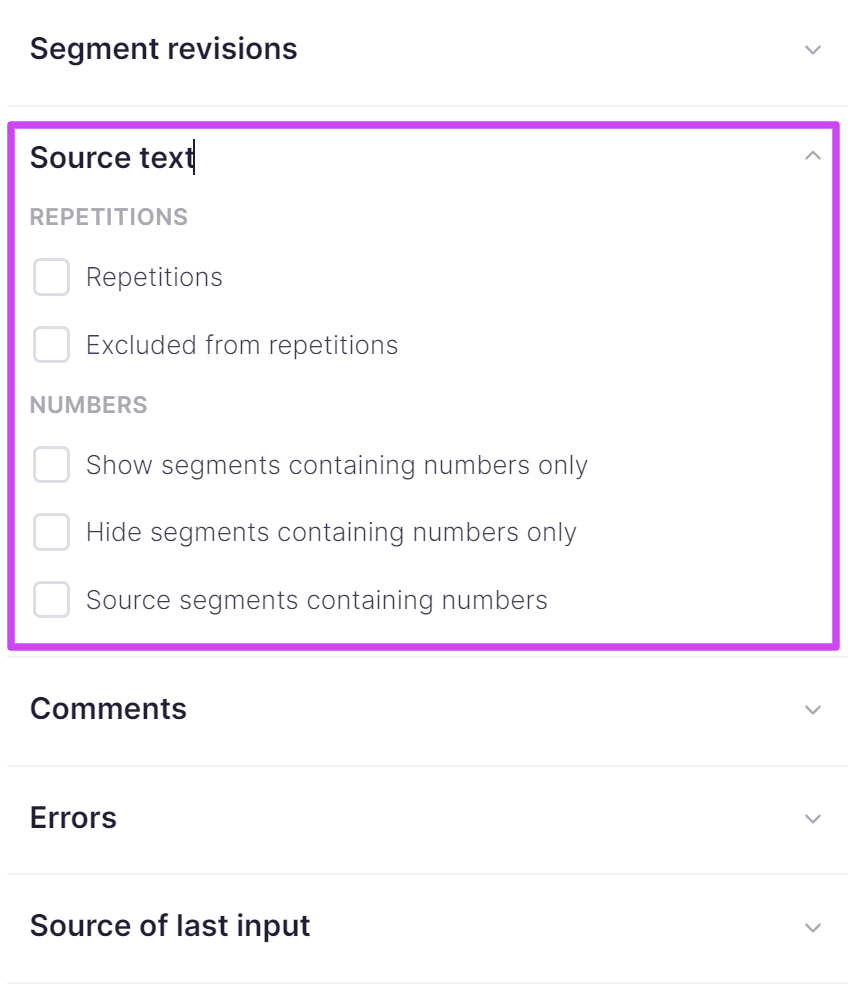
This tab lets you filter segments by their content and include or exclude repetitions. You can also use this filter to show or hide segments that contain only numbers. In this case you see segments with at least one number and one text character.
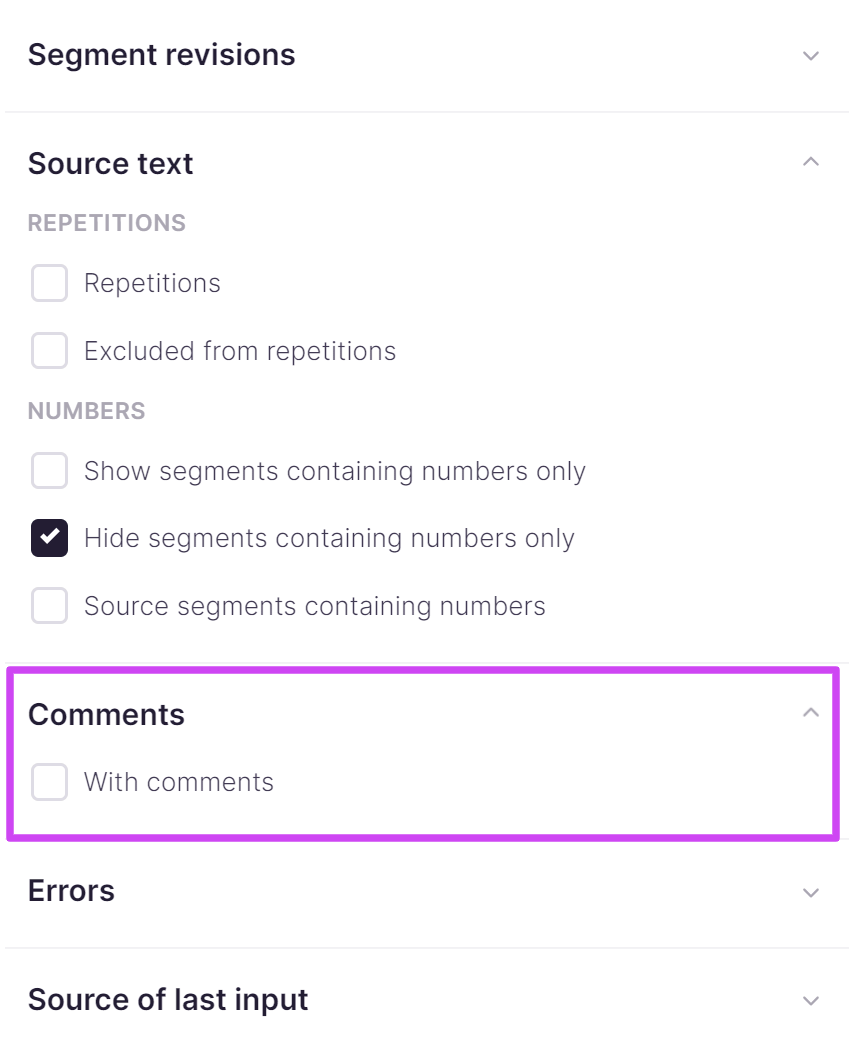
Comments
Use the With comments checkbox to find segments that have comments.
Errors
This filter helps you find segments with detected or ignored errors.
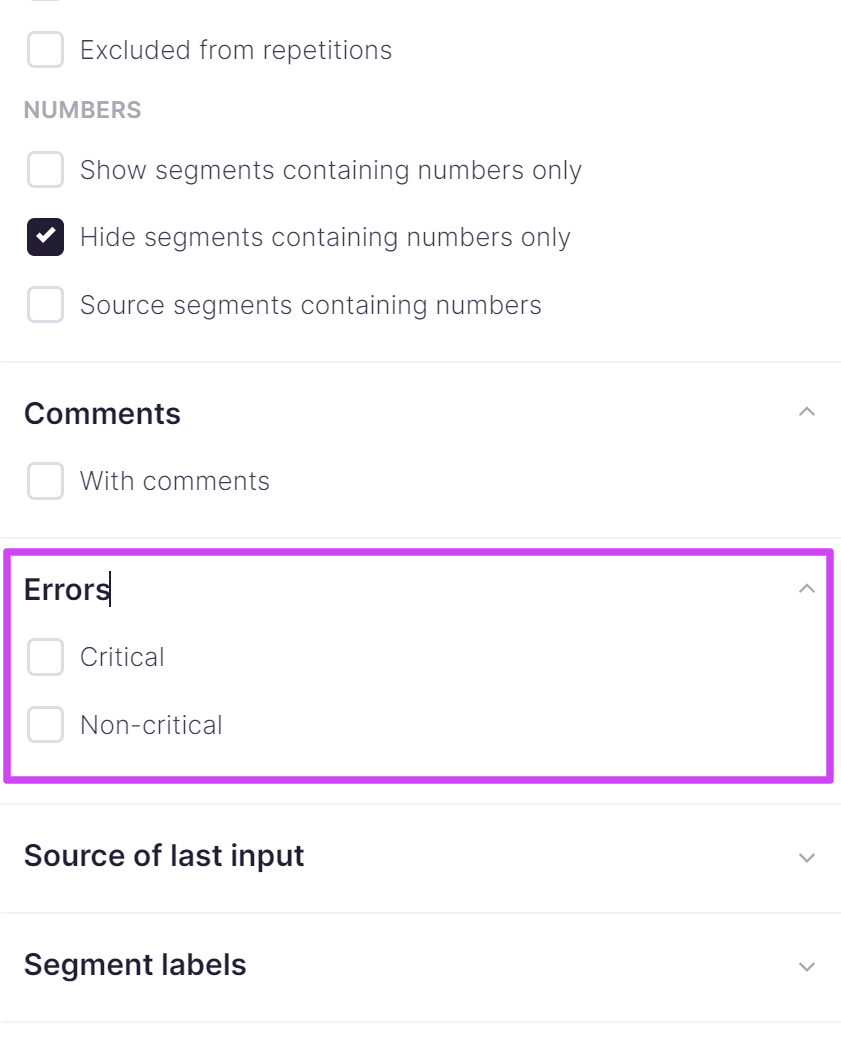
📌 Segments with critical errors cannot be confirmed before the errors are corrected. If you apply the Confirmed filter in parallel, segments with critical errors are not displayed.
The Ignored option is only available for freelancers.
Source of last input
This option lets you filter segments by their translation source (machine translation, updated from file, manual input) and by the match percentage for Translation Memory (TM) matches. Learn more about TM matches.
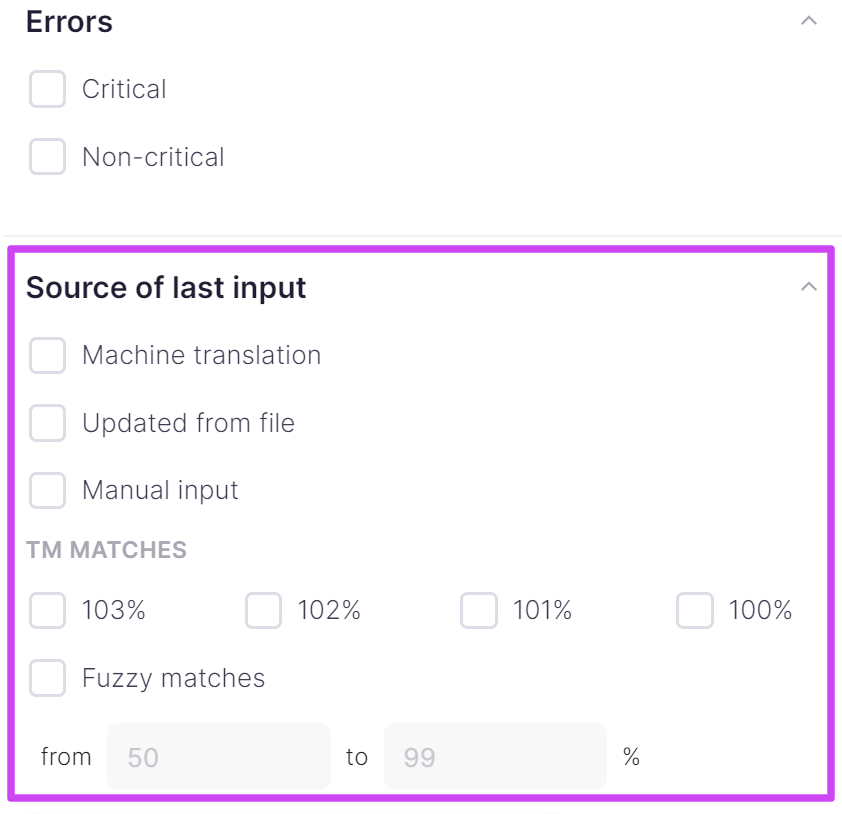
📌 The source used in this filter is the most recent insertion. For example, if a fuzzy match from the Translation Memory was inserted into a segment and then replaced by a 102% match, the segment is filtered as a 102% match.
Files with keys related to software localization projects have a filter for searching source segments by Segment ID.
Adding and removing filters
-
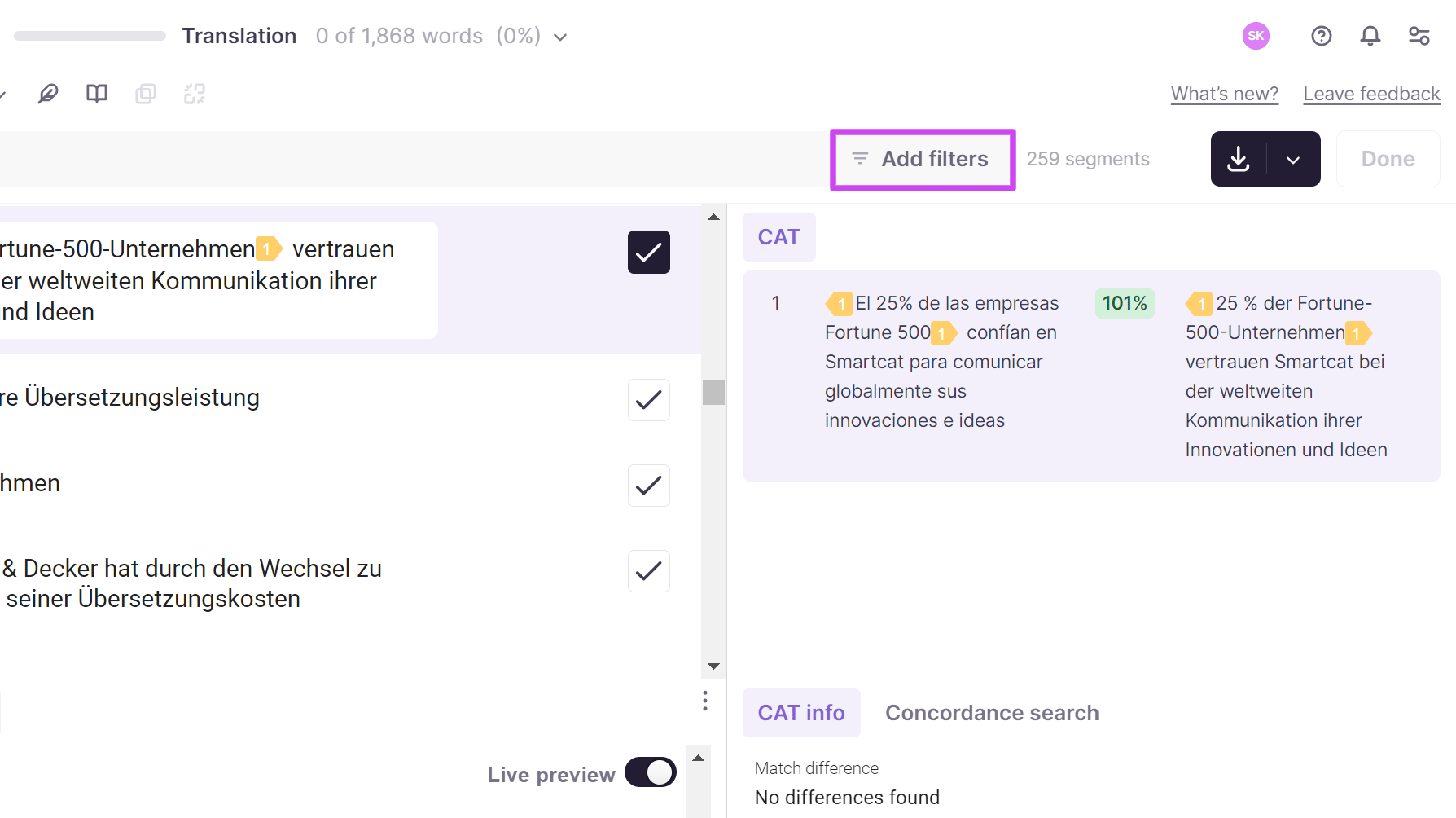
Click Add filters in the search bar of the toolbar
-
Select a combination of search parameters from the drop-down menu
-
Combine different filtering parameters and, if needed, search and replace text in the filtered segments
Filtering results update in real time as you configure filters. To reset filters and display all segments, close the segment-filtering window.
You now have a filtered view that isolates the exact segments you want to work on.
FAQs
Can I filter segments to show only ones with unresolved comments?
Yes — check the "With comments" checkbox in the filter panel to find segments that have comments attached.
Can I filter for segments that were translated using a specific method, like machine translation vs. manual input?
Yes — the "Source of last input" filter lets you narrow by translation source (machine translation, updated from file, manual input) and by TM match percentage.
Why does a segment show as a 102% match in the filter even though I know it was originally inserted from a lower match?
The filter reflects only the most recent insertion source — if a fuzzy TM match was later replaced by a 102% match, the segment is now filtered under the 102% category.
Can I filter out locked segments when searching?
Yes — the Segment status/Key filter lets you exclude locked segments from your view if needed.
Is there a way to filter for segments with critical, uncorrected errors?
Yes — the Errors filter lets you find segments with detected or ignored errors; note that if you also apply the Confirmed filter, segments with critical errors won't show, since they can't be confirmed until fixed.
How do I reset all my filters and see every segment again?
Simply close the segment-filtering window to reset the filters and display the full, unfiltered segment list.
Want to learn more?
See how Smartcat can transform your localization workflow.
Still need help?
Our support team responds within one business day.