Work with the CAT editor in LQA Review mode
Overview
If you are assigned to perform an LQA (language quality assessment) review, working with the document in the CAT editor differs from regular translation in two ways:
-
Your goal is to assess existing translations, not to change them. The CAT editor is in read-only mode, and you can only highlight parts of the text and add comments
-
When you finish working with a segment, you mark it as complete by clicking the confirmation button (checkmark). You can still add comments after marking a segment complete. This confirmation exists only to help you track your progress. Confirmed segments are not saved into any Translation Memory (TM)
Open the editor in LQA Review mode
When you open the CAT editor in LQA Review mode (either in a project that has only the LQA Review workflow stage, or when you are a linguist assigned to the LQA Review workflow stage), you see a short animated demo of how to work in this mode. Click Learn more to open this documentation page.
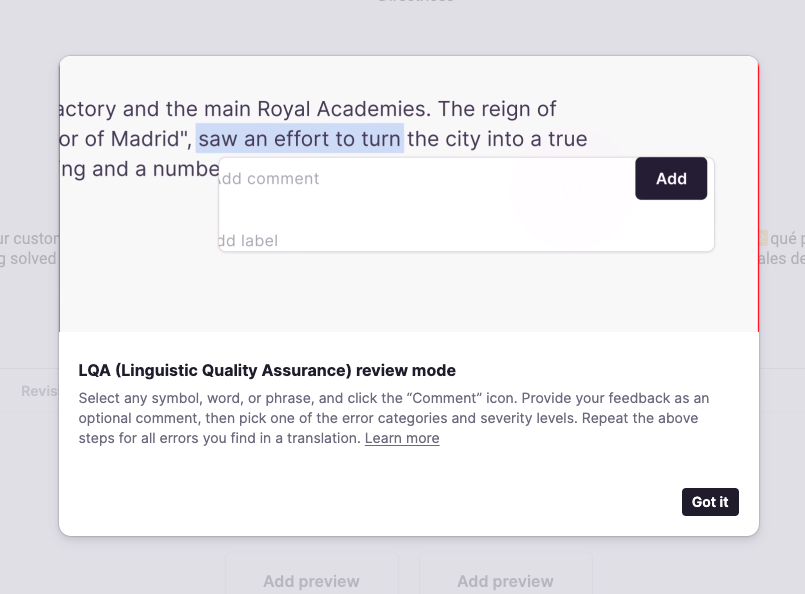
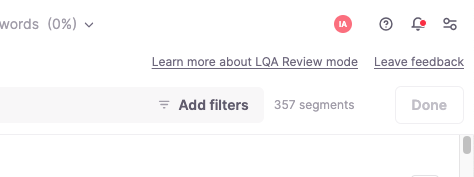
After closing this popup, you can return to this documentation page through the Learn more about LQA Review mode link in the top-right corner of the CAT editor.
Review segments and add comments
Go through each segment and check for errors or imperfections you want to highlight and categorize.
-
Select any portion of the translation to make the comment button appear
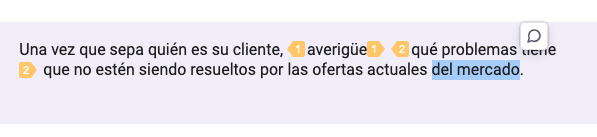
-
Click the comment button to add a free-form comment (optional) and a label (required)
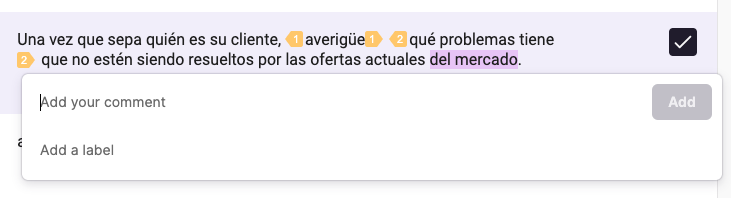
-
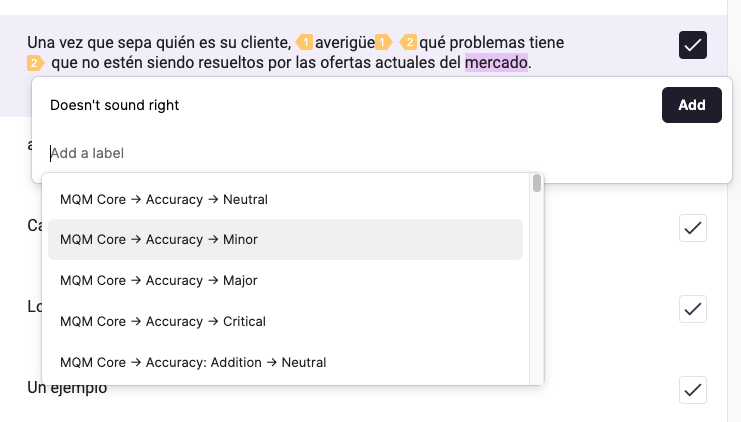
Choose a label from the list. Smartcat presents labels that indicate error type and severity. You can pick one or more labels
-
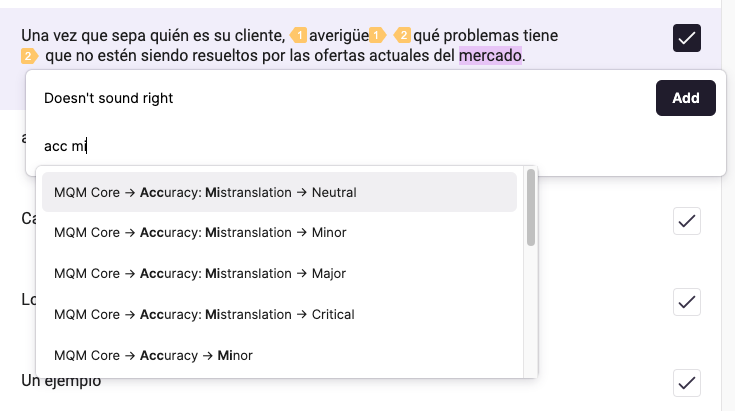
Start typing to narrow the list and find a label faster
-
With a label selected, click Add to close the dialog
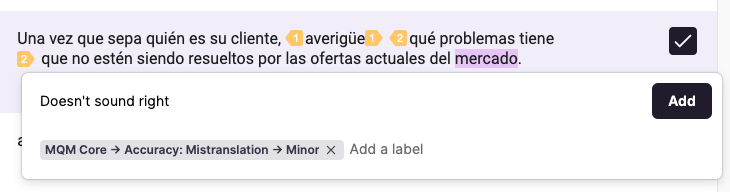
Your comment and label are attached to the highlighted text.
Manage segment comments
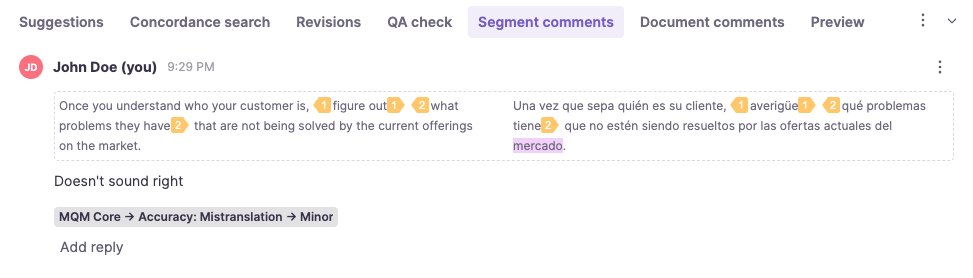
Segments that have comments show a comment indicator.

Click the indicator to open the Segment comments tab, where you can review all the comments you added and delete any comment you added by mistake.
Confirm segments and finish
-
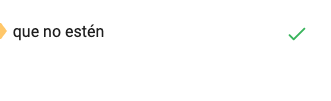
When you finish working with a segment, click the confirmation button to mark your progress through the document
-
After you go through all segments, click the Done button in the top-right corner of the CAT editor to complete your work. This button stays greyed out until you confirm all segments
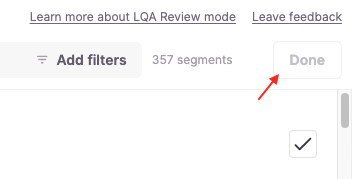
Your LQA review is submitted once all segments are confirmed and you click Done.
FAQs
Can I edit the translation directly while doing an LQA review?
No — in LQA Review mode the CAT editor is read-only; you can only highlight text and add comments, not change the translation itself.
What's required when I add a comment during an LQA review?
A label is required (indicating error type and severity), while the free-form comment text itself is optional.
Does confirming a segment during LQA review save anything into Translation Memory?
No — confirming a segment in LQA Review mode only helps you track your progress through the document; it is not saved into any TM.
Can I still add comments to a segment after I've already marked it complete?
Yes — marking a segment complete with the checkmark doesn't prevent you from adding further comments to it afterward.
What has to happen before the "Done" button becomes clickable?
You must confirm every segment in the document — the Done button stays greyed out until all segments are confirmed.
Want to learn more?
See how Smartcat can transform your localization workflow.
Still need help?
Our support team responds within one business day.