Add multilingual AI dubbing to videos
Overview
Smartcat lets you transcribe videos, fine-tune original transcripts, translate transcripts, and add AI dubbing to videos with female and male voice options. Follow these steps to create high-quality, multilingual videos using the Smartcat Subtitle Editor and AI dubbing.
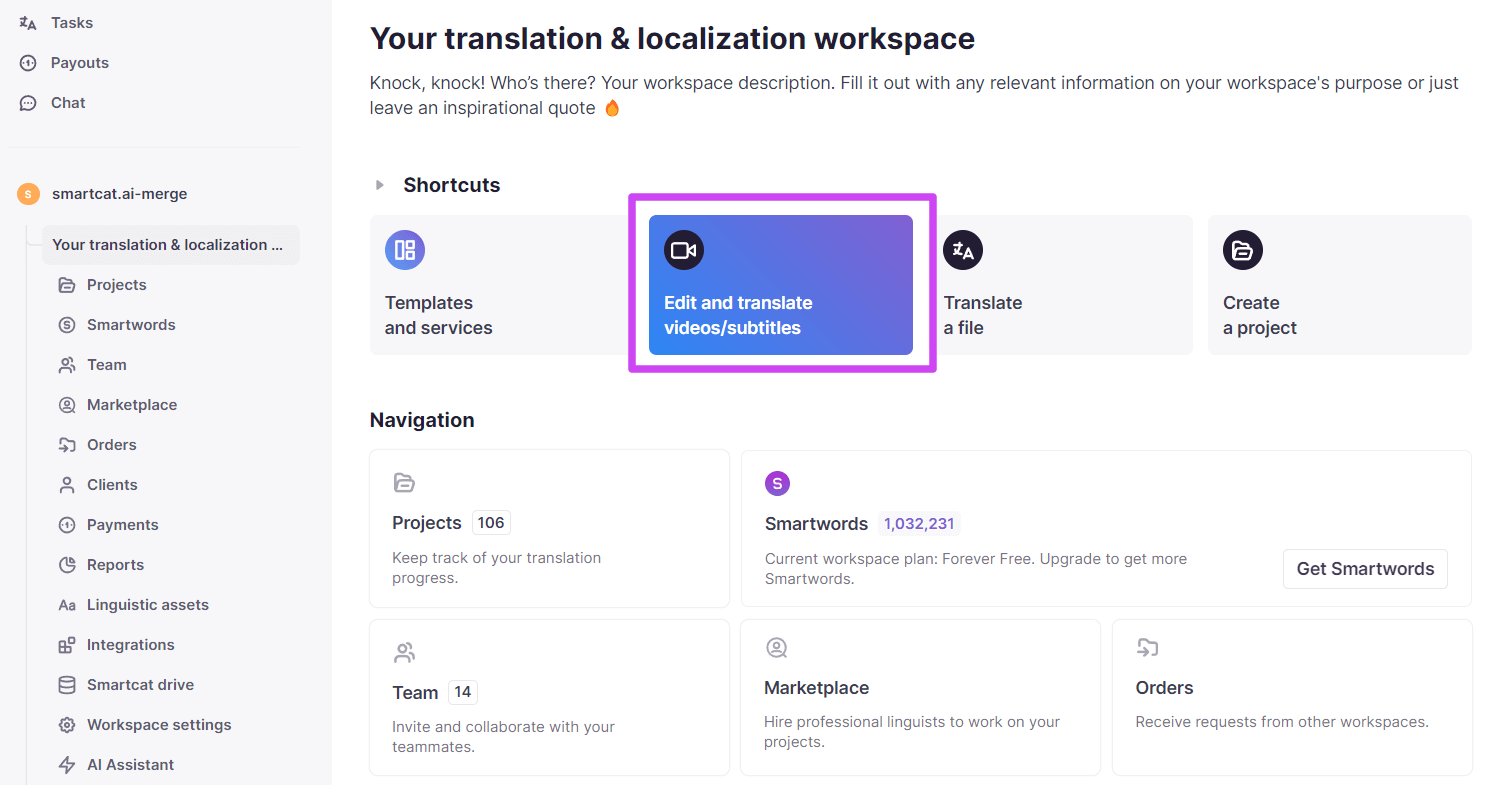
Step 1: Open the shortcut on your Workspace Home page
-
Log into Smartcat and go to your Workspace Home page
-
Click the shortcut called Edit and translate videos/subtitles
-
Choose the source language of your video or subtitle file. You can choose from the 280 languages supported by Smartcat
-
Upload your file. You can choose a video (MP4, MPEG, AVI, MOV, 3GP, and other video file types) or a subtitle file (VTT, SRT). Audio file types will be added to the Subtitle Editor soon. Uploading and transcription take a few minutes depending on file size, and you see the current step and progress
-
After processing, click Preview to open the Subtitle Editor
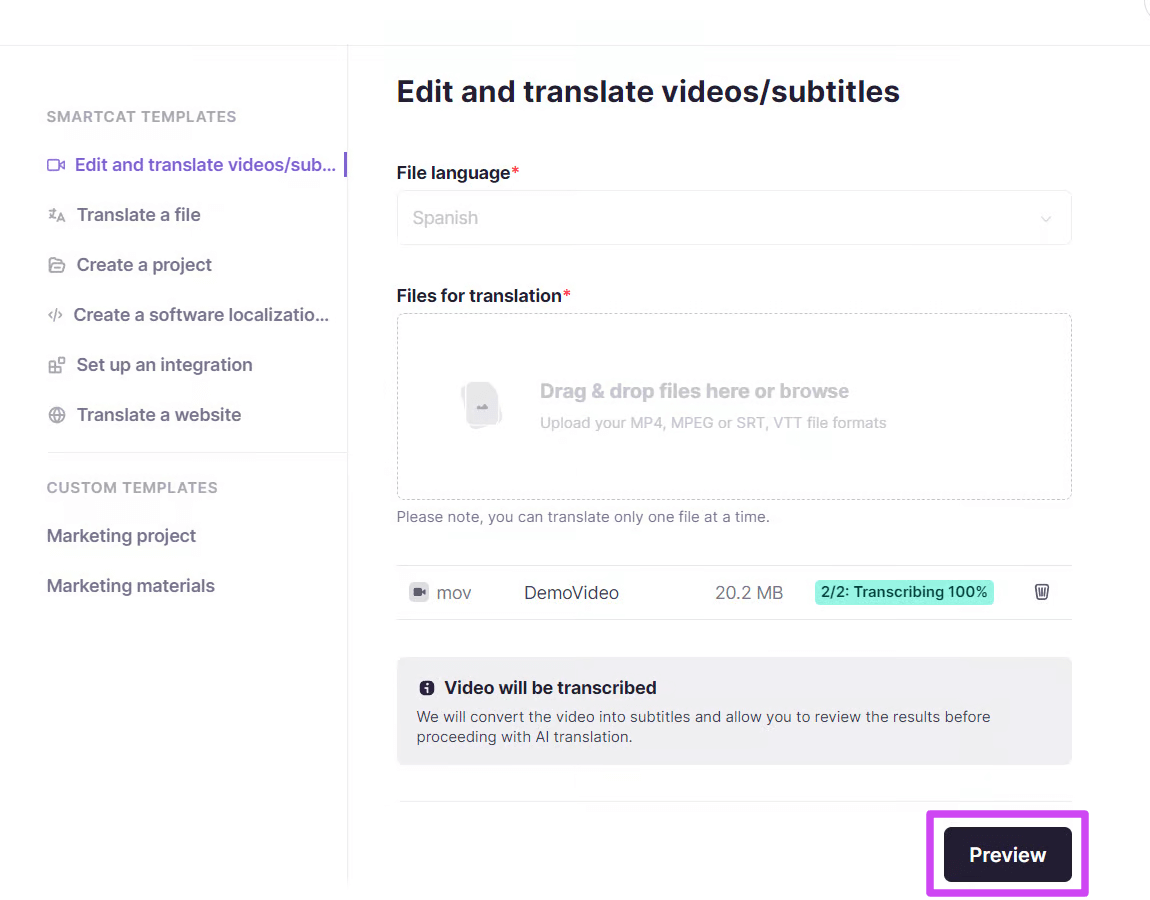
Your video is transcribed and ready to edit in the Subtitle Editor.
Step 2: Edit your subtitles
Start by reviewing the resulting script to confirm the transcription is correct. While Smartcat AI transcription is 95% accurate, a proper name may not be recognized, or an accent may cause the AI to miss an inflection, so double-checking the source text is important. You can preview the source video and confirm that all timecodes are as you want them.
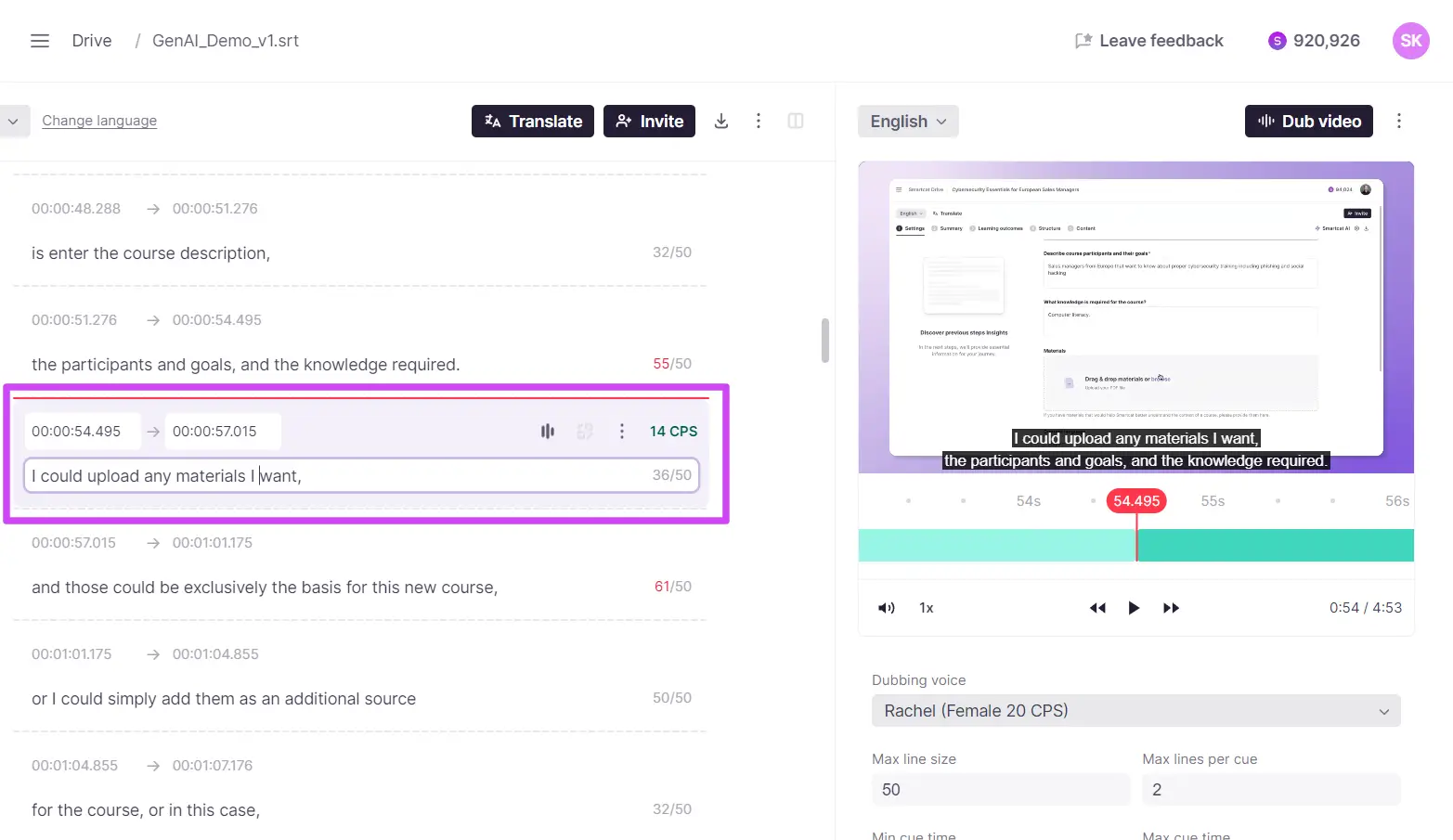
In the Subtitle Editor, you can do the following:
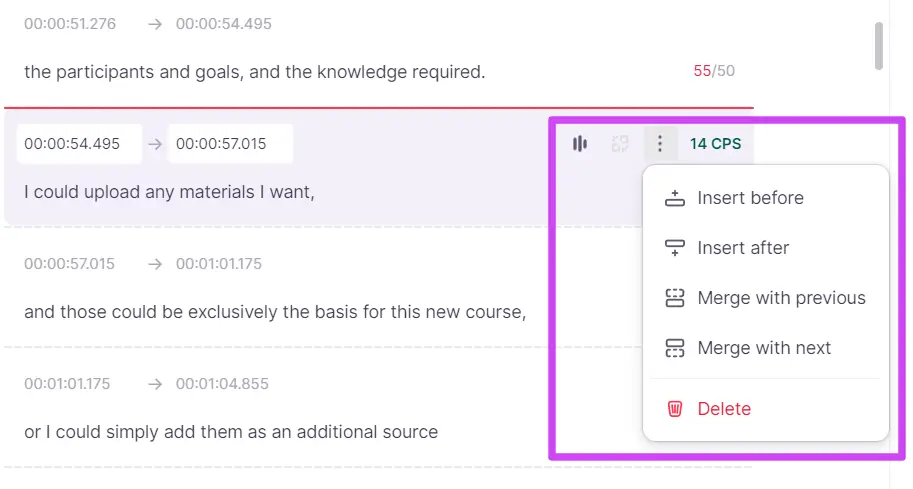
-
Merge cues: merges the selected cues into one
-
Insert a new cue (before or after): inserts an empty cue
-
Delete the whole cue: deletes a cue
-
Split by line: splits the lines into two separate cues
Best practices for adjusting cues in the editor
After you get the automatic transcription of your video's audio in the Subtitle Editor, you might want to adjust the cues. When you adjust timestamps, keep the complete sentence or clause in one cue to avoid pauses in the AI dubbing.
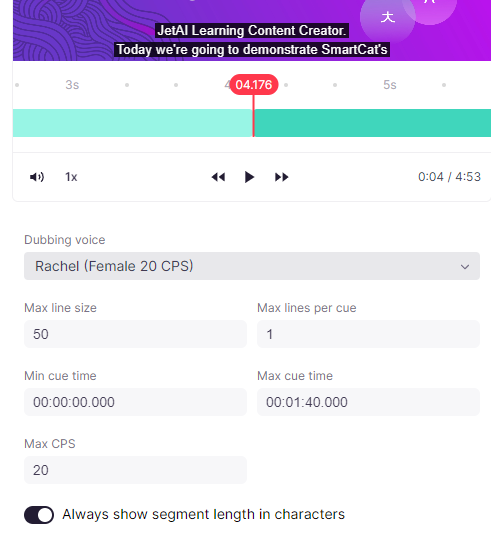
Cue editing guide
What is a cue?
In video editing, a cue is a specific marker that indicates where subtitles, transcripts, or captions appear in the timeline. Cues keep text elements synchronized accurately with the corresponding audio and visual content.
What is characters per second (CPS)?
Characters per second (CPS) refers to the number of characters that appear within one second of video. It measures the density of on-screen text and helps ensure readability. A lower CPS displays subtitles at a pace viewers can comfortably read. CPS also refers to the speed of speech for AI dubbing, where a higher CPS can indicate an unnaturally fast AI voice.
-
Select dubbing voice: choose the desired dubbing voice from the dropdown menu. In this case, "Rachel (Female 20 CPS)" is selected
-
Adjust cue settings: modify the cue settings, including line size, lines per cue, cue time, and CPS
-
Set min and max cue time: specify the minimum and maximum duration for each cue to keep it synchronized with the video
Explanation of settings parameters
Max line size: the maximum number of characters allowed in a subtitle line. This maintains readability by preventing lines from being too long.
Max lines per cue: the maximum number of lines that can appear in a single subtitle cue. This keeps subtitles from being too dense and easy to read.
Min cue time: the minimum duration a subtitle cue remains on screen. This keeps even short subtitles on screen long enough to read.
Max cue time: the maximum duration a subtitle cue remains on screen. This prevents subtitles from staying on screen too long and interfering with the reading flow of subsequent subtitles.
Max CPS (characters per second): the maximum number of characters per second. This keeps subtitles from being too dense, maintaining readability and preventing viewer overload. In this case, the max CPS is set to 20.
Step 3: Translate your subtitles
After you finish reviewing the script cues in the original language, translate your subtitles.
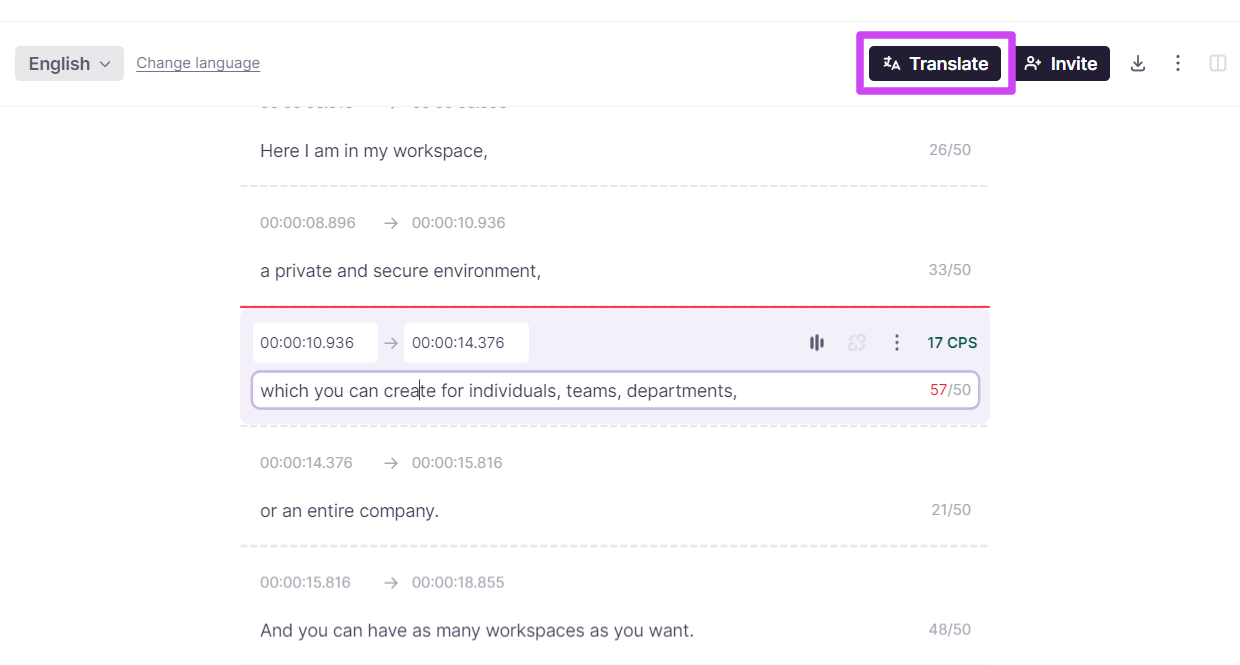
- Click the Translate button
-
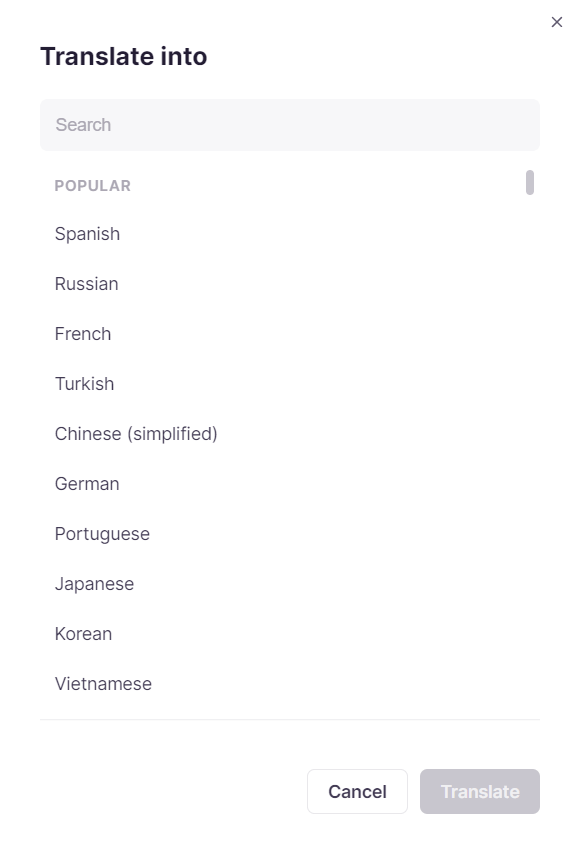
In the language selector window, select the target language
-
Click the Translate button again
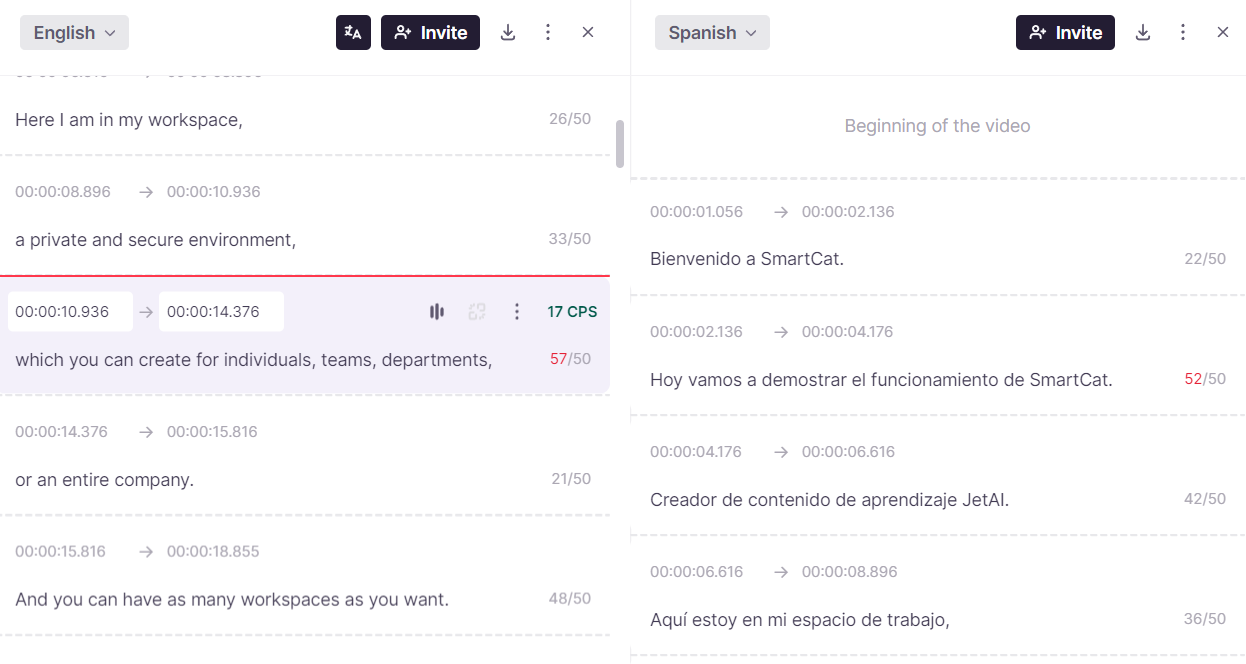
The editor is now split into two sections. Source-language text segments appear on the left and target-language text segments appear on the right.
Step 4: Review the translation
Make any necessary adjustments to the target-language text and time codes, as you did for the source text cues. The translated script inherits the timecodes from the original script, so the translated cues do not always match the precise timecodes of the original script.
You can still confirm correct positioning against the script structure and the context of the video with the help of Video Preview.
Step 5: Preview the AI dubbing
-
Select the AI voice under the Video Preview section
-
Choose the desired AI voice from the list
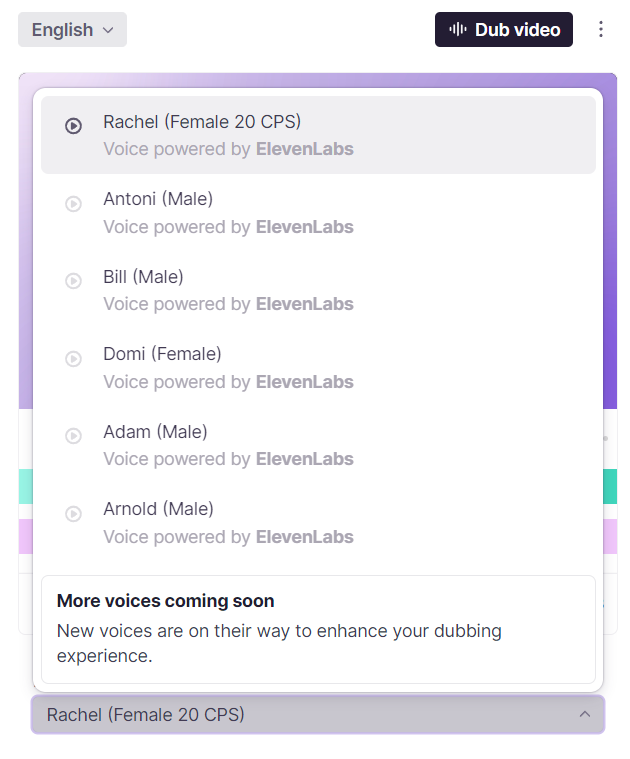
- Click the AI voice button, as shown below
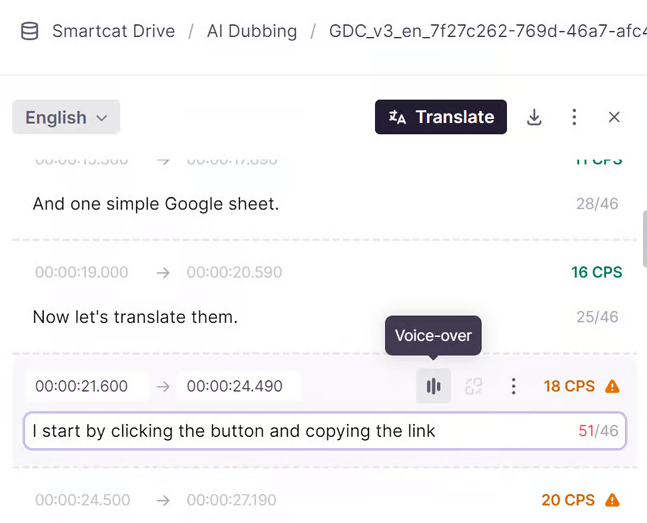
This works for both original and translated cues. You hear a preview of the AI voice in the target or source language.
Step 6: AI dubbing for your video
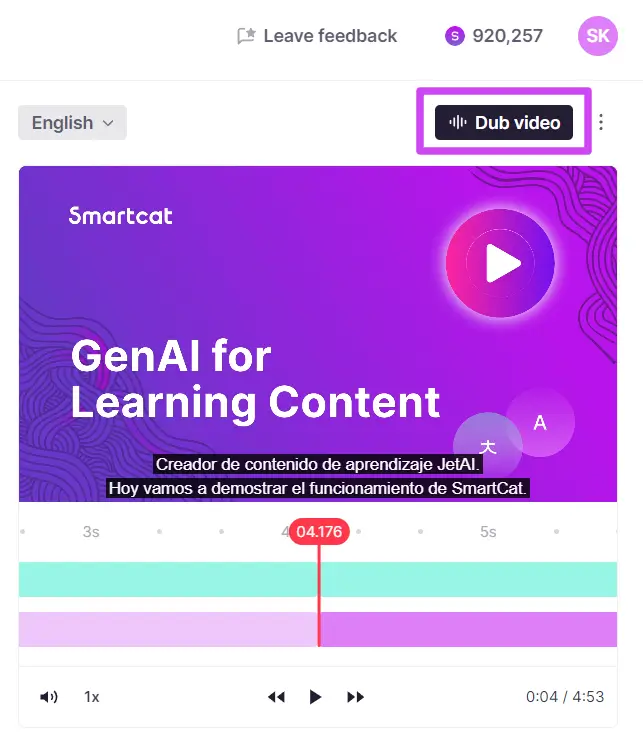
- Click the Dub video button above the video preview section to start the AI dubbing process
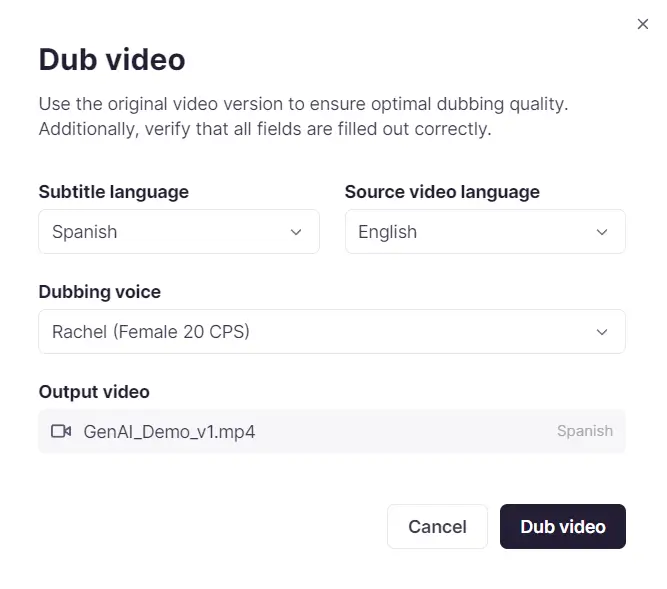
- In the pop-up, specify the subtitle language (the language used for AI dubbing), the source language, and the AI dubbing voice
-
Preview the AI voices from the list if needed
-
Click Dub video. Smartcat automatically generates a fully dubbed video
-
Track the dubbing process in the Video Preview section. When it is done, you see a notification that a new version of the video is available. Click Reload to update your video file in the Subtitle Editor
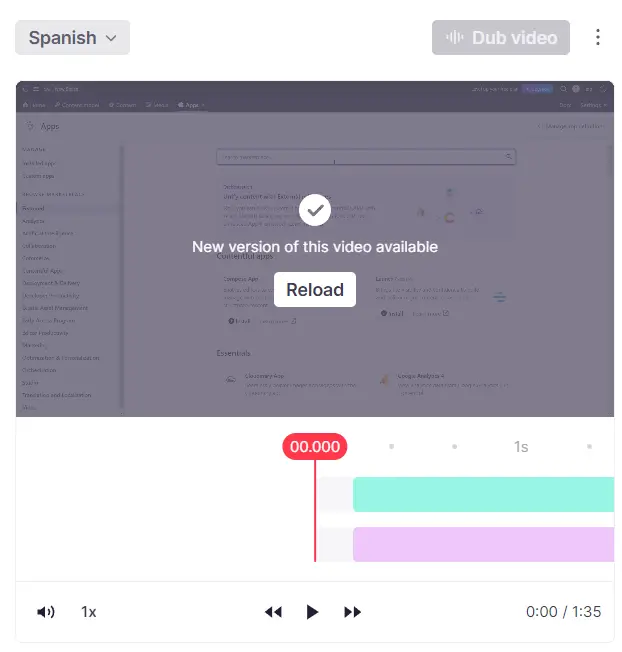
Use the language selector above to switch between language versions of your video.
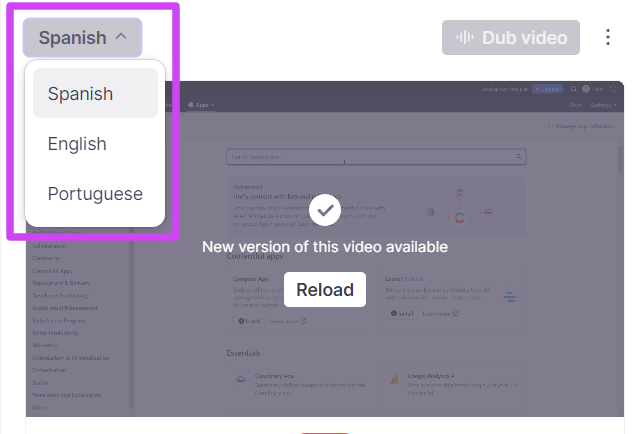
Your video is now dubbed in the selected language.
Step 7: Export your video
After the AI dubbing process is complete, download the resulting fully AI-dubbed video files. These files are ready for distribution across various platforms. You can download the video with AI dubbing for any of your language versions directly by going to the file in Drive.
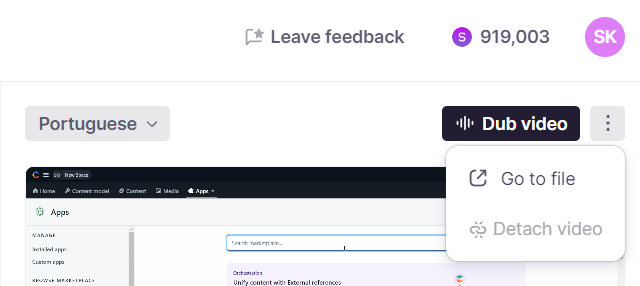
In Drive, you also see the AI dubbing progress and find all your files in one spot.
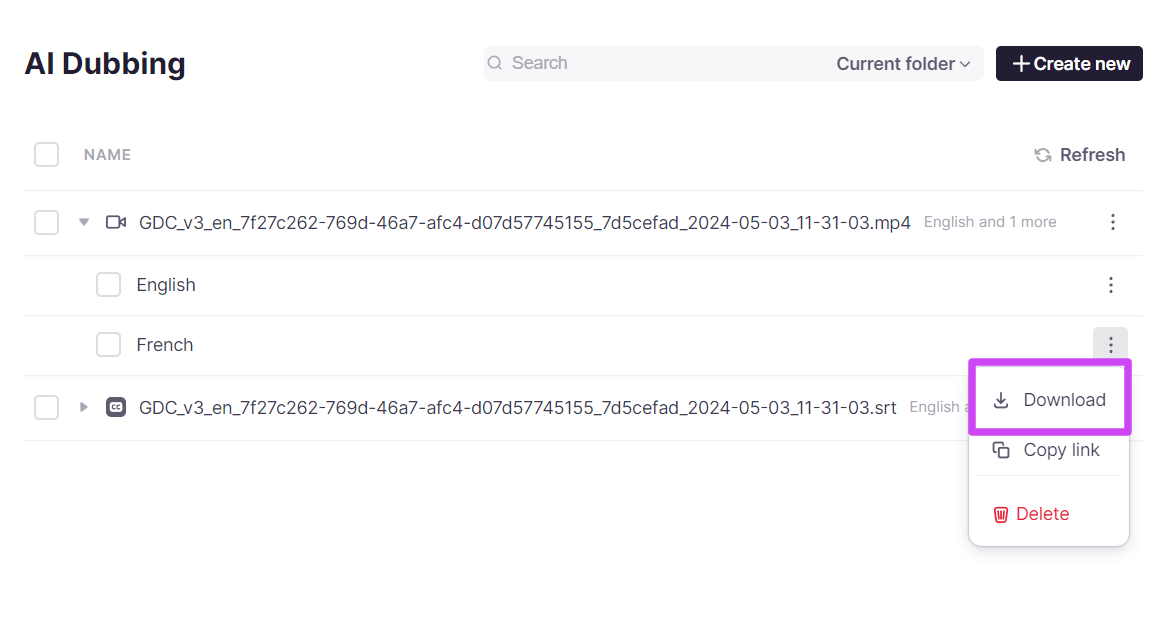
Overwriting existing dubbed versions
⚠️ If you attempt to dub a video that has already been dubbed, a warning appears to notify you that proceeding will overwrite the existing dubbed version.
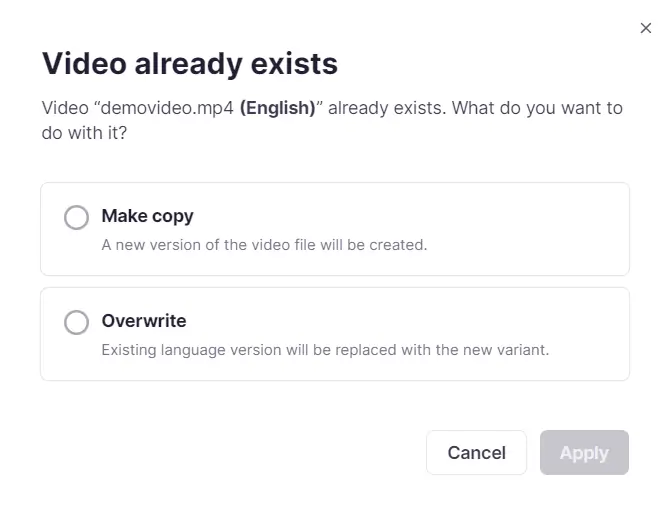
Confirm if you wish to proceed with the new dubbing. If confirmed, the new voice selection and dubbing process replaces the previous version. Once the new dubbing is complete, review the updated version to confirm it meets your expectations.
FAQs
What are the available languages for AI voice-over in Smartcat?
-
🇺🇸 English (USA)
-
🇬🇧 English (UK)
-
🇦🇺 English (Australia)
-
🇨🇦 English (Canada)
-
🇯🇵 Japanese
-
🇨🇳 Chinese
-
🇩🇪 German
-
🇮🇳 Hindi
-
🇫🇷 French (France)
-
🇨🇦 French (Canada)
-
🇰🇷 Korean
-
🇧🇷 Portuguese (Brazil)
-
🇵🇹 Portuguese (Portugal)
-
🇮🇹 Italian
-
🇪🇸 Spanish (Spain)
-
🇲🇽 Spanish (Mexico)
-
🇮🇩 Indonesian
-
🇳🇱 Dutch
-
🇹🇷 Turkish
-
🇵🇭 Filipino
-
🇵🇱 Polish
-
🇸🇪 Swedish
-
🇧🇬 Bulgarian
-
🇷🇴 Romanian
-
🇸🇦 Arabic (Saudi Arabia)
-
🇦🇪 Arabic (UAE)
-
🇨🇿 Czech
-
🇬🇷 Greek
-
🇫🇮 Finnish
-
🇭🇷 Croatian
-
🇲🇾 Malay
-
🇸🇰 Slovak
-
🇩🇰 Danish
-
🇮🇳 Tamil
-
🇺🇦 Ukrainian
-
🇷🇺 Russian
How many Smartwords does AI dubbing use?
Smartwords are calculated differently for AI dubbing. The cost uses the formula: 10 × {number of words in document}. For example, a document that requires AI dubbing containing 500 words costs 5,000 Smartwords. For more detail, the report covering consumed Smartwords for all cases, including AI dubbing, is available at smartcat.com/app/smartwords-usage via the Download detailed CSV report button.
Want to learn more?
See how Smartcat can transform your localization workflow.
Still need help?
Our support team responds within one business day.