Troubleshooting Login and Password Issues
Overview
This guide helps you resolve common login and password issues in Smartcat, including password reset problems, passwordless login issues, and security verification challenges. If you're experiencing SSO (Single Sign-On) issues, see the SSO setup and troubleshooting guide instead.
Requirements and Limitations
- You must have access to the email address associated with your Smartcat account
How it works
Resetting your password
Step 1 — Request a password reset
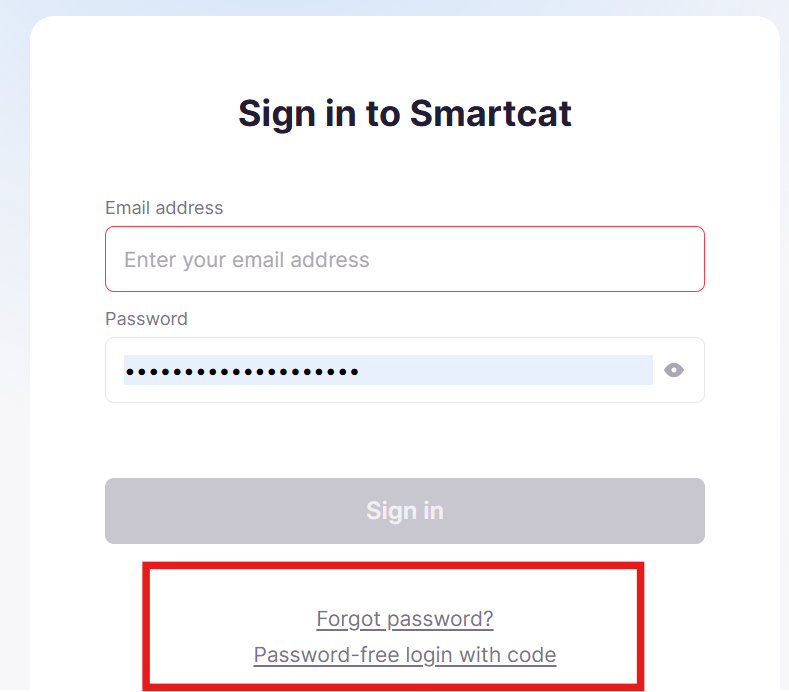
- Go to the Smartcat sign-in page
-
Click Forgot password?
-
Enter the email address associated with your Smartcat account
-
Complete the CAPTCHA verification if prompted
-
Click Send reset link
Step 2 — Check your email
-
Look for an email from Smartcat with the subject line containing "password recovery"
-
Check your spam or junk folder if you don't see the email within a few minutes
-
Click the reset link in the email
⚠️ The reset link expires after 1 hour. If it has expired, request a new one.
Step 3 — Set your new password
-
Enter your new password
-
Confirm your new password
-
Click Change password
Using passwordless login
Passwordless login lets you sign in using a 6-digit code sent to your email instead of a password.
Step 1 — Request a login code
-
Go to the Smartcat sign-in page
-
Click Password-free login with code
-
Enter your email address
-
Complete the CAPTCHA verification if prompted
-
Click Send code
Step 2 — Enter the code
-
Check your email for a message containing a 6-digit code
-
Enter the code on the sign-in page
-
Click Sign in
⚠️ The code expires after 1 hour. You must wait 1 minute between code requests.
How CAPTCHA verification works
CAPTCHA is a security measure that appears after multiple failed attempts to protect your account from unauthorized access. Smartcat does not lock your account after repeated failed attempts — there is no waiting period and no permanent lockout. Instead, repeated failures trigger a CAPTCHA.
CAPTCHA may appear after:
-
5 failed login attempts within 1 hour
-
2 failed passwordless login attempts within 1 hour
-
3 failed email verification attempts within 10 minutes
Completing the CAPTCHA successfully resets your failed-attempt counter. See the Troubleshooting section for what to do when a CAPTCHA appears.
Are you using SSO? (Single Sign-On)
You are likely using SSO if:
-
After you enter your email on the Smartcat sign-in page, you are redirected away from Smartcat to your company's own login page (for example, a Microsoft, Okta, Azure AD, or your organization's branded login screen).
-
You sign in with the same username and password you use for your company email or other internal tools.
-
You never set a separate Smartcat password.
-
Your IT team or workspace admin told you to "log in with your company account."
What you'll see: Enter your email, the page redirects to your organization's identity provider, you authenticate there, and you're automatically returned to Smartcat and logged in. You will not be asked to enter a Smartcat password or a reset code.
You are likely NOT using SSO if:
-
You stay on the Smartcat sign-in page the whole time and enter a password (or a passwordless login code) directly in Smartcat.
-
You set up your own Smartcat password when you created your account.
If you are using SSO: Password reset, passwordless login codes, and the steps above do not apply to you — your password is managed entirely by your organization's identity provider. To reset or recover access, contact your company's IT team or workspace administrator. For SSO-specific login problems (redirect loops, "user not found" after SSO is enabled, etc.), see the Manage users via Single Sign-On (SSO) guide.
If you are not using SSO: Continue with the steps above to reset your password or use passwordless login.
💡 Not sure which applies to you? Try the password reset. If, after entering your email, you're redirected to a non-Smartcat login screen, your workspace uses SSO. Stop and contact your IT team instead.
Troubleshooting
Password reset email not received
Problem: You requested a password reset but didn't receive the email.
Solution:
-
Check your spam, junk, or promotions folder
-
Verify you entered the correct email address — it must match your Smartcat account exactly
-
Add @smartcat.com and @smartcat.ai to your email safe senders list
-
Wait a few minutes — email delivery can sometimes be delayed
-
If using a corporate email, check with your IT team whether emails from Smartcat are being blocked
-
Try requesting the reset again (you can request up to 5 times per hour)
Password reset link expired
Problem: You clicked the reset link but received an "expired" or "invalid link" message.
Solution:
-
Request a new password reset (links expire after 1 hour)
-
Use the link immediately after receiving it
-
Make sure you're clicking the link from the most recent reset email if you requested multiple resets
Passwordless login code not received
Problem: You requested a passwordless login code but didn't receive it.
Solution:
-
Check your spam, junk, or promotions folder
-
Verify you entered the correct email address
-
Wait at least 1 minute before requesting a new code
-
Add @smartcat.com and @smartcat.ai to your email safe senders list
-
If using a corporate email, check with your IT team whether emails from Smartcat are being blocked
CAPTCHA verification appearing
Problem: You're being asked to complete a CAPTCHA verification when trying to log in or reset your password.
Solution: CAPTCHA appears after multiple failed attempts as a security measure (see "How CAPTCHA verification works" above). To resolve:
-
Complete the CAPTCHA challenge by following the on-screen instructions
-
If using an image CAPTCHA, enter the characters shown in the image
-
If the CAPTCHA is difficult to read, look for a refresh or "new image" option
-
After successfully completing the CAPTCHA, your failed-attempt counter resets
Session security after password change
Problem: You changed your password but are concerned about active sessions on other devices.
Solution: When you change your password through the password reset process, you are automatically signed in on the device where you completed the reset. For security:
-
After changing your password, manually sign out of Smartcat on any other devices you've previously used
-
If you suspect unauthorized access, change your password immediately and contact Smartcat support
-
Consider enabling SSO with your organization's identity provider for enhanced session management
FAQs
Q: Can I use passwordless login if my organization uses SSO?
A: If your organization has SSO enabled and enforced, you are automatically redirected to your organization's identity provider. Passwordless login is available for accounts not using SSO.
Q: How do I know if my password reset was successful?
A: After setting your new password, you will be automatically signed in to Smartcat. If you see your dashboard or workspace, the reset was successful.
Want to learn more?
See how Smartcat can transform your localization workflow.
Still need help?
Our support team responds within one business day.