Resolve file upload issues
Overview
When Smartcat fails to upload your file, the cause is usually file size, image size, a parsing error, a text export error, a protected PDF, or an API error. This article walks you through each common cause and how to resolve it.
File size
Smartcat supports files in the supported formats up to 6 GB, so you may see issues when uploading large .docx and .pptx files. Files that exceed the maximum upload limits cannot be processed. Smartcat's file size limits are:
-
Document/project files: 6 GB
-
Reference files: 4 GB
-
Translation Memory (TM) imports: 1 GB
-
Glossary imports: 10 MB
Most files under 6 GB upload successfully, but large files take longer to process. For best speed, split very large files (greater than 1 GB) into smaller parts, remove unnecessary embedded media, or compress images within documents.
Image size
If your document is larger than 100 MB (for non-image PDFs) or contains images larger than 30 MB for OCR text extraction, you may encounter upload issues.
Solution: Split the document into smaller parts. You can use PDF tools to edit documents, for example PDF-XChange Editor or Adobe Acrobat.
Parsing error
Smartcat may be unable to recognize the content of the slides.
Solution: Exclude all extras (for example, hidden slides and slide masters) when you load the file into the project.
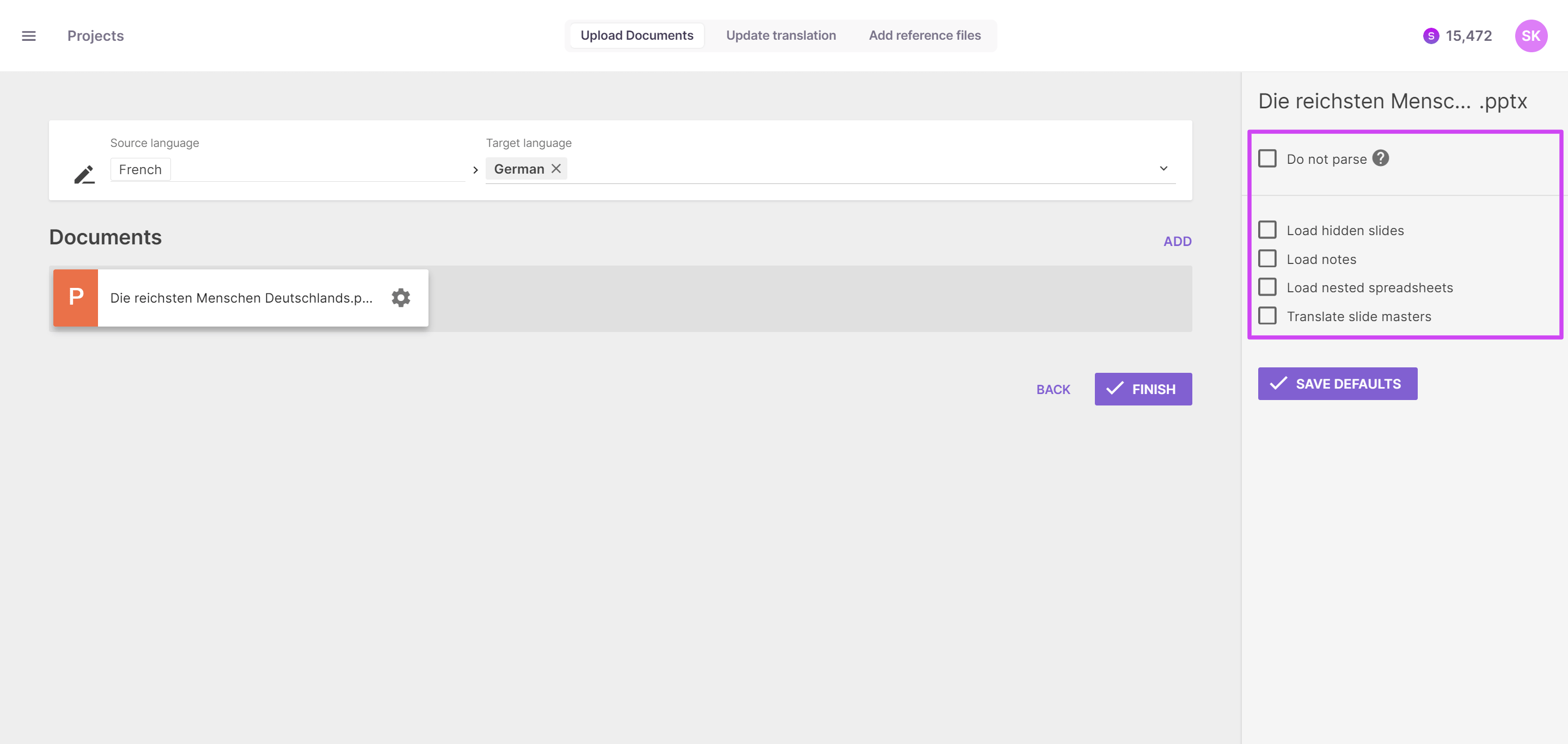
To remove these elements, you can also convert your presentation to .pdf, then back to .pptx.
Text export error
Your text can contain elements Smartcat can't recognize.
Solution: Modify the original document and delete elements like:
-
Invalid characters
-
Large pictures or videos that can cause the presentation to freeze
-
Shapes and objects that differ from the rest visually or by some attributes
-
Graphs and diagrams
Protected PDF files
Password-protected or secured PDF files cannot be processed normally.
Solution:
-
Remove password protection before uploading, or
-
Upload as-is, which results in image-only processing that consumes 1 Smartword per image page, or
-
Contact support if you cannot remove protection but need text extraction
API upload errors
You receive 500 errors or timeouts when uploading files via API.
Solutions:
-
Ensure the file size is under 6 GB
-
Check your API authentication credentials
-
Try uploading smaller batches if you are processing multiple files
-
Contact support with your API request details if the error persists
FAQs
Can I process TS files in Smartcat?
TS files cannot be processed natively in Smartcat, but you can convert them using a free app called QT Linguist, which is part of a larger development framework but can be installed separately. Using QT Linguist, you can convert TS files to XLIFF, which Smartcat can process. After translation, you can convert them back to TS format using QT Linguist.
You can download QT Linguist from GitHub.
Is it possible to upload a .jpg file for reference?
If you want to upload screenshots for reference and they are in the .jpg format, there are two options:
-
Add these files as reference to the project as described in Can I add reference files to my project? This is the easiest and fastest process, but when dealing with references such as screenshots, it might create some work for the translation team to find the image that corresponds to the string being translated.
-
Upload individual graphic files for each segment where needed using the Camera [Alt-Insert] button in the toolbar. A picture icon appears in the segment, and the translator can click the icon to show the screenshot. This process takes longer but creates more targeted references. This feature must be enabled in the account; it is not enabled by default.
Why does my .pptx file fail to process even though it's under 6 GB?
Complex elements like embedded Excel graphs, advanced math formatting, or SmartArt objects can cause processing failures. Try removing these elements or converting to PDF first.
Can I upload subtitle files (SRT/VTT)?
Yes, but ensure proper segmentation. Each subtitle segment should align with your translation workflow requirements.
Want to learn more?
See how Smartcat can transform your localization workflow.
Still need help?
Our support team responds within one business day.