Export files from Smartcat
Overview
You can export your translations from your workspace page, the project Overview page, or the CAT editor. This article covers each export location and the available formats.
Export from the workspace or project overview page
On the workspace or project Overview page you can download a batch of files or individual files.
-
Select the projects you need
-
Click Download
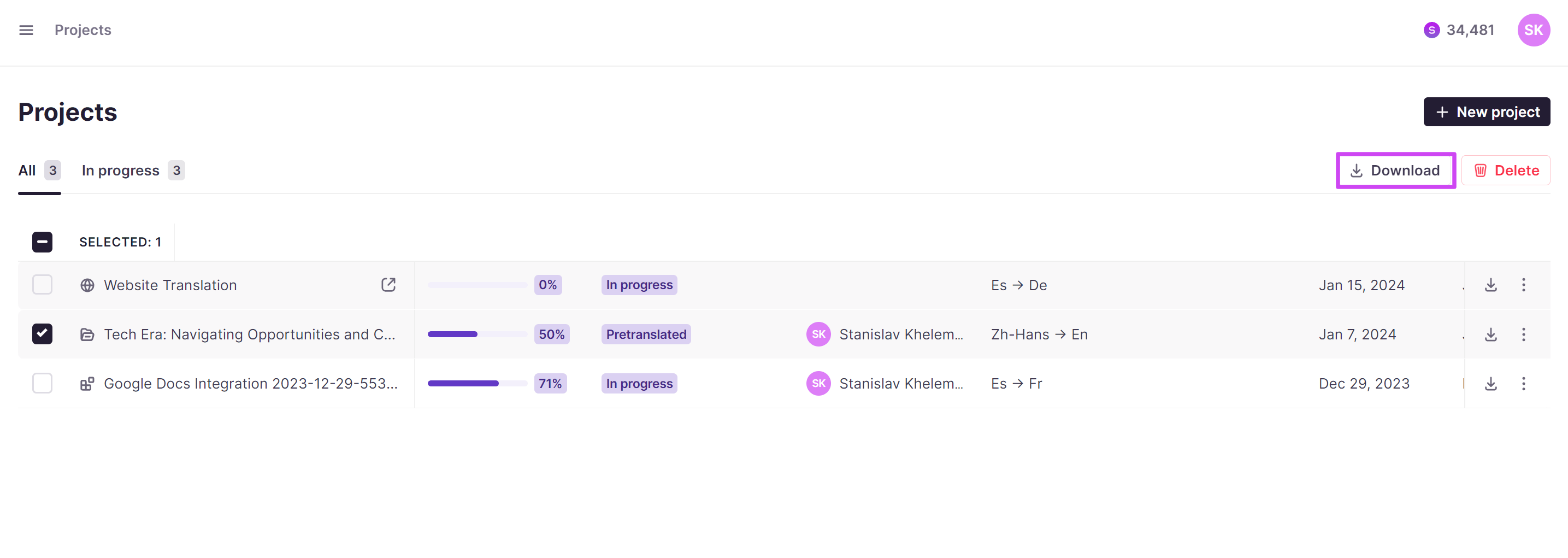
You can download projects that have gone through AI translation, are in progress, or are completed. The selected files download as a ZIP archive containing all the projects' files in the original format, sorted into folders.
On the project Overview page you can also download a batch of files or individual files in PDF format by selecting from the drop-down menu.
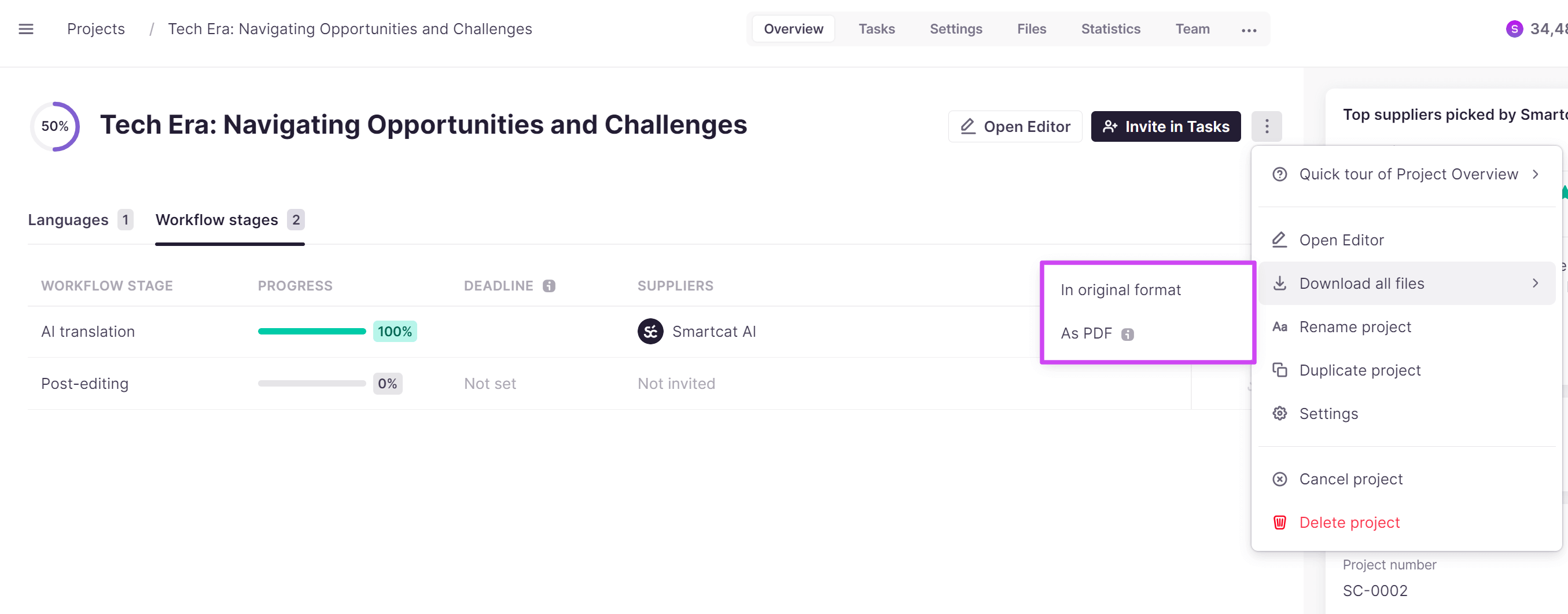
Your files download to your device in the format you chose.
Export from the CAT editor
In the CAT editor you can choose from several export options.
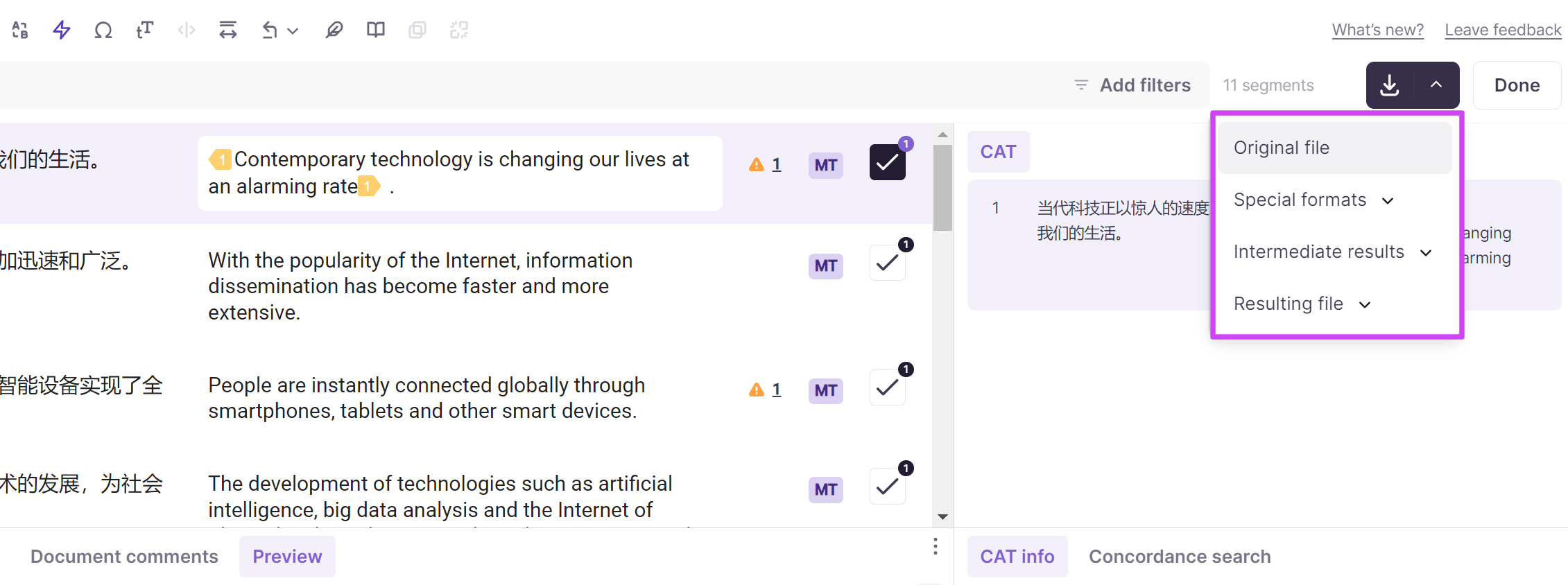
Original file
Original file downloads the file that is being processed for translation.
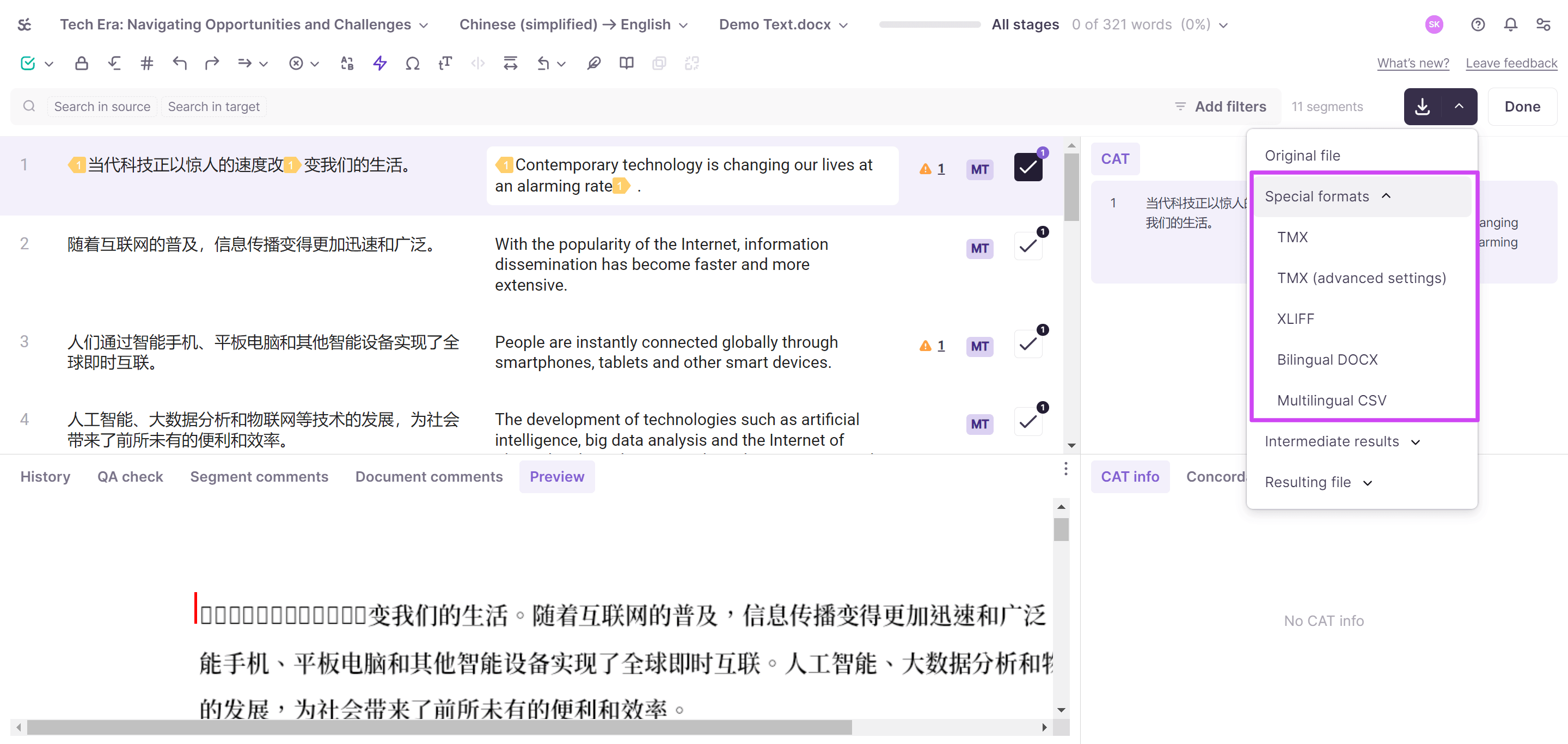
Special formats
Special formats downloads the document in industry-standard formats:
-
TMX — Translation Memory (TM) exchange files used to share translation memory data with other organizations. Choose Export as to specify settings such as compatibility with other tools
-
XLIFF — files used to exchange project data with other applications
-
Bilingual DOCX — documents used to review the translation outside Smartcat, in a table format with the source language in one column and the target language in the other. You cannot import edited DOCX files back into Smartcat
-
Multilingual CSV — files in which source and target segments are arranged in columns per language, which you can later convert to Excel format
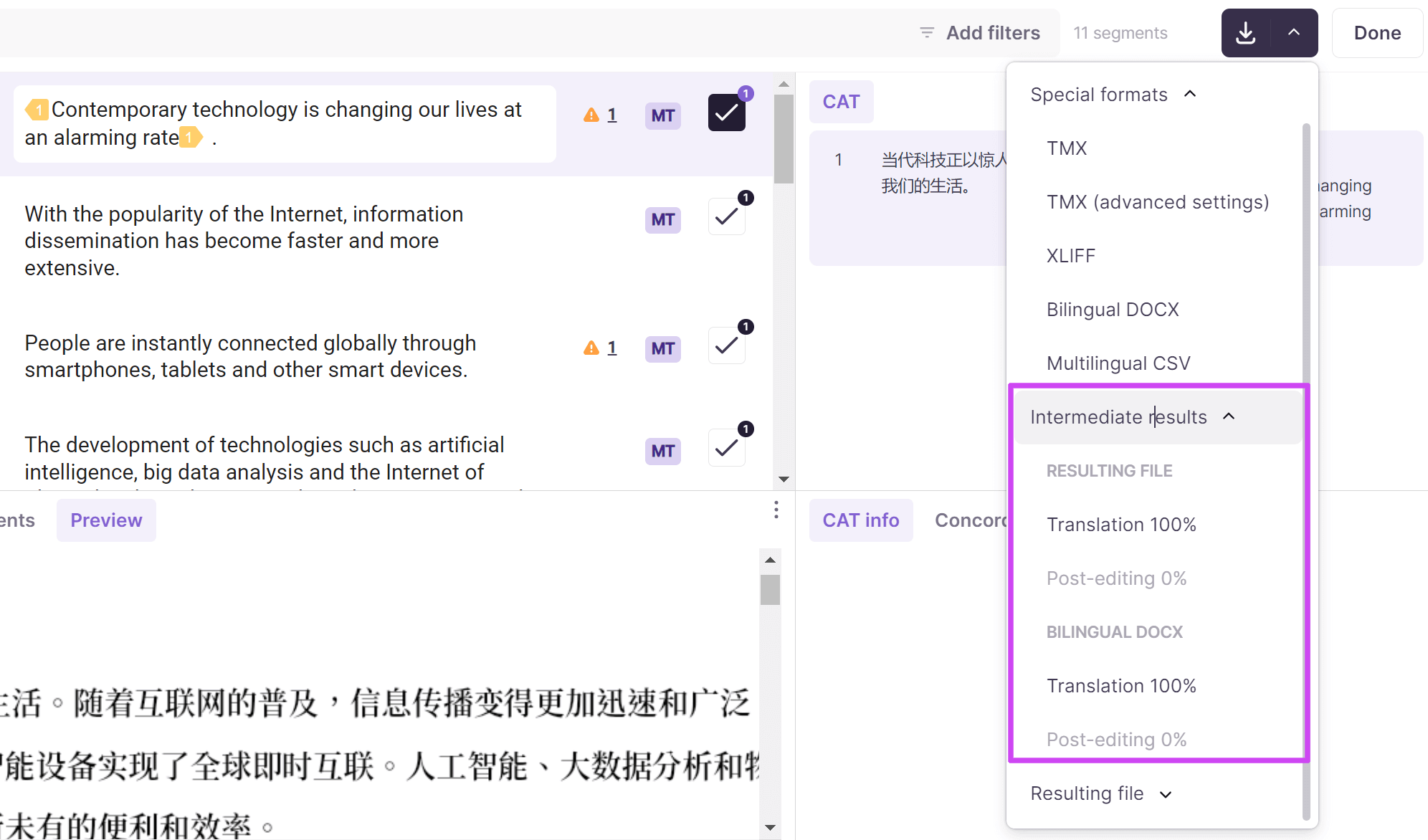
Intermediate results
Intermediate results lets you download versions of the translated documents or bilingual DOCX as they stood after each stage of the process. For example, a project manager can download a version of the file as it was completed by the translator and another as it was completed by the editor, then use a file comparison tool to see the changes the editor made.
📌 If there is only one stage in the translation process, this option is not available.
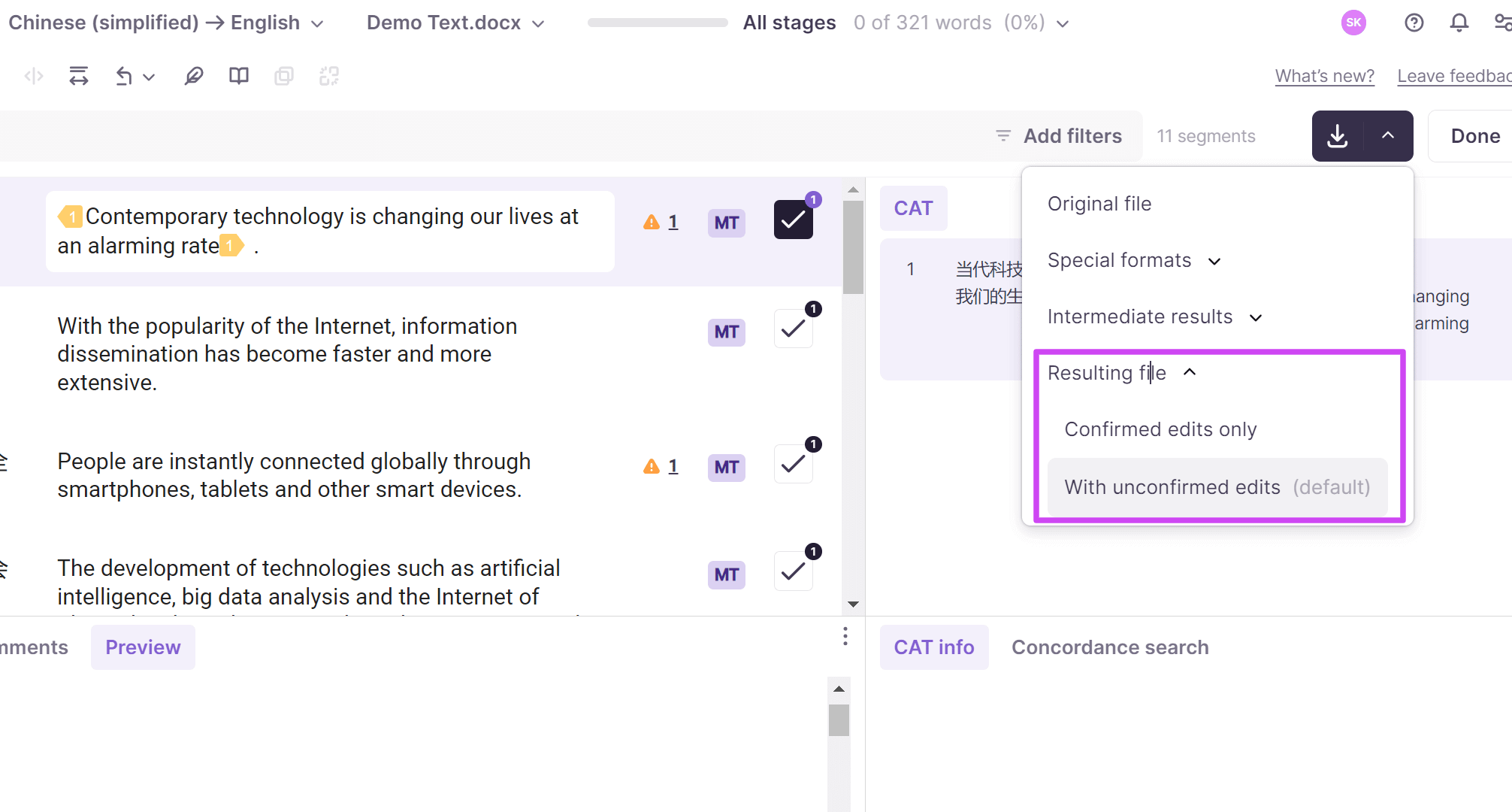
Resulting file
Resulting file downloads the translated files. If the translation is not complete, segments that have not been confirmed yet remain in the source language.
💡 You can restrict downloading rights for linguists, for example when dealing with sensitive documents.
Troubleshooting
I received a “Task finished with status TaskState.Manual" message and the export didn’t finish.
If you see an error like Task [ID] finished with status TaskState.Manual when trying to export or download a file, the export task could not complete automatically and needs a manual fix before it can proceed. Work through the causes below in order.
Cause 1: Tag placement errors in target segments. This is the most common cause. One or more tags in the target segments are missing, duplicated, or not placed in the same position as in the source segment.Resolve it:
-
Open the document in the CAT editor
-
Run a QA check to look for tag-related issues. Some tag placement issues are not flagged by QA. If QA shows no errors but the export still fails, manually compare tag positions in the target segments against the source segments.
-
Correct any missing or misplaced tags so each tag's position in the target matches its position in the source
-
Re-run the export
Result: The export completes successfully once all tags are correctly placed.
Cause 2: Locked segments with tag issues. If the segments with tag problems were locked when the file was uploaded (for example, locked source segments), you cannot edit the tags directly to fix them. Resolve it:
-
Re-upload the original file with the tags corrected at the source, or
-
Contact Smartcat support with the task ID for assistance unlocking the affected segments
Cause 3: Format-specific export issue. Some file formats (for example, IDML or SCORM packages) can fail export for reasons unrelated to tags, such as unsupported formatting elements. Resolve it:
- Contact Smartcat support and provide the task ID shown in the error message, along with the project URL
Result: Support can identify the exact cause from the task ID and advise on a fix or workaround.
💡 Always include the full task ID from the error message when contacting support — it lets the team look up the failure directly instead of searching for it.
FAQs
Where can I export files from in Smartcat?
Three places: the workspace/project overview page (batch or individual downloads), the project Overview page (including PDF export), and the CAT editor (with more granular special-format options).
What format do I get when I download multiple projects at once?
A ZIP archive containing each project's files in their original format, sorted into folders.
Can I download a document as a PDF instead of its original format?
Yes, from the project Overview page drop-down menu, you can export files in PDF format.
What's the difference between "Original file" and "Special formats" in the CAT editor export menu?
Original file downloads the file being processed for translation in its native format. Special formats lets you export in industry-standard interchange formats like TMX, useful for sharing translation memory data with other organizations or tools.
Why are character and HTML-entities escaping in exported files?
When Smartcat assembles translated content back into an HTML-flagged file (HTML files, or JSON/LocJSON content marked as HTML), it escapes the five structural characters & < > " ' in the translatable text between tags — so a literal apostrophe comes back as ', a quote as ", and so on. This only affects text runs; tag markup and attribute values are carried over unchanged (e.g., an apostrophe inside href="tel:..." stays raw while the same character in visible link text gets encoded). The resulting file is valid HTML — any browser renders ' back to ' — but if your pipeline reads the exported content as raw text/JSON rather than rendering it as HTML, the encoded entities will show up literally. In such cases the workaround is a post-export find-and-replace (e.g., ' → ', " → ", and any numeric entities for accented characters back to their UTF-8 equivalents).
Want to learn more?
See how Smartcat can transform your localization workflow.
Still need help?
Our support team responds within one business day.