Smartcat Chief of Staff Use Cases
Overview
Create a skill with your chief of staff
You can chat with your chief of staff to create a skill, a repeatable procedure your chief of staff follows to complete a task. In this example, we’ll use chief of staff to create a skill to review a page in Notion and create a glossary from it.
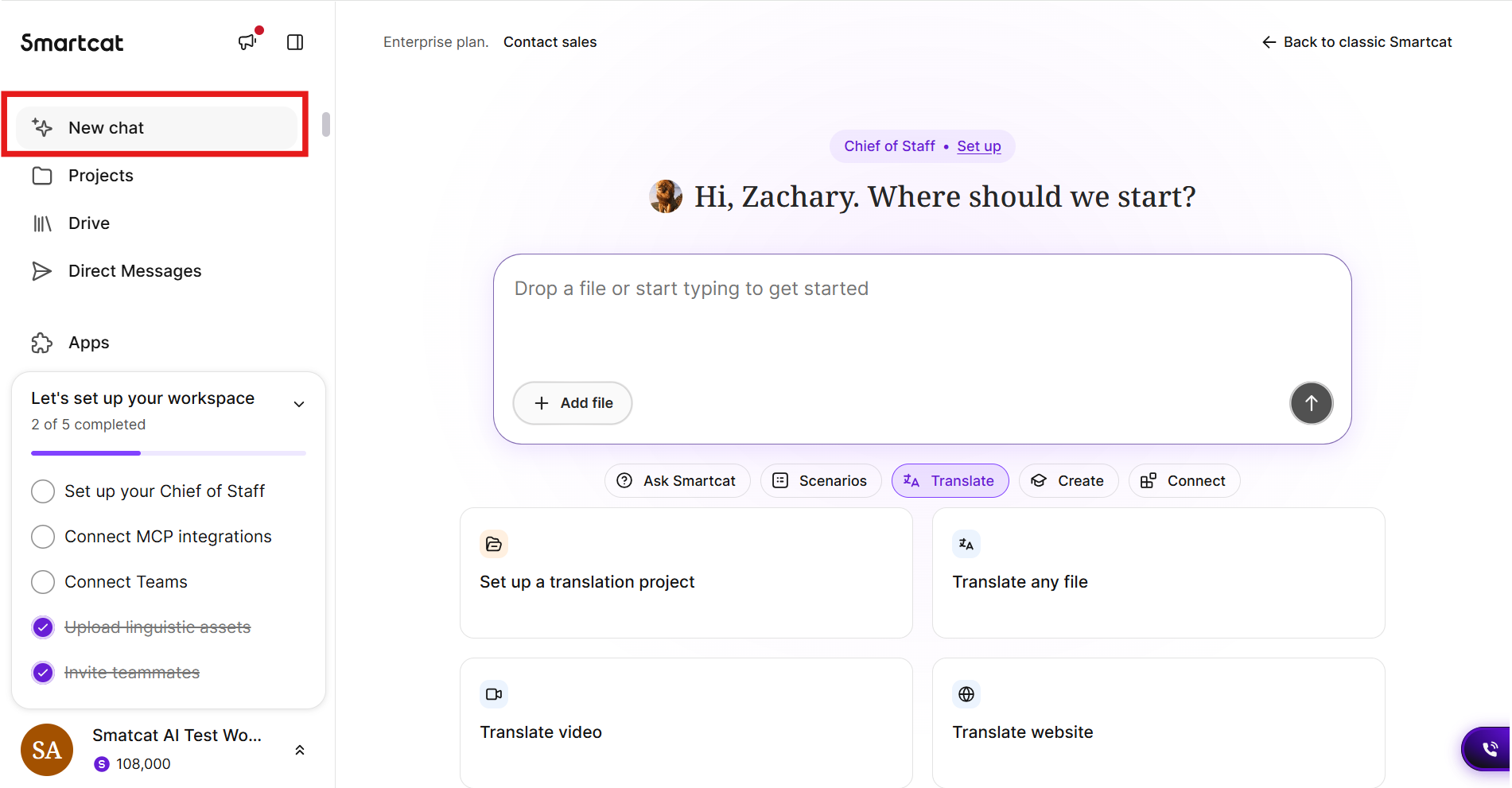
- Log in to your Smartcat account or click New chat in the left navigation sidebar.
-
Ask your chief of staff to create the skill by explaining exactly what you need it to do. For this skill, the prompt is:
-
Create a skill for extracting glossary terms from Notion pages:
-
Take a Notion link
-
Read its content
-
Extract glossary terms candidates
-
Create glossary terms in German and Spanish based on the candidates
-
Save it to a glossary
-
-
-
Click the arrow or press Enter to send the request to your chief of staff.
-
The chief of staff checks that it has the required connections and access to complete the request. The results on this screen vary depending on your request and Smartcat configurations.
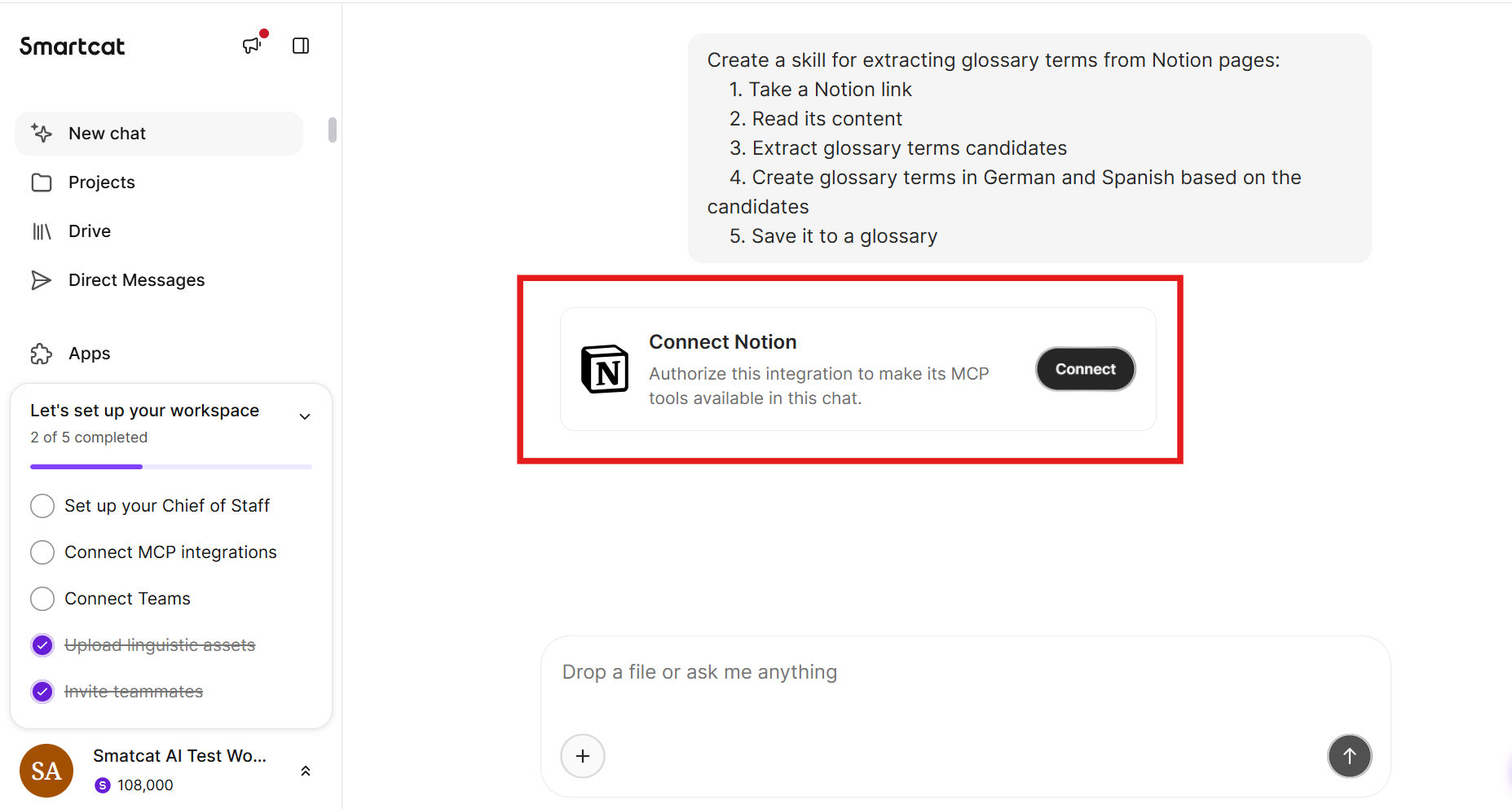
- Once it confirms it can create the skill, your chief of staff returns an outline of the skill and asks you any outstanding questions it needs answered before creating the skill.
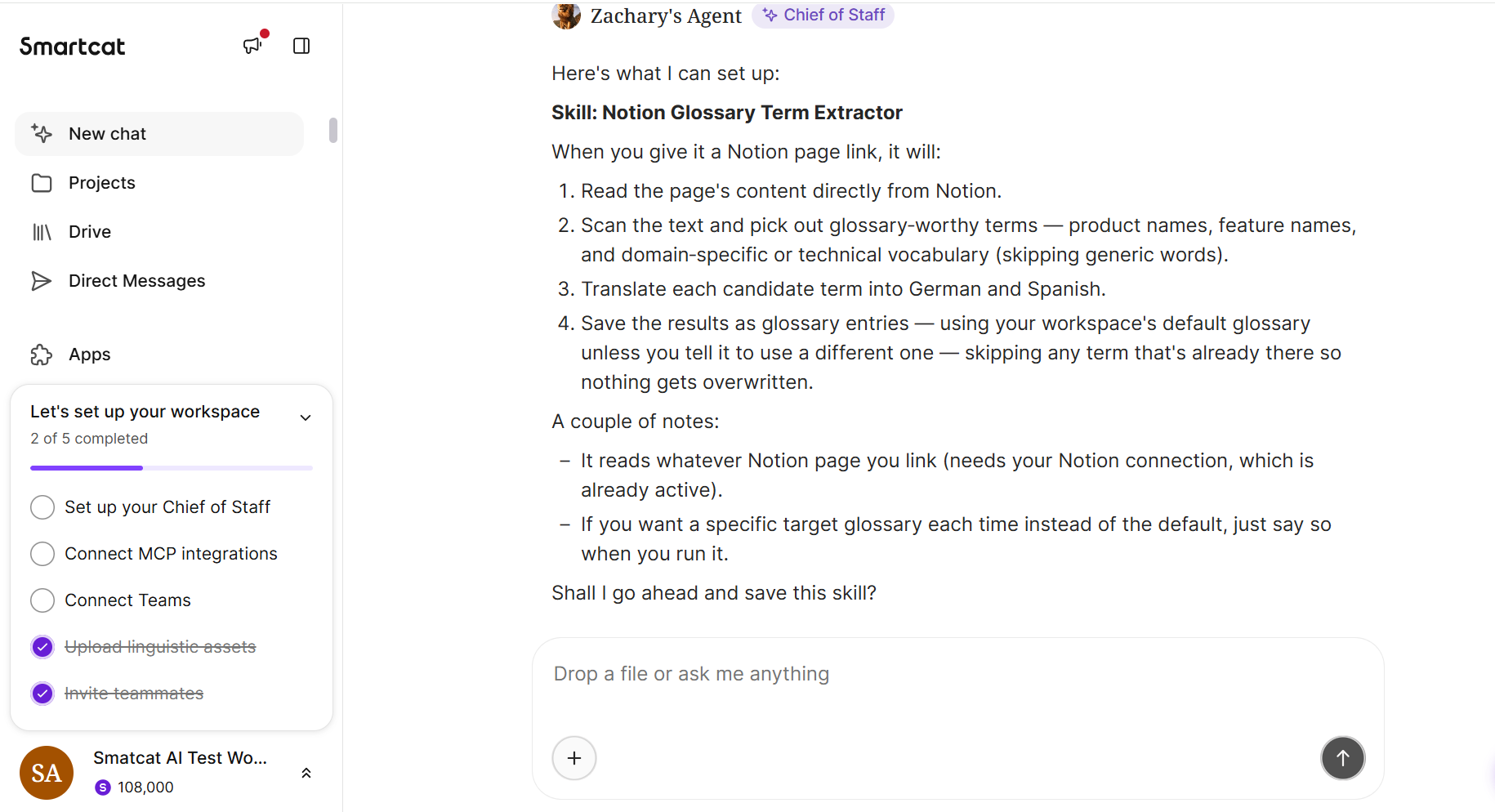
- When you’ve reviewed the output, confirm with your chief of staff that you would like to create and save the skill.
Create a glossary from a website
You can ask your chief of staff to review a website, assess possible glossary terms, and create a glossary of those terms in target languages. This works similarly to the skill created in the use case above, but the chief of staff takes the language directly from a website, rather than a page connected via MCP.
- Tell your chief of staff to create a glossary from a URL.
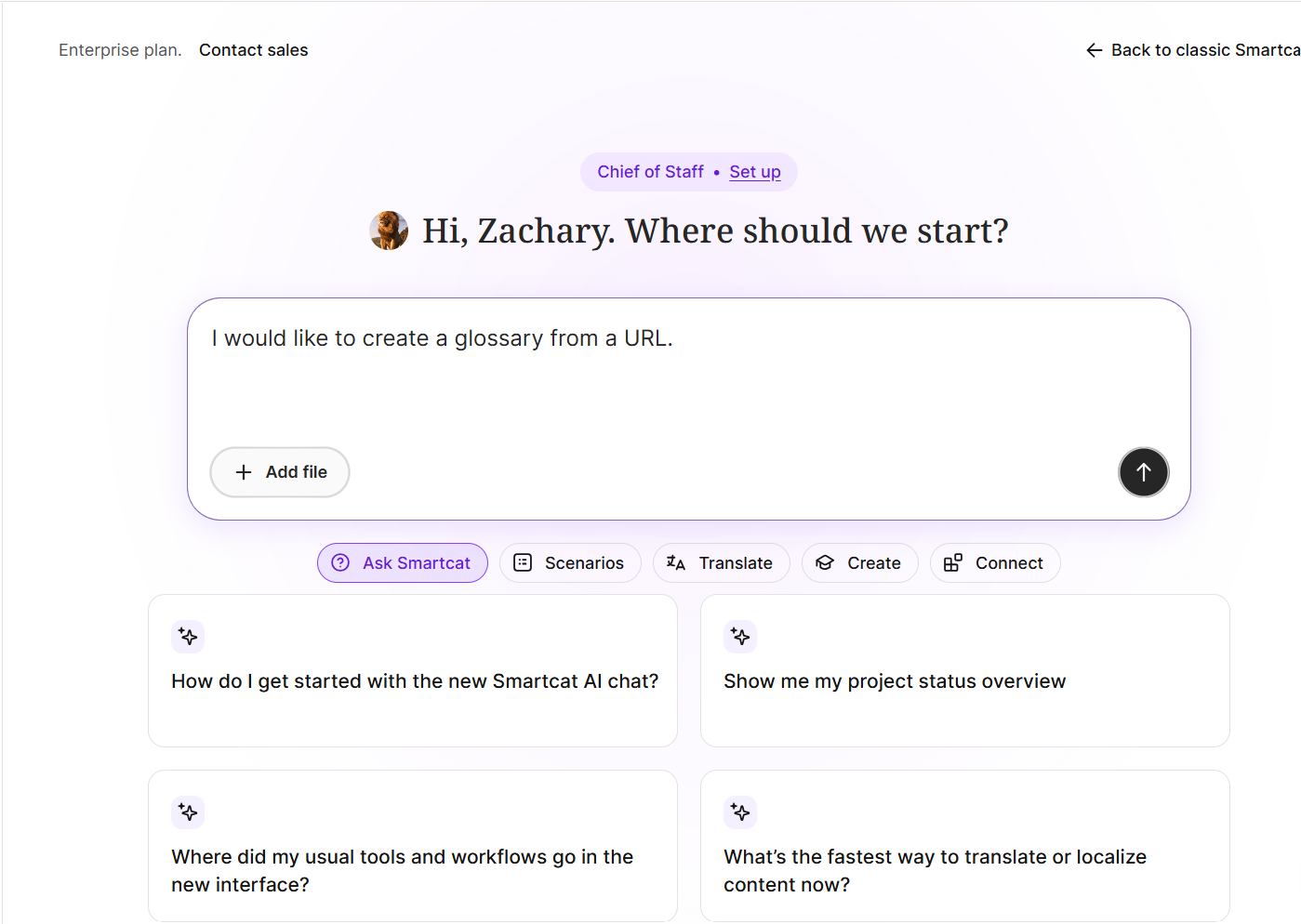
- Your chief of staff responds asking for additional information, in this case the URL and the target languages. Respond to the chief of staff in the chat with the requested information.
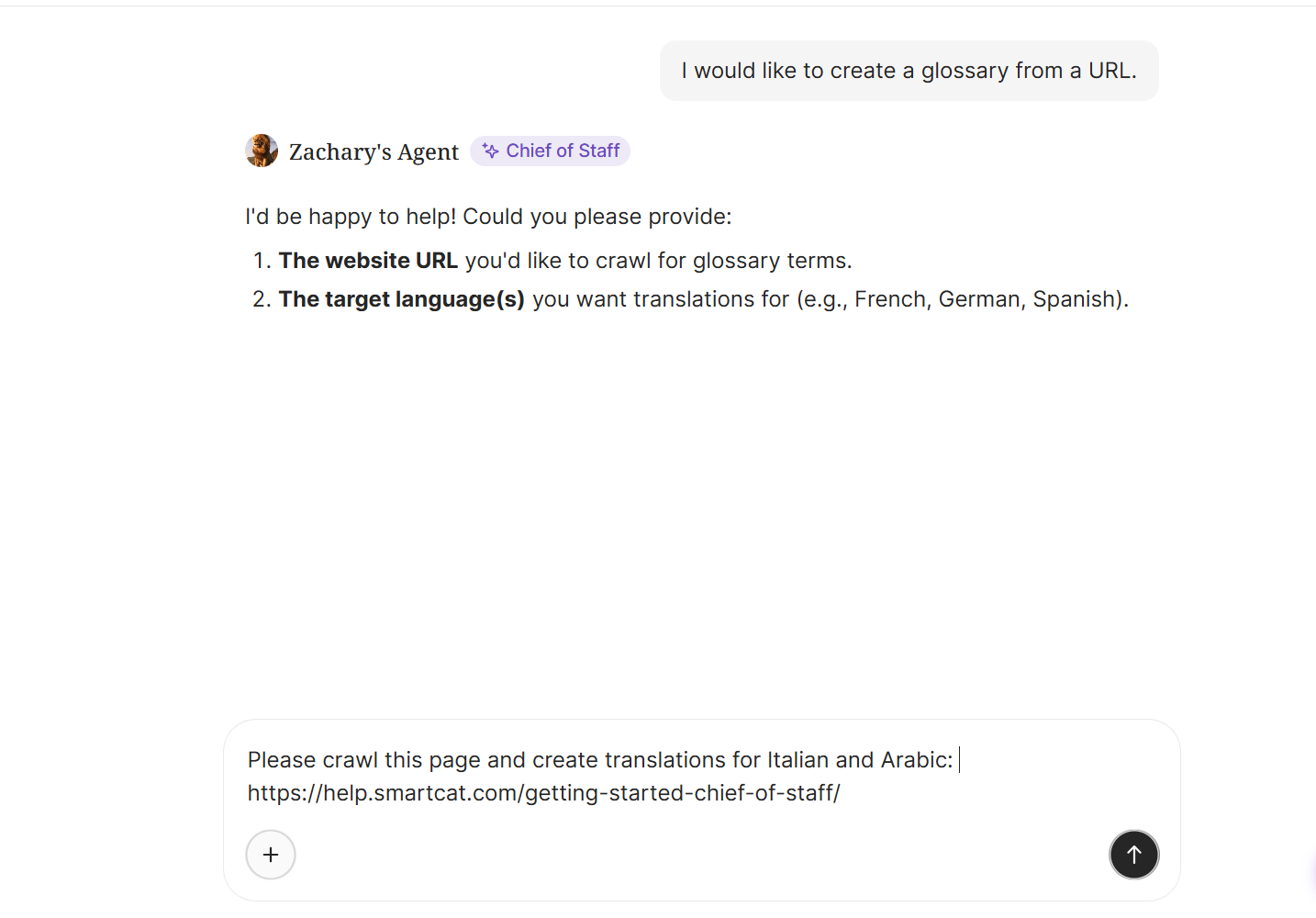
- When the chief of staff finishes crawling the site, it asks if you would like to review and edit the terms or import them directly.
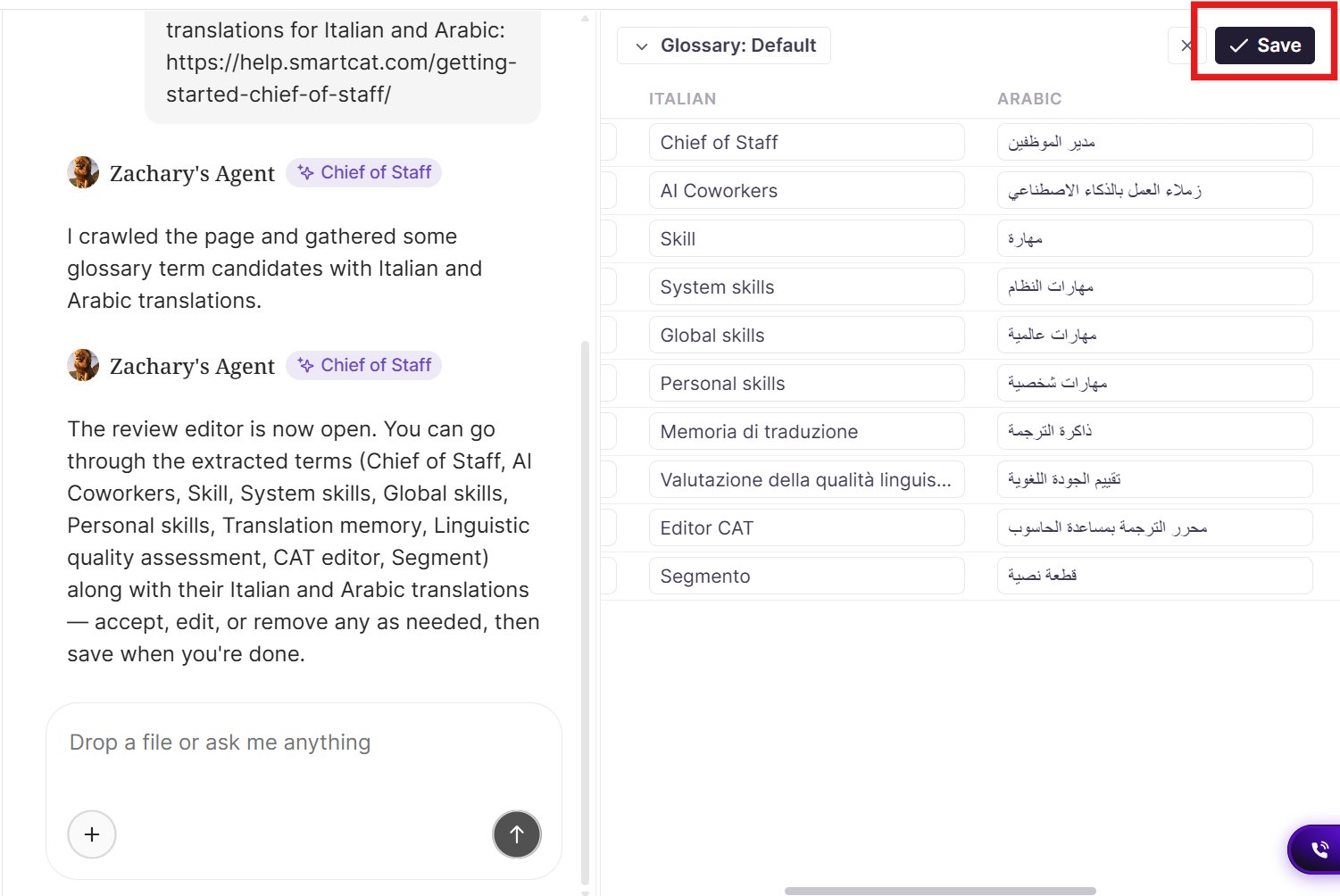
- If you choose to edit it, the chief of staff displays the terms in the example glossary. Select the terms to keep and click Save.
Freeform text translation
You can ask your chief of staff to translate text directly in the chat without first creating a project. This supports up to 999 characters. This is a quick way to create a highly secure translation, since the text you provide to Smartcat is not used to train AIs and is kept within your Smartcat account.
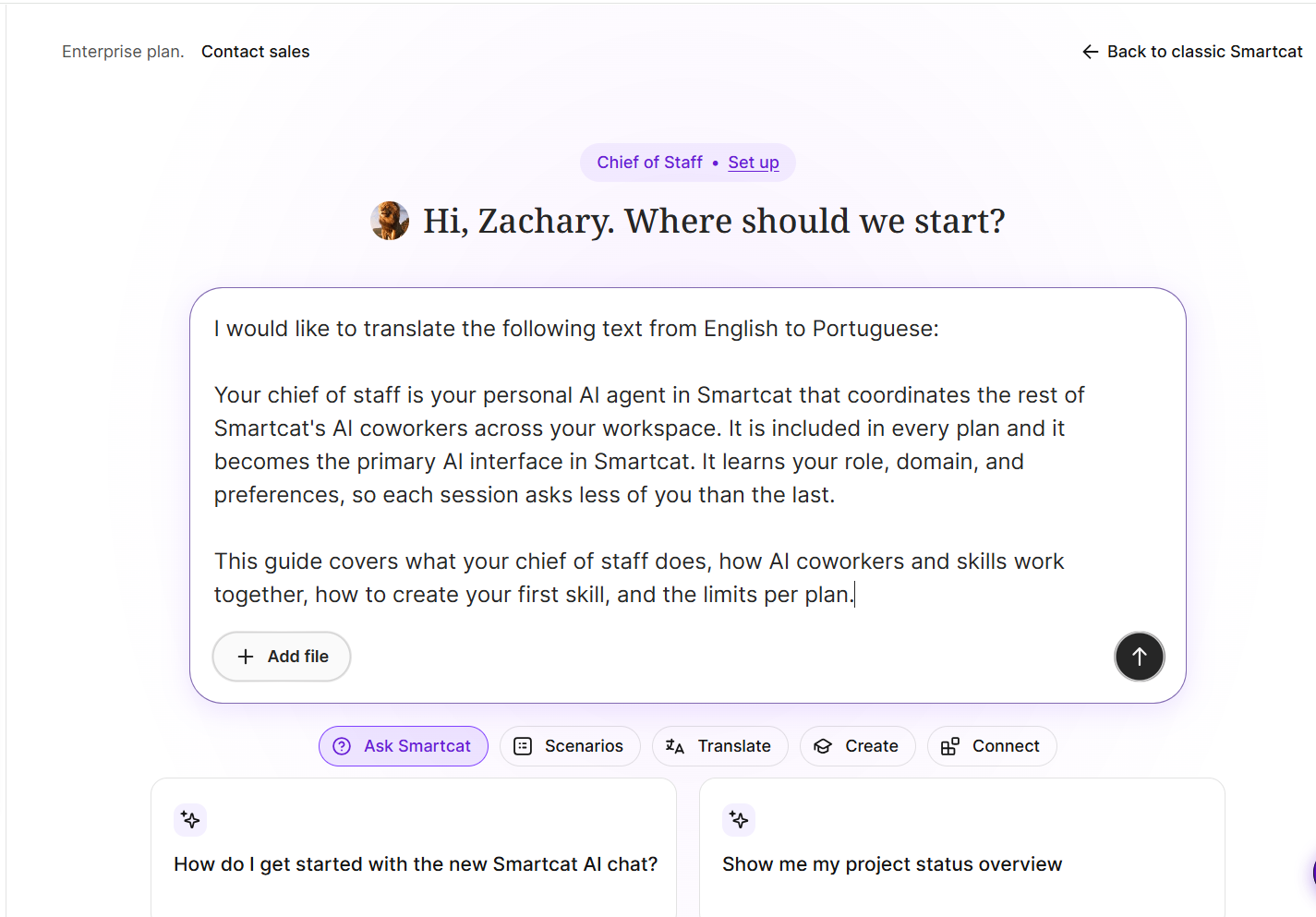
- In a new chat, ask your chief of staff to translate text from the source language to a target language and provide the text. Click the arrow or press Enter.
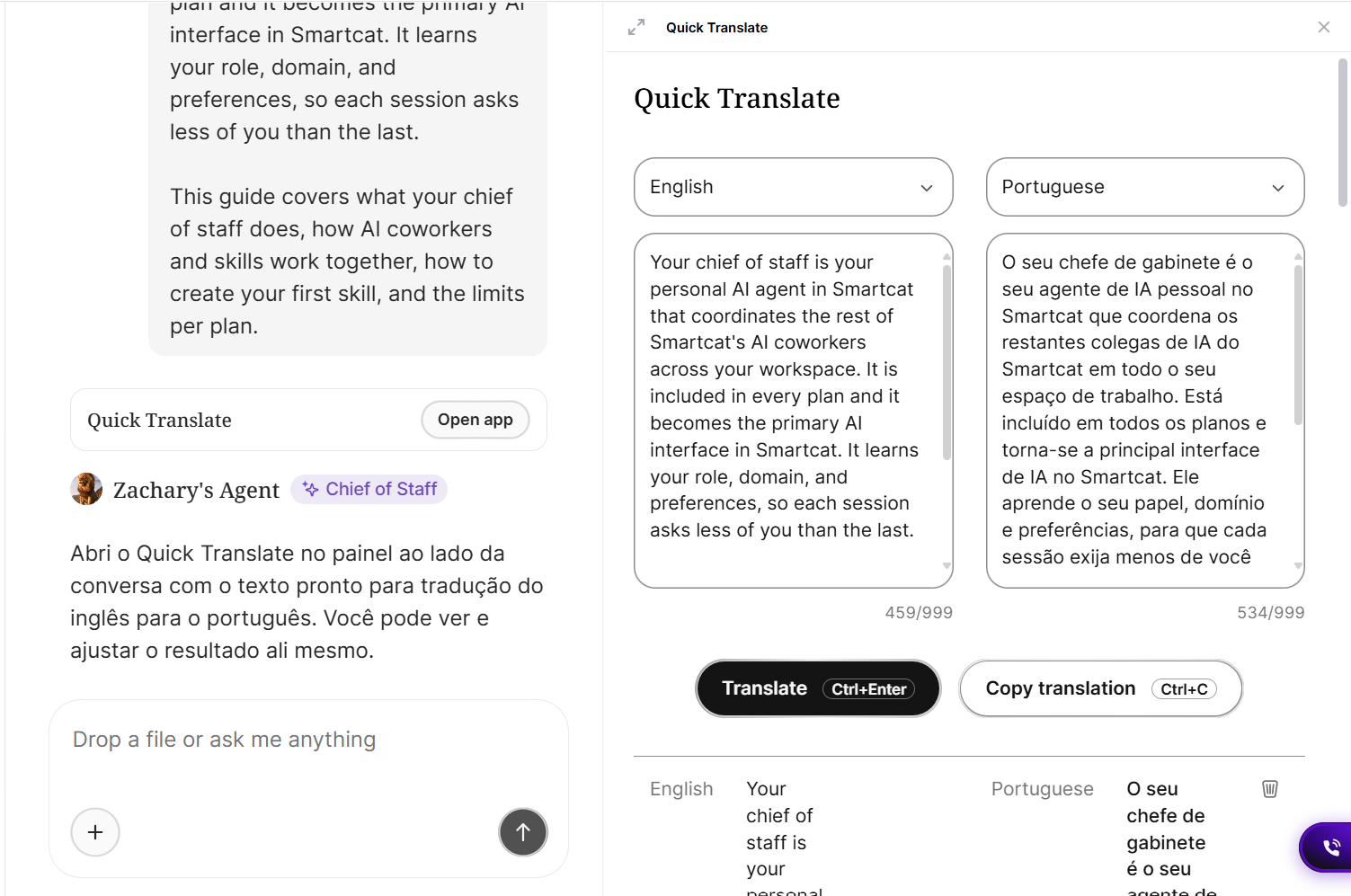
- Your chief of staff translates the text and provides a Quick Translate tab. You can review the translation(s) and copy them directly from the Quick Translate tab.
Want to learn more?
See how Smartcat can transform your localization workflow.
Still need help?
Our support team responds within one business day.