Translating alt text for images
Overview
Alt text (alternative text) is a written description attached to an image. It supports accessibility requirements and is used by screen readers to describe images to users who cannot see them. Smartcat can extract image alt text as translatable segments when you upload a Word (.docx) or PowerPoint (.pptx) file.
When alt text translation is enabled, each image's alt text appears as its own segment in the CAT editor alongside the rest of the document's translatable content.
When to use it
Enable alt text translation when:
-
Your documents must meet accessibility standards (for example, WCAG compliance) in all target languages
-
Your Word or PowerPoint files contain images with meaningful alt text that your audience will encounter in the translated output
-
You are localizing training materials, marketing decks, or product documentation where image descriptions carry informational value
How to use it
Word (.docx) files
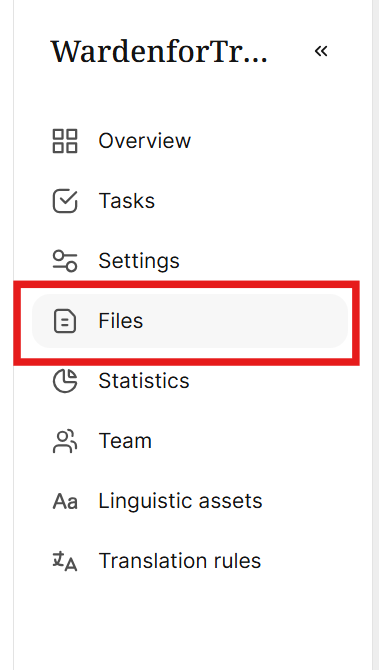
- Open a project in Smartcat, and click Files from the left navigation sidebar.
-
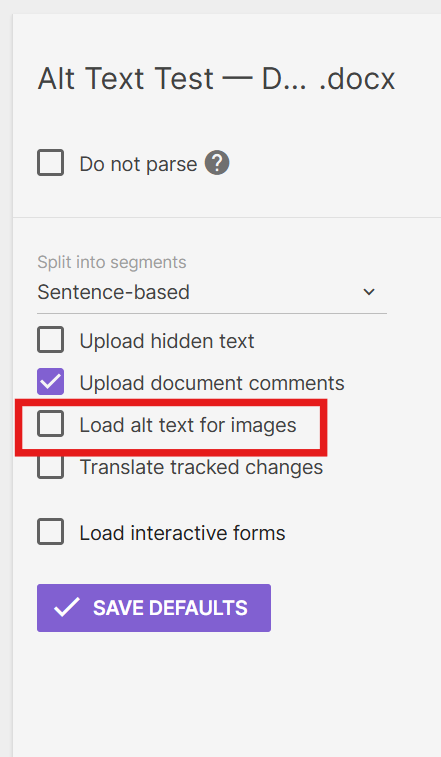
Upload your .docx file. The upload settings panel appears
-
In the upload settings, enable Import alt text for images
- Click Finish to complete the upload
The file is added to your project with image alt text extracted as translatable segments.
⚠️ Enabling Import alt text for images increases your translatable word count because each image's alt text becomes a separate segment. This affects Smartwords usage.
PowerPoint (.pptx) files
-
Go to your project and click Add files
-
Select your .pptx file — the upload settings panel appears
-
In the upload settings, enable Import alt text for images
-
Complete the upload
The file is added to your project with image alt text extracted as translatable segments.
Saving as a default
To avoid enabling the setting manually for every upload, save it as a workspace default:
-
Configure the upload settings as described above
-
Click Save as default in the upload settings panel
Smartcat applies these settings automatically to all future uploads of the same file type in your workspace.
Requirements and limitations
-
Alt text translation is available for Word (.docx) and PowerPoint (.pptx) files
-
The setting must be enabled at upload. It cannot be applied to a file that has already been added to a project
-
Images must have alt text set in the source file before uploading; Smartcat extracts existing alt text but does not generate it
FAQs
Can I translate alt text in HTML or XML files?
HTML and XML files handle alt text differently. When you upload an HTML or XML file using the Tag- and attribute-based segmentation method, attributes such as alt on <img> tags can be configured as translatable. This requires setting up a custom parsing configuration in your workspace's File formats settings.
What happens to images with no alt text?
Images that have no alt text in the source file are not affected. No empty segments are created.
Want to learn more?
See how Smartcat can transform your localization workflow.
Still need help?
Our support team responds within one business day.