Translate your landing page with Smartcat
Overview
Translating your landing page helps you reach a broader audience, enhance the user experience, and increase accessibility. With Smartcat you can choose the workflow that best fits your needs and technical requirements. This guide walks you through the available options.
Translate your landing page with Smartcat Website Translator
With Smartcat Website Translator, you can automatically translate your website into any language and refine it with manual edits.
Set up the Smartcat project
-
Copy and save the URL of your landing page
-
Open your workspace in Smartcat and click the Translate a website shortcut
-
Specify both the source and target languages. You can specify more than one language
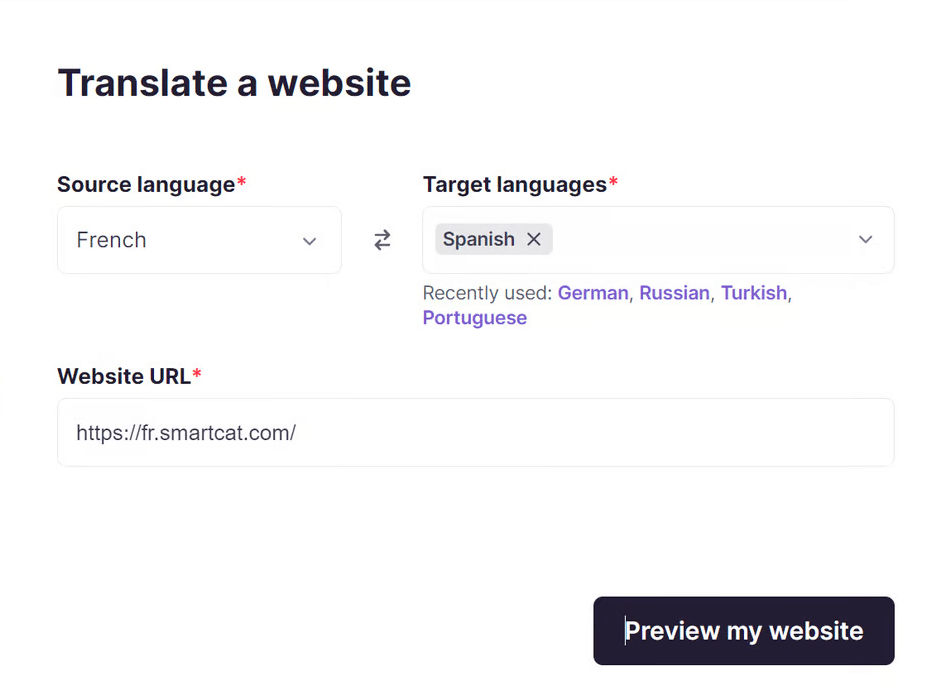
- Paste or enter the website URL you want translated, then click Preview My Website to open a preview of your translated website
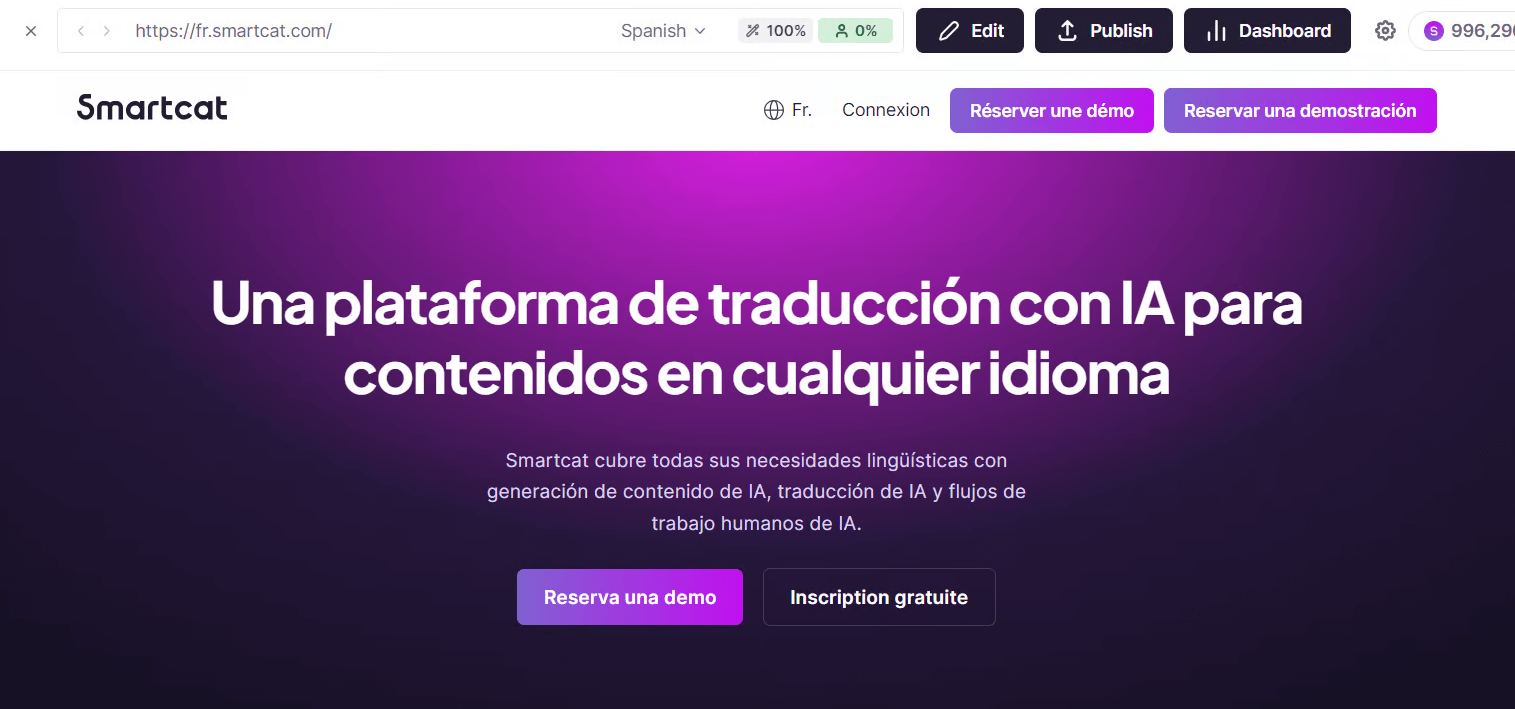
Smartcat opens a live preview of your translated landing page.
Preview your translation
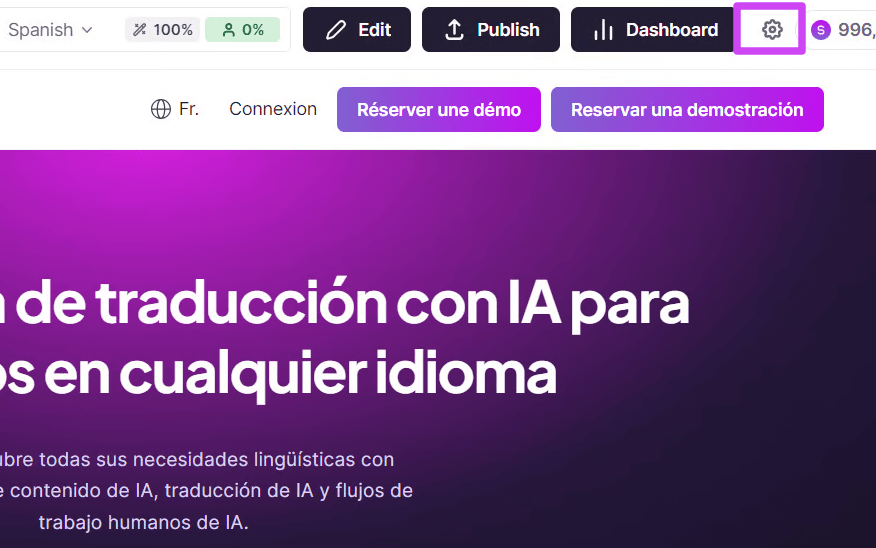
You can adjust the preview settings using the gear icon in the top-right corner of the screen.
-
Translation mode — specify how the translation is rendered for your website visitors
-
Language selector — choose how the language selector best fits your web page design
-
Preview settings — specify how you want to view the translated page
Review and publish your translation
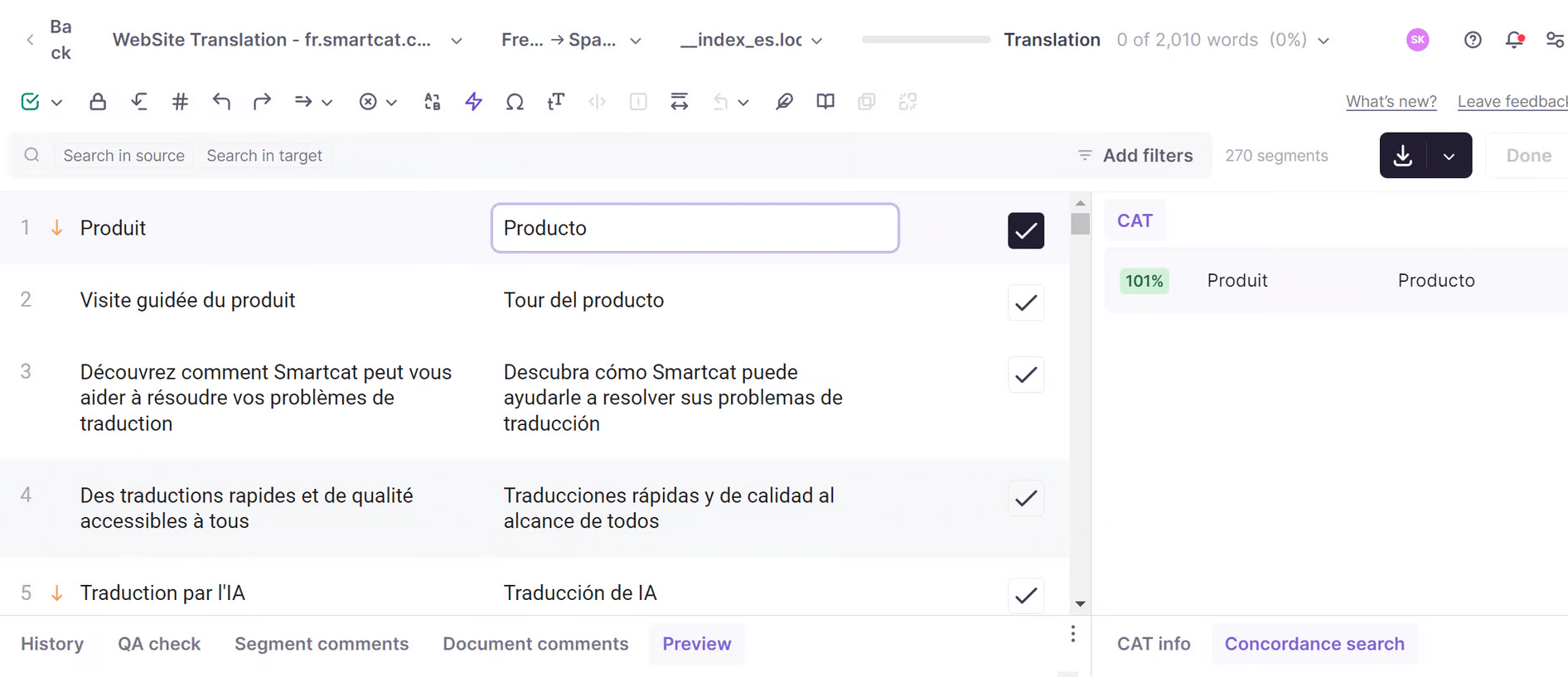
- Click Edit in the toolbar. The CAT editor is divided into two columns with the source and target languages
-
After you make all the required changes in the CAT editor, click Back in the editor toolbar. Smartcat redirects you to the website preview, which reflects your recent edits
-
To publish the translation, click Publish at the top of your website page
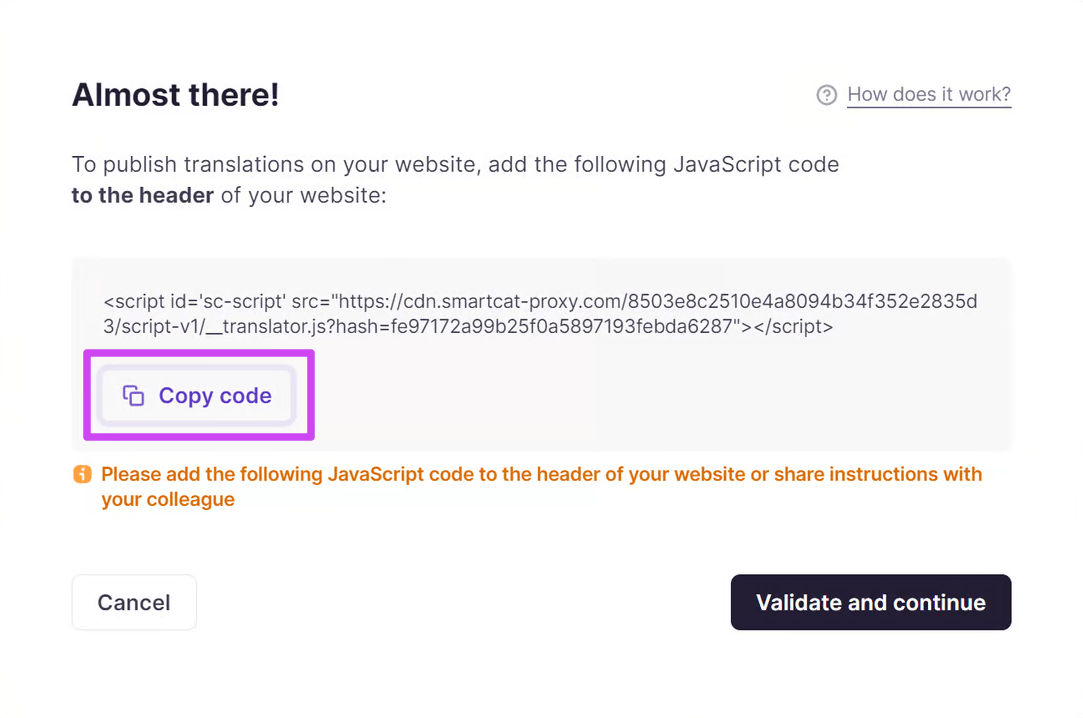
- Copy the JavaScript code and add it to the Header section of your website. Once the code is added, click Validate and continue
Your translated landing page is now live for your visitors.
Translating an HTML file
Another option is to translate the HTML file of your web page.
Upload your HTML file
-
Open your workspace and click Translate a File
-
In the project creation tab, specify both the source and target languages, then upload your HTML file from your computer
-
Click Translate files
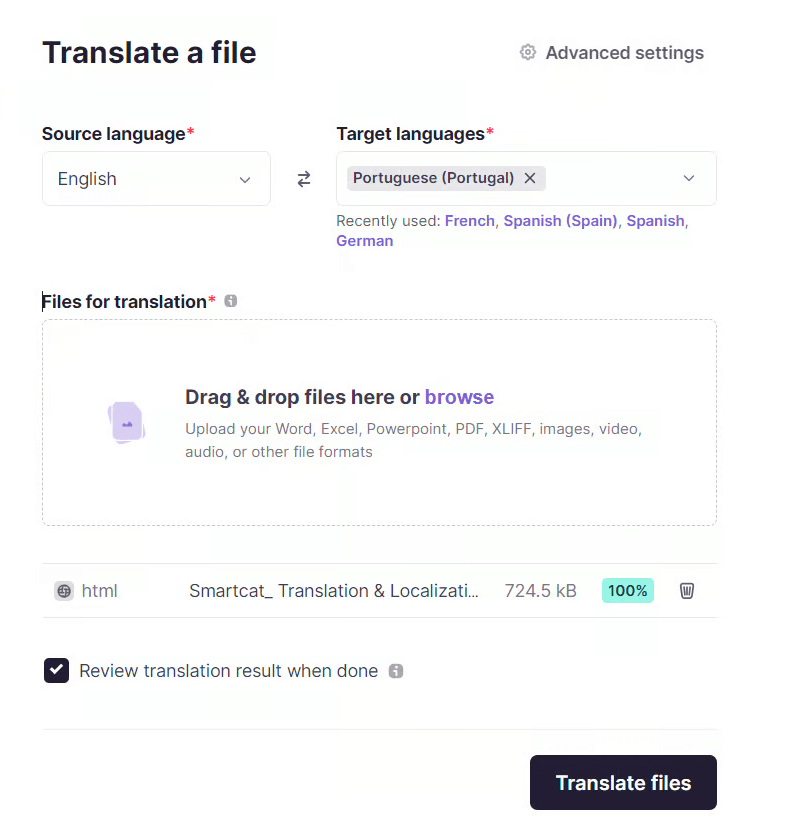
An Overview tab opens, where you can view the workflow stages. When the progress bar of the AI translation workflow stage reaches 100%, the stage is complete and you can open your HTML file in the CAT editor.
Review your translation
-
Open your file from the Files tab
-
Review your translation in the CAT editor and make changes if necessary
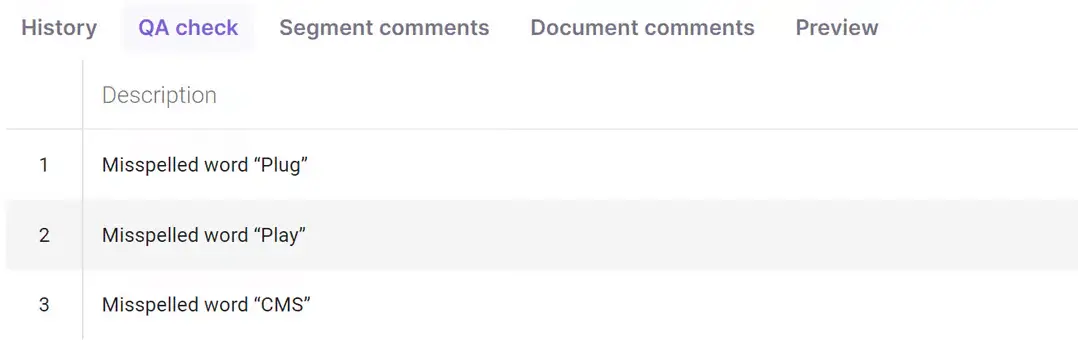
💡 Below the editing area, you'll find tabs for viewing the edit history, leaving comments on a segment or the entire document, and performing QA checks.
Use live preview
Live preview enables you to work directly with the source text. Use the switcher in the Preview tab to activate this feature.
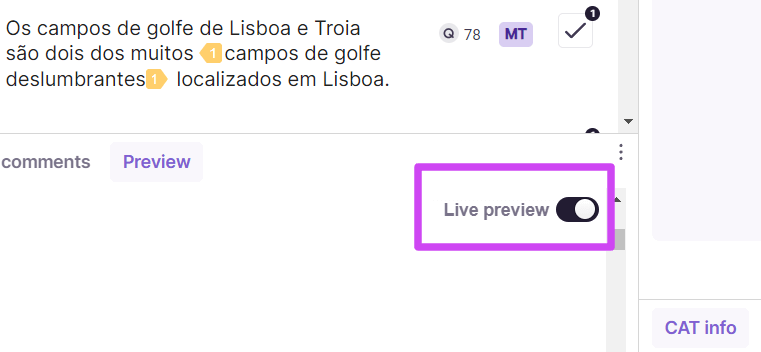
Click a translated segment to go to its corresponding segment in the source text. The Live preview displays the specific text segment in the target language.
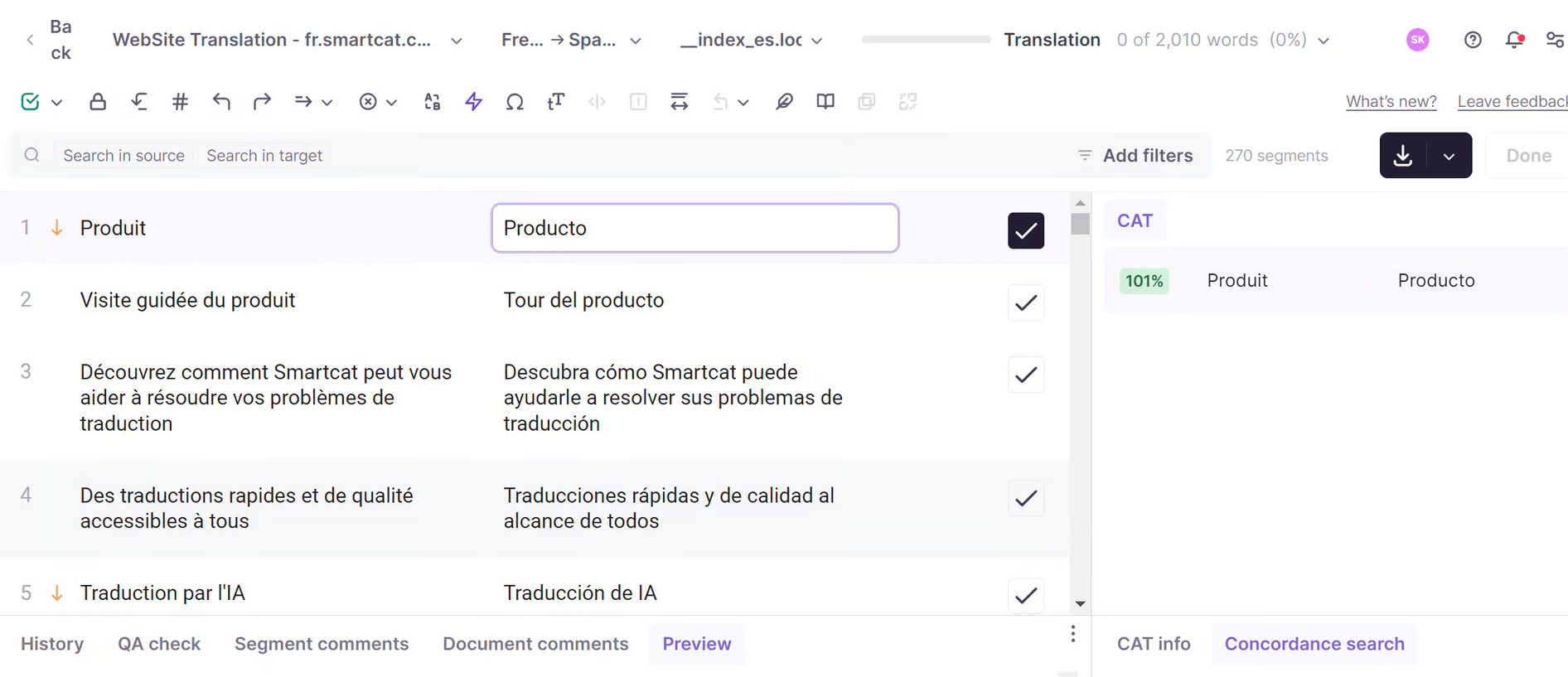
Review and confirm segments one after another by clicking the checkbox to the right of each text segment. To confirm all segments at once, click the checkbox icon in the toolbar.
Export your HTML file
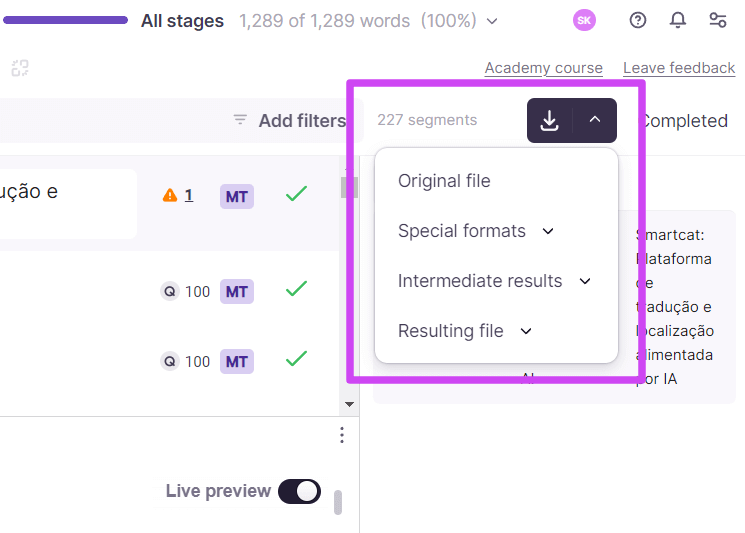
Once the review and edit of your AI translation is complete, click Done in the CAT editor and download your resulting file in HTML format. If you choose the Special formats option in the dropdown menu, you can export your file in TMX, XLIFF, or CSV.
CMS integrations
Smartcat offers a variety of CMS integrations. For more information on supported integrations, visit the Website translation page.
The workflow in the CAT editor is the same. For detailed instructions on integrating your translation with your CMS, explore these platform-specific guides:
FAQs
What are my two options for translating a landing page in Smartcat?
You can either use the Smartcat Website Translator (paste your live URL and publish a script-based translation) or translate the page's HTML file directly as a project.
What's the benefit of using Live Preview when translating an HTML file?
Live Preview lets you work directly against the source layout — clicking a translated segment jumps to its corresponding place in the source text, so you can see translations in context.
What file formats can I export my translated HTML file as?
You can export as HTML, or choose Special formats to export as TMX, XLIFF, or CSV.
Do I need a developer to publish the Website Translator version?
You need someone with access to your site's header code to add the JavaScript snippet, but the translation, review, and preview steps are all done inside Smartcat.
Which specific CMS platforms have their own dedicated integration guides?
WordPress/WPML, Zendesk, Google Chrome (Translator extension), Drupal, Contentful, Wix, Ghost, WooCommerce, and Weebly, among others.
Want to learn more?
See how Smartcat can transform your localization workflow.
Still need help?
Our support team responds within one business day.