Setting Up Video Output for Localization Projects
Overview
When creating a video localization project in Smartcat, you can define the output format — AI voice-over, burned-in subtitles, and whether you receive subtitles as a separate file — at the start of the project. Smartcat then generates the final localized video files automatically once translation work is complete, with no manual export step required.
When to use it
When creating a video localization project, it is mandatory to select an output type. Use this feature when you need to localize video content into multiple languages and want consistent, repeatable output across your projects. It is especially useful when different languages require different output types — for example, voice-over for primary markets and subtitles for secondary ones.
Requirements and Limitations
-
Your workspace must have Video and subtitles enabled.
-
This feature applies to video projects only. Document and audio-only projects do not include the output format step.
-
Output format is set at project creation and cannot be changed after the project starts.
-
Supported output types: Video with AI voice-over, Video with burned-in subtitles, separate subtitle files.
⚠️ If you do not see the output format options during project creation, this feature may not be enabled for your workspace. Contact Smartcat support.
Key concepts and terminology
| Term | Definition |
|---|---|
| Output format | The type of localized video file Smartcat generates — AI voice-over, burned-in subtitles, or a combination of both. |
| Language override | A per-language exception to the default output format. Use overrides to assign a different output type to specific target languages. |
| AI voice-over | A localized video where the original audio track is replaced with an AI-generated voice in the target language. |
| Burned-in subtitles | A localized video where translated subtitles are permanently embedded into the video frames. |
| AI translation profile | A preset that controls how AI translation is applied to your content (e.g., Standard). |
| Auto-generation | The automatic process of producing the final output video once all translation tasks for that file and language are complete. |
How it works
Step 1 — Create a new video project
-
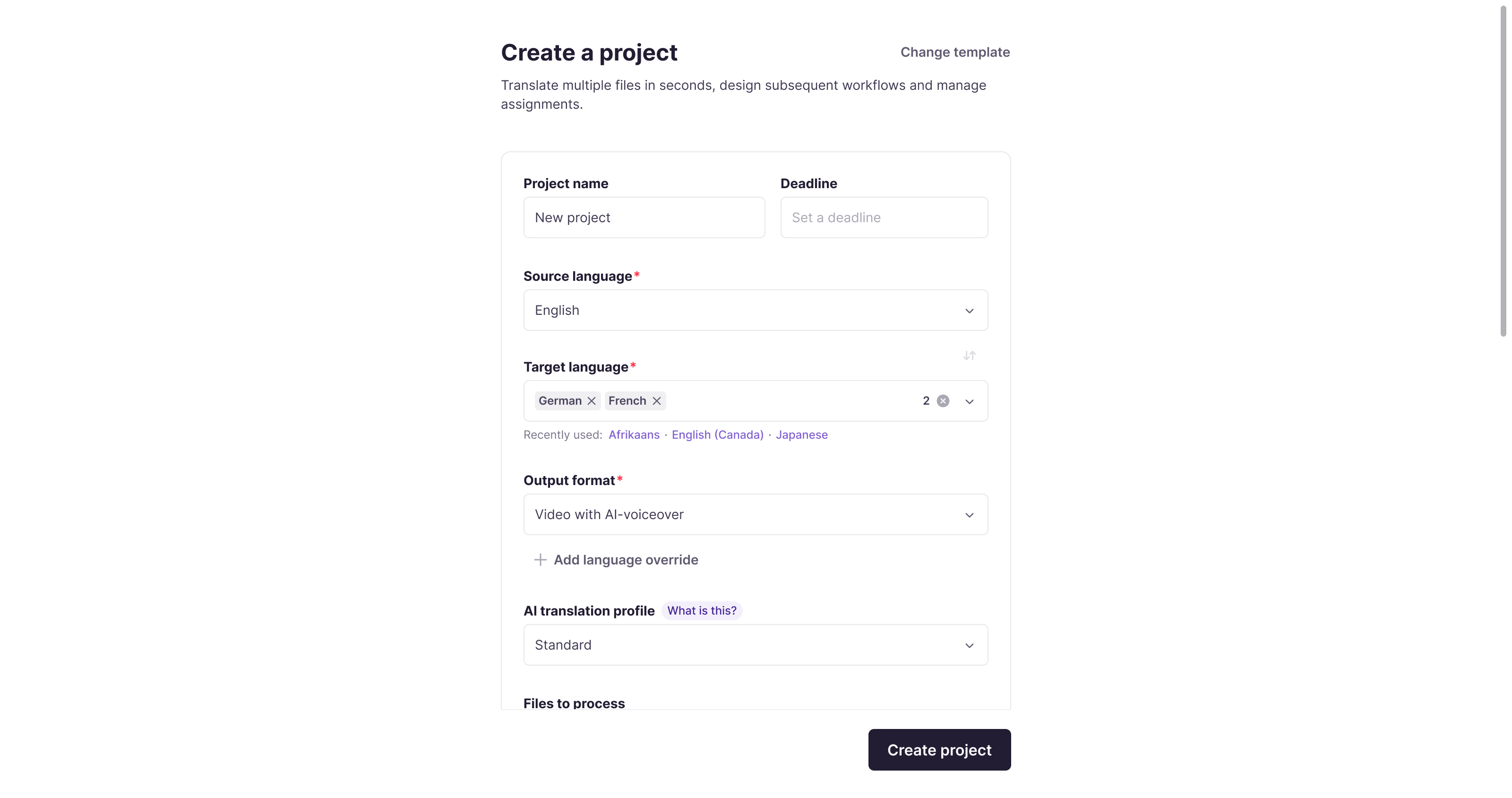
From your Smartcat workspace, start a new project and select a video file type (or use the Translate Video, Audio, Subtitles template).
-
Select your Source language from the dropdown.
-
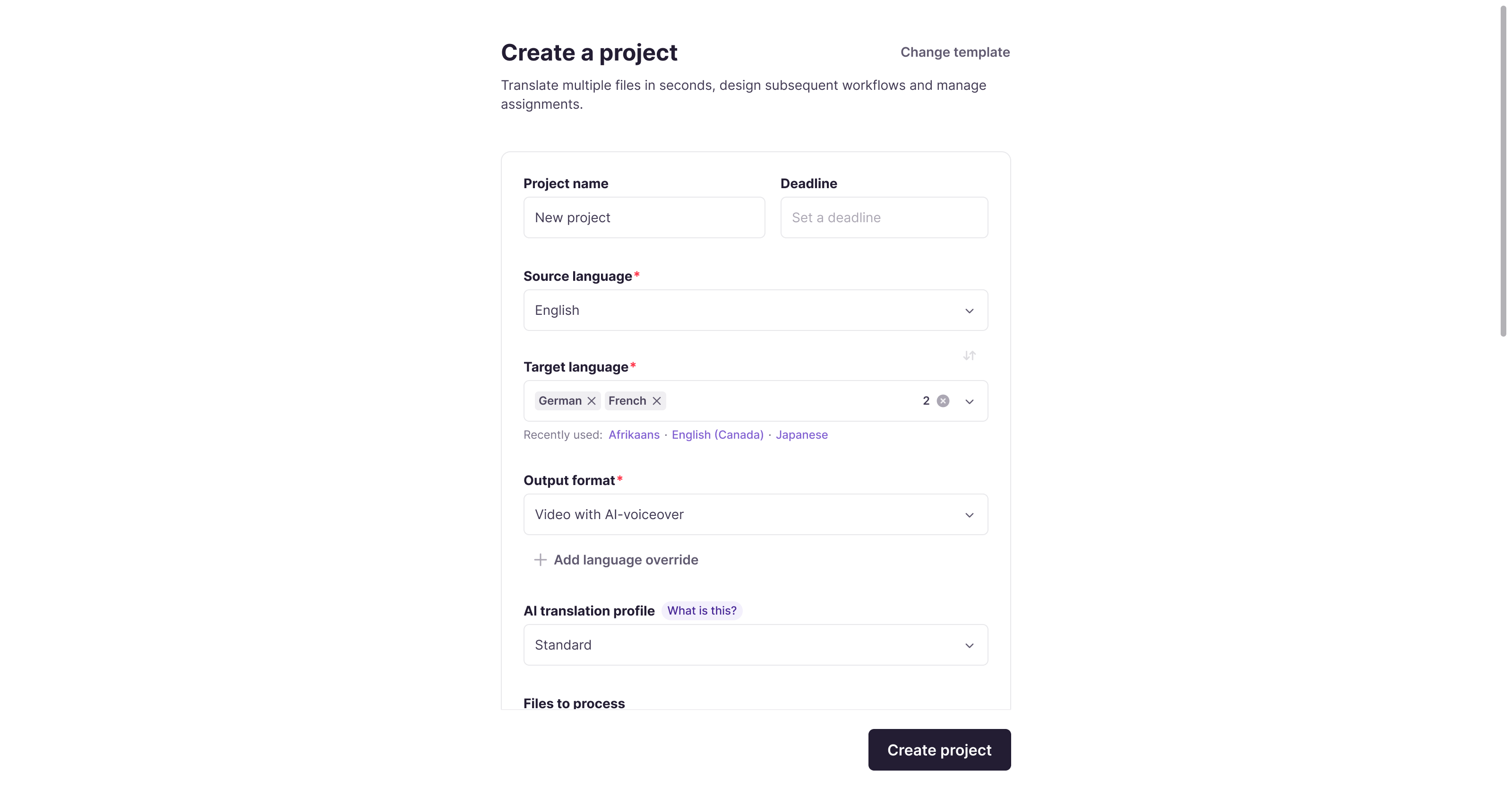
Add your Target languages using the multi-select field. You can select from recently used languages or search for any language.
Step 2 — Set the output format
-
In the Output format field, select the default output type for all target languages:
-
Video with AI voice-over — generates a dubbed video in each target language
-
Video with burned-in subtitles — generates a video with subtitles embedded in the frame
-
Video with AI voice-over and burned-in subtitles — generates a dubbed video with subtitles also burned in
-
Subtitle files only — generates only the subtitle files
-
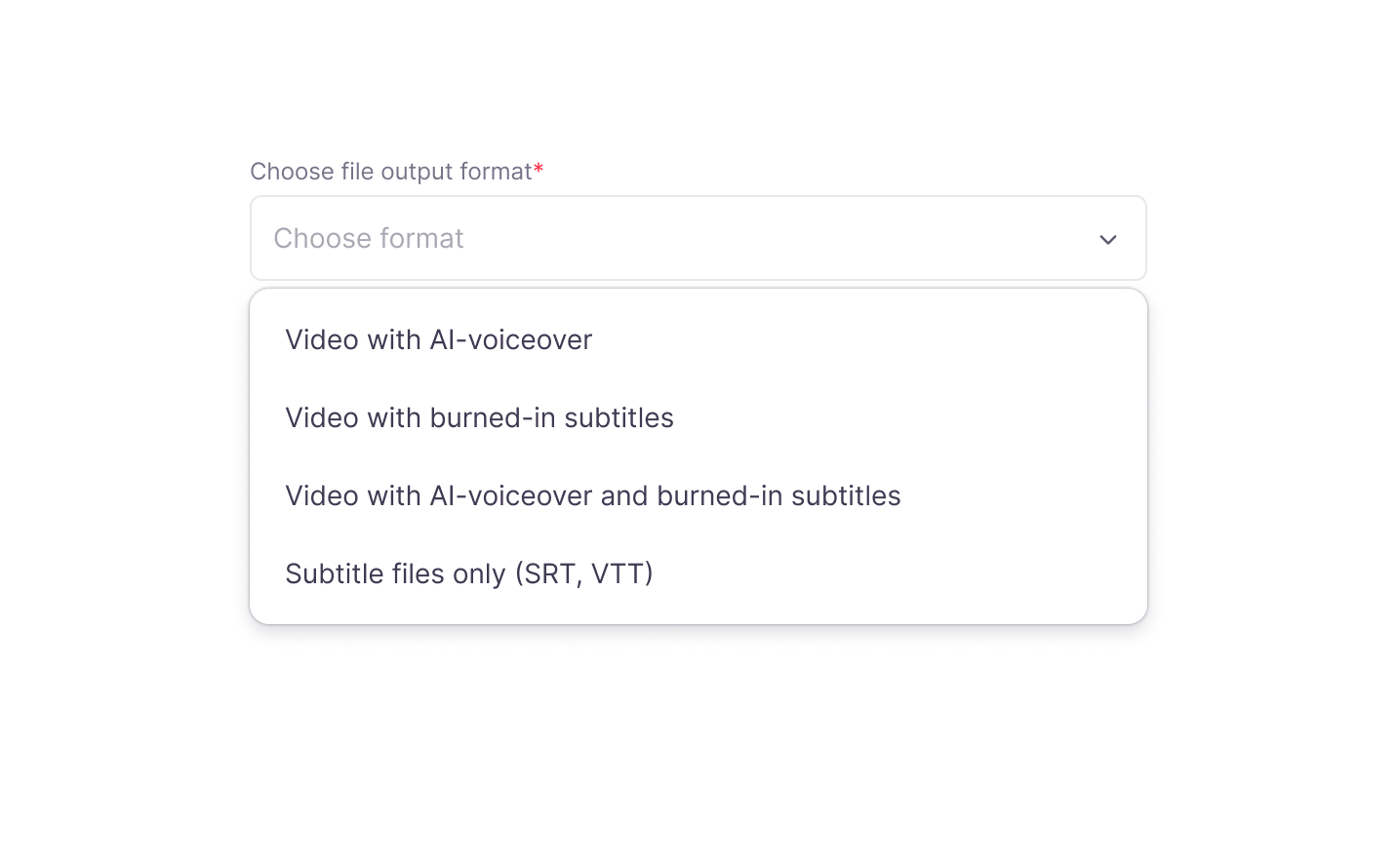
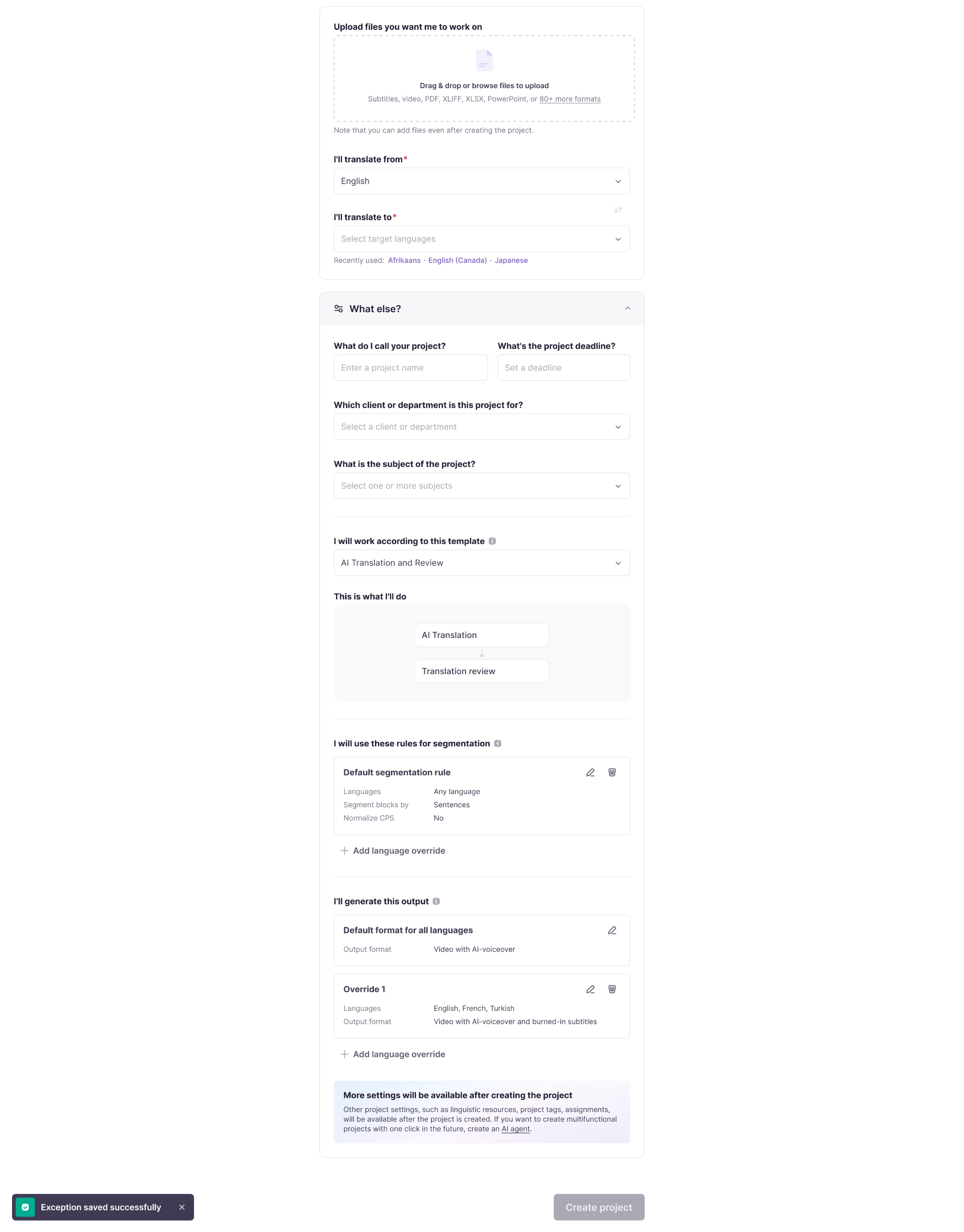
The format you select here applies to all target languages unless you add language-specific overrides (see Step 3). Failed auto-generation retries up to 3 times automatically. You can manually generate video from the editor in the project.
Step 3 — Add language overrides (optional)
If different languages need different output types, add a language override.
-
Click + Add language override.
-
Select the target languages this override applies to.
-
Select the output format for those languages.
-
Click to confirm. The override appears as a numbered card below the default output format setting.
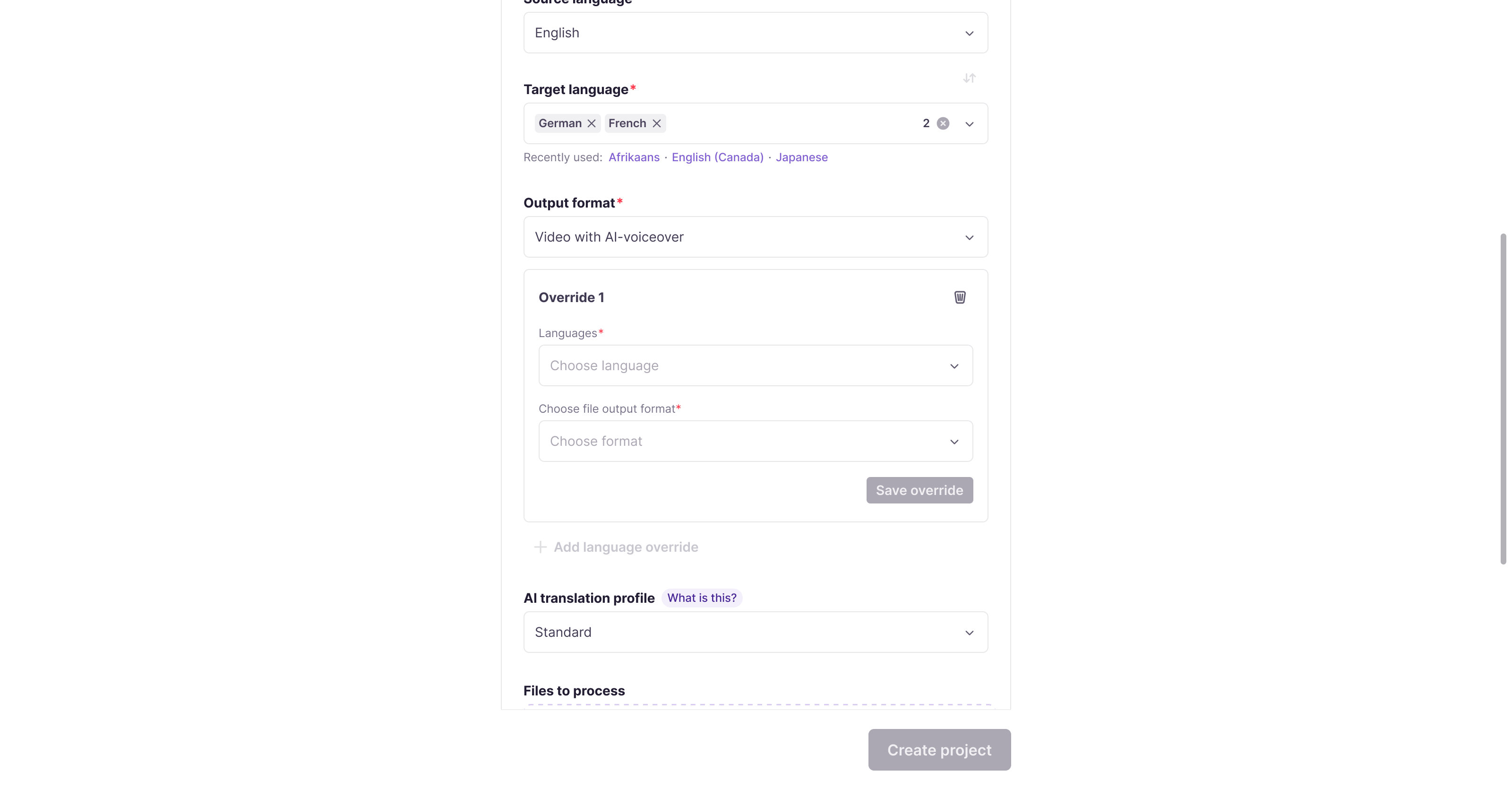
Each override card shows the languages and output format it applies to. Use the ✏️ or 🗑️ icons on the card to edit or remove it. You can add multiple overrides.
Example from the project creation screen:
-
Default: Video with AI voice-over (applies to German, French, and any other unassigned languages)
-
Override 1: English, French, Turkish → Video with AI voice-over and burned-in subtitles
-
Override 2: Spanish → Video with burned-in subtitles
Step 4 — Configure remaining project settings
-
Select an AI translation profile (Standard by default). Click What is this? for a description of available profiles.
-
Upload your video files in the Files to process section.
-
Click Create project.
Step 5 — Complete translation work
Once the project is created, your team completes translation and review tasks in the Subtitle Editor as normal. The output format setting does not change the translation workflow.
Step 6 — Receive your output files automatically
When the last translation task for a given file and language is marked complete, Smartcat automatically generates the output video. No manual export is required.
-
The generated file is added to the project's file list once ready.
-
If generation fails, Smartcat retries automatically up to 3 times. If all retries fail, a Generation failed status is shown for that file and language in the files view.
Troubleshooting
The Output format field is not visible when creating a project.
This field only appears for video projects when the feature is enabled for your workspace. Confirm you are creating a video-type project. If the field is still missing, contact your workspace administrator.
Generation failed for one or more languages.
Smartcat retries automatically up to 3 times. If the failure persists, confirm that all translation tasks for the affected file and language are fully complete. Contact support if the issue continues.
A language override is not applying as expected.
Check the override card to confirm the target language is listed there and not only under the default output format. If a language appears in an override, that format takes precedence over the default.
Want to learn more?
See how Smartcat can transform your localization workflow.
Still need help?
Our support team responds within one business day.