Set up a software localization project
Overview
Smartcat streamlines software localization by importing and exporting strings in JSON, YAML, Android XML, and iOS .strings. Keys are stored in collections, and each collection holds a unique set of keys. A single software localization project can contain multiple collections, and you can create as many isolated projects as you need.
You can import keys and translated content from external files, and you can also add and edit keys and their source text directly in Smartcat — treating Smartcat as a central system of record for your product copy and maintaining it without involving your developers. Developers can then export keys and translations in multiple formats to build your product.
💡 To set up a fully automated integration with continuous localization, follow the developer documentation for the REST API and CLI tool.
How to create a software localization project
-
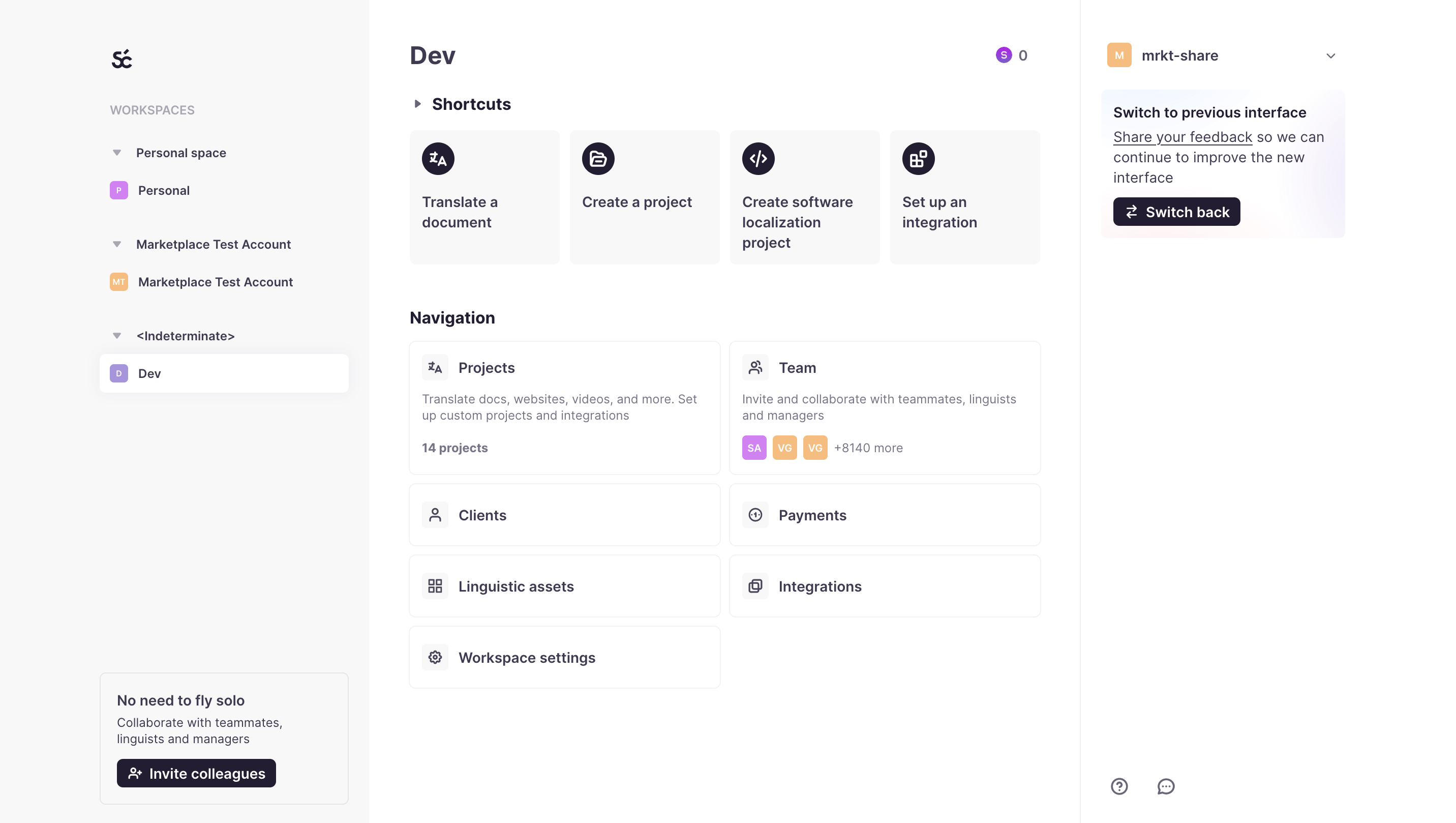
Select Create software localization project on your workspace home page
-
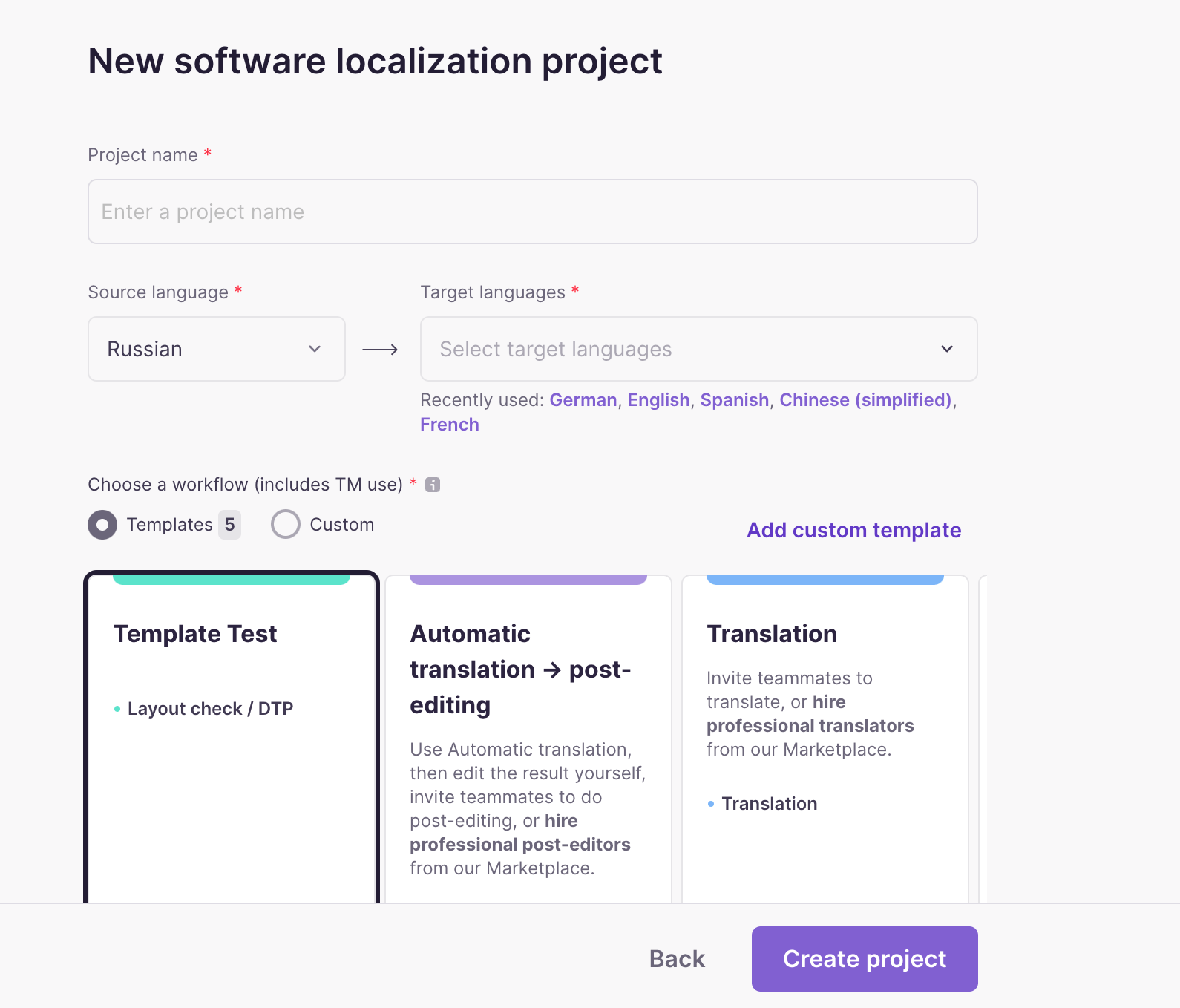
Fill in the project name and choose the source and target languages
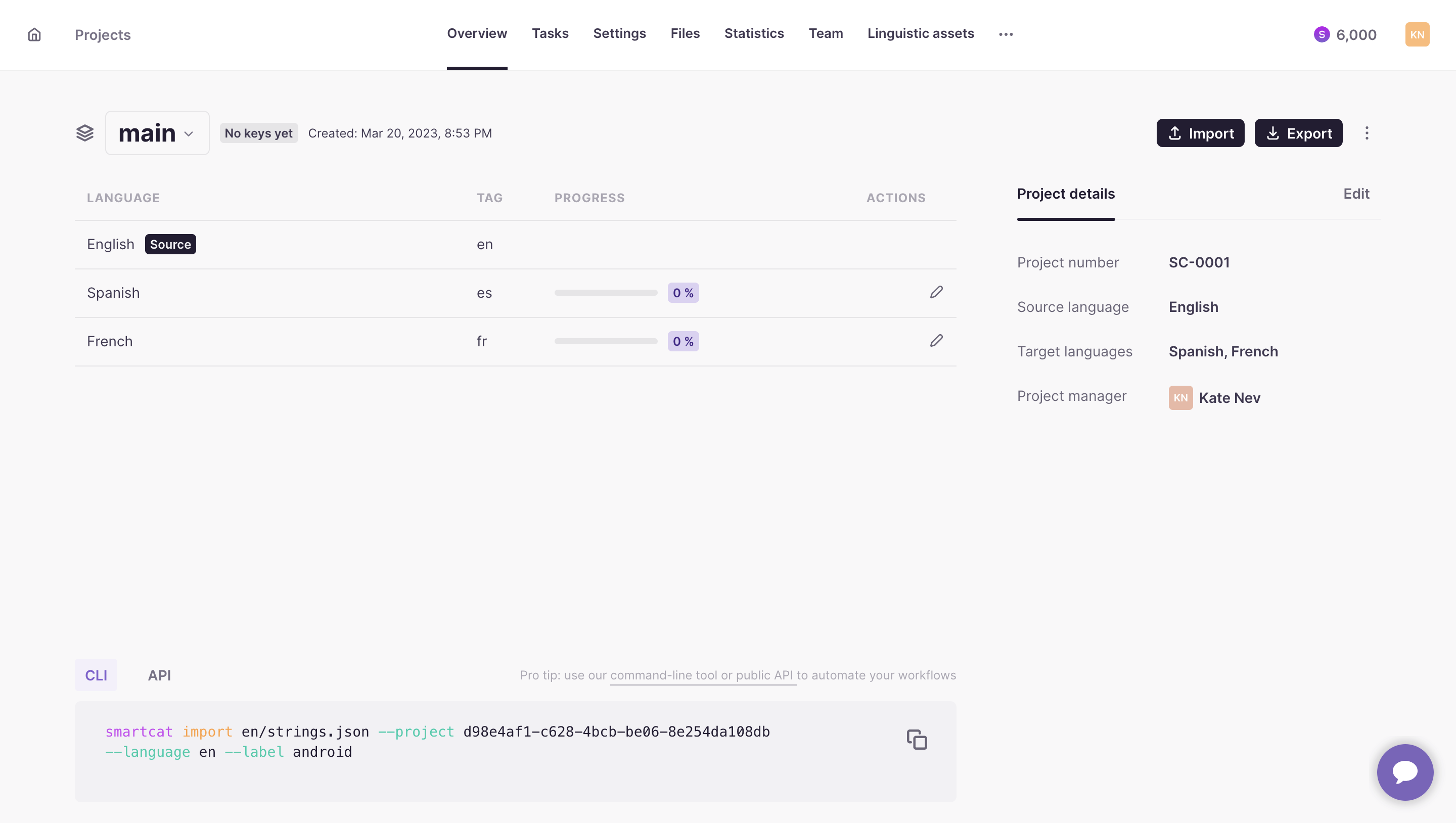
You now have a blank project with a default collection named "main." Smartcat enforces unique keys within a collection, and you can add, edit, and delete keys freely — Smartcat updates them across all language pairs in the collection.
Import keys
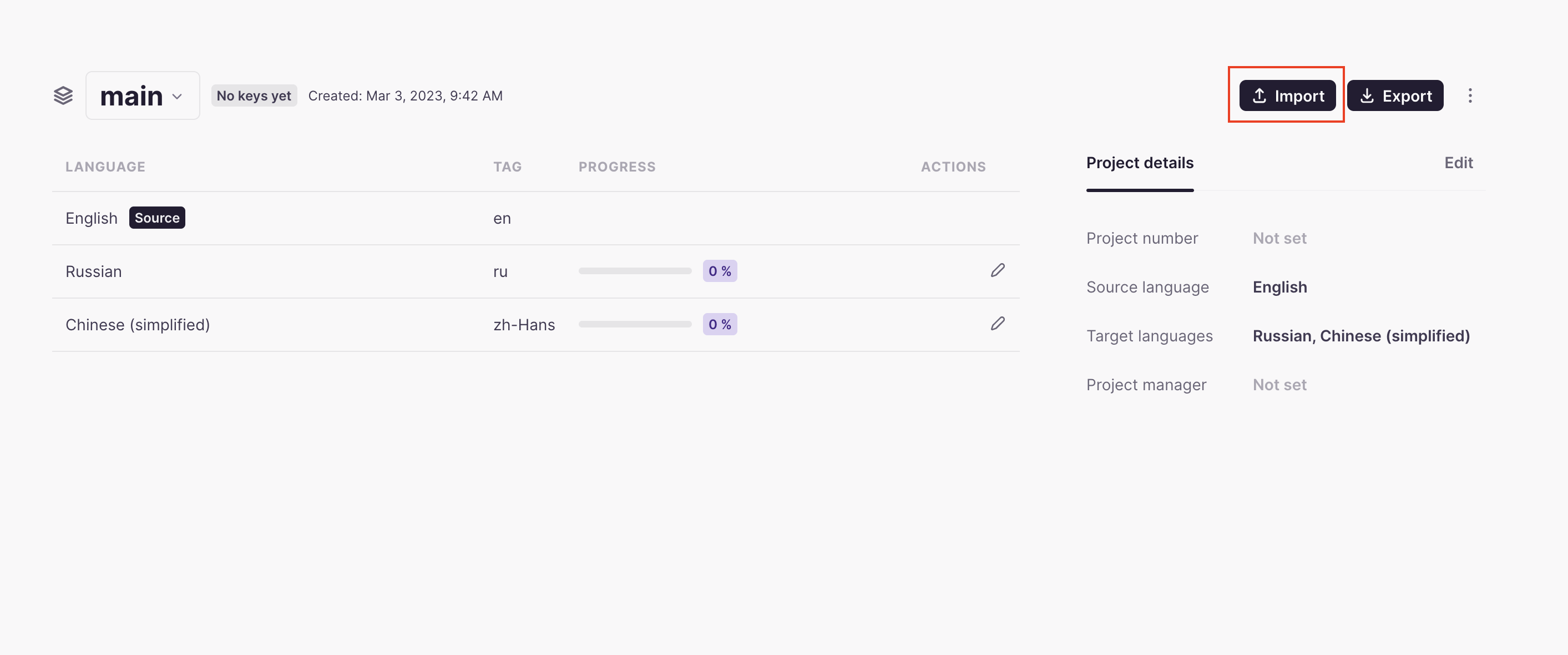
Once the "main" collection is created, you have several ways to import keys. You can import keys manually through the Smartcat interface.
Alternatively, set up automated import and export through the public REST API and the cross-platform command-line tool — see the developer documentation for the API and CLI tool.
Export keys
You can export keys directly from the software localization project. Export from the collection overview page:
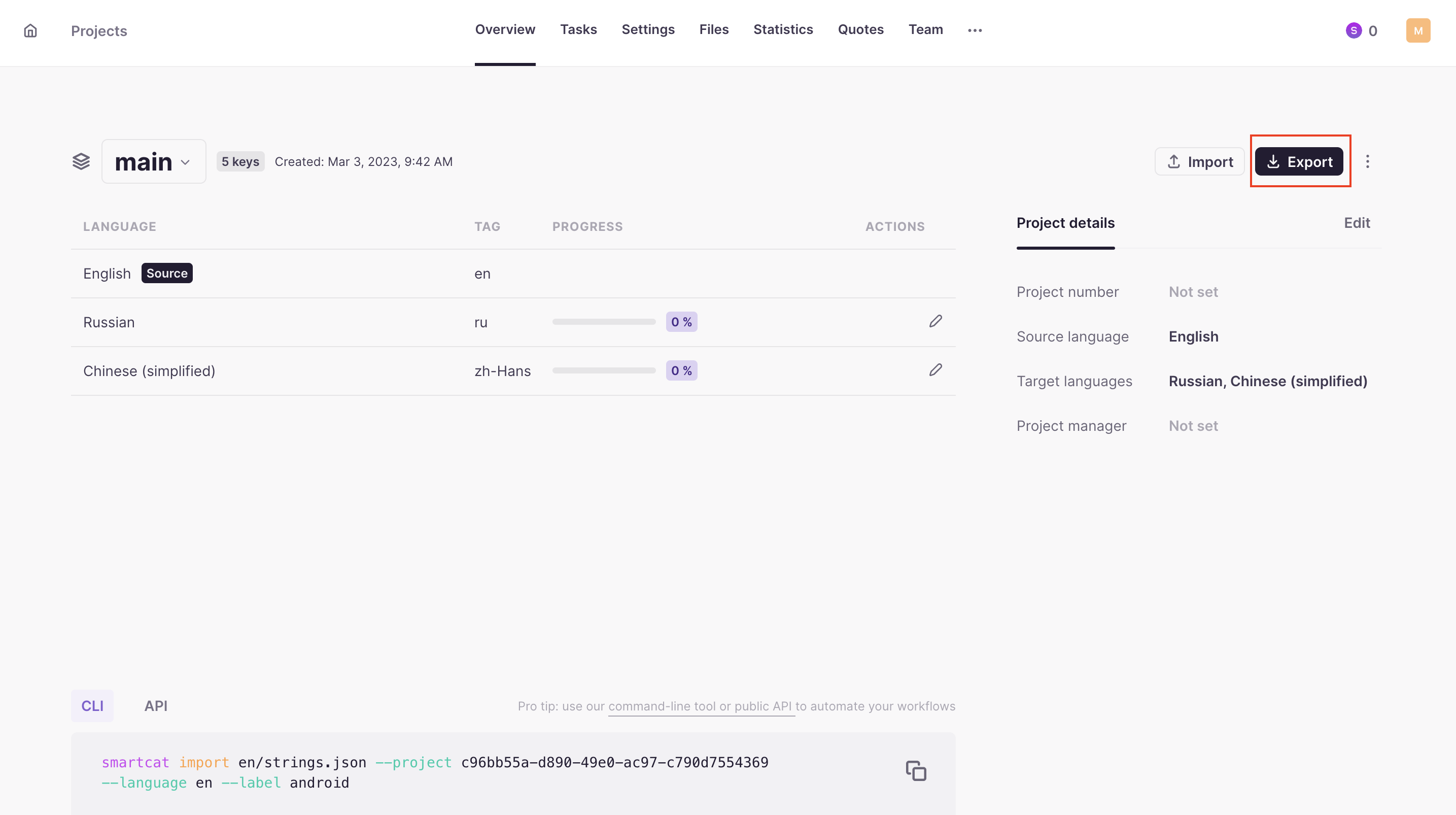
Or directly from the Editor:

For easier integration, you can also export keys using the API and CLI tool.
Add, edit, and label keys in the Editor
To edit your keys, open the Editor by clicking any language pair in your collection. There you can:
-
Change the text by clicking a source segment
-
Add new keys by clicking the plus sign (+) at the end of the segments
-
Add or remove a label by clicking Add label on the segment — click the X next to a label to remove it
-
Delete keys by clicking the three dots near the key's segment
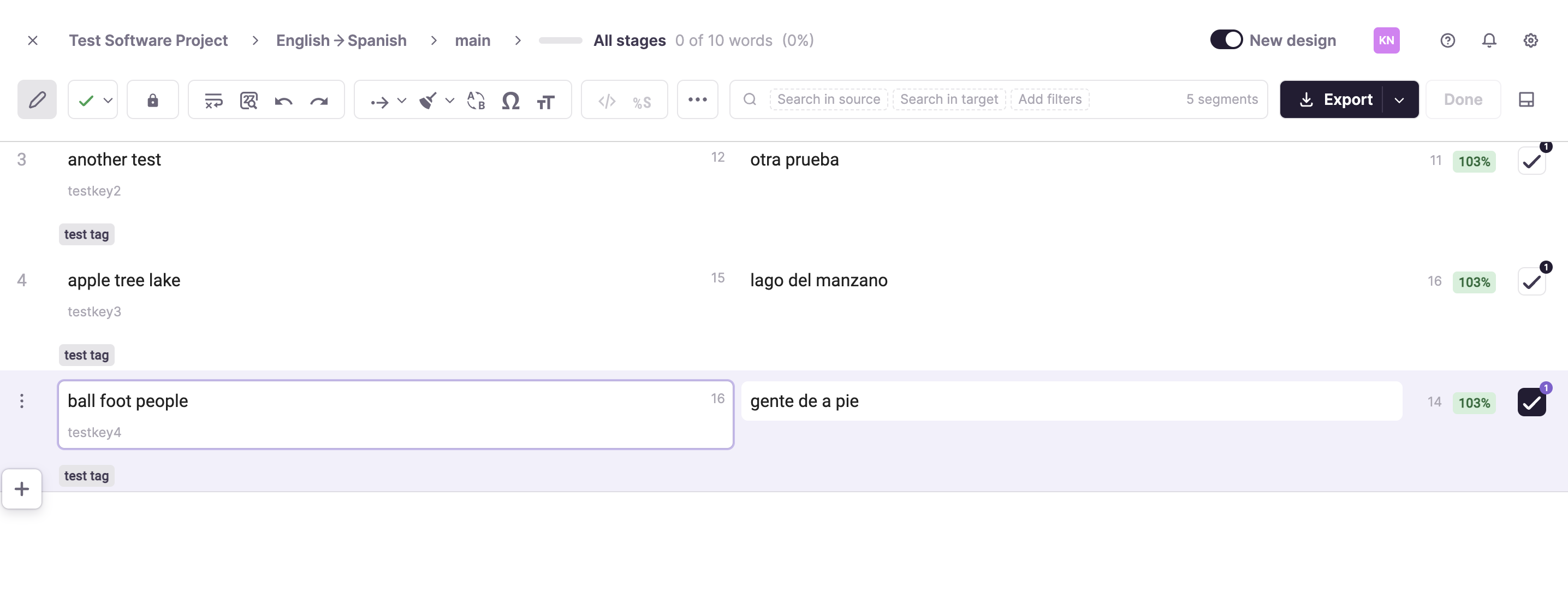
⚠️ When a key's source text is changed, all its existing translations are removed at the collection level. This ensures linguists review or re-apply the correct translations whenever the source text changes.
📌 You can only add or remove labels one segment at a time in the Editor UI — there's no bulk option there. Labels can be added in bulk via the Import API/CLI (using the labels parameter or smartcat import --label), but they cannot be removed or changed through the API or CLI.
Plural support
Smartcat handles plurals in two ways:
-
Natively, as independent segments in the Editor
-
Through ICU MessageFormat syntax
When you add a new key in the Editor, you specify whether to create it with all plural forms.
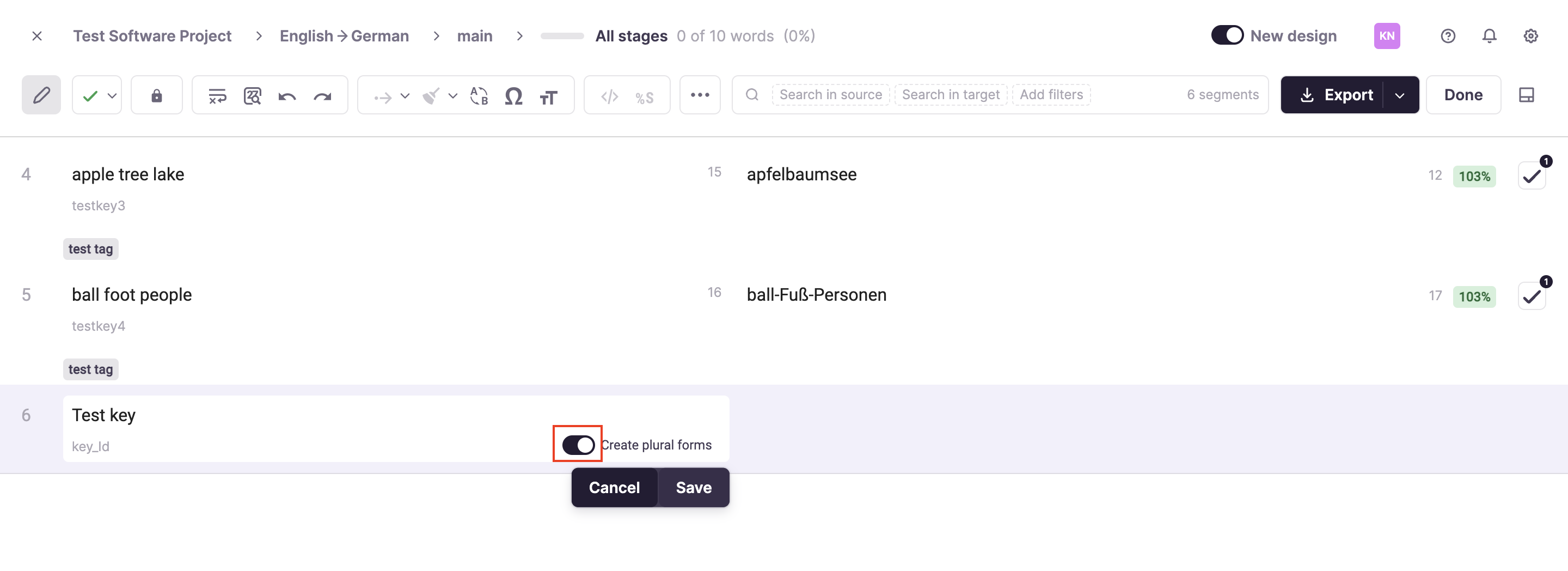
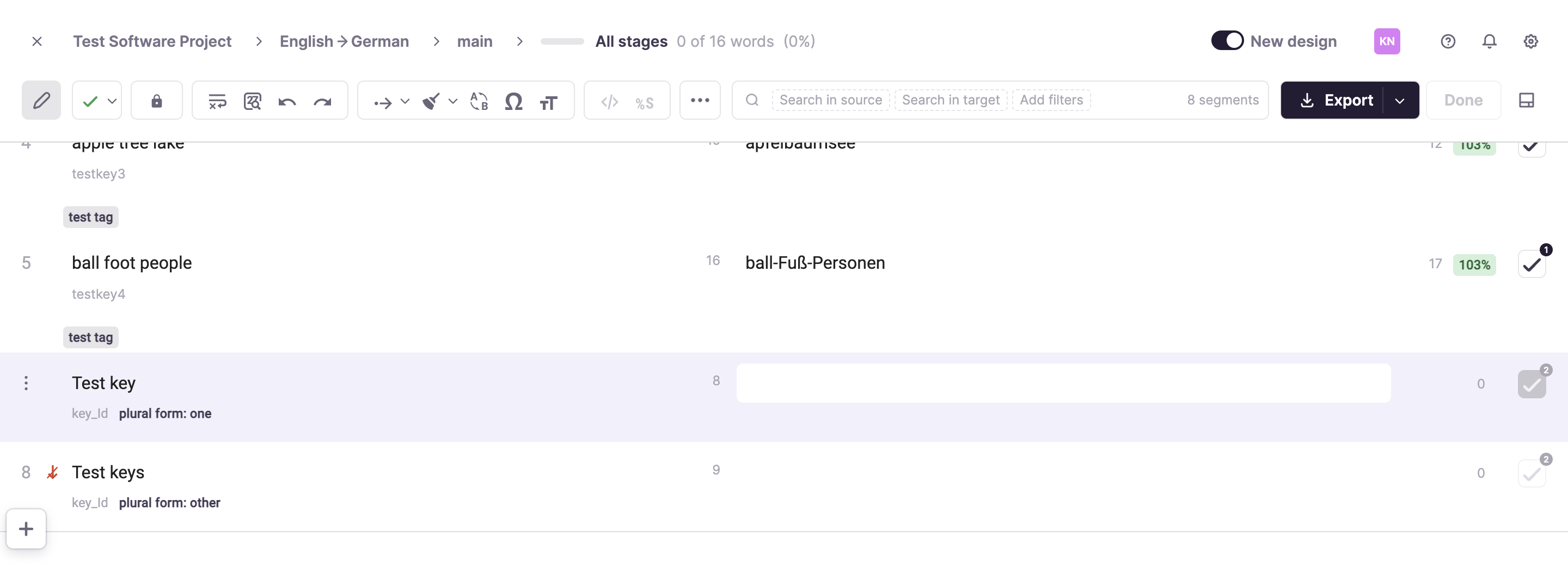
When exporting keys, plural forms are converted into an ICU MessageFormat-compatible string. When importing a LocJSON file, you choose whether keys containing ICU MessageFormat syntax are parsed into individual segments or kept as raw strings you can edit. For raw ICU MessageFormat strings, you can use an interactive previewer and validator in the preview section.
FAQ
Does Smartcat offer an on-premise solution?
This option is no longer offered. Smartcat is hosted on Amazon AWS, and you can find security details on the Smartcat security page. Some subscriptions include an IP whitelisting option that lets you list the IP addresses allowed to connect to your Smartcat account, including remote workers' addresses if needed.
Want to learn more?
See how Smartcat can transform your localization workflow.
Still need help?
Our support team responds within one business day.