API guides
Overview
Smartcat's API (Application Programming Interface) provides programmatic access to Smartcat features from third-party applications. It works as a full equivalent and extension to the Smartcat user interface — you can create translation projects, track status, download translated texts, and more using Create, Retrieve, Update, and Delete methods.
This guide assumes basic familiarity with software development and the Smartcat user interface.
📌 API functionality is available only from a company account. You cannot use the API from a freelancer account.
Authorization and authentication
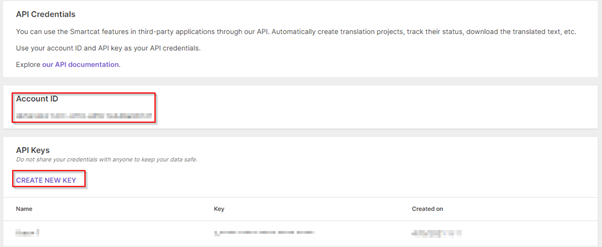
API credentials consist of a username and a password. To obtain them, log in as an Administrator and go to Settings → API.
-
Your username is the string in the Account ID field
-
Your password is an API key generated by clicking CREATE NEW KEY in the API Keys pane — you can create multiple keys
The API uses Basic Authentication for every method. Each request must include the Authorization: Key header, where Key is a Base64-encoded "userName":"password" string.
API call basics
The API uses standard web methods — GET, PUT, POST, and DELETE — to retrieve, create, update, and delete Smartcat objects. Resources are accessible in this format:
https://smartcat.domain/api/integration/v1/resource
Where the domain is the URL of your Smartcat server:
-
European server:
https://smartcat.ai/ -
American server:
https://us.smartcat.ai/ -
Asian server:
https://ea.smartcat.ai/
For example, a project list request is:
https://smartcat.ai/api/integration/v1/project/list
Methods
-
POST (Create) — adds new objects to your account
-
GET (Retrieve) — retrieves or searches data; you can pass a single object ID or a list of IDs
-
PUT (Update) — updates objects using the information in the request
-
DELETE — accepts an object type and ID and purges objects from your account
Smartcat validates the submitted data before committing changes.
Response codes and error messages
| HTTP status code | Description |
|---|---|
| 200 OK | Request accepted; the response contains the result or requested data |
| 202 IN PROGRESS | Request accepted but not yet complete; usual for asynchronous operations |
| 204 OK | Operation completed with no additional response body; usual for DELETE |
| 400 BAD REQUEST | Part of the request was invalid; the body includes an error message |
| 403 FORBIDDEN | Insufficient permissions, or the resource does not belong to the entity |
| 404 NOT FOUND | The resource does not exist — invalid URI or deleted resource |
| 409 CONFLICT | A conflicting change was detected while modifying a resource |
| 422 CANNOT PROCESS | Valid content type and syntax, but the server could not process the instructions |
Create a project and import a document
A project stores files, defines source and target languages (multilingual projects are supported), sets deadlines, attaches linguistic assets, and connects AI translation.
Use the POST project/create method to create a project. The assignToVendor parameter must be passed:
[
  {
    "name": "API Project",
    "sourceLanguage": "en",
    "targetLanguages": ["ru"],
    "assignToVendor": false
  }
]
You can upload a document while creating the project using the documentProperties model, or create an empty project and skip it. To import a file into an existing project, use:
POST project/document/update?documentId={documentId_languageId}
Update a document
For a continuous translation scenario with a newer document version, use the PUT document/update method with the document ID:
https://smartcat.ai/api/integration/v1/document/update?documentId={documentId_languageId}
The document is overwritten in Smartcat, and completed translations are inserted into the new document through AI translation.
Calculate statistics
To calculate word counts and Translation Memory matches:
GET project/{projectId}/statistics?onlyExactMatches=false
Statistics are calculated for all documents in the project. For a specific document:
GET document/statistics?documentId={documentId_languageId}&onlyExactMatches=false
For the overall word count without TM matches, use the wordsCount parameter returned by GET document?documentId={documentId_languageId}.
Track translation status
To get progress per workflow stage, task status, and assignments for a document, use GET document with the document ID. To get the progress and statuses of all documents plus the overall project status, use GET project/{projectId}.
Export a translation
To export a translated document, use a POST document/export request:
document/export?documentIds={documentId_languageId}&type=target&stageNumber=1
For small documents you receive a task ID in the response. For larger ones, Smartcat sends a callback with the task ID to /document/exportRequestCompleted once the file is ready.
📌 The
stageNumberparameter is the stage index in your workflow — 1 for Translation (if first), 2 for Editing, and so on.
Integrate with a permanent project
Use a permanent project to import and export documents when a fixed source language, a static set of target languages, and documents of the same type are always processed with the same settings.
Create a permanent project
-
Log in to your Smartcat account
-
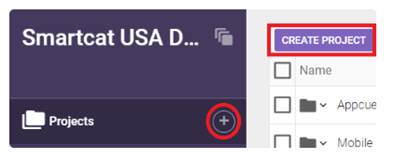
Click the plus (+) button next to Projects or the Create Project button
-
Click Skip when prompted to upload documents
-
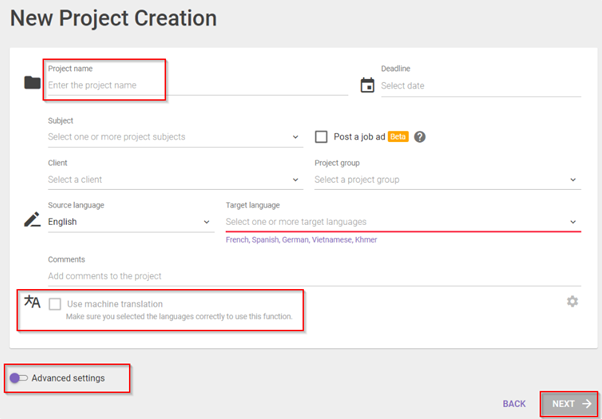
Enter the project name and select source and target languages — after creation you can add languages but cannot change or remove existing ones
-
To enable machine translation, check Use machine translation and choose an engine per language with the settings wheel
-
Use the Advanced Settings switch to set up Translation Memories, glossaries, and QA checks
-
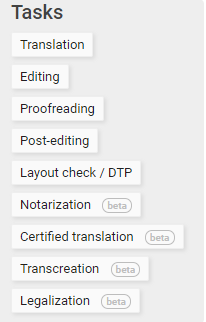
Select the workflow stages
-
Add your AI translation rules
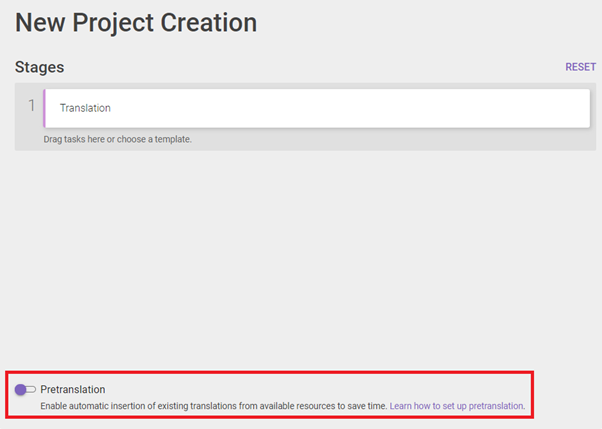
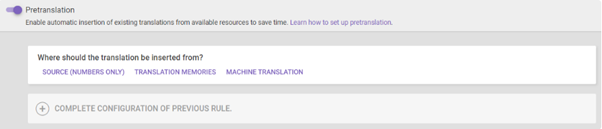
-
Click Finish
Your permanent project is created.
Collect the project ID
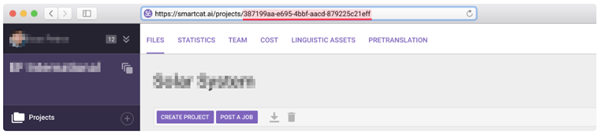
The project ID is the 36-character identifier (including hyphens) assigned when a project is created. Open the project page and copy the part of the address after /project/.
Upload a document
Use the POST project/document method:
[
  { "key": "file", "type": "file", "src": "/D:/projects/smartcat/temp/test.txt" },
  {
    "key": "documentModel",
    "value": "[{ \"externalId\": \"1232456789\", \"metaInfo\": \"\", \"disassembleAlgorithmName\": \"\", \"presetDisassembleAlgorithm\": \"\", \"bilingualFileImportSetings\": { \"targetSubstitutionMode\": \"all\", \"lockMode\": \"none\", \"confirmMode\": \"none\" }, \"targetLanguages\": [\"ru\"], \"enablePlaceholders\": true, \"enableOcr\": true }]",
    "contentType": "application/json",
    "type": "text"
  }
]
Update a document
Use PUT document/update with the document ID — the document is overwritten and existing translations are inserted into the new document through AI translation:
[
  { "key": "file", "type": "file", "src": "/D:/projects/smartcat/temp/test.txt" },
  {
    "key": "updateDocumentModel",
    "value": "{ \"bilingualFileImportSetings\": { \"targetSubstitutionMode\": \"all\", \"lockMode\": \"none\", \"confirmMode\": \"none\" }, \"enablePlaceholders\": true }",
    "contentType": "application/json",
    "type": "text"
  }
]
Export the translation
Use a POST document/export request, for example:
https://smartcat.com/api/integration/v1/document/export?documentIds=f1e5e09a8ad7830434cc477d_25&documentIds=de0b3b432ad7837175dcfeb3_25&mode=current&type=source&stageNumber=1
Integrate with a temporary project
Temporary projects suit a dynamically changing language list, projects with very different settings, or an external system that manages the project lifecycle. The downside is that some settings, such as AI translation engine mapping and advanced AI translation rules, cannot be set through the API. The process is: create a project, upload the files, export the translation, and delete the project.
Instant translations via the real-time API
To deliver translations instantly to a live application, use the real-time API:
-
In your Smartcat account, open Settings → Smart translation profiles
-
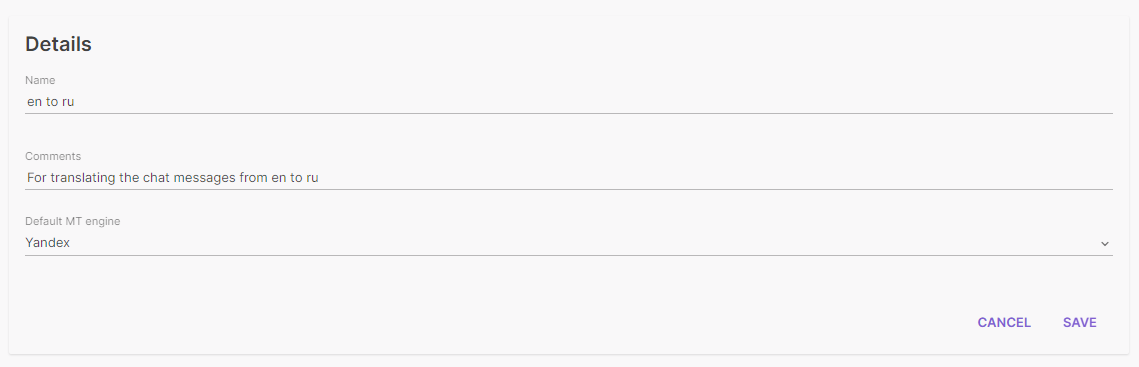
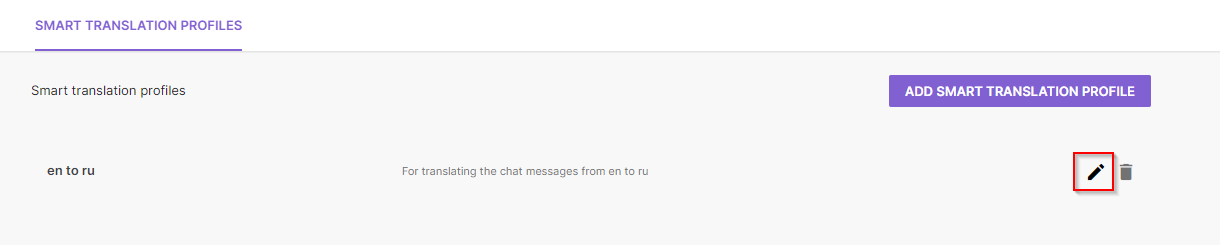
Click Add smart translation profile, enter a name and comments, select the translation engine, and click Save
-
Click Edit on the new profile
-
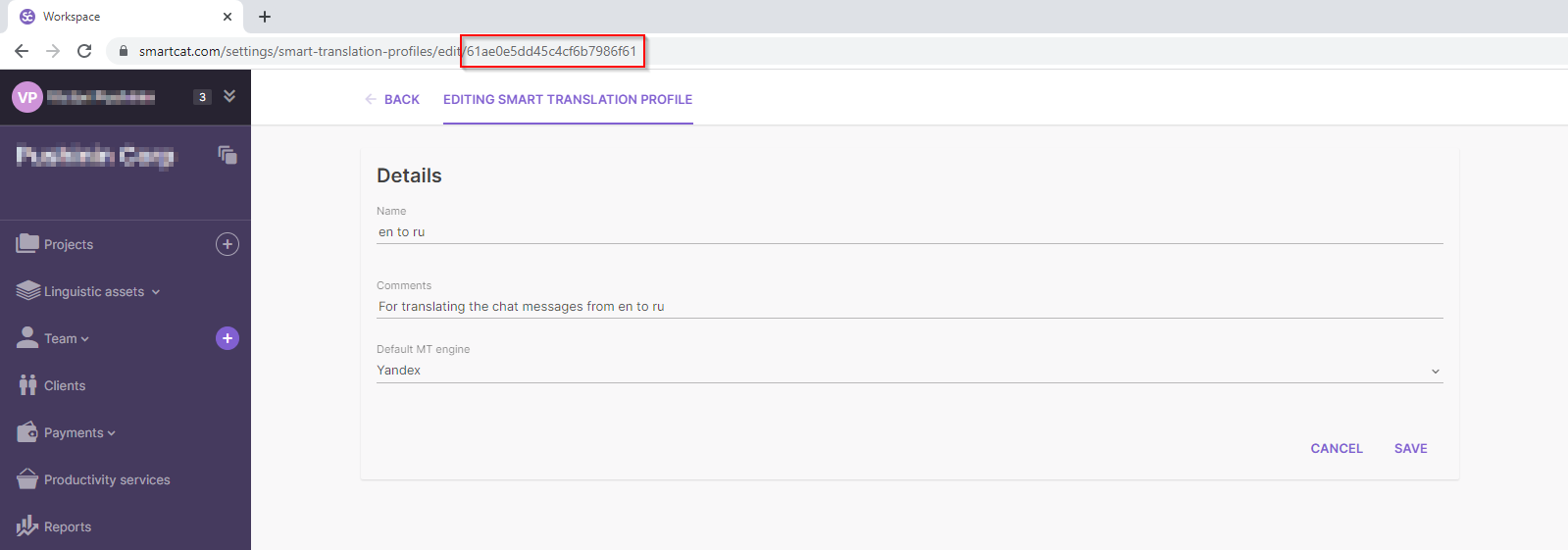
Copy the ID from the URL and use it in the AI translation request
Notification callbacks
Use callbacks to get notified when a document or project status changes, and when bilingual XLIFF imports finish. To receive callbacks:
-
Configure the web server
-
Configure the callback URL for the Web API
-
Configure notifications using the API methods
-
Process the callback when a project's status changes — URL
/project/status -
Process the callback when a document's status changes — URL
/document/status -
Process the callback when an XLIFF translation import finishes — URL
/document/translationImportCompleted
Example project-status request:
POST /api/callback/project/status HTTP/1.1
Host: example.local
Content-Type: application/json
["1e2d703f-9def-4d27-ab4d-350cbbe8c44b", "b5bf9123-31b3-4e45-9ee9-8c14d15a4145"]
If some notifications cannot be delivered, they go to a retry queue — resending starts with a 30-second delay and doubles each of 8 attempts. You can use the additionalHeaders parameter to add an HTTP header to notifications, which helps when the web server is behind a firewall that needs authentication.
FAQs
Can any Smartcat account use the API?
No — API access is available to company accounts only, not freelancer accounts.
Where do I get my API credentials?
Go to Settings → API (admin access required) to get your Account ID and API Key, used together for Basic Authentication.
Does the API behave differently depending on my region?
The endpoint you call depends on your server: EU uses smartcat.ai, US uses us.smartcat.ai, and Asia uses ea.smartcat.ai — otherwise the API works the same way across servers.
Should I use a permanent or temporary project via the API?
Use a Permanent project for recurring documents with fixed languages and settings; use a Temporary project when languages or settings vary and you're managing the project's lifecycle externally.
How do I know when a project or document status changes without polling constantly?
Configure callbacks — Smartcat sends notifications on project/document status changes and XLIFF import completion, with a retry queue that starts at a 30-second delay and doubles for up to 8 attempts.
Want to learn more?
See how Smartcat can transform your localization workflow.
Still need help?
Our support team responds within one business day.