Configure LQA profiles
Overview
You can create LQA profiles for different types of issues found in the source and target texts. Use these profiles to label errors in the CAT editor and calculate the quality score for the text.
How LQA profiles work
LQA profiles are based on the MQM (Multidimensional Quality Metrics) scoring model, where each error is assigned:
-
Category (Spelling, Grammar, Punctuation, and so on)
-
Weight (0 or more)
-
Severity (Critical = 25, Major = 5, Minor = 1, Neutral = 0)
The scoring algorithm automatically collects and processes all data from the labels, combines it with additional information such as the size of the text in words, and returns a value from 0 to 100 that represents the quality score for the specific project.
Creating an LQA profile
To create an LQA profile:
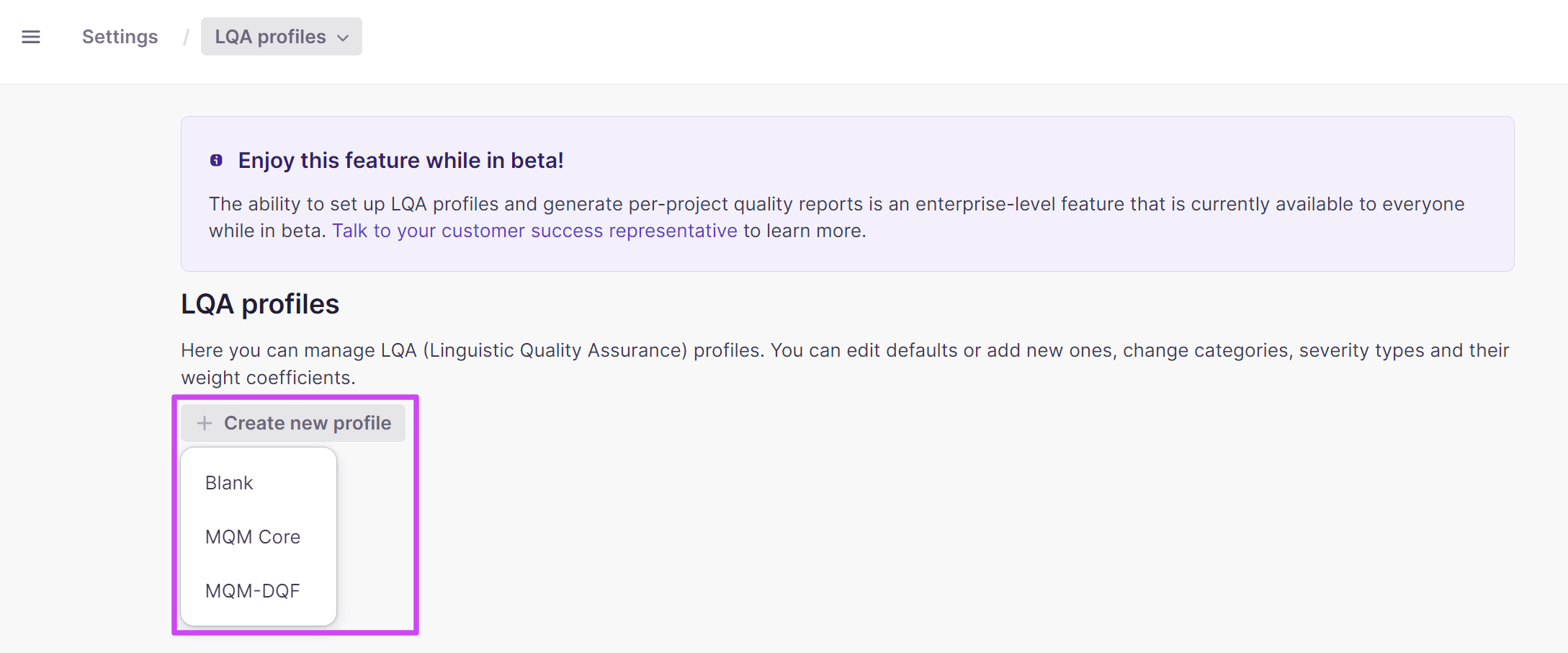
- Go to Settings → LQA Profiles, then select one of the provided templates (MQM Core or MQM-DQF, which represent different versions of the MQM framework) to customize, or pick a blank one to create a profile from scratch
📌 Regardless of how the profile is defined, Smartcat uses the same MQM scoring model to calculate the overall quality score.
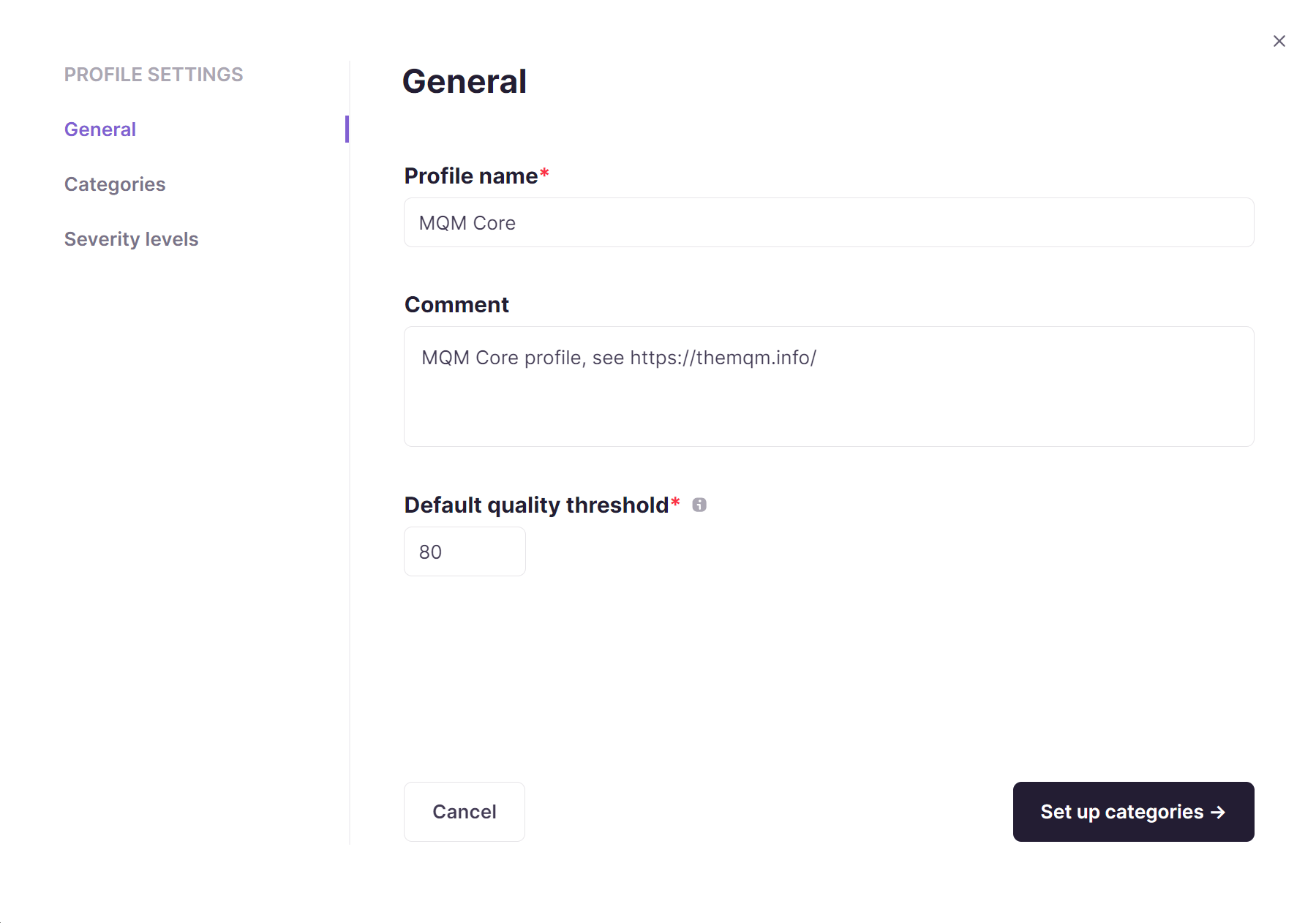
- Enter the profile name, your comments, and the threshold value used to consider the quality test passed or failed
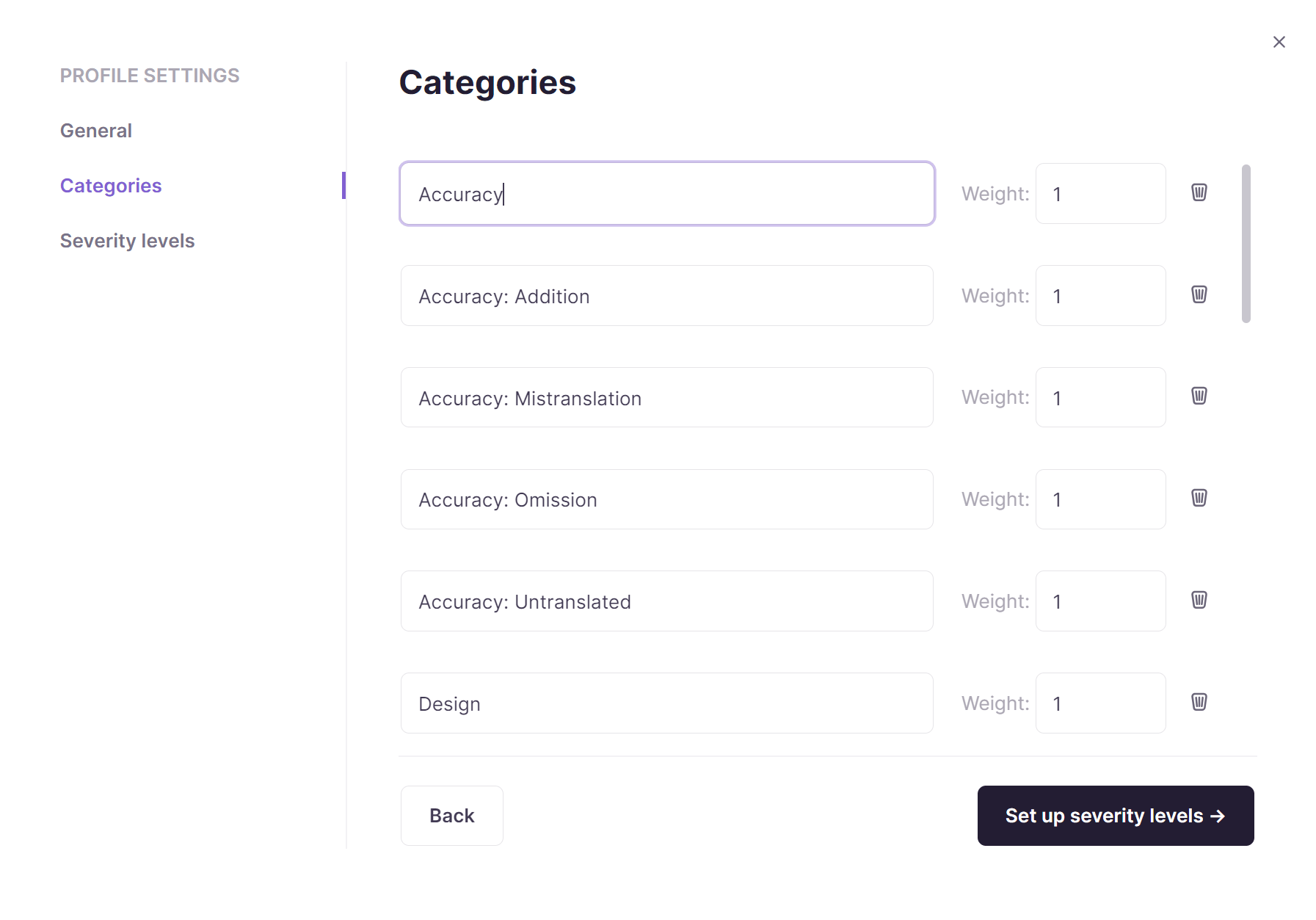
- Set up error categories and severity levels, or go with the preset ones
- Click Create level to save the changes
Your LQA profile is now saved and ready to use in the CAT editor.
Using LQA labels
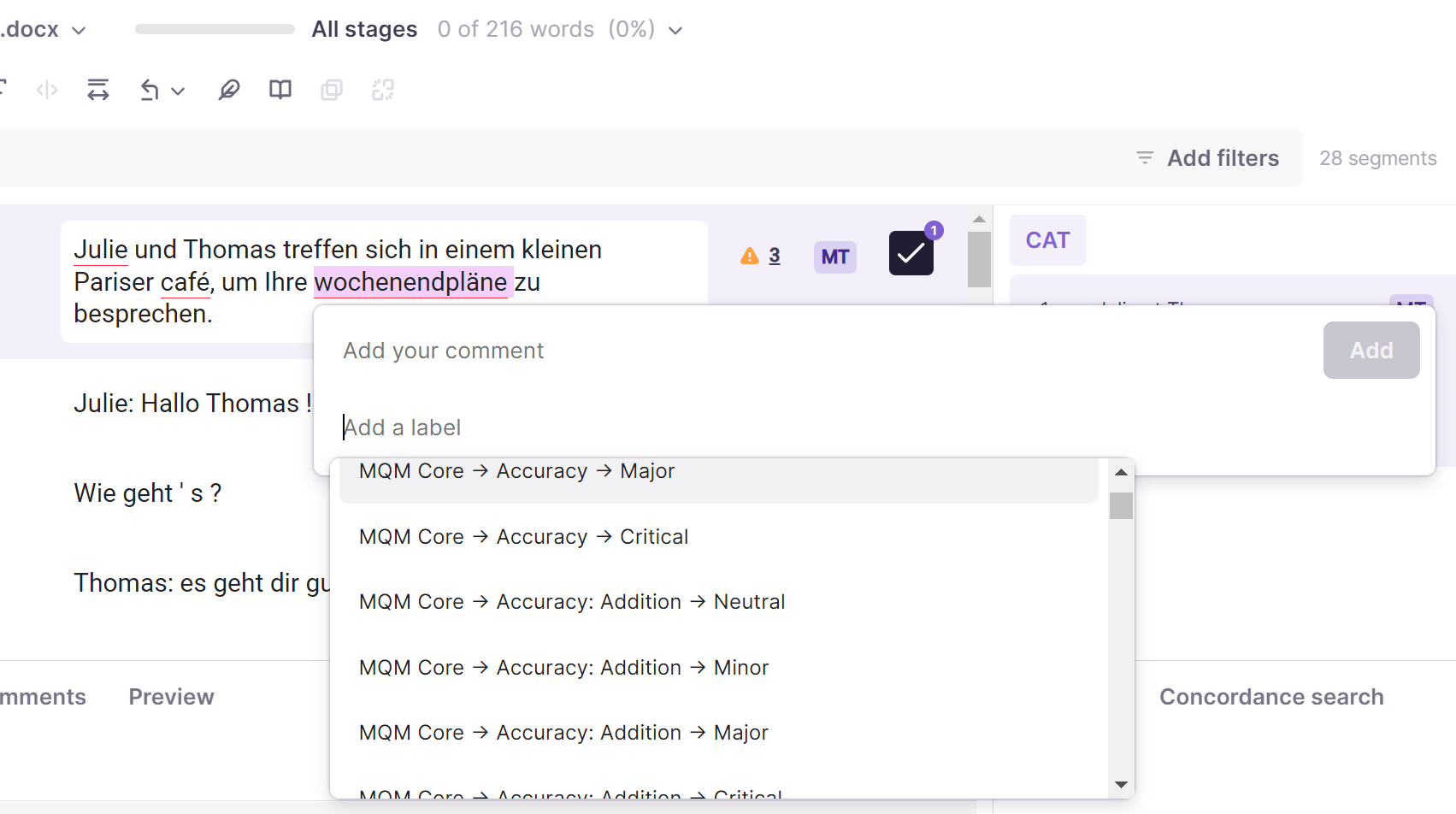
You can add LQA labels to selected text elements (from the whole segment to a single character) as comments in the CAT editor.
To add such a structured comment, select the text element, press, and pick a label from the drop-down list.
FAQs
How does the automatic Quality Assurance feature work in the CAT editor?
If there are errors in the target segment, a yellow exclamation point icon appears next to it. To see the list of errors found, hover your cursor over the icon or click it to open the QA check tab.
Fix the errors and confirm the segment again.
QA checks are performed automatically, so some words and phrases can be marked as errors incorrectly. If this happens, check the Ignore box next to the error description to hide the yellow icon, or ignore the error. You can learn more about the Quality Assurance feature in Smartcat.
Want to learn more?
See how Smartcat can transform your localization workflow.
Still need help?
Our support team responds within one business day.