Getting Started with Smartcat for Product, Software & Engineering
This article is a feature-by-feature overview of what Smartcat can do for your product content: UI strings, mobile apps, games, Figma designs, and the documentation around them.
It covers everything from a one-click plugin to a fully automated CI/CD pipeline, so localization keeps pace with your sprints instead of lagging a release behind.
Each section links to the relevant Help Center article for full step-by-step instructions.
Getting Started
-
Meet your AI team by personalizing your Chief of Staff and seeing which Coworkers and Skills your plan includes.
-
Bring in your reviewers, either from your own team or from the Smartcat Marketplace when you have no one for a language.
-
Build your Intelligence Fabric from the Reviewed Translations, Terminology and Language Insights you already own.
-
Tune the AI to your product with RAG and custom prompts so UI copy sounds like your product rather than a generic rendering.
-
Decide what a human reviews using the Translation Quality Score, the automated checks in the editor, and LQA profiles.
-
Translate your Figma designs with the Smartcat Translator plugin, before the copy ever reaches your codebase.
-
Set up a software localization project so your keys live in collections and carry their screenshots, character limits and notes.
-
Check how your format round-trips before you commit a locale set, whether that is plural keys, PO files or one of the wider format list.
-
Connect your pipeline with the REST API, the CLI or your Git repository, and check your import mode before the first large sync.
-
Connect the tools your team already uses, remembering that integrations are gated by plan.
-
Save the setup once as a Project Template or an AI Translation Profile, then reuse it every release.
-
Localize your product documentation on the same platform instead of standing up a second tool for it.
-
Keep shipped content current with the Content Update Coworker when a product or a policy changes.
-
Track quality and value with the Enterprise, Translation Review and ROI reports.
💡 Ask your Chief of Staff to set the workspace up with you. It configures your linguistic assets, including terminology, custom prompts and translation settings, during your first session in the context of real content, so setup happens as you work rather than before it.
Meet Your AI Team: Chief of Staff, Coworkers, and Skills
Before you connect a repository or upload a string file, it is worth understanding what is doing the work.
Watch this short Platform Tour to learn more about your Chief of Staff, AI Coworkers, your Intelligence Fabric and more.
The Chief of Staff is your single entry point to Smartcat. It coordinates the Coworkers on your workspace and executes the Skills you have personalized.
Setting up your Chief of Staff will help it to understand what you need to get out of the platform and ensure success.
Go to Intelligence Fabric > Chief of Staff.
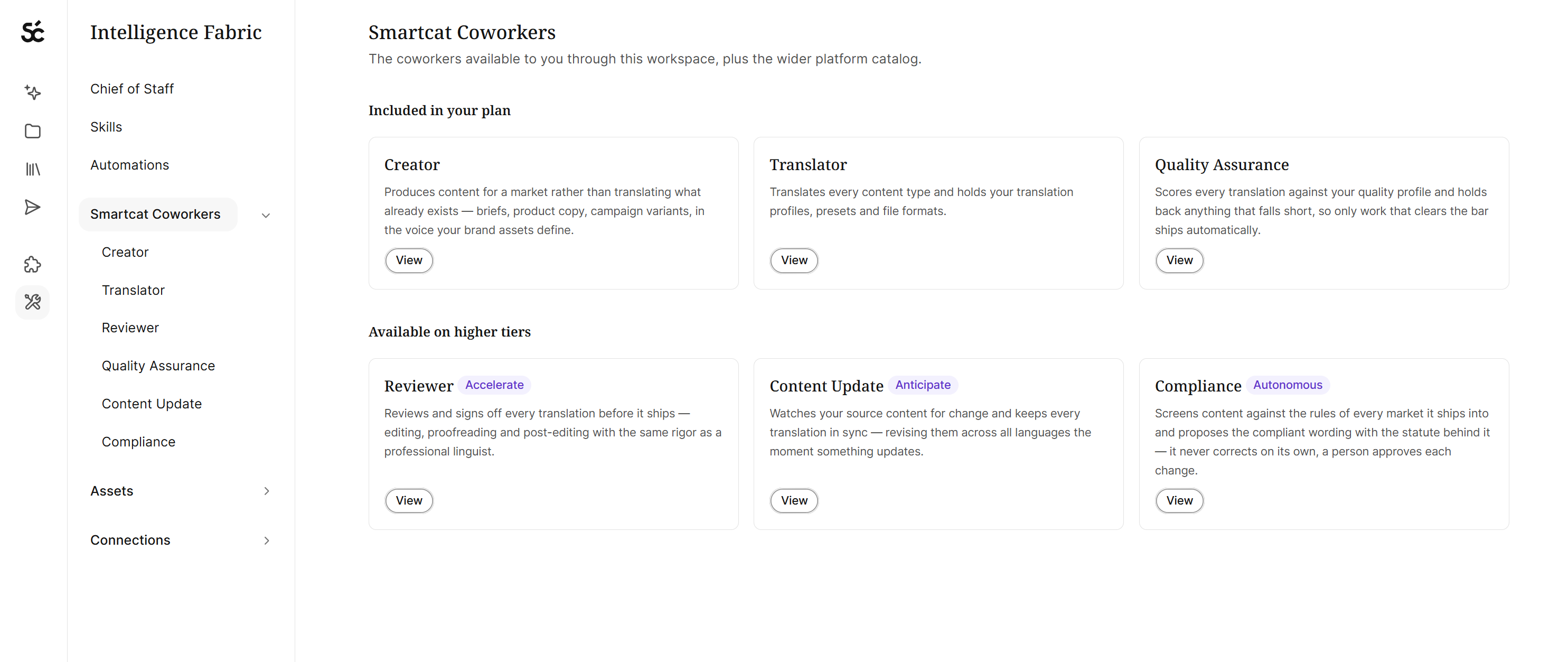
Coworkers are the AI specialists that are able to perform a certain task and can be added to your multilingual content worklows, creating, translating, reviewing, updating, and checking content in any language.
Go to Intelligence Fabric > Smartcat Coworkers.
-
Content Translator: Translates any supported content into 280+ languages. It remembers your settings for each language pair, including which engine runs, which terminology applies, and which backup engine takes over if the first fails, so you set it up once.
-
Creator Coworker: Writes content instead of translating it: courses, quizzes, linguist briefs, or a brand voice guide built from material you already have. Find it in the Create tab, sometimes labelled Content Writer.
-
Content Review Coworker: Suggests fixes, makes edits, and confirms segments at the review stage, alongside your team. Run several at once, each on one narrow job, and your reviewers keep only the work that needs judgement.
-
Quality Assurance Coworker: Scores finished translations against your own rules and labels each issue by type and severity. It never changes the translation, so you see real quality before you publish.
-
Compliance Coworker: Checks content against the rules your industry or company must follow. Regulated content gets validated where it is translated, with no separate review cycle.
-
Content Update Coworker: Spots content that has gone out of date, finds every file affected, and proposes a plan. Approve it and the change lands in every language, with only the changed parts retranslated.
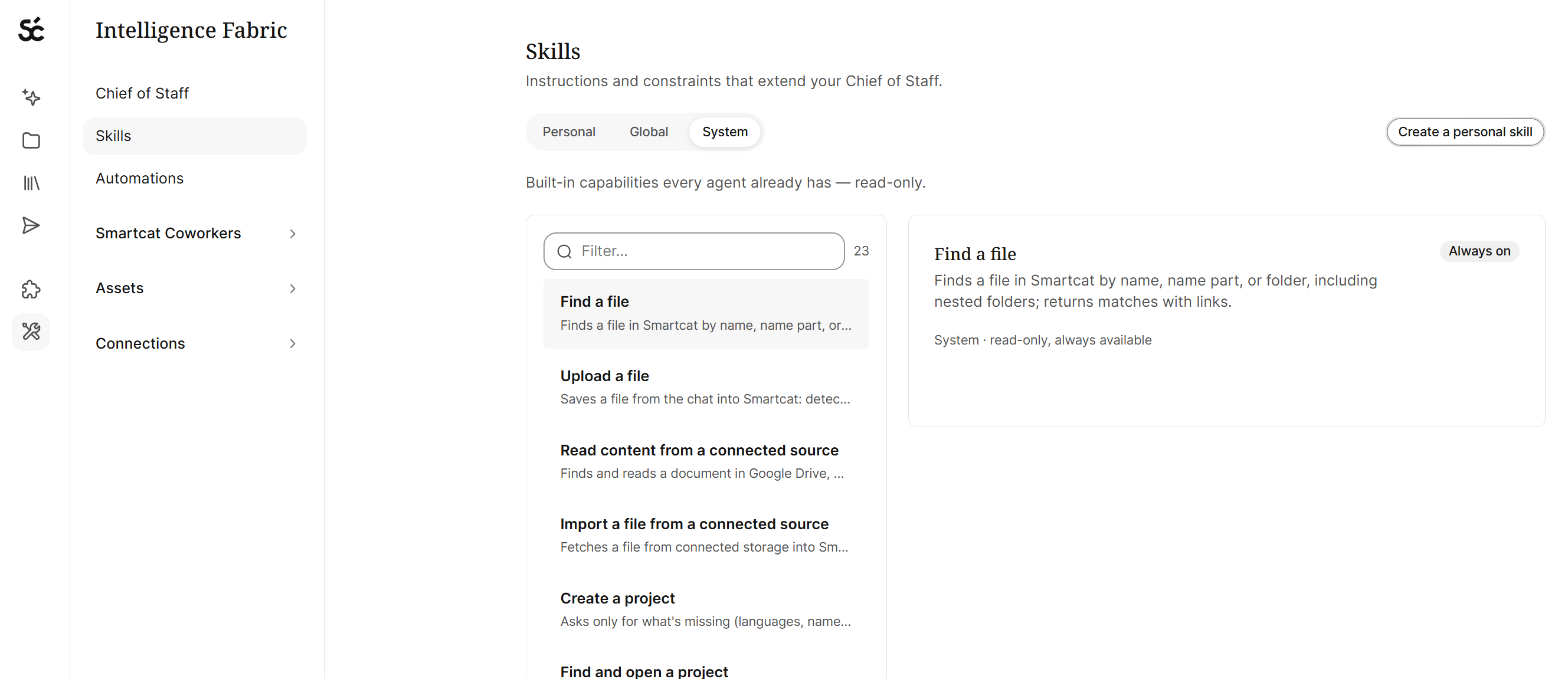
Skills are repeatable procedures a Coworker follows: the steps, the inputs, the tools it uses, and how it validates its work. Personal Skills stay private to you, and your Administrator can publish one as a Global Skill so the whole workspace inherits it.
Go to Intelligence Fabric > Skills, and open For You for your own.
💡 Your Chief of Staff is not only in Smartcat. It also works from the Microsoft Teams and Slack apps, so you can kick off a translation or check a release without leaving the channel where the request came in.
Bring In Your Reviewers and Marketplace Linguists
AI gets you a strong draft, but a native speaker catches the label that reads oddly or the error message that lands harshly. Plan for two kinds of reviewer.
Your own team
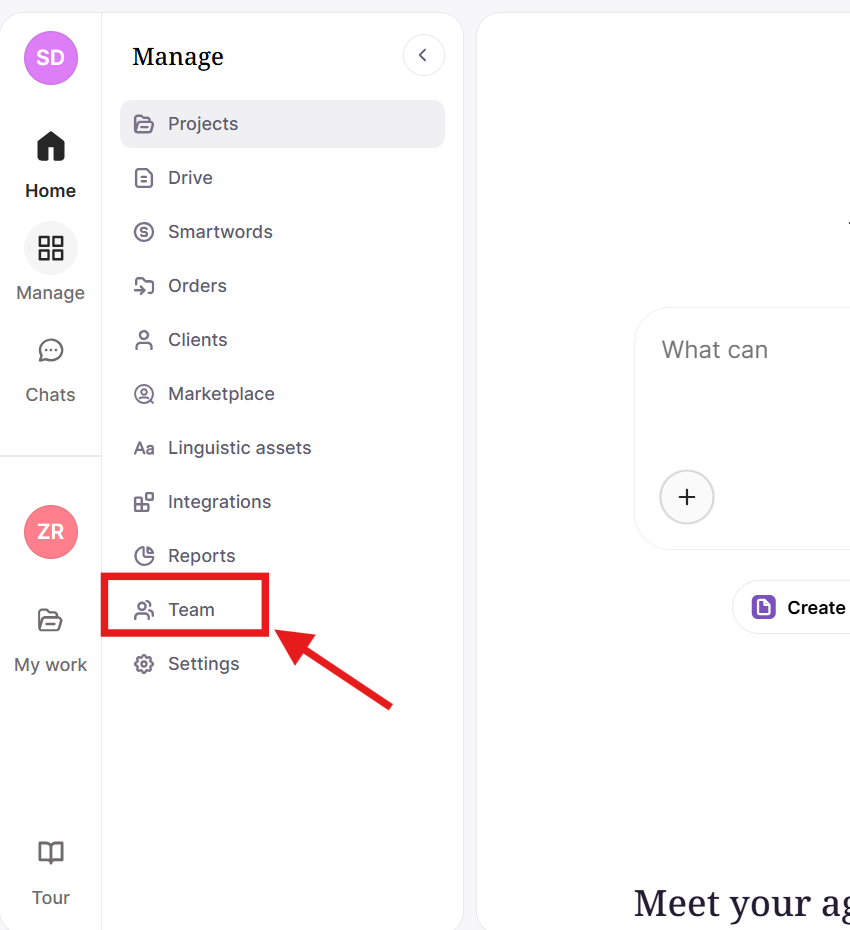
Invite colleagues from the workspace dashboard and give each the role that matches their job, then assign reviewers from the project's Team tab. A reviewer who only works in the editor usually needs Linguist access, which scopes them to the work assigned to them.
Go to Team in the left sidebar.
Outside help, when you have no one for a language
Hire from the Smartcat Marketplace and add linguists straight to a project, filtering by language, specialization, native speaker, availability, and rate, with AI matching to narrow the shortlist.
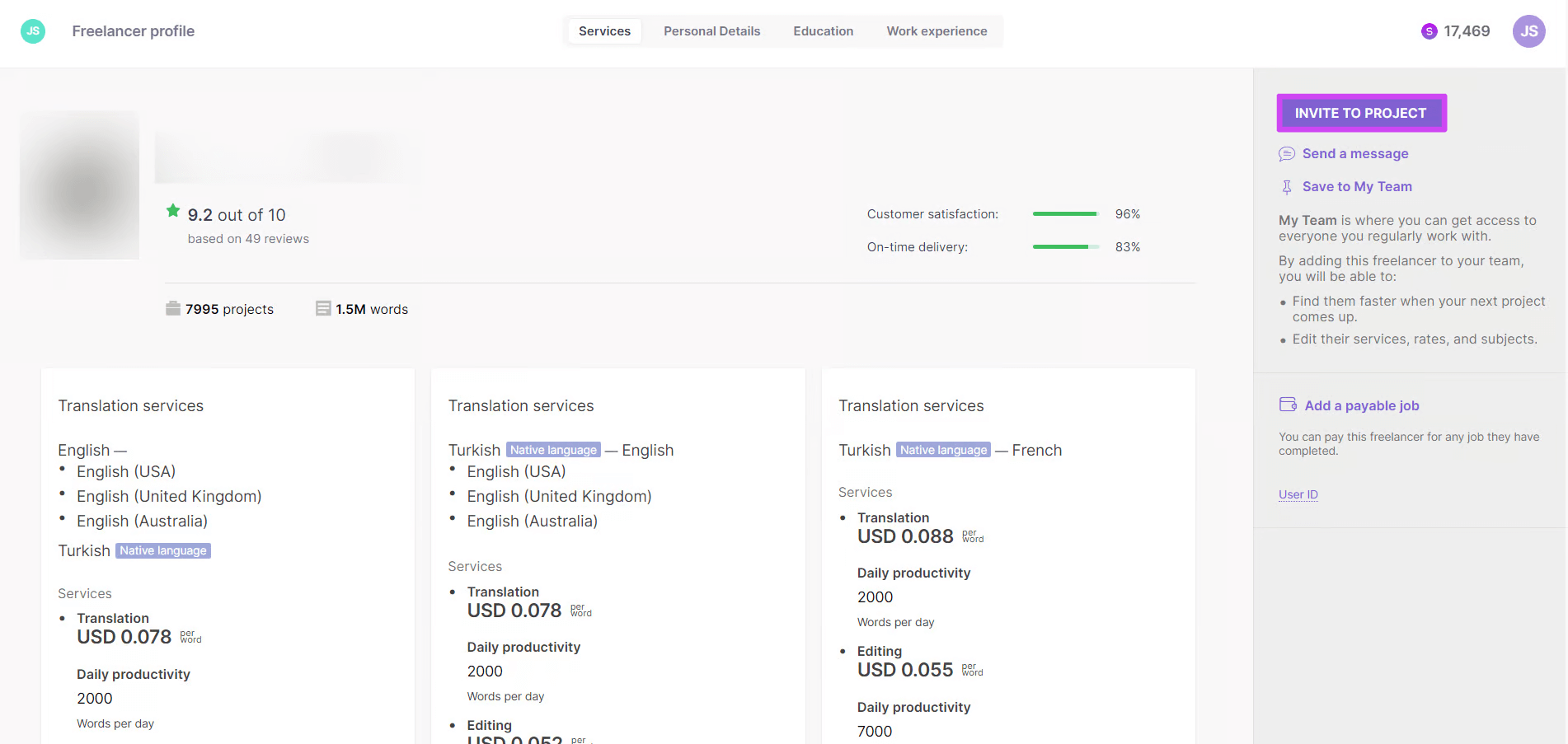
Invite more than one so a release date does not rest on a single person accepting.
Go to Find Freelancers in the left sidebar.
Marketplace Experts is a Coworker in its own right, which means bringing in outside help is a conversation rather than a search.
💡 Tell your Chief of Staff what you need, for example a German reviewer for a release, and it brings the right expert into the workflow. It can also write the instructions for those linguists, which matters for UI work where a reviewer needs to know the character limit before they start editing.
Your Intelligence Fabric: Reviewed Translations, Terminology, and Language Insights
Generic machine translation gets product copy wrong in predictable ways. It renames your features, ignores character limits, and turns UI verbs into prose.
The Intelligence Fabric is what fixes that. It holds three kinds of asset that help keep your content consistent and high-quality:
-
Reviewed Translations
-
Terminology
-
Language Insights
💡 You do not have to build the Fabric before your first sprint. Your Chief of Staff automatically uses the translation memories, glossaries and style assets you already have, so previously approved UI copy is reused from the first project.
Reviewed Translations are your approved translations, stored and reused. You may know these as translation memories. They build themselves: when a reviewer confirms a segment it is saved automatically, so a string you approved two sprints ago is not translated again this sprint.
Go to Intelligence Fabric > Assets > Reviewed Translations.
Matches at 100% and above do not consume Smartwords, which is what makes a continuous pipeline affordable as your string count grows.
Terminology is your approved terms and how they must be translated. Terms are highlighted inline for the linguist, who can accept, edit, or reject the suggestion. This is how a feature name stays the same feature name in every locale.
Go to Intelligence Fabric > Terminology.
How to pull terminology from third party pages like Notion:
Language Insights are short pieces of guidance on tone of voice, audience, and style. They keep button labels imperative and error messages calm without anyone rewriting the AI's register each time.
Build it from content you already own.
Two tools extract assets from what you have:
-
Upload Files converts existing source-and-target pairs into reusable Translation Memory, which is how you rescue localized strings stuck in a format Smartcat cannot otherwise reuse.
-
Scan Website points it at your product site or documentation to pull out terminology and tone of voice.
Go to Intelligence Fabric > Smartcat Coworkers > Translator, where both sit at the bottom of the dashboard.
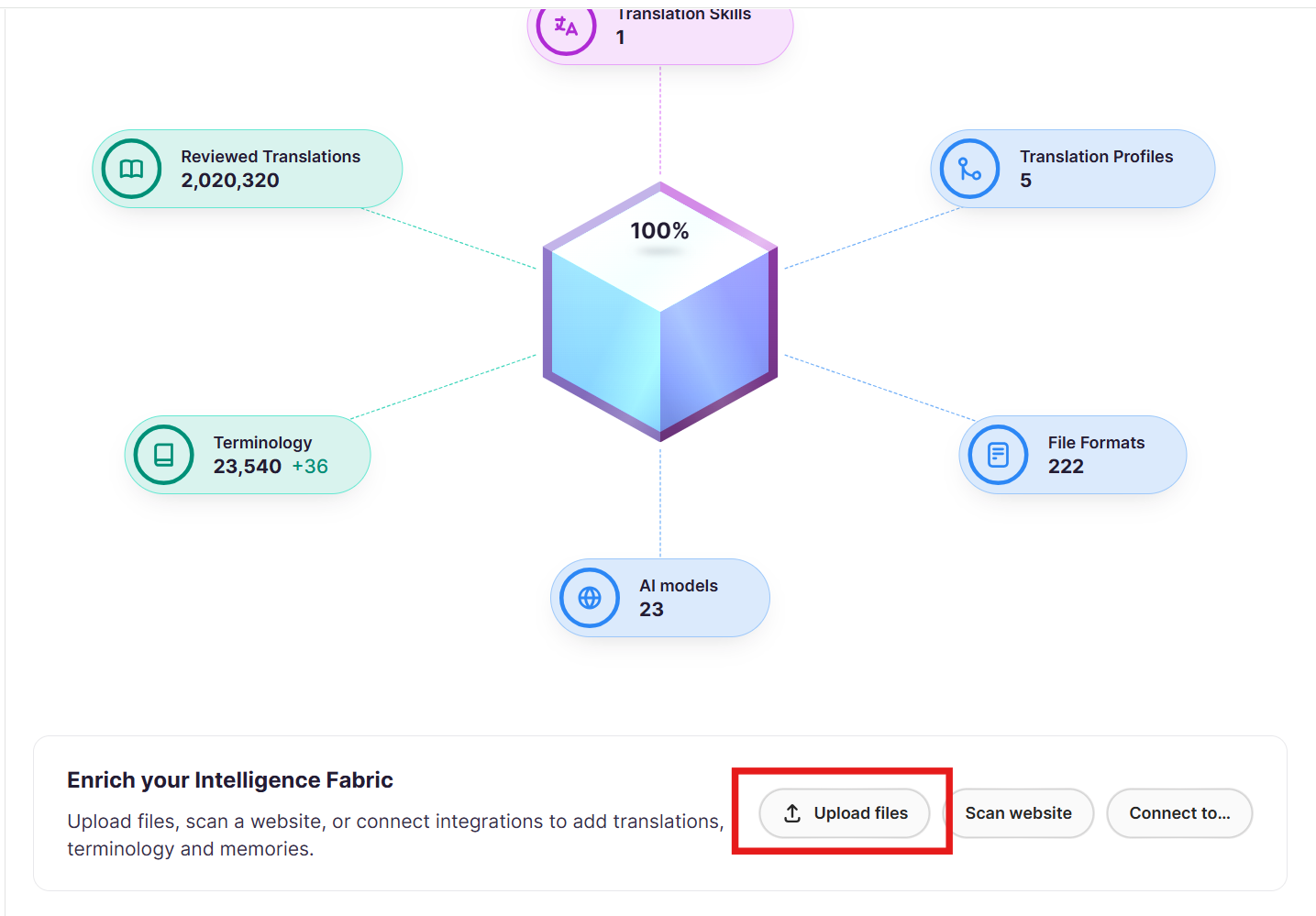
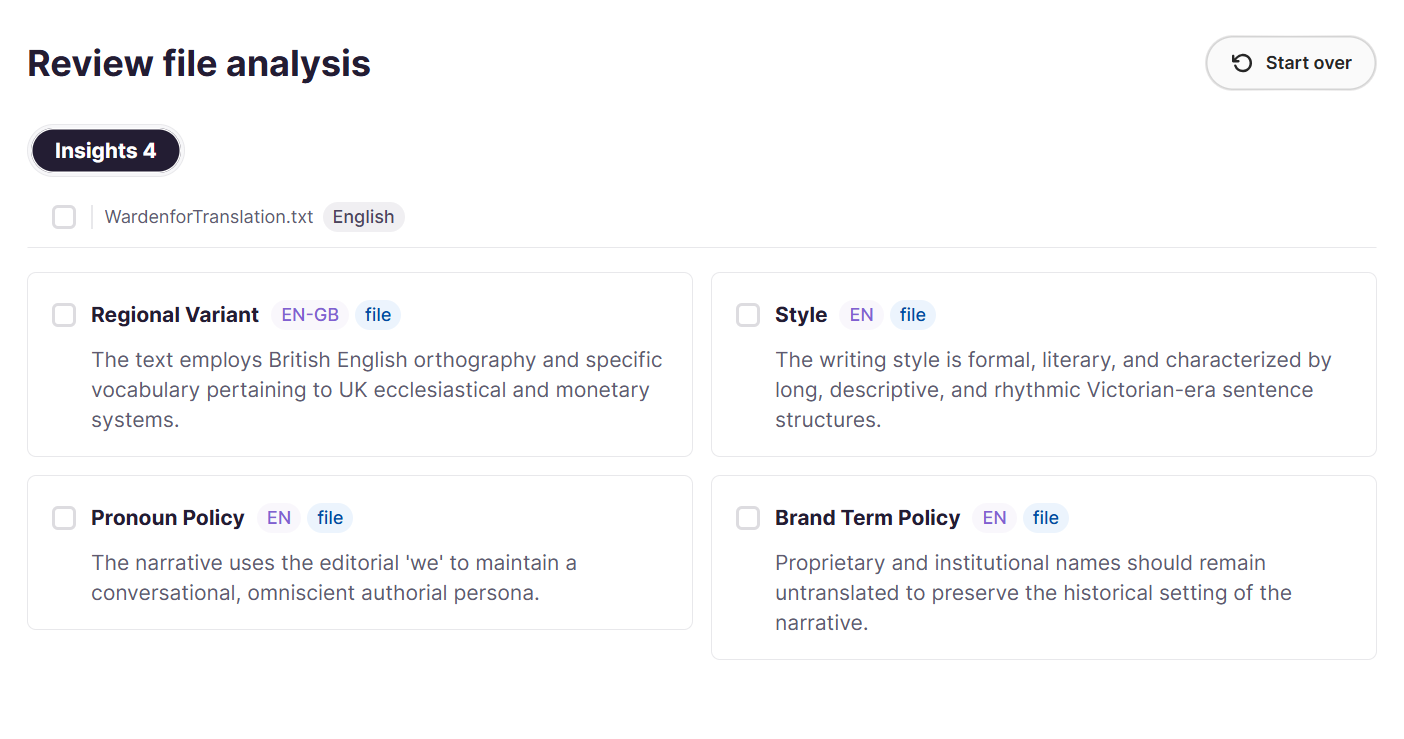
Above: Upload files and Scan website sit at the bottom of the Intelligence Fabric dashboard, and extracted assets arrive in the Reviewed Translations, Terminology, and Insights tabs, where you choose what to import.
How it gets applied
Together, AI Translation Profiles, RAG, and the Content Update Coworker make sure every project draws on your own approved wording and that a change only costs you the content it actually touches
Tuning the AI to Your Product
Reviewed Translations and Terminology set the baseline. Two further mechanisms close the gap between a generic translation and one that reads like your product.
💡 Your Chief of Staff can set up a custom prompt with you rather than leaving you to write one from scratch, since it configures custom prompts and translation settings as part of workspace setup.
RAG
Retrieval-Augmented Generation pulls relevant segments from your own Reviewed Translations into the prompt, steering the model toward your established wording. If you already have approved translations, this is the cheapest quality win available.
Custom prompts
These work two ways. As AI Actions they transform selected segments inside the editor, and as custom AI engines they automatically translate every document in your projects. For product work the obvious uses are enforcing a character limit, holding a consistent imperative voice for buttons, and keeping product names untranslated.
Go to your project, open the Linguistic assets tab, then the AI translation section.
Knowing What Needs a Human Before You Ship
On a release cadence you cannot review every string, so the useful question is which ones need review. Smartcat gives you three layers.
💡 Your Chief of Staff runs quality checks on every pass, with before-and-after quality scoring, and can iterate to improve a translation before a human ever opens it.
1. Translation Quality Score (TQS)
Shows which AI translations meet your quality bar and which do not, as a widget on the Project Overview page. High-scoring segments can be confirmed without review, which gives you a defensible way to gate a release without a full pass on every locale.
2. Automated quality checks
The editor flags missing tags, inconsistent terminology, and number mismatches, which on UI strings are the errors most likely to reach production.
3. LQA profiles
Based on the MQM scoring model, these return an auditable score from 0 to 100 when you need a formal quality number rather than a spot check.
Reference Files are useful for reviewers who are not on your product team. Attach a UI spec, a screenshot set, or a style guide, and it is never processed, translated, or billed as translation work.
UI Strings and Figma Designs
Product copy usually lives in Figma before it reaches a codebase, and the Smartcat Translator plugin translates inside the design file so mockups stay accurate in every language.
Install and select
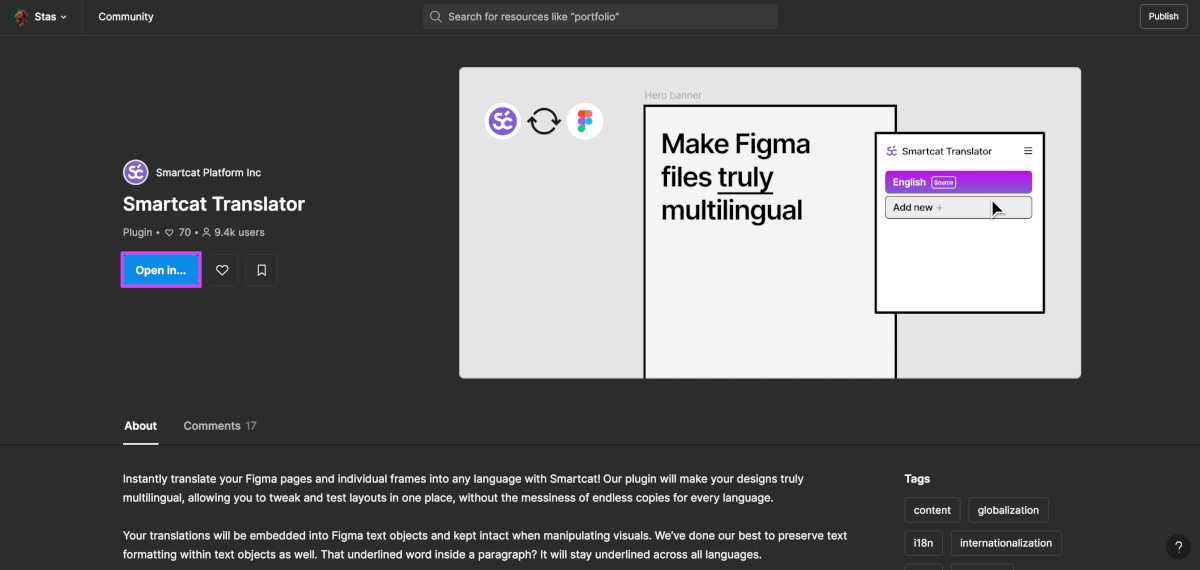
Install the plugin from the Figma plugin directory, open it inside your file, select the frames you want translated, and choose as many target languages as you need.
Install Smartcat Translator from the Figma plugin directory, then open it inside your Figma file.
Translate with context
Text is pulled out as translatable keys while your layout, components, and styling stay untouched, and live preview in the Smartcat editor shows the design alongside the text.
Bring it back
Download in the plugin to embed translations directly into the Figma text objects. Because they live in real text layers, they survive further design edits instead of breaking when a frame changes.
Software Localization: Keys and Collections
Smartcat has a dedicated software localization project type built around resource files rather than documents, and the structure is worth understanding before your first import.
Keys live in collections
Each collection holds a unique set of keys, a project can contain multiple collections, and you can create as many isolated projects as you need.
Go to Projects > + New project and choose the software localization project type.
Import and export formats
Strings import and export in JSON, YAML, Android XML, and iOS .strings, along with their key IDs.
Keys carry context
Attach screenshots, character-limit constraints, or developer notes per key, so translators and the AI understand the UI constraint before they translate.
Smartcat hosts your product copy
You can add and edit keys and their source text directly in Smartcat, which means it can act as the central system of record for product copy, maintained without involving your developers. A product manager fixing a confusing label no longer needs a code change.
Plurals, PO Files, and the Wider Format List
Beyond the four string-collection formats, Smartcat reads a long list of localization and technical-writing formats directly.
💡 If you are not sure how a file will round-trip, ask your Chief of Staff before you commit a whole locale set to it. It can tell you which export option from your toolchain gives the cleanest result, which saves a failed import and a re-run.
Plural keys
Plurals are supported two ways: natively, as independent segments in the editor, and via ICU MessageFormat syntax. When you add a key you specify whether it should be created with all plural forms, so decide which approach you are using before you import.
PO files
PO files are processed as bilingual files, so Smartcat extracts the source string and the target string if present, and updates the target on export. Three parsing options are available, and the Serge.io PO parser is the recommended one for continuous localization.
Everything else
Supported formats include RESX, LOCJSON, TJSON, Apple STRINGSDICT and XCSTRINGS, Java PROPERTIES, Android XML, XML and TTML, plus DITA XML and DITAMAP for structured documentation, and the bilingual interchange formats XLIFF 1.2 and 2.0, SDLXLIFF, MQXLIFF, and TTX.
Connect Your Pipeline: API, CLI, and Git
For teams that do not want translation to be a manual upload step at all, there are four routes and they can be combined.
💡 Ask your Chief of Staff to build you a Skill for the parts of the pipeline that are not worth scripting. Describe what you want it to do, it proposes a ready Skill body for you to review, and once you confirm it is saved and runs the same way every time.
REST API
Create projects, import keys or documents, check status, and pull completed translations back into your codebase, with callback notifications so nothing has to poll.
Smartcat CLI
Run those same actions from the command line or inside a CI/CD script on Windows, macOS, or Linux, whether that is GitHub Actions, GitLab CI, Jenkins, or any pipeline that can shell out a command.
Git repository
Connect GitHub, GitLab, Bitbucket, or self-hosted so Smartcat pulls new source strings from your repo and pushes translations back once confirmed, with no export files to hand off.
Remote API connector
Register a remote API endpoint to build your own connector for a system with no native integration, including custom locale mapping, without writing a connector from scratch.
Developer pipelines sit on the Anticipate plan and above.
One setting to check first. Integration import modes control whether Smartcat reuses existing translations from your source system or translates everything fresh, and the confirmation settings decide at which stage imported translations count as complete. Both affect Smartwords consumption directly, so read this before your first large sync.
Your Product and Software Integrations
Integrations are gated by plan. Figma and Canva sit on Accelerate and above, and the developer pipelines, including the CLI, GitHub Workflows, and Jira, sit on Anticipate and above.
💡 Once a tool is connected, your Chief of Staff can pull content from it and push translations back, so you are not moving files by hand. Ask it what it can reach on your plan before you connect anything new.
-
Figma translates and syncs UI text inside Figma frames, with live preview in the Smartcat editor.
-
Lokalise syncs strings between a Lokalise project and Smartcat. The API token needs both Read and Write permissions, which is the usual cause of a failed first connection.
-
Jira turns issues into translation tasks, tracked in the tool your team already plans work in.
-
Git pulls source strings from GitHub, GitLab, Bitbucket, or self-hosted repositories and pushes confirmed translations back.
-
Smartcat CLI runs project creation, key import and export, and status checks from a command line or a CI/CD script.
Set Up Localization Workflow Once, Reuse Every Release
Release-cycle localization is repetitive: the same locale set, the same review stage, the same terminology, sprint after sprint. Two reusable objects save you that setup, and they do different jobs.
💡 Not sure whether you need a template or a profile? Describe the release to your Chief of Staff and let it apply the right setup. It holds the translation profiles that decide which engine to use, how to handle length control, and how to treat each file format.
Project Templates save the structure of the work: workflow stages, source and target languages, deadlines, assignees, custom fields, and a project naming pattern. Apply one to a new release with a single click.
Apply a template when you create the project: Projects > + New project.
AI Translation Profiles control the quality and behavior of the AI: which Reviewed Translations and Terminology apply, which engine handles each language pair, whether a fallback engine kicks in, and whether AI translation runs at all for a given stage.
Profiles can be scoped per product, brand, or use case, so your UI strings and your marketing copy do not have to share one configuration.
Go to Intelligence Fabric > Smartcat Coworkers > Translator > Translation Profiles.
A project can have a Project Template or an AI Translation Profile, not both. If you use a template, you configure the equivalent linguistic behavior inside it, through its own Translation Memory Rules and AI Translation Rules.
Product Documentation and Help Content
The content around the product localizes through the same platform, which is worth knowing before someone stands up a second tool for it.
💡 Documentation requests usually arrive as a link rather than a file. Drop the URL into a chat with your Chief of Staff and it takes the work from there, routing the output to the next step in your pipeline when it is done.
Smartcat handles HTML files directly, DITA XML and DITAMAP for structured documentation, Markdown, and memoQ documents if you are migrating. Paligo is supported as a CCMS connector, and ReadMe for developer documentation.
Keeping Content Current (Content Update Coworker)
Separately from the pipeline, the Content Update Coworker handles content that already exists in your Smartcat workspace. You describe an update in plain language, it finds every affected file, proposes a plan, and applies nothing until you approve.
Its scope is courses and documents in the Smartcat Drive, so it is the tool for a sweeping terminology change across your documentation, not for continuous string syncing, which the Git and CLI pipeline already covers.
💡 The feature is in beta, must be enabled per workspace by a Smartcat team member, and requires Canvas editor access.
Track Quality and Value: Reporting
Three reports, all available to workspace Administrators. The two under Apps appear only once one or more custom apps are enabled in your workspace, and custom apps are currently in beta.
Go to Apps in the left sidebar, and Reports for Enterprise Reports.
💡 Ask your Chief of Staff about your usage analytics in the same conversation as the work itself, which is usually faster than opening a report to answer one question.
Enterprise Reports cover translation activity and progress across all projects.
Translation Review Report shows how much AI output was approved as-is versus edited, by language pair and reviewer.
ROI Report compares Smartcat spend against outside-vendor cost, groupable by subscription cycle, quarter, or month, with project-level breakdowns.
Want to learn more?
See how Smartcat can transform your localization workflow.
Still need help?
Our support team responds within one business day.