Translate video, audio, and transcripts - Overview
Overview
Smartcat translates video and audio transcripts with minimal effort. Import a file into a project and Smartcat automatically parses it into subtitles with timecodes, so the subtitles are already positioned in your video in line with the corresponding audio. You can then adjust the subtitles in the CAT editor with a live video preview, and add AI dubbing to your video.
At a high level, the process is:
-
Create a new project in Smartcat

-
Upload your video or subtitle files (mp4, mov, srt, vtt)
Smartcat transcribes and translates your file with AI in minutes. You then verify the translated transcript or subtitles in the CAT editor with a live video preview, optionally add AI voices, and download the video with translated subtitles and AI voiceover burned in.
How to create a video translation project
-
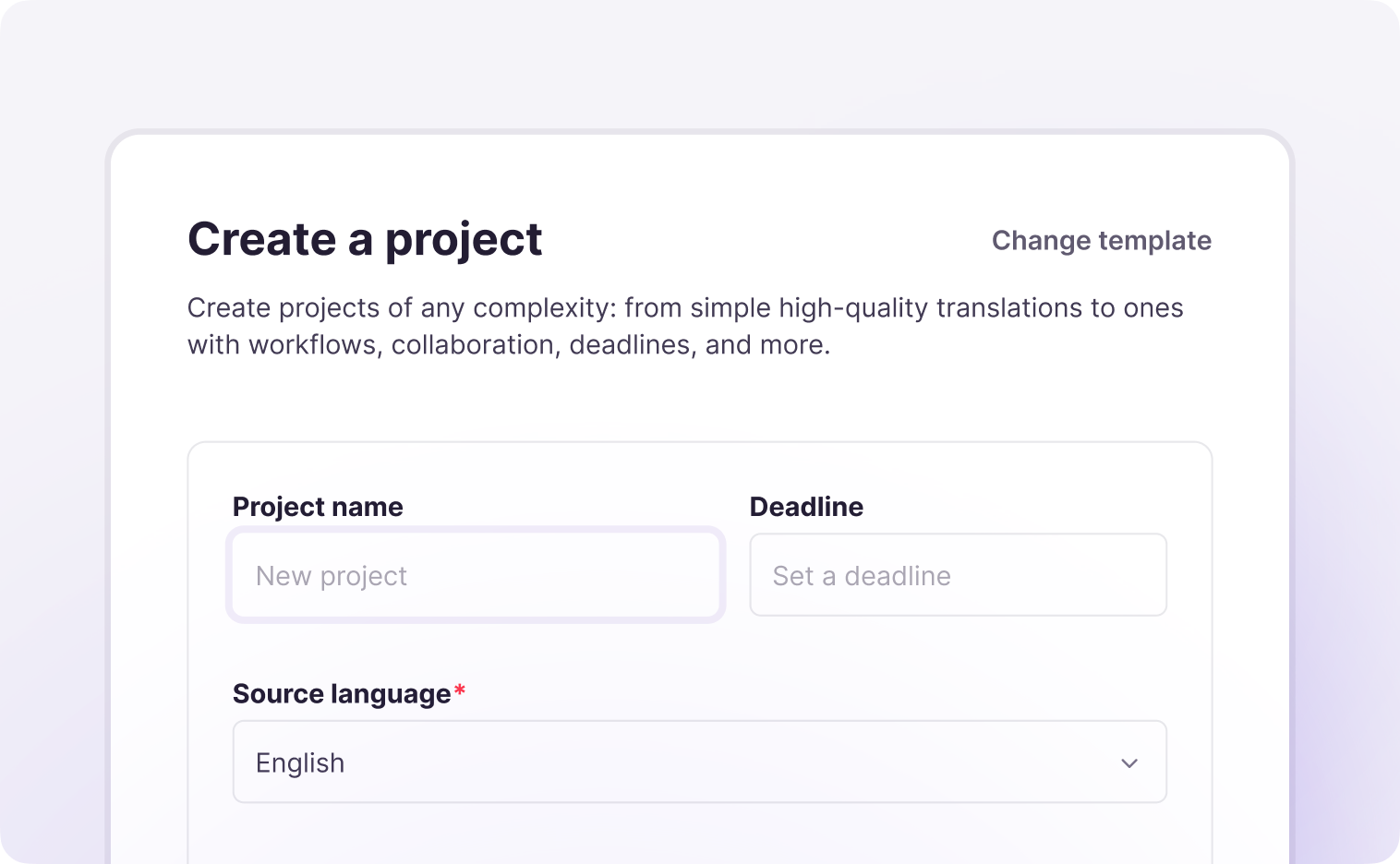
On the home page of your workspace, find Create a project under the workspace name in the templates section, and click it to open the project creation workflow
-
Enter a project name and deadline — both are optional
-
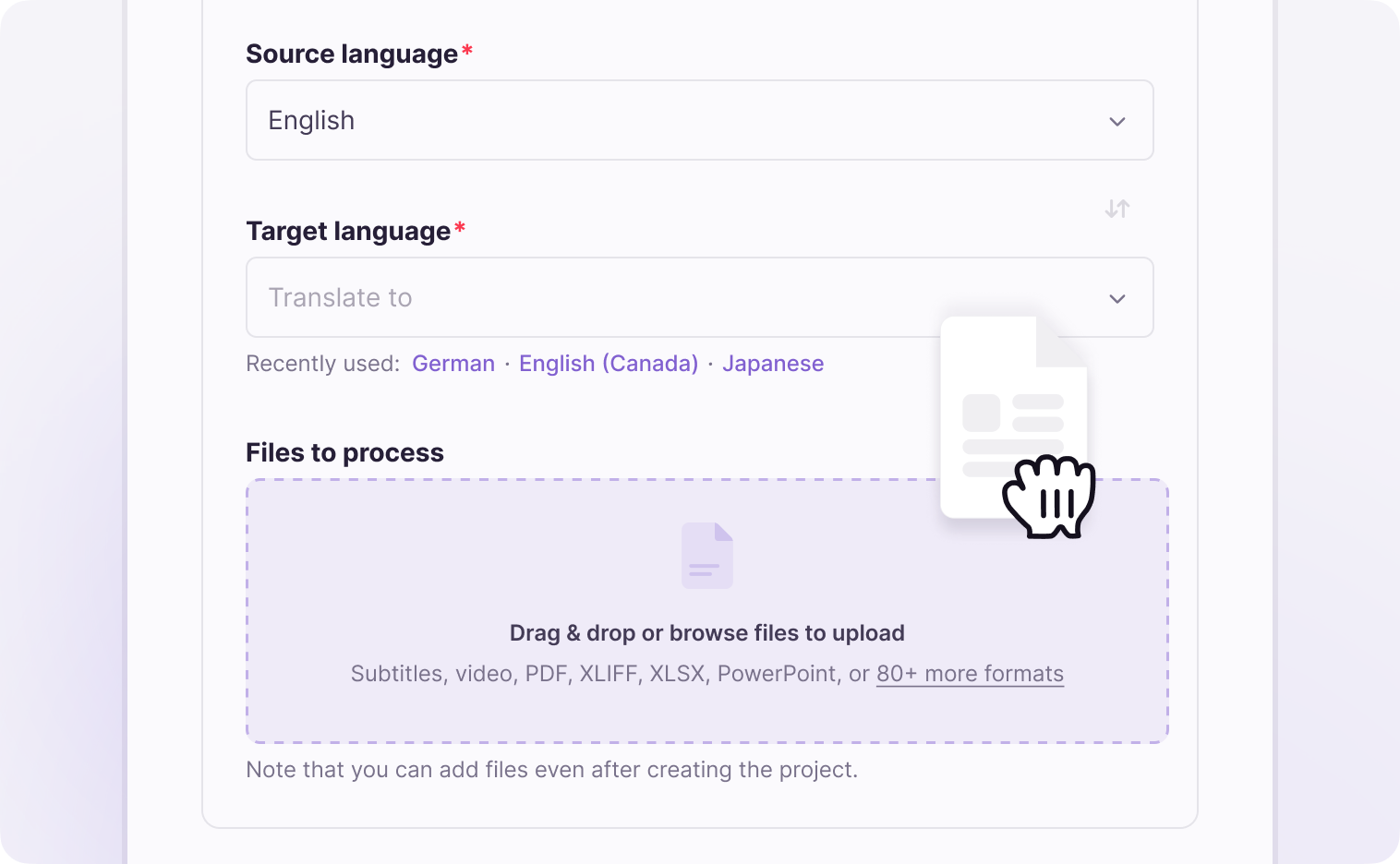
Choose the source and target languages from the list — languages not supported by AI translation appear in gray
-
Upload your audio, video, or subtitle files by dragging and dropping them or browsing your device
-
(Optional) Open Additional settings to customize the workflow — you can choose simple AI translation, AI translation with human review (the default), manual translation, or manual translation plus editing
-
Click Create project
Your project is created, and you can now upload linguistic resources, assign tasks to team members and freelancers, and control other settings.
📌 Project naming: if you do not provide a name and do not upload files, the project is named "New project." If you upload files without a name, it is named "Project: [name of the first file without extension]." If the name you choose is already taken, Smartcat adds a number.
Correcting the source text
📌 Only Workspace Admin, project managers, and language leads can correct source text.
⚠️ Add the source layout check stage to your project if it requires source correction. This is the only step in which you can edit the source of SRT and VTT files.
-
Turn off AI translation — this step is mandatory for video and audio files that require correction. If you upload prepared SRT subtitles that do not need correction, go to step 2 and skip steps 3 and 4
-
Upload your video, audio, or SRT file for subtitle translation by dragging and dropping or browsing
-
Correct the source text and save your edits (Workspace managers only)
-
Turn AI translation back on through linguistic assets, so Smartcat runs translation using AI translation and your Translation Memory
The source text is corrected and ready for translation.
Adjusting line-break and subtitle-split tags
Follow these rules to control and edit the subtitle structure:
-
Smartcat splits text into segments using sentence-based segmentation, not subtitle-based. The curved lines show where one subtitle ends and the next begins
-
By default each subtitle takes one line of text; to split a subtitle into two or more lines, use a line-break tag (arrow)
-
You can move the curved lines (subtitle splits), but you cannot delete them or place them at the start or end of a segment, as that would break the timecode structure
-
Keep the same structure and number of curved lines (subtitle splits) in the target as in the source
-
You can add as many line breaks as you want, and the number of line breaks can differ between source and target
Download and export options
Once you or your linguist finish checking the translated subtitles, download the result in one of these ways:
-
Download the video rendered with the subtitles and AI dubbing burned in
-
Download the SRT or VTT file
Supported file formats
| Type | Formats |
|---|---|
| Video | mp4, mpeg, avi, mov, 3gp, 3g2, flv, m2v, m4v, mkv, mpg, ogv, qt, ts, vob, wmv |
| Audio | mp3, wav, wma, mp2, ogg, aac, flac, m2a |
| Subtitle | SRT, VTT |
Assign a human reviewer
You can assign a subject-matter or language expert from an AI-generated best-match list to oversee the editing step. Smartcat AI analyzes your transcription content, identifies its subject matter, and suggests matching vendors.
For each suggested vendor you see key details — name, language pairs, fields of expertise, experience level, reviews for previous translations, and rates — so you can assess their profile at a glance. You can hire an editor and add them to your team, or have them edit the subtitle translation for a single file. If you have set up a workflow in the project, the linguist automatically receives the editing task by email, opens the file in the CAT editor, and completes it.
Requirements and limitations
-
Only Workspace Admin, project managers, and language leads can correct source text
-
Source editing of SRT and VTT files is possible only in the source layout check stage
FAQs
Which video, audio, and subtitle file formats does Smartcat support for this workflow?
Video formats include mp4, mpeg, avi, mov, 3gp, 3g2, flv, m2v, m4v, mkv, mpg, ogv, qt, ts, vob, and wmv. Audio formats include mp3, wav, wma, mp2, ogg, aac, flac, and m2a. Subtitle formats are SRT and VTT.
Can I edit the source text of my video's subtitles, not just the translation?
Yes, but only Workspace Admins, project managers, and language leads can correct source text, and only during the source layout check stage — you must add that stage to your project and temporarily turn off AI translation to make source edits.
Why do the segments in the subtitle editor sometimes not match a full subtitle line?
Smartcat segments text using sentence-based segmentation rather than subtitle-based segmentation. Curved lines in the editor show where one subtitle ends and the next begins, and you can move these split points but not delete them or place them at a segment's start/end.
What does "AI translation with human review" mean when creating the project?
It's one of four workflow options you can choose in Additional settings during project creation — simple AI translation, AI translation with human review (the default), manual translation, or manual translation plus editing — controlling how much human involvement is built into the translation process.
What can I download once my video translation is complete?
You can download the video with translated subtitles and AI dubbing burned in, or download just the SRT or VTT subtitle file on its own.
Want to learn more?
See how Smartcat can transform your localization workflow.
Still need help?
Our support team responds within one business day.