Set up software localization projects in the Smartcat developer portal
Overview
In addition to regular document-based projects, Smartcat offers a different way of managing keys (strings) that is more suitable for software localization projects.
-
Software keys (strings) are managed on Smartcat, so it becomes the source of truth for all of your software copy
-
UX writers and product managers change the copy themselves, without distracting developers
-
Developers act as content consumers by exporting the needed subset of keys in a format of their choice
-
Developers can import source strings and translations in various developer file formats, and export translations in various file formats as well
-
REST API and CLI offer integration with CI/CD pipelines
Software localization workflow
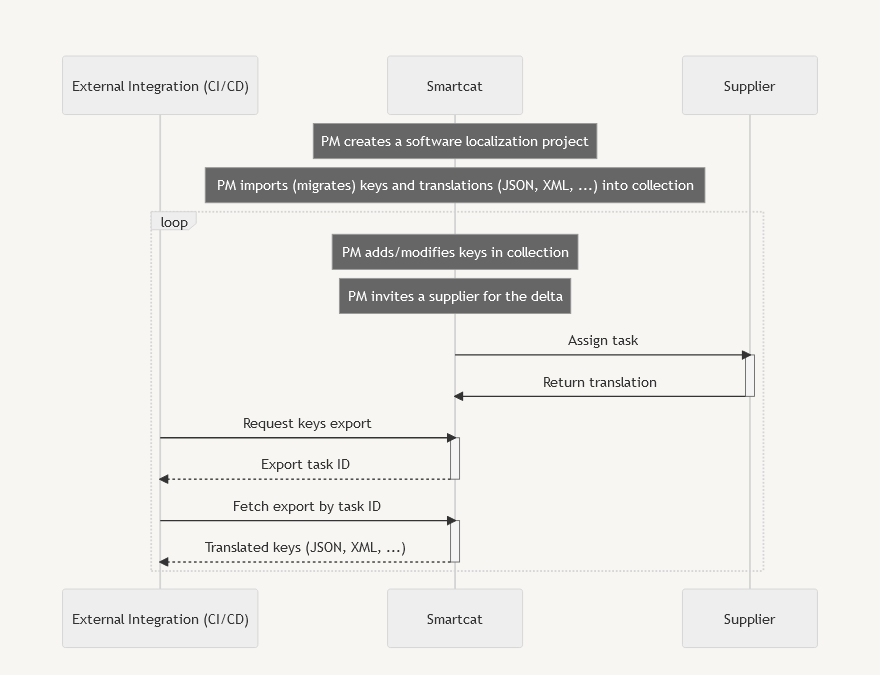
Here is a typical workflow for a software localization process:
-
Create collections that will contain keys with unique identifiers
-
Import keys via API into an existing or new collection (JSON, YAML, iOS Strings, Android XML, and LocJSON). You can do this at the beginning to populate the initial project data
-
Keys with ICU MessageFormat syntax can be converted to individual segments with plural forms or imported as is
-
You can add labels to all imported segments
-
-
Create or modify keys (segment source and identifiers) inside the CAT editor
-
You can create new keys with plural forms right in the editor
-
You can add labels to segments in the editor
-
Upload screenshots or provide additional context information for segments right from the editor
-
-
Translate content and assign suppliers using tasks, as with usual projects
-
Export keys via API or UI from the editor (JSON, YAML, iOS Strings, Android XML). Plural forms are converted to ICU MessageFormat syntax
At the end of this flow, your translated keys are ready to export back into your codebase.
Supported file formats
Smartcat supports importing keys from the following file formats:
-
JSON
-
YAML
-
Android XML
-
iOS Strings
-
LocJSON (see below)
LocJSON is a JSON-based file format that Smartcat uses for integration purposes. It is extendable and allows external integrations to pass a list of units (keys + source text + optional translations), and to associate metadata with each unit, such as comments or maximum string length per unit. Smartcat automatically identifies this format by the .locjson file extension.
See LocJSON file format reference for more information
Smartcat supports exporting keys to the following file formats:
-
JSON (flat or structured)
-
YAML (flat or structured)
-
Android XML
-
iOS Strings
Create a software localization project
-
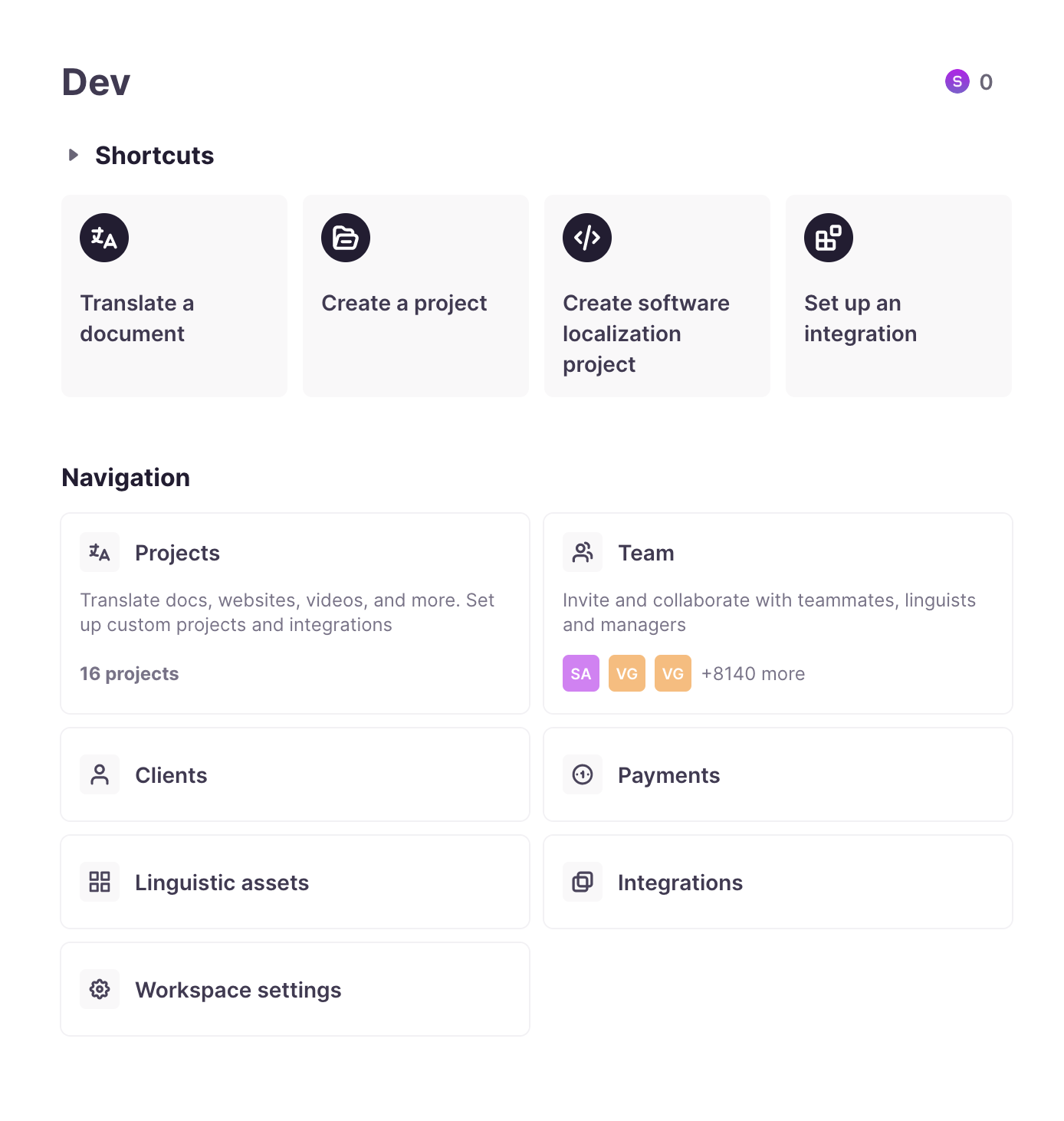
On the home page, click Create software localization project
-
Enter a project name, for example My App, specify one source language and a list of target languages, and click Create project
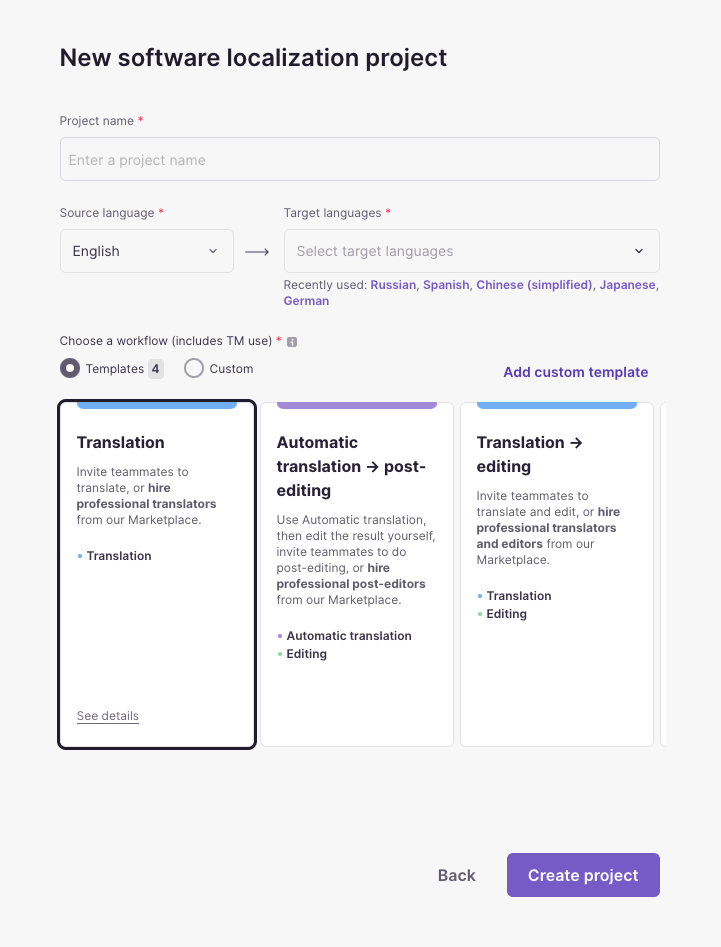
📌 You can change the list of target languages later at any time, but a project can have only one source language, and the source language cannot be changed once the project is created.
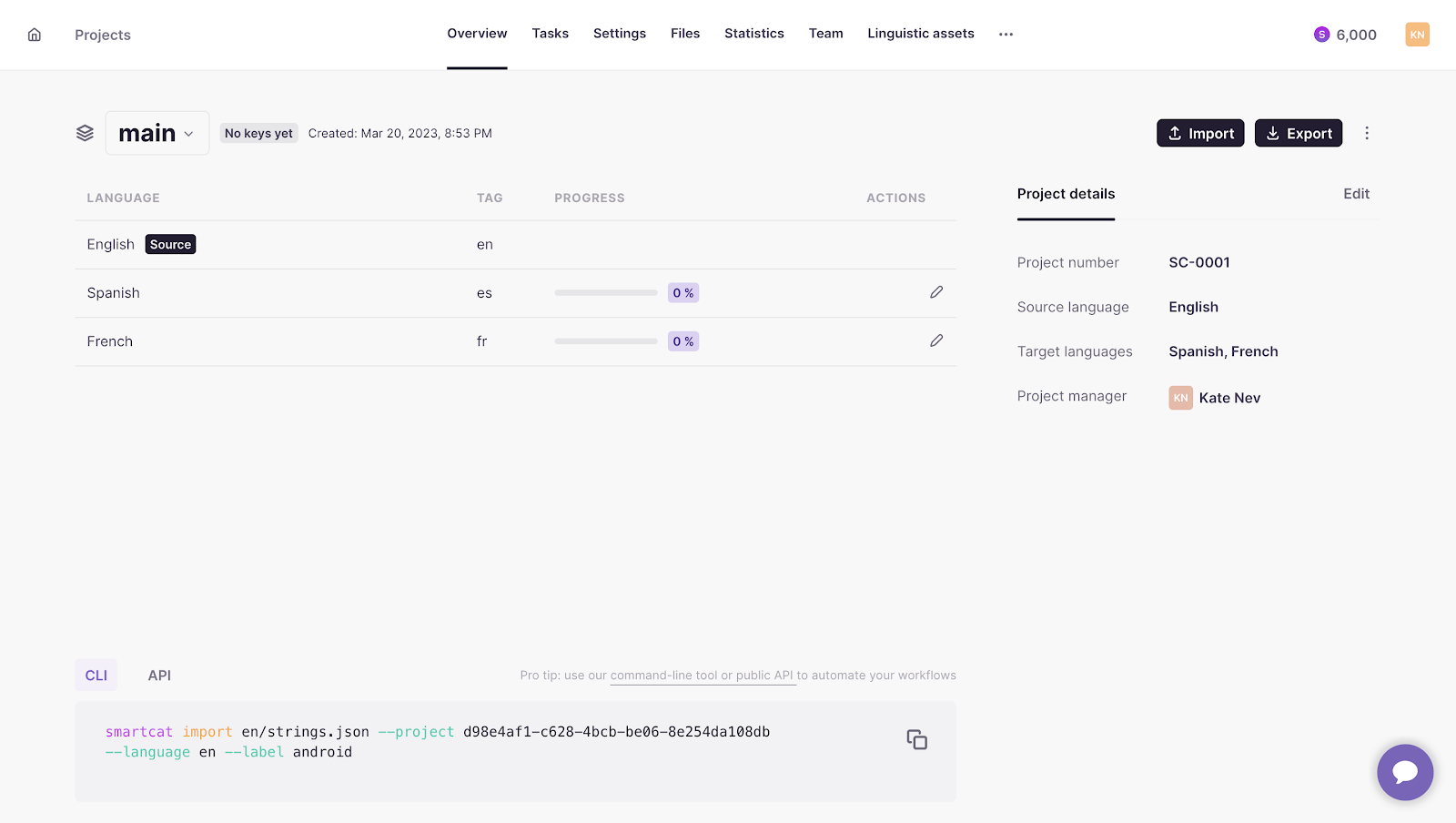
Once the project is created, you see a project Overview page. A default collection called main is created and selected automatically.
Import and export methods
Smartcat supports the following ways to import your existing keys from various file formats:
-
Using Smartcat CLI
-
Using the public API (and standard tools like curl)
-
Directly through the Smartcat UI
The same methods are supported for exporting:
-
Using Smartcat CLI
-
Using the public API (and standard tools like curl)
-
Directly through the Smartcat UI
Smartcat CLI (command-line interface) is a tool available for all popular platforms (Windows, macOS, Linux) that you can run from the command line and from CI/CD scripts to perform certain actions automatically. Read more about the CLI here: Smartcat CLI.
Using the Smartcat CLI
Per-folder configuration file
For convenience, you can create a file called .smartcat in the folder you run Smartcat CLI from. In this file you can put information about your Smartcat server, workspace, project, and API key (all fields are optional).
Example file:
{
  "Server": "https://smartcat.com",
  "Workspace": "fd104ef5-cbe7-1459-c8ac-237d99a3c614",
  "Project": "446dfcf0-e699-4c91-a7ee-40e1237a9f81",
  "ApiToken": "1_XXXXXXXXXXXXXXXXXXXXXXXXXXXXXXX"
}
Once you do so, this information overrides your user settings. Such a configuration file lets you skip specifying --project xxxxxxxx in every CLI command invocation.
Import with the CLI
Importing keys is done with the smartcat import command. This example shows the actual project identifier, and you can use it as a starting point. If you have a file called en/strings.json (paths can be relative to your current directory), then the following command imports all the keys from that JSON file into your newly created project, into the main collection (the default collection name), while also giving the android label to all imported keys.
smartcat import en/strings.json --language en --label android
Similarly, you can import translations from an existing file that has the same keys:
smartcat import zh-Hans/strings.json --language zh-Hans
💡 Run
smartcat import --helpfor a list of all available import options.
Export with the CLI
Exporting is performed through the smartcat export command. The following example exports the specified target languages and gives them file names as defined in the output template.
smartcat export --languages es,zh-Hans --output-file-path-template 'strings-{LANGUAGE}.json'
💡 Run
smartcat export --helpfor a list of all available export options.
API reference
📌 Most topics regarding authentication and basic API usage are described in the API guides — check this documentation before proceeding. The API reference for import/export is below. The API reference for other API methods is available at developers.smartcat.com/en/api.
Postman collection with API examples
For your convenience, Smartcat provides a Postman collection of API requests that you can experiment with:
V2 Software localization workflow.postman_collection.json
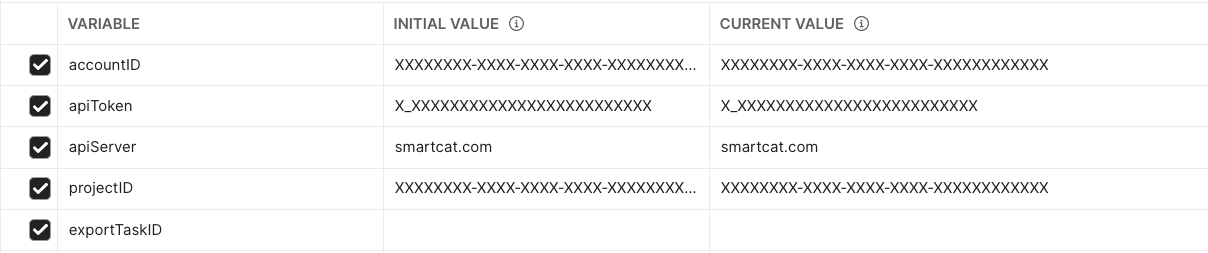
Before using the examples, update the values for several variables used in this collection:
-
accountIDcan be obtained from your Smartcat workspace (see Settings → API) -
apiTokencan be generated on the same Settings → API page -
apiServeris one of the servers your workspace is located on (look up the domain you see when working with your workspace). It can be one of the following:-
smartcat.com (Europe)
-
us.smartcat.com (USA)
-
ea.smartcat.com (Asia)
-
-
projectIDis the ID of the project you run import/export against. Once you create a project, its URL looks likehttps://smartcat.com/projects/6c58e1f5-61c6-43dc-9b83-8d635edbd50c/overview. Here,6c58e1f5-61c6-43dc-9b83-8d635edbd50cis the project ID
To try the workflow end to end:
-
Use the import API call (see the Import keys Postman example) to import this document into a newly created project: with_plural_hints.locjson. This automatically creates a collection called
mainin that project -
Open the Files tab in your project, where you see the
maincollection. Click its name to open it in the editor. Here you can add new keys, and edit or delete existing ones -
Import one of these files using the same import API call to add or update keys (this merges changes from those files into your collection of keys):
-
Export translated keys back. Export is a two-step process:
-
Export request (see the Export keys Postman example). Here you specify the needed set of languages and the output file format. This request returns the ID of the asynchronous export task, which is automatically captured by the Postman automation script
-
Download request (see the Download export results Postman example). This returns the contents of your file. If you request one language, the document is returned as is in the response body. If you request multiple documents, you get a ZIP file with multiple files inside
-
After these steps, you have imported, edited, and exported a set of localization keys through the API.
Import keys endpoint
POST /api/integration/v2/project/{projectId}/import HTTP/1.1
Content-Type: multipart/form-data
Accept: text/plain
Starts an async import of multiple files into the given project and branch. The body consists of a number of parts with the following headers:
Content-Disposition: form-data; name="file"; filename="path/to/file"
Content-Type: text/plain
Parameters
| Name | In | Type | Required | Description |
|---|---|---|---|---|
| projectId | path | string(uuid) | true | Project identifier |
| collection | query | string | false | Target collection (optional, "main" as default) |
| language | query | string | false | Language of the imported files |
| target-languages | query | string | false | Comma-separated list of target languages |
| format | query | string | false | Specifies the file format used to import the file (optional) |
| completion-state | query | string | false | Imported translation confirmation mode |
| labels | query | string | false | Comma-separated labels attached to the created/updated segments (even if the text is not changed) |
| path-separator | query | string | false | Path separator string (optional) |
| skip-conflicting-values | query | boolean | false | Specifies how to deal with situations when the same key has a different value |
| overwrite-conflicting-values | query | boolean | false | When the same key has a different value in the imported file and in Smartcat, use the value from the file |
| auto-file-labels | query | boolean | false | Should Smartcat automatically create labels from file names? |
| delete-missing-keys | query | boolean | false | Delete keys that are not present in the imported files |
| body | body | UploadedFile | true | Files for import |
Detailed descriptions
format — specifies the file format used to import the file. Smartcat tries to guess the file format from its extension:
-
json— flat key-value format -
structured-json— tree-like format; see alsopath-separator -
yaml— flat key-value format -
structured-yaml— tree-like format; see alsopath-separator -
ios-strings— iOS .strings resource file format -
android-xml— Android XML resource file format
path-separator — path separator string, used to construct keys for nested JSON objects (defaults to "/"). In the following example JSON file, when the "value" string is imported, its key name is "object/my-key".
{
  "object": {
    "my-key": "My value"
  }
}
target-languages — comma-separated list of target languages (optional, all target languages of the project by default, can only be specified when importing the source).
-
An empty list of languages produces a 400 bad request error with an appropriate reason text
-
An incorrect language code produces a 400 bad request error with an appropriate reason text
-
If a language did not exist in the project, it is created (but not added as a target to any existing collections)
-
If a language did not exist in the collection (the target collection existed before), it is added as a target to the collection
completion-state — imported translation confirmation mode:
-
draft— no confirmation -
intermediate— confirm on the first project stage -
final— confirm on all project stages
Responses
| Status | Meaning | Description | Schema |
|---|---|---|---|
| 200 | OK | Request has been successfully completed | Response with the import ID |
| 400 | Bad Request | See the detailed description below | None |
| 403 | Forbidden | See the detailed description below | None |
HTTP 400 returns if:
-
The required
languageparameter is missing -
The request body contains no files
-
skip-conflicting-valuesandoverwrite-conflicting-valuesare specified at the same time. Choose one option -
The passed language is completely unrecognizable by Smartcat
-
The passed language is neither a source language nor one of the target languages
-
The
formatvalue is invalid. Allowed values are:json,yaml,ios-strings,android-xml,locjson -
The
path-separatorparameter is specified for a file format other thanjsonoryaml
HTTP 403 returns if:
-
The requested project does not belong to the authenticated account
-
You try to import into a non-developer project
-
You try to import into a personal account
Get import result
GET api/v1/project/import-result/{importId} HTTP/1.1
Accept: text/plain
Returns the current import status if the import task exists.
Result model:
{
  "status": "pending" | "inprogress" | "completed" | "failed",
  "errors": { "error": "string", "fileName": "string" }[],
  "keysCreated": 0,
  "keysUpdated": 0,
  "keyValuesNotChanged": 0,
  "keysWithoutSource": 0,
  "conflictingKeyValues": {
    "key1": ["valueA", "valueB"],
    "key2": ["valueC"]
  }
}
Responses
| Status | Meaning | Description | Schema |
|---|---|---|---|
| 200 | OK | Request has been successfully completed | Returns current import status |
| 404 | Not Found | The export ID doesn't exist | None |
Export keys endpoint
POST /api/integration/v2/project/{projectId}/export HTTP/1.1
Content-Type: multipart/form-data
Accept: text/plain
Starts an async export of multiple files for the given project and branch. Returns HTTP 200 with an export ID if the export has started.
Parameters
| Name | In | Type | Required | Description |
|---|---|---|---|---|
| languages | query | string | false | Comma-separated list of languages to export (allows multiple, all target languages as default) |
| collections | query | string | false | Export from one collection (main as default) |
| path-separator | query | string | false | Path separator string, used to reconstruct nested JSON objects (defaults to "/") |
| completion-state | query | string | false | Minimal key completion state (final by default) |
| fallback-to-default-language | query | string | false | Incomplete translations: download segments that passed through all translation stages (default) |
| export-incomplete-as-blank | query | string | false | Incomplete translations: export blank values when no translation is ready |
| skip-incomplete-keys | query | string | false | Incomplete translations: do not export keys that have no translations (default for "android-xml" export file type) |
| format | query | string | false | Export format (json by default) |
| include-default-language | query | string | false | Should the default language be included in the export? |
| output-file-path-template | query | string | false | Output file path template |
| zip | query | string | false | Force export in a ZIP archive, even when downloading a single file |
| modified-since | query | string(date-time) | false | Export keys that were changed after the datetime |
| labels | query | string | false | Comma-separated list of labels to export keys that are marked with labels |
path-separator — path separator string, used to reconstruct nested JSON objects (defaults to "/"). If there is a key "object/my-key" with the value "My value", then exporting a structured JSON file gives the following result:
{
  "object": {
    "key": "value"
  }
}
completion-state — minimal key completion state (final by default):
-
final— download segments that passed through all translation stages (default) -
intermediate— download segments at the last confirmed stage -
draft— download any translations, even unconfirmed ones
What to do with incomplete translations:
-
fallback-to-default-language— return default language values instead of translations (default) -
export-incomplete-as-blank— export blank values when no translation is ready -
skip-incomplete-keys— do not export keys that have no translations (default for "android-xml" export file type)
format — export format (json by default):
-
json— flat key-value format (default) -
structured-json— tree-like format; see alsopath-separator -
yaml— flat key-value format -
structured-yaml— tree-like format; see alsopath-separator -
ios-strings— iOS .strings resource file format -
android-xml— Android XML resource file format
Responses
| Status | Meaning | Description | Schema |
|---|---|---|---|
| 200 | OK | Request has been successfully completed | Returns export ID |
| 400 | Bad Request | See detailed description below | None |
| 403 | Forbidden | The requested project does not exist in the authenticated account | None |
HTTP 400 returns if:
-
The required
languageparameter is missing -
The
path-separatorparameter is specified for a format other thanstructured-jsonorstructured-yaml -
The passed language is completely unrecognizable by Smartcat
-
The passed language is neither a source language nor one of the target languages
-
Any passed label is empty
-
The
completion-statevalue is invalid. Allowed values are:final,intermediate,draft -
The
formatvalue is invalid. Allowed values are:json,structured-json,yaml,structured-yaml,ios-strings,android-xml -
fallback-to-default-language,export-incomplete-as-blank, orskip-incomplete-keysare specified at the same time. Choose one option
File path template
output-file-path-template — output file path template. Specifies how the output files are named and located. You can use the {LANGUAGE} and {LABEL:PREFIX} placeholders to customize the output.
The {LABEL:PREFIX} placeholder lets you export keys that have the PREFIX value as their label prefix, and use the label suffix to determine the file name. For example:
-
Segment A has a label
file:main.json -
Segment B has a label
file:errors.json
Specifying resources/{LABEL:file} as the path template and JSON as the export format results in a ZIP file with the following structure:
-
resources/main.json— contains segment A -
resources/errors.json— contains segment B
Defaults:
-
strings-{LANGUAGE}.jsonfor the "json" file format -
strings-{LANGUAGE}.yamlfor the "yaml" file format -
{LOCALE:IOS}.lproj/values.stringsfor the "ios-strings" file format -
src/main/res/values-{LOCALE:ANDROID}/strings.xmlfor the "android-xml" file format
Get export result
GET /api/integration/v1/document/export/{exportId} HTTP/1.1
Accept: text/plain
Returns the export result file.
Responses
| Status | Meaning | Description | Schema |
|---|---|---|---|
| 200 | OK | Request has been successfully completed | Returns export result file — a single file if export started with one target language, a ZIP archive otherwise |
| 204 | No Content | Export is not available yet | None |
Add new target languages
POST /api/integration/v1/project/{projectId}/software-localization/targets HTTP/1.1
Accept: text/plain
Adds target languages to the software localization project. If any of the specified target languages does not exist in the project, it is created but not added as a target to any existing collections. If any of the specified languages does not exist in the collection (the target collection existed before), it is added as a target to the collection.
Parameters
| Name | In | Type | Required | Description |
|---|---|---|---|---|
| target-languages | query | string | true | Comma-separated list of target languages to add. See the list of Smartcat language codes |
Responses
| Status | Meaning | Description | Schema |
|---|---|---|---|
| 200 | OK | Request has been successfully completed | None |
| 400 | Bad Request | Bad request | None |
HTTP 400 returns if:
-
The list of languages is empty
-
Any one of the language codes is incorrect
Using curl instead of the CLI
Because Smartcat offers the same import/export functionality via its REST API, you can also use curl or an equivalent tool available in your operating system to do basic automation tasks without installing Smartcat CLI. This may be a preferred option in organizations that have strict security requirements.
Below is an example Shell script that uses curl and zip to export keys from Smartcat:
#!/bin/sh
auth="Authorization: Basic XXXXXXXXXXXXXXXXXXXXXXXXXXXXXXXX="
task=$(curl --silent --location --request POST 'https://smartcat.com/api/integration/v1/project/446dfcf0-e699-4c91-a7ee-40e1237a9/export' \
--header "$auth" --header 'Content-Type: application/json' --data-raw '{
  "languages": ["es", "zh-Hans"]
}' | tr -d '"')
echo "Export task ID: $task"
sleep 2 # wait till export is done
curl --silent --location --request GET "https://smartcat.com/api/integration/v1/document/export/"$task --header "$auth" -o product-a.zip
unzip product-a.zip
Working with plurals
Smartcat supports two ways of handling plurals:
-
Natively (as independent segments in the editor)
-
Via ICU MessageFormat syntax
When you open a collection of keys in the CAT editor, you can add new keys, and when you do so, specify whether the key needs to be created with all plural forms. When exporting keys, plural forms are converted into an ICU MessageFormat-compatible string.
When importing a LocJSON file, you can specify whether keys containing ICU MessageFormat syntax should be parsed and converted into individual segments in Smartcat, or kept as is so that you can edit the raw string. For raw ICU MessageFormat strings, you can plug in an interactive previewer/validator for this format.
FAQs
Can I change a software localization project's source language after creating it?
No — a project can have only one source language, and it cannot be changed once the project is created. You can, however, change the list of target languages at any time.
Which file formats can I import and export keys in?
You can import JSON, YAML, Android XML, iOS Strings, and LocJSON. You can export JSON (flat or structured), YAML (flat or structured), Android XML, and iOS Strings.
Do I have to use the API, or can I manage keys through the UI?
Both are supported, plus a third option — the Smartcat CLI. All three methods (UI, API, CLI) support both import and export, so you can pick whichever fits your workflow, including CI/CD pipelines.
How does Smartcat handle plural forms in software strings?
Two ways: natively as independent segments in the editor, or via ICU MessageFormat syntax. When importing a LocJSON file with ICU MessageFormat plurals, you can choose to have them parsed into individual segments or kept as a raw string for direct editing.
What does the path-separator parameter do when importing or exporting structured JSON/YAML?
It defines the separator string used to construct (on import) or reconstruct (on export) keys for nested objects — for example, a nested key object.my-key uses "/" by default unless you specify a different separator.
Want to learn more?
See how Smartcat can transform your localization workflow.
Still need help?
Our support team responds within one business day.