Set up and use Google Sheets integration
Set up and use Google Sheets integration
Smartcat for Google Sheets is an extension app for Google Sheets that allows you to manage the localization of content into one or several languages directly in Google Sheets.
The integration works as an extension app in Google Sheets displayed as a sidebar.
Setting up the extension
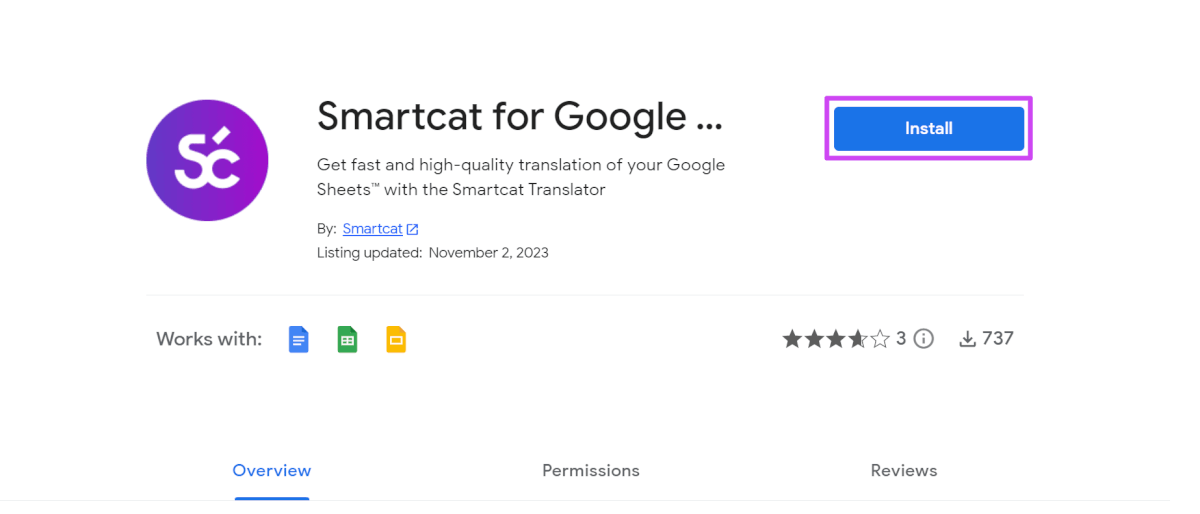
- Install the Smartcat app from Google Marketplace.
-
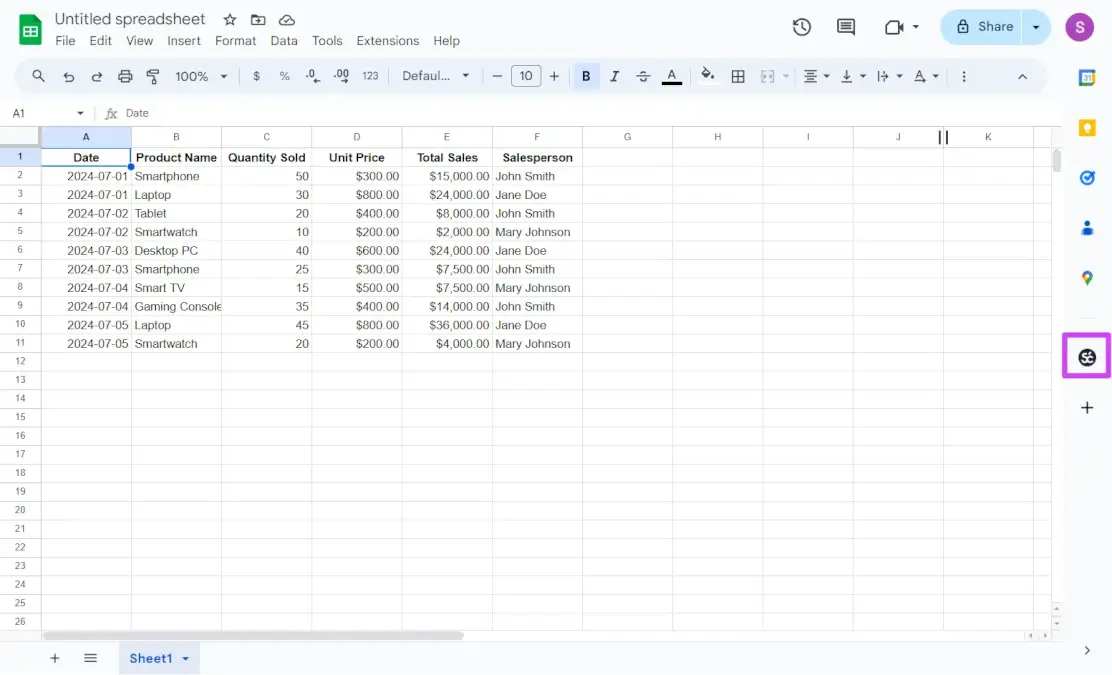
Open the Google Sheets document you want to translate.
-
Click on the Smartcat icon located in the toolbar section on the right.
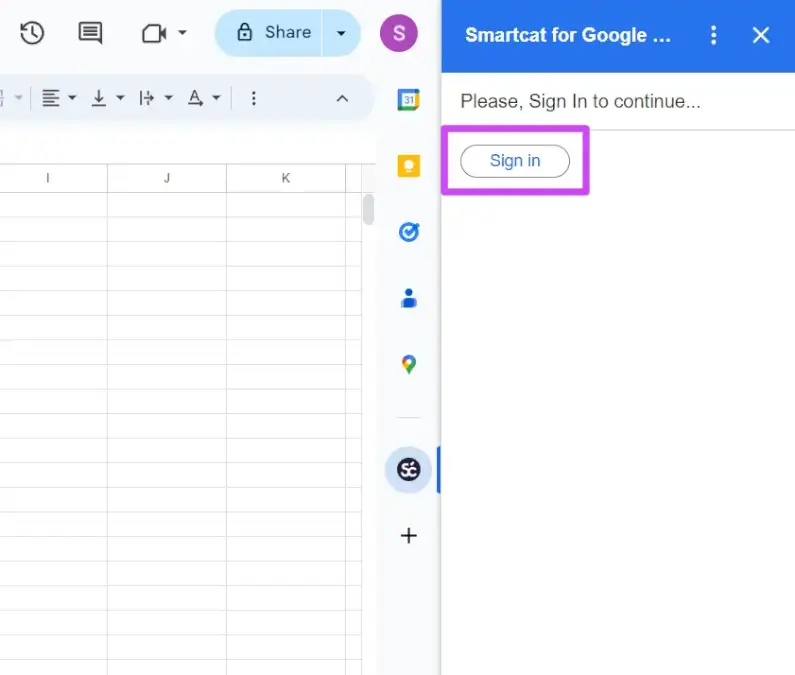
- Click Sign In and authorize access to your Google Account. Log in to your Smartcat account and select your workspace. Click Continue to Google Sheets.
Configure your Google Sheet for translation
- Select the Source language, specify the First row number to be translated. Map the columns to the corresponding languages. In the example below, the source text is located in column B, while column G is mapped for the Spanish language.
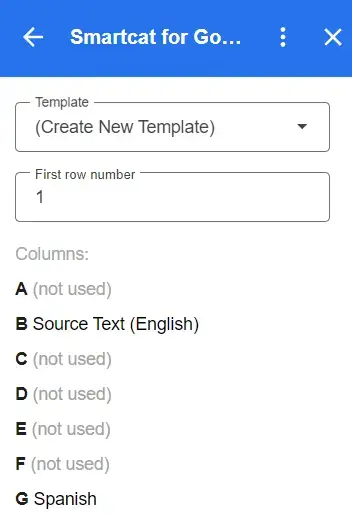
The translations for these languages go in these columns. For each language, click Save at the bottom of the sidebar.
Also, you can map any column for segment/document comments or context.
If one or several rows have column titles or content which does not need to be translated, set the first row to skip them.
-
Enter the name for your template.
-
Click Save Template.
Translate your spreadsheet
Automated translation
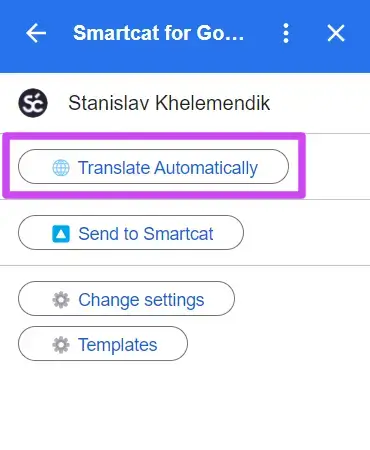
To translate content automatically using Reviewed Translations (translation memories) and AI Translation, click Translate automatically.
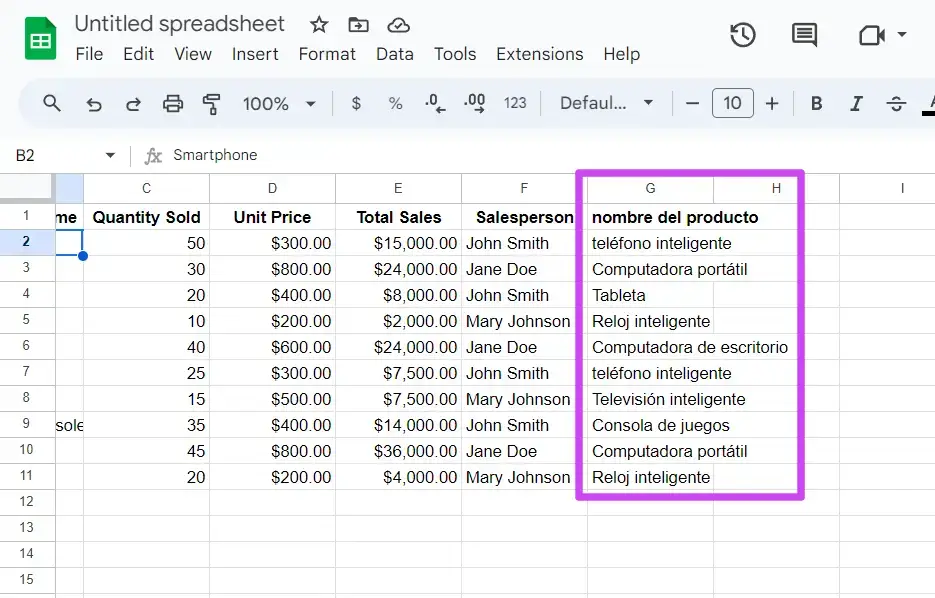
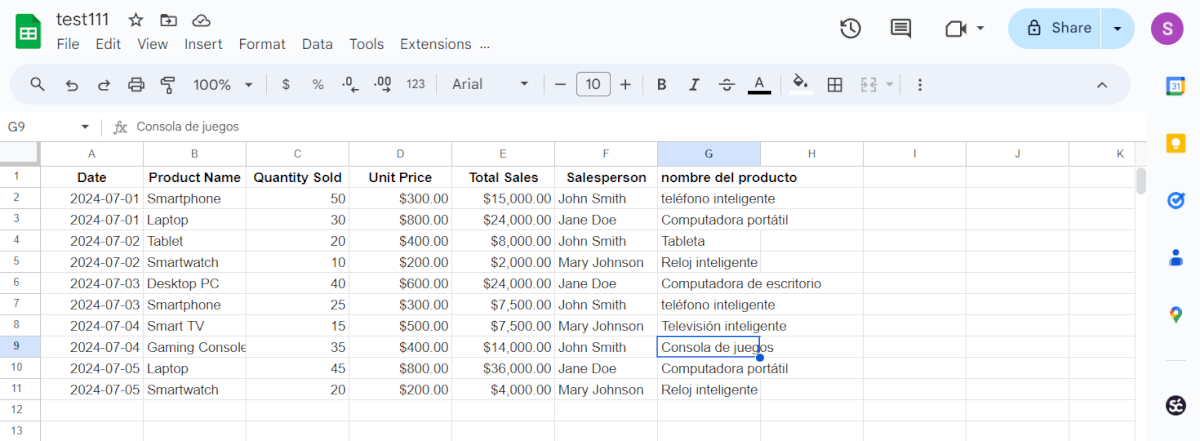
The corresponding empty cells are automatically filled with the translations.
Creating a translation project
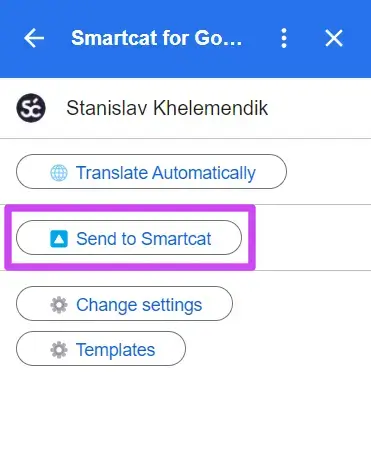
- Click Send to Smartcat.
-
Create a new project for your translation or select the existing project.
-
If you want to confirm the translation, mark the corresponding checkbox.
Review your translation
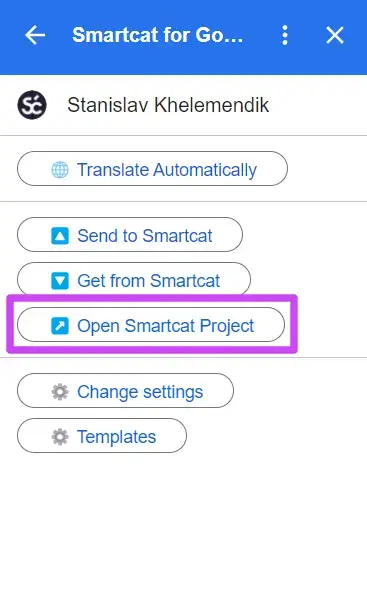
- Click Open Smartcat project to view and edit your translations or invite professional linguists to review these.
- An Overview tab opens where you can track the translation progress.
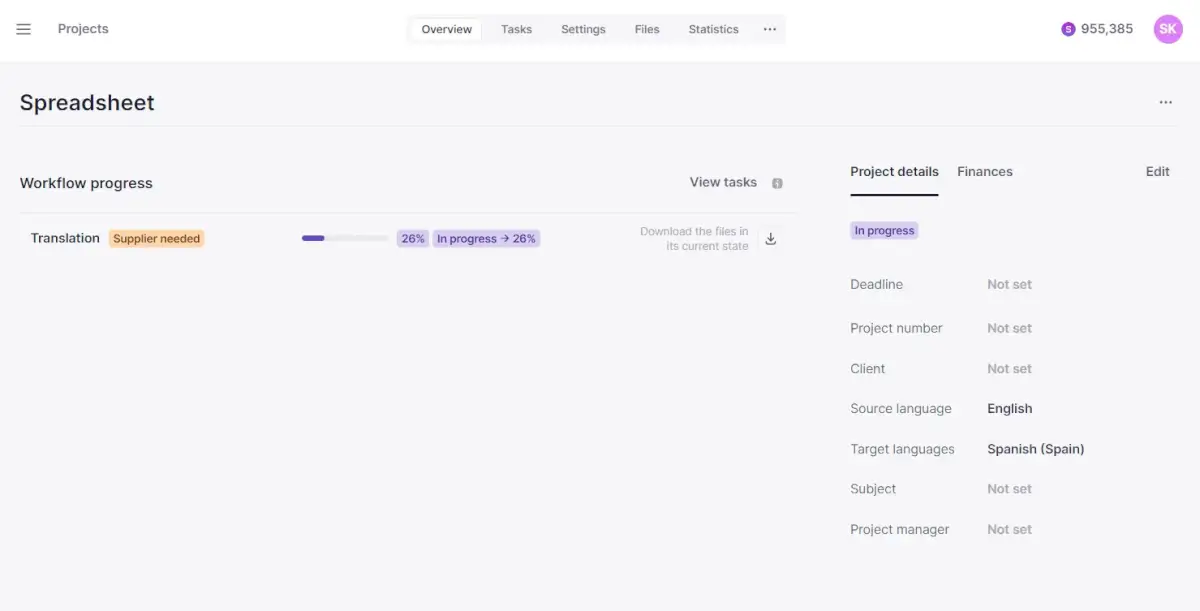
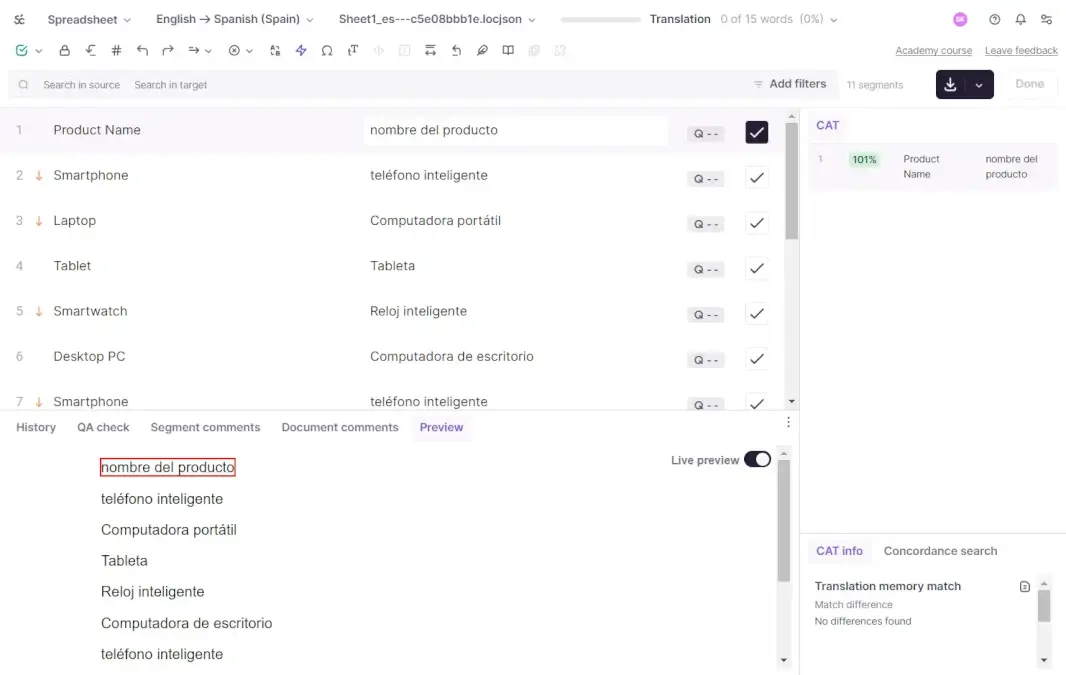
- Proceed to the Files tab. Click on the name of your file to open Smartcat Editor.
-
The editing area is divided into segments. Edit your translation as needed.
-
Check the Quality Assurance tab for inaccuracies.
-
Access the history of changes by navigating to the History tab.
-
Review your translation by going through it segment by segment. Alternatively, you can also confirm all segments at once by clicking the green button in the toolbar above, on the left.
-
When you're done reviewing your translation in Smartcat Editor, click Done. This finalizes the review stage.
Assign a human reviewer
Another way to review your translation is to assign this task to a human reviewer. Navigate to the Tasks tab.
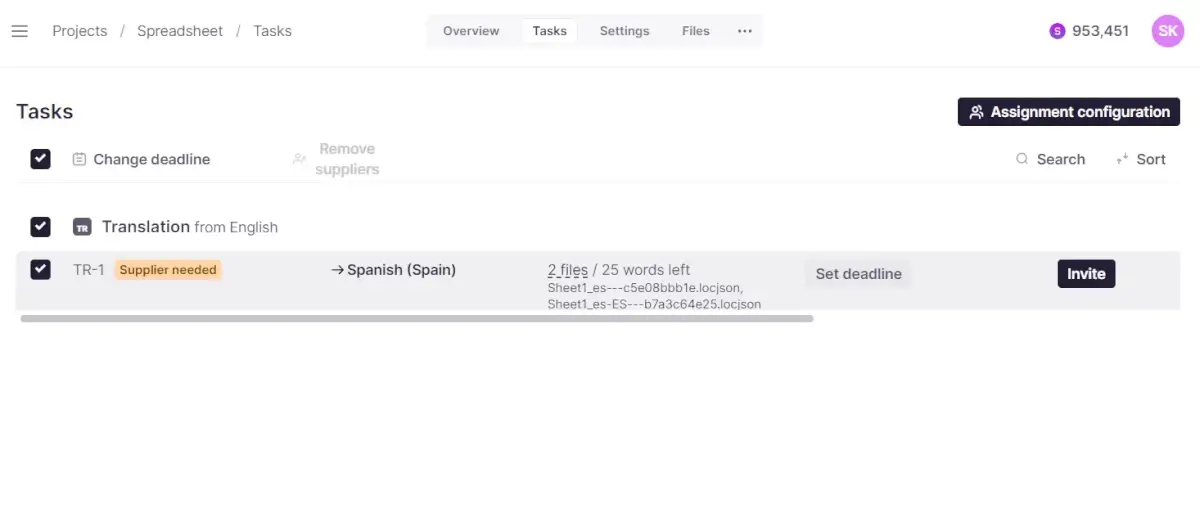
- Select the Post-editing task, and then click Invite.
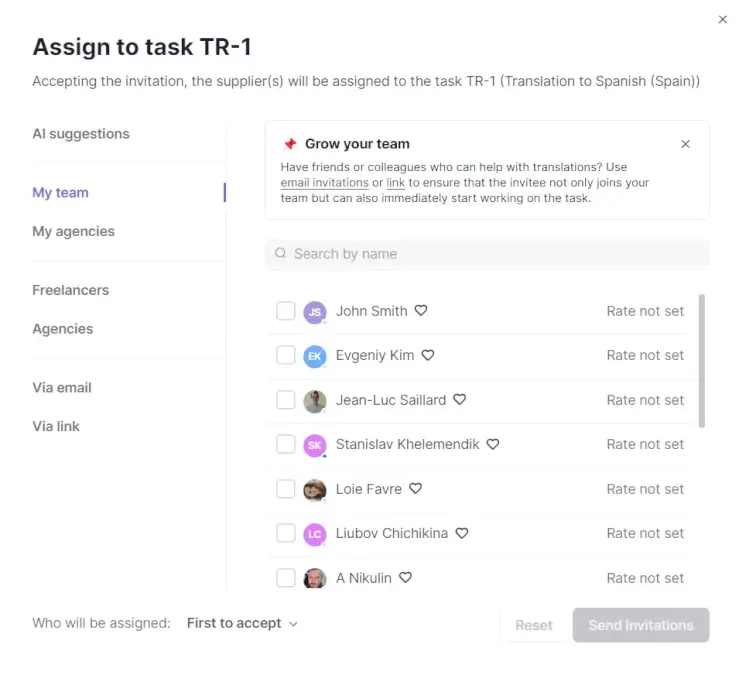
- Select the most suitable option for you: invite a human reviewer from your team, from agencies, or Smartcat Marketplace. Alternatively, you can invite a human reviewer to the Smartcat workspace via email or link. Be sure to specify the reviewer's role and rate in the Additional Options section.
Learn more about collaboration in Smartcat in this article on how to add team members.
Sending translation to Google Sheets
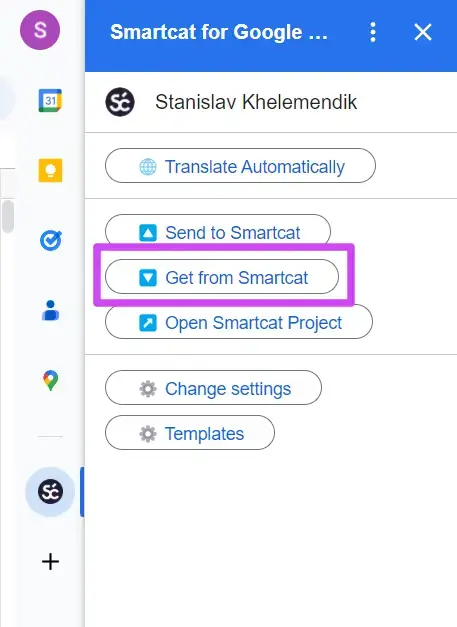
Click Get from Smartcat to upload the translations back to Google Sheets. Wait until the loading process is over. Review your translation in Google Spreadsheet.
FAQs
Do I need to install anything before I can use this integration?
Yes — you install the Smartcat app from the Google Marketplace, then open it as a sidebar from within the Google Sheets document you want to translate.
How does Smartcat know which columns are the source and which are target languages?
You map them manually: you select the source language and the column containing source text, then map additional columns to specific target languages, and click Save for each language.
Can I skip certain rows, like column headers, when translating?
Yes — if a row (e.g. row 1) contains headers or content that shouldn't be translated, you set the "First row number" so translation begins after it.
What are my two options for generating the actual translations?
Click "Translate automatically" to fill empty cells using Reviewed Translations (TM) and AI Translation directly in the sidebar, or click "Send to Smartcat" to create a full Smartcat project you can review and edit in the CAT editor.
Can I get a human reviewer to check the translation before it goes back into my spreadsheet?
Yes — from the project's Tasks tab, select the Post-editing task and invite a reviewer from your team, an agency, the Marketplace, or via email/link.
How do I get the finished translations back into my Google Sheet?
Click "Get from Smartcat" in the sidebar to upload the translations back into the mapped columns of your spreadsheet.
Want to learn more?
See how Smartcat can transform your localization workflow.
Still need help?
Our support team responds within one business day.