Use Chief of Staff from Claude and ChatGPT
Overview
Connect Smartcat to Claude or ChatGPT once, sign in with your Smartcat account, and then ask Chief of Staff for work from Claude Code, Claude.ai, Claude Desktop, or ChatGPT. Claude or ChatGPT passes your request to Chief of Staff and shows you the reply, so you can work with Smartcat without leaving your chat.
Chief of Staff acts as you. It can see and do only what your Smartcat account allows in the workspace you approved.
When to use it
-
Start translations and check their status without leaving your chat
-
Send files to Chief of Staff and get the finished files back as download links
-
Switch between your workspaces by name
How to use it
Turn on MCP access (Workspace Admins)
MCP access is off in every workspace until a Workspace Admin turns it on. If you aren't a Workspace Admin, ask one to follow these steps for your workspace.
-
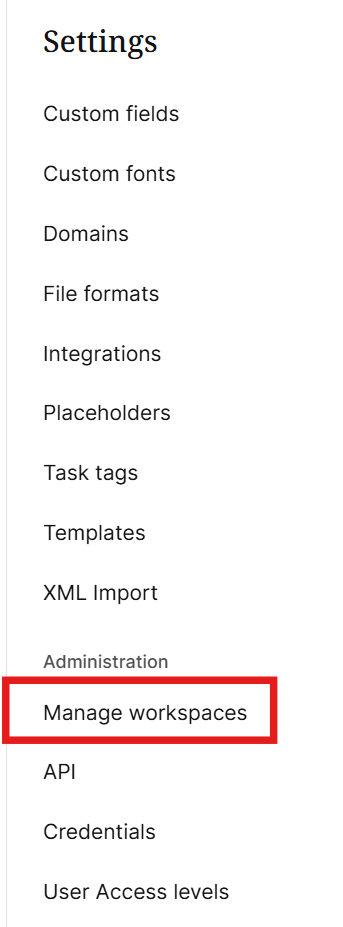
Go to Settings in Smartcat and open your workspace's settings
- If you're a Workspace Admin, under Administration, click Manage workspaces, then click the settings icon at the end of your workspace's row
- If you're an organization admin, under Administration, click Manage organization, then click the ⋮ menu at the end of the workspace's row in Workspaces
- If you're a Workspace Admin, under Administration, click Manage workspaces, then click the settings icon at the end of your workspace's row
-
Open the Advanced tab
-
Turn on MCP access to Chief of Staff
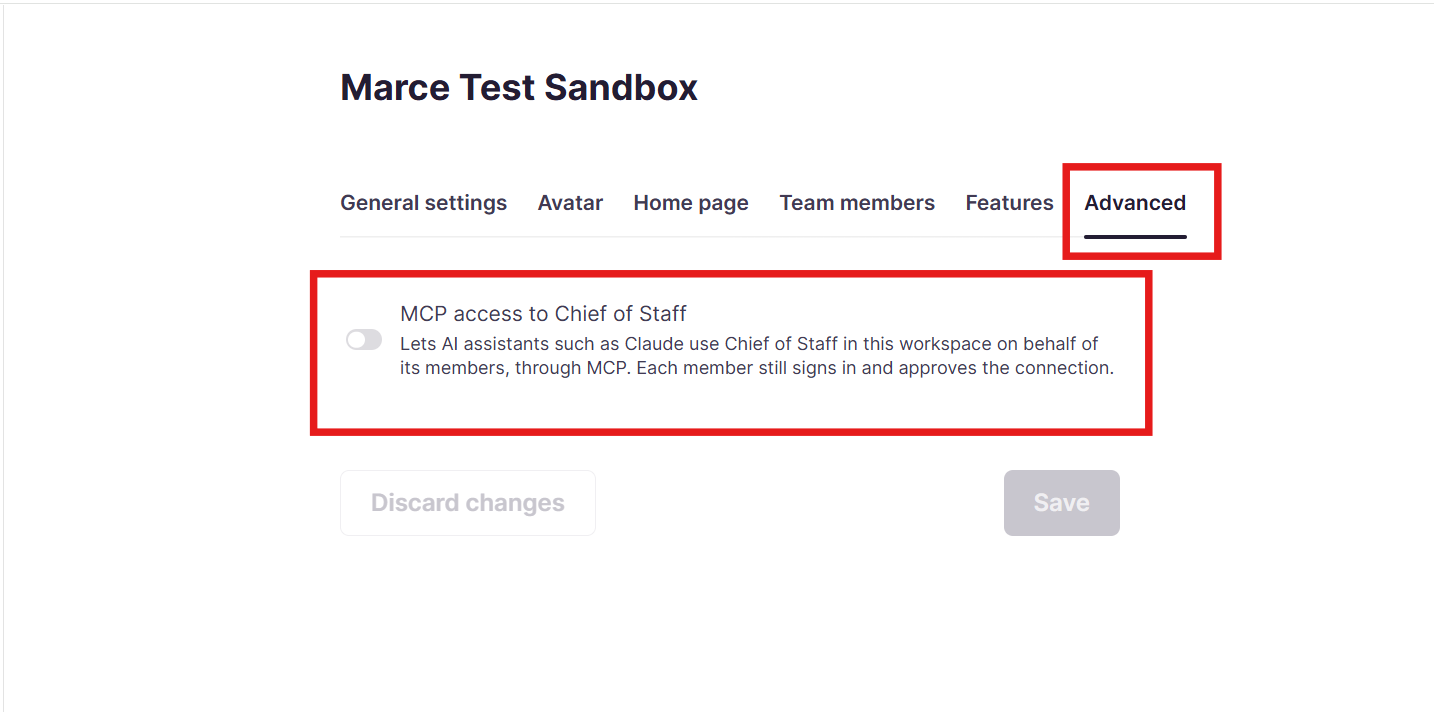
- Click Save
MCP access is now on for the workspace, and members can connect Chief of Staff to Claude or ChatGPT. Each member still signs in and approves the connection themselves.
Connector address
Connect the address for your workspace's region. Use it exactly as shown whenever a step asks for the connector address.
| Workspace region | Connector address |
|---|---|
| Europe | https://smartcat.com/gateway/mcp |
| US | https://us.smartcat.com/gateway/mcp |
| Asia | https://ea.smartcat.com/gateway/mcp |
📌 Don't use a smartcat.ai address. Claude and ChatGPT refuse to sign in through a redirect.
Connect Claude Code
-
In your terminal, run this command to add the Smartcat connector. For a US or Asia workspace, use the address for your region (see Connector address)
javascript claude mcp add --transport http smartcat https://smartcat.com/gateway/mcp -
Start Claude Code and type
/mcp-
Select smartcat
-
Select Authenticate. Your browser opens
-
-
Sign in to Smartcat if asked, check the workspace shown, and click Allow
-
Go back to the terminal. It shows
Authentication successful. Connected to smartcat.
Smartcat is connected to Claude Code, and you can ask Chief of Staff for work from your terminal.
Connect Claude.ai or Claude Desktop
-
In Claude, go to Settings → Connectors and click Add custom connector
-
Enter
Smartcatas the name and paste the connector address for your workspace's region (see Connector address) -
Click Add, then click Connect. A Smartcat window opens
-
Sign in to Smartcat if asked, check the workspace shown, and click Allow. Claude shows Smartcat as connected
Smartcat is connected to Claude, and you can ask Chief of Staff for work from your chats.
📌 On a Team or Enterprise plan, an owner adds the connector once in the organization's connector settings. Members then find Smartcat in their own Connectors list and click Connect.
Connect ChatGPT
-
In ChatGPT, click your profile icon in the lower-left corner and choose Settings
-
Open Plugins and click Browse directory
-
Click Add
-
Choose Add custom MCP server
-
-
Enter
Smartcatas the name and paste the connector address for your workspace's region (see Connector address) -
For authentication, choose OAuth, save the server, and click to authorize. A Smartcat window opens
-
Sign in to Smartcat if asked, check the workspace shown, and click Allow
-
In a new chat, turn on Smartcat from the + menu before you ask
Smartcat is connected to ChatGPT, and you can ask Chief of Staff for work from your chats.
📌 On a ChatGPT Business or Enterprise plan, a ChatGPT admin may need to allow custom MCP servers first.
Talk to Chief of Staff
Call your Chief of Staff by the name you gave it in Smartcat, then say what you need. If you haven't named it, say "Chief of Staff".
In this article, Cat is an example name. For example, "Cat, list my chats" lists your recent Chief of Staff conversations from Smartcat. Try asking:
-
"Cat, list my workspaces"
-
"Cat, switch to the Marketing workspace"
-
"Cat, translate brochure.docx into German and French"
-
"Cat, what's the status of my last translation?"
-
"Cat, give me the download links for the translated files"
-
"Cat, stop that task"
To change your Chief of Staff's name, avatar, and other details, see Configuring your Chief of Staff in the Intelligence Fabric. Claude and ChatGPT pick up the new name the next time you call it, so you can address it the same way everywhere.
Send files and get results
You can send files to Chief of Staff and get the results back without opening Smartcat.
-
Send the file to Chief of Staff
-
In Claude.ai or ChatGPT, attach the file to your message
-
In Claude Code, name the file on your computer, for example
./docs/brochure.docx -
If the file is large, open the upload link that Chief of Staff gives you in your browser
-
-
(Optional) Ask Chief of Staff for the status of the work
-
When the work is done, ask Chief of Staff for the results. Chief of Staff gives you download links for the finished files
You have the finished files without opening Smartcat.
Switch workspaces
Chief of Staff works in the workspace you used last.
-
Ask Chief of Staff to list your workspaces
-
Name the workspace to work in
-
If the workspace is in another region, sign in again when asked
Chief of Staff now works in the workspace you chose.
Where Chief of Staff connector data travels
Chief of Staff runs in Smartcat’s own cloud in each region, next to Smartcat itself, so connecting it to Claude or ChatGPT adds no new subprocessors on Smartcat’s side. Your Claude or ChatGPT account is your own. Smartcat sends Chief of Staff’s replies and files to Claude or ChatGPT at your request, and your agreement with Anthropic or OpenAI governs what that company does with the content. It may process the content outside your region.
Data passes through a server in another region in only two cases: you connected another region’s address, or you use one connection for workspaces in several regions. The traffic is encrypted, and the connector server stores nothing. Your workspace data stays stored in your workspace’s region either way.
Which address to connect
Connect the address for your workspace’s region (see Connector address). Claude, ChatGPT, and Claude Code call Smartcat directly at the address you connected, so the country you are working from doesn’t matter.
📌 You don’t need to reconnect while you travel.
Choose the right connection
| Your situation | What to do | Where your data goes |
|---|---|---|
| Your workspace region matches the address you connected | Nothing | Stays in the region |
| You work in your own workspace while traveling | Keep the address of your workspace’s region | Stays in the region |
| You have workspaces in several regions | Add one connection per region (see below) | Stays in each workspace’s region |
| You connected another region’s address | Remove the connector and add it again with your region’s address | Passes through the connected region |
Connect each region separately
If you have workspaces in more than one region, a single connection works with one region at a time. Switching it to a workspace in another region sends requests through the connected region’s server.
-
Connect Smartcat for your first region by following the steps in Connect Claude.ai or Claude Desktop or in Connect ChatGPT, and name the connector for the region, for example
Smartcat EU -
Add a second connector with the other region’s address from the table above, and name it for that region, for example
Smartcat US -
In Claude Code, add each connector with its own name, for example
smartcat-us -
Use the connector that matches the workspace you want to work in
Each workspace’s data now stays in its own region.
Sign-in and files
Smartcat handles sign-in and your Allow decision in your workspace’s region. Only a one-time approval code passes through the connector.
Files you send go through the connector into Smartcat Drive in the same workspace. You download finished files by link directly from your workspace’s region. With your own region’s address, files don’t pass through another region.
If your data must stay in the EU or the US
Nothing passes through the connector until a Workspace Admin turns on MCP access (see Turn on MCP access). If your organization turns it on:
-
Connect only your own region’s address
-
Check your organization’s agreement with Anthropic or OpenAI, because that company processes what you receive in Claude or ChatGPT outside Smartcat’s regions
Your data stays in your region on the Smartcat side, and you control what reaches Claude or ChatGPT.
FAQs
What does "MCP access turned off by your workspace admin" mean?
MCP access is off in that workspace. Ask a Workspace Admin to turn it on (see Turn on MCP access), or switch to a workspace where it's on.
Why am I asked to sign in again?
Your connection expired, or you switched to a workspace in another region. In Claude Code, type /mcp and reconnect smartcat. In Claude.ai or ChatGPT, connect Smartcat again from its connector settings.
What do I do about a redirect or sign-in error?
Check that you used the address from Connector address exactly as shown, then remove the connector and add it again.
Want to learn more?
See how Smartcat can transform your localization workflow.
Still need help?
Our support team responds within one business day.