Translation Memory: Overview, Setup, and Management
Overview
Translation Memory (TM) — shown as Reviewed Translations in the newer UI — is a database that stores every segment (sentence or phrase) that has been translated and confirmed in your Smartcat workspace. Each entry pairs a source-language segment with its approved target-language translation. Once a linguist or reviewer confirms a segment in the CAT editor, Smartcat saves that pairing automatically, and it becomes available for reuse in future projects.
Reusing approved translations instead of retranslating from scratch delivers:
-
Faster turnaround — repeated or similar content doesn't need to be retranslated
-
Consistency — the same source segment is translated the same way every time it recurs, across projects, teams, and years
-
Institutional memory — your organization's translation decisions persist even as translators or reviewers change
-
Lower cost over time — reusing approved matches typically takes less linguist/reviewer effort than translating from zero. If you are on one of the current pricing plans (Adapt, Accelerate, Anticipate, or Autonomous), TM matches of 100% or higher do not consume Smartwords. On Smartcat’s legacy pricing plans, TM matches still consume 1 Smartword for each source word.
When to use it
-
You're translating recurring or similar content (product UI strings, legal/technical documentation, marketing copy that gets refreshed) and want consistent wording every time
-
You're onboarding a new translator or reviewer and want them working from your team's prior approved decisions, not starting cold
-
You manage multiple clients, brands, or business units and want each to build its own consistent translation history
💡 If you need to manage multiple TMs, fine-tune match thresholds, or handle dialects, see Translation Memory: Advanced Configuration.
How it works
Your TM builds itself automatically as your team works — no manual step required. Every segment confirmed in the CAT editor is written to the TM tied to that project.
When you upload new content, Smartcat checks it against the attached TM before AI translation runs, and inserts matches automatically, flagged by match percentage:
| Match type | Range |
|---|---|
| Context match | 101%+ |
| Exact/100% match | 100% |
| Near-exact match | 95–99% |
| Fuzzy match — high | 85–94% |
| Fuzzy match — medium | 75–84% |
| Fuzzy match — low | 50–74% |
100%/context matches reuse the prior approved translation as-is; fuzzy matches surface the closest existing translation for a linguist to confirm or adjust rather than translating from scratch.
If more than one TM is attached to a project, only one receives newly confirmed translations — see [Translation Memory: Advanced Configuration] for managing multiple TMs.
Your TM is never a black box: entries can be searched, reviewed, corrected, or removed at any time from Intelligence Fabric → Reviewed Translations. Corrections apply to future matches going forward.
💡If you are on one of the current Smartcat pricing plans, (Adapt, Accelerate, Anticipate, or Autonomous), TM matches of 100% or higher do not consume Smartwords. On Smartcat’s legacy pricing plans, TM matches still consume 1 Smartword for each source word.
Creating a New Translation Memory
From Intelligence Fabric
-
Navigate to Intelligence Fabric → Assets → Reviewed Translations in your workspace
-
Click Translation memories in the top right corner
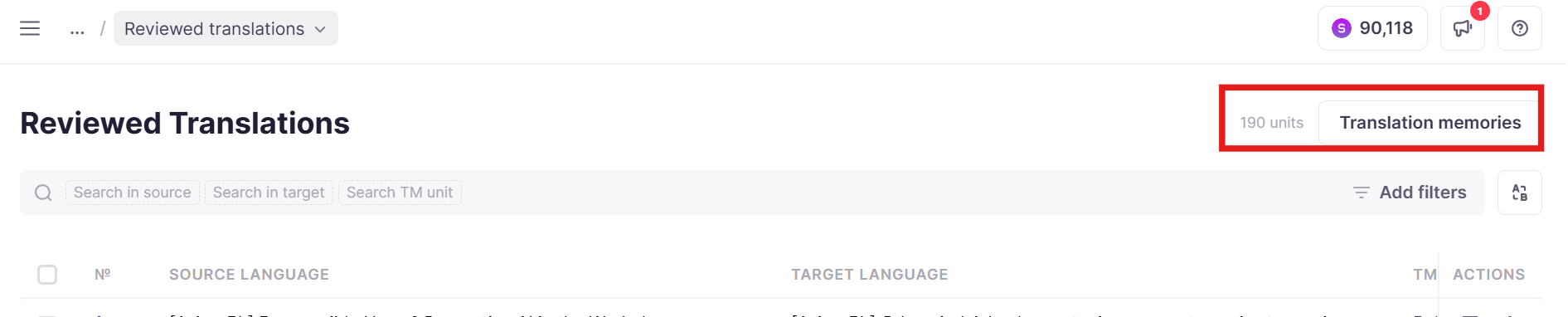
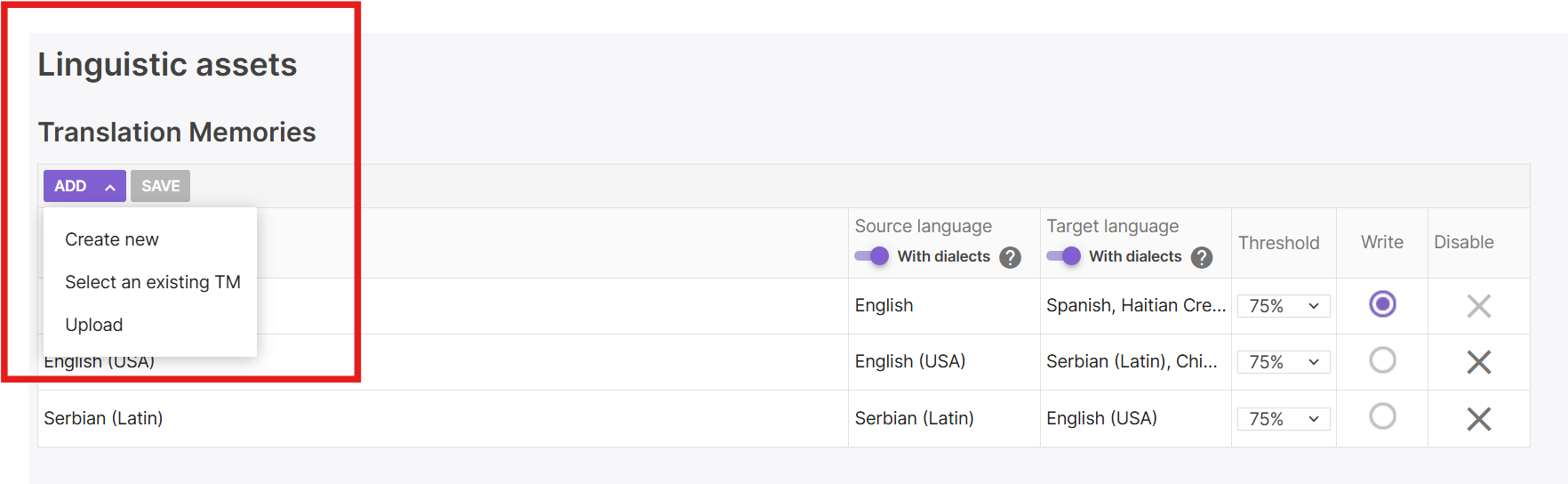
- Click Create TM
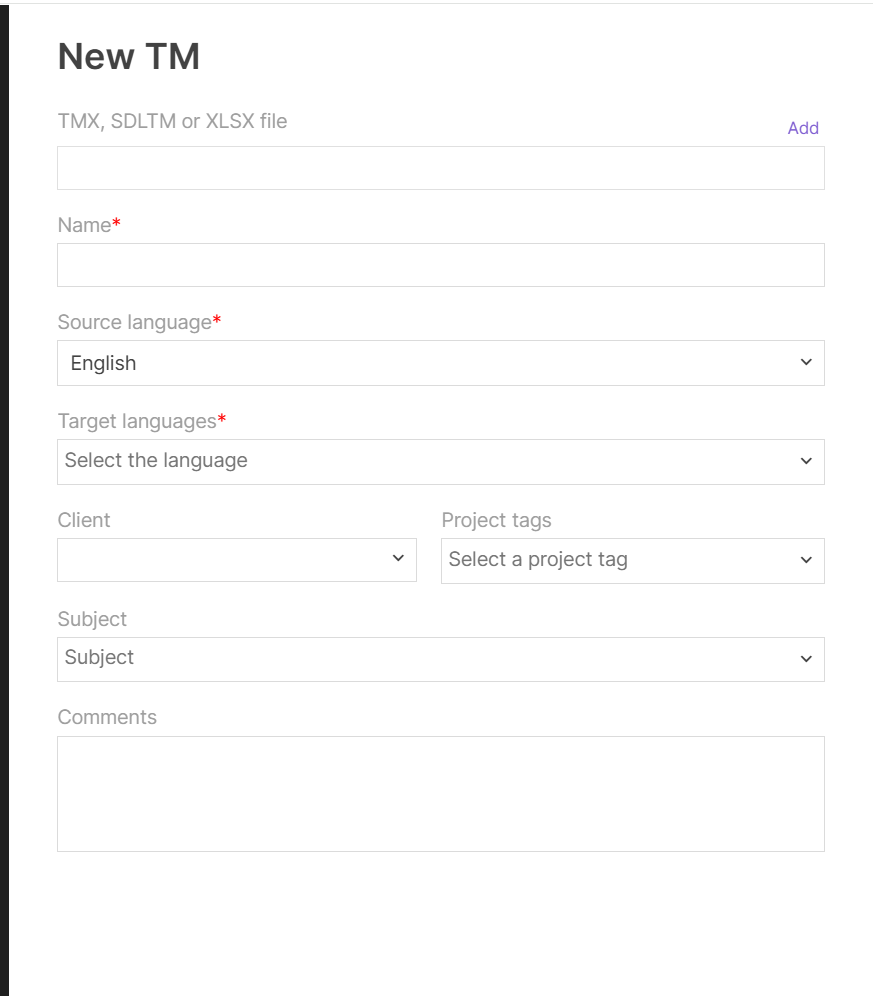
- Enter a Name for your TM
-
Select the Source Language and Target Language(s)
-
Complete any optional, identifying fields. You can select a specific client, project tag, or subject to associate the TM to that client or project tag, and leave comments to help further identify the TM.
-
Click Save
During Project Creation
You can also create a TM while setting up a new project:
-
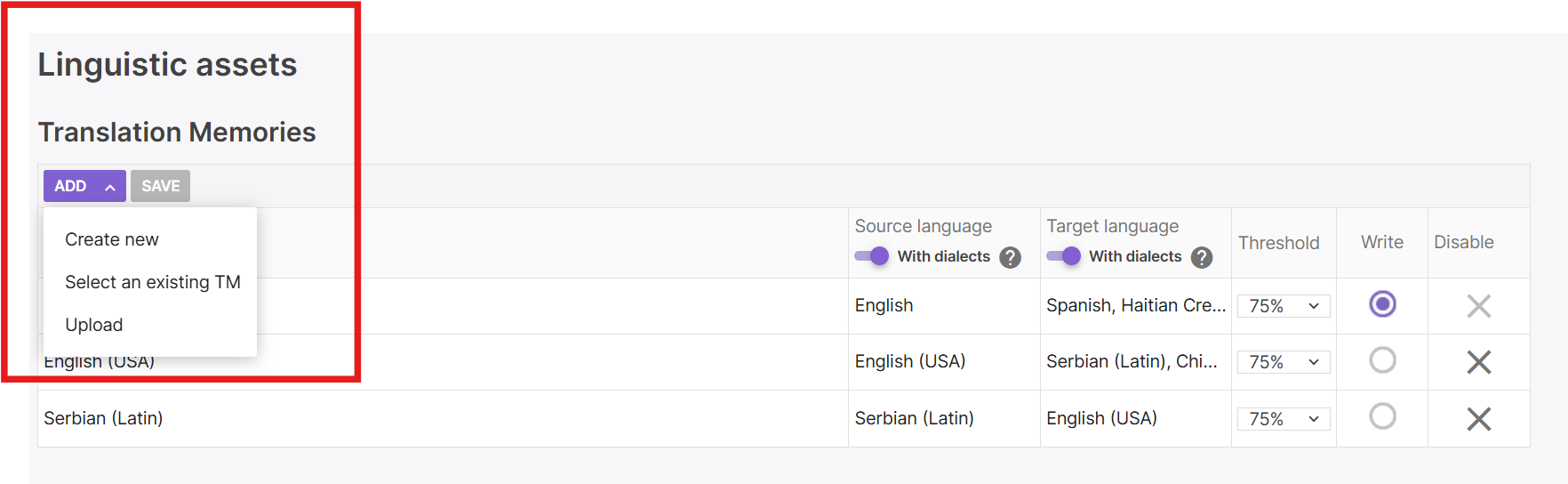
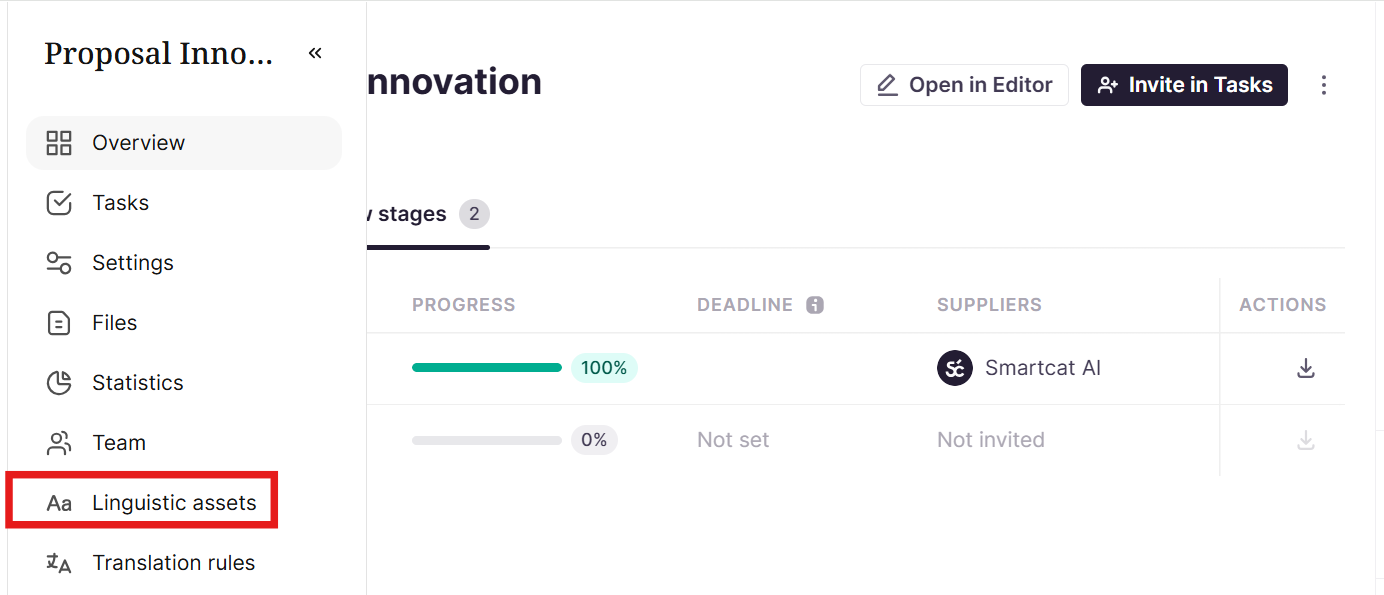
In the left navigation sidebar of the project, click Linguistic Assets
-
Under the Translation Memories heading, click Add → Create new
-
Follow the same steps as above
Attaching a TM to a project
-
Create your project, specifying source and target language(s)
-
Open Linguistic Assets from the project's Overview page — Smartcat shows any TMs it has already matched to your project's language pair automatically (this may be empty)
-
If you already have a TM, click Add → Select an existing TM, then choose from the list — see How do I connect my existing translation memory or glossary? for full detail on this step
-
If you don't have one yet, create it inline from the same screen (see Creating a New Translation Memory above)
The TM is now active on the project: every new segment is checked against it, and every segment your team approves is written back into it.
Importing Translation Memories
Supported Formats
Smartcat supports importing TMs in these formats:
-
TMX (Translation Memory eXchange) — recommended
-
Excel (XLSX) — with source/target columns
-
Bilingual documents — source and target text paired together
Import Process
-
Navigate to Intelligence Fabric → Reviewed Translations in your workspace
-
Click Translation memories in the top right corner
-
Click Create TM
-
Click the TMX, XLSX, or bilingual document file field and select the file to import
-
Map the columns (for XLSX/CSV):
-
Source column: Contains original text
-
Target column: Contains translations
-
-
Review the preview and click Import
Import Best Practices
-
Clean your data before importing (remove duplicates, fix formatting)
-
Use TMX format when possible for best compatibility
-
Check language codes match your TM settings
-
Review large imports in smaller batches first
Exporting Translation Memories
Export Options
-
Navigate to your Translation Memory
-
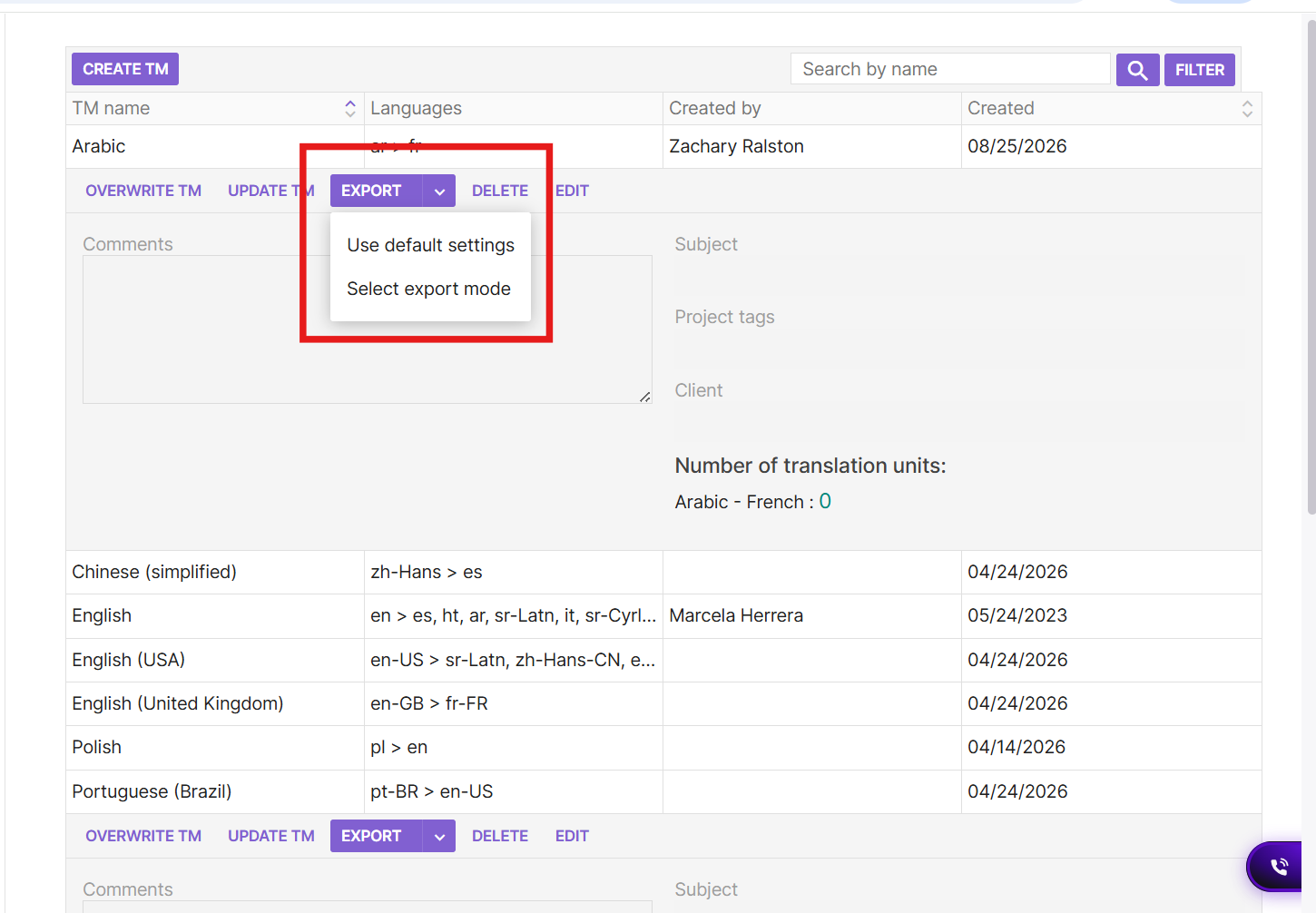
Click the arrow next to Export and Select export mode to configure export options.
-
Select whether or not to include tags.
-
Choose format:
-
TMX: Industry standard, works with other CAT tools
-
XLSX: Excel format for editing or analysis
-
-
Click Export and download when ready
When to Export
-
Backup purposes: Regular exports for data security
-
Sharing with vendors: Provide TMs to external translators
-
Migration: Moving to another CAT tool
-
Analysis: Review translation patterns and quality
Managing Translation Memories
Editing Segments
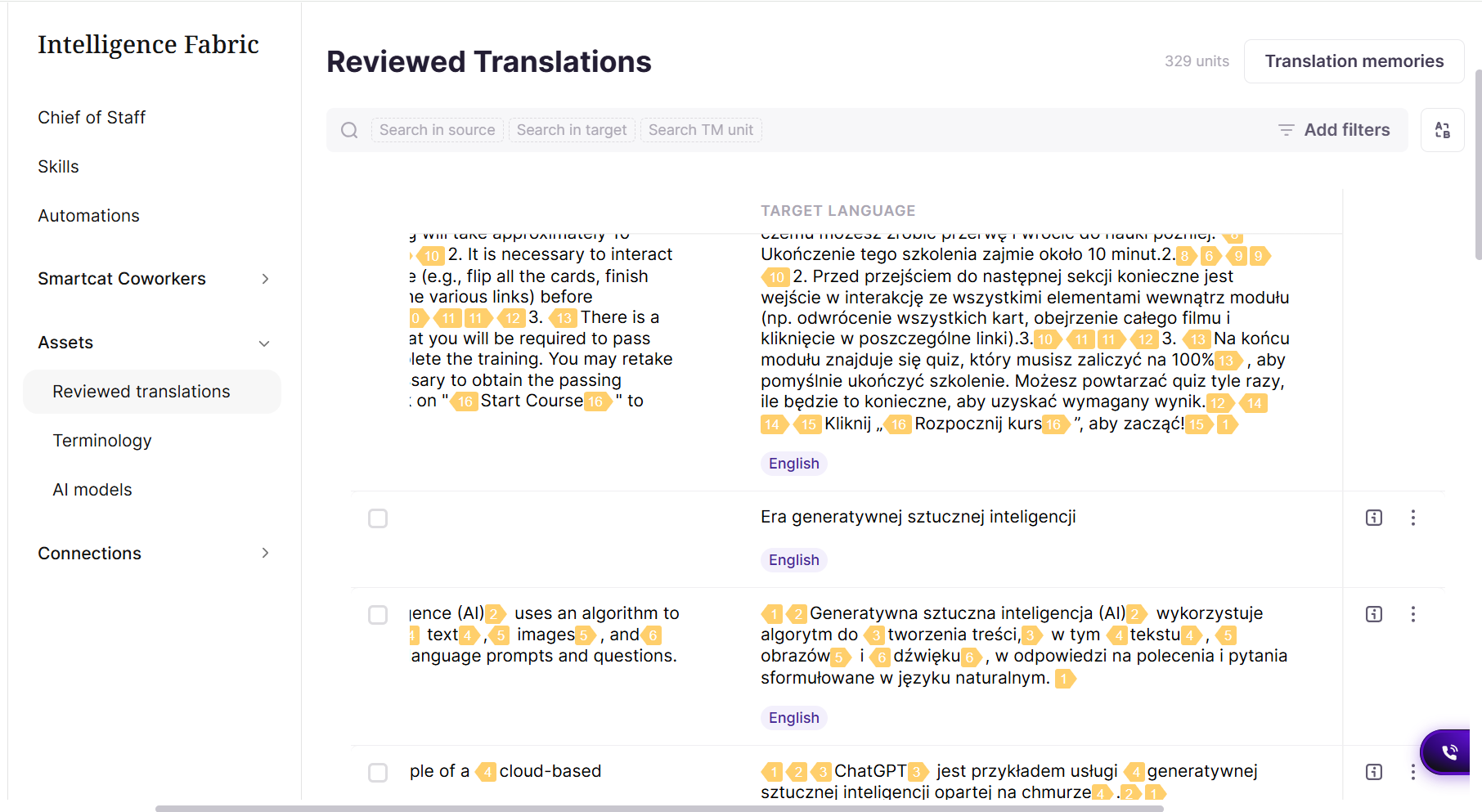
- Open your Reviewed translations
-
Use the Search function to find specific segments
-
Click on any segment to edit:
-
Source language: Original content
-
Target text: Translation
-
Tags: Add metadata for organization
-
-
Save changes
Organizing with Tags
Add tags to categorize TM segments:
-
Project names: "Website_2024", "Marketing_Campaign"
-
Content types: "UI_Text", "Documentation", "Legal"
-
Quality levels: "Reviewed", "Draft", "Final"
Recommended Maintenance Tasks
Regular Cleanup:
-
Remove outdated segments
-
Merge duplicate entries
-
Update terminology for consistency
Quality Control:
-
Review low-confidence matches
-
Validate translations with subject matter experts
-
Update segments based on client feedback
Integration with Projects
Automatic TM Updates
When translators work on projects:
- New segments are automatically added to assigned TMs
Requirements and limitations
-
A TM only applies to a project once it's attached — Smartcat does not automatically guess which TM to use for an unlinked project
-
A TM is private to your workspace by default and not accessible to other Smartcat customers; some subscription plans allow sharing across workspaces
-
Shared TMs cannot be deleted or exported by non-owner workspace members (owner-only)
FAQs
Do I need to do anything to start building a TM?
No — it builds automatically as your team confirms segments. Prior translations can be uploaded separately (see Importing Translation Memories above).
Does a TM replace the need for translators or reviewers?
No. A TM only stores already-approved content; new or unmatched content still goes through your normal translation and review workflow.
What's the difference between a TM and a Glossary?
A TM stores full approved segments and reuses them on exact or near-exact recurrence. A Glossary stores individual terms or short phrases and enforces their consistent translation even inside brand-new sentences. They work together — see [Understand terminology and reviewed translations] for more.
Can I have more than one TM?
Yes — organize by client, brand, business unit, or language pair, and attach the relevant one per project.
What happens if a TM entry is wrong or outdated?
Search for it in Linguistic Assets → Translation Memories and edit or remove it; future matches reflect the correction.
Does using a TM cost extra?
See Requirements and limitations above.
Is my TM private to my organization?
See Requirements and limitations above.
Want to learn more?
See how Smartcat can transform your localization workflow.
Still need help?
Our support team responds within one business day.