Interact with revisions in the CAT editor
Overview
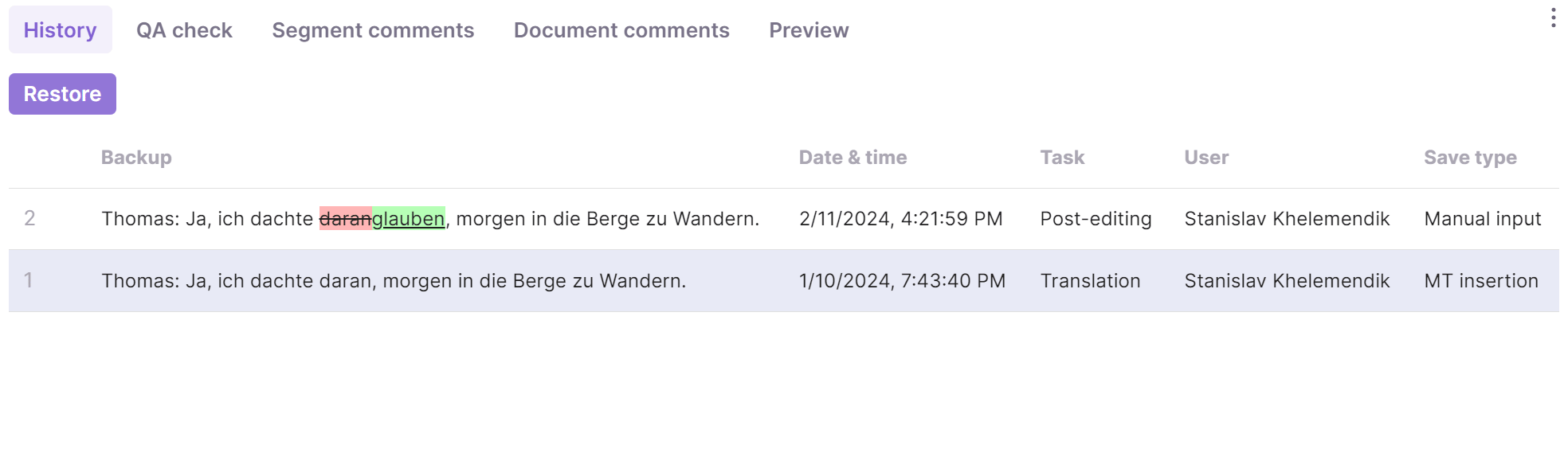
While you work on a document, the translation of a segment goes through multiple changes. Smartcat keeps track of all of them. Rather than showing changes inline in the target field, which can cause confusion when many changes are made, Smartcat displays all revisions of the current segment on the Revisions tab at the bottom of the CAT editor. Green and red colors, with underlining and strikethrough, indicate additions and deletions.
Restore a previous revision
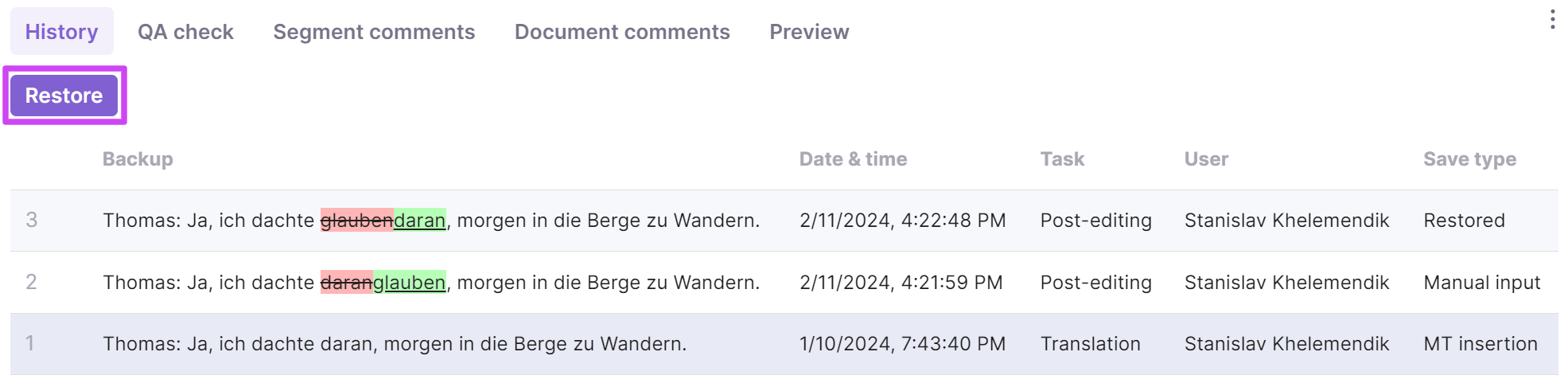
To restore an earlier version of a segment translation:
-
Open the Revisions tab at the bottom of the CAT editor
-
Select the revision you want to restore
-
Click Restore
The revision you selected appears in the translation field of the segment.
Evaluate translation quality
The Revisions tab also helps when you need to evaluate the quality of a translator's work. You can see all changes made by an editor or proofreader, compare the initial and final translations, or check whether AI translation output has been corrected. An assignee can also view the changes made by others and learn from their mistakes.
💡 Use the Revisions tab as a learning tool to review how editors and proofreaders refined your work.
FAQs
Where can I see the history of changes made to a segment's translation?
On the Revisions tab at the bottom of the CAT editor — it shows all past versions of the current segment, with additions underlined in green and deletions struck through in red.
Can I revert a segment back to an earlier translation?
Yes — open the Revisions tab, select the revision you want, and click Restore; the selected version replaces the current translation field.
Why does Smartcat show revisions this way instead of tracking inline changes in the text itself?
Showing changes inline in the target field can get confusing when many edits accumulate, so Smartcat consolidates all versions of a segment into the dedicated Revisions tab instead.
Can I use revision history to check the quality of a translator's or AI's work?
Yes — the Revisions tab lets you compare the initial and final translations, see what an editor or proofreader changed, and check whether AI output was corrected, which is also useful as a learning tool.
Want to learn more?
See how Smartcat can transform your localization workflow.
Still need help?
Our support team responds within one business day.