Manage translations of non-CAT files
Overview
Some orders arrive in exotic file formats or non-text files that Smartcat cannot parse or open in the CAT editor. The option to upload files without processing exists for exactly these cases, so you can handle them in a single loop alongside more common formats. This lets you integrate work with non-text files into your project management, and assign tasks such as translation of video and audio materials to freelancers from the Marketplace.
Upload files into a project
You can upload almost any format into Smartcat except the executable files listed in this list. You can also skip processing for text formats that Smartcat can parse: on the first step of project creation, click the file icon and select the Do not parse checkbox.

📌 If a project contains only files uploaded without parsing, the Statistics, AI translation, and Linguistic Assets tabs do not appear until you load and process some text files into that project.

Estimate the amount of work
Because Smartcat has not processed non-CAT files, you estimate the amount of work on the assignments page.
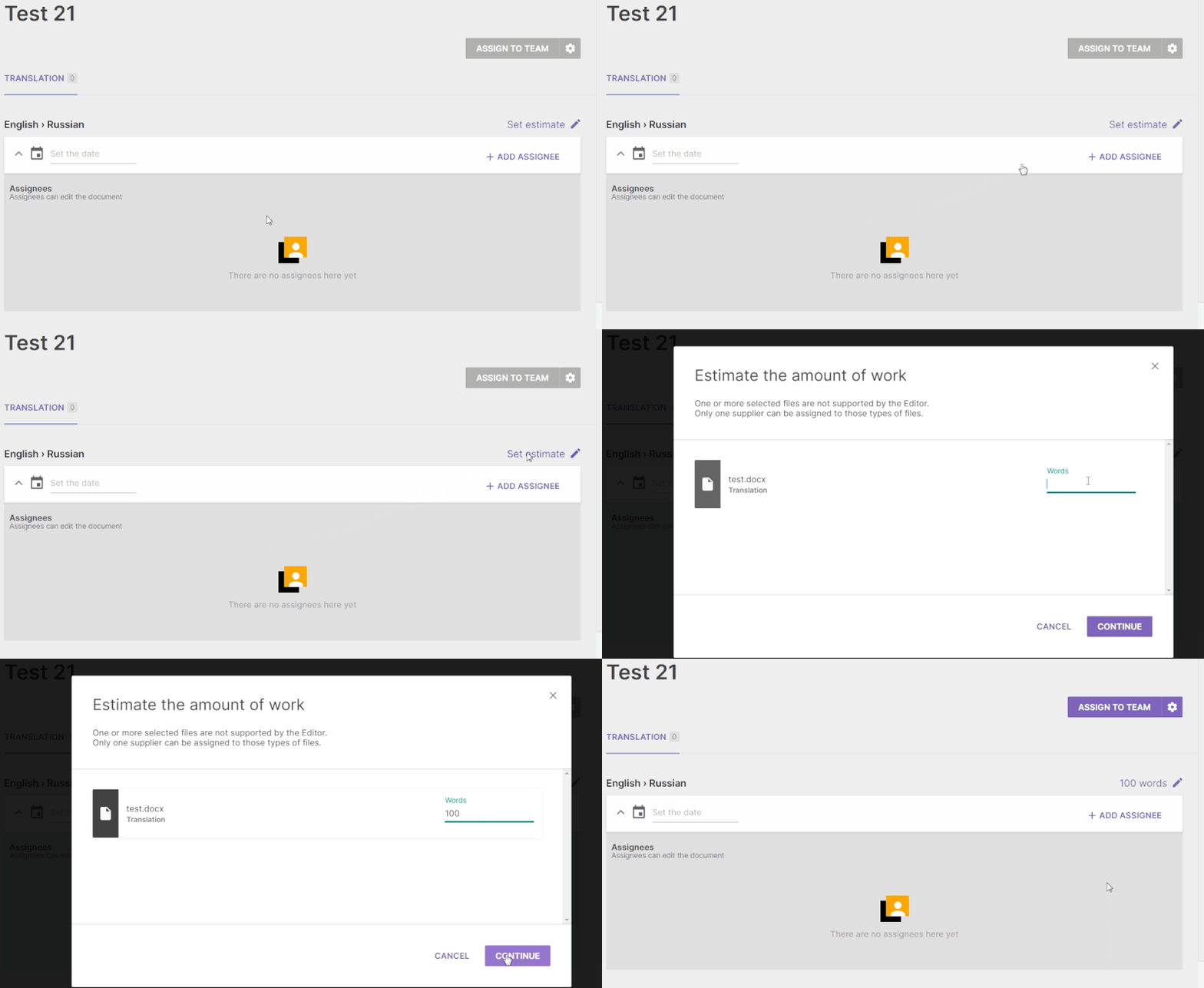
All workflow stages except Source layout check and DTP are calculated in words, while the layout stages are calculated in pages. The cost is the rate per unit for a service, taken from the freelancer's profile.
For example, a freelancer with a rate of $0.5 per word for the Translation service and an amount of work of 100 words receives $50. Smartcat does not analyze discounts for fuzzy and context matches, because the files are not parsed.
Assign a freelancer
You can assign freelancers who have a service in their profile that matches the project workflow stage. Smartcat does not yet include workflow stages that support other unit types, such as minute, hour, or document. As a workaround, when you assign a video or audio file, set the estimate in words to calculate the cost.
For example, if you agreed in the chat with a freelancer that the cost of Transcription is $100, set the freelancer's rate to $1 for Translation and the amount of work to 100 words before you assign the task.
The assignment process does not differ much from the standard one. Once assigned, the freelancer can download the source file and upload the resulting file back to Smartcat after completing the task, in the original or another format.
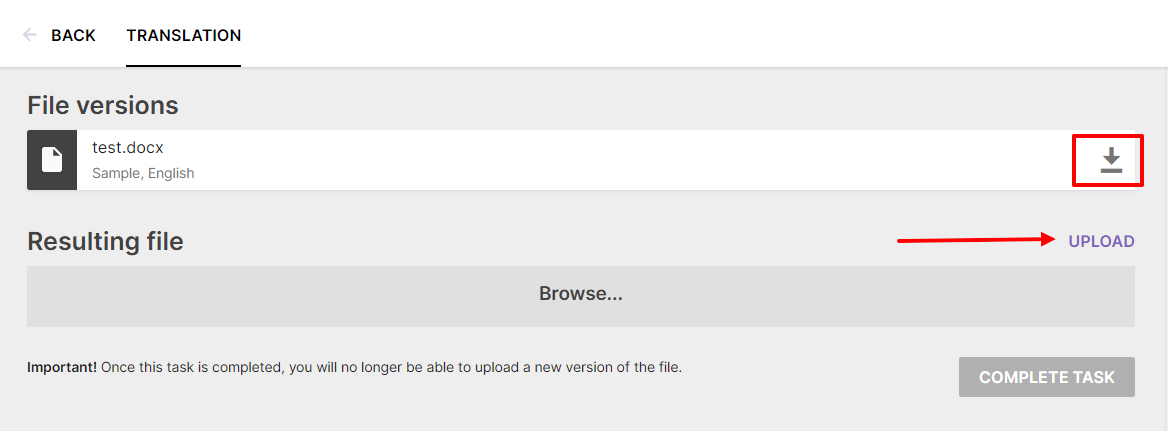
When you change the document status to Completed, the corresponding job appears in the Payment section.
💡 If a freelancer uploads an incorrect file by mistake and the document is already completed, you can restart the task and reassign it.
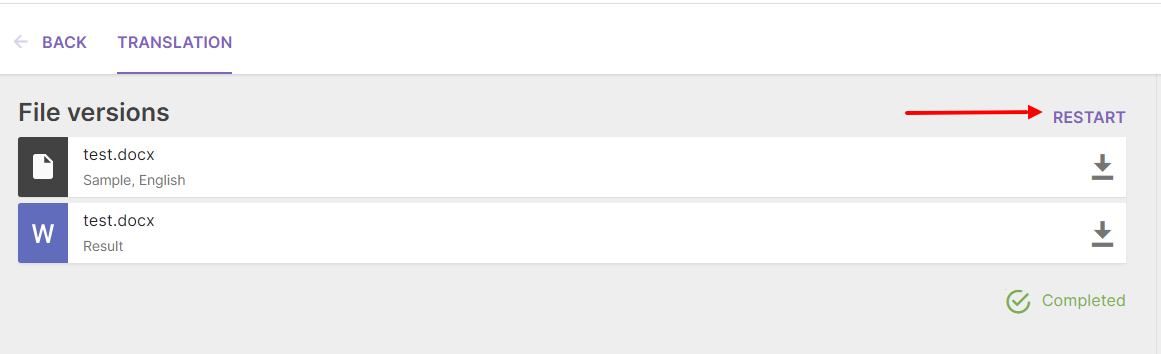
You can now track and pay for non-CAT work alongside your standard projects.
Issue a quote
Another useful feature when working with non-CAT files in Smartcat is the option to calculate a quote and issue an invoice for a client. Learn more about forming quotes and invoices in the Client Management section.
FAQs
Can I upload any file type to Smartcat, even ones it can't parse?
Almost any format, except a list of executable file types. For text formats Smartcat can normally parse, you can also choose to skip processing by checking "Do not parse" during project creation.
How does Smartcat calculate cost for a non-CAT file like a video or audio recording, since it can't count words?
You manually estimate and enter the amount of work on the assignments page. Most workflow stages are calculated in words (you set an equivalent word estimate), while layout stages like DTP are calculated in pages.
Can I still get fuzzy-match or context-match discounts on non-CAT files?
No. Since these files aren't parsed by Smartcat, no fuzzy or context match analysis happens, so no related discounts apply.
What if a freelancer uploads the wrong file for a completed non-CAT task?
You can restart the task and reassign it, even after it's marked completed.
Can I still issue a quote or invoice for non-CAT file work?
Yes — you can calculate a quote and issue an invoice for non-CAT work the same way as for standard translation projects.
Want to learn more?
See how Smartcat can transform your localization workflow.
Still need help?
Our support team responds within one business day.