Getting Started with Smartcat for Workflow & Knowledge Management
This article is a feature-by-feature overview of what Smartcat can do for workflow and knowledge-management content: help-center articles, policies, SOPs, support replies, and the documents your team already works in.
It covers the integrations that connect your existing tools, the settings that decide what a sync costs, and the document options that decide whether a translation comes out right.
Each section links to the relevant Help Center article for full step-by-step instructions.
Getting Started
-
Set up your workspace and AI team by personalizing your Chief of Staff, adding teammates, and connecting the apps you use.
-
Build your Intelligence Fabric with existing translations, terminology, and Language Insights.
-
Connect the tool your content already lives in, whether that is Zendesk, Jira, Google Drive, SharePoint, or Salesforce Service Cloud.
-
Check your import mode and confirmation settings before the first large sync, because they decide whether existing translations are reused or paid for again.
-
Create reusable workflows with Project Templates and AI Translation Profiles.
-
Translate your first content and set the document parsing options your files actually need.
-
Bring in reviewers so anything customer-facing is checked before it publishes.
-
Keep content current when source content changes (see Read On at the end of this guide).
-
Track quality and value using Smartcat's reporting tools.
💡 Ask your Chief of Staff to set the workspace up with you. It configures your linguistic assets, including glossaries, custom prompts and translation settings, during your first session in the context of real content, so setup happens as you work rather than before it.
Meet Your AI Team: Chief of Staff, Coworkers, and Skills
Smartcat is not a tool you upload files to. It is a team of AI Coworkers coordinated by a Chief of Staff, your primary point of contact on the platform. Every user gets one.
💡 Chief of Staff, and the processes shown in the guides and tours on this page, are part of Smartcat's new interface. If your workspace is still on the previous interface, some of these features may look different or may not be available to you yet.
Watch this short Platform Tour to learn more about your Chief of Staff, AI Coworkers, your Intelligence Fabric and more.
Chief of Staff greets you on the home page and guides you through the capabilities available on your plan. Ask it plain-language questions like "what's the status of my Zendesk project?" or "what should I do to fix the risk on this project?" and it routes you to the right answer or the right Coworker.
Go to Intelligence Fabric > Chief of Staff.
You can personalize it with a name, your workflow, your team, and how it talks to you. Your profile and personal Skills are private to you and not visible to anyone else in the workspace, including your Administrator.
Getting Started with Chief of Staff and Smartcat AI Coworkers
Configuring your Chief of Staff in the Intelligence Fabric
Smartcat Chief of Staff Use Cases
Coworkers are the specialists your Chief of Staff calls on, for example the ones behind your Zendesk sync, your content updates, and your review process. Which you see depends on your plan.
Go to Intelligence Fabric > Smartcat Coworkers.
Skills are repeatable procedures a Coworker follows: the steps, the inputs, the tools it uses, and how it validates its work. Translate a help article, flag a stale document, run a QA check.
Every Skill is validated with your Chief of Staff in a chat before it saves, so you do not end up with one that looks right but does nothing.
Personal Skills stay private; your Administrator can publish one as a Global Skill for the workspace, and only its owner can then edit the shared version, with updates reaching everyone automatically.
Go to Intelligence Fabric > Skills, and open For You for your own.
Configuring Skills in the Intelligence Fabric
💡 Your Chief of Staff is not only in Smartcat. It also works from the Microsoft Teams and Slack apps, which matters here because a translation request usually arrives as a message rather than as a ticket.
Using the Smartcat AI Microsoft Teams app
How Smartcat AI chat automates and scales your localization workflows
Your Intelligence Fabric: Reviewed Translations, Terminology, and Language Insights
Connecting an integration solves the first translation. Keeping every language current as the source changes is the harder problem, and it is less about translating faster than about not translating the same thing twice.
The Intelligence Fabric holds three kinds of asset:
-
Reviewed Translations
-
Terminology
-
Language Insights
💡 You do not have to build the Fabric before you connect anything. Your Chief of Staff automatically uses the translation memories, glossaries and style assets you already have, so a knowledge base with years of translated articles starts reusing them immediately.
Reviewed Translations are your approved translations, stored and reused. You may know these as translation memories. When new content overlaps with something already translated, Smartcat reuses the approved version instead of starting over.
Go to Intelligence Fabric > Assets > Reviewed Translations.
Matches at 100% and above do not consume Smartwords on Smartcat's new pricing plans. See the Smartcat pricing page for details.
Terminology is your approved terms and how they must be translated. Terms are highlighted inline for the linguist, so a product name or a policy term reads identically across every article, ticket reply, and internal doc.
Go to Intelligence Fabric > Terminology.
Understand terminology and reviewed translations
Manage linguistic resources in the Editor
How to pull terminology from third party pages like Notion:
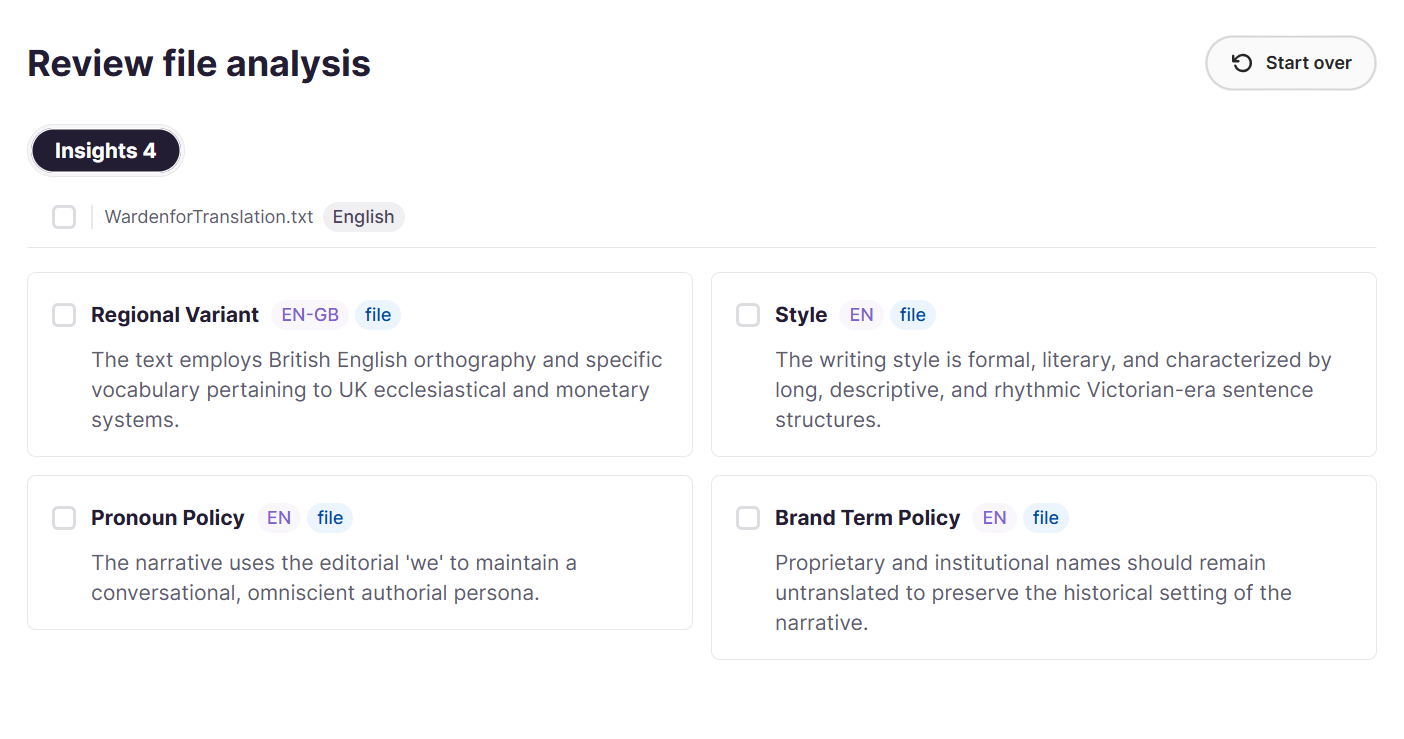
Language Insights are short notes that tell the AI how your content should sound, for example friendly and warm for support replies, or precise and formal for policy documents. They are saved in your Intelligence Fabric, either pulled from your website or documents or added by hand, and the AI follows them when it translates, so no one has to fix the tone of each translation.
To add one, click Add New Insight, choose the insight type such as Tone Of Voice, pick the language, enter your text and save.
Build your Intelligence Fabric from content you already own
Two tools extract assets from what you have:
-
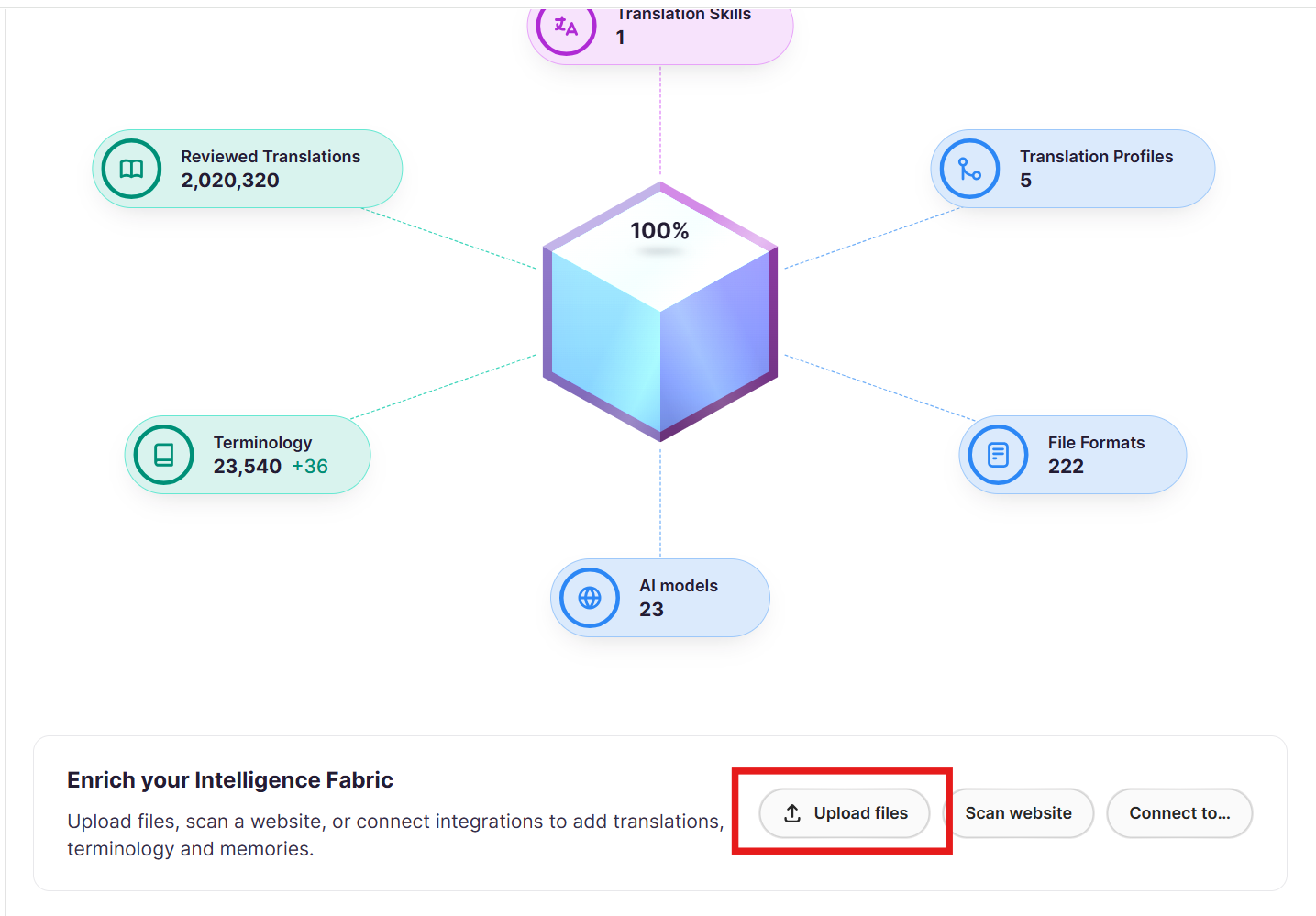
Upload Files converts existing source-and-target document pairs into reusable Translation Memory. For a team with years of translated help content in separate files, this is the first thing to run, because until it is converted Smartcat cannot reuse it.
-
Scan Website points it at your help center or site to pull out terminology, past translations, and tone of voice.
Go to Intelligence Fabric > Smartcat Coworkers > Translator, where both sit at the bottom of the dashboard.
Above: Upload files and Scan website sit at the bottom of the Intelligence Fabric dashboard, and extracted assets arrive in the Reviewed Translations, Terminology, and Insights tabs, where you choose what to import.
Extracting Linguistic Assets with Intelligence Fabric
How it gets applied
Together, AI Translation Profiles, RAG, and the Content Update Coworker make sure every project draws on your own approved terminology and that a change only costs you the content it actually touches.
Use RAG to improve AI translation quality in Smartcat
Bring In Your Reviewers and Marketplace Linguists
AI gets you a strong draft, but a native speaker catches the instruction that reads ambiguously or the phrasing that will generate a support ticket of its own. Plan for two kinds of reviewer.
Your own team
Invite colleagues from the workspace dashboard and give each the role that matches their job, then assign reviewers from the project's Team tab. A reviewer who only works in the editor usually needs Linguist access, which scopes them to the work assigned to them.
Go to Team in the left sidebar.
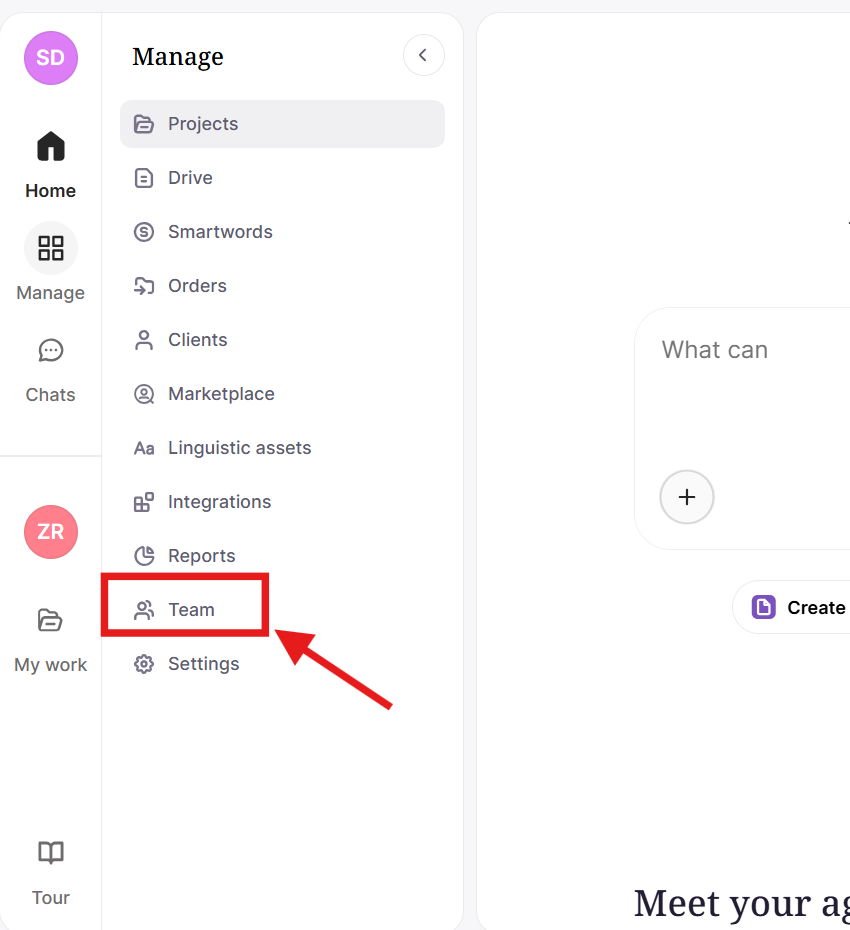
Inviting team members and assigning roles
Add to your reviewer resources from the Smartcat Marketplace
Hire from the Smartcat Marketplace and add linguists straight to a project, filtering by language, specialization, native speaker, availability, and rate, with AI matching to narrow the shortlist. Invite more than one so a publishing date does not rest on a single person accepting.
Go to Find Freelancers in the left sidebar.
Marketplace Experts is a Coworker in its own right, which means bringing in outside help is a conversation rather than a search.
Hire a linguist at Smartcat Marketplace
Understand AI-powered linguist matching
Use search filters on the Marketplace
How to invite multiple suppliers to a task
💡 Tell your Chief of Staff what you need, for example a Japanese reviewer for a batch of help articles, and it brings the right expert into the workflow. It can also write the instructions for those linguists, so a freelancer who has never seen your product knows what to leave alone.
Connect Where Your Content Already Lives
Rather than exporting and re-uploading files by hand, Smartcat connects to the tools your workflow runs on, so content flows in for translation and back out to the same system.
💡 Ask your Chief of Staff which integrations your plan includes before you plan a rollout. It knows what you have access to, and it can tell you what a higher plan would add.
Ways to connect
-
iHub connectors link Smartcat to a content backend, pull source content in, translate it, and write translations back, with auto-import and auto-export rules, scheduled syncs, or manual sync on demand.
-
The separate Website Translator system translates a published site on the fly through a JavaScript snippet and does not pull content into a project at all.
-
Plug-ins and extensions, such as the Google Sheets sidebar and the Zendesk plugin, let you send content to Smartcat from inside the tool itself.
-
Developers can also connect through the Smartcat API, CLI, or a Git-based workflow.
Smartcat Integrations: Overview and Full List
Setting Up Your Integrations
Zendesk
Syncs your Help Center articles into Smartcat and pushes finished translations straight back. In Zendesk, enable Token Access under Apps and integrations and generate an API token, then in Smartcat choose the Zendesk tile and paste in your domain URL, account email, and token.
Jira
Turns issues such as release notes and knowledge-base tickets into translation tasks. You need your Jira instance URL, your account email, and an API token from your Jira Security settings, then you choose which projects feed translation tasks and the rule that decides which issues get sent.
Google Drive and Google Docs
Connects a Drive folder so every document dropped into it flows into a continuous translation pipeline. Smartcat imports previous translations into Translation Memory during setup, and translated documents sync back into _translations folders alongside the source files.
Connect Google Docs with Smartcat
Google Sheets
A sidebar extension that sends spreadsheet content such as term lists and FAQ trackers to Smartcat and pulls the translation back into the same sheet. Install from the Google Marketplace, map each column to its target language, then click Get from Smartcat when translation is complete.
Set up and use Google Sheets integration
SharePoint
Smartcat connects to SharePoint two ways, and the difference matters: SharePoint Documents translates documents stored in a site, while SharePoint Pages translates the site pages themselves. Pick based on whether your knowledge base lives in files or in pages.
Setting Up SharePoint Site Integration
Salesforce Service Cloud
Automates translation of support inquiries, case content, and support-team communications inside Service Cloud, connecting through your My Domain URL and connected-app credentials. There is no dedicated setup article for this connector yet, so the integrations overview is the reference.
Smartcat Integrations: Overview and Full List
Smartcat Translator for Chrome
A browser extension that translates web pages, emails, and social content on the fly, useful for checking or drafting a translated reply without leaving the browser.
Install and use Smartcat Translator for Chrome
Also available
OneDrive, ServiceNow, and a Zendesk plugin variant for teams that prefer a plugin to an API-key setup. If your system is not listed at all, the Remote API connector lets you register a remote API endpoint and build your own connector without code.
💡 Once a tool is connected, your Chief of Staff can pull content from it and push translations back, so routine syncs do not need anyone to open Smartcat at all.
Getting Documents Right: Options You Have to Turn On
Knowledge content is mostly documents, and three parsing behaviours cause most of the "the translation came back wrong" tickets.
How to translate a file in Smartcat
Tracked changes and comments
Smartcat can translate Word documents containing tracked changes and inline comments, but you must upload the file as a native .docx and enable the relevant parsing options. A file uploaded as PDF is processed through OCR and does not support these options, which is the most common reason tracked changes go missing.
Translating Word documents with tracked changes and comments
Alt text
Smartcat can extract image alt text as translatable segments from Word and PowerPoint files, and it is opt-in. If your documentation has to meet accessibility standards such as WCAG in every language, enable it, or your translated documents ship with source-language alt text.
Translating alt text for images
Text inside images
Uploading a PowerPoint translates headings, body text, and speaker notes, but not the text inside embedded images. Diagrams, infographics, and annotated screenshots need Image Translation separately.
Translating images embedded in PowerPoint files
Smartcat also handles HTML files directly, and multilingual Excel files with one column per language, with automatic column detection.
Translate an HTML file in Smartcat
Process multilingual Excel files
Set Up a Continuous Translation Workflow, Reuse Every Time
Knowledge content arrives in a steady stream rather than in projects, so the setup you do once matters more here than almost anywhere else.
💡 Not sure whether you need a template or a profile? Describe the content type to your Chief of Staff and let it apply the right setup. It holds the translation profiles that decide which engine to use and how to treat each file format.
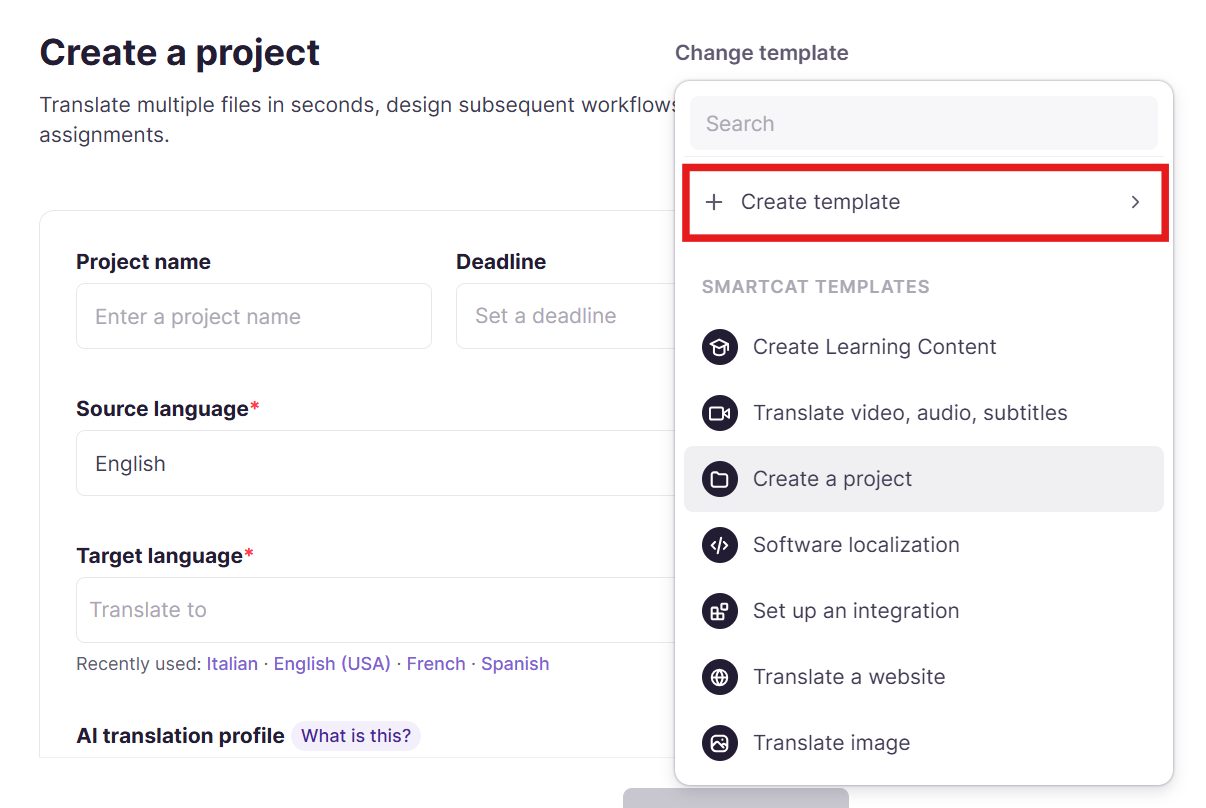
Project Templates save the structure of the work: workflow stages, source and target languages, deadlines, assignees, custom fields, and a project naming pattern. Because the terminology and the review stage are locked in, an article is far less likely to publish without them.
Apply a template when you create the project: Projects > + New project.
AI Translation Profiles control the quality and behavior of the AI: which Reviewed Translations and Terminology apply, which engine handles each language pair, whether a fallback engine kicks in, and whether AI translation runs at all for a stage.
Profiles can be scoped per department or content type, so your support macros and your internal policies do not share one configuration.
Go to Intelligence Fabric > Smartcat Coworkers > Translator > Translation Profiles.
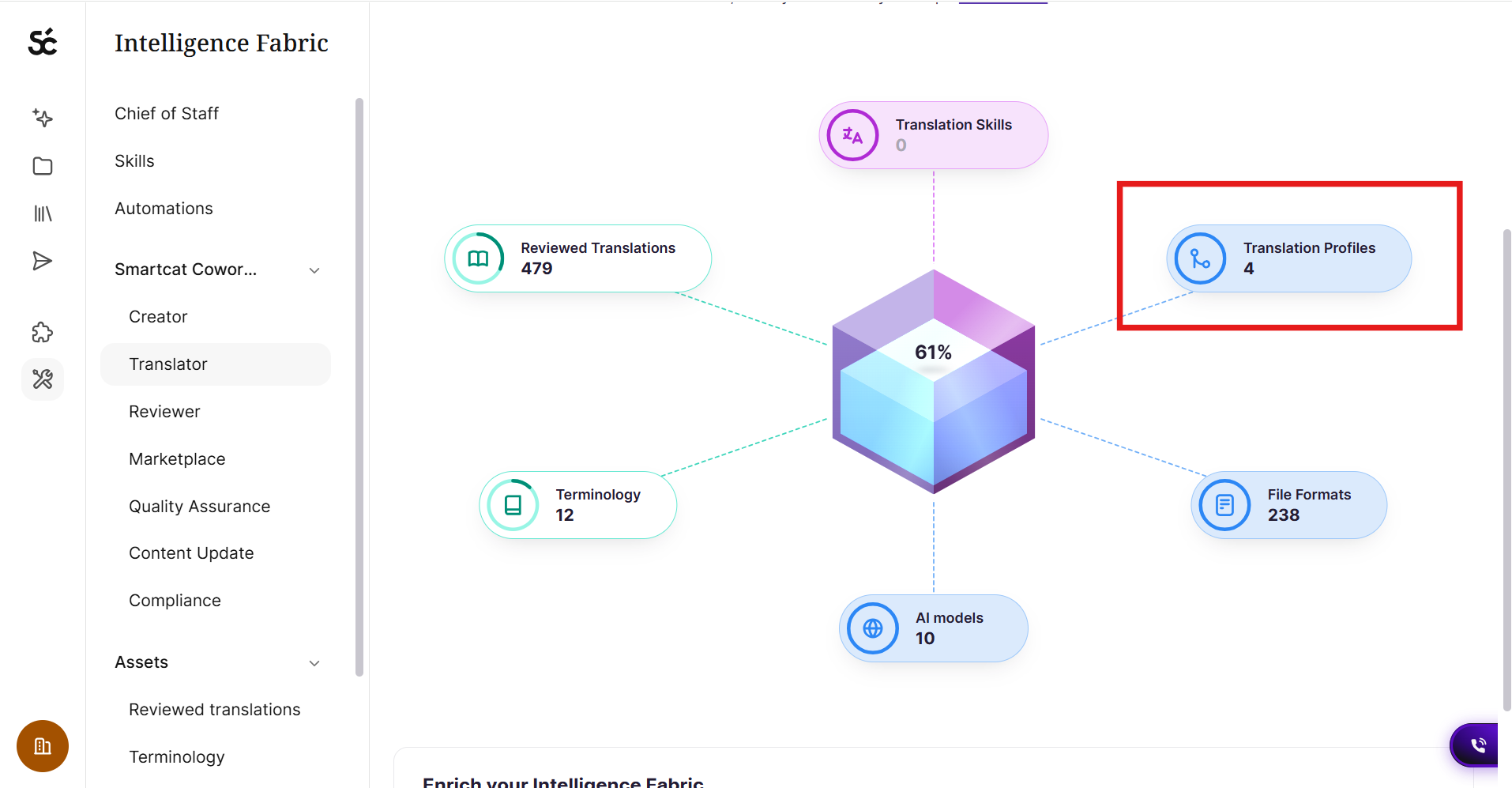
A project can have a Project Template or an AI Translation Profile, not both. If you use a template, you configure the equivalent linguistic behavior inside it, through its own Translation Memory Rules and AI Translation Rules.
AI Translation Profiles: Configuring Linguistic Assets and Translation Engines
Syncing translations across platforms
When you set up an integration you configure how existing translations are handled during import, and at which workflow stage imported translations are marked complete.
💡 If you are unsure which import mode fits your knowledge base, describe what is already translated to your Chief of Staff and let it walk you through the choice before you connect.
Import mode controls whether Smartcat uses the existing translations from your source system or translates everything fresh.
Confirmation settings determine where in the workflow imported translations count as done.
Understanding Integration Import Modes and Settings
Running the Operation: Dashboard, Quality, and Context
Once several integrations are feeding content in, the problem shifts from translating to triaging.
💡 Ask your Chief of Staff plain-language questions about the queue, for example which projects are behind schedule, which is usually faster than filtering the dashboard by hand.
The Project Manager Dashboard gives you folders to organize projects, status tabs for filtering and triage, and bulk actions. The Projects and Tasks toggle switches between two views of the same workspace: Projects lists projects and folders, while Tasks shows every task with its workflow stage on its own row, without your having to open a project.
Go to Projects in the left sidebar.
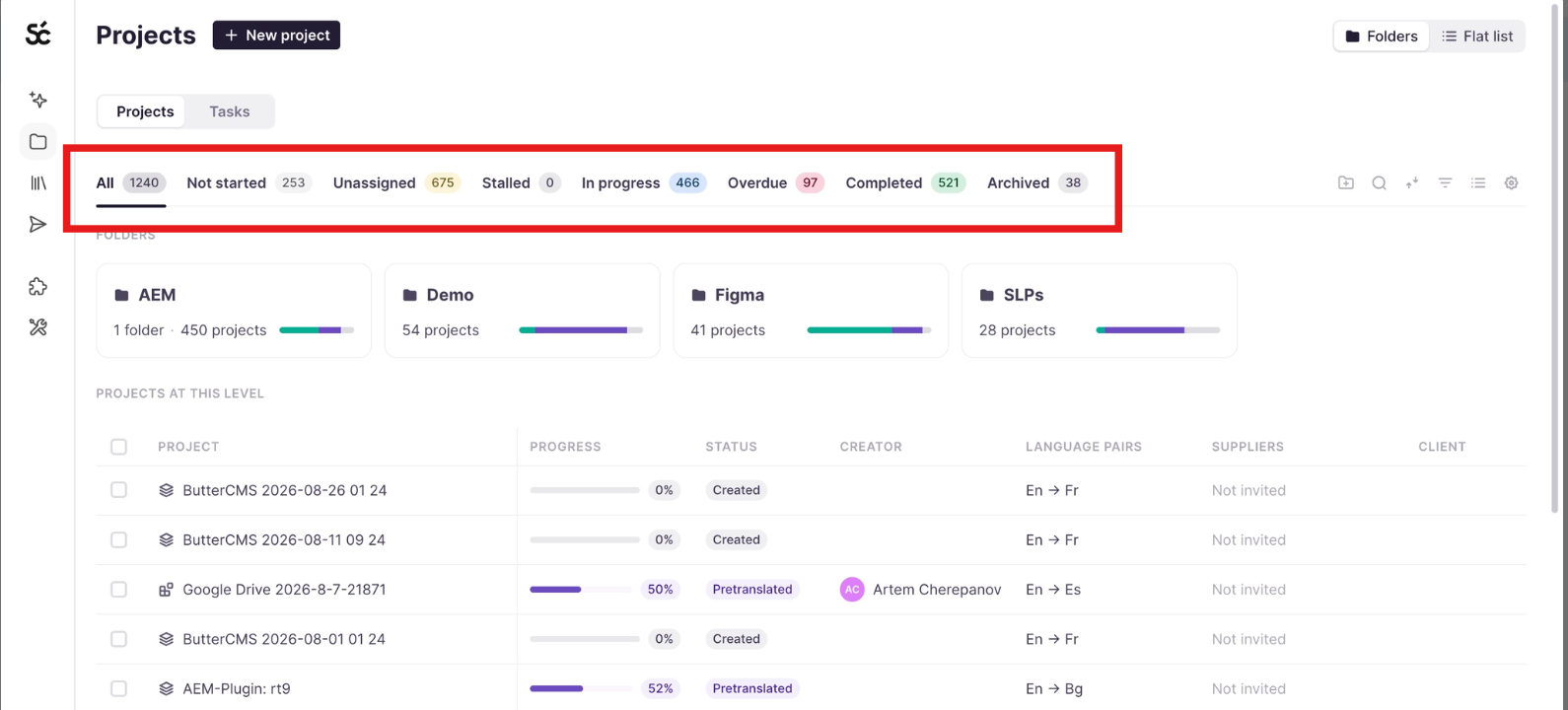
Using the Project Manager Dashboard
Translation Quality Score (TQS) shows which AI translations meet your quality bar and which need review. High-scoring segments can be confirmed without review, which is how a small team keeps up with a large knowledge base.
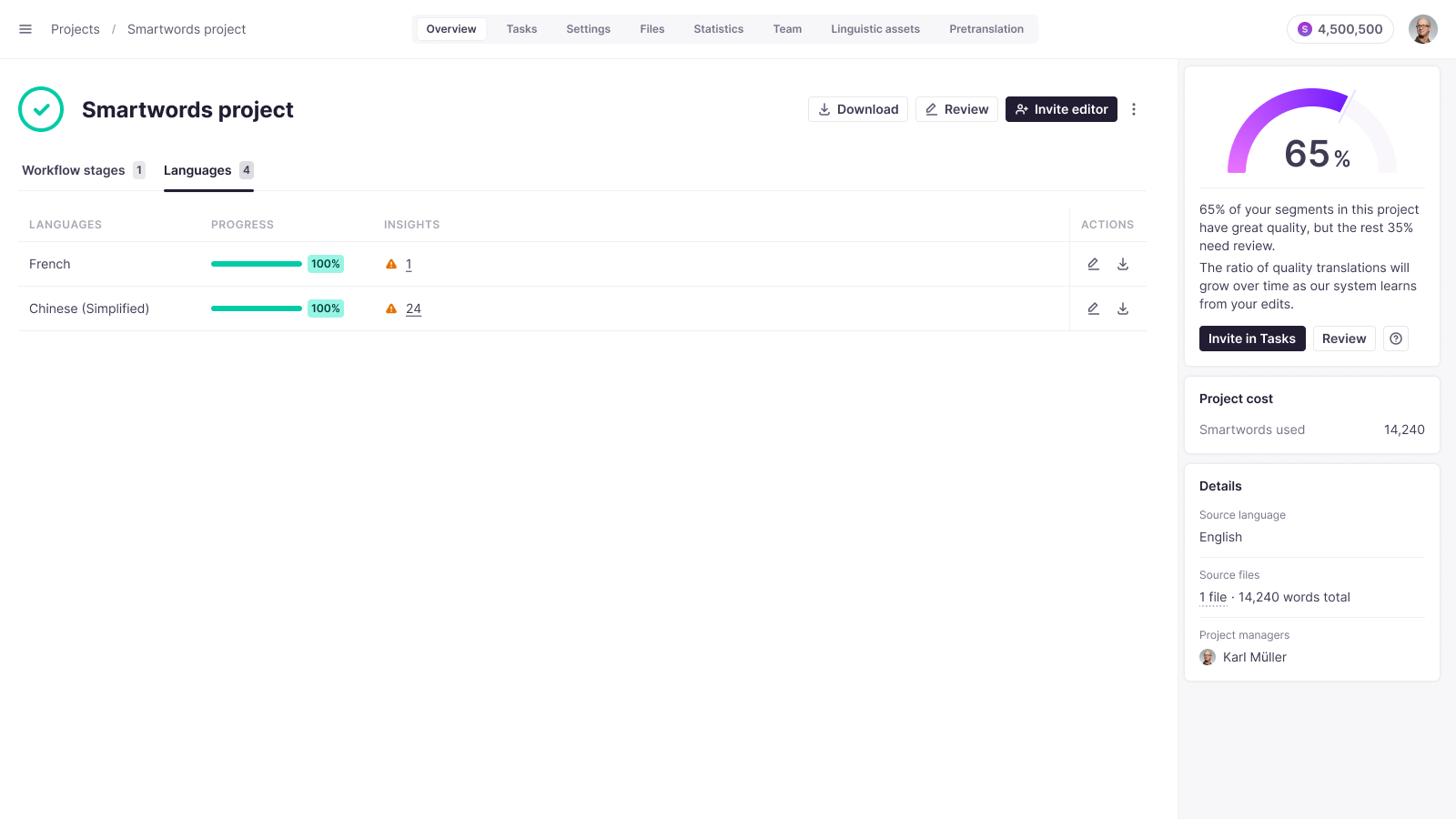
Understand your translation quality score (TQS)
Automated quality checks in the editor flag missing tags, inconsistent terminology, and number mismatches, and LQA profiles give an auditable MQM-based score from 0 to 100 when you need a formal number.
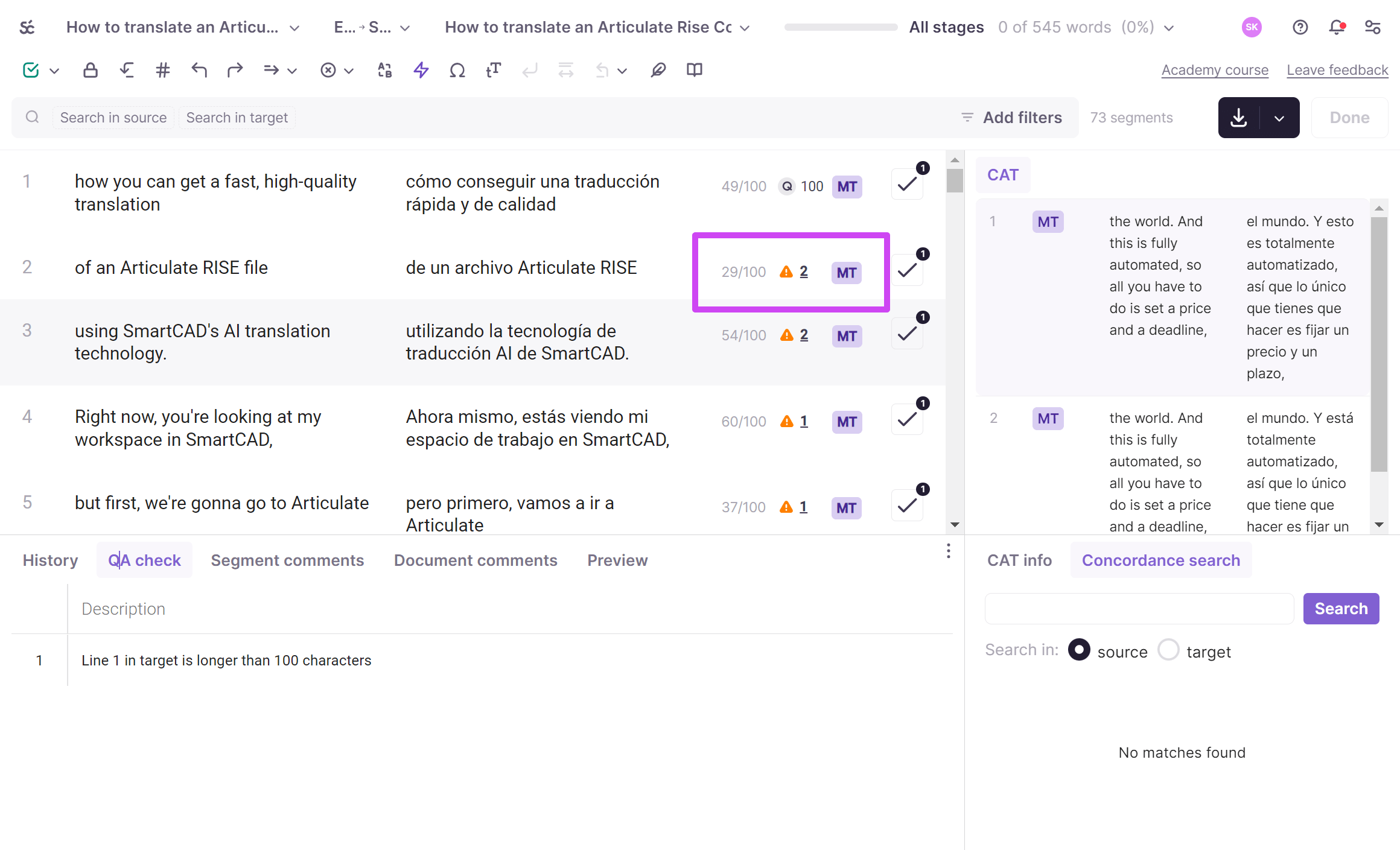
Automated quality checks in the editor
Reference Files are attached to a project purely for the humans working on it, such as a style guide or a previous version, and are never processed, translated, or billed as translation work.
Reference Files: Giving Linguists Context
Track Your Quality and ROI: Reporting
Reporting shows what is happening across your workflow content: volume and turnaround by integration, quality and review outcomes, and cost.
💡 Ask your Chief of Staff about your usage analytics in the same conversation as the work itself, rather than opening a report to answer a single question.
The Translation Review Report shows how much AI-translated content was approved as-is versus edited, by language pair and reviewer.
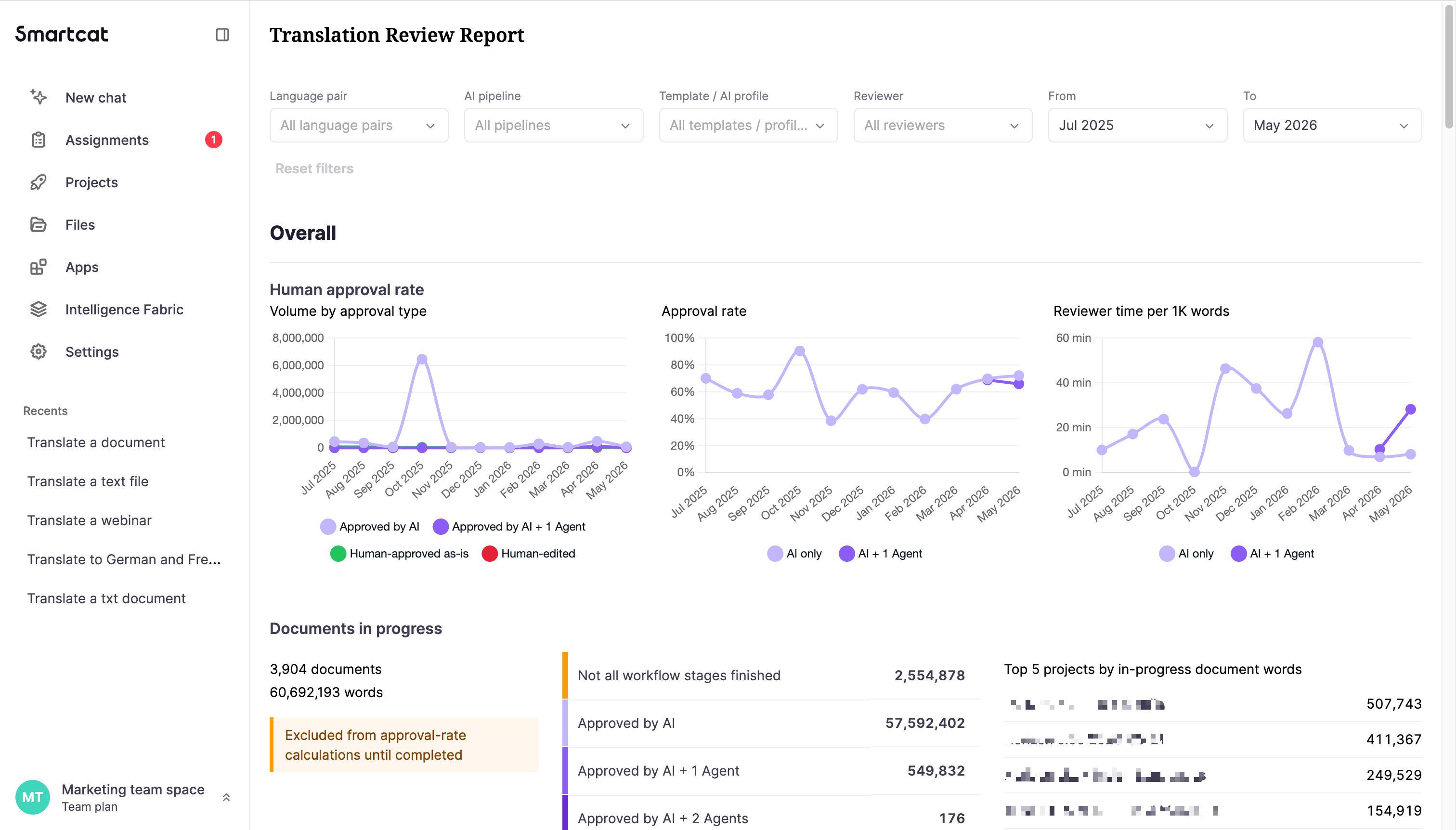
Understanding Translation Review Reports
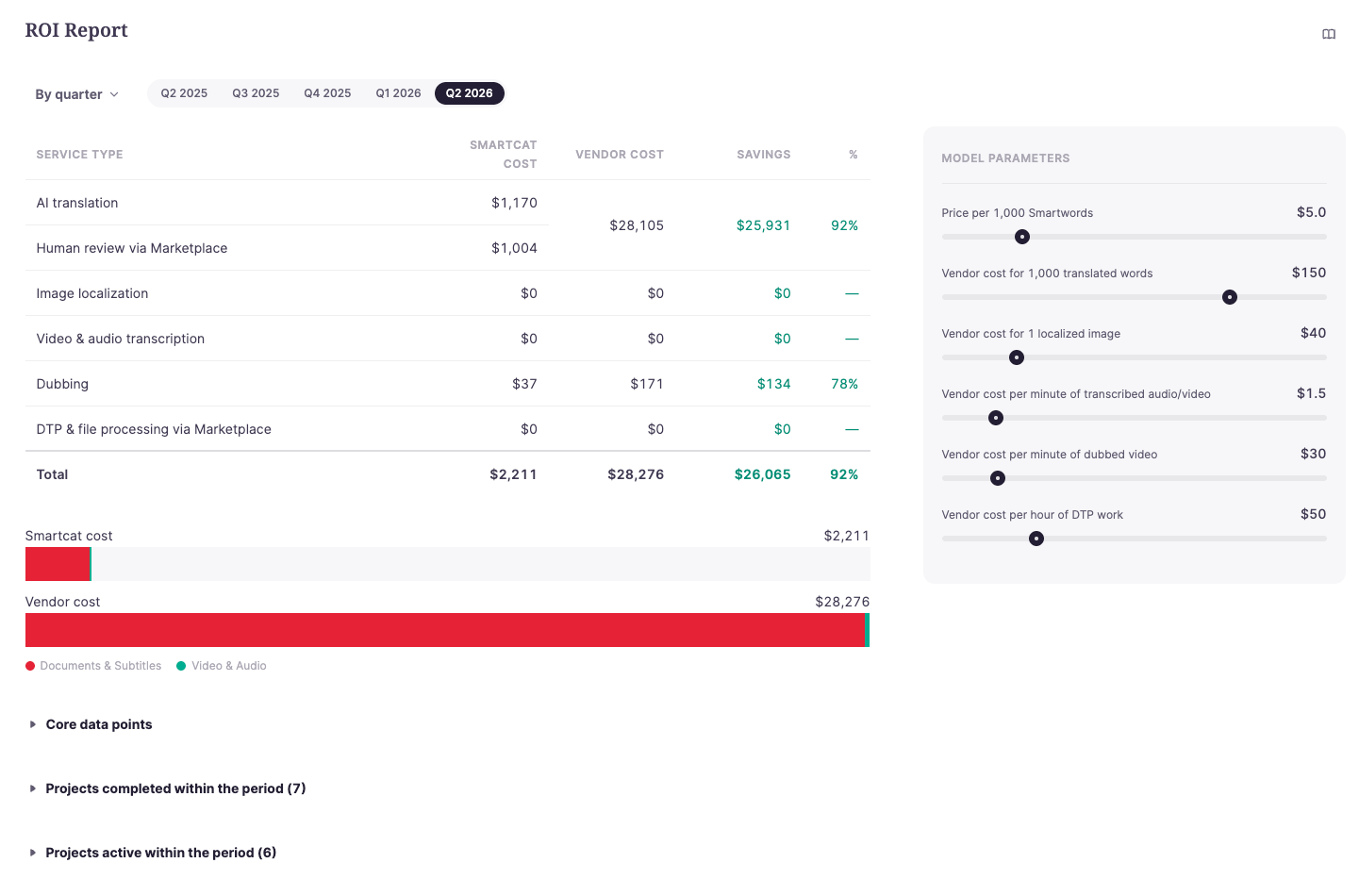
The ROI Report compares Smartcat spend against outside vendor cost, groupable by subscription cycle, quarter, or month, with project-level breakdowns.
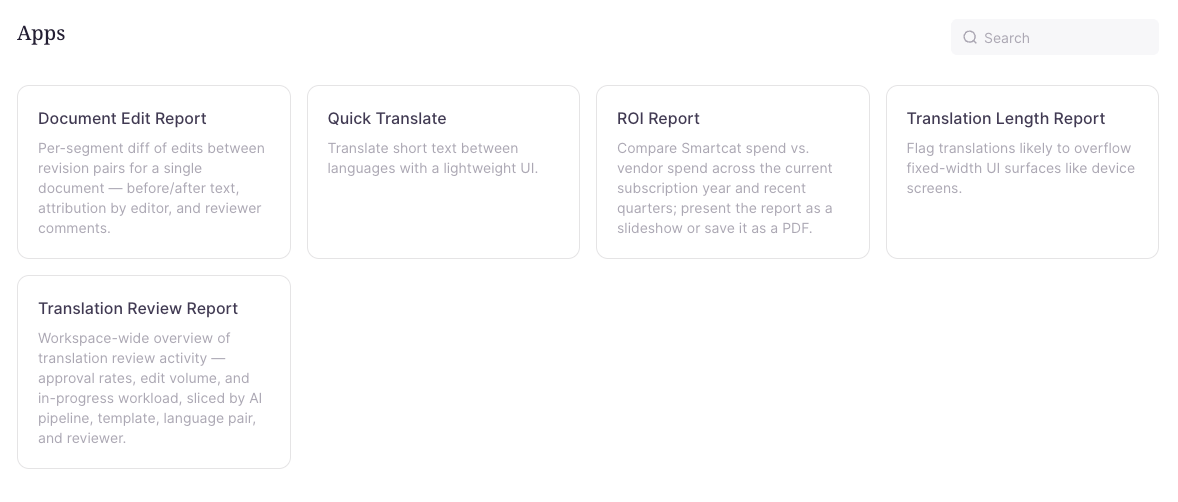
Both live under Workspace > Apps and are available to workspace Administrators. The Apps section appears only once one or more custom apps are enabled in your workspace, and custom apps are currently in beta.
Using the ROI Report to Track Your Translation Value
Use Enterprise Reports in Smartcat
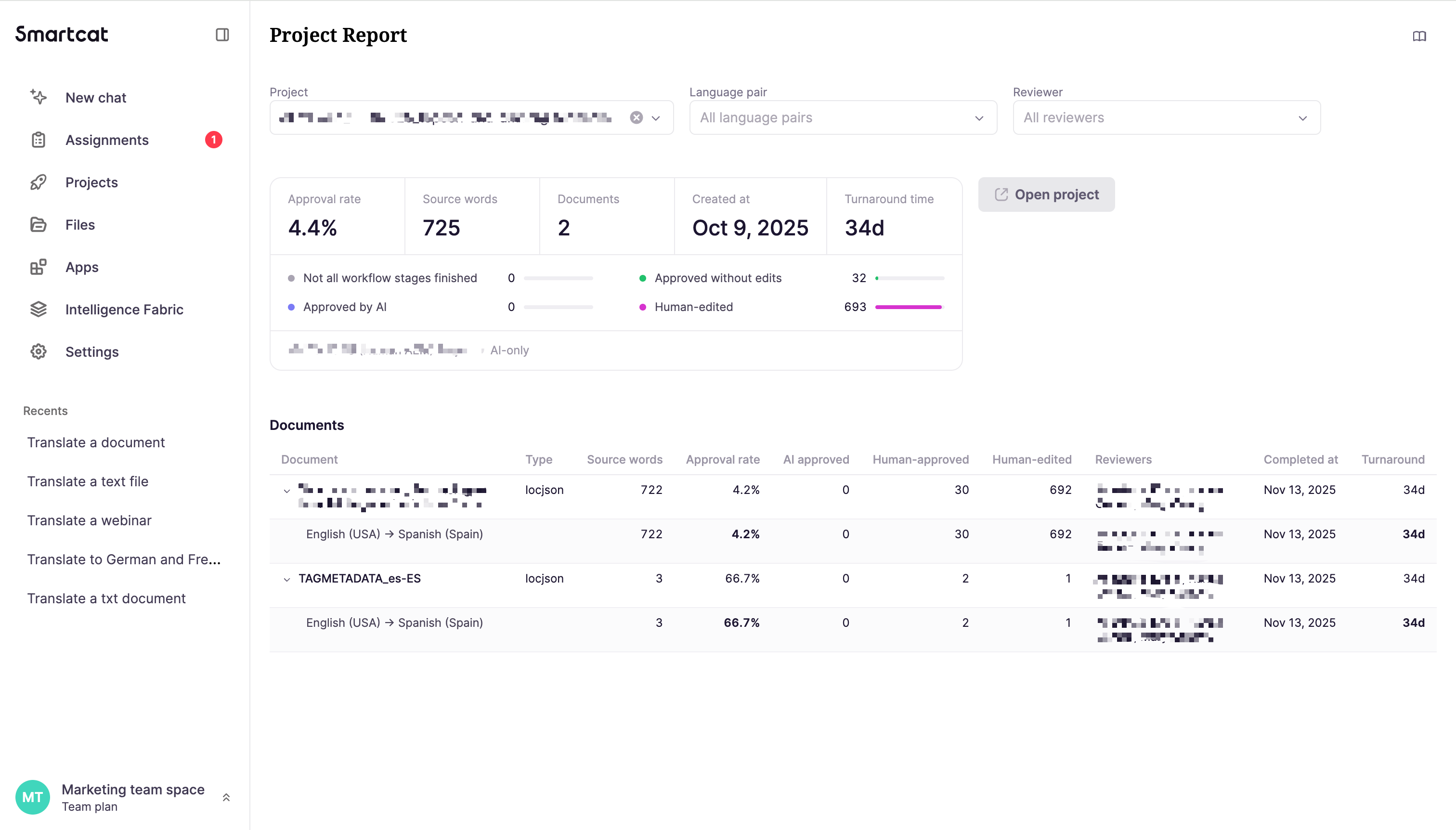
The Project Report drills into a single project's review results. It shows the project's overall approval rate, source words, document count, and turnaround time, along with a document table you can expand by language pair. Open it from the Projects section of the Translation Review Report, or stand-alone by selecting a project manually.
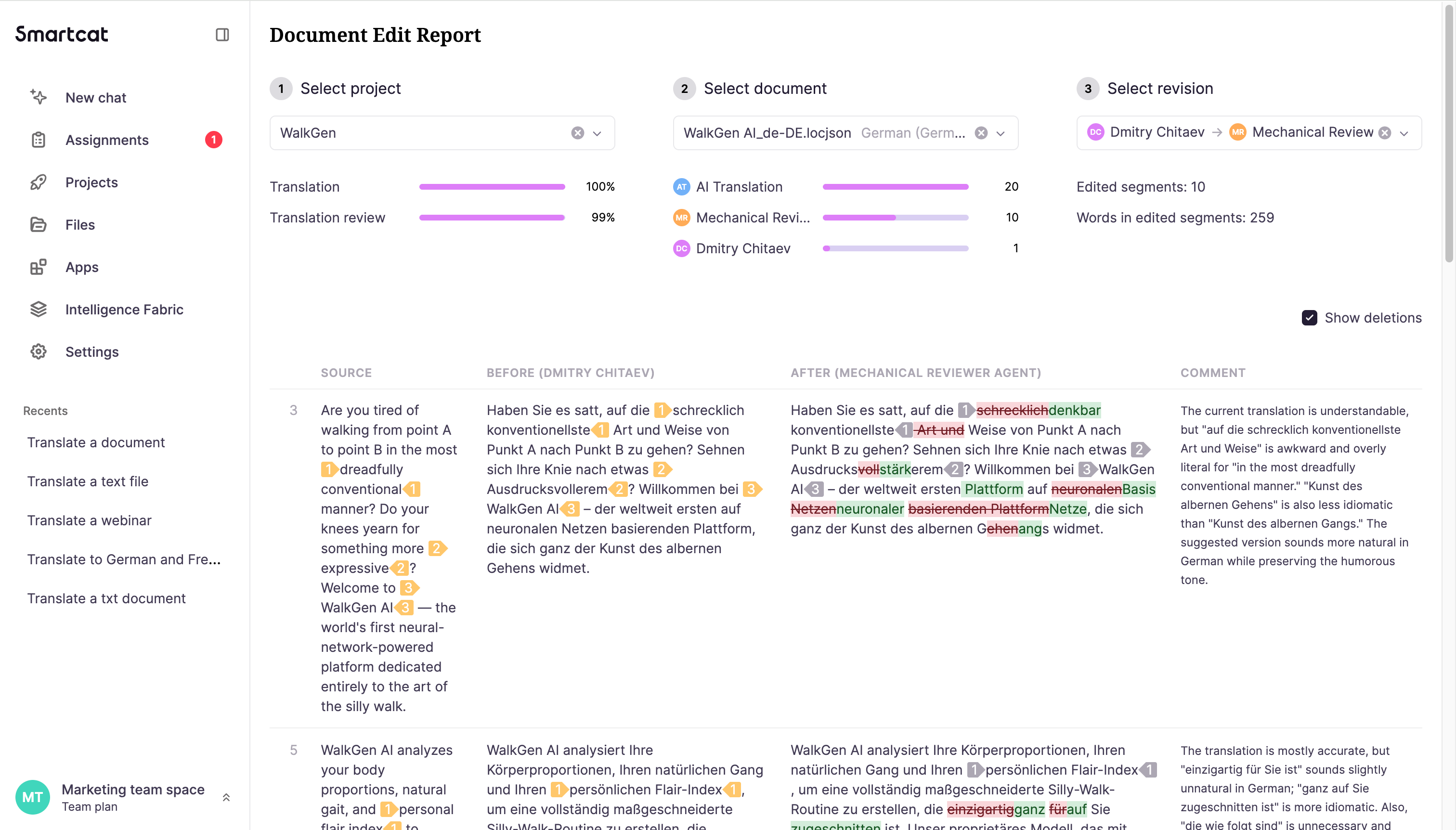
The Document Edit Report shows exactly what changed between two revisions in a single document. For example, the AI translation vs. a review agent's edits, or a review agent's edits vs. a human reviewer's final pass.
Read On
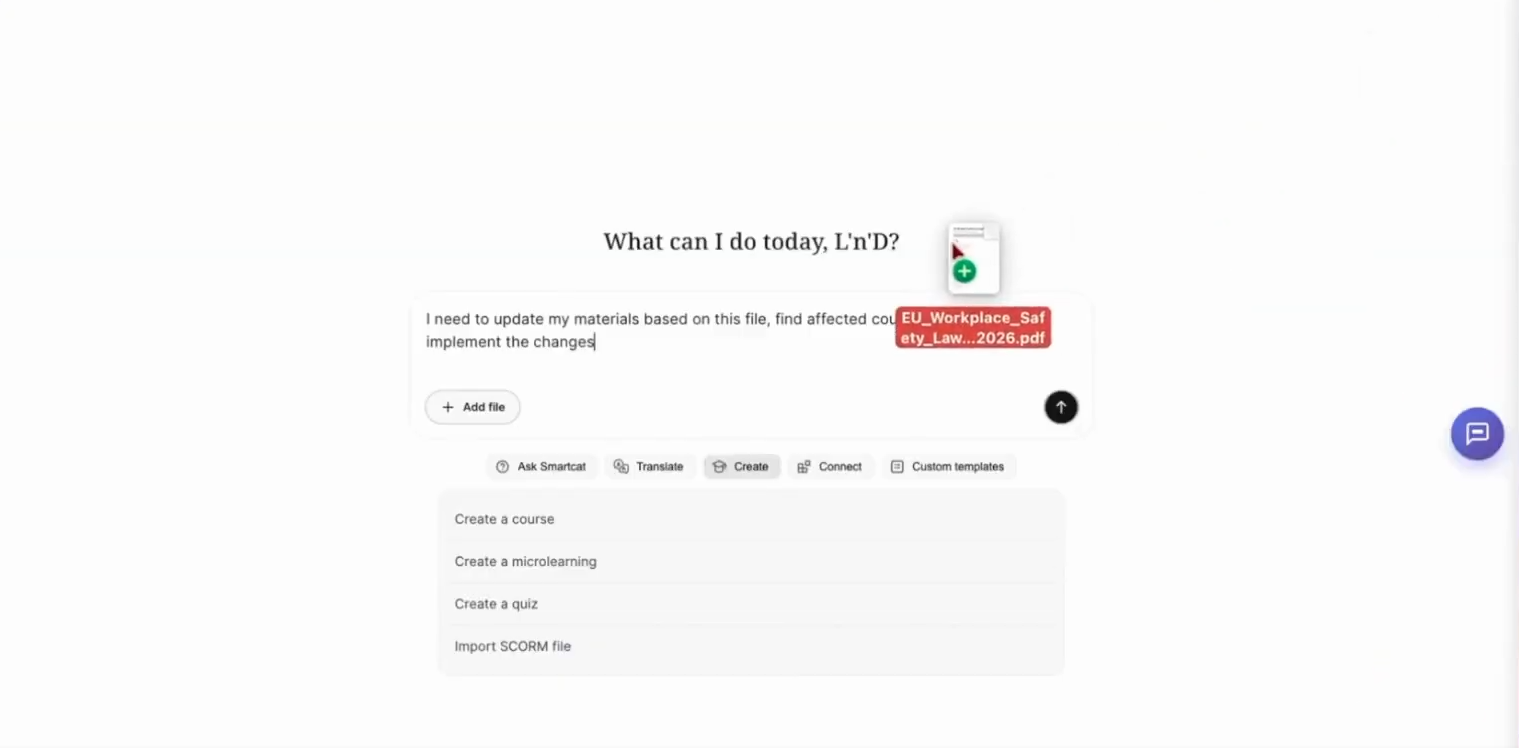
Keeping content current (beta). When a policy or product changes, the Content Update Coworker finds every affected document in every language and proposes the updates for you to approve. It must be enabled for your workspace by a Smartcat team member.
Updating Content with the Content Update Coworker
Want to learn more?
See how Smartcat can transform your localization workflow.
Still need help?
Our support team responds within one business day.