Create a course with Smartcat AI learning content
Overview
Smartcat AI lets you create a full course using the built-in learning content features of Drive. This guide walks you through generating a course description, learning outcomes, a course structure, and content such as videos, flashcards, quizzes, and written material.
Getting started with Smartcat AI to create learning content
To access the learning content creation tool, sign up for the beta through the sign-up form on the Smartcat AI for Learning Content page:
https://www.smartcat.com/genai-learning-content/
Once you have access, you can create a new course from any content uploaded to Drive, or start from scratch.
- Click Create new course
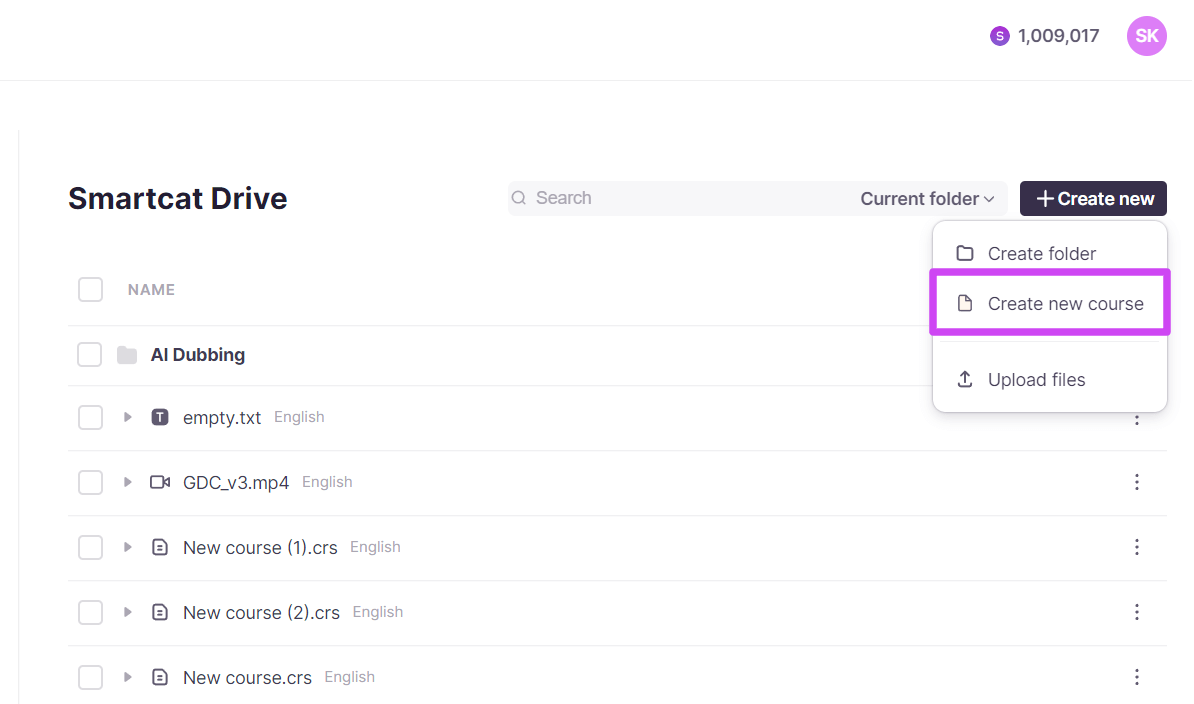
- Insert your course idea in the course description section. Define your learning objectives and goals. Specify your course details: add the knowledge level required, related materials, language, and course duration
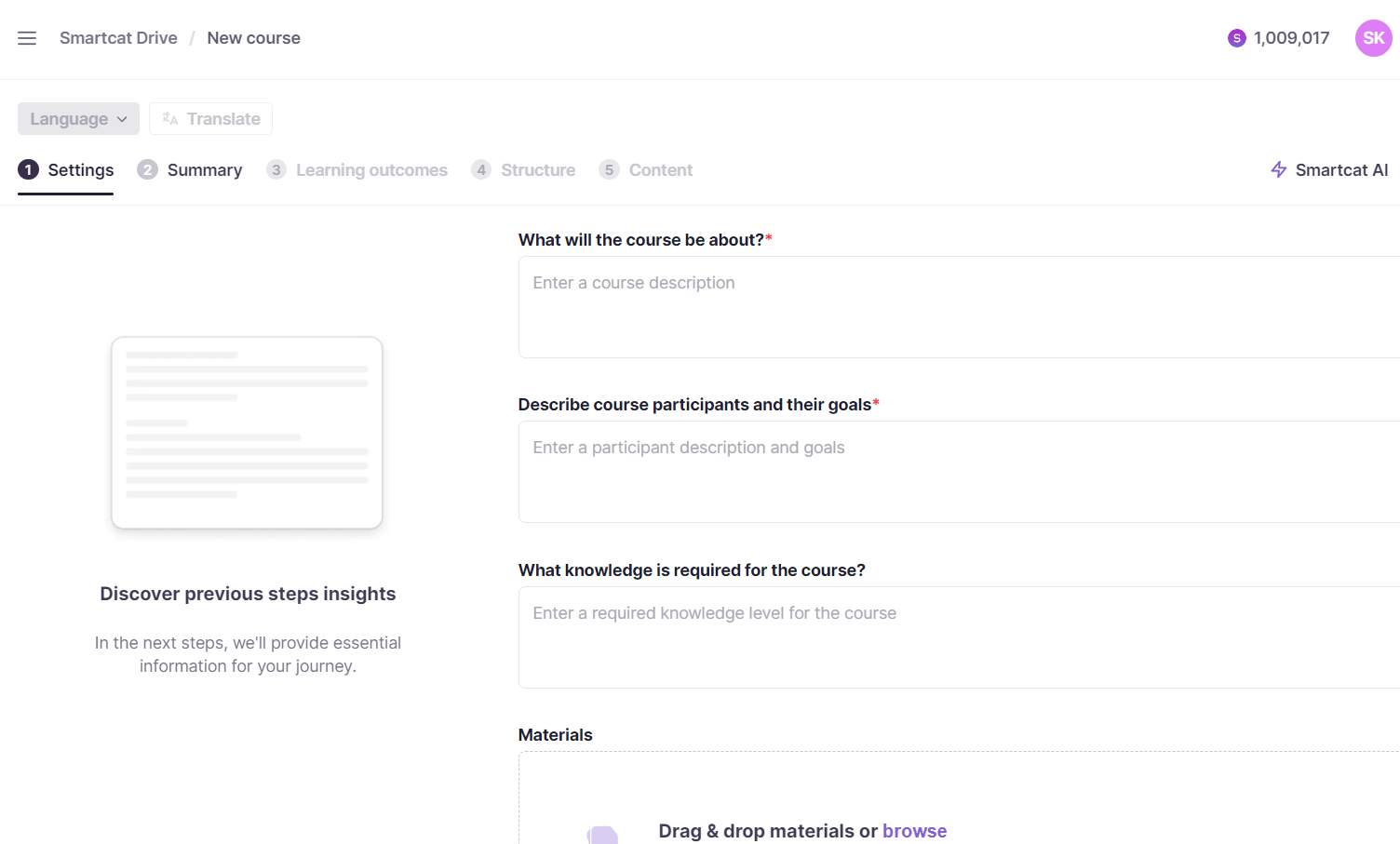
- After you have added all the necessary information, click Generate course description
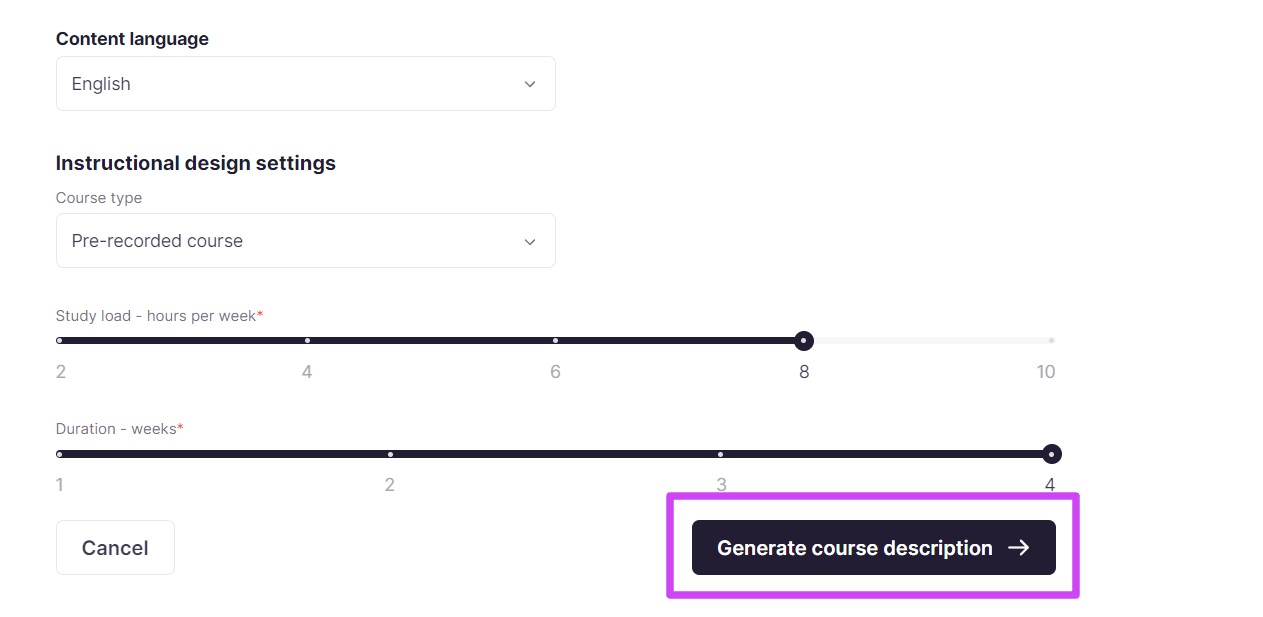
Smartcat AI generates a course title and description ready for review.
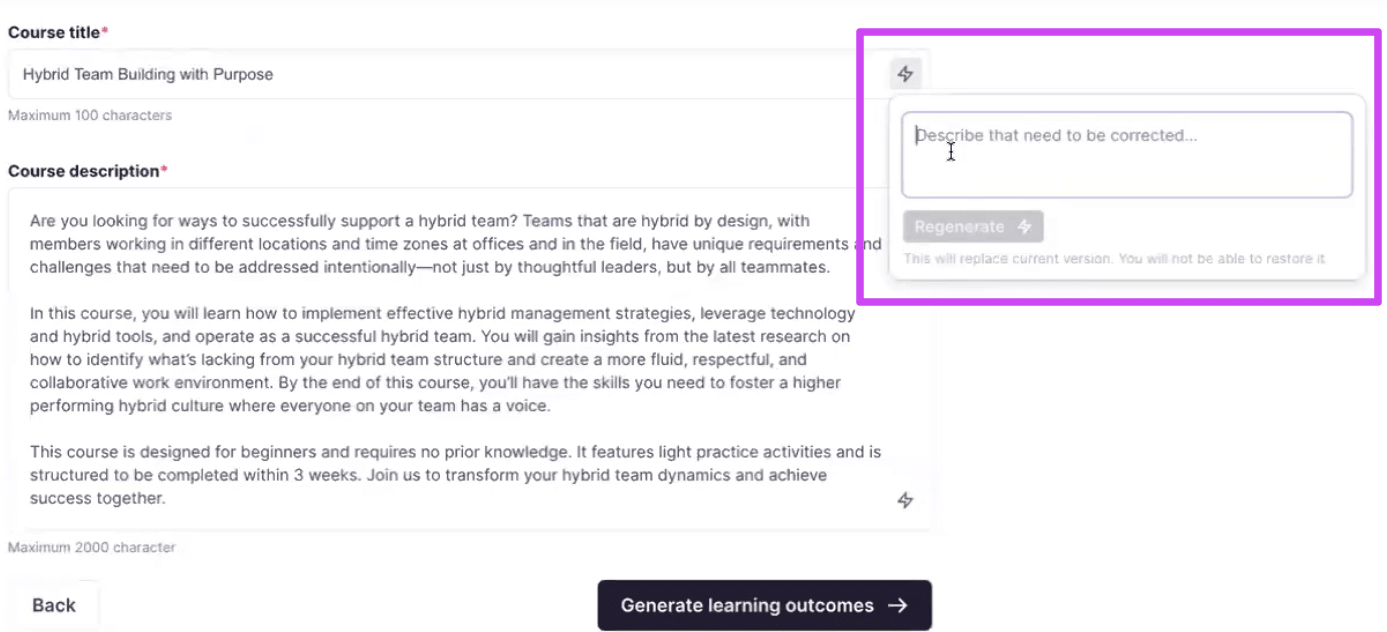
In the Summary tab, you see the generated course title and course description, both of which you can edit manually. You can also regenerate the title and description with Smartcat AI.
💡 Click the Smartcat AI icon in the text field and select regenerate to create a new title. This also works for the course description.
Generate learning outcomes
The course is structured around learning outcomes, which serve as the foundation for the curriculum.
- Click Generate learning outcomes
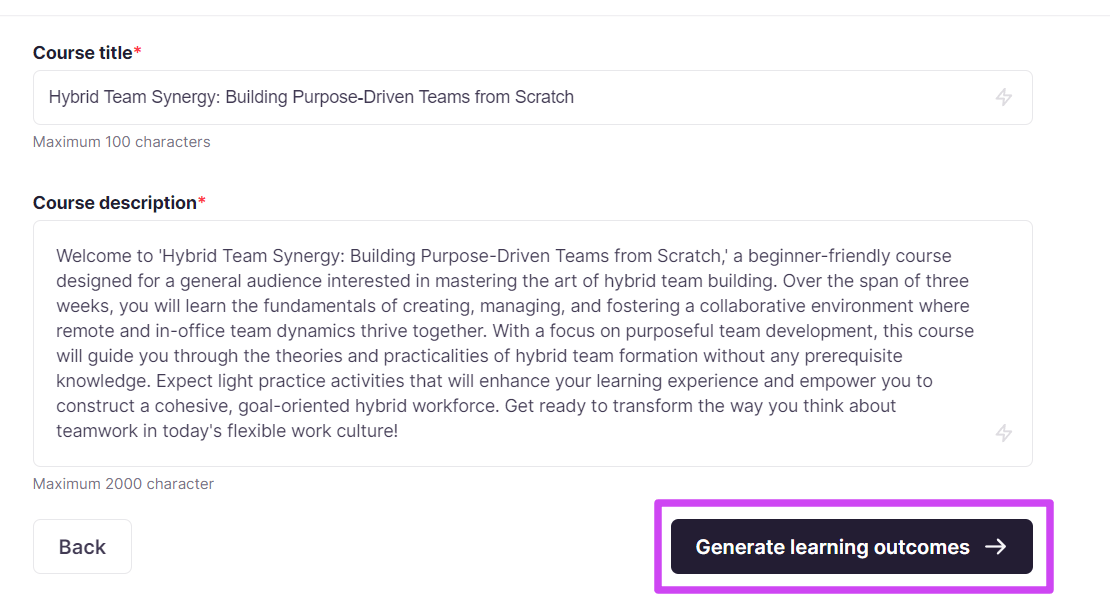
-
Review the generated first-level learning outcomes, which form the foundation for your learning modules
-
Generate the second-level learning outcomes, which serve as the components of the course
-
Edit the learning outcomes manually, or regenerate them with Smartcat AI by typing in instructions
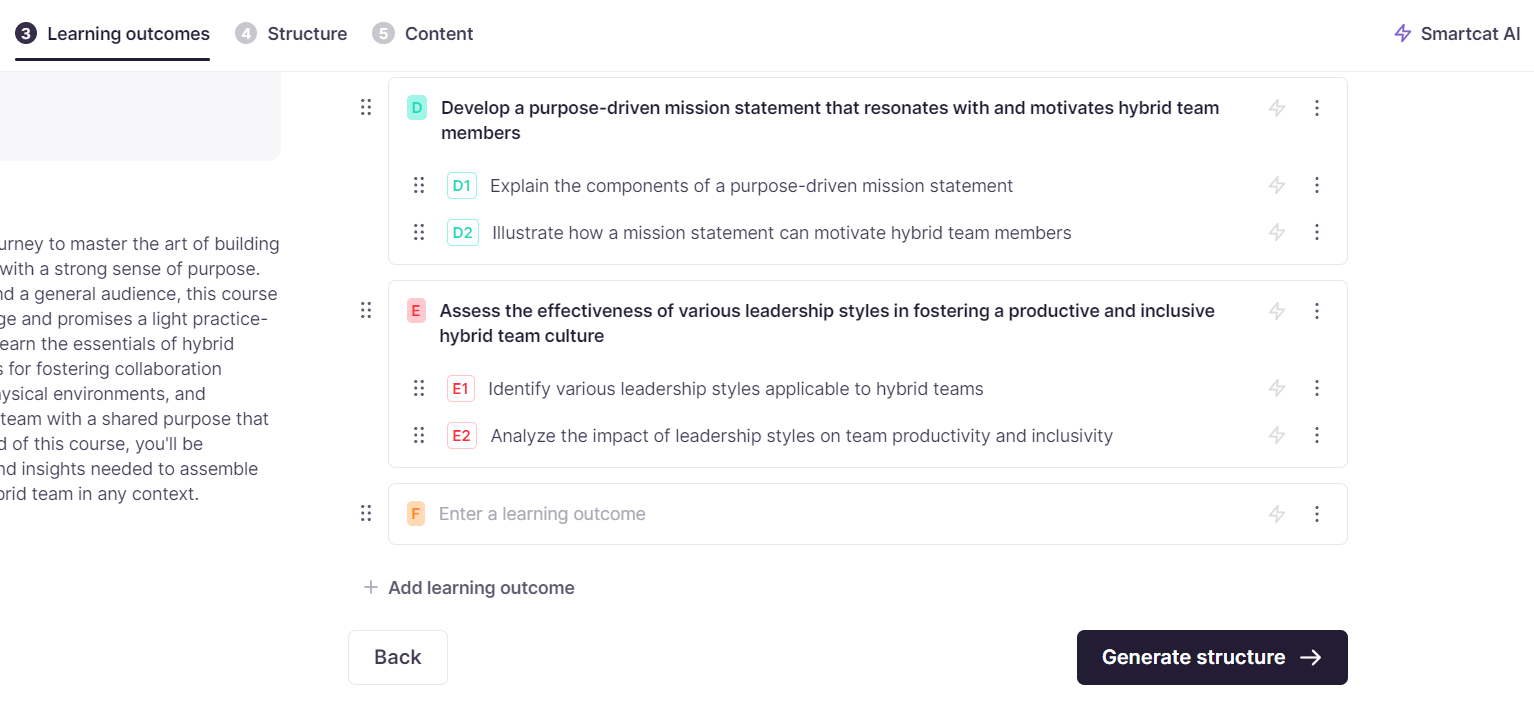
Add or delete outcomes using the respective icons on the right.
Your course now has a complete set of learning outcomes to build from.
Refining the course structure
- Click the button to generate a structure
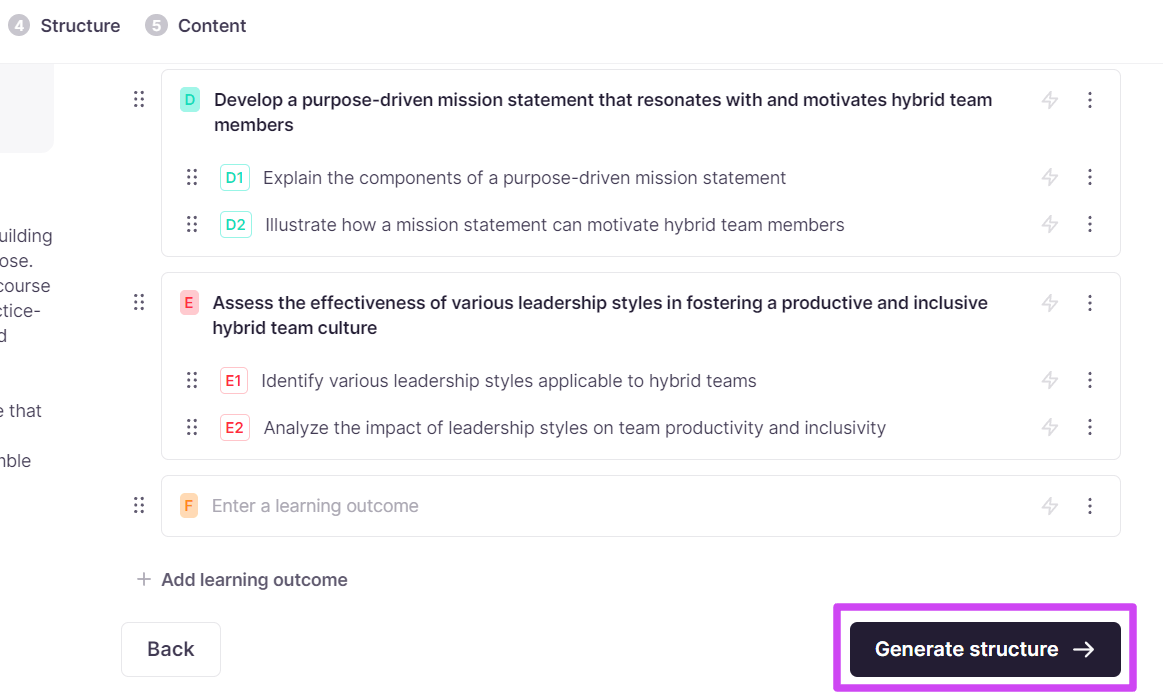
- In the Structure tab, edit the elements as needed. To change the type of an element, click the icon on the right of a title
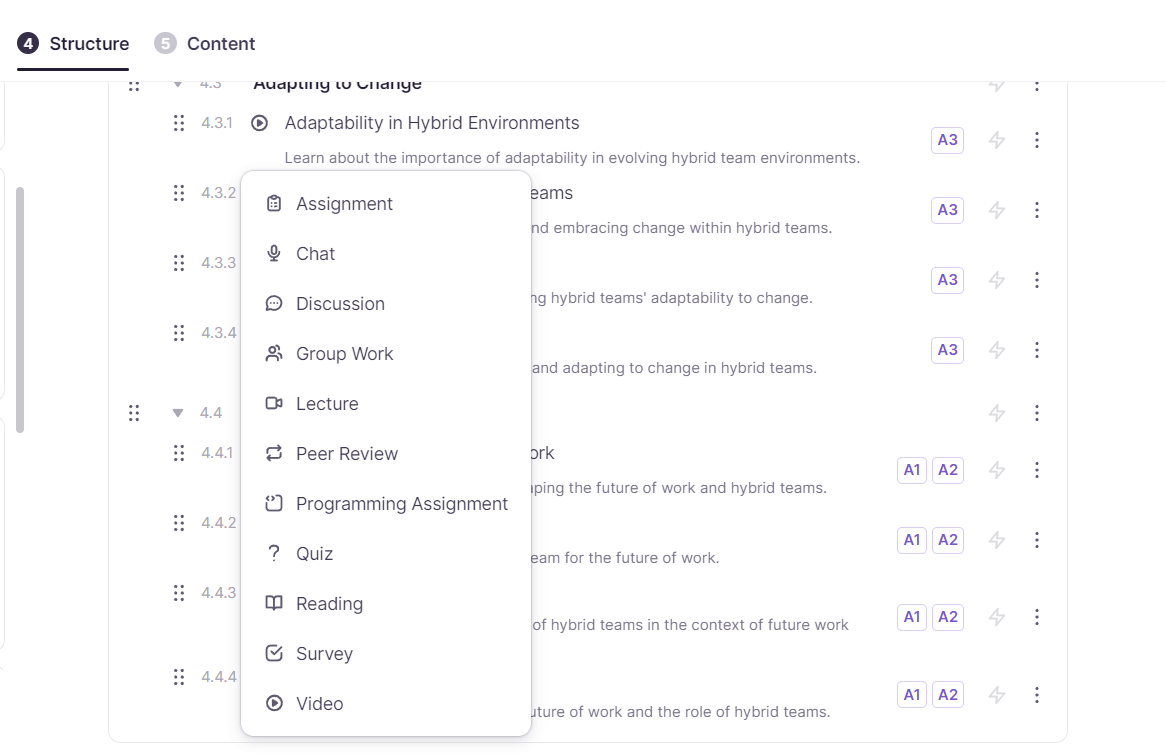
- Configure your course structure by adding elements, modules, or lessons. You can change an individual element or a whole module. Drag and drop elements to change their sequence
Your course structure is now organized and ready for content.
Generating content
Once the course structure is in place, it is time to fill it with content. Go to the Content tab to generate content for a course with Smartcat AI. The sections below cover components you might integrate into your course.
Create a script and video
Each segment has a specific type of content.
-
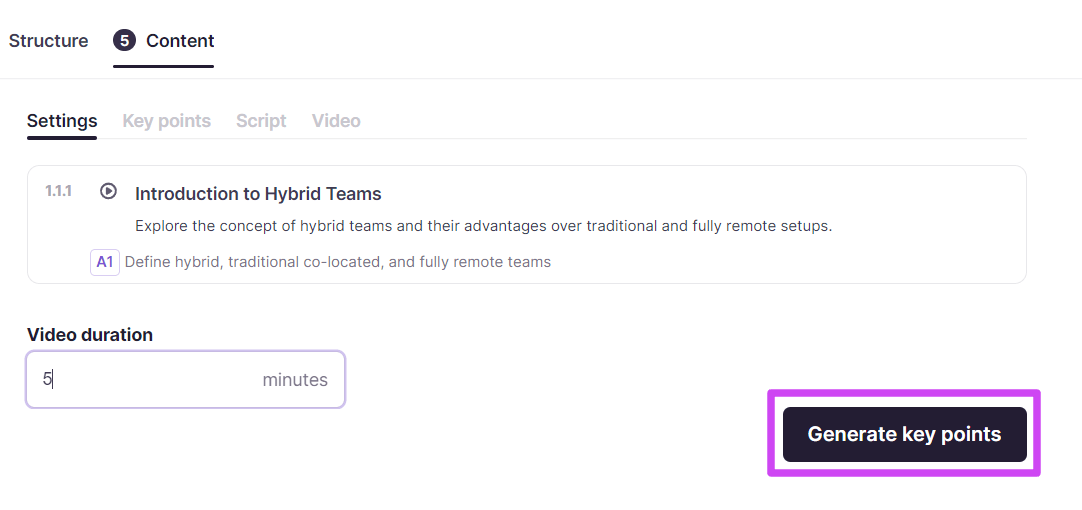
Specify the video duration
-
Click the corresponding button to generate key points for the script
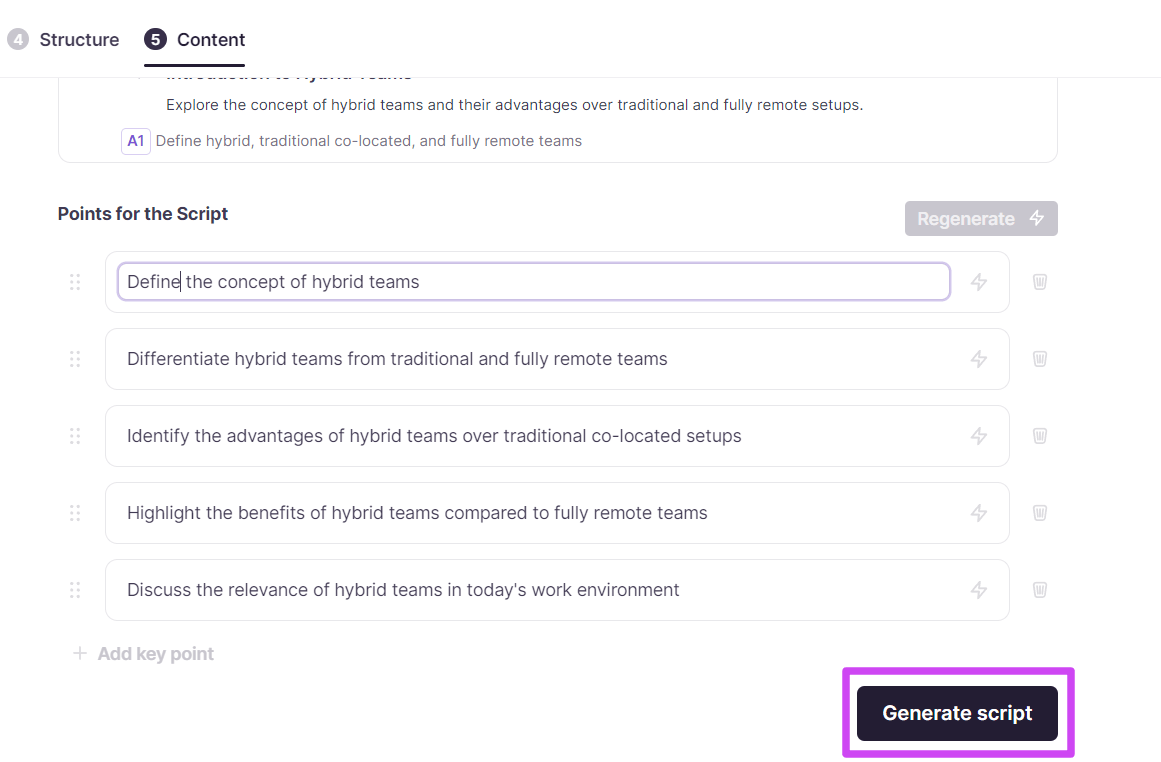
- Edit, add, reorder, or delete the key points, then click Generate script
-
Review and improve your script. Use the Regenerate button to see another variant of the script
-
When the edits are done, attach your own video through a link, or generate a video
-
To generate a video, click Generate video. Video generation takes some time. Preview your video right in the editor of the element
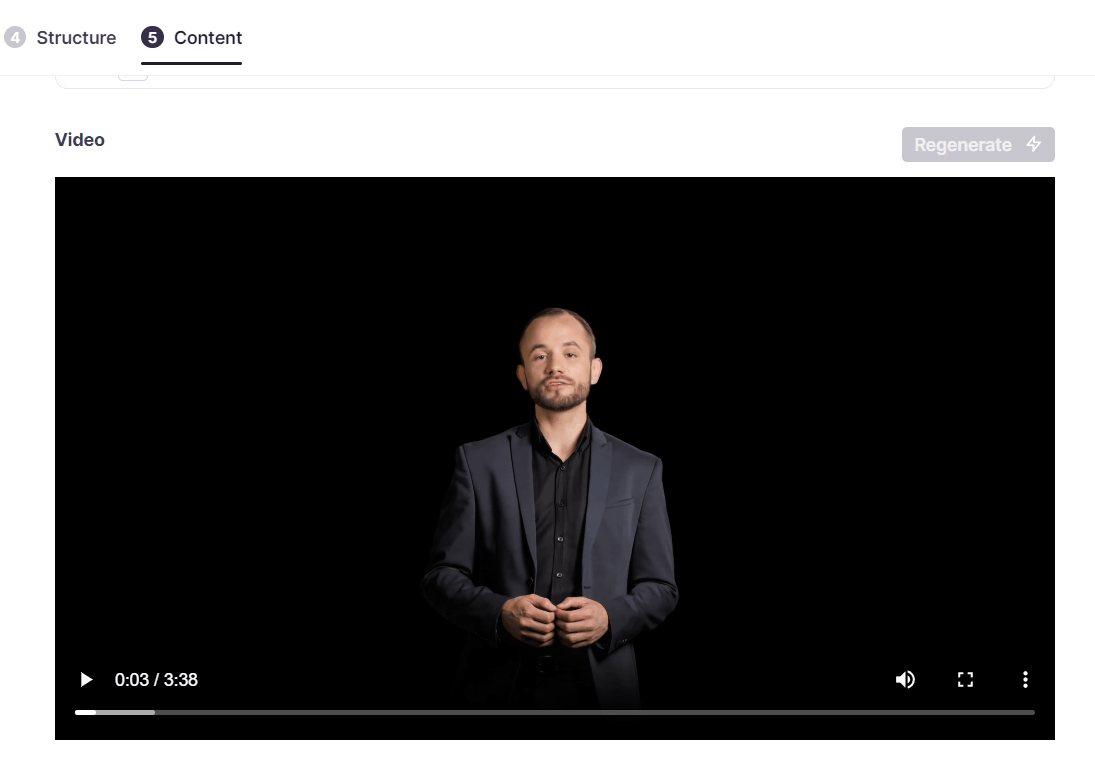
You now have a script and video attached to the segment.
Flashcards
Specify the view of the card presentation, enter the number of cards, and choose the type of stack. Click Generate flashcards. Improve your flashcards by editing, reordering, or regenerating them.
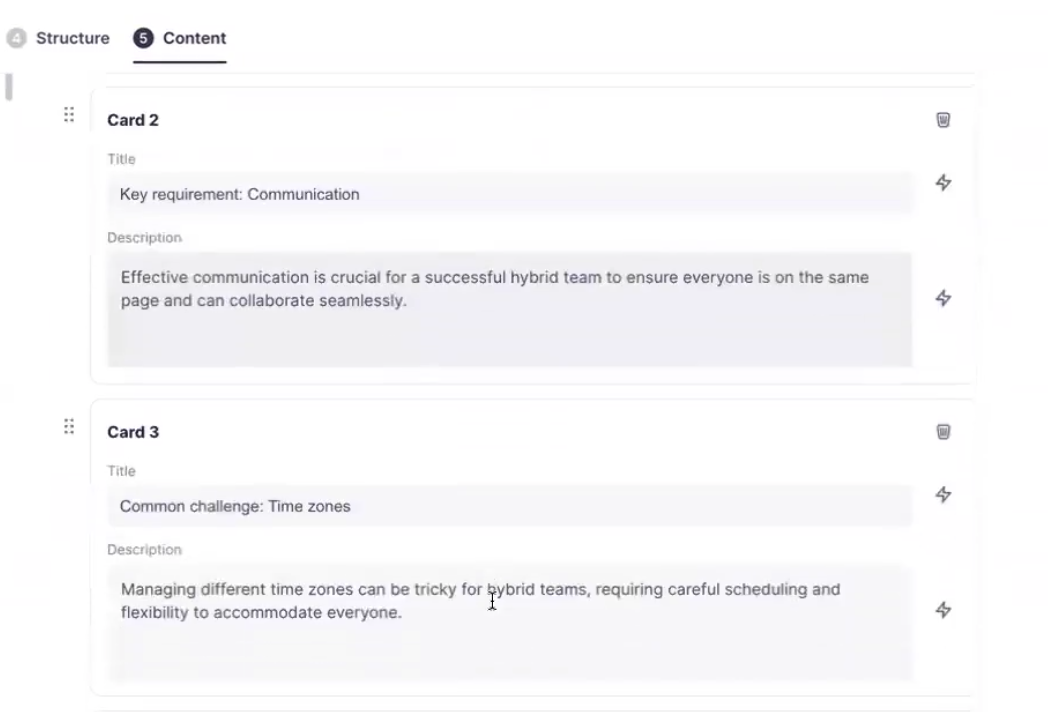
Accordion
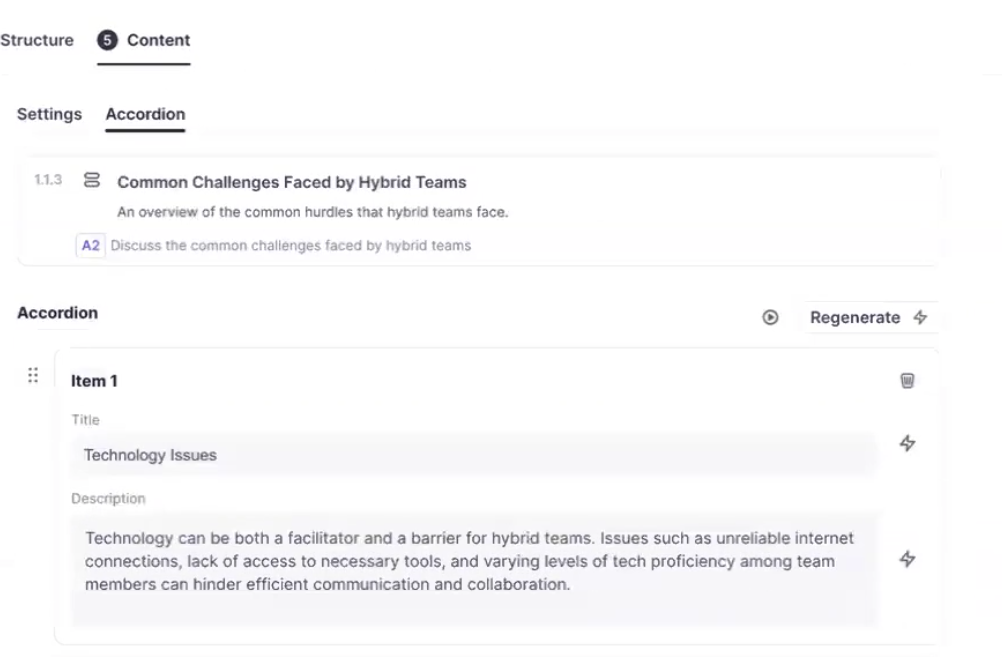
Generate an Accordion, an element that provides a concise overview of different topics. The description under each title is hidden by default. Add an item, reorder items, and delete them.
Quiz
-
Select the Quiz element
-
In Settings, choose a question type: single or multiple choice
-
Specify the number of questions, then click Generate quizzes
-
Edit the correct answers and generate answer options. Add and delete questions as needed
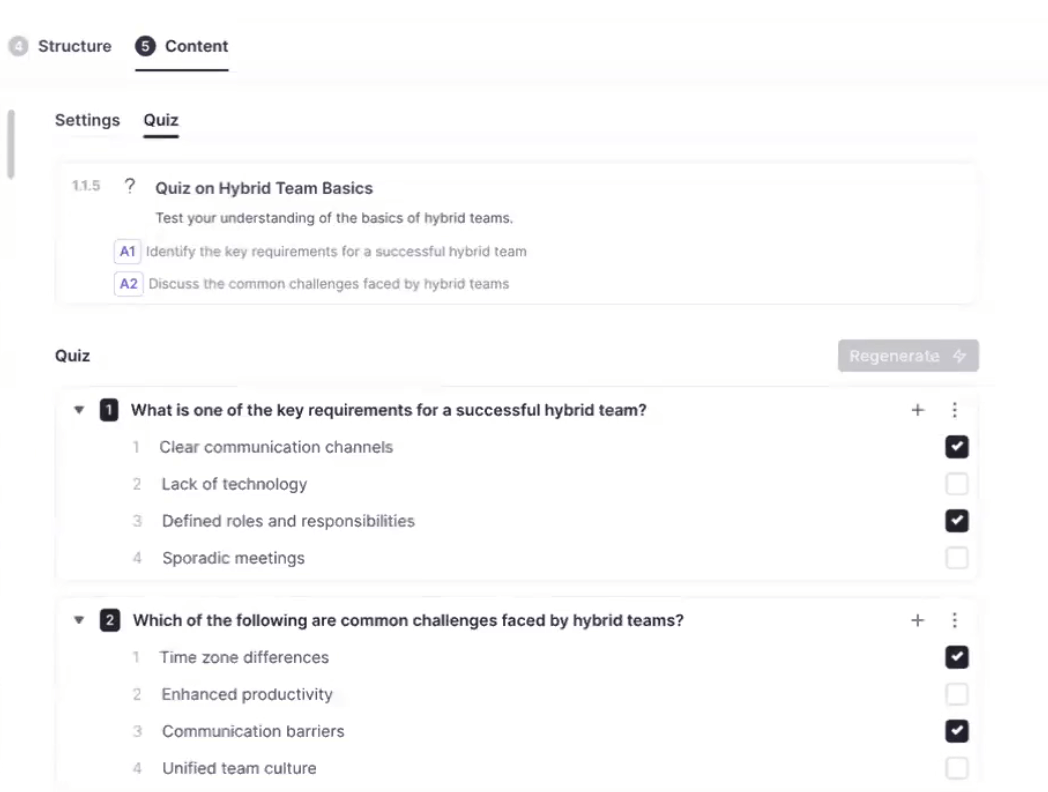
Your quiz is now ready for learners.
Written content
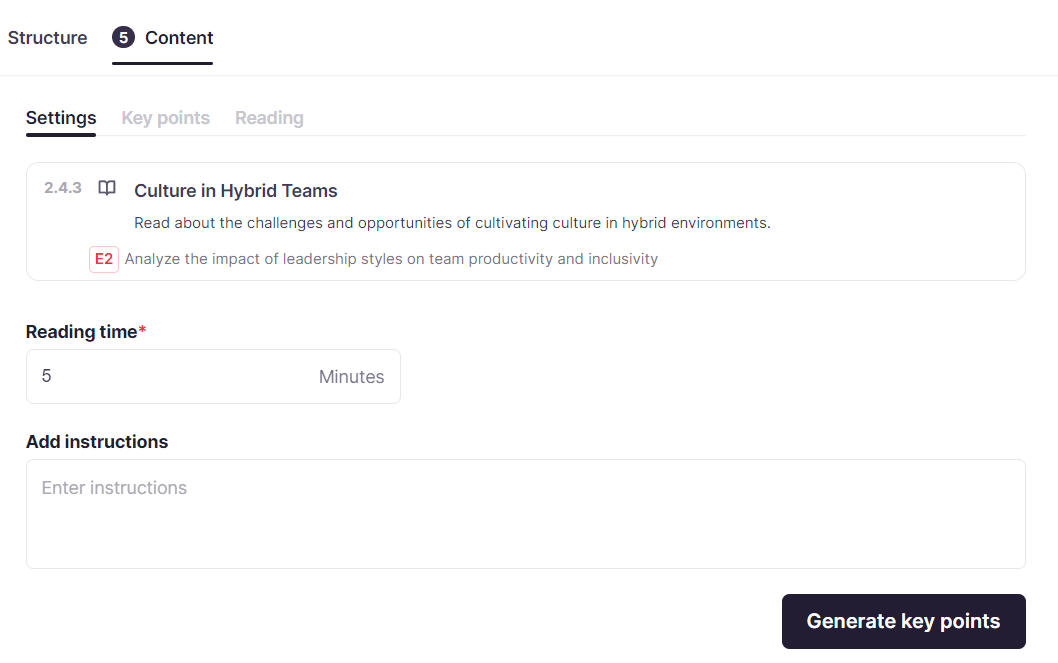
Open the element settings. Enter the reading time and add the instructions. Generate key points, then generate the text for reading.
Preview and export
You can preview your elements at any time by clicking the icon under the Invite button.
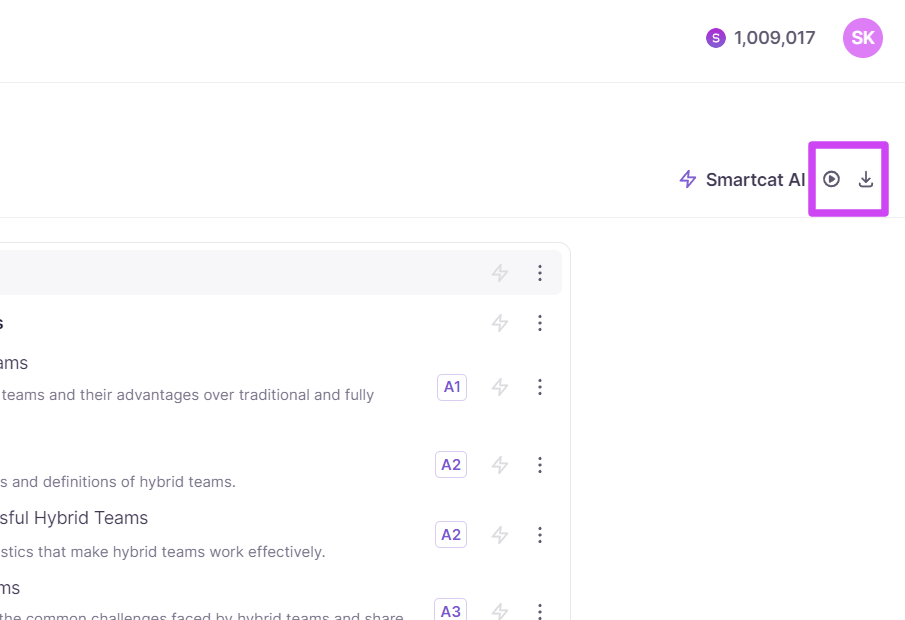
You can also find the download option here. Export your course in SCORM format for distribution through your Learning Management System (LMS).
FAQs
Do I need special access to use the course-creation feature?
Yes — it's currently in beta. Sign up through the sign-up form on the Smartcat AI for Learning Content page to get access.
Can I start a course from existing content, or do I have to write everything from scratch?
Both are supported — you can create a new course from content already uploaded to Drive, or start a course from scratch by describing your course idea and objectives.
What types of content elements can I generate for a course?
You can generate a script and video, flashcards, an accordion element (collapsible topic overviews), quizzes (single or multiple choice), and written reading content — all from the Content tab.
Can I edit or regenerate AI-generated content if I don't like the first result?
Yes — titles, descriptions, learning outcomes, scripts, flashcards, and quiz questions can all be edited manually or regenerated using Smartcat AI, and you can reorder or delete elements as needed.
How do I distribute the finished course to learners?
Export the course in SCORM format from the preview/export screen so it can be uploaded to your Learning Management System (LMS).
Want to learn more?
See how Smartcat can transform your localization workflow.
Still need help?
Our support team responds within one business day.