Translate XLIFF files
Overview
XLIFF (XML Localization Interchange File Format) is the industry standard for exchanging localization data, and Smartcat makes translating XLIFF files fast and scalable — useful for eLearning content and LMS platforms. This guide covers exporting XLIFF files from your authoring tool, translating them in Smartcat, reviewing, and re-importing.
💡 For best results, use the XLIFF 1.2 format — it preserves structure, metadata, and formatting during AI translation and re-import.
How to export XLIFF files from your authoring platform
This example uses Articulate Rise 360; the process is similar across most authoring platforms.
-
Create one course copy per target language — hover over the course tile in your Rise 360 dashboard and choose Duplicate, then name the copy (include the target language) and click Save. Each copy keeps the original layout
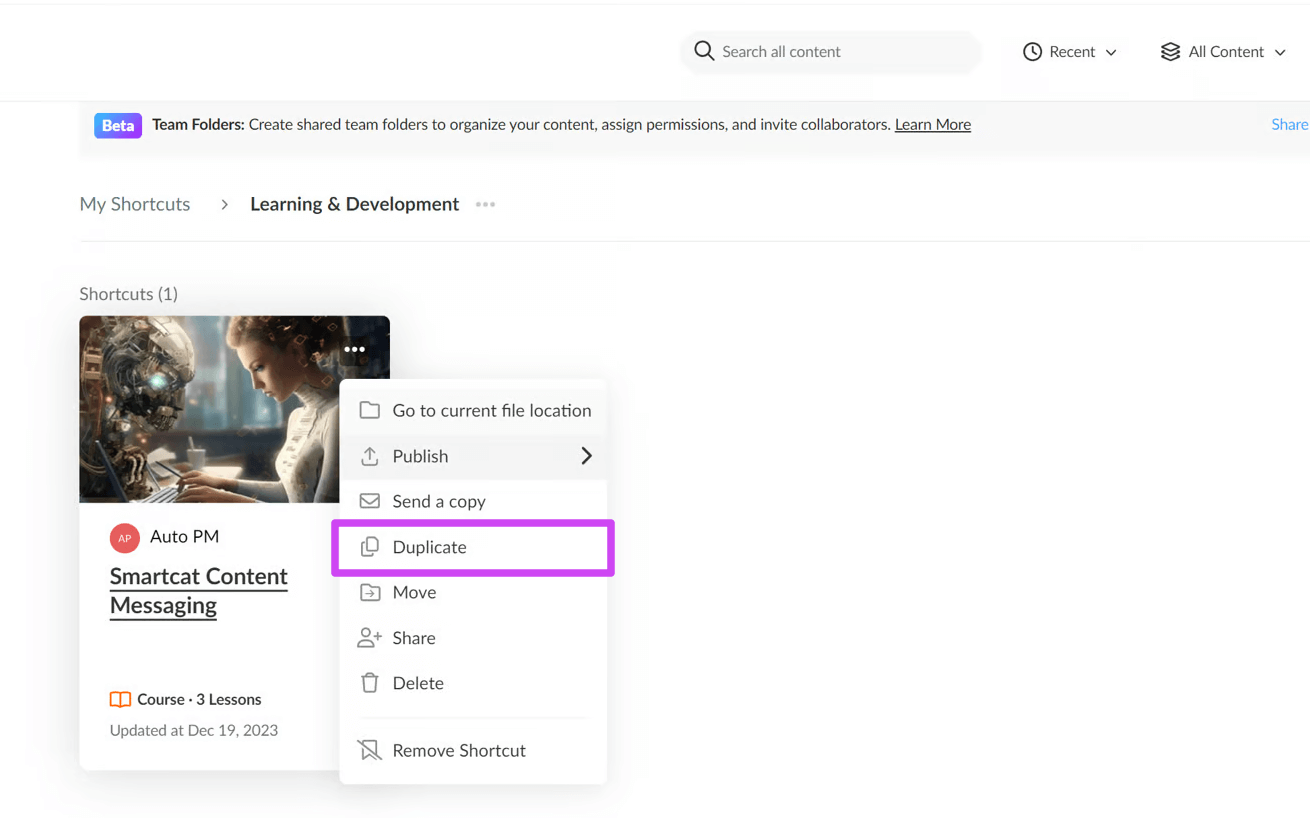
⚠️ Export a separate XLIFF file from each copy. Each language copy has unique identifiers, so an XLIFF file from one course will not import into another — Rise returns an error if you use the wrong file
-
Open a course copy, click Settings in the upper-right corner, and go to the Translations tab
-
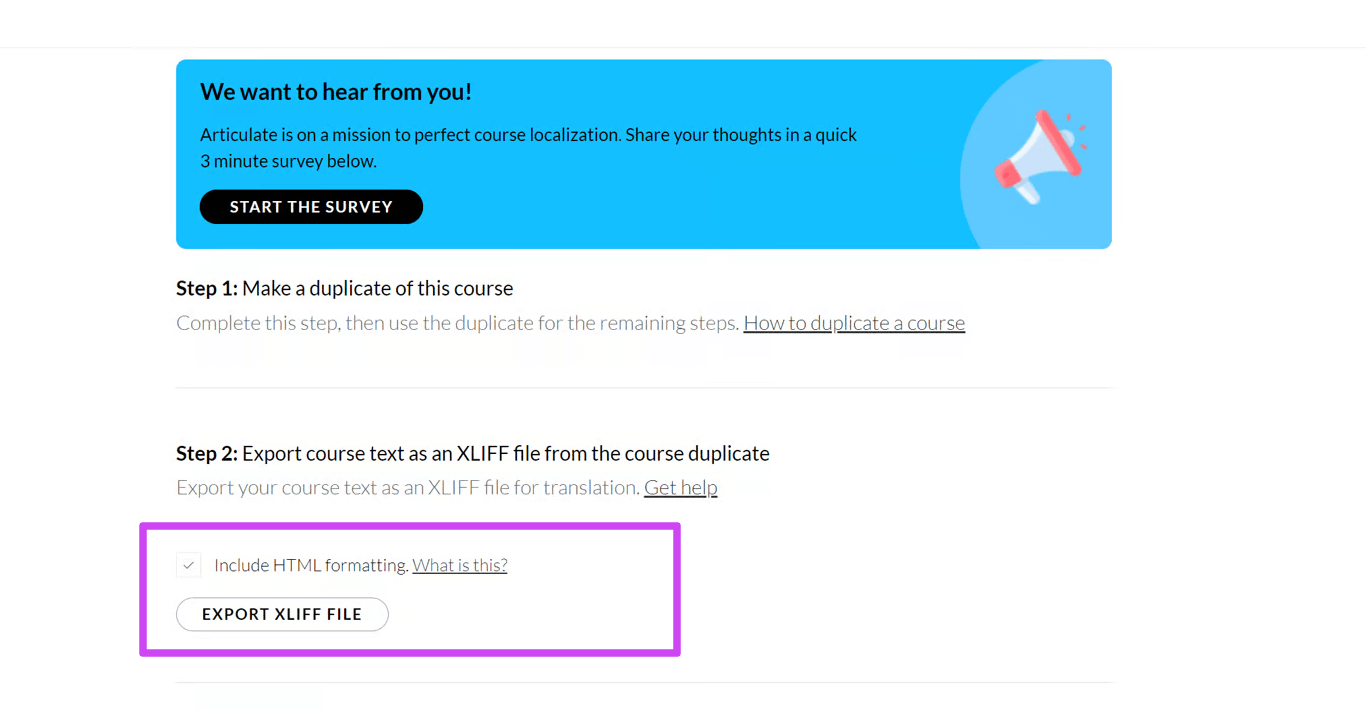
(Optional) Deselect Include HTML formatting if you do not need to preserve formatting — you will need to reformat the course afterward
-
Click Export XLIFF file and save it
You now have an XLIFF file for each target language, ready to translate.
How to upload and AI-translate an XLIFF file
-
Log in to Smartcat
-
Click Projects in the navigation menu, then + New project
-
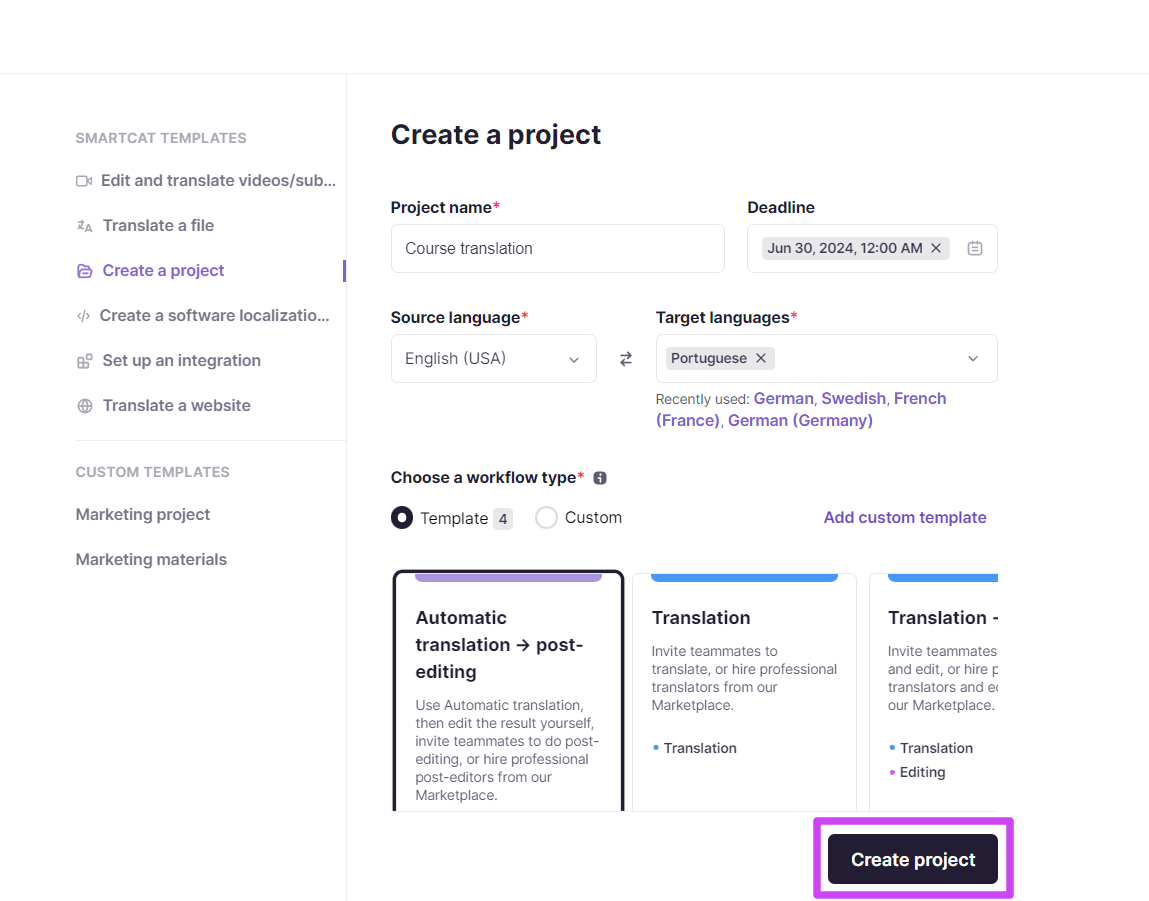
Enter the project name, deadline, source and target languages, and workflow, then click Create project
-
Click Upload files and select the XLIFF file or drag and drop it
-
Click Finish — Smartcat analyzes the file, selects the best translation engine, and runs AI translation
Your XLIFF file is translated and ready for review.
How to review and edit the translation
-
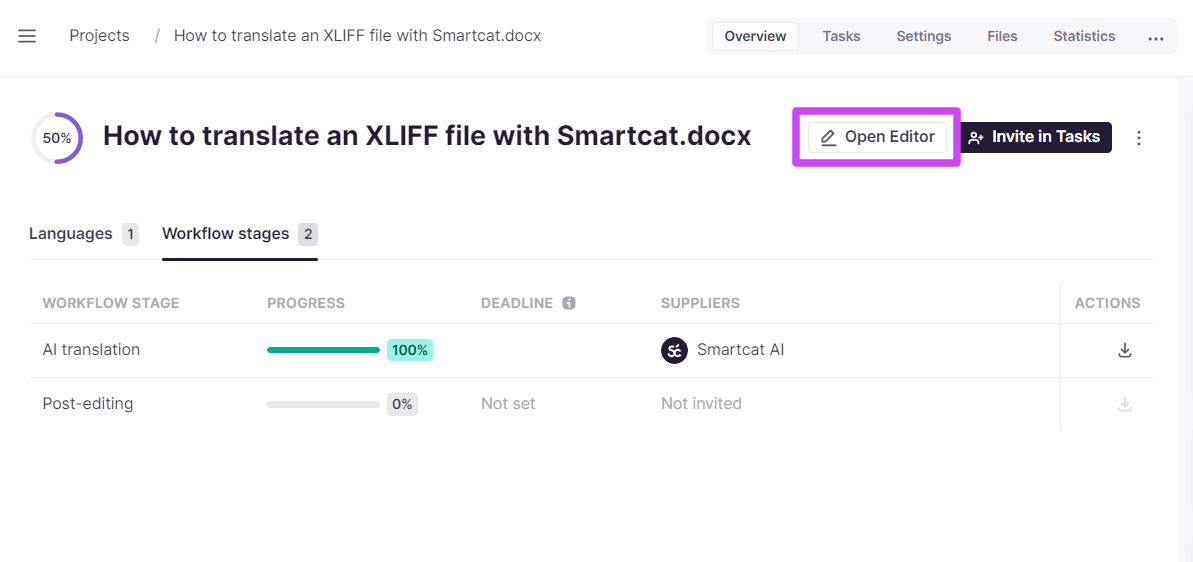
Click Open Editor to review the AI translation
-
Review each translated segment and check that it conveys the original meaning and fits the context
-
Edit the translation where needed
-
Use Translation Memory and glossary suggestions in the Suggestions tab to keep terminology consistent
-
Mark each segment as approved once it meets your standards
-
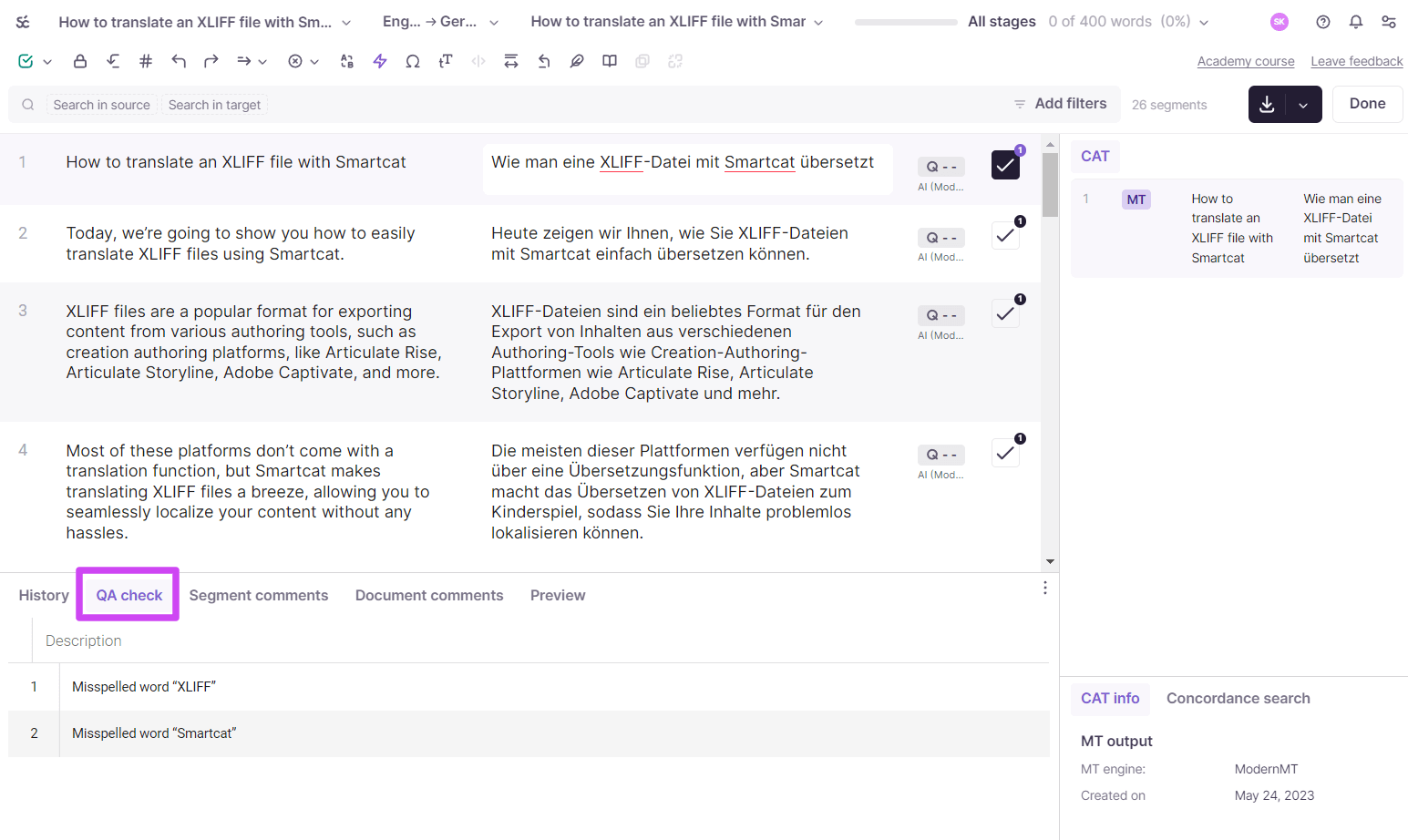
Use the built-in QA tools to catch inconsistencies or errors
Your translation is reviewed and ready to export.
How to export the translated XLIFF file
-
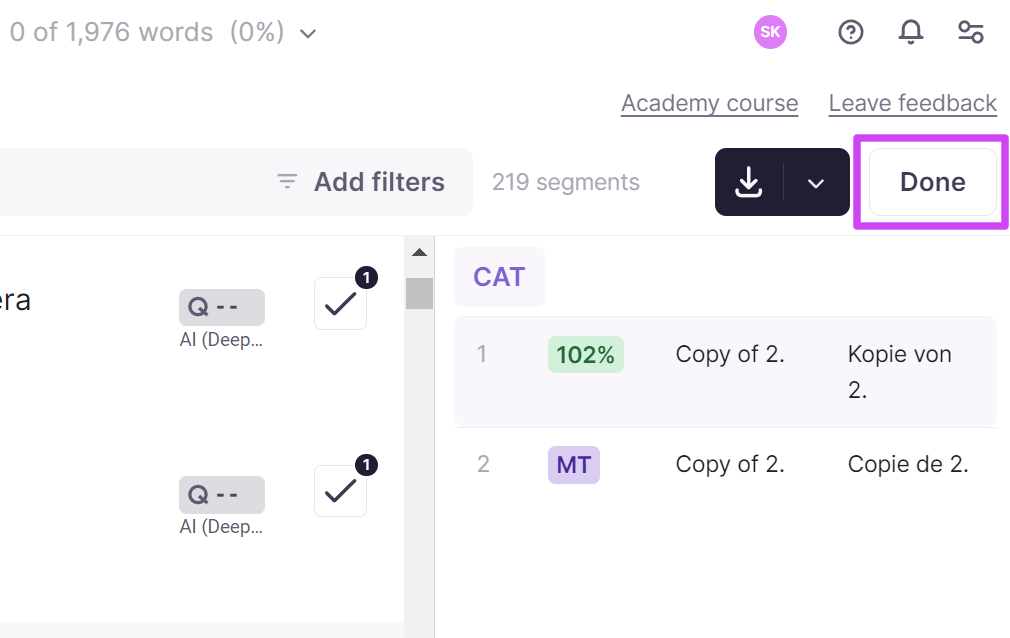
Click Done in the top right of the editor once review and QA are complete
-
Click the dropdown next to the download button in the top right of the editor
-
Click Special formats, then XLIFF
-
Make sure the file name matches the original format your platform expects
-
Save the file — it downloads automatically
You can also export the translation from the project settings.
How to re-import the XLIFF file into your authoring platform
This example uses Articulate Rise; the process is similar on other platforms.
-
Log in to Articulate Rise
-
Choose the course you want to update
-
Open Course Settings
-
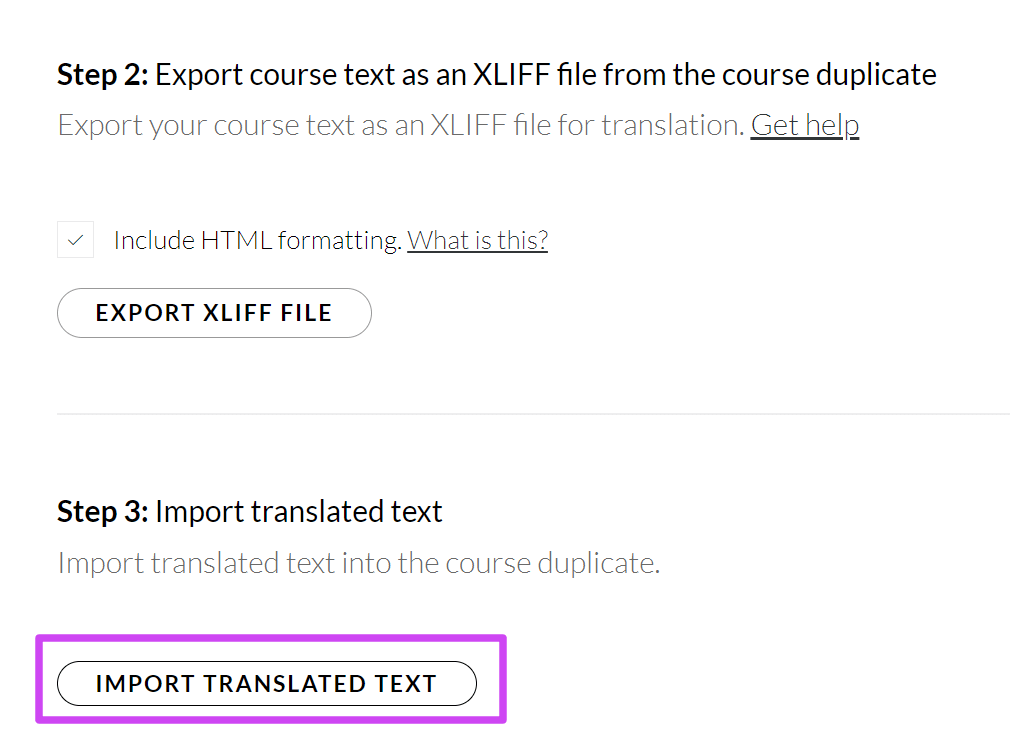
Scroll to step 3, Import translated text, and click it
-
Choose the XLIFF file from your computer and upload it
-
Check that the translated content appears correctly in the course
Your translated course is published in the target language.
💡 For more XLIFF and eLearning training, sign up for the free Smartcat Academy course.
How to stop existing target text from being imported
When your XLIFF file already has text in the
To prevent this, when uploading or re-uploading the XLIFF file, set Import translations to Do not import. That stops Smartcat from treating the pre-filled target text as a real translation, so AI translation processes every segment from scratch.
One important compounding issue to watch for: if the bad import already happened once, those source-into-source confirmed segments get saved into your workspace’s reviewed translations (translation memory) as near-perfect (100%+) matches. That means even a clean re-upload afterward can come back wrong, because AI translation checks TM before calling the AI engine and will pull in those contaminated matches. If that happens:
-
In the project, open Translation Rules in the left sidebar.
-
Remove any rule of type Translation memories (leave the AI translation rule in place).
-
Click Save & Run — this forces AI translation to go straight to the engine instead of pulling TM matches.
-
Afterward, clean up the contaminated TM: remove entries where the translation equals the English source, created since the original bad import, across all affected target languages (export TMX → filter → re-import, or ask Support for help if there are many languages).
Note that this TM contamination is workspace-wide, not limited to the one project — if it happened once, every future project sharing that translation memory is at risk until it’s cleaned up.
FAQs
Can I download the completed project as an XLIFF file?
Yes, at any point during translation. XLIFF files are bilingual by design — they contain both source and target text plus each segment's status — and are meant to exchange data between tools rather than to be published. You can import a partially translated XLIFF file into a tool and finish the translation, reusing the existing translation and segment status.
My exported XLIFF files don't work in Trados.
Smartcat's files fully comply with the XLIFF standard. The Trados issue comes from SDL using different language-code abbreviations for some languages — open the XLIFF file in a text editor and replace the language codes with the Trados-compatible ones.
Where can I find supported languages and their codes?
The full list is on the Smartcat languages page. Different CAT tools may use different language codes, which matters when importing TMX files created outside Smartcat — wrong codes cause import errors.
Want to learn more?
See how Smartcat can transform your localization workflow.
Still need help?
Our support team responds within one business day.