How to contact your client using Smartcat Chat
Overview
Once you accept a project invitation, you can contact your client directly using the Smartcat Chat feature. Chat is enabled for both the client and the supplier as soon as an invitation is accepted.
When to use it
-
You want to ask your client a question about project requirements or deadlines
-
You need to flag an issue with the source content
-
You want to communicate with your client about any project-related topic
How to use it
Open the chat
-
Log in to your Smartcat account
-
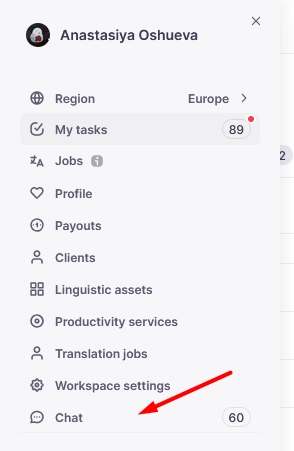
Select Chat (or Direct messages) from the menu at the left-side of the page
-
Open the Chat panel
-
Send your message directly to the client
Your message is delivered to the client through the Smartcat platform.
Requirements and limitations
-
Chat is only available after the supplier has accepted the project invitation
-
Replying to the invitation email sends your message to Smartcat Support, not to the client. Always use the in-platform chat to reach your client directly
FAQs
I replied to the invitation email but my client said they didn't receive my message. Why?
Replies to invitation emails go to Smartcat Support, not to the client. To reach your client, use the Chat panel in Smartcat.
Can my client contact me first, or do I have to send the first message?
Either party can initiate the chat once the invitation has been accepted.
Why do I see the message, “this contact has been temporarily blocked”?
This message in Smartcat chat generally means that direct messaging between a supplier and client isn't open at the moment for that pair. This occurs most often when there's no active task or live invitation currently connecting you to that client, since direct chat stays open only while such a connection exists. If you believe there should be an active project or invitation between you and that contact and the chat is still showing as blocked, contact Smartcat support so they can check for an account-level restriction. In rarer cases this same message can also come from a separate account-safety/anti-fraud flag rather than the normal no-active-task state, and only Smartcat support can review or lift that. While you wait, you can still reach your client by leaving a comment directly on the relevant segment in the editor, which notifies the project manager.
Want to learn more?
See how Smartcat can transform your localization workflow.
Still need help?
Our support team responds within one business day.