Pronunciation Control for AI Voiceover
Overview
Pronunciation Control enables you to precisely control how AI voices pronounce specific words, names, abbreviations, and domain-specific terms in AI Voiceover projects, without modifying the visible subtitle text. With Pronunciation Control, you can preserve clean subtitles while ensuring accurate audio pronunciation.
When to use it
Use Pronunciation Control when AI Voiceover mispronounces names, abbreviations, technical terms, or domain-specific vocabulary. This is especially useful for:
-
Brand names and proper nouns
-
Industry-specific terminology
-
Abbreviations that should be spoken as words vs. spelled out
-
Non-English words in English content
-
Numbers and special characters
Requirements and Limitations
Requirements:
-
Subtitle Editor must be enabled for your workspace (contact your Smartcat Account Manager)
-
AI Voiceover capability must be active
-
Glossary must be assigned to the project to use glossary-based pronunciation reuse
Limitations:
-
Pronunciation changes apply to AI-generated audio only. Subtitle text remains unchanged by design
-
Phonetic transcription (IPA) is not yet available. The current implementation uses transliteration
-
ElevenLabs v3 integration may be required for accent control features
Key concepts and terminology
| Term | Definition |
|---|---|
| Transliteration | Converting text into a phonetic spelling that guides AI pronunciation without changing the visible subtitle. This is the current method for specifying pronunciation. |
| Automatic pronunciation detection | When you open the Subtitle Editor, Smartcat automatically scans your text and fixes pronunciation for proper names, abbreviations, numbers, special characters, and glossary terms. These auto-processed words are highlighted in green. |
| Say Your Way | A feature that lets you record your own voice pronouncing a word or phrase. The AI reproduces that pronunciation while maintaining its selected voice identity. |
| Stress/accent control | Adjusting where emphasis is placed within a word to correct pronunciation without rewriting the text. |
| Glossary integration | Pronunciation changes saved to a glossary are automatically applied to all future projects using that glossary. |
How it works
Pronunciation Control introduces a pronunciation layer that affects audio synthesis only. It does not modify subtitle text or layout, and pronunciation data is stored separately from subtitles.
Automatic Detection
When you open a project in the Subtitle Editor, Smartcat automatically:
-
Scans your subtitle text
-
Identifies words that typically need pronunciation guidance (proper names, abbreviations, numbers, special characters, glossary terms)
-
Applies pronunciation fixes automatically
-
Highlights these auto-processed words in green in the UI
Manual Control
For words that weren't automatically processed, or to override automatic suggestions:
Step 1 — Open your project in the Subtitle Editor
Open a video or audio file in the Subtitle Editor. Automatic pronunciation detection runs when the editor loads.
Step 2 — Enable AI Voiceover
Enable AI Voiceover on the right panel and generate initial voiceover.
Step 3 — Review automatic pronunciation fixes
Look for words highlighted in green — these have been automatically processed. Preview the audio to verify the pronunciation is correct.
Step 4 — Fix additional pronunciation issues
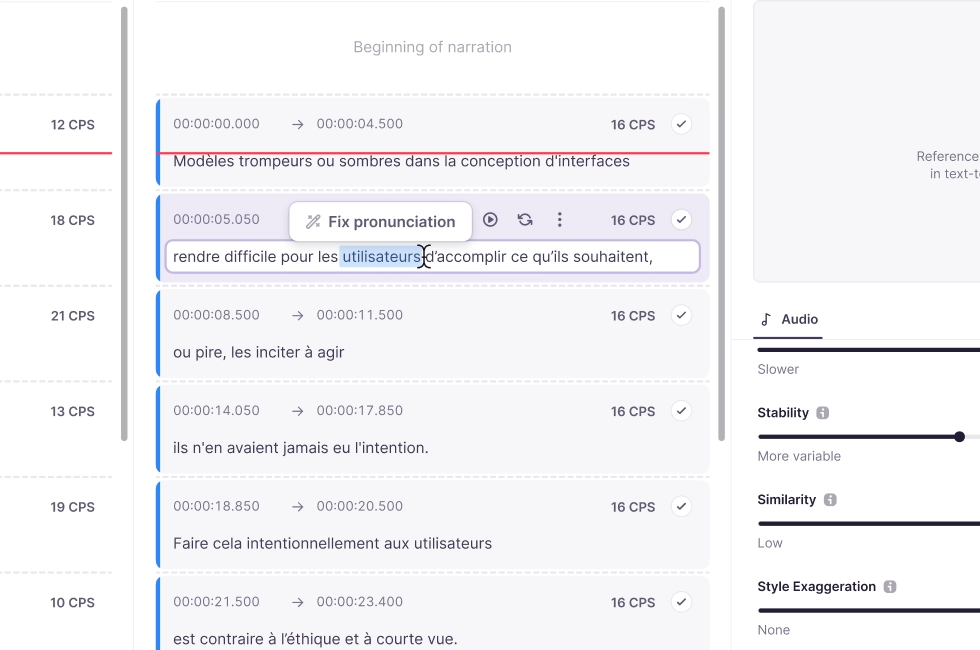
Select any word that hasn't been pronunciation-edited yet and click the Fix Pronunciation button. Smartcat automatically suggests a good pronunciation variant that you can accept or modify.
Step 5 — Access pronunciation controls
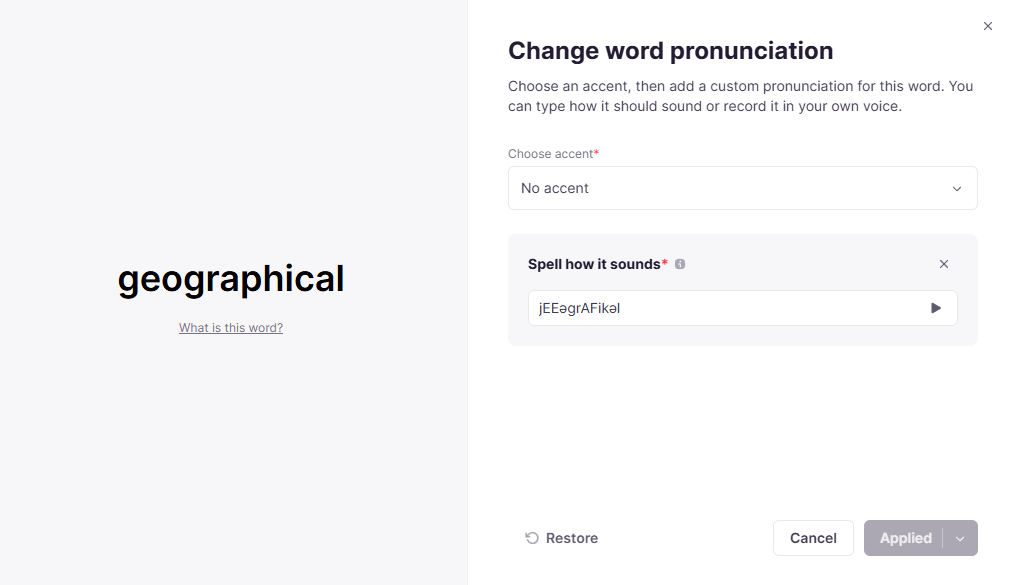
Click on any word to access the following options:
-
Transliteration: Edit the phonetic spelling that guides AI pronunciation
-
Stress (accent) control: Adjust where stress/emphasis is placed in a word
-
Say Your Way: Record your own voice pronouncing a word or phrase
📌 When using Say Your Way, select the entire phrase rather than just one word. Single word recordings can sound disconnected from the surrounding context.
Step 6 — Choose how to apply your changes
-
Apply to this instance only: Fixes pronunciation for the selected occurrence
-
Apply to all instances: Fixes pronunciation across the entire file
-
Add to glossary: Saves the pronunciation for reuse in future projects
Step 7 — Preview and save
Any pronunciation change triggers automatic audio regeneration. Preview the result before saving.
Smartwords are only deducted on final save, not during regeneration previews.
Selecting a TTS Model
In addition to word-level pronunciation corrections, you can control which AI text-to-speech (TTS) model generates the voice over for your project. Smartcat uses ElevenLabs to power AI voice over, with two available model versions:
-
Version 2: Supports 27 languages. Used automatically for languages where version 3 is known to produce unstable results (including German and Japanese).
-
Version 3: Supports 70+ languages. Used by default for all other languages.
To change the TTS model for a specific project:
Open the project in the Subtitle Editor and select the model from the audio/voice settings panel. You can switch from the recommended version to test a different result.
To set a workspace-level language preference:
Workspace admins can configure exceptions in workspace settings — for example, specifying that Arabic should always use version 3. These preferences apply to all new projects.
Glossary Integration
Pronunciation Control integrates with Smartcat glossaries for consistent pronunciation across projects:
-
Save to glossary: When you fix a pronunciation, you can save it to your glossary
-
Automatic reuse: Glossary-based pronunciations are automatically detected and applied when you open any project using that glossary
-
Cross-project consistency: Terms saved to a glossary maintain consistent pronunciation across all future projects
To use glossary-based pronunciation, ensure the glossary is assigned to your project before opening the Subtitle Editor.
Troubleshooting
Problem: Pronunciation changes don't seem to apply
Solution: Ensure you've saved the changes and regenerated the audio. Check that the glossary is properly assigned to the project if using glossary-based pronunciation.
Problem: Can't access pronunciation controls
Solution: Verify that AI Voiceover is enabled and that the Subtitle Editor has the necessary permissions for your workspace.
Problem: Automatic pronunciation detection missed a word
Solution: Select the word manually and click Fix Pronunciation to add it. Consider saving the pronunciation to your glossary for future automatic detection.
Problem: Voice recording sounds disconnected
Solution: When using Say Your Way, select the entire phrase containing the word rather than just the individual word. This provides better context for natural-sounding pronunciation.
Problem: Exported video is significantly longer than the original (e.g., 3x the duration), or voice loops/repeats unexpectedly
Solution: This is a known issue with ElevenLabs version 3 for certain languages (notably Japanese). Open the project in the Subtitle Editor, switch to ElevenLabs version 2 in the audio settings, and regenerate the voice over.
Problem: Voice pronounces words strangely or behaves inconsistently for a specific language
Solution: Try switching from the default ElevenLabs version to the other model (v2 or v3) in the project's audio settings. Version 2 is generally more stable for German and Japanese; version 3 offers broader language coverage for others.
FAQ
Q: Does fixing pronunciation change my subtitle text?
A: No. Pronunciation Control affects audio synthesis only. Your subtitle text remains exactly as written.
Q: Do I get charged Smartwords for previewing pronunciation changes?
A: No. Regeneration previews do not consume Smartwords. You are only charged when you save the final version.
Q: Can I reuse pronunciation fixes across multiple projects?
A: Yes. Add the pronunciation to a glossary, and it automatically applies to future projects using that glossary. The automatic pronunciation detection includes glossary terms.
Q: What if I can't describe the correct pronunciation in text?
A: Use the Say Your Way feature to record yourself pronouncing the word or phrase. The AI voice reproduces your pronunciation while maintaining its voice identity. For best results, record the entire phrase rather than just the individual word.
Q: What's the difference between transliteration and phonetic transcription?
A: Transliteration converts text into a phonetic spelling using standard characters (e.g., "Nietzsche" → "NEE-chuh"). Phonetic transcription uses IPA symbols for precise pronunciation notation. Currently, Smartcat uses transliteration; IPA-based phonetic transcription is planned for a future release.
Q: How do I know which words were automatically processed?
A: Words that have been automatically processed for pronunciation are highlighted in green in the Subtitle Editor UI.
Q: Can I create an AI voiceover from a text file?
A: Not as a self-service feature. Smartcat's AI voiceover and dubbing are built to work from a video or audio file, not from a standalone text document (Word, PDF, TXT, or a written script).
Want to learn more?
See how Smartcat can transform your localization workflow.
Still need help?
Our support team responds within one business day.