Automated quality checks in the editor
Overview
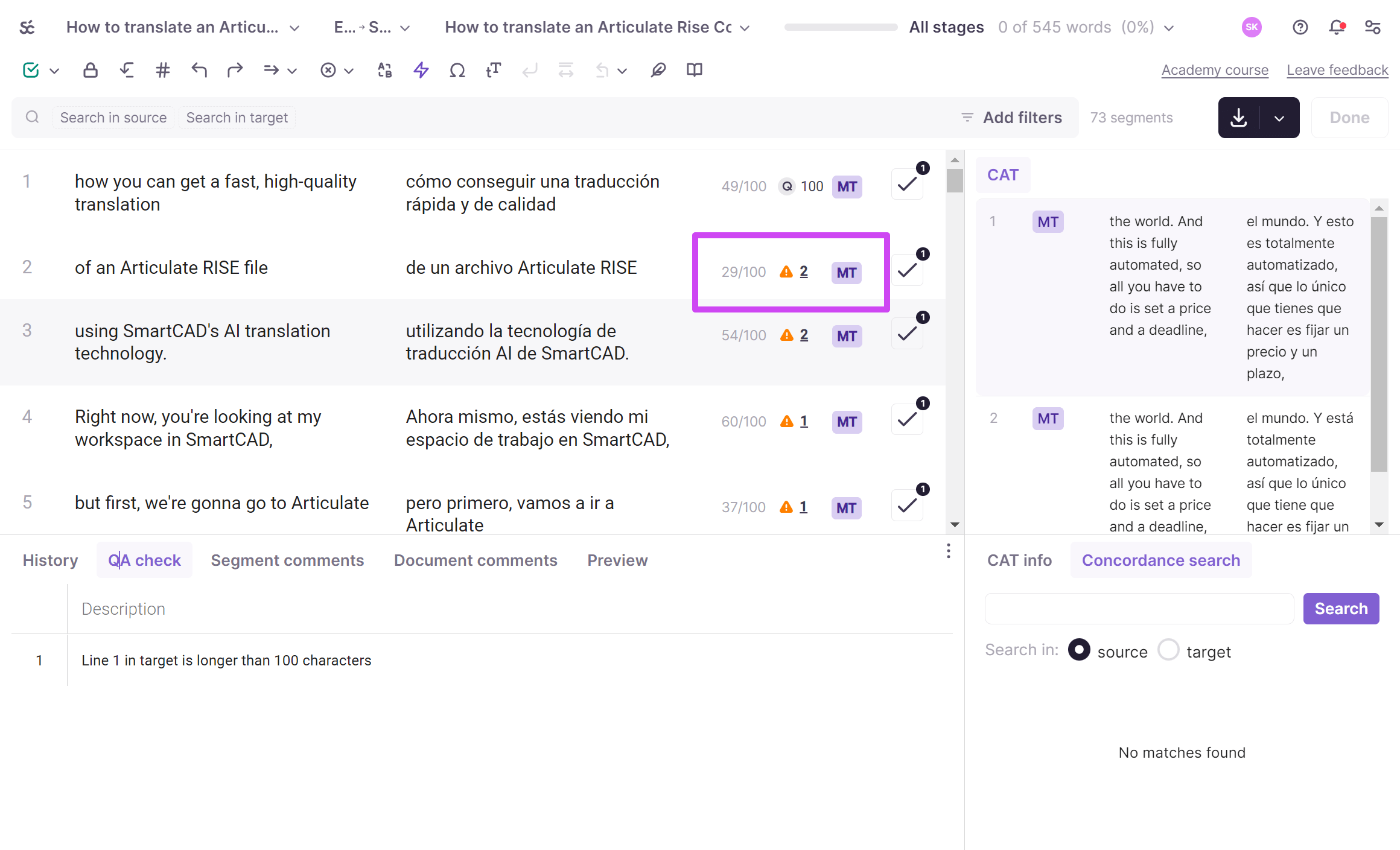
Smartcat automatically checks your translation and flags errors in spelling, punctuation, terminology, consistency, and formatting. Detected errors appear in the CAT editor with a warning sign, and the full list of errors for a segment is available in the QA check section.
How to correct errors
You can correct a detected error yourself — once you change the text and confirm the segment, the error disappears.
You can also use system suggestions: Smartcat underlines spelling errors in the translation. Right-click an underlined word to select a replacement or add an exception to the spellcheck dictionary.
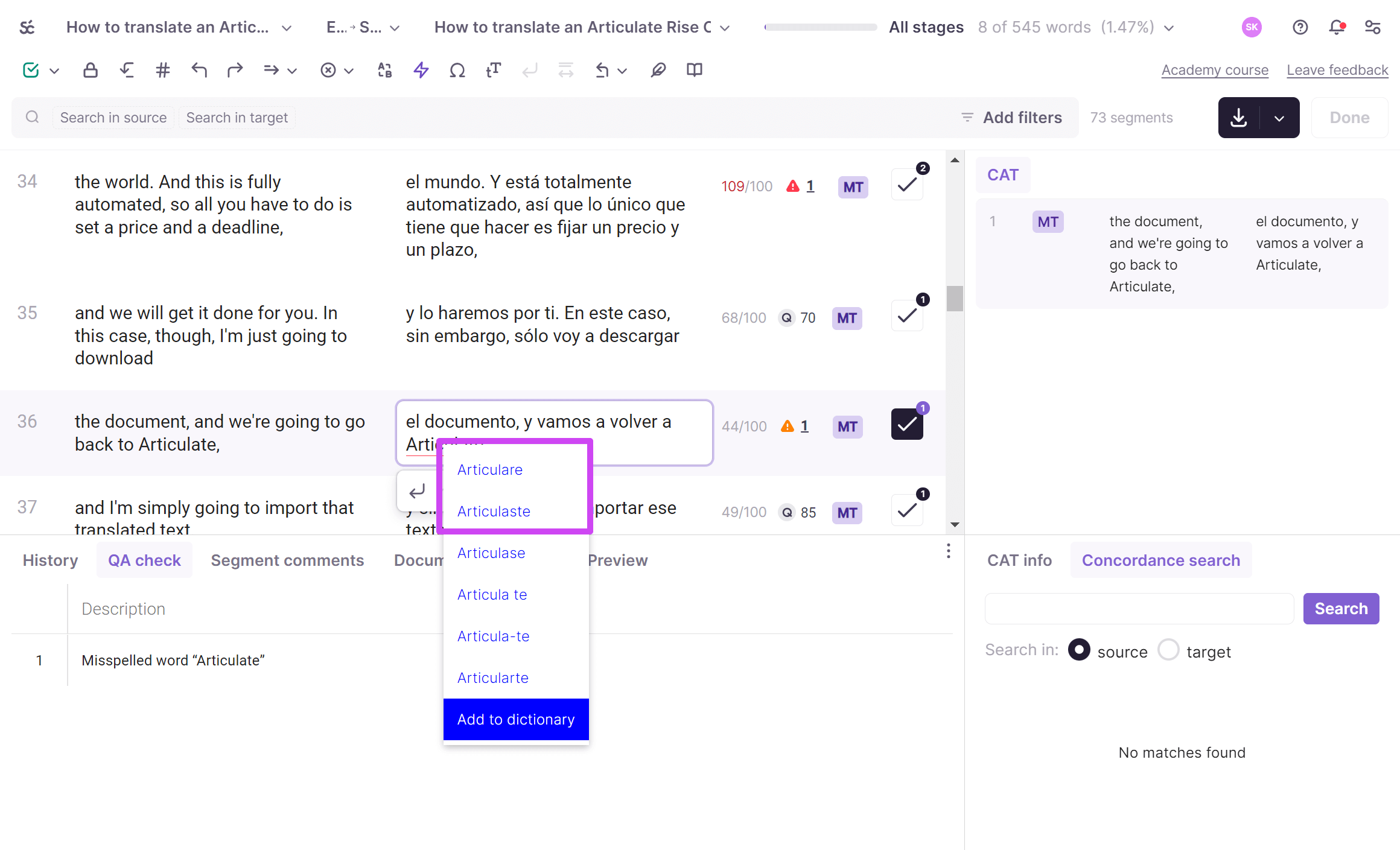
You can add and remove exceptions using the toolbar button that opens the custom dictionary. To ignore a detected error, confirm the segment and the warning sign disappears.
📌 The option to ignore a QA error in the QA check section is available only to project participants assigned a translation task. Project managers cannot select it.
💡 Clear all warnings in a file — by correcting errors or ignoring false positives — before marking the task as done. The project manager often does not speak the target language and cannot tell whether remaining warnings are real errors.
Want to learn more?
See how Smartcat can transform your localization workflow.
Still need help?
Our support team responds within one business day.