SCORM Studio: Modernize and Localize Legacy E-Learning Courses
Overview
SCORM Studio modernizes and localizes legacy e-learning courses without requiring you to rebuild them. You can upload a course package in the format it was published in, preview it as a learner would see it, and translate it into one or more target languages. After the translation, you can review and correct the translation, as needed, in the Smartcat project SCORM Studio creates for you. When you're ready, you can export a package that loads in your LMS.
SCORM Studio is available in every Smartcat workspace in the Apps section. If you want to change the layout or the content of a course, not just translate it, use the Canvas Editor instead. The Canvas Editor converts the course one-way into the Smartcat course format and lets you edit it there.
⚠️ SCORM Studio does not change the structure of your course. Quizzes, knowledge checks, and other interactions keep working and Smartcat translates the text inside those sections. SCORM Studio cannot check course logic, such as verifying that a translated question still matches its answers, or that scoring is intact. It does not provide a warning for text it did not find. When Smartcat finishes the translation, click through the course in the preview before you publish it.
When to use it
-
You run a course library built in a legacy or unfamiliar authoring tool and want a translation that loads correctly in your LMS without a manual rebuild
-
You want course translation to use the translation memories, glossaries and review workflow your team already has in Smartcat.
-
You're translating regulated or catalogue-scale content where source files may be incomplete or the original authoring tool is no longer available
Which courses SCORM Studio supports today
SCORM Studio accepts SCORM 1.2 and SCORM 2004 packages published by these authoring tools:
-
EasyGenerator, iSpring Suite, Adobe Captivate Classic: fully supported and tested on real customer courses
-
Adobe Captivate (current versions), CEGID / Talentsoft, Absorb Create: supported with limited testing so far. If you have a course from one of these tools, ask your Smartcat contact to run it before you plan a large project.
-
xAPI (Tin Can) packages are accepted and have been tested on Adobe Captivate Classic courses.
-
cmi5 and AICC packages are not accepted. Upload the published package, not the authoring project file
-
Articulate Rise and Storyline courses are not handled by SCORM Studio; use the Canvas Editor for them
-
Any other tool: the app shows that it cannot open the format yet and offers to share the package with Smartcat engineers. New formats are added quickly once they have a real course.
How it works
- In the left navigation sidebar, click Apps → SCORM Studio

-
Upload your course package (.zip, up to 5 GB). SCORM Studio detects the authoring tool automatically and keeps your uploaded courses across sessions. If the format is not supported yet, the app says 'We can't open this format yet' and offers to share the package with Smartcat engineers so they can add the format. Articulate Rise and Storyline courses are handled by the Canvas Editor.
-
To switch between uploaded courses, open the Package menu in the top left corner, which shows the name of the current course, or Pick a package if no course is uploaded). The same menu lets you search your packages and delete one. Deletion asks for confirmation and cannot be undone.

- The original course runtime opens in a sandboxed, in-context player — it plays exactly as authored, with a course table-of-contents rail alongside it. Translatable content appears in the window below the player.

-
Manually review the presentation, segments, and images identified as translatable by SCORM Studio. Use the Table of Contents window at the left side of the screen to navigate between course slides. Click the different formats above the Segments window to view the images, videos, and audio in the course and select the specific assets you want to translate.

- You can click the Hide structure/Show structure icon to hide the Table of Contents window, and the Hide segments/Show segments icon to hide the Segments window.

-
Click Translate in the top right corner to translate your course. If you did not select any assets to translate, you receive a message at this point asking if there are any assets you want to include.

- Pick your target languages. The source language is pre-filled from the package and you can change it. Languages already contained in the package are marked: they are returned as they are, without charge, and cannot be re-translated. The translation uses the translation memories, glossaries, and AI profile of your workspace. Click Translate.

-
SCORM Studio creates a Smartcat project, translates the text with AI, rebuilds the package, prepares the preview, renders the dubbed narration and repackages the course. Translated text and images reach the preview first; you can switch the running course between the source and each target language while the narration is still rendering.
-
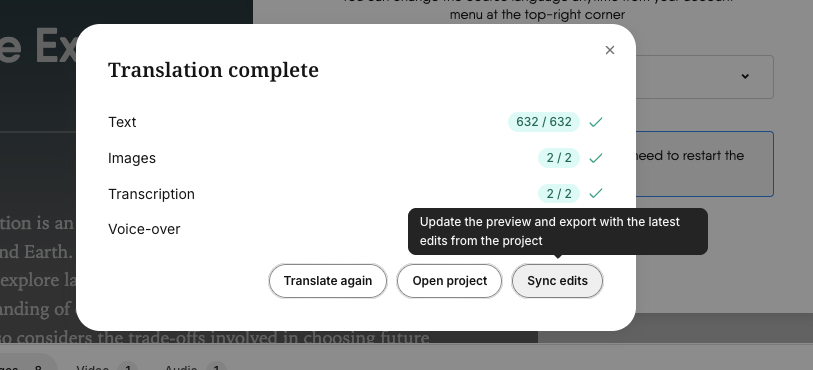
When the translation is finished, click Open project

-
Review the translation in the Smartcat project. Assign reviewers if needed and edit the text in the CAT Editor; subtitles and narration transcripts are documents in the same project and open in the Subtitle Editor. (See steps 2 and forward in the Basic Project Workflow.)
-
In SCORM Studio, apply the corrections to the course. Open the translation dialog and click Sync edits. This rebuilds the preview and the export with the latest edits from the project.
- When you are done, click Export and choose the language. You get one package per language. For EasyGenerator courses you can also export one package with all languages and a language switch. The package keeps its structure, so your LMS plays the translated course the same way it plays the original.
Requirements and limitations
-
SCORM Studio does not check course logic. It does not verify that a translated question still matches its answers or that scoring is intact. Click through the translated course in the preview before you publish it.
-
A translated string that's longer than the source can shift a course's fixed-canvas layout; review translated slides visually before finalizing.
-
Dubbed narration and subtitles are translated together with the text. Narration that does not finish rendering within about forty minutes keeps its original audio, and the app marks the run as partial. CEGID / Talentsoft courses receive dubbed narration but no subtitles.
-
SCORM Studio translates; it does not edit course content or layout. To change a course, use the Canvas Editor.
-
For EasyGenerator exports that keep media files on the EasyGenerator cloud, the app shows “Some media won't be translated” and asks you to export the course with media files included and upload the new package.
FAQs
Will my course still work correctly in my LMS after translation?
Yes. The package keeps its structure, so your LMS plays the translated course the same way it plays the original. Check the translated course in the preview before you publish it because SCORM Studio does not verify course logic. If the authoring-tool vendor ships a new runtime version, the in-course language switch can stop showing the translations. The course itself stays translated and functional.
Can I consolidate a course that was delivered as multiple separate SCORM files?
No. Each package is uploaded and translated on its own. You can export EasyGenerator courses as one package with all languages and a language switch; every other format exports one package per language.
Do I need to rebuild my course to translate it?
No — the translation-in-place path works with your original package and player, so there's no manual rebuild step required.
Can I translate the video and audio in my course with SCORM Studio?
Yes. SCORM Studio translates the on-screen text, the text inside images, the narration (dubbed with AI voices) and the subtitles in one run. You choose which images, audio and video files to include before you start. Images are charged once per picture, and narration is dubbed once; a second run reuses it.
Want to learn more?
See how Smartcat can transform your localization workflow.
Still need help?
Our support team responds within one business day.