Updating Content with the Content Update Coworker
Overview
The Content Update Coworker is an AI agent that identifies courses and documents within the Smartcat drive to keep it current. Rather than editing content manually, you describe an update objective, your coworker finds the relevant files already in your workspace, proposes a structured plan, and applies changes only after you review and approve them.
Every update saves a new version with full version history so you can roll back at any time. After you accept changes to the source content, you can translate the updated course as a separate step, and only the changed segments consume Smartwords.
The Content Update Coworker works alongside you. It proposes and executes changes, but you approve them. No changes are ever applied without your explicit confirmation.
When to use it
Use the Content Update Coworker when you need to:
-
Update content to reflect any change within your content: a new policy, guideline, or terminology change, etc.
-
Replace outdated terminology across content (for example, renaming a product feature across all courses)
-
Apply accessibility or compliance requirements to existing content
-
Maintain a large content library with traceable, auditable update history
Before you start
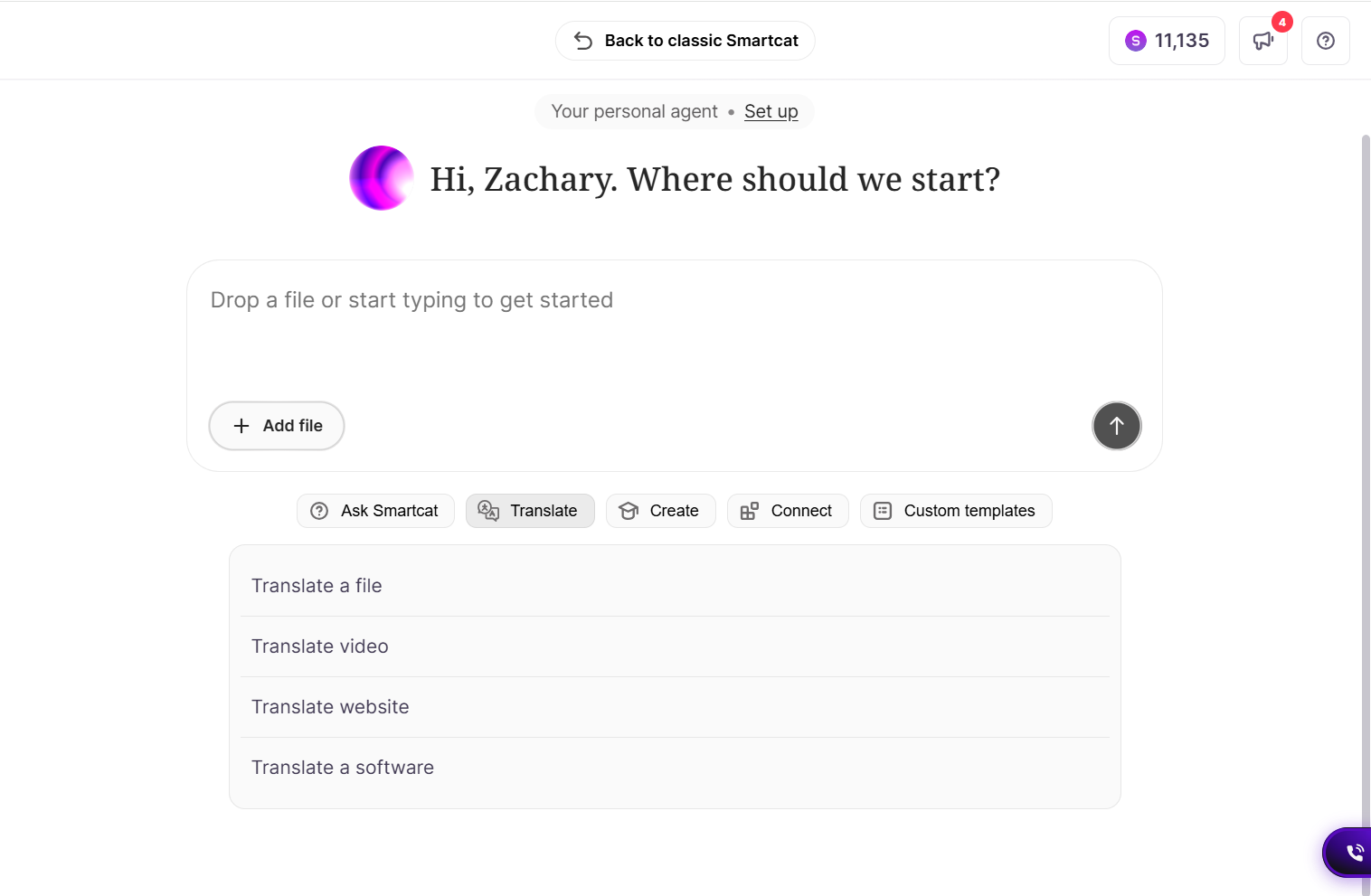
Content files must be imported into Smartcat first
The Content Update Coworker works with files that already exist in your Smartcat workspace. It searches content you have already imported to Smartcat, searches for the updates you describe, and makes those changes.
Before you can update a course, it must be imported into Smartcat. You cannot upload a course directly into the Smartcat AI chat to update it.
If your content is not yet in Smartcat, import it first, then return to the Home page to start an update session.
Using a reference file
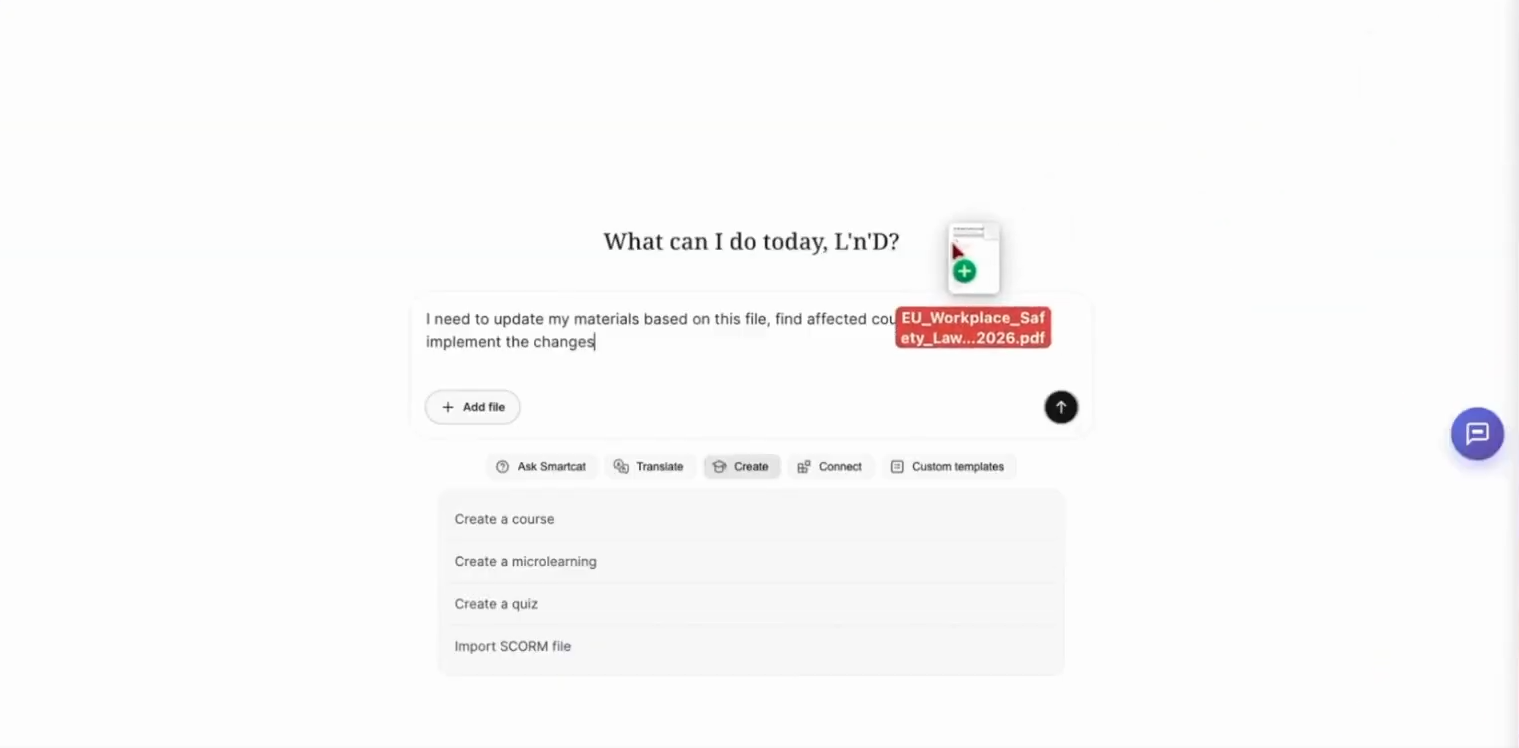
You can upload a reference document (such as a new policy, updated guidelines, or a terminology list) directly into the Smartcat AI chat to describe what should change. The reference file tells the cowrker what to update and it carries out that change across the content that exists in your workspace.
How to use it
Starting from the Home page
-
Go to the Home page in your Smartcat workspace.
-
In the Smartcat AI chat, describe your update objective in natural language. For example:
-
"I want to update my workplace safety courses. All of them should include a note that the courses were written by [Author]."
-
"Update this course according to the new accessibility policy." (You can also upload a reference file alongside your message.)
-
"Replace product X with product Y across all courses."
-
You can also upload a file that describes the content updates you need to complete
-
-
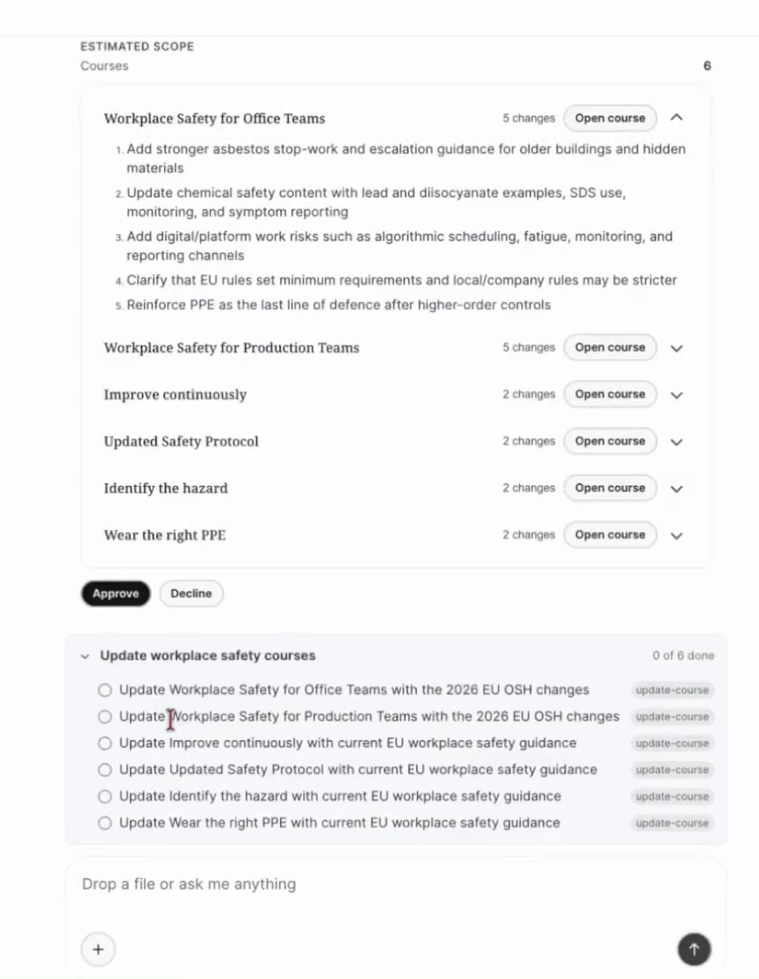
Your coworker audits your Smartcat Drive and finds every file affected by the change, across formats, including Rise and Storyline courses, PDFs, slides, documents, audio, and video. Your coworker uses both exact and semantic matching, so a request about "workplace safety" also surfaces content about related topics, like hazards or compliance.
-
The Content Update Coworker presents an estimated scope, a plan showing which files it found and what changes it proposes to make. Review this plan carefully before proceeding.
-
Click Approve to continue. The Content Update Coworker then stages the proposed changes for the first course.
Reviewing and accepting changes
Once the Content Update Coworker stages changes for a course, the course opens with proposed edits visible inline. You can:
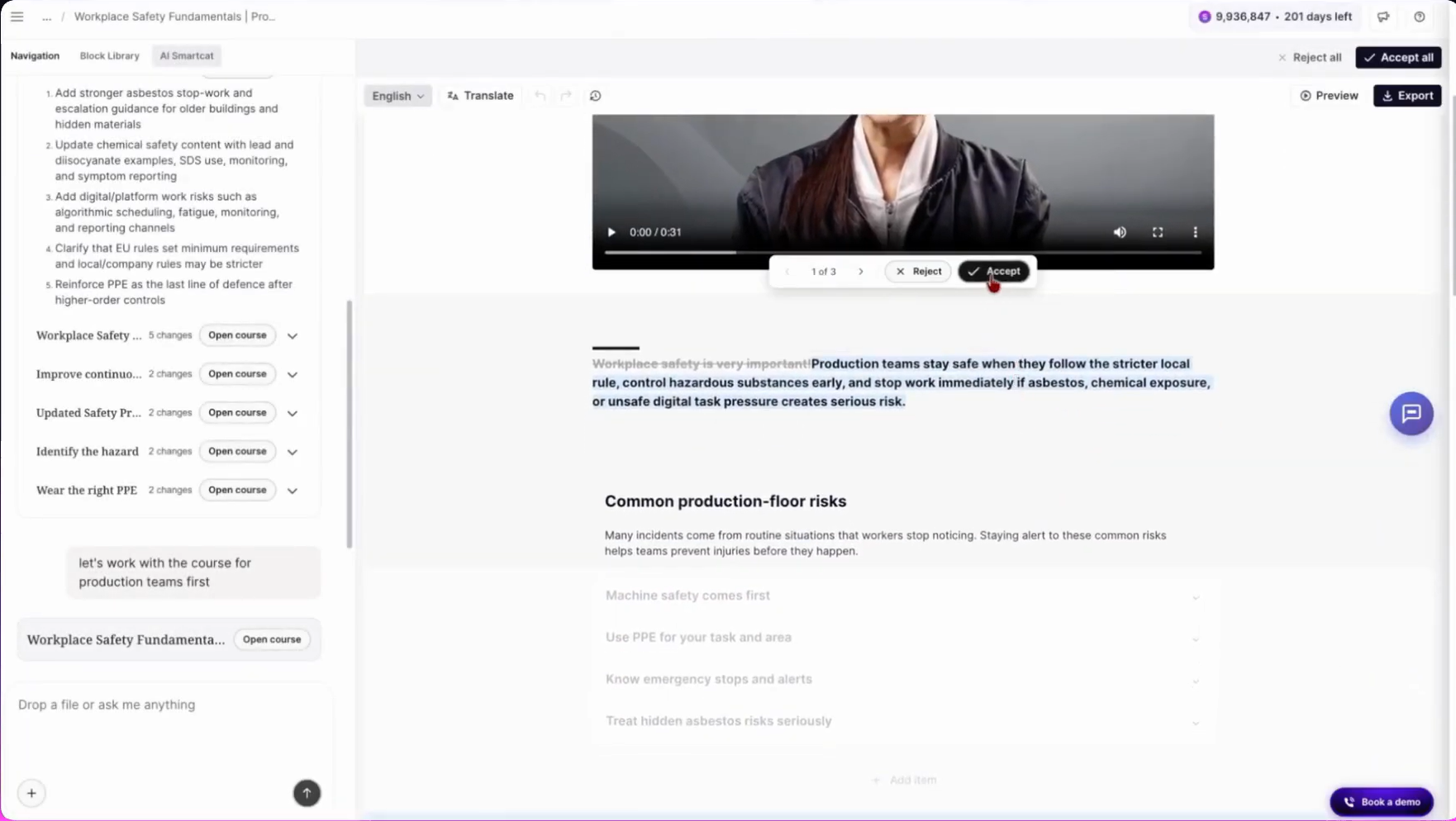
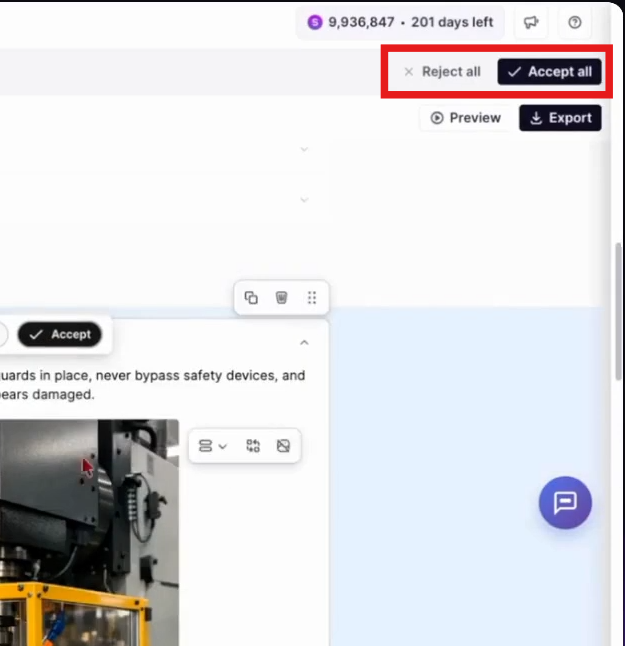
- Accept all changes at once
-
Reject all changes
-
Review changes one by one using the diff controls
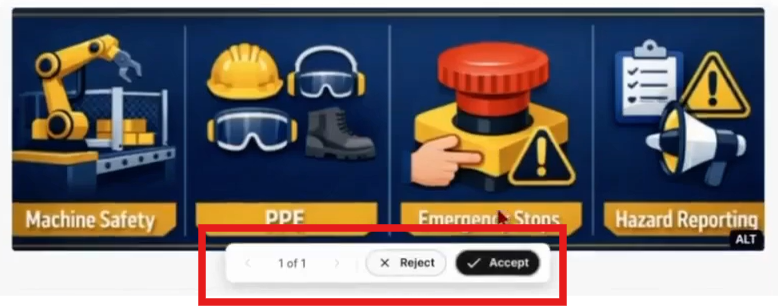
All accepted and rejected changes are saved in version history. If you need to return to a previous state, use version history to restore any earlier version.
After reviewing one course, your coworker moves to the next file in the approved plan.
Starting from the Canvas editor
-
Locate the project containing your course
-
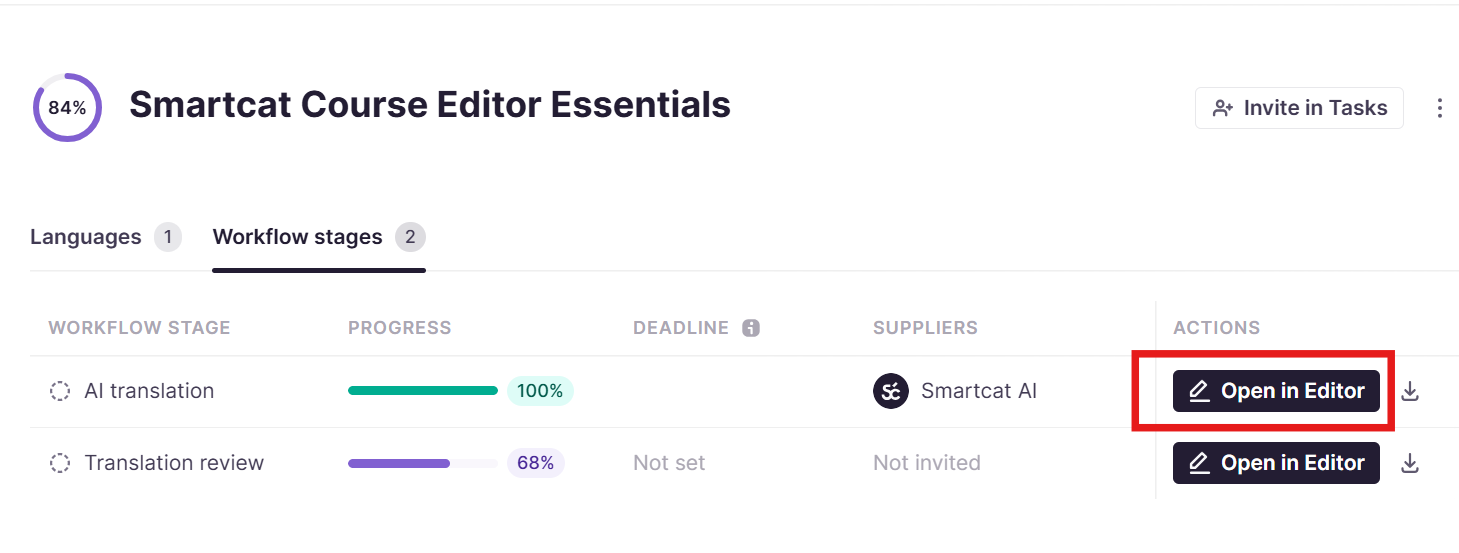
Open your course in the Course editor.
-
Select the content you want to update—a single block, a section, or the entire course.
-
Click Update with AI from the contextual action menu.
-
Enter your update objective. The Content Update Coworker analyzes your selected content and proposes changes inline.
-
Review and accept or reject individual changes using the diff engine controls.
Translating and exporting updated content
The Content Update Coworker updates source content only. Translation is a separate step you initiate after accepting changes.
To translate your updated course:
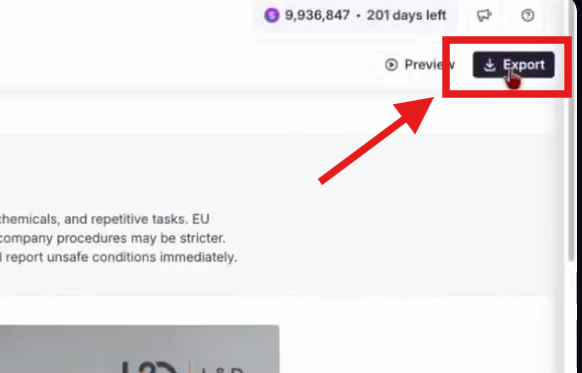
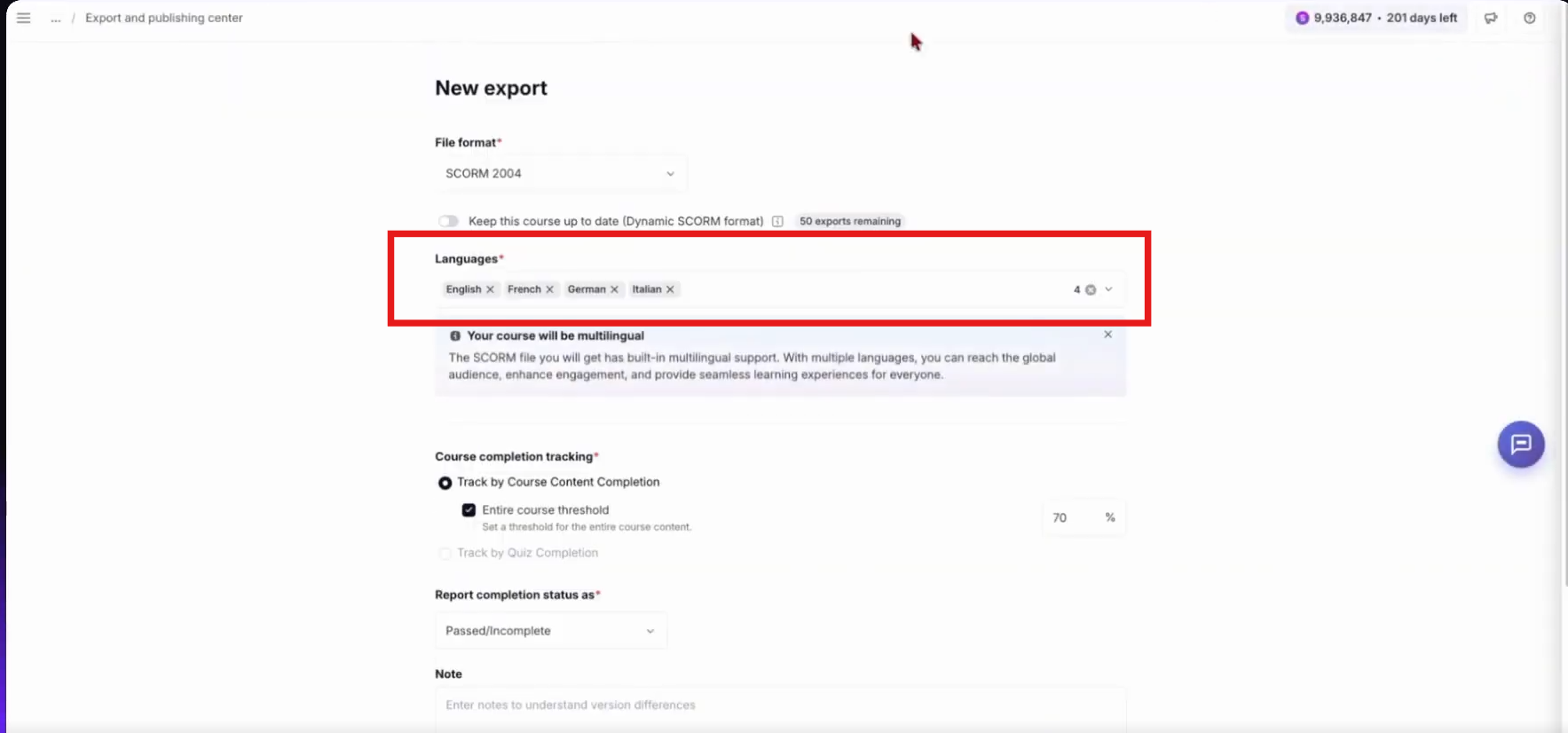
- After accepting changes in the editor, click Export to export a new translation project.
- Select the target languages.
-
If the course was previously translated in Smartcat, your coworker reuses your Reviewed Translations (translation memory). Segments that did not change are automatically confirmed, and only the new or updated segments consume Smartwords.
-
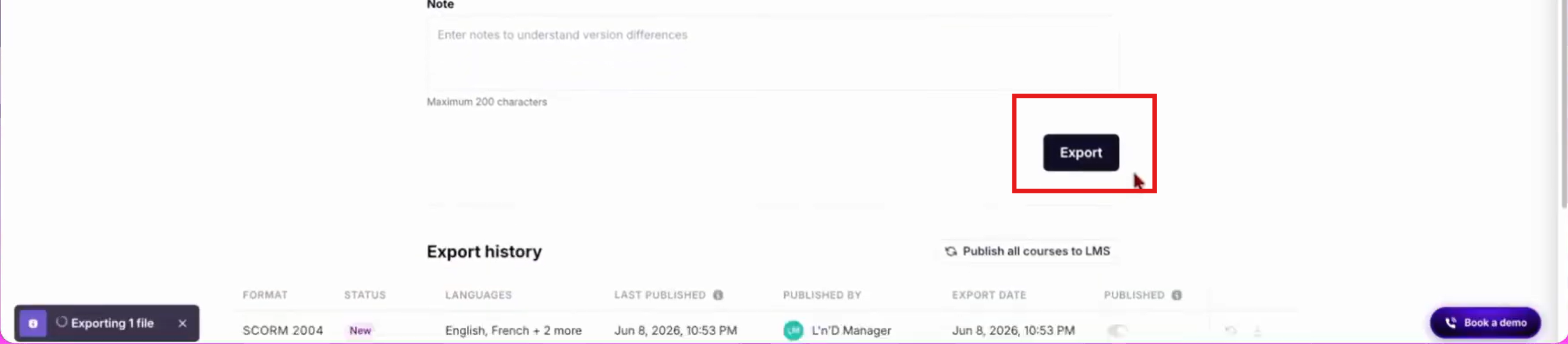
Click Export to export a single, dynamic, multilingual SCORM file.
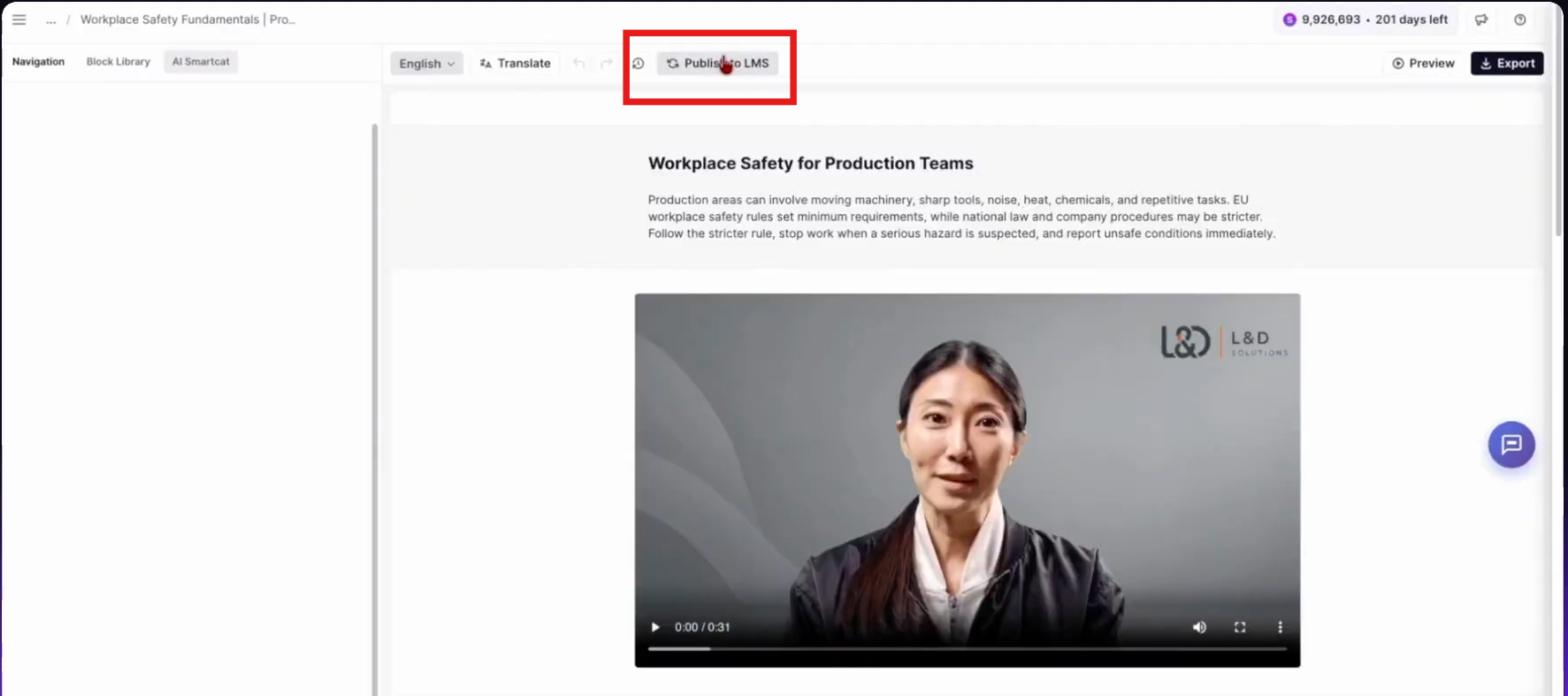
If you need to make more changes after your first export, open the source content and make your updates. Then click Publish to LMS to push the changes across all language versions, no re-export required.
Version control
Courses in the Canvas editor: Every update generates a new course version. You can navigate to any previous version in the version history and restore it at any time. Versions include both autosave snapshots and AI-suggestion versions marked as proposed or resolved.
Requirements and limitations
Requirements
-
The Content Update Coworker is currently available in beta, enabled per workspace via feature flag. Contact your Smartcat representative to request access.
-
You must have access to the Canvas editor.
-
Works with courses and files already imported into your Smartcat workspace.
Limitations
-
Updates apply only to the scope you select. The Content Update Coworker cannot modify content outside your selected blocks or sections.
-
Media assets (images, video) cannot be modified beyond caption and alt text updates.
-
Course structure and navigation cannot be changed unless explicitly requested and approved.
-
Version history in the editor is not yet available for documents, subtitles, PDFs, and PPTX files. A copy is created after changes are accepted.
-
PDF support is currently in progress; behavior may vary.
-
Large courses (500+ slides) may experience slower planning phase.
FAQs
Can the Content Update Coworker update my entire course at once?
Yes. You can select the entire course as your scope. However, only the blocks the coworker identifies as relevant to your objective are modified. Unchanged content is never reprocessed or re-reviewed.
How do I roll back an update?
Every accepted update for courses in the Canvas editor generates a new version. You can navigate to any previous version in the version history and restore it at any time. For other file types (documents, PDFs, subtitles), a copy of the file is created after changes are accepted.
Does the Content Update Coworker support all file formats?
The Content Update Coworker works with courses in the Canvas editor, including Articulate Rise, Storyline, and SCORM-based courses. Support for documents, subtitles, PDFs, and PPTX files is in progress. For specific format support, check with your Smartcat representative.
Want to learn more?
See how Smartcat can transform your localization workflow.
Still need help?
Our support team responds within one business day.