Explore the Smartcat Editor
Smartcat Editor is Smartcat's proprietary computer-assisted translation (CAT) tool, available to all clients via their Smartcat workspace to review and edit their translations. It is designed to enable total translation quality and consistency and to collaborate with colleagues as well as external linguists.
Understanding Smartcat Editor
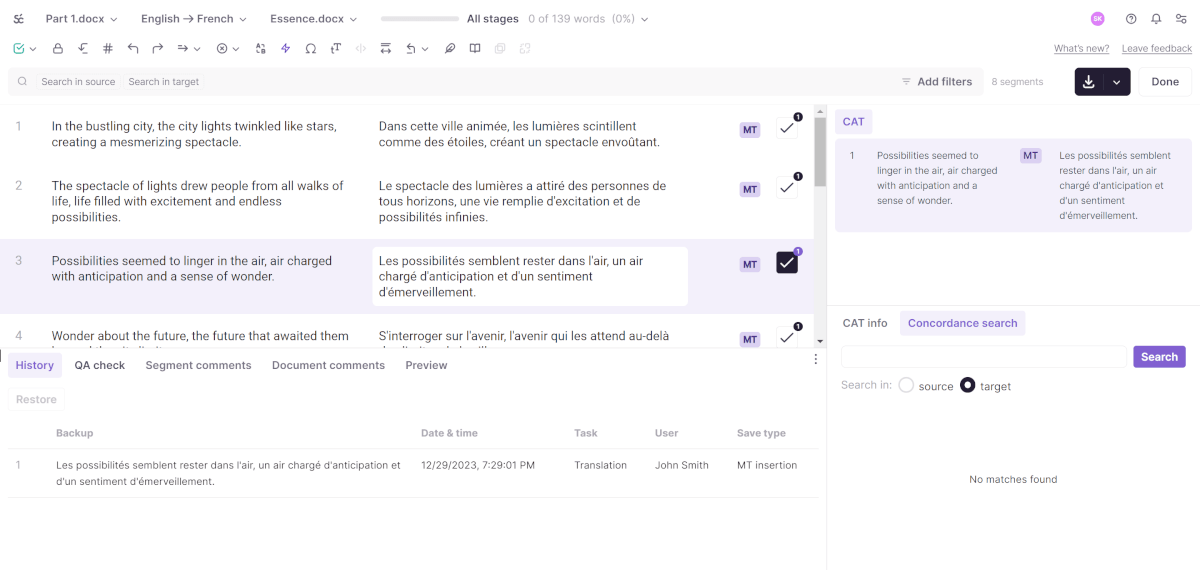
Smartcat Editor is made up of four main areas:
- Toolbar — Contains the search bar and a wide range of editing commands.
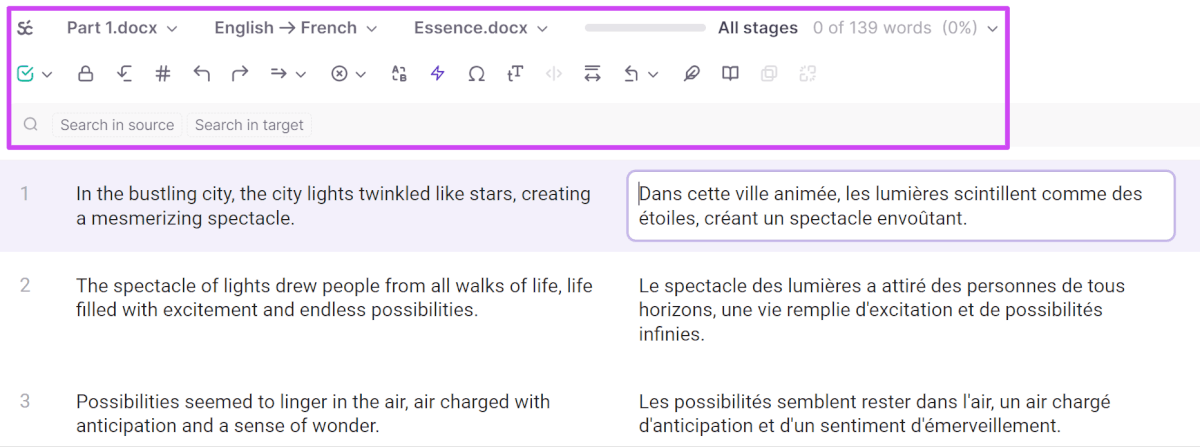
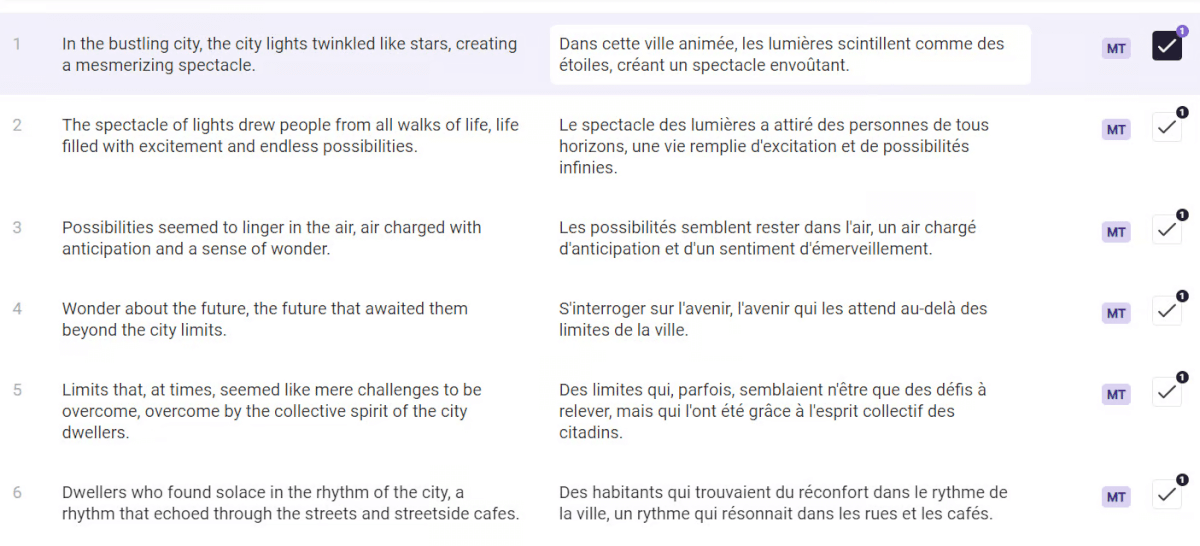
- Editing Area — Contains the source and target texts, the translation source, and the segment confirmation box.
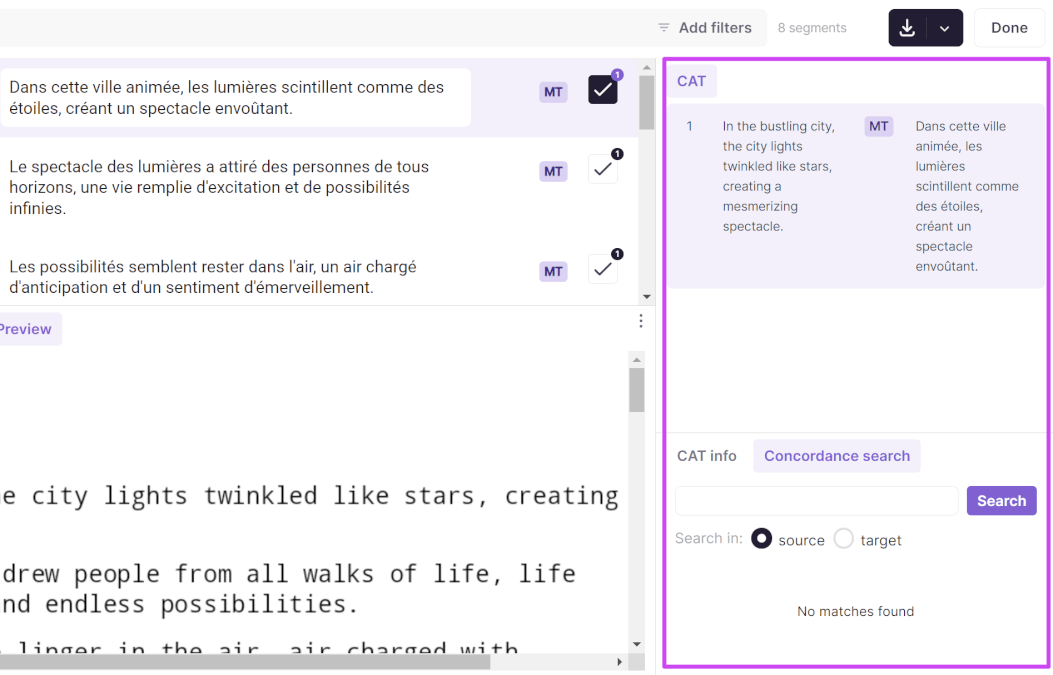
- CAT Panel — Shows translation memory, AI translation, and glossary matches.
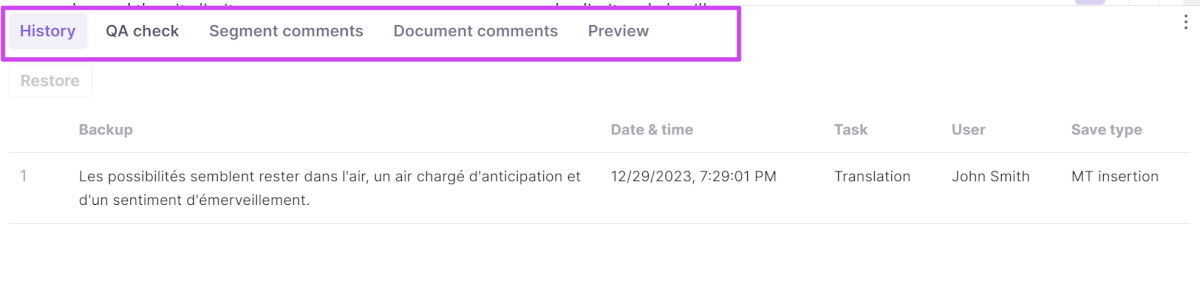
- Tabbed Area — For communication, QA, and revision history.
The screenshot below shows a sample English to French translation project after Smartcat Language AI has performed an automatic translation.
Accessing the CAT editor
You can open the CAT editor from several places.
From Projects:
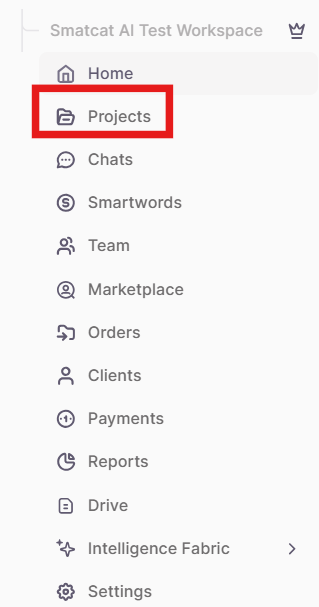
- In the left navigation sidebar, click Projects.
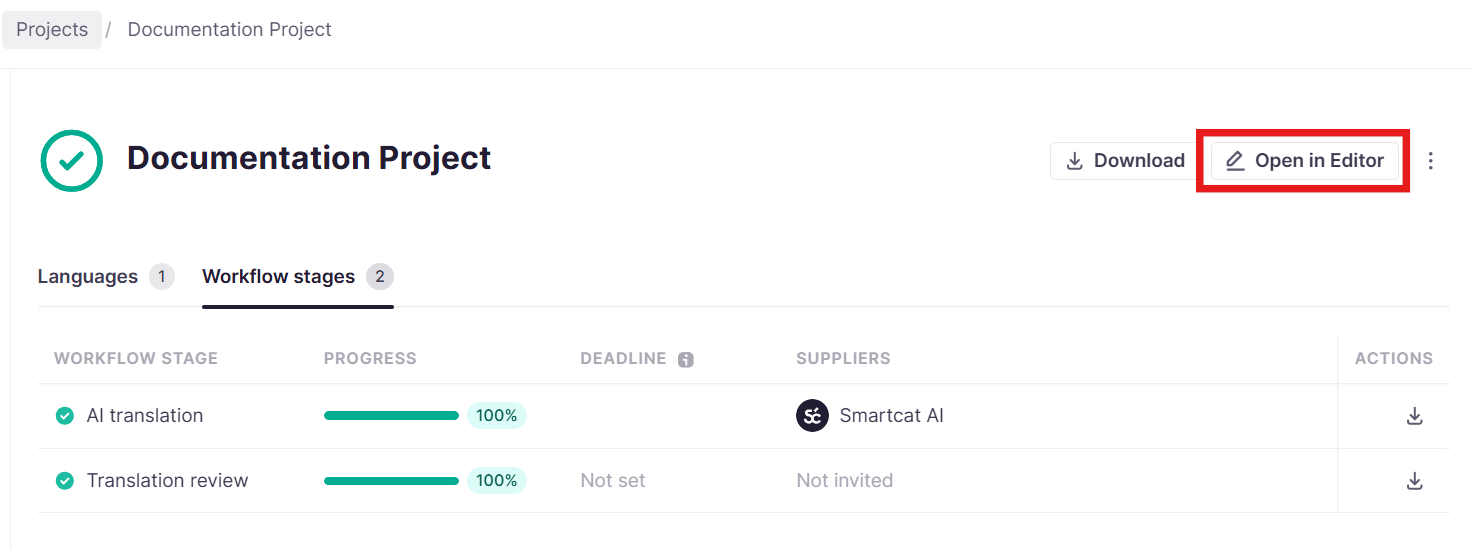
- Click Open in Editor
From My Tasks:
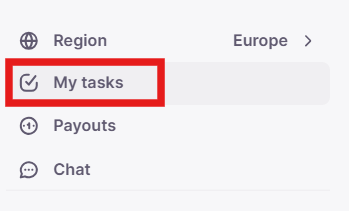
- In the left navigation sidebar, click My Tasks.
- Click Open next to any translation task.
From Direct Links:
- Click any editor link shared by your project manager. The editor will open directly to your assigned segments.
Working in the editing area
In the editing area, you can see your source text on the left and its translation on the right. Both sides are split into segments.
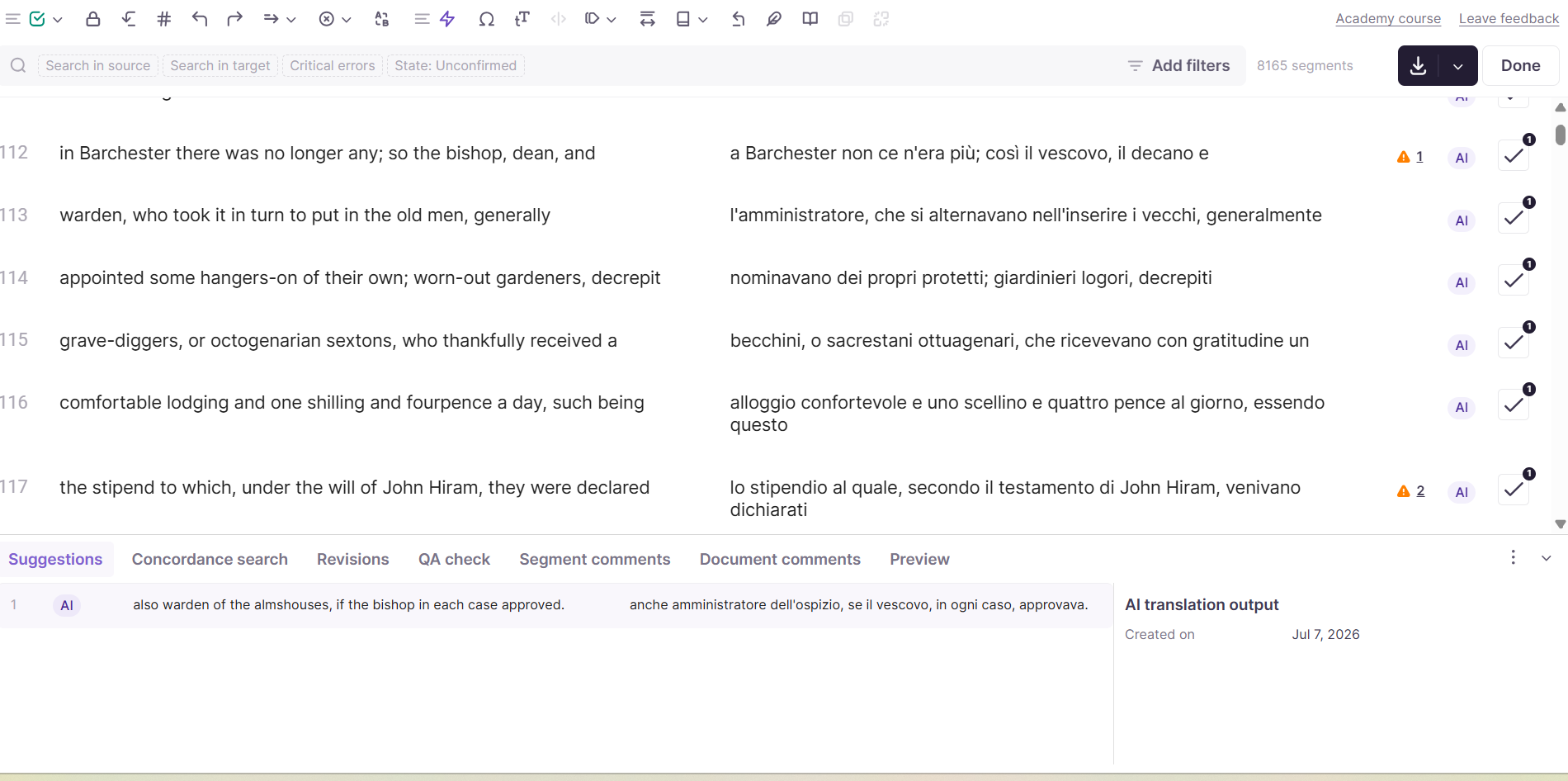
In the editing area you can do the following:
-
View the translation source — see whether a segment was translated by AI or pulled from translation memory.
-
See the notifications on any spelling or grammar errors.
-
Review, correct, and confirm specific segments.
-
See the in-context preview of the target text (if the format is supported).
-
Read comments — such as instructions or questions from a colleague or an external linguist — corresponding to a specific word, phrase, or segment.
-
Search the source or target text for specific language entries.
Confirming and navigating segments
-
Confirm a segment — Click the green checkmark or press Ctrl+Enter.
-
Go to next unconfirmed — Use the toolbar button or press F9.
-
Jump to a specific segment — Use Ctrl+G to jump to a specific segment number.
-
Lock/unlock a segment — Click the lock icon to prevent changes.
Editing text
-
Undo — Ctrl+Z
-
Redo — Ctrl+Y
-
Copy source to target — Ctrl+Insert
-
Clear target — Click the clear icon to remove target content.
-
Find and replace — Ctrl+H
-
Change case — Shift+F3
Working with tags and formatting
-
Insert a tag — Click the tag icon or press F8; use Alt+[tag number] to insert a specific tag.
-
Show/hide tags — Toggle tag visibility in the toolbar.
-
Insert placeholder — Add placeholders for variables.
-
Insert special character — Ctrl+Shift+I.
Managing segments
-
Join segments — Select multiple segments and press Ctrl+Shift+J.
-
Split segment — Place cursor in source cell and press Ctrl+Shift+S.
-
Rollback changes — Revert a segment to its previous stage with Alt+Shift+Delete.
The CAT Panel
The CAT Panel on the right side displays matches from the translation memory, AI translation output, and glossary terms found for wordings or words within source segments. You can also see the translation memory name, the source of the last update, update history, and the AI translation engine used (if applicable).
To insert a match, double-click it in the CAT Panel. If you have several suggestions, press Ctrl plus the number of the suggestion (Ctrl+1, Ctrl+2, etc.).
Translation Memory tab — Shows TM matches with match percentages: 100% exact match, 101% context match, 102% perfect match with identical context.
Glossary tab — Displays term matches from your glossary. Click any term to insert it.
CAT Info — The CAT Info area shows differences between the new source segment and any TM matches. Use concordance search (Ctrl+K) to find a term across all translation memories associated with the project in the source or target text.
Using the tabbed area
The tabs let you streamline collaboration and communication between your team members and perform quality assurance.
-
View translation suggestions — see alternative translations.
-
Perform concordance searches — find terms across all project TMs.
-
View revision history — see who modified text, when, and what changed.
-
Check quality issues — review errors found during LQA (Linguistic Quality Assurance).
-
Read and add comments — communicate with team members about specific segments.
-
Preview formatting — see how your translation will look in the final document.
Keyboard shortcuts
For a complete list of Windows and macOS shortcuts, see Use hotkeys in the Editor (https://help.smartcat.com/115002172551-editor-hotkeys/).
FAQs
Can I review translations by paragraph instead of by segment?
Smartcat's editor is segment-based, meaning all review workflows, including LQA Review mode, work at the individual segment level. There is no native paragraph-level review mode.
As a workaround, you can manually join adjacent segments in the editor to create larger, paragraph sized units for review:
-
Select the segments you want to combine.
-
Click the Join segments icon in the editor toolbar.
⚠️ Joining segments across paragraph boundaries can trigger paragraph-marker (¶) validation errors, which may leave the merged segment uneditable. Cross-paragraph merges are where this most often happens
⚠️ In multi-language projects, joining segments applies to all languages and can unconfirm segments across every language pair.
When TM match results are shown on CAT Panel, but not inserted into target segments, does it consume Smartwords?
No. Displaying a TM match in the CAT Panel does not by itself consume Smartwords. Smartwords consumption is tied to the insertion/application of the match into the target segment — not to the match simply being surfaced as a suggestion.
Want to learn more?
See how Smartcat can transform your localization workflow.
Still need help?
Our support team responds within one business day.