How to set up Protected Websites Access
Overview
Some customer websites are protected by SSO (Single Sign-On), SAML authentication, firewalls, or WAF rules that block access from unknown visitors. By default, Smartcat's crawler and Visual Editor cannot reach these pages, which means reviewers cannot work on them and translation cannot proceed.
Smartcat provides three mechanisms that grant secure access to closed or gated websites: IP Whitelisting, Custom HTTP Headers, and OAuth 2.0 (client credentials). Any method (or a combination) allows Smartcat to reach the customer's protected site without exposing it to the public internet.
This is a self-service feature — no support ticket is required.
⚠️ Key point — set expectations with the customer up front
Obtaining the Custom HTTP Header name/value, or the OAuth credentials, requires the involvement of the customer's own technical team. This cannot be done by the business contact alone. Flag this early in the conversation so the customer engages their dev/IT team before setup begins.
Note on IP addresses: Smartcat provides the static IP addresses, but they still need to be handed off to the customer's technical team to be added to their allowlist. So even for IP Whitelisting, a technical counterpart on the customer side is required.
When to Use It
Recommend this feature when the customer's website is:
-
Behind a corporate SSO or SAML login
-
A staging or preview environment restricted to internal users
-
Protected by a firewall or WAF (Web Application Firewall) that blocks unknown IPs
-
An internal academy, intranet, or gated portal
Requirements and Limitations
-
The customer must have access to their website's CDN, WAF, or server configuration to apply changes on their side.
-
For Custom HTTP Headers, the customer's development or IT team must create and configure the header on their website before it is added in Smartcat.
-
For IP Whitelisting, the customer's team must add Smartcat's published static IP addresses to their site's allowlist.
-
All methods require coordination between the person configuring Smartcat and the team managing the customer's website infrastructure. Plan for this technical handoff on the customer side.
-
For the OAuth method:
-
Your identity provider must support Client Credentials flow (machine-to-machine). User-interactive flows (Authorization Code, PKCE) are not supported.
-
The OAuth client must have permission to access the specific pages or resources you plan to translate.
-
You must have access to your identity provider's admin panel to create the OAuth client app.
-
⚠️ These settings apply per website project. If the customer has multiple protected sites, each project must be configured separately.
How It Works
Smartcat offers two complementary access methods. Most sites only need one.
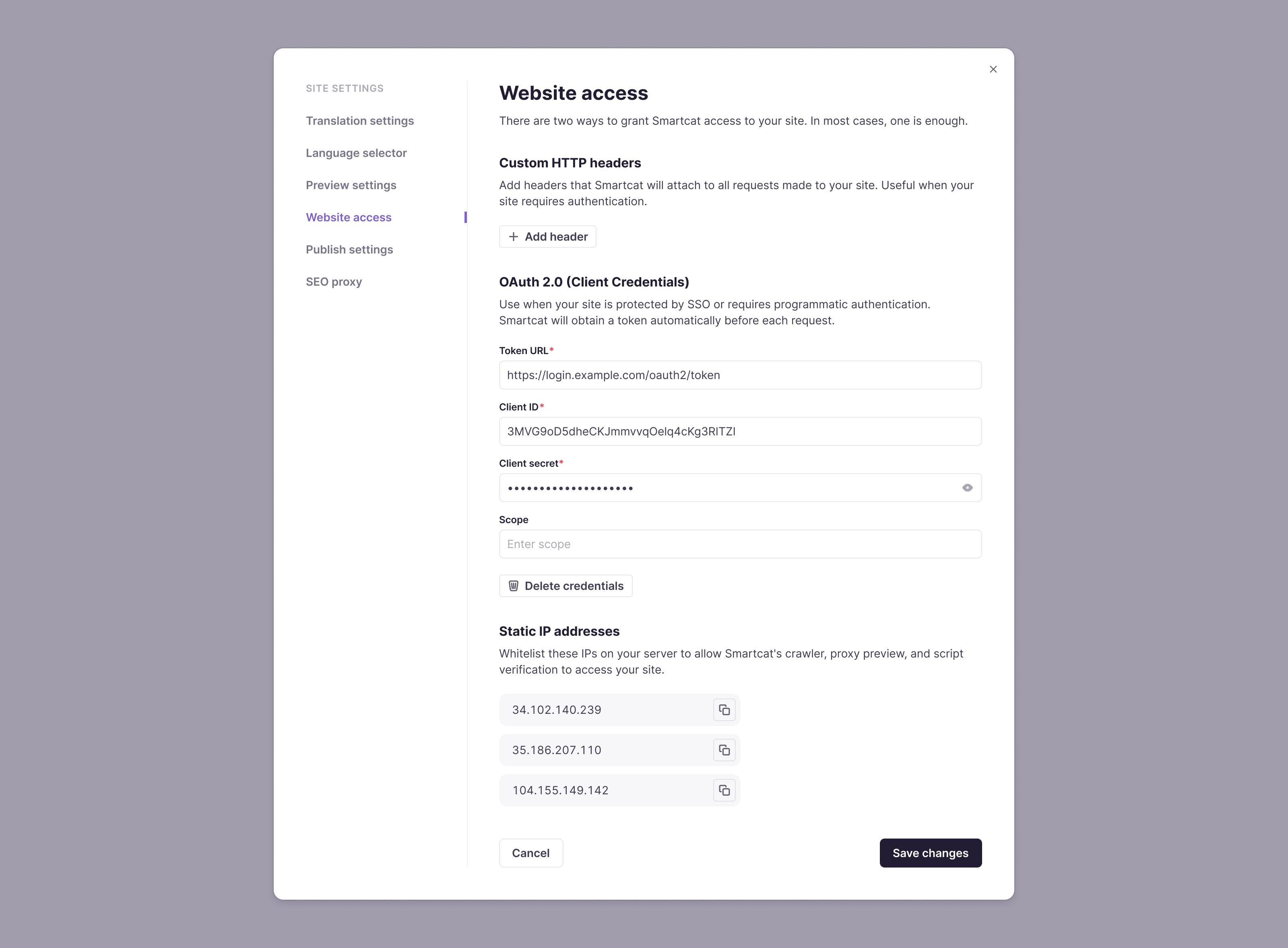
Go to Visual Editor, Click Settings Icon, Go to Website Access
Method 1 — IP Whitelisting
IP Whitelisting allows Smartcat's crawler and Visual Editor to reach the site by adding Smartcat's known IP addresses to the customer's allowlist. The site continues to block all other unrecognized traffic.
Step 1 — Get Smartcat's static IP addresses
Obtain the current list of Smartcat's static IP addresses from support or the account team. Smartcat provides these IPs.
Step 2 — Have the customer add the IPs to their allowlist
Share the IP addresses with the customer's development or IT team and ask them to add them to their site's WAF, CDN, or firewall allowlist rules. Once added, Smartcat can reach the protected pages and reviewers can work in the Visual Editor.
Method 2 — Custom HTTP Headers
A custom HTTP header is a secret key-value pair that Smartcat sends with every request it makes to the site. The site checks for the header and grants access only when it matches — acting like a password Smartcat shows at the door.
Step 1 — The customer's team creates the header
Ask the customer's development or IT team to define a custom header name and a secret token value, then add it to their site's allow-list or exclusion rules.
Example:
-
Name: X-Smartcat-Access
-
Value: your-secret-token
Any request carrying this header is allowed through.
Step 2 — Add the header in Smartcat
In the website project, navigate to: Project page → Open Editor → Settings icon → Website Access → Custom HTTP Headers
Enter the same header name and value the customer's team created. Save the settings. Smartcat will now attach this header to all requests it makes to the site, granting access without making the site publicly accessible.
Method 3 — OAuth 2.0 (Client Credentials) — Website Access
OAuth 2.0 Client Credentials Flow allows the crawler and Visual Editor to authenticate automatically before each request without any browser-based login.
This is the recommended approach for sites protected by enterprise SSO systems such as Salesforce Experience Cloud, or any platform that supports OAuth 2.0 Client Credentials.
Use this method when your website:
-
Requires programmatic authentication (e.g. Salesforce Experience Cloud, Azure AD-protected staging sites)
-
Cannot be accessed by IP whitelisting alone because the login itself requires credentials
-
Is protected by SSO that issues tokens via Client Credentials flow (machine-to-machine, no user browser interaction)
Your team creates an OAuth client application on your identity provider (e.g. a Salesforce External Client App). Smartcat uses the Client ID and Client Secret to automatically obtain a bearer token before each request. The token is passed in the request headers so your site lets Smartcat through — no browser, no manual login.
Step 1 — Create an OAuth Client Application on your platform
The exact steps depend on your identity provider. Below is the example for Salesforce Experience Cloud.
Salesforce External Client App (recommended for Experience Cloud):
-
In Salesforce Setup, go to External Client Apps → New
-
Set OAuth flow to Client Credentials
-
Grant the app access to the Experience Cloud pages you want translated
-
Note down the Consumer Key (Client ID) and Consumer Secret (Client Secret)
-
Note your instance URL (e.g.
https://yourcompany.my.salesforce.com)
The Token URL for Salesforce is typically:
https://yourcompany.my.salesforce.com/services/oauth2/token
Step 2 — Enter credentials in Smartcat
-
In your website project, navigate to Project page → Open Editor → Settings icon → Website Access → OAuth 2.0 (Client Credentials)
-
Fill in the following fields:
| Field | Description | Example |
|---|---|---|
| Token URL | The endpoint Smartcat calls to obtain a token | https://yourcompany.my.salesforce.com/services/oauth2/token |
| Client ID | The OAuth client identifier (Consumer Key in Salesforce) | 3MVG9oD5dheCKJmmvvqOelq4cKg3RITZI |
| Client secret | The OAuth client secret (Consumer Secret in Salesforce) | (enter directly — do not share in email or chat) |
| Scope | Optional. Required only if your app defines a specific scope | api or leave blank |
- Click Save changes.
⚠️ Enter credentials directly in the Smartcat UI. Do not share Client IDs or Client Secrets over email, Slack, or other chat tools.
Step 3 — Whitelist Smartcat's static IPs (recommended)
Even with OAuth configured, we recommend also whitelisting Smartcat's static IP addresses on your server for an additional layer of trust. Your IT/WAF team can allowlist these IPs:
-
34.102.140.239 -
35.186.207.110 -
104.155.149.142
These are visible in your project's Website Access → Static IP addresses section and can be copied directly from there.
Using OAuth with Other Access Methods
OAuth 2.0, IP Whitelisting, and Custom HTTP Headers are complementary. You can combine them on the same project for additional security. For most SSO-protected sites, OAuth alone (plus IP whitelisting) is sufficient.
Want to learn more?
See how Smartcat can transform your localization workflow.
Still need help?
Our support team responds within one business day.