Simplify text formatting in IDML files
Overview
When you upload an IDML file to Smartcat for translation, you might see segments with too many tags. If this happens, you can change the tag settings to reduce their number and speed up document processing.
Here is an example of the settings screen that you see, using a simulation file upload.
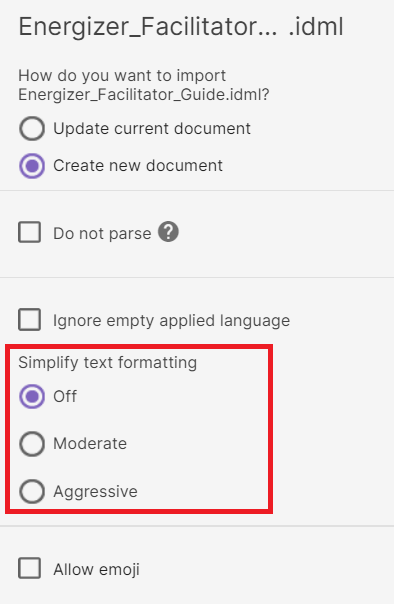
Understanding the Simplify text formatting options
There are three options to choose from.
Off
This is the default option. Choose this mode if you do not want to simplify formatting. It does not merge any CharacterStyleRange tags.
Moderate
This option applies the following thresholds:
-
Kerning: [-50..50]
-
Tracking: [-50..50]
-
Baseline Shift: [-2..2]
Aggressive
This option applies 2x the Moderate thresholds.
At CharacterStyleRange processing time, if any of the kerning, tracking, or baseline shift parameters are within a selected threshold, they are ignored and considered equal to zero. Then the standard logic applies: if there are two or more consecutive CharacterStyleRange elements with the same style, they are merged together.
Understanding the Ignore empty applied languages checkbox
This checkbox is switched off by default. It is used to ignore specific attributes around applied languages.
If you turn it on, two consecutive CharacterStyleRange elements that differ by this attribute merge together. The first CharacterStyleRange value in the sequence wins.
Preserving accessibility elements in IDML translation
Smartcat can translate image alt text and InDesign's “Actual Text” (from Object Export Options) in IDML files, but this is setting switched off by default.
When adding an IDML file, enable the Load actual/alt text checkbox on the upload settings screen (the same screen as Simplify text formatting) — this must be set at import time, so an already-uploaded file needs to be re-added (or added to a fresh project) with the box ticked. The translated alt/actual text is then written back into the exported IDML.
Three other accessibility elements are currently NOT carried through Smartcat's IDML processing and remain to be handled in InDesign itself:
-
document/XMP metadata (title, description, keywords, copyright)
-
the applied language attribute on text
-
PDF/UA tag structure (which is produced at InDesign's own export/tagging step, e.g. a MadeToTag workflow)
Smartcat translates the story text and, with the setting above, alt/actual text — everything else in the file is carried through unchanged from the source.
FAQs
Can I translate InDesign files in Smartcat?
InDesign files can be translated in Smartcat, but before the files can be processed for translation they need to be converted from a binary format to different formats. These formats are also InDesign formats, and the conversion can be done from within InDesign itself. Depending on the InDesign version, files need to be converted to the .inx format or the .idml format. Smartcat can process both these formats.
There is more information about InDesign formats and save options at https://helpx.adobe.com/indesign/using/saving-documents.html
How does Smartcat format translations into right-to-left languages in an IDML file?
Smartcat translates the text inside an IDML/InDesign file into Arabic or Hebrew, but it does not change the paragraph direction, text alignment, or the file's applied-language setting. That formatting remains exactly as it was in the original left-to-right layout. Right-to-left formatting has to be applied afterward in InDesign itself: open the translated file in a version of InDesign with Middle Eastern / World-Ready language support, and switch the paragraph direction to right-to-left for the translated text frames. This is expected behavior — there is no mechanism in Smartcat's file-export code that writes text direction into IDML — so every IDML export into an RTL target language requires this manual InDesign step before the layout will be read correctly.
Want to learn more?
See how Smartcat can transform your localization workflow.
Still need help?
Our support team responds within one business day.