Translating Word documents with tracked changes and comments
Overview
Smartcat can translate Microsoft Word (.docx) documents that contain tracked changes (insertions, deletions, overwritten text) and inline comments. To process this content, upload the file as a native .docx and enable the relevant parsing options before translating. Files uploaded as PDF are processed through OCR and do not support these options, which is the most common reason tracked changes and comments go missing from the translated output.
When to use it
Use this workflow when your source document has been reviewed in Word and you need the translation to reflect not just the final text, but also what the reviewer changed and commented. Typical cases:
-
A reviewer marked up the document with tracked changes (added, deleted, or replaced text) that you need translated.
-
The document contains inline Word comments that the target-language team needs to read.
-
You need to evaluate a reviewer's modifications in a language your team works in.
Requirements and Limitations
-
The file must be uploaded as a native .docx, not as a PDF. The parsing options for comments are not available for PDF files.
-
A PDF exported from Word with tracked changes still visible is processed through OCR. OCR reads the strikethrough and underline revision markup as literal text, producing garbled or doubled segments and dropping the tracked-change structure.
-
If you need the reviewer's edits preserved as visible tracked changes in the output (so you can see exactly what was changed), use the two-version method described under "Translate both the final text and the revisions."
⚠️ If the translated output is missing tracked-change content or comments, the most likely cause is that the source was uploaded as a PDF rather than a .docx.
How it works
Step 1 — Open the project's Files section
- In an existing project, open your project and go to the Files section.
- If you do not have an existing project to use for this translation, you can create a new project without uploading any files, then continue to Step 2.
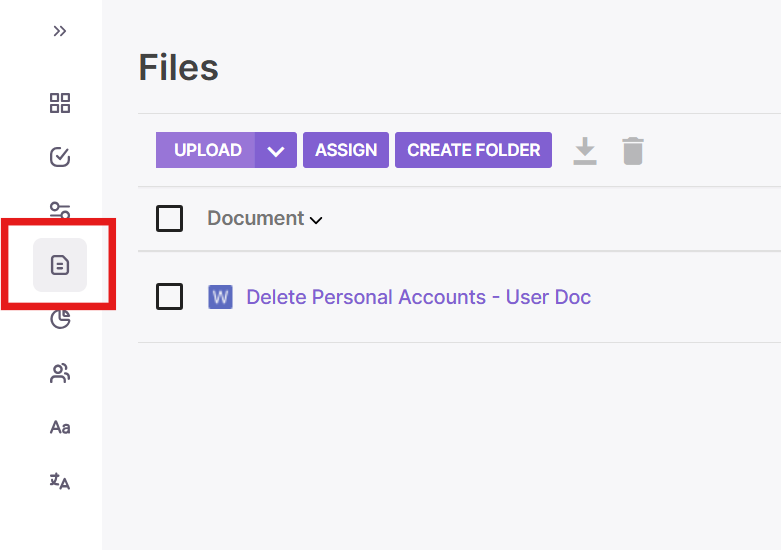
Step 2 — Upload the original .docx
-
Click Upload
-
Select the original .docx file and upload it
-
Smartcat automatically navigates to the settings for the uploaded file
Step 3 — Enable comment parsing
- Select Upload document comments and any other options that fit your needs.
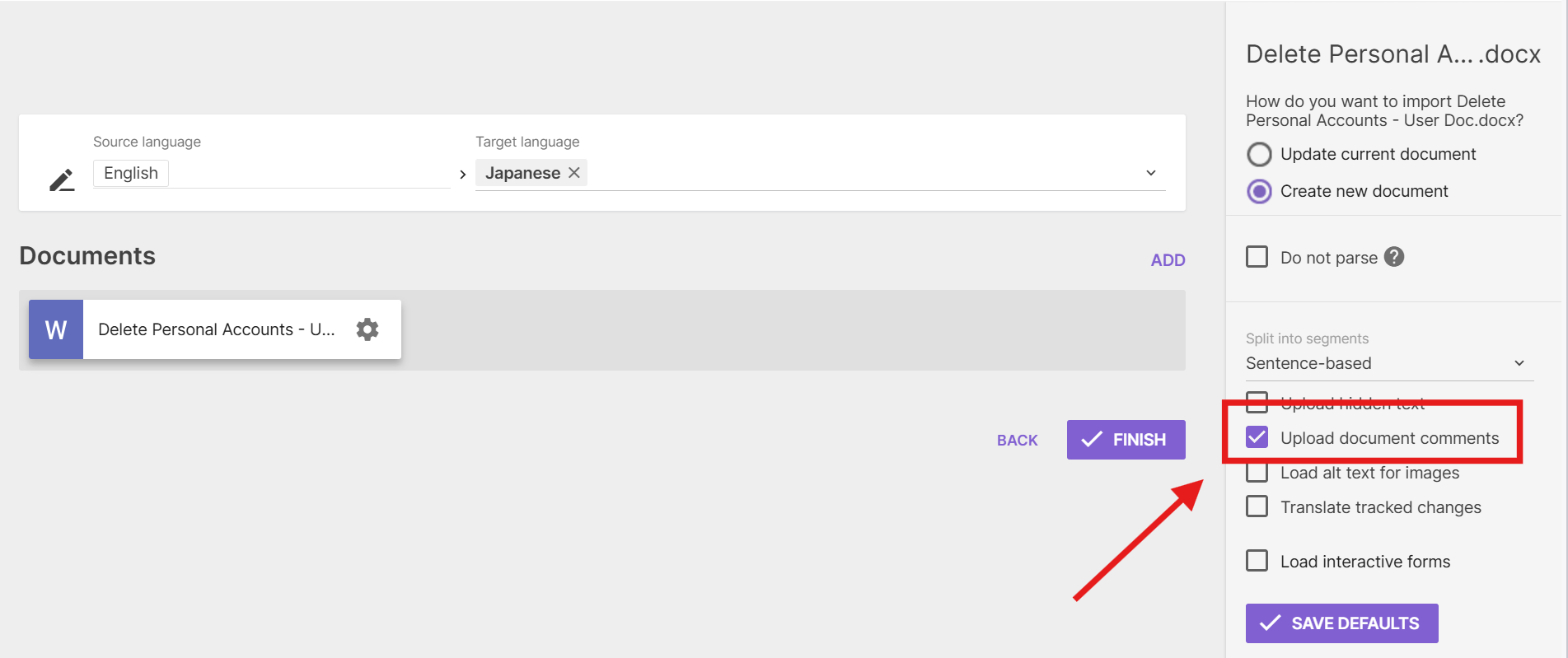
- Apply the options to this file. You can also click Save Defaults to use these settings for future Word document uploads.
Step 4 — Run the translation
- Click Finish to run the translation and download the translated .docx.
Translate both the final text and the revisions
When you need to see exactly what a reviewer changed and have those changes translated, translate two versions of the source document and compare them:
-
In Word, create a copy of the source with all changes accepted (Review → Accept → Accept All Changes) and a second copy with all changes rejected (Review → Reject → Reject All Changes).
-
Upload both .docx files to the project and translate them.
-
Compare the two translated outputs to see the reviewer's insertions and deletions in the target language.
-
Translate the comments using the Upload document comments option described above.
Want to learn more?
See how Smartcat can transform your localization workflow.
Still need help?
Our support team responds within one business day.