Create and manage client quotes
Overview
Quotes, cost calculations, and billing can take significant time and effort from your team. Smartcat lets you generate quotes inside projects and issue invoices that incorporate those quotes. This article walks you through how it works.
Before you begin
Start by adding your clients to Smartcat and setting net rate schemes for them. A net rate scheme assigned to a client is applied automatically when Smartcat calculates statistics (the Statistics tab in the project) for any project where that client is set, which makes quote creation faster. Adding a few services and rates in advance helps even more.
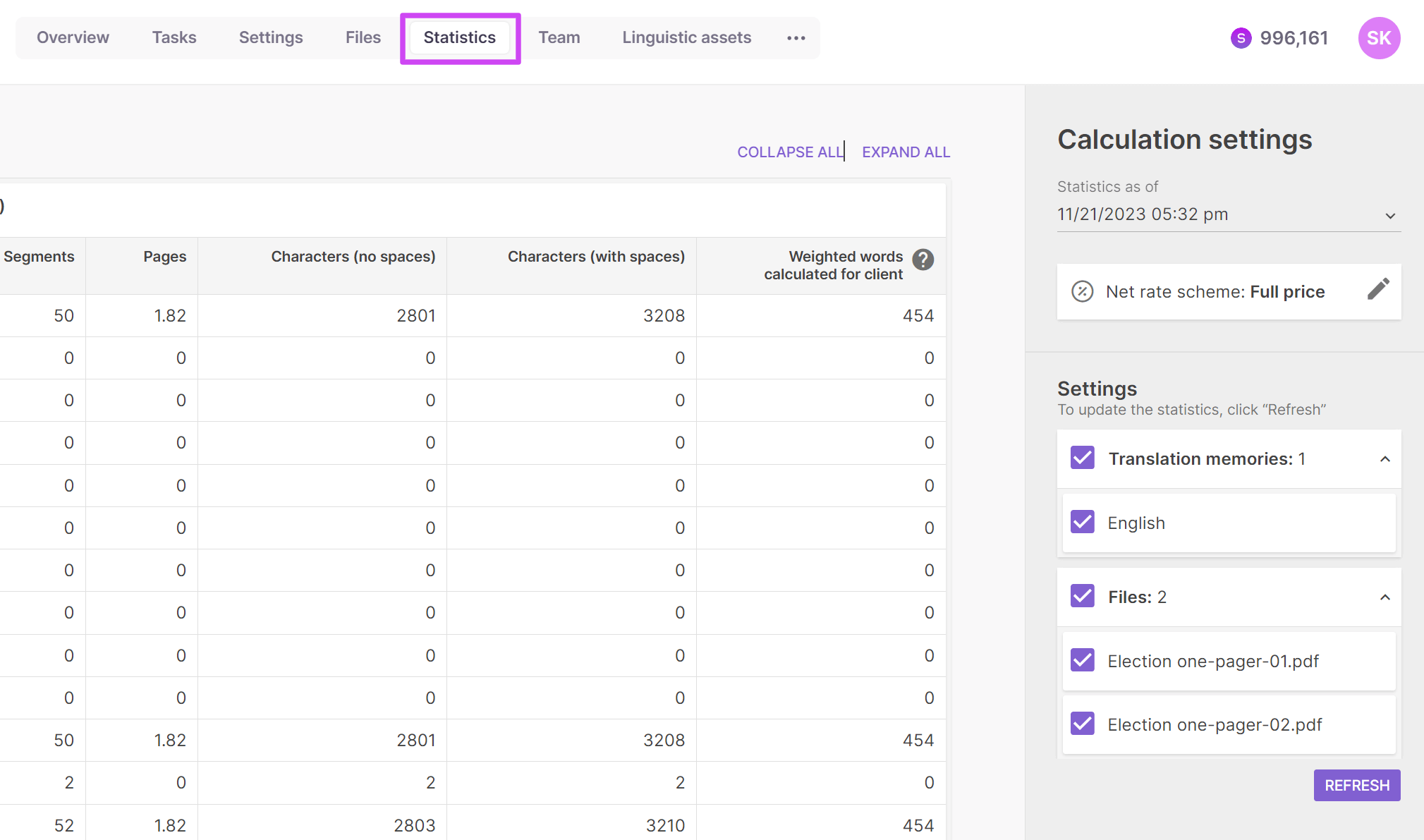
Every project in your corporate account has a Quote tab, where you calculate the cost of work for the client using one of the statistics snapshots calculated in the project. If you calculate cost outside Smartcat, you can attach a file with those calculations while forming a quote, but using statistics generated in Smartcat is the better option.
Create a quote
This section assumes you have already filled out the client card and set up the project.
-
Open the project and go to the Quote tab
-
In the first step, confirm the details. Smartcat takes the client from the project and the contact person from the client card, so you only choose the currency and set the approval deadline if needed
-
In the second step, click Insert to pull the calculations from the project's Statistics tab into the form
-
Smartcat uses the last calculated snapshot by default
-
You can select a previously formed snapshot if one exists
-
If you forgot to calculate statistics beforehand, Smartcat calculates them at this moment
-
💡 You can attach an external calculation file instead of using Smartcat statistics, but Smartcat statistics give you a more detailed, automatic breakdown.
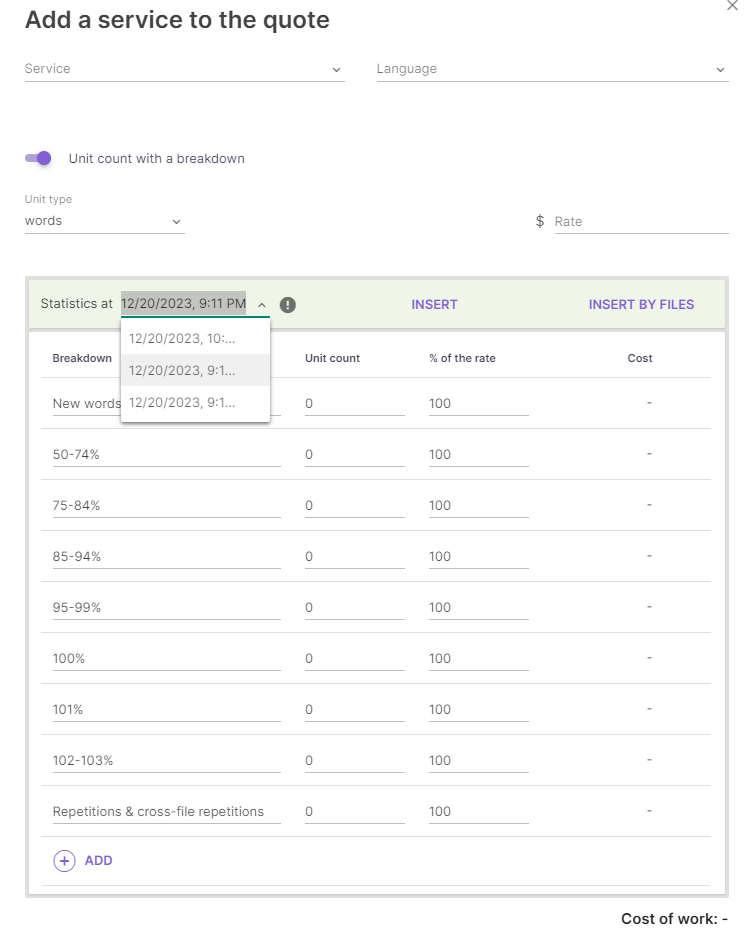
You can now review the quote in the project.
Parameters in the second step
-
Service: if no suitable service exists yet, you can add a new one directly in this field. Set up services and rates in the Clients section
-
Language: select one of the language pairs the project has
-
Unit count with a breakdown: hide the breakdown and set only the unit type and unit count, without pulling Smartcat statistics from the project
-
Unit type: choose one of 6 preset units — characters, words, hours, minutes, documents, and pages
-
Rate: the price for 100% of the rate in detail rows for a unit. Added automatically if the service and rate are specified in the corporate account
-
Statistics at {date}: snapshots from the project's Statistics tab. See project statistics to learn how Smartcat calculates statistics
-
Breakdown: detail rows with calculations. You can add your own row or remove a preset one
-
Cost of work
Final step
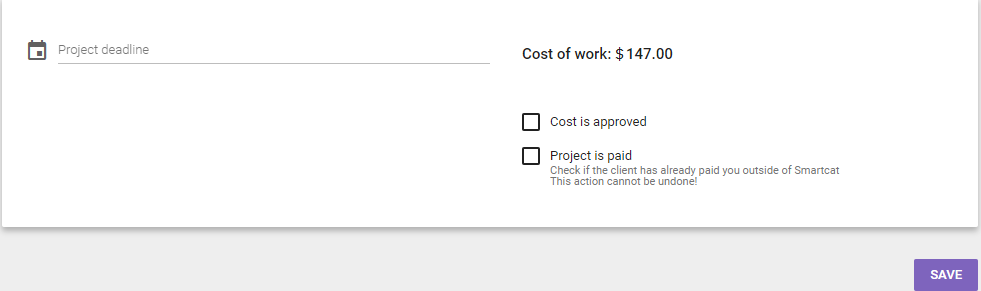
In the last step, you specify the project deadline, whether the cost is agreed upon, and whether the project has already been paid.
⚠️ If you mark a project as paid, the quote cannot be used for invoicing the client or edited later.
After the quote is formed
Once a quote is formed, you can download it or send it for approval. You can make corrections to the calculation later or add a new service, for example, project management.
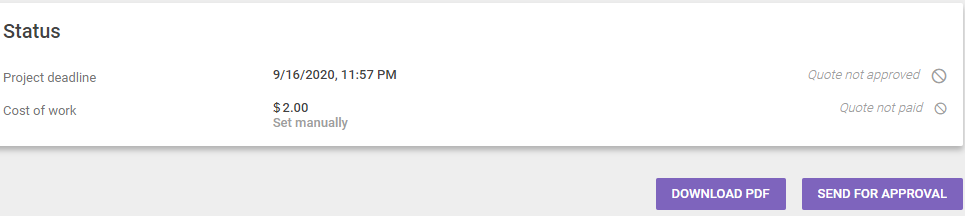
You can then use the quote for invoicing the client.
⚠️ A quote included in an invoice cannot be edited. Delete the invoice first before making any changes.
Custom quote templates
You can build your own custom template, or a separate template per client, that includes other data. This is especially valuable when you want to quote clients in their native language. With a Smartcat subscription, you add new templates in the corporate account settings. To learn more about the data you can operate on in templates, see the Smartcat Template Engine article.
Want to learn more?
See how Smartcat can transform your localization workflow.
Still need help?
Our support team responds within one business day.