Add placeholders
Overview
Placeholders are variables that replace certain text content — for example names, numbers, dates, or images. All placeholders must be copied to the translation, though in some cases you insert them manually.
How to insert placeholders
Using hotkeys
Click the target text where the placeholder should go and press Ctrl+Alt plus the placeholder number — Ctrl+Alt+1, Ctrl+Alt+2, and so on.
Using the mouse
Place your cursor in the target text where the placeholder should go, then click the placeholder icon in the source. You can also press the toolbar button that appears when the source segment contains a placeholder, or press Ctrl+Q.
📌 If a segment contains multiple placeholders, they are inserted in the same order as they appear in the source.
How to add custom placeholders
Add your own placeholder formats on the Placeholders tab in the Settings menu. Use regular expressions to create formats that import variables from files in these formats: CSV, INC, JSON, MQXLIFF, PHP, PO, RESX, SDLXLIFF, STRINGS, TJSON, TTX, XLF, XLIFF, and XML. Placeholders are applied from the top down, and you can change the order.
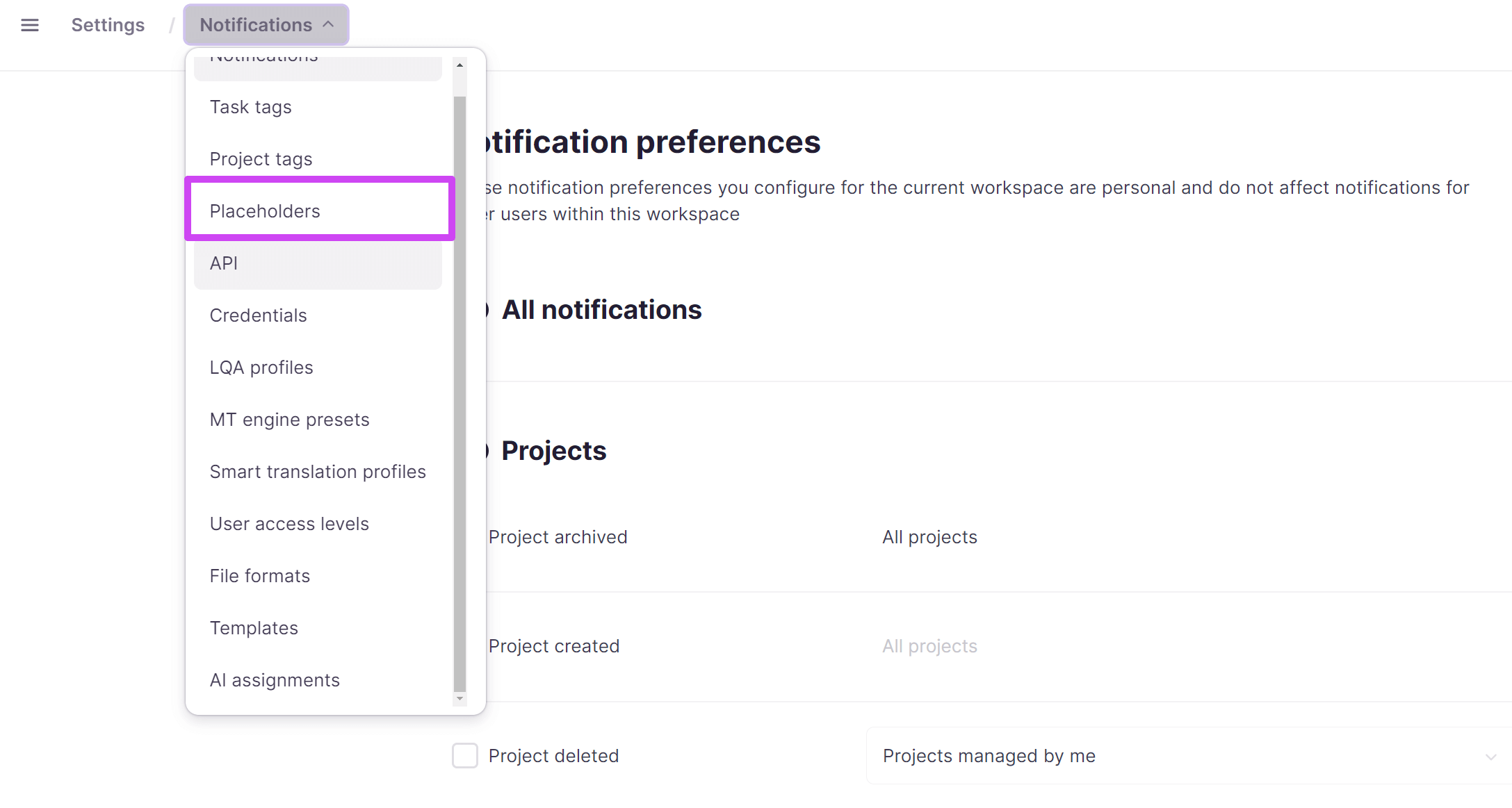
💡 You can test placeholders with regex101.
⚠️ Placeholder settings apply to the whole account and every project in it. If you need different placeholders for different projects, avoid restarting markup or refreshing project files after you change your placeholder settings or their order.
How to add placeholders when creating a project
-
Upload a file to a project and click its name in the Documents section — the Settings menu opens on the right
-
Select the Use placeholders to import variables checkbox
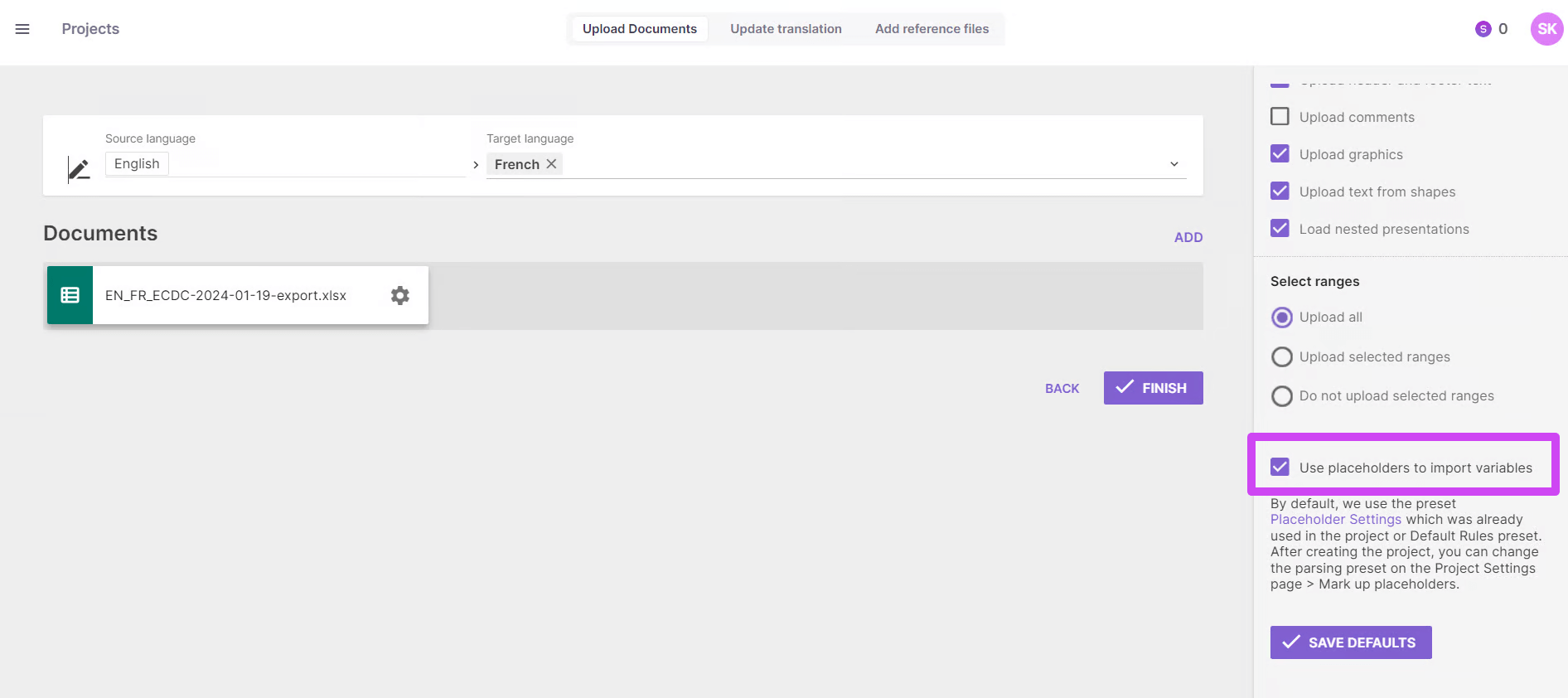
📌 Adjust the settings separately for each file.
When project creation finishes, placeholder markup is applied to the selected files.
How to add placeholders after creating a project
Go to the project page and click Mark Up Placeholders. This button also refreshes the placeholder markup after you add or remove placeholders or change their order.
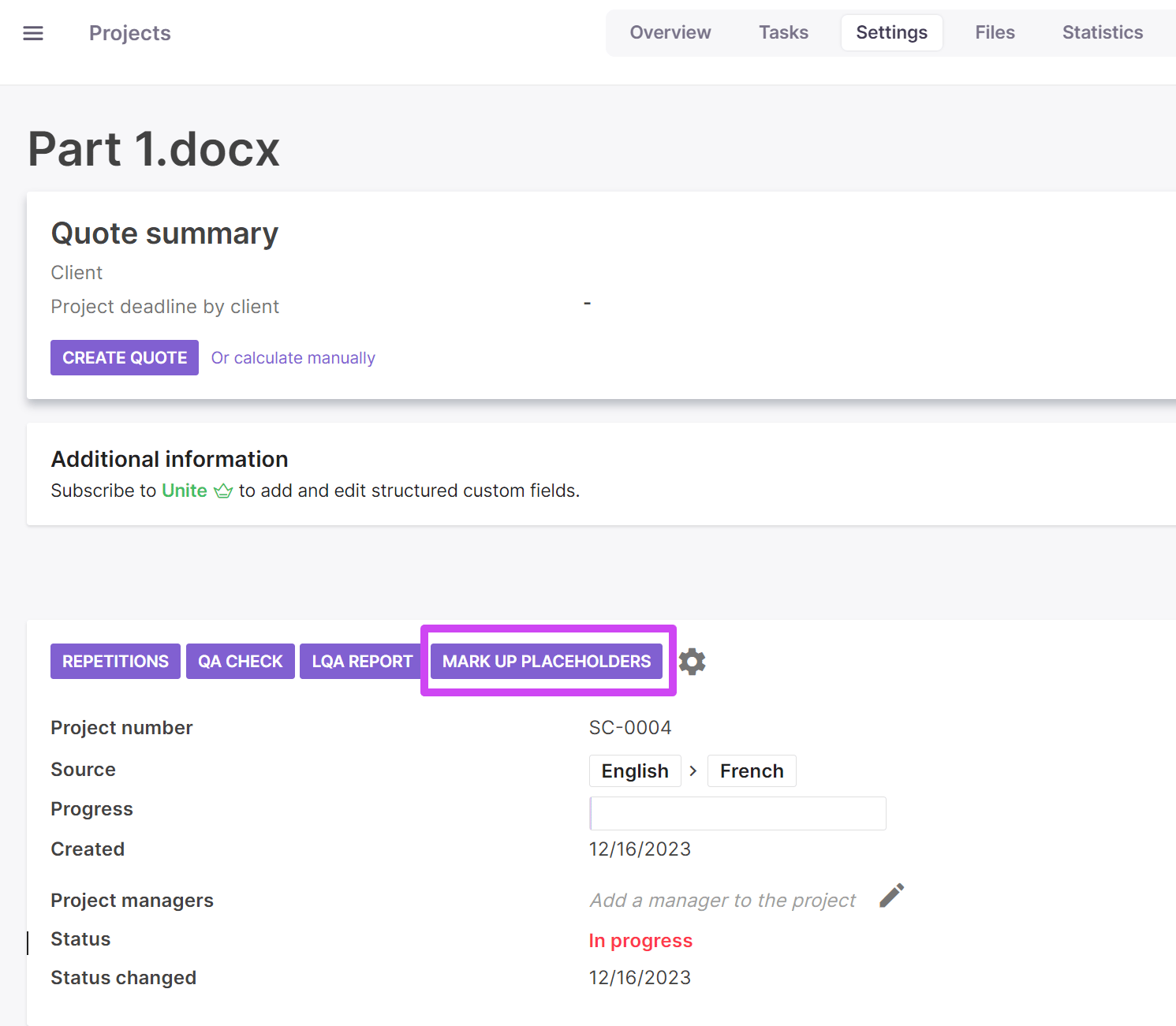
⚠️ If placeholders are added to already-confirmed segments after a markup refresh, those segments become unconfirmed, because a missing placeholder is a critical error.
FAQs
What exactly is a placeholder in Smartcat, and why must it be copied into the translation?
A placeholder is a variable that stands in for content like names, numbers, dates, or images; it must be copied into the translation as-is (in some cases manually) so the underlying variable data still populates correctly.
What are my two ways to insert a placeholder while translating?
Use a hotkey (Ctrl+Alt plus the placeholder's number, e.g. Ctrl+Alt+1) or click the placeholder icon in the source / press Ctrl+Q.
If a segment has several placeholders, does the order matter?
Yes — when a segment contains multiple placeholders, they must be inserted in the same order in which they appear in the source.
Can I define my own custom placeholder formats?
Yes — on the Placeholders tab in Settings, you can use regular expressions to define custom formats for file types like CSV, JSON, PHP, PO, RESX, XLIFF, XML, and others; you can test your regex on regex101.com before saving.
What happens if I add a placeholder to a segment that's already confirmed?
The segment becomes unconfirmed again, because a missing placeholder is treated as a critical error requiring correction.
Do placeholder settings apply per-project or account-wide?
Account-wide — placeholder settings apply to every project on the account, so if different projects need different placeholder rules, avoid restarting markup or refreshing project files right after changing the settings, since that reapplies the new rules broadly.
Want to learn more?
See how Smartcat can transform your localization workflow.
Still need help?
Our support team responds within one business day.