Add lip sync to AI-dubbed videos
Overview
Lip sync is a workflow stage for video projects. After Smartcat creates the AI voiceover in the target language, Lip sync re-animates the speaker's lips to match the new speech, so the dubbed video looks natural on screen. The video length doesn't change, and each target language gets its own lip-synced video.
When to use it
-
Make AI-dubbed videos look natural when a speaker's face is visible on screen
-
Match the speaker's lip movements to the translated voiceover instead of the original speech
-
Create lip-synced videos for several target languages in one run
How to use it
Add the Lip sync stage to a workflow
Lip sync runs after the stage that creates the AI voiceover, so add it after your review stage.
-
Go to the Create a project page. You can upload your video to configure the lip sync stage in the wizard, or create a project without a video and add the stage later.
-
Select the source language and the target languages
-
If you uploaded a video, under Output format, select Video with AI voiceover
-
Open Additional settings, and in Workflow template, select Manual stage selection
-
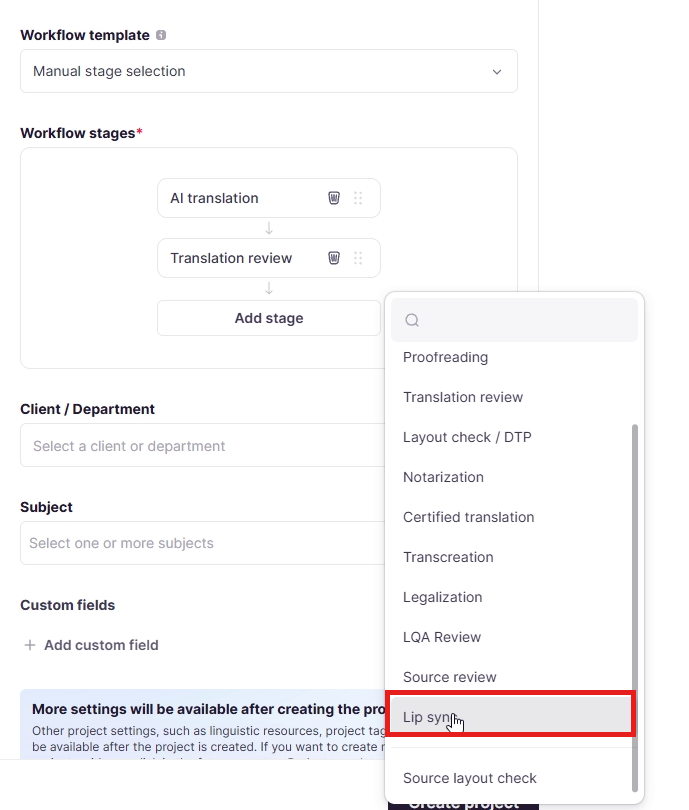
Under Workflow stages, click Add stage and select Lip sync. The lip sync stage must follow these rules:
-
It cannot be the first workflow stage
-
It cannot be placed after an external stage (like source layout check)
-
You can only place external stages after lip sync stage
-
- Click Create project
Your project now has a workflow that creates the AI voiceover first and then runs Lip sync.
Run lip sync
Lip sync never starts automatically. You start it from the editor.
-
Open your video in the editor and click Mark processed at the Translation review stage. Smartcat creates the AI voiceover and moves the file to the Lip sync stage
-
Wait while the player shows "Waiting for the voiced-over video..." The Lip sync window opens when the video is ready
-
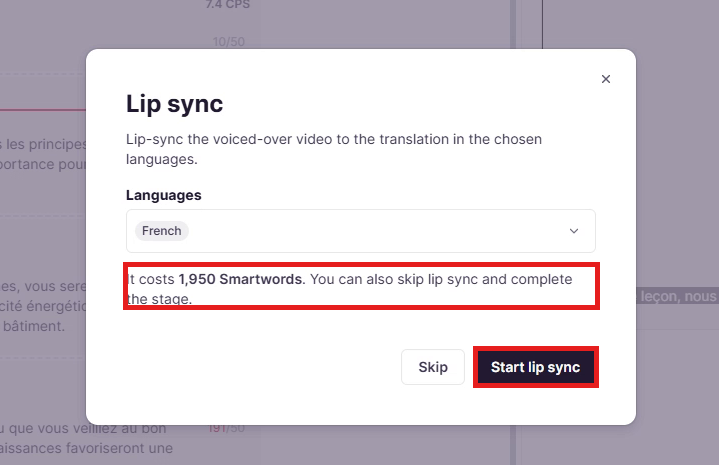
In the Lip sync window, check the Languages list
-
The list includes the open translation and every other language of the file that is ready for lip sync
-
All languages are selected by default, and you can't remove the open translation
-
-
Check the price in the window, then click Start lip sync
-
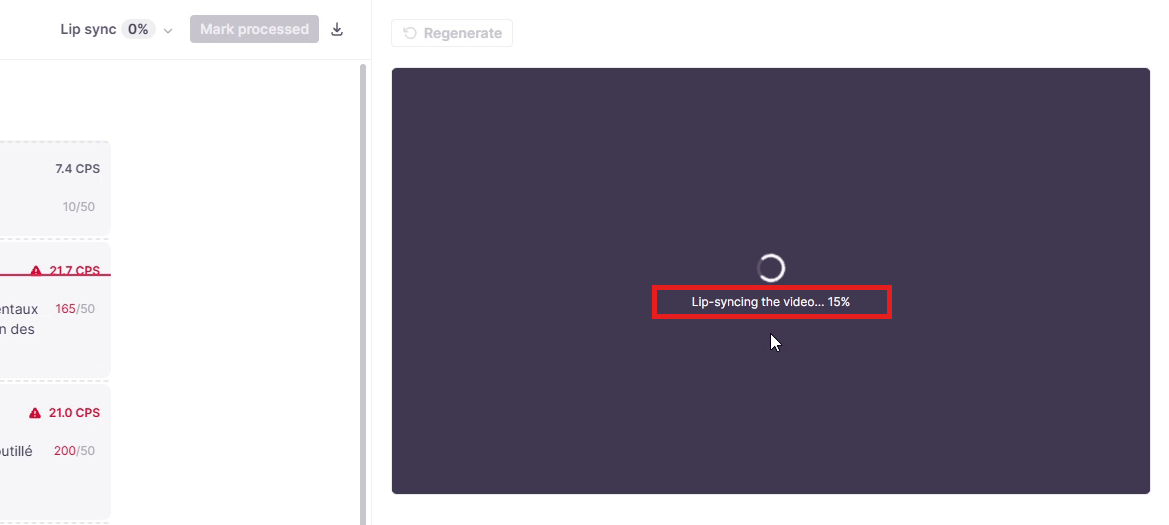
Wait while the player shows "Lip-syncing the video..." and a progress percentage. Lip sync takes a few minutes, and you can't complete the stage while it runs
-
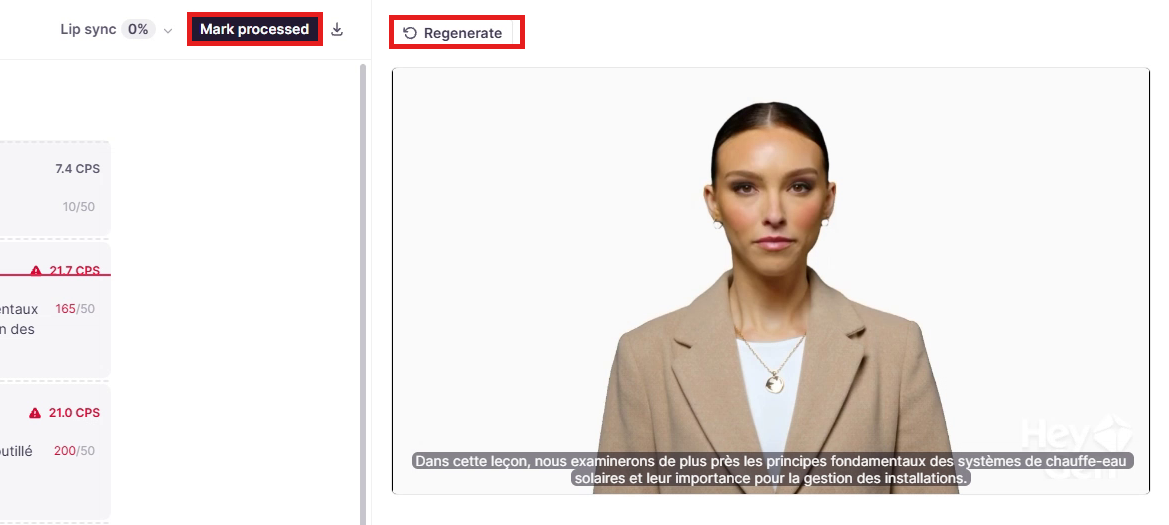
Play the lip-synced video in the player to check the result
-
Click Mark processed to complete the stage. Smartcat doesn't complete the stage automatically after a successful run
Your video is lip-synced for each language you selected, and the stage is complete.
If you want to complete the stage without lip sync, click Skip in the Lip sync window. The AI voiceover video becomes the result.
If you close the Lip sync window, click Start lip sync above the player to open it again.
Regenerate lip sync
Regenerate creates a new lip-synced video for the open translation only.
-
Click Regenerate above the player
-
In the Regenerate lip sync confirmation, check the price and confirm
Smartcat creates a new lip-synced video and keeps the earlier files in Drive.
Price and Smartwords
Lip sync costs 65 Smartwords per started second of video, for each language. Smartcat rounds the length up to a whole second. For example, a 10.2-second video is billed as 11 seconds, which is 715 Smartwords. A 30-second video costs 1,950 Smartwords per language.
-
The Lip sync window shows the total price for the selected languages before anything runs, and updates it when you add or remove a language
-
Smartcat checks your balance when you click Start lip sync. If the balance doesn't cover all selected languages, nothing starts and a window tells you. Members of the paying workspace can click Get Smartwords
-
Smartcat reserves the Smartwords when a run begins and charges them after the lip-synced video is saved. If a run fails, times out, or Smartcat can't process the file, Smartcat releases the reservation and charges nothing
-
Regenerate is a new run and costs the same rate again
-
Smartcat leaves out a language that is already lip-synced from its current AI voiceover when you start several languages, so you don't pay twice
-
The Smartwords always come from the workspace that owns the file, including when a vendor manager starts lip sync in a client's project
-
The Smartwords usage report lists the charge as "AI Lip sync"
For more about balances and the usage report, see Understanding Smartwords.
Find your lip-synced video
-
Editor player: before lip sync, the player plays the AI voiceover video. After lip sync, it plays the lip-synced video
-
Drive: each run creates a new file next to the AI voiceover video, named
{AI voiceover video} [{language} LIPSYNC], for examplevideo [de DUB] [de LIPSYNC].mp4. Regenerating adds a new numbered file and keeps the earlier ones -
Exports: course and package exports and the export of a single video deliver the lip-synced video. There is no separate export option for lip sync. For export steps, see Export video, subtitles, and dubbing from Smartcat
-
Course preview: for files in a course, the preview switches to the lip-synced video when the run finishes
Smartcat uses the AI voiceover video instead when you skip lip sync or when a run fails. After a failed regenerate, the earlier successful lip sync still counts.
If you regenerate the AI voiceover after lip sync, the earlier lip-synced video is no longer used. Start lip sync appears again, and the AI voiceover video is used until you run lip sync again.
Requirements and limitations
-
Your project needs a video file and an AI voiceover made at an earlier stage of the same project. To create one, see Add multilingual AI dubbing to videos
-
You need permission to edit the translation while its Lip sync stage is open. Vendor managers working in a client's project can also start lip sync
-
Your workspace needs enough Smartwords for the languages you select
-
Video files up to 200 MB. If a video is larger, Smartcat completes the stage without lip sync and shows "The video is too large for lip sync, so the stage was completed without it."
-
Audio files aren't supported. The editor shows "Lip sync works only with video, and this file is audio."
-
Software localization projects don't offer Lip sync
-
Lip sync processes the whole video. You can't lip-sync part of a video
-
Lip sync has one quality mode
-
Lip-synced videos show a HeyGen watermark in the lower-right corner of the video
-
The translation is read-only at the Lip sync stage. To change the text, edit the translation at an earlier stage and run lip sync again
FAQs
Why don't I see Lip sync in the stage list?
Lip sync isn't turned on for your workspace, or your project is a software localization project, which doesn't offer Lip sync. If your workspace should have it, contact Smartcat support.
What does "Add a stage where the video is voiced over before the lip sync stage" mean?
No stage before Lip sync creates the AI voiceover. Add the stage that creates it before Lip sync. If the message is "Move the stages where the video is voiced over before the lip sync stage", move the voiceover stage so it comes before Lip sync.
What do I do when a stage made no voiced-over video?
Lip sync needs an earlier stage that produces a video with an AI voiceover. If that stage produced burned-in subtitles or the AI dubbing failed, lip sync can't run. Complete the stage with Complete without lip sync.
What does "Lip sync failed. Regenerate it to try again." mean?
The lip sync run failed or didn't finish in time. Smartcat doesn't charge for it. Click Regenerate to try again, or complete the stage without lip sync.
Why is Mark processed disabled?
Lip sync is running, or Smartcat is still creating the AI voiceover. Wait until the run ends.
Why does my export have the AI voiceover and not the lip sync?
Exports use a lip-synced video only when it was made from the current AI voiceover. Lip sync was skipped, failed, or is still running, or the AI voiceover changed after lip sync. Open the file at the Lip sync stage and click Start lip sync.
Was I charged twice?
Every start and every regenerate is a separate charge. Failed runs are free. Check the "AI Lip sync" lines in the Smartwords usage report.
Want to learn more?
See how Smartcat can transform your localization workflow.
Still need help?
Our support team responds within one business day.