Translate videos, subtitles, and audio - Workflow
Overview
Translating videos, audio, or subtitle files with Smartcat AI is a streamlined process. You upload your files, let Smartcat transcribe or link them, and then translate or edit them. This guide walks you through the process, from creating a project to finalizing your translations.
📌 This workflow does not include adding burned-in subtitles to your videos. To do that, use the video translation workflow via Smartcat Drive. Burned-in subtitles will be added to the project creation workflow in the future.
Step 1: Create a project
-
Log into Smartcat and go to your workspace home screen
-
Click Create a Project
-
Select the type of project you want to start. In this case, choose to translate a video, audio, or subtitle file. You can also set your project title, languages, and additional settings
📌 If you want to make adjustments to the transcript, add a source language check stage to your workflow through Additional Settings at this point in the process.
Your project is now set up and ready for file upload.
Step 2: Upload your files
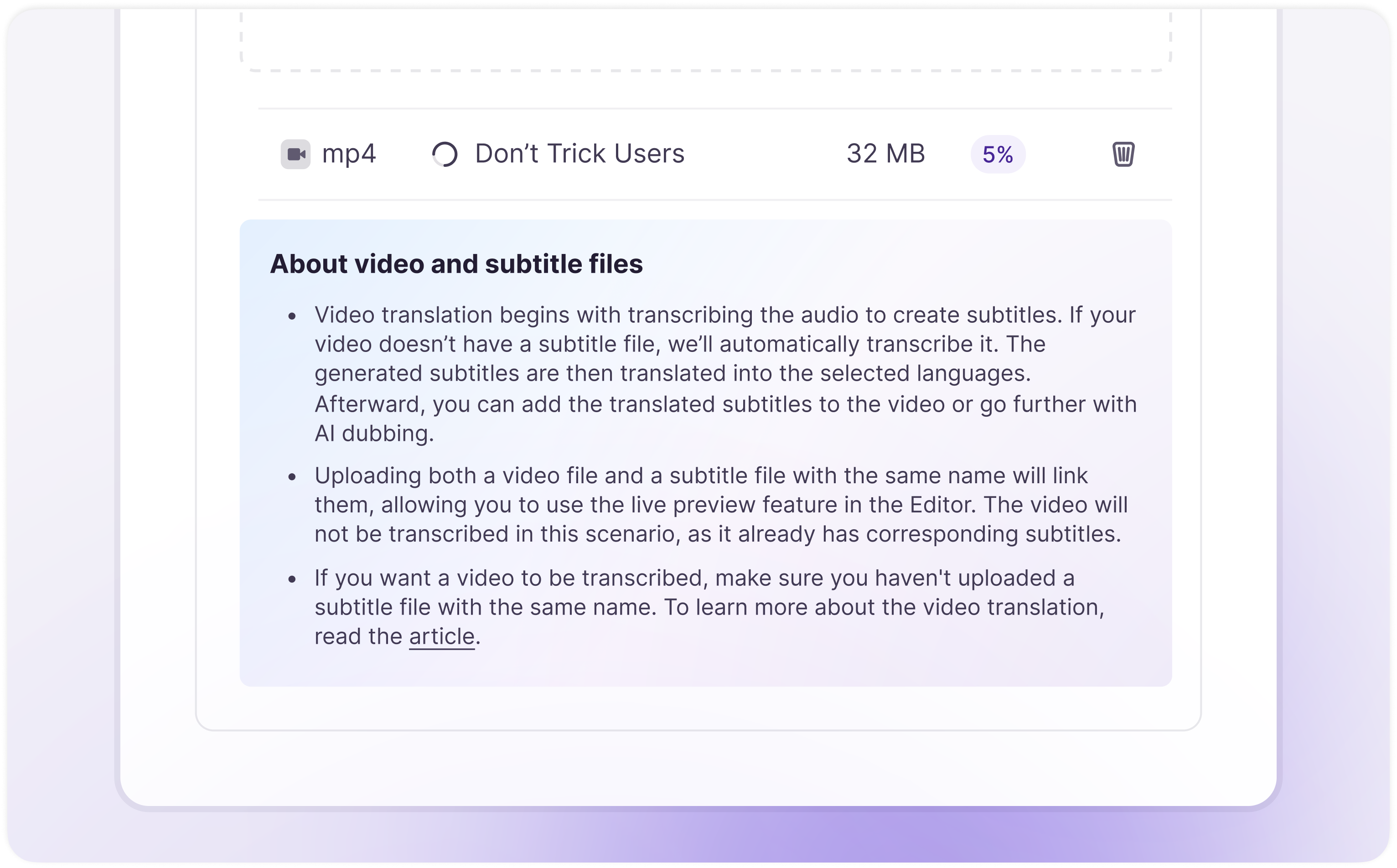
If uploading a video file
-
Automatic transcription: if no subtitle file with the same name is uploaded, Smartcat generates subtitles by transcribing the video
-
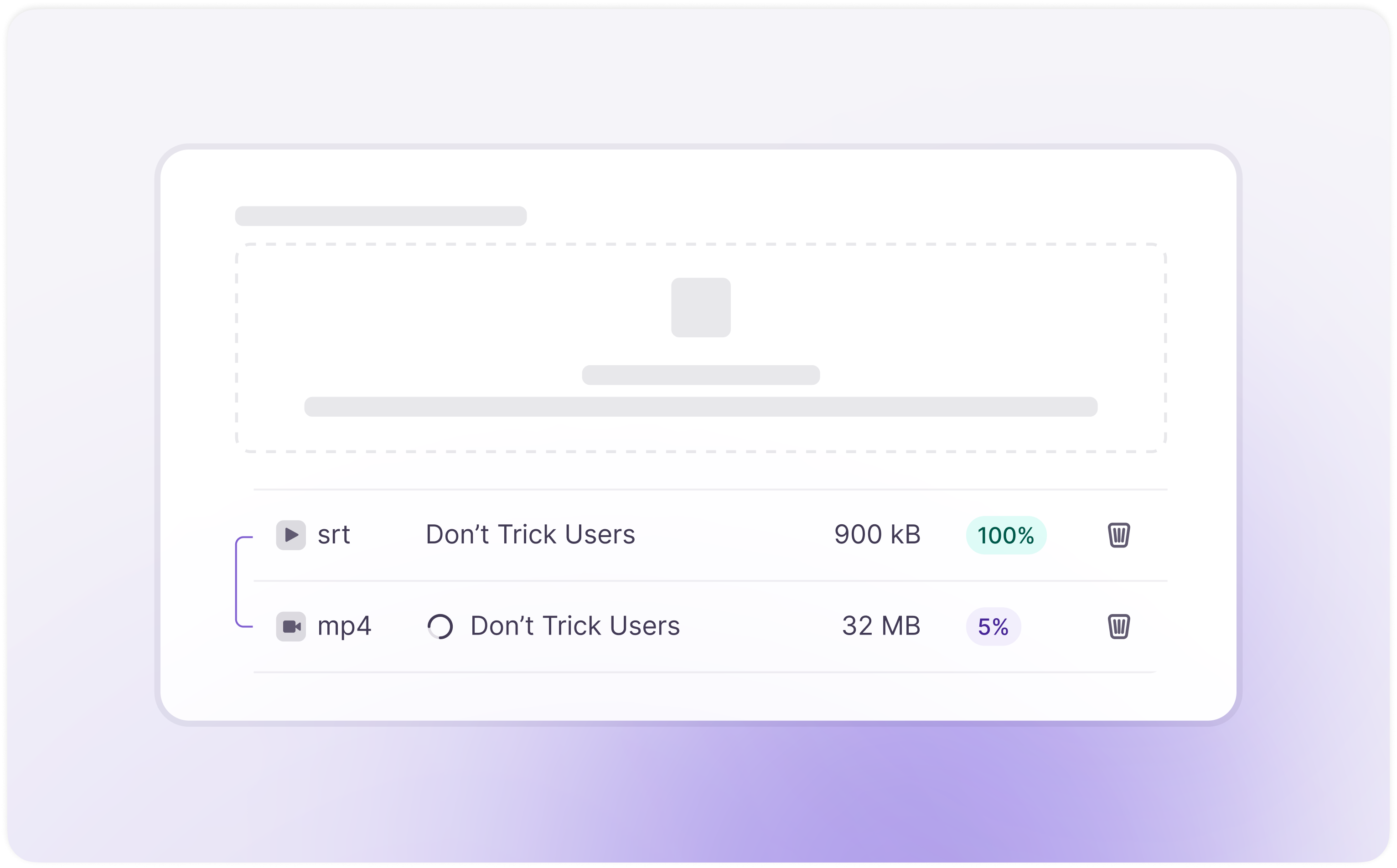
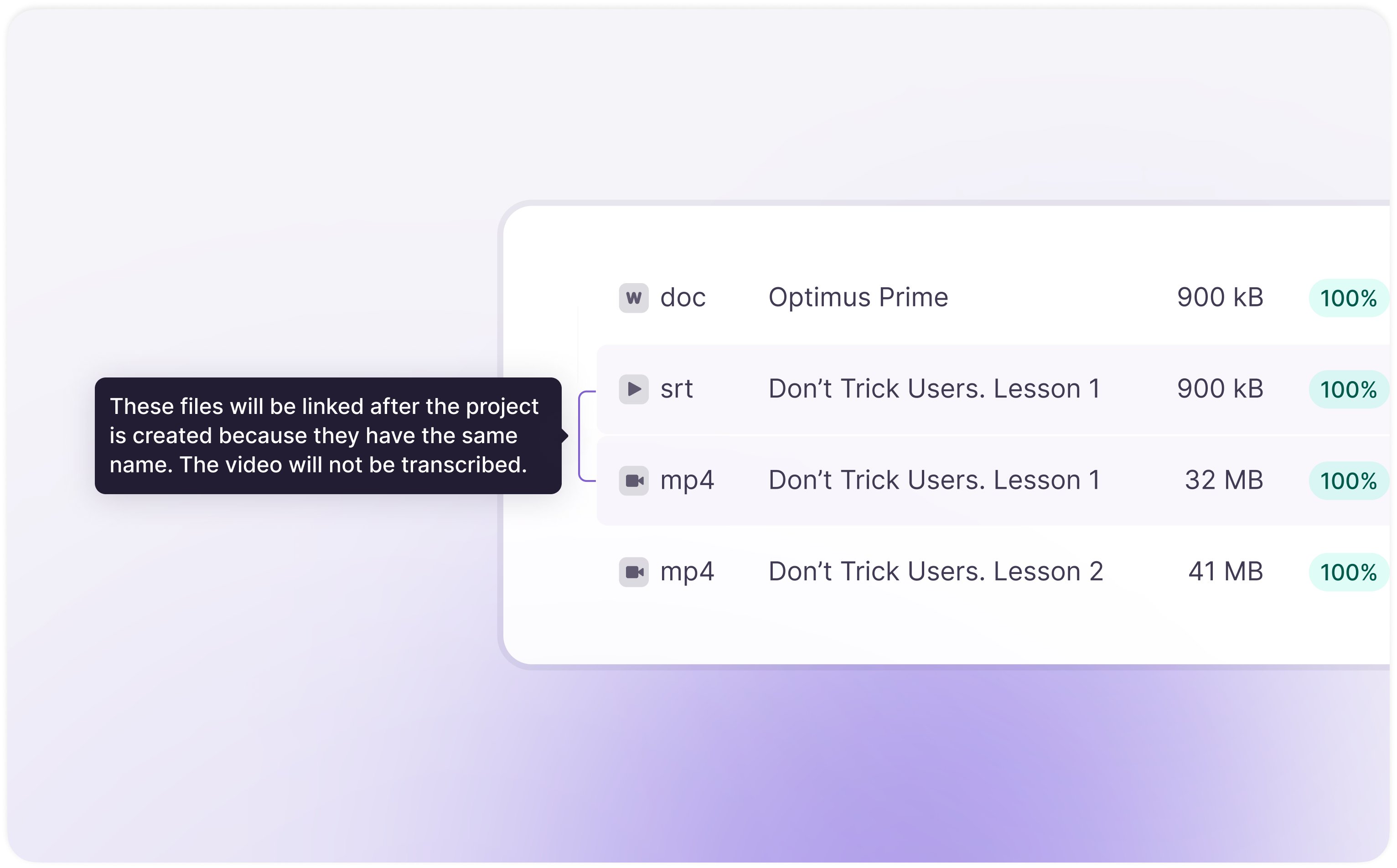
Linked files: if a subtitle file with the same name is uploaded, it is linked to the video (shown as a connected line in the interface). In this case, Smartcat does not transcribe the video
Reference file: the uploaded video serves as a reference when editing the subtitle file.
If uploading an audio file
The process works the same as for video files. Smartcat transcribes the audio if no subtitle file is uploaded alongside it.
If uploading a subtitle file
-
You can upload subtitle files (for example, SRT, VTT) directly
-
If a subtitle file with the same name as an existing file is uploaded, you are asked whether to replace the existing file or upload it as a new file
Step 3: Project overview and file processing
-
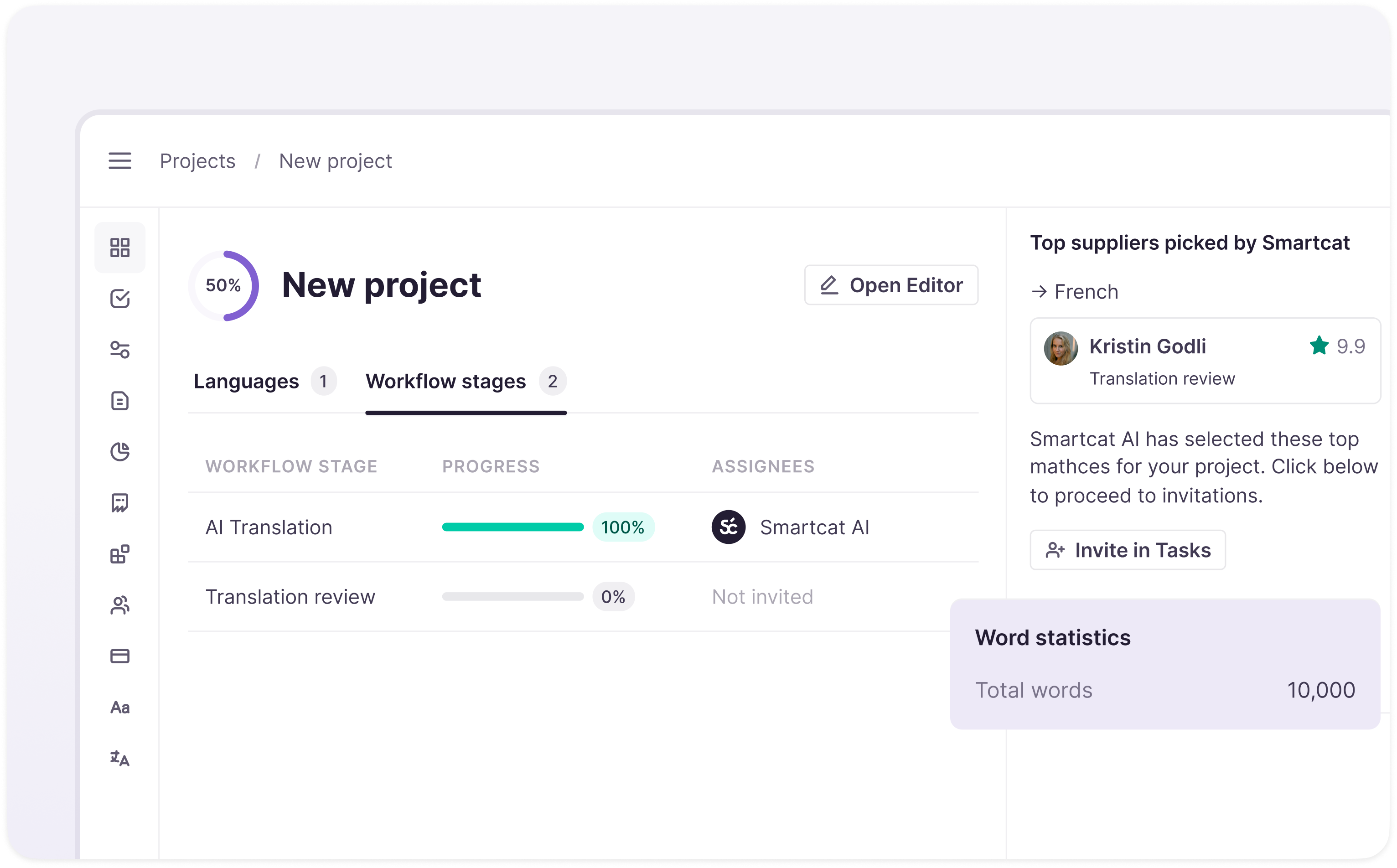
After uploading, you are directed to the Overview page, where your files are analyzed
-
Smartcat extracts word statistics from the source file
-
You can proceed with translation using Smartcat AI translation or assign work to linguists from the Smartcat Marketplace
Smartcat now shows the word statistics and translation options for your files.
Step 4: Editing and reviewing subtitles
If your workflow includes the SLC (source layout check) stage, the subtitle file opens automatically in the Subtitle Editor, letting you work on the text while referencing the video.
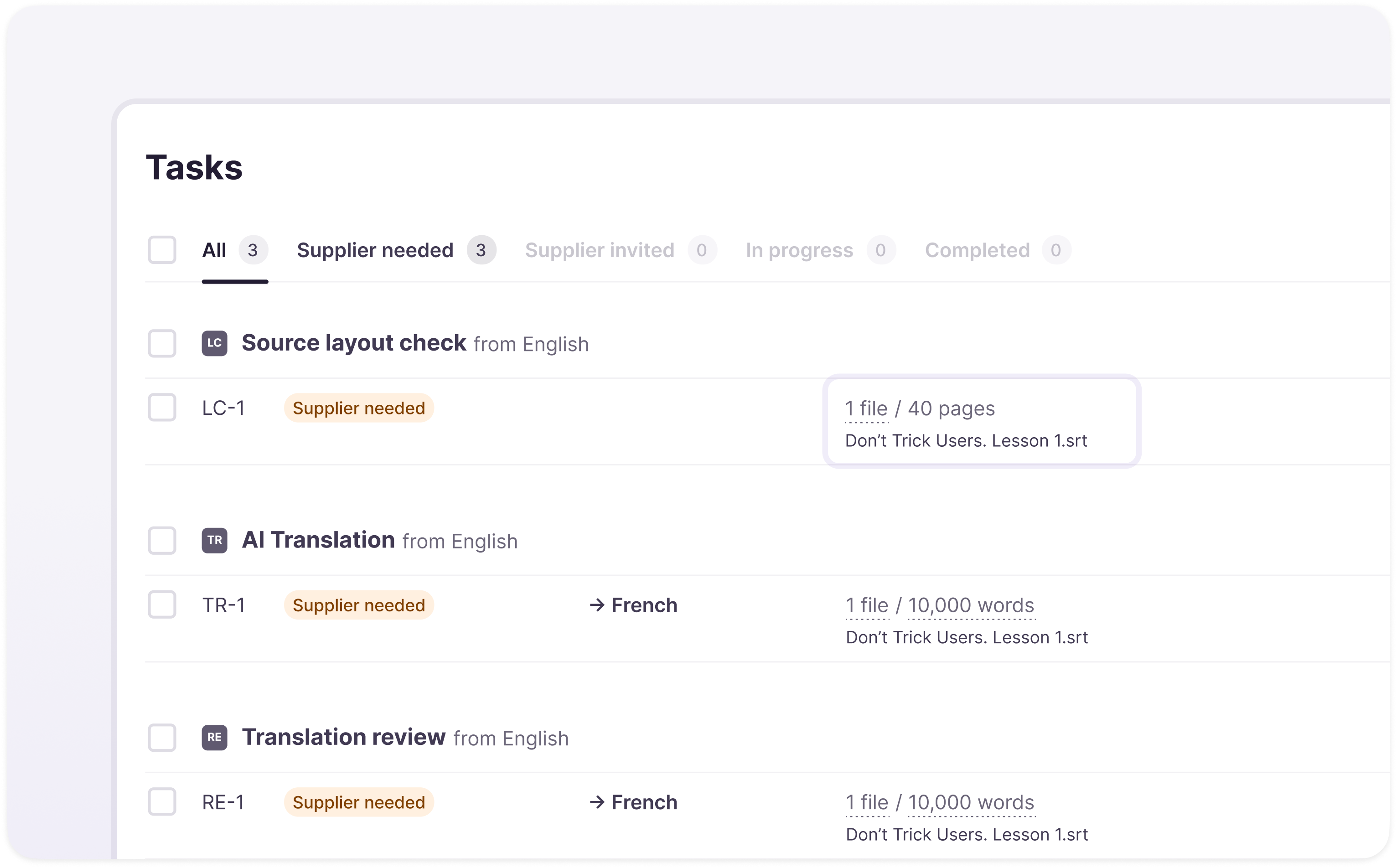
Other file types in the project follow the standard Smartcat workflow, meaning they must be downloaded for local processing. At the DTP (desktop publishing) stage, subtitle files can be downloaded for further formatting and adjustments so they meet final production standards.
📌 The number of pages for a subtitle file cannot be edited. However, you can adjust the number of pages for a standard file.
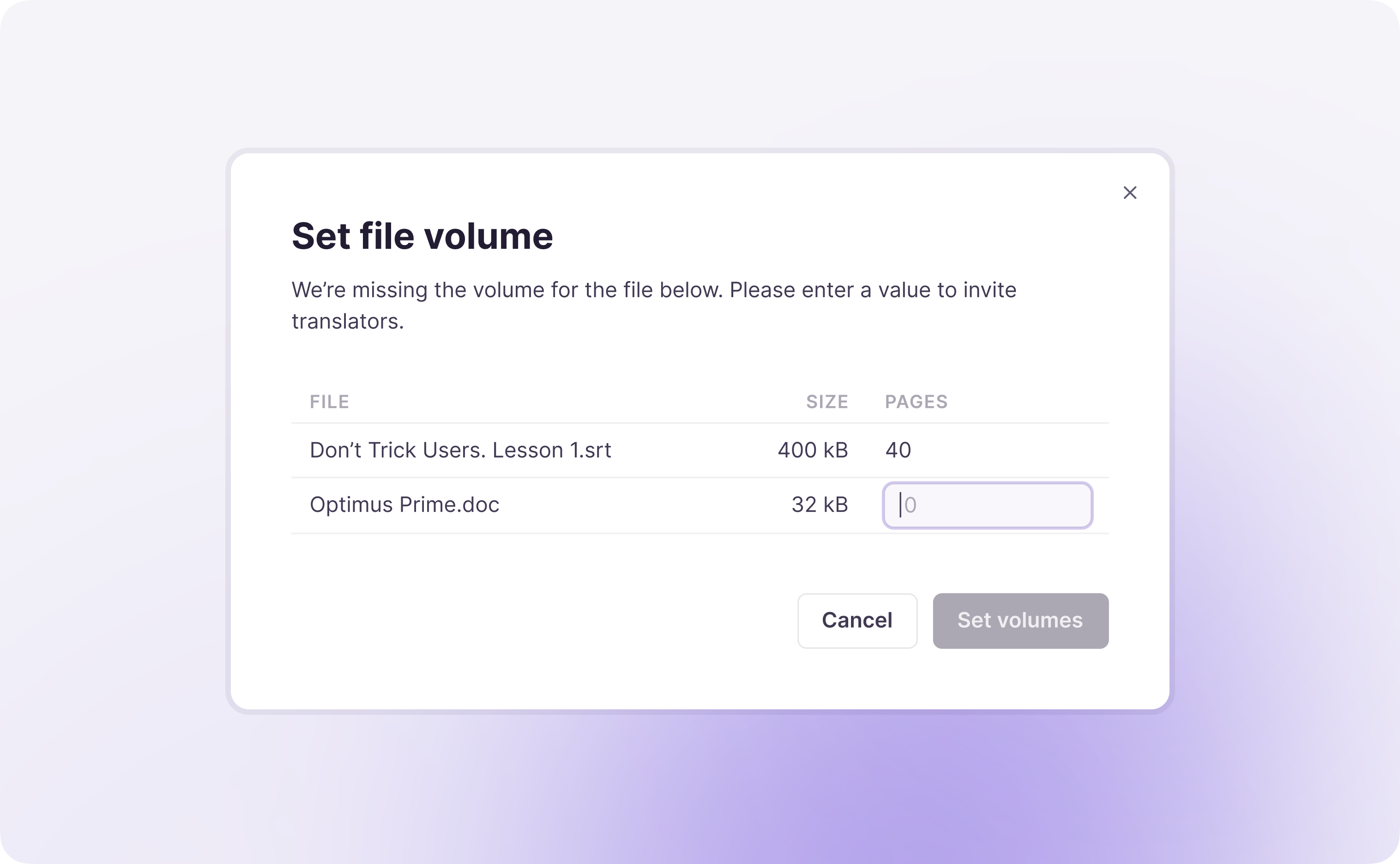
💡 For detailed steps, read the Smartcat Subtitle Editor guide.
Step 5: Adding files after project creation
You can upload additional video, audio, or subtitle files at any time.
-
Go to the Files page within your project
-
Click Upload File and select the new file
-
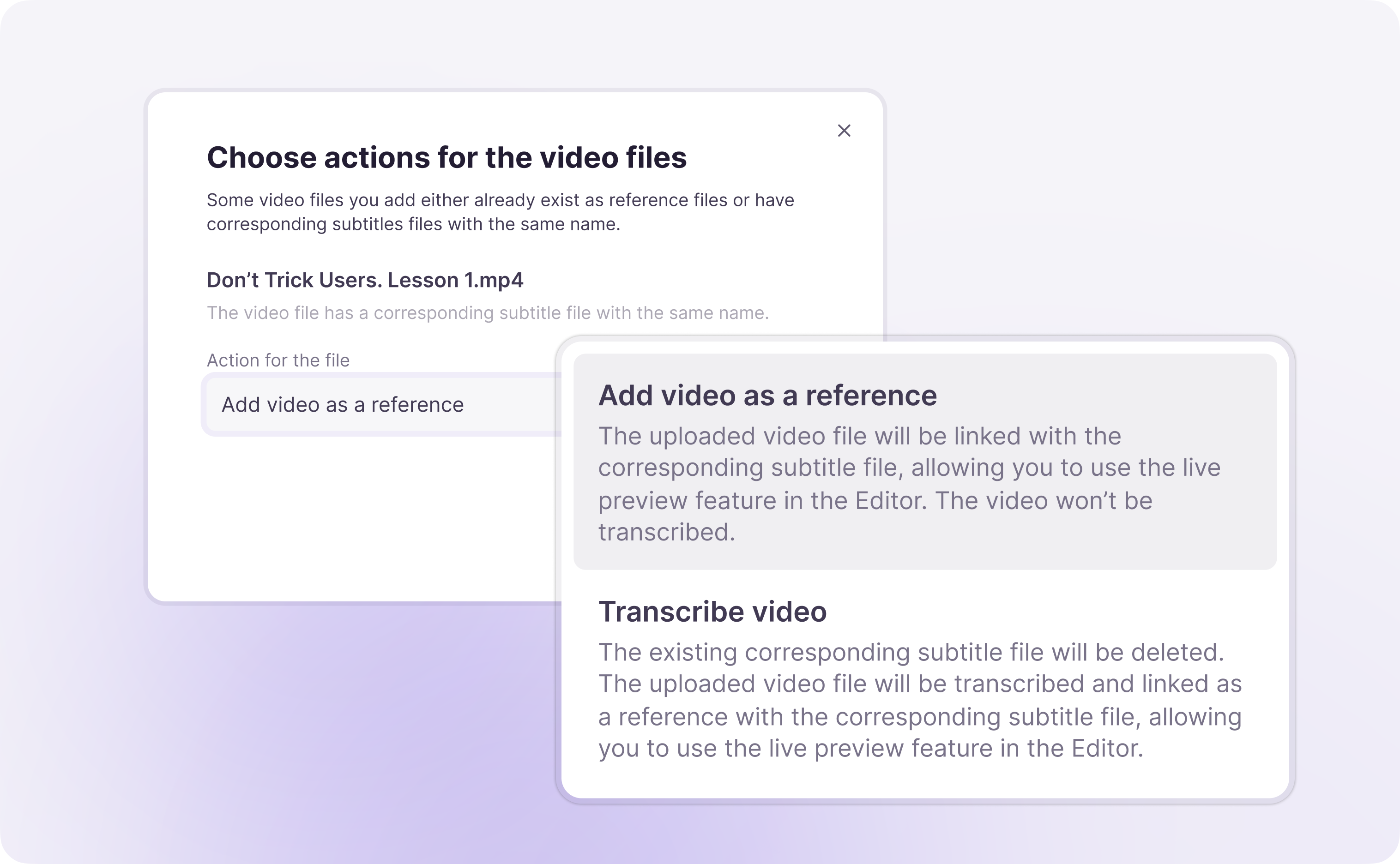
Smartcat checks whether a subtitle file with the same name exists in the project:
-
If no matching file is found, Smartcat transcribes the video or audio
-
If a matching file is found, a popup asks you to replace the existing file, work with the file separately, or use the video or audio as a reference file
-
Your new file is added to the project and processed according to your choice.
Additional notes
-
Videos are transcribed only once during project creation, unless manually requested
-
If you delete a file and re-upload it, Smartcat treats it as a new file
-
Burning subtitles into videos is not currently supported — use Smartcat Drive as a workaround
Want to learn more?
See how Smartcat can transform your localization workflow.
Still need help?
Our support team responds within one business day.