Notification settings in Smartcat
Overview
Smartcat lets you control which project events trigger email/in-app notifications, based on your role and involvement in a project. Notification delivery is scoped at the project level — not by target language.
Requirements and Limitations
-
There is no setting to filter notifications by target language within a single project. A project manager assigned to a multi-language project receives notifications for the whole project, across all its target languages.
-
Workspace admins always receive task-completion notifications regardless of their configured scope.
How it works
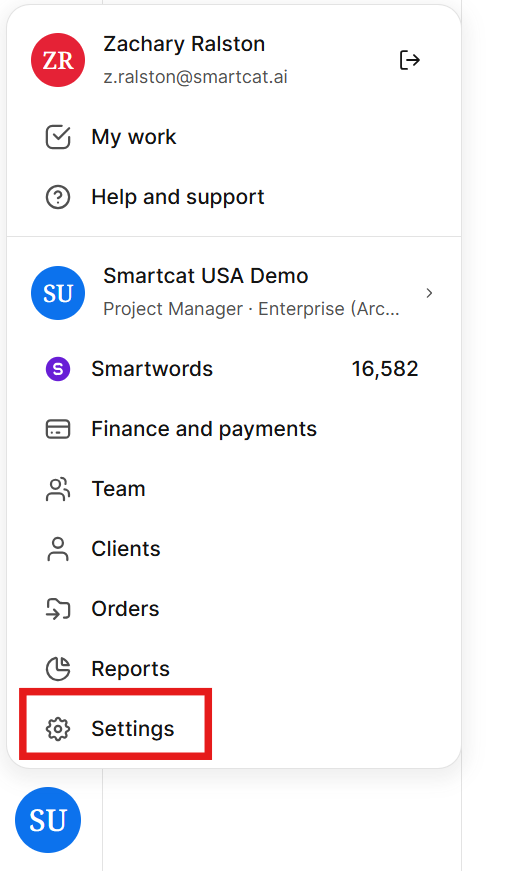
- Go to Workspace Settings → Settings.
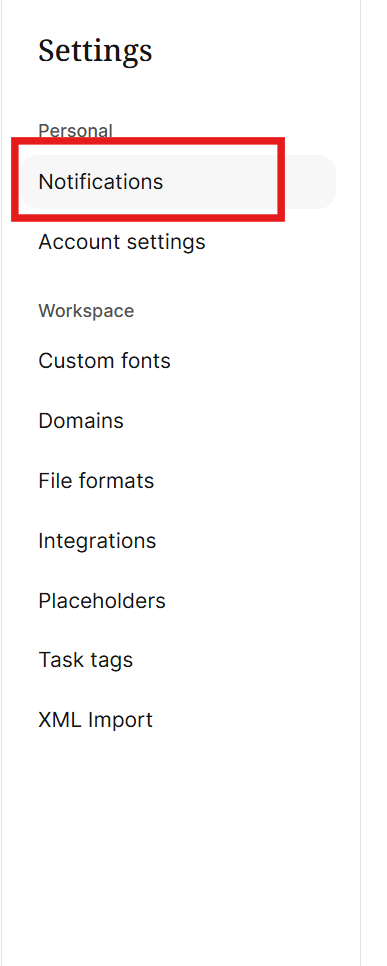
- From the dropdown, select Notifications.
-
Select which event types you want to be notified about, including:
-
Projects
-
Workflow
-
Marketplace
-
Orders
-
Team
-
User Groups
-
Translation memories
-
Glossaries
-
Payments & balance
Toggle All notifications at the top of the page to toggle on or off every event type.
-
-
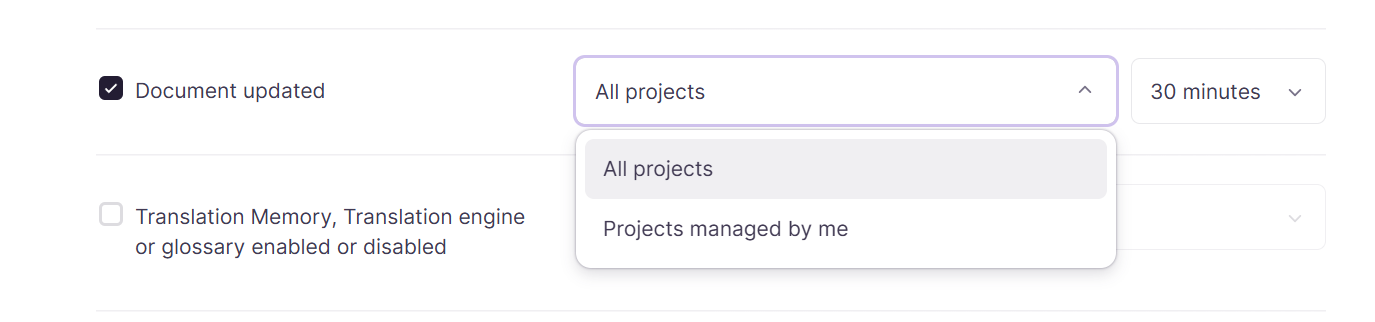
Select the specific triggers for each event type. Depending on the specific trigger, you can use the dropdown to select the scope of the trigger, for example, you are notified about all project updates, or only updates to projects belonging to you.
- Click Save to confirm your preferences.
Troubleshooting
Because scope is set per-project rather than per-language, a PM who only wants alerts for one language stream within a project cannot filter them out — the notification setting applies to the entire project.
If you need notifications scoped to a specific language, structure that language as its own project (rather than as one target language within a multi-language project) and assign the PM only to that project.
Want to learn more?
See how Smartcat can transform your localization workflow.
Still need help?
Our support team responds within one business day.