Change your Smartcat account settings
Overview
Your account settings control your personal Smartcat profile, including your name, email, profile picture, password, security options, and the language the interface is displayed in. These settings are tied to you as a user and apply everywhere you work in Smartcat, regardless of which workspace you are in.
This article explains how to open your account settings and what you can change in each section.
Requirements and limitations
-
Your email address is shown but cannot be edited directly from this page.
-
Passwords are changed through an email-based reset link rather than a password-entry form.
Open your account settings
- Click your account name at the top of the left navigation sidebar to open the account settings dropdown.
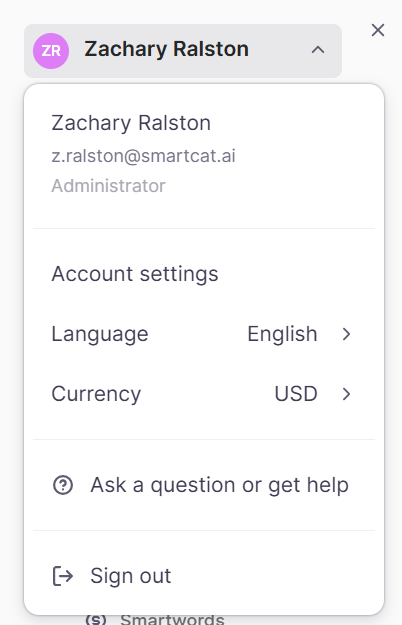
- Click Account settings.
Your account settings open with three sections shown in the sidebar: Personal information, Security, and Interface.
You can change the interface language or currency for your account directly in the dropdown by clicking Language and Currency.
Personal information
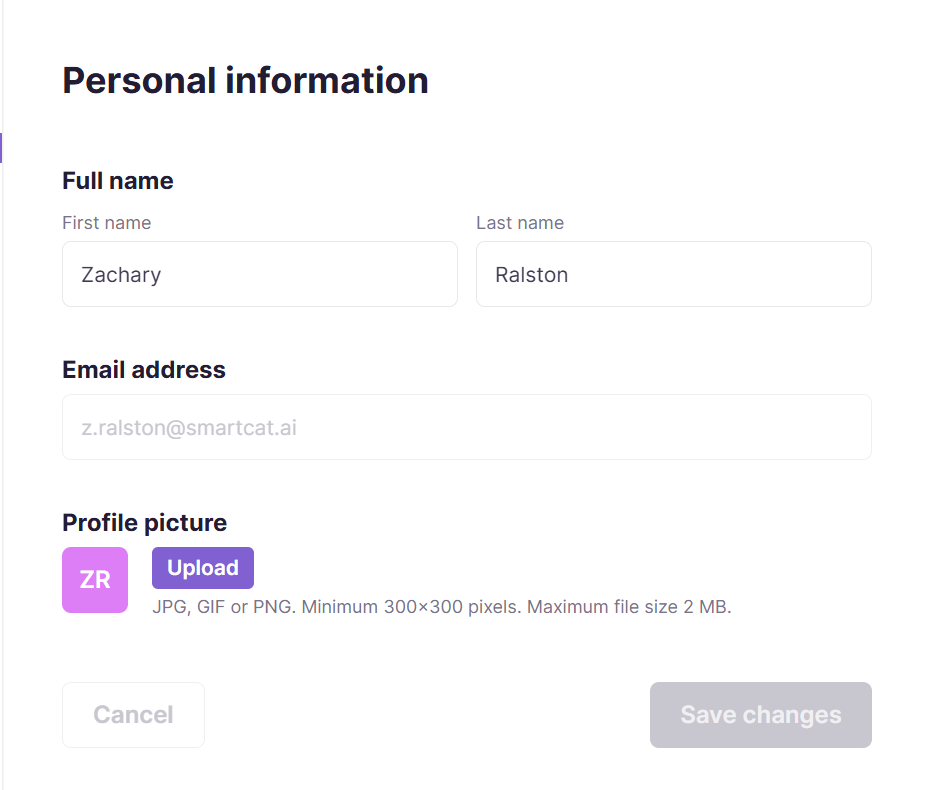
The Personal information section is where you manage your identity in Smartcat.
-
First name and Last name — edit either field to update how your name appears across Smartcat.
-
Email address — displayed for reference. This field is read-only.
-
Profile picture — upload or change your photo. Accepted formats: JPG, GIF, or PNG; minimum 300x300 pixels; maximum file size 2 MB. Use Remove to delete your current picture.
Save your changes when you are done.
Security
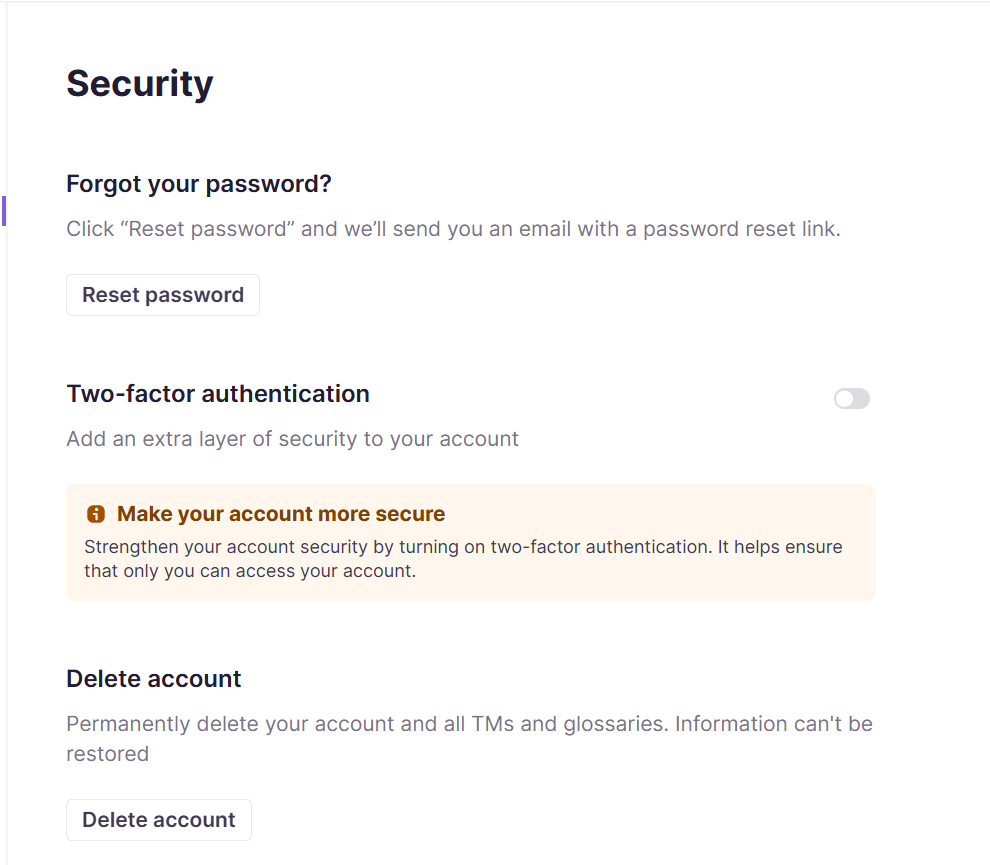
The Security section protects access to your account.
Reset your password
-
Under Forgot your password?, click Reset password.
-
Smartcat sends an email with a password reset link.
-
Open the email and follow the link to set a new password.
Two-factor authentication
Turn on two-factor authentication (2FA) to add an extra layer of security to your account.
-
Enable the Two-factor authentication toggle.
-
Scan the QR code with your authenticator app, or enter the code manually.
-
Save your recovery codes when prompted — click Copy all, store them somewhere safe, then confirm I've saved these codes.
Once 2FA is enabled, you can generate a fresh set of recovery codes at any time with Generate new recovery codes.
Delete your account
Use Delete account to permanently delete your account along with all your translation memories (TMs) and glossaries. This information cannot be restored, so download anything you need to keep before you proceed.
Interface
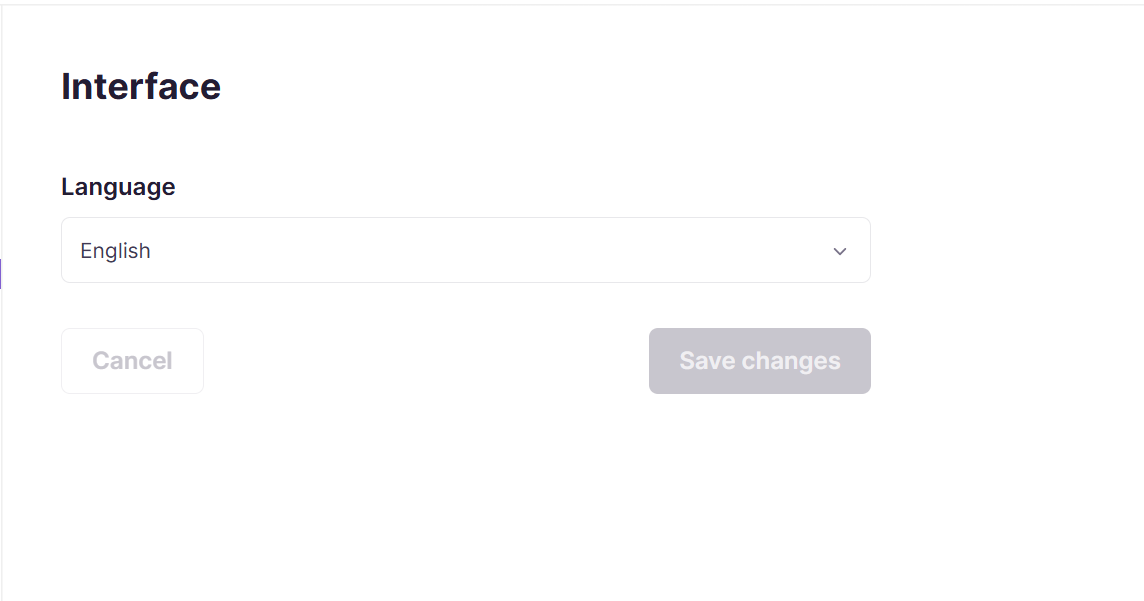
The Interface section controls the language in which the Smartcat app is displayed to you.
- Language — choose the language you want the Smartcat interface to appear in from the dropdown. The change applies to your account only and does not affect other users.
FAQs
Can I change the email address on my account from Account Settings?
No — your email is display-only on this page and cannot be edited directly there.
How do I reset my password?
Click "Reset password" in Account Settings; Smartcat emails you a link to set a new password. There's no direct in-page password change form.
What happens if I enable two-factor authentication (2FA)?
You'll scan a QR code with an authenticator app (or enter a code manually), then save your recovery codes somewhere safe — you can generate new recovery codes at any time afterward.
If I change my interface language, does that affect other users in my workspace?
No — the interface language setting is account-specific and only affects your own view, not other users.
What happens if I delete my account?
It's permanent — your account, all your translation memories, and all your glossaries are removed and cannot be restored.
Want to learn more?
See how Smartcat can transform your localization workflow.
Still need help?
Our support team responds within one business day.