Generate course videos with Avatar Studio
Overview
Avatar Studio lets you generate course videos using customizable AI avatars, voices, and branded backgrounds directly inside Course Editor.
Instead of recording presenters manually, your team can generate consistent presenter-style videos while keeping control over voice tone, visual identity, and branding. Avatar-generated videos also work with Smartcat's translation workflows, so you can scale courses across languages without re-recording videos.
This helps you deliver brand-consistent, multilingual training content faster while reducing manual production work.
When to use it
Avatar Studio is useful when you want to:
-
Create presenter-style course videos without recording a human speaker
-
Maintain a consistent visual presenter and voice across courses
-
Apply brand assets or backgrounds to training videos
-
Generate training videos that can be regenerated automatically for multiple languages
-
Combine avatar-generated videos and uploaded videos in the same course
Common scenarios include:
-
Branded corporate training programs
-
Global onboarding courses
-
Compliance and certification training
-
Multilingual learning programs
How to use Avatar Studio
-
Open Course Editor. Create a new course or open an existing one
-
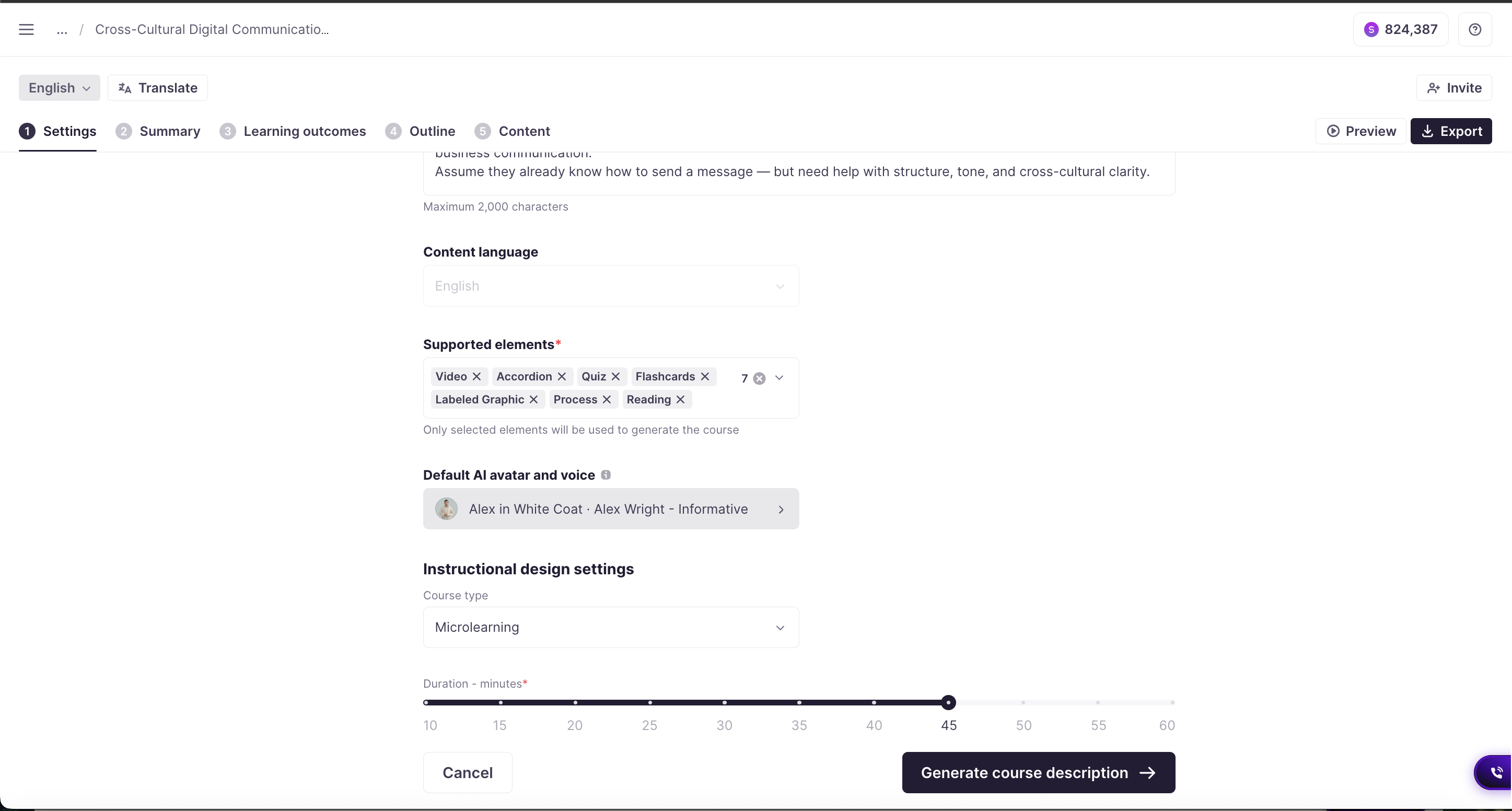
Go to Course Settings → Avatar Settings
-
Select a default avatar for the course. This avatar applies to all videos unless you customize individual videos
-
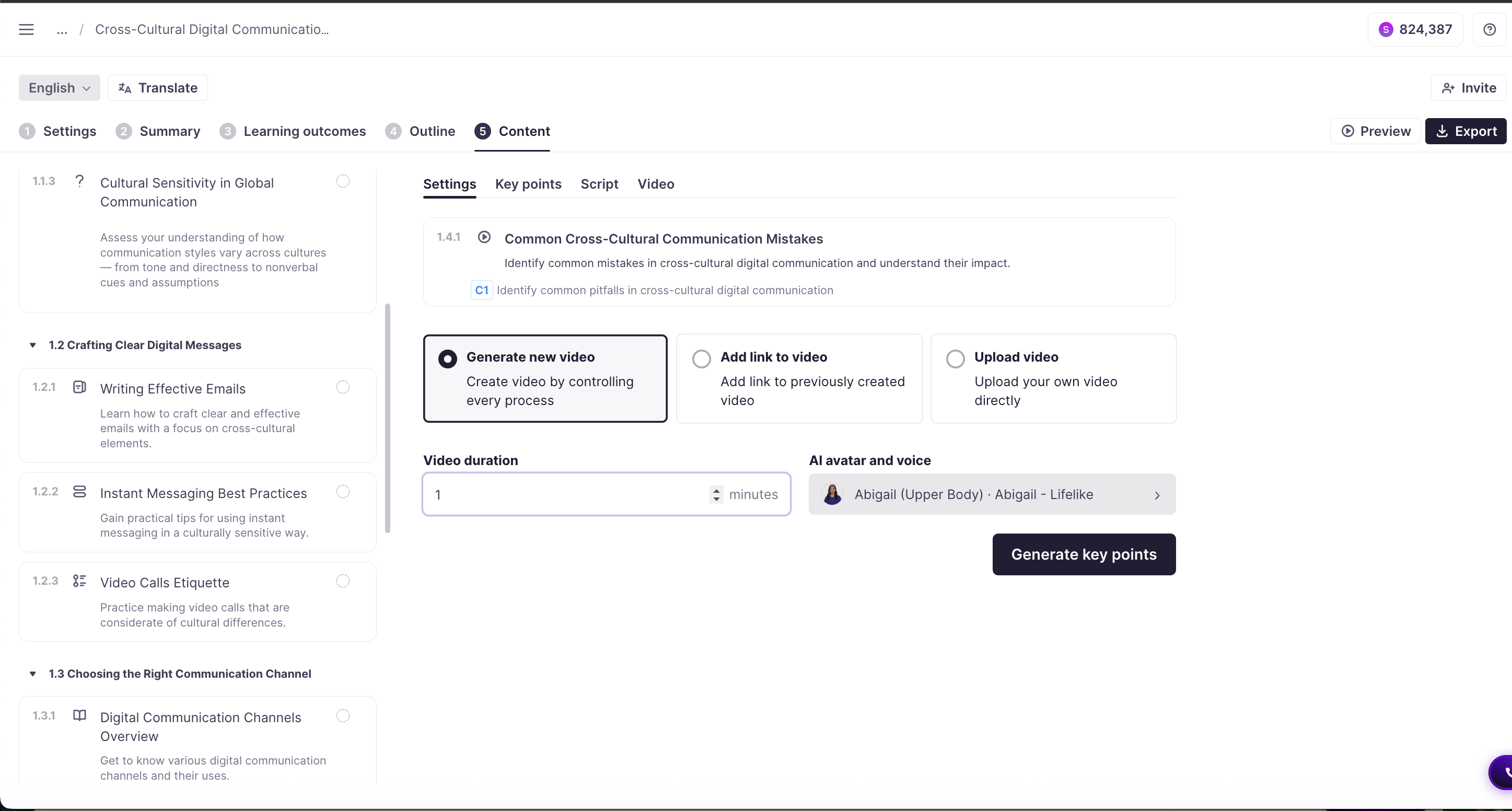
(Optional) Customize avatar settings for a specific video. This overrides the course-level avatar configuration for that video only:
-
Open the Video Settings page
-
Select a different avatar, voice, or background if needed
-
-
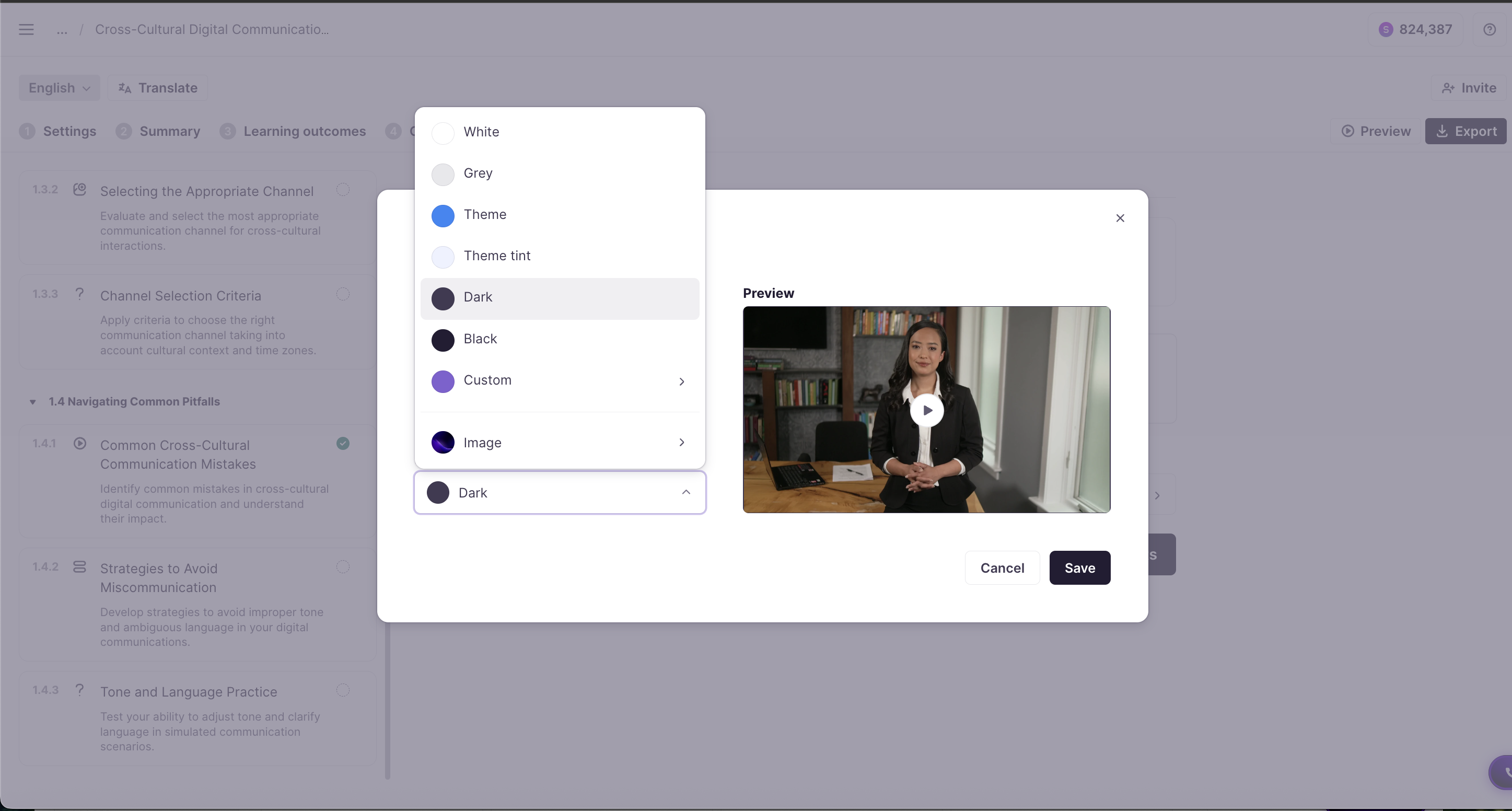
Configure the video. Choose the following:
-
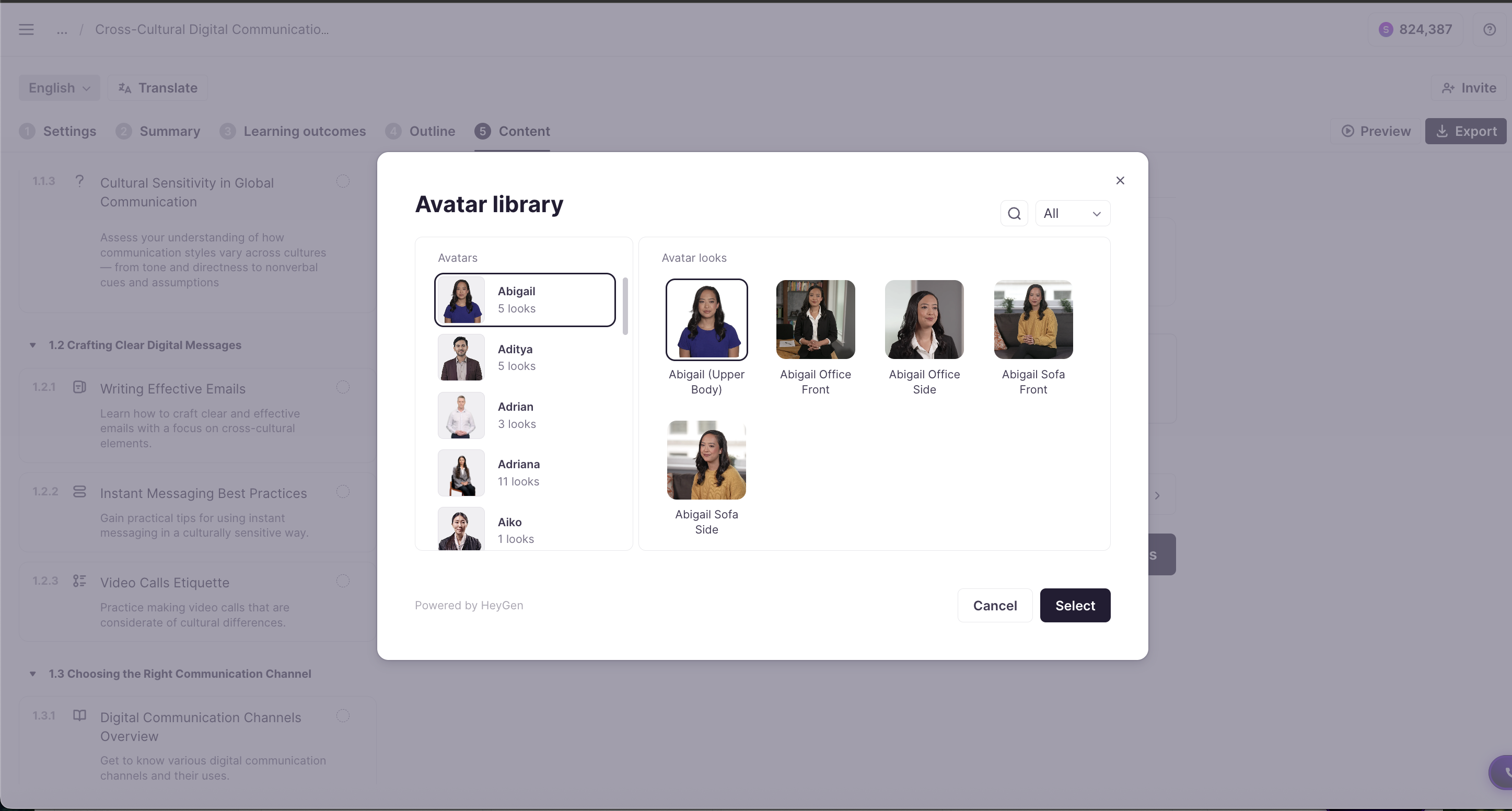
Avatar — the presenter that appears in the video
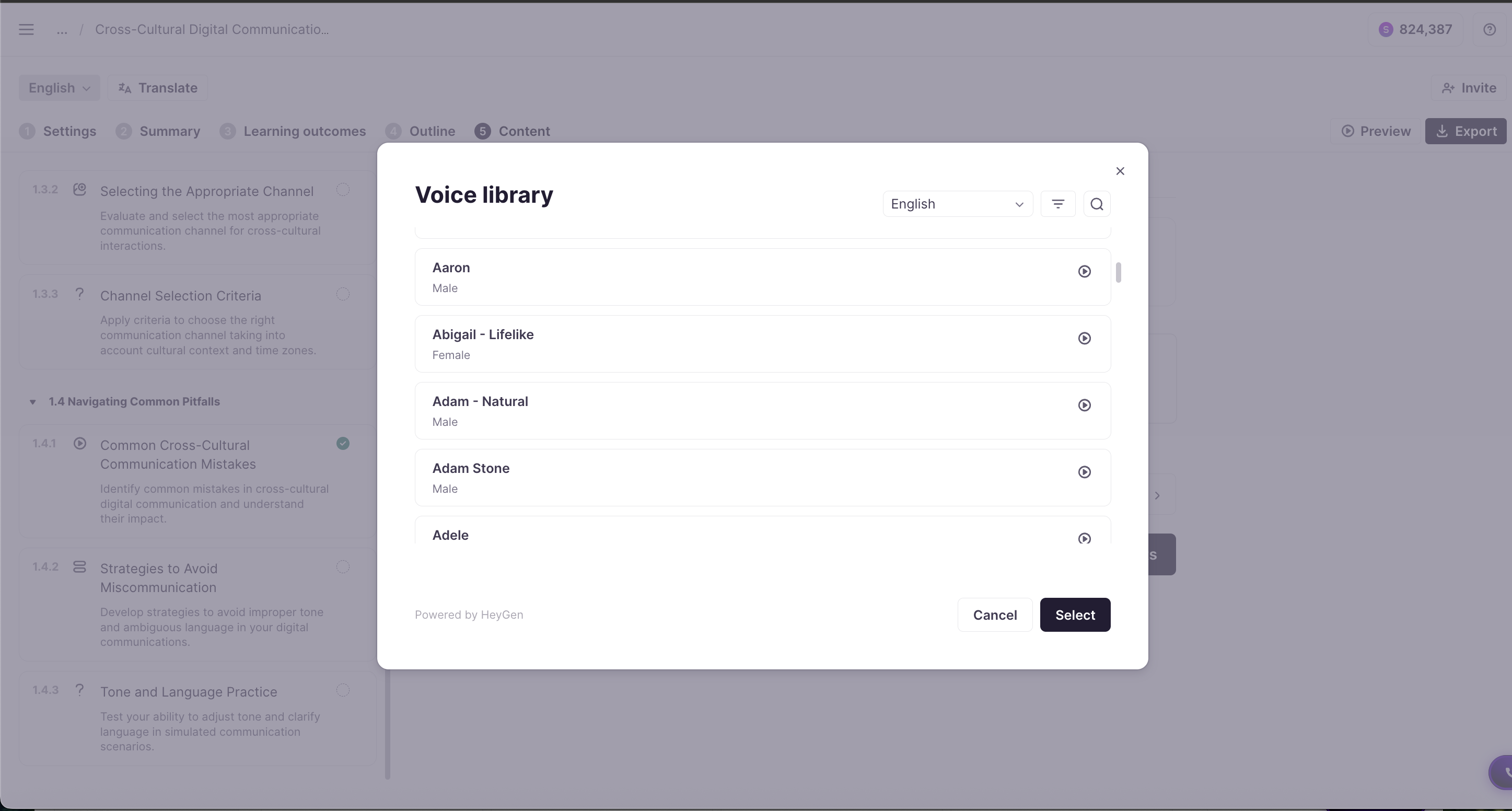
- Voice — the voice persona used for narration
- Background image — optional logo, brand background, or visual asset
-
Generate the key points, script, and video
-
(Optional) Translate the course. Courses created with Avatar Studio can be translated into multiple languages. Translation behavior depends on the video type:
-
Avatar-generated videos regenerate automatically for each language based on the translated script
-
Uploaded videos are translated through Smartcat Projects using the translation workflow
-
Your course is now ready with brand-consistent avatar videos that can scale across languages.
Requirements
-
Access to Course Editor
-
Video generation enabled within Course Editor
📌 No external integrations or API keys are required.
FAQs
Can I mix avatar-generated and uploaded videos in the same course?
Yes. Courses can contain a combination of avatar-generated videos and uploaded videos.
Do avatar videos get translated automatically?
Avatar videos are regenerated for each language using the translated script, rather than translated inside Smartcat Projects.
Why is the background missing in the translated version?
Background selection is part of video generation and may require you to generate the video again.
Want to learn more?
See how Smartcat can transform your localization workflow.
Still need help?
Our support team responds within one business day.