Getting Started as a Smartcat Teammate
Teammate is the default role for new members of a Smartcat workspace. You can create and work on every project in the account, manage project resources and templates, manage Reviewed Translations and Terminology, view reports, manage clients, and invite contributors. Managing users and roles, billing, vendors and workspace-level settings stays with your Administrator.
This guide covers what you need to set up, run and scale global content as a Teammate. Each section gives you a short how-to, the reason it matters, and links to the full step-by-step articles.
Getting Started Checklist
-
Set up and personalize your Chief of Staff so it coordinates your work from day one.
-
Meet your Coworkers, the AI specialists that translate, create, review and update your content.
-
Turn work you repeat into a Skill so it runs the same way every time.
-
Build your Intelligence Fabric from the translations, terminology, and style guidance you already have.
-
Translate your first content using the path that matches your use case.
-
Create your project and invite the people who translate and review it.
-
Assign translators and reviewers from the project's Team tab.
-
Save an assignment template so you never configure the same team twice.
-
Automate linguist assignment rules once your volume grows.
-
Hire from the Smartcat Marketplace when you have no one for a language (not available on the Adapt plan).
-
Review and edit the AI translation in the Smartcat Editor.
-
Confirm each reviewed segment so approved wording is saved and reused.
-
Save the setup as a Project Template or an AI Translation Profile, and use custom prompts to hold your voice and your character limits.
-
Triage your work from the Project Manager Dashboard, which flags anything unassigned, stalled or overdue.
-
Check the Translation Review, Project and Document Edit reports under Apps to see how quality is tracking, and ask your Administrator for the ROI Report.
-
Open a support ticket through the Smartcat Support Portal when something needs a real fix.
💡 You do not have to work through this list on your own. Tell your Chief of Staff what you are trying to get done, for example launching a campaign in four languages, and it walks you through the steps in the order your work actually needs them.
Your AI Team: Chief of Staff, Coworkers, and Skills
Chief of Staff
Your Chief of Staff is your single entry point to Smartcat. It does not translate or create content itself: it coordinates the Coworkers in your workspace and runs the Skills you have personalized. It is included on every plan, and every user gets one.
Watch this short Platform Tour to learn more about your Chief of Staff, AI Coworkers, your Intelligence Fabric and more.
Activate and configure it first. Use the chat window on your homepage and give it a few basics about your team and your use case, so everything you set up afterwards is already working with it rather than around it.
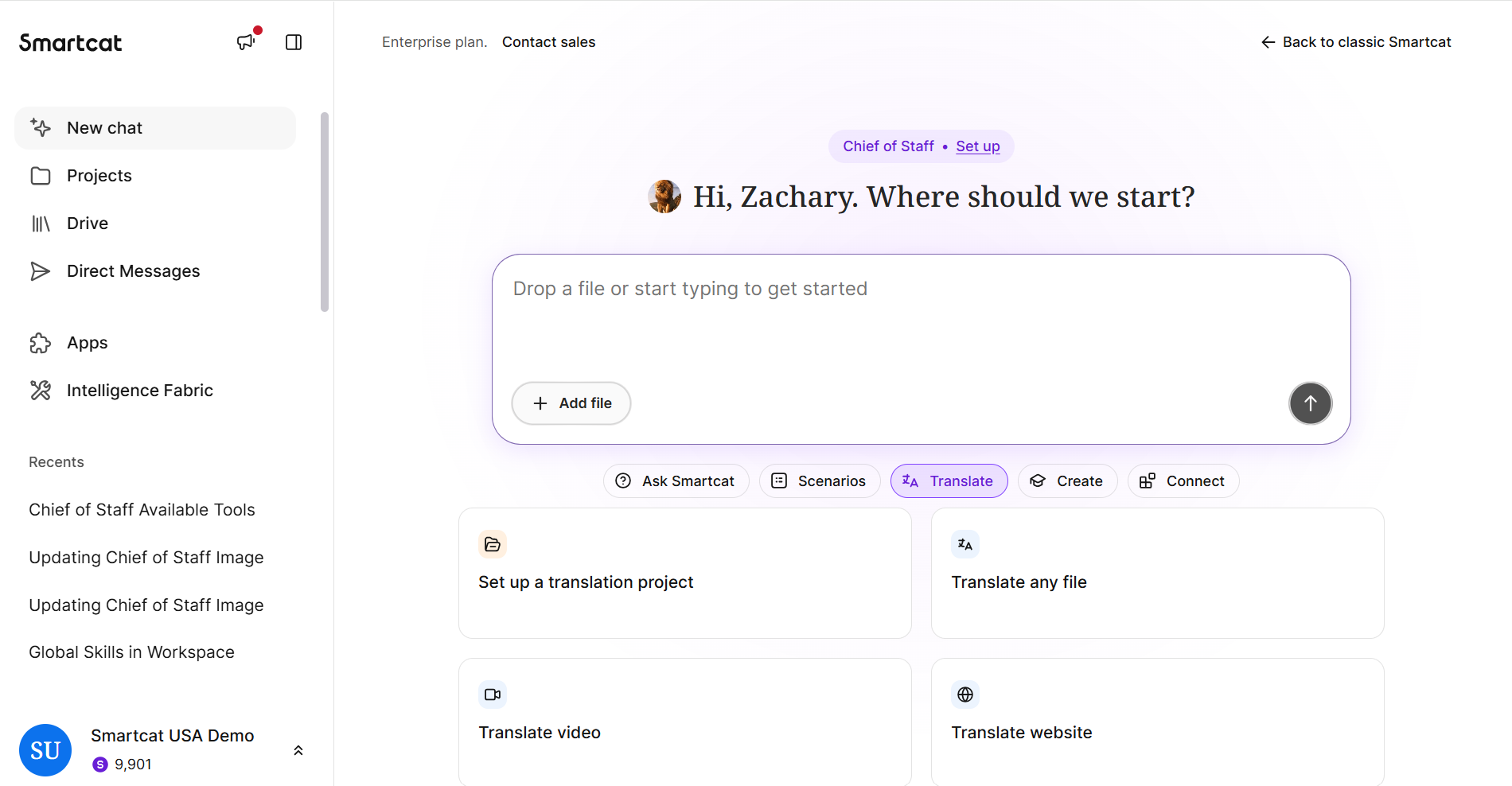
Fill in your profile. Go to Intelligence Fabric > Chief of Staff to set a name and avatar, then answer as much as you like about how you work, what slows you down, how much autonomy to give it, your role, your department, the content you handle most, and your communication style.
Every field is optional and anything you skip stays empty, and it never re-asks on its own. Your profile, your personal Skills and everything it remembers about you are private to you and are not visible to anyone else in the workspace, including your Administrator.
Connect the apps you already use, such as Notion or Google Drive, so your Chief of Staff can save its work there directly instead of you copying and pasting.
Explore the shortcuts in the chat interface. The pre-configured prompts cover common tasks such as starting a project, checking status or translating a file, and there are more than the ones on your homepage.
💡 Ask your Chief of Staff to set the workspace up with you. It configures your linguistic assets, including terminology (glossaries), custom prompts and translation settings, during your first session in the context of real content, so setup happens as you work rather than before it.
Coworkers
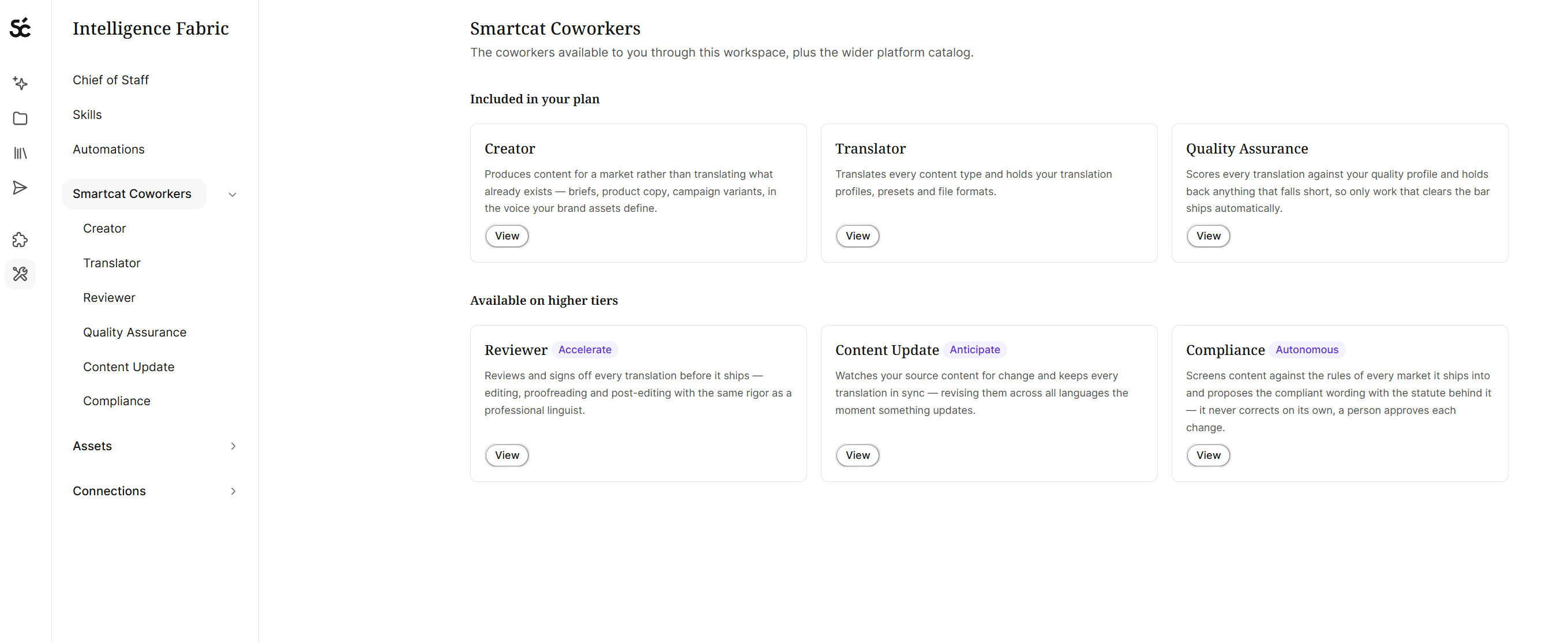
Coworkers are the AI specialists your Chief of Staff calls on to do the content work. Which ones you see depends on your plan.
Go to Intelligence Fabric > Smartcat Coworkers.
-
Translator Coworker: Translates any supported content into 280+ languages. It remembers your settings for each language pair, including which engine runs, which terminology applies, and which backup engine takes over if the first fails, so you set it up once.
-
Creator Coworker: Writes content instead of translating it: courses, quizzes, linguist briefs, or a brand voice guide built from material you already have. Find it in the Create tab, sometimes labelled Content Writer.
-
Reviewer Coworker: Suggests fixes, makes edits, and confirms segments at the review stage, alongside your team. Run several at once, each on one narrow job, and your reviewers keep only the work that needs judgement.
-
Quality Assurance Coworker: Scores finished translations against your own rules and labels each issue by type and severity. It never changes the translation, so you see real quality before you publish.
-
Compliance Coworker: Checks content against the rules your industry or company must follow. Regulated content gets validated where it is translated, with no separate review cycle.
-
Content Update Coworker: Spots content that has gone out of date, finds every file affected, and proposes a plan. Approve it and the change lands in every language, with only the changed parts retranslated.
💡 Ask your Chief of Staff what is possible with your workflows and which Coworkers you would need.
Skills
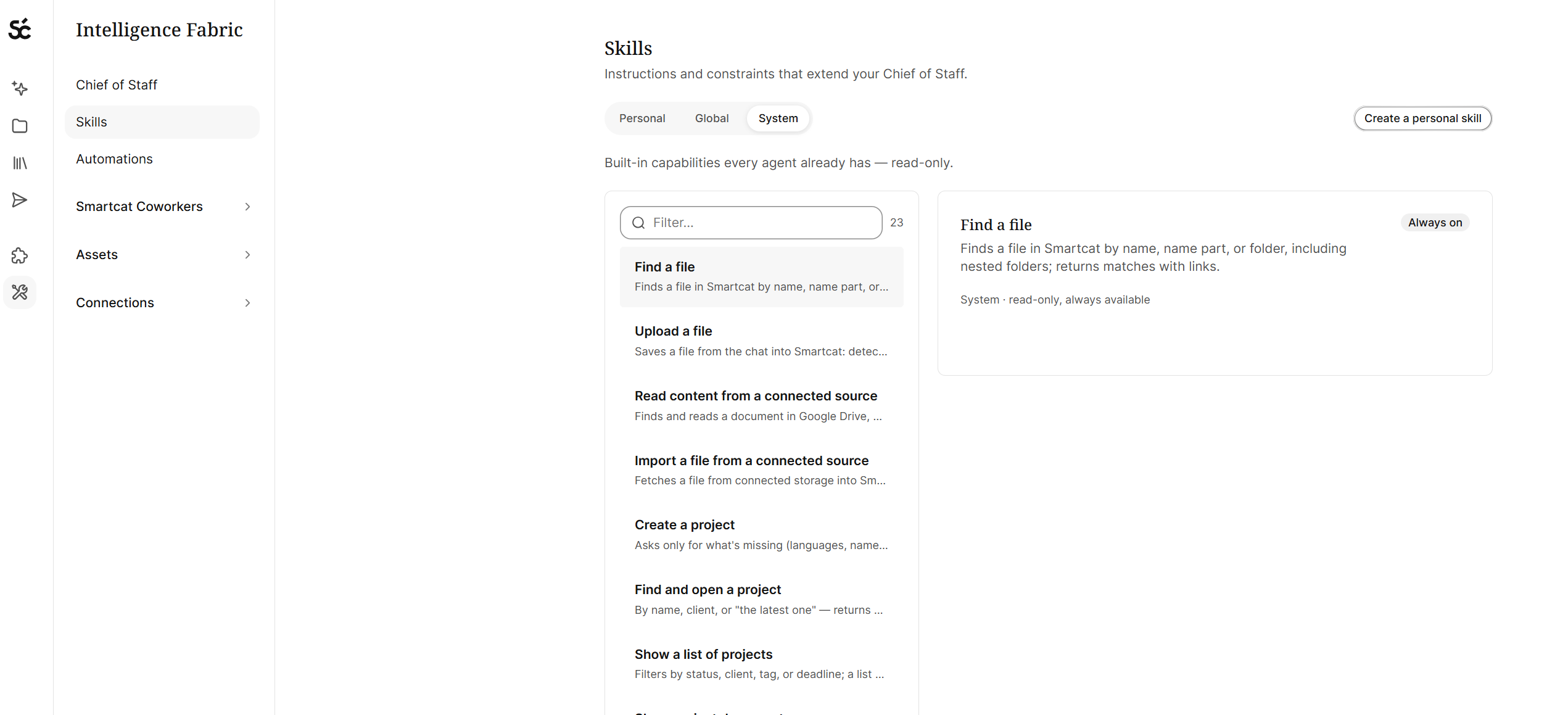
A Skill is a repeatable procedure a Coworker follows: the steps, the inputs it needs, the tools it uses, and how it validates its work. System Skills such as Find a file, Upload a file and Create a project are there for everyone from the start.
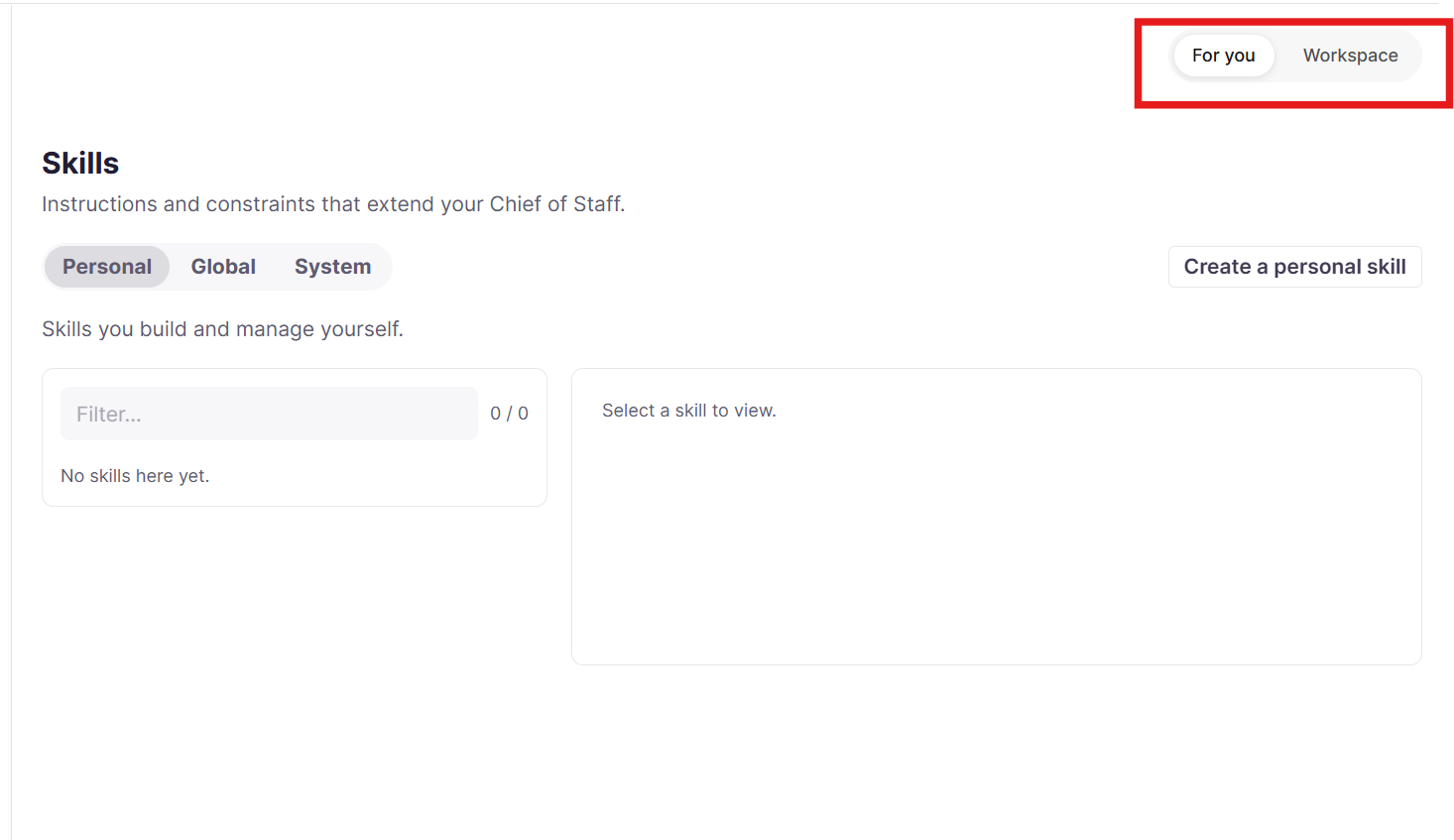
Go to Intelligence Fabric > Skills, and open For You for your own.
Turn something you do often into a Skill, a repeatable procedure your Chief of Staff follows the same way every time, like assigning a reviewer automatically.
Ask your Chief of Staff to build it, or write it yourself from Intelligence Fabric > Skills > For You.
Either way, it reviews and validates the Skill with you in a chat before saving: it checks the instructions make sense, confirms the tools exist, and test-runs the tool call, so you do not end up with a process that looks right but does not work.
As a Teammate, the Skills you create stay private to you. If you would like your whole team to use one, ask your administrator to publish it as a Global Skill: only its owner can then edit the shared version, and their updates reach everyone using it automatically. Get in touch with Smartcat if this is not turned on in your account.
💡 Describe the routine in plain language and let your Chief of Staff draft the Skill for you. It proposes a ready Skill body for you to review, and once you confirm it is saved and runs the same way every time.
Your Intelligence Fabric: Reviewed Translations, Terminology, and Language Insights
Translating content once solves the "launch it" problem. The harder problem is what happens after: a product gets renamed, a policy changes, a claim is updated, and every language has to catch up. Closing that gap is less about translating faster than about not translating the same wording twice.
The Intelligence Fabric is your organization's linguistic knowledge in one place, and it holds three kinds of asset:
-
Reviewed Translations
-
Terminology
-
Language Insights
Go to Intelligence Fabric > Smartcat Coworkers > Translator to see all three in one place.
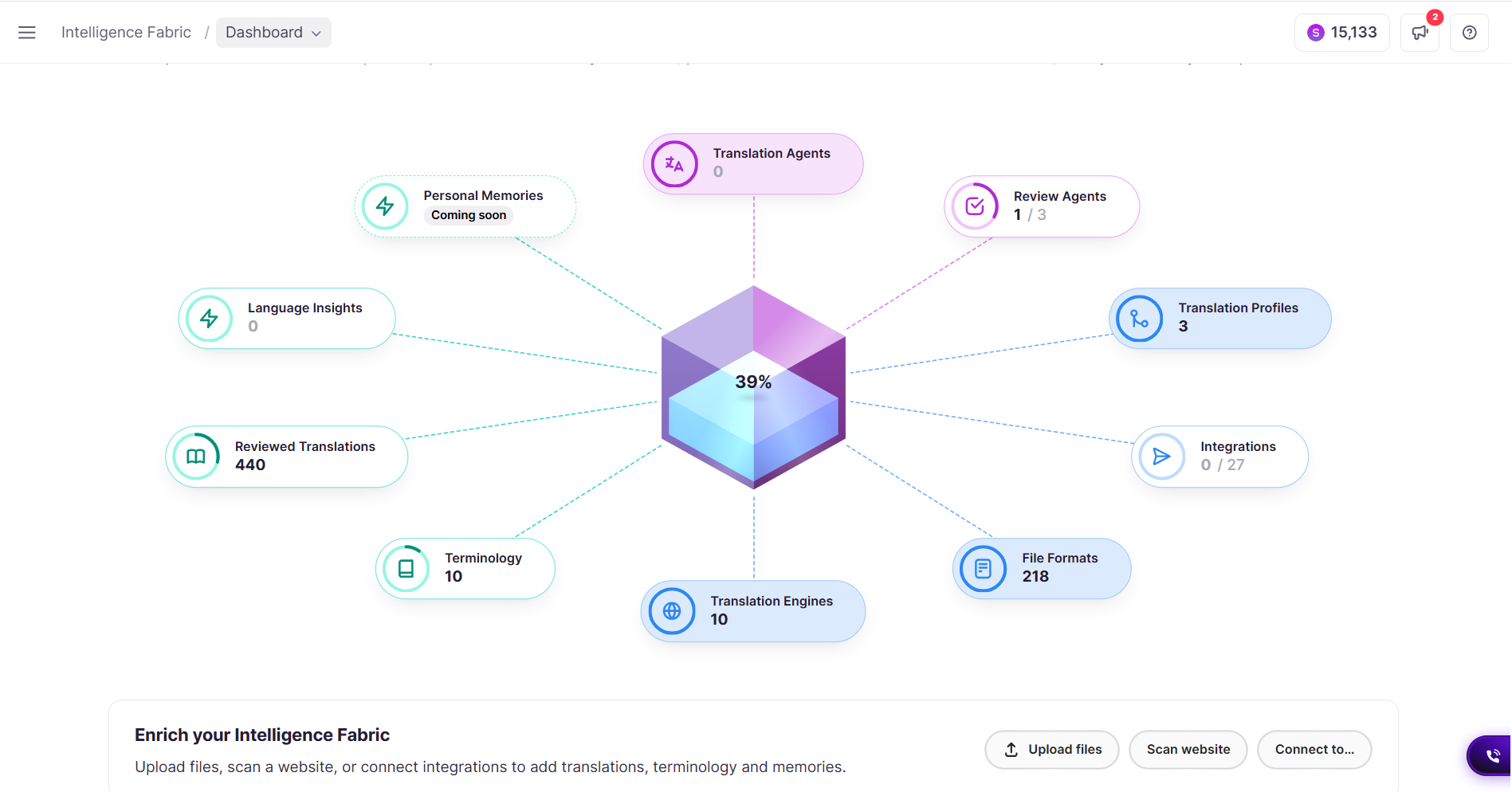
Reviewed Translations (previously translation memories) are your approved translations, stored and reused. You may know these as translation memories. They build themselves: when a reviewer confirms a segment it is saved automatically, so wording approved last quarter is not translated again this quarter.
Matches at 100% and above do not consume Smartwords on Smartcat's new pricing plans. See the Smartcat pricing page for details.
Go to Intelligence Fabric > Assets > Reviewed Translations.
Terminology (previously glossaries) is your approved terms and how they must be translated. Terms are highlighted inline for the linguist, who can accept, edit, or reject the suggestion, which is how a product name or a regulated claim stays identical in every market.
Go to Intelligence Fabric > Terminology.
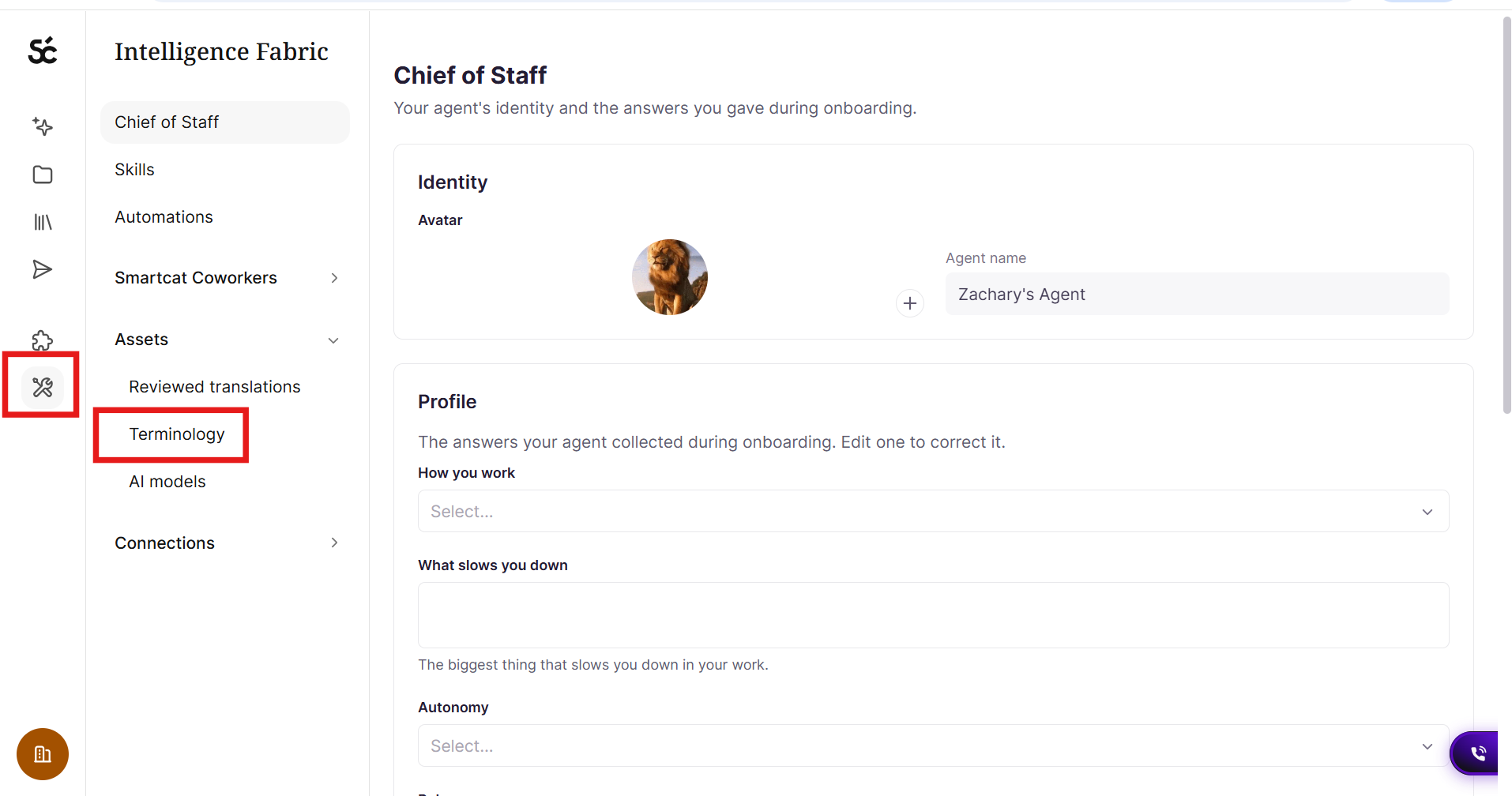
How to pull terminology from third party pages like Notion
Language Insights are short pieces of guidance on tone of voice, audience and style. Each insight shows its source, whether that is your website, a document, or something you added by hand.
To add one, click Add New Insight, choose the insight type such as Tone Of Voice, pick the language, enter your text and save.
Build it from content you already own. Two tools extract assets from what you have.
-
Upload Files converts existing source-and-target document pairs into reusable Reviewed Translations
-
Scan Website points Smartcat at your site to pull out terminology, past translations and tone of voice. Both feed the same output, and results are reviewed before you import them.
Go to Intelligence Fabric > Smartcat Coworkers > Translator, where both sit at the bottom of the dashboard.
What you can do as a Teammate. You can add, edit, approve, import and export Reviewed Translations and Terminology, and you can create Language Insights, for every project in the account. Workspace-level settings, user management and vendor accounts stay with your Administrator.
💡 You do not have to build the Fabric before you start. Your Chief of Staff automatically uses the translation memories, glossaries and style assets you already have, and it can build your Terminology for you: give it your website URL and your target languages and it crawls the site, proposes candidate terms, and lets you review them before importing.
Translate Your First Content
Once your workspace is set up, complete your first real translation. What you translate first depends on your use case, so pick the path that matches your team.
Go to Projects > + New project, or drop the file into a chat with your Chief of Staff.
💡 For a one-off, drop the file or the URL straight into a chat with your Chief of Staff and it takes the work from there, routing it to the Coworker that handles that content type.
Marketing. Websites, images, PDFs, documents, presentations, and knowledge files such as Google Drive. Connect the relevant integration or simply upload a file, then run AI translation. Starting here localizes your most customer-facing content first, since it is usually what gets seen soonest.
L&D. SCORM course packages: courses, guides and videos. Upload your course package or connect your authoring tool such as Rise 360, then run AI translation on the course content. This lets you launch training in new markets without rebuilding the course in every language.
Product and software. UI and UX strings, mobile apps and games, Figma designs. Connect your Figma file or upload your strings and resource files, then translate. Localizing here early avoids a separate, disconnected localization pass right before release.
Retail and PIM. Product content through your PIM integration. Connect your PIM, such as Salsify, so product data flows in automatically and listings stay consistent across markets without manual re-entry.
Knowledge management. Help-center articles such as Zendesk, and Drive-based knowledge content. Connect Zendesk or Google Drive so articles sync directly into Smartcat and stay current in every language without copy-pasting.
Project Management: Running a Translation Project
This is the part of the job that repeats on every project, in the order it actually happens.
💡 Ask your Chief of Staff what you need in plain language. You can ask it to create a translation project for you, invite a reviewer, set a translation and review workflow, and much more.
Where you run it all: the Project Manager Dashboard. The dashboard gives you folders to organize projects, status tabs for filtering and triage, and bulk actions across projects and tasks.
The Projects and Tasks toggle switches between two views of the same workspace: Projects lists projects and folders, while Tasks puts every task on its own row with its workflow stage, so you can find work that is unassigned, stalled or overdue without opening each project.
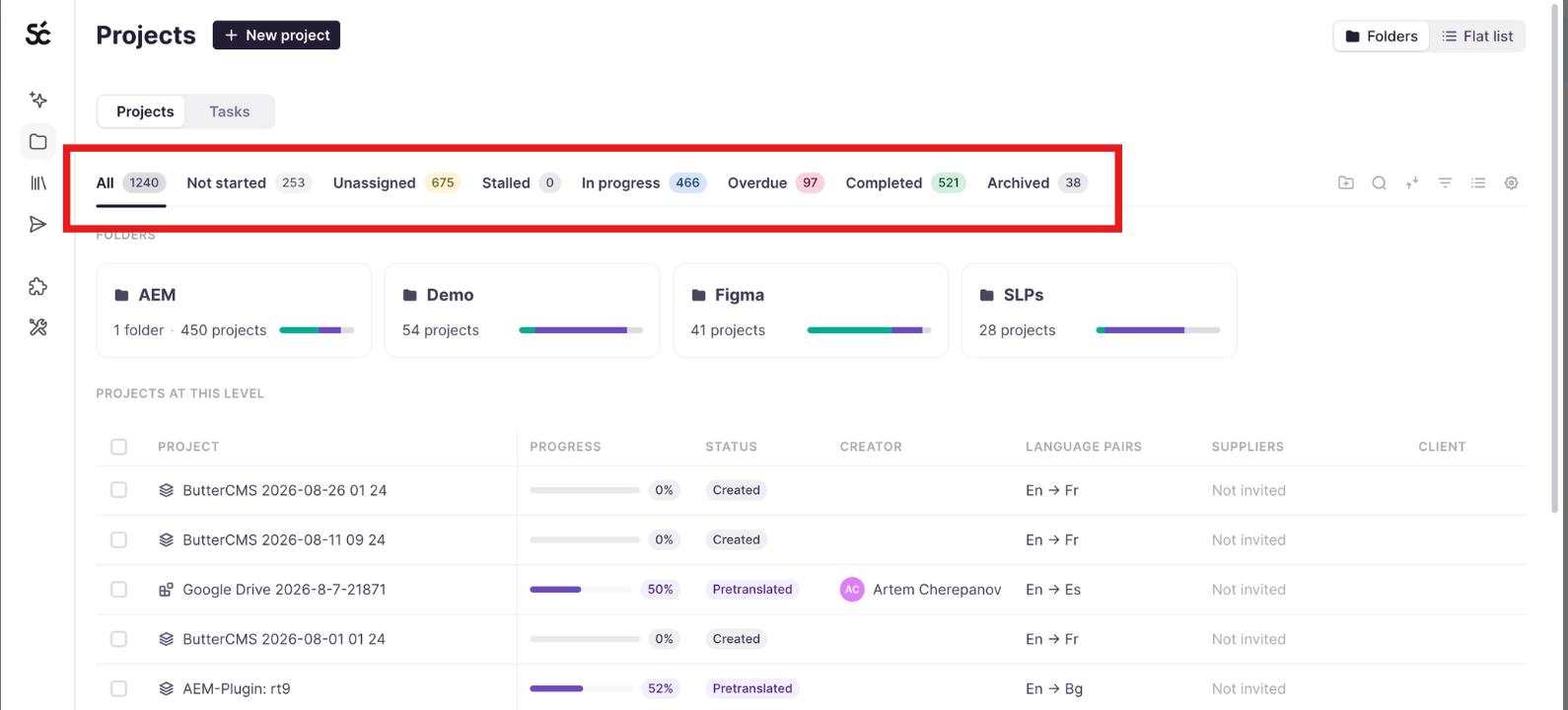
Both views share the same statuses: All, Not Started, Unassigned, Stalled, In progress, Overdue, Completed and Archived. The View icon switches between Table, Cards, and Folders & list, and a toggle in the top right swaps folders for a flat list.
Go to Projects in the left sidebar.
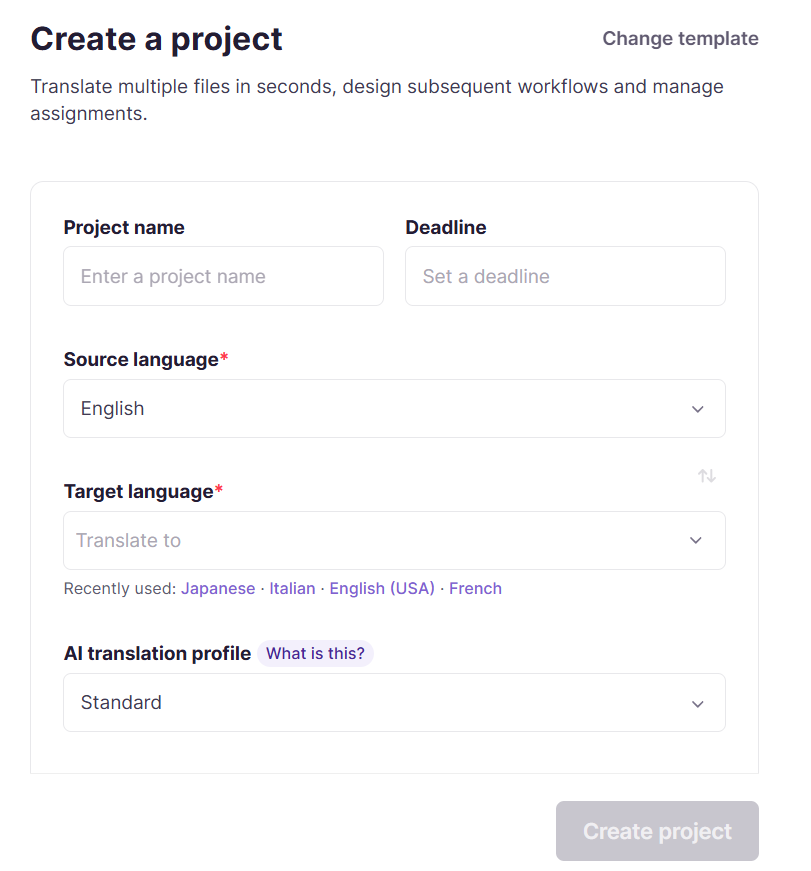
How to create a project
1. Create the project and invite the people who will work on it. Set your source and target languages and your workflow stages.
2. Assign translators and reviewers from the Team tab. Pick reviewers from your team so there is a second set of eyes on the AI output before anything ships, catching errors the AI alone would miss. They’ll review the transaltion in the Smartcat Editor
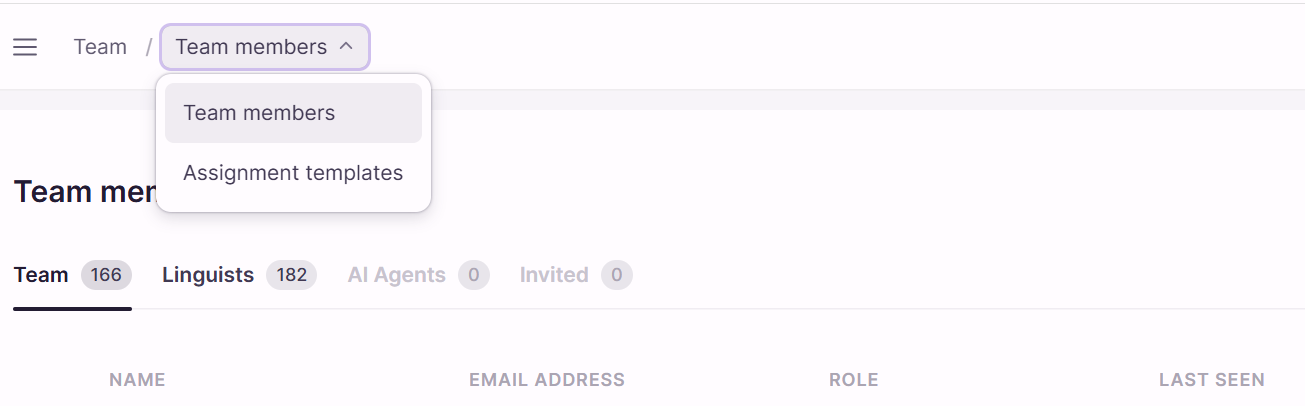
3. Save an assignment template. Save your usual reviewer and linguist setup once, then apply it to future projects, so you are not reconfiguring the same assignment every time you start a similar project.
Click your Workplace menu > Team > Templates.
5. Hire from the Smartcat Marketplace when you need extra capacity. This is not available on the Adapt plan. Search by language or specialty and add linguists straight to your project, which you can do yourself for any project in the account. It is the fastest way to cover a gap without a separate recruiting process.
Go to Find Freelancers in the left sidebar.
6. Review and edit translations in the Smartcat Editor. Your team opens the translation task and works through it segment by segment, editing anything that needs a fix. This is where quality actually gets enforced: it turns a raw AI draft into content you can publish with confidence.
Open the file from your project's Files tab, or from My Tasks if the work is assigned to you.
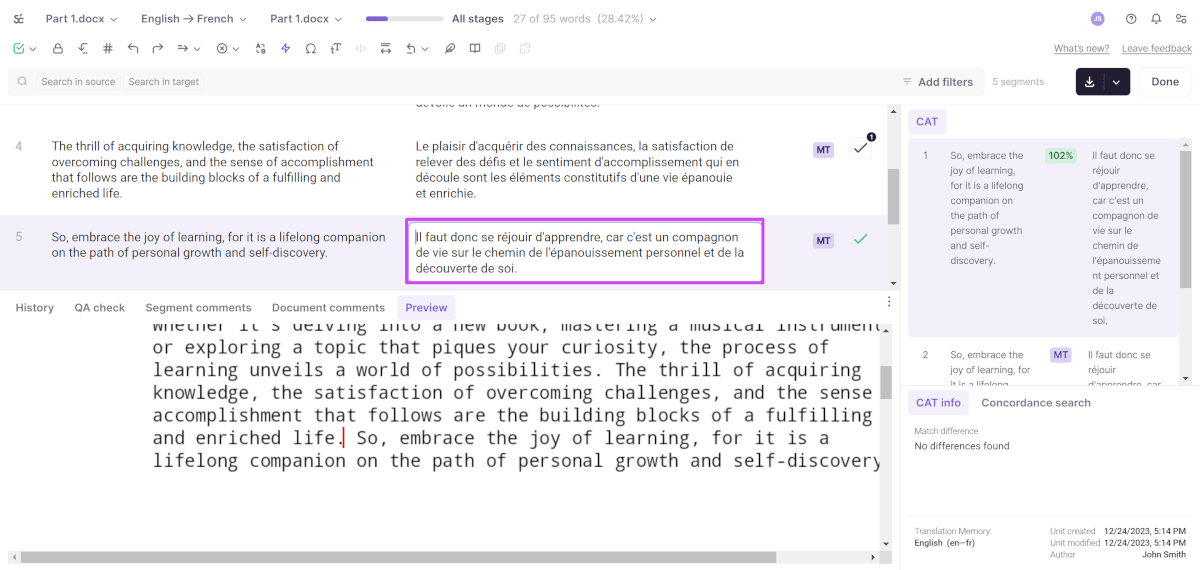
7. Confirm reviewed segments. Mark each segment as confirmed once it is checked. This locks in your progress, keeps tracking accurate, saves the approved wording into your Reviewed Translations, and signals to the team that the content is ready to move forward.
8. Keep review resources current as the work moves. From the Team tab, adjust who is assigned as translator or reviewer as the work or your team's availability changes, so each piece always lands with the right person rather than whoever was assigned at kickoff.
Note: adding and managing vendor accounts at the workspace level is reserved for your Administrator. Hiring linguists from the Marketplace for your projects is not.
Project Templates, AI Translation Profiles, and Custom Prompts
Once the same kind of project starts repeating, stop rebuilding it. Three things save that setup, and they do different jobs.
Project Templates
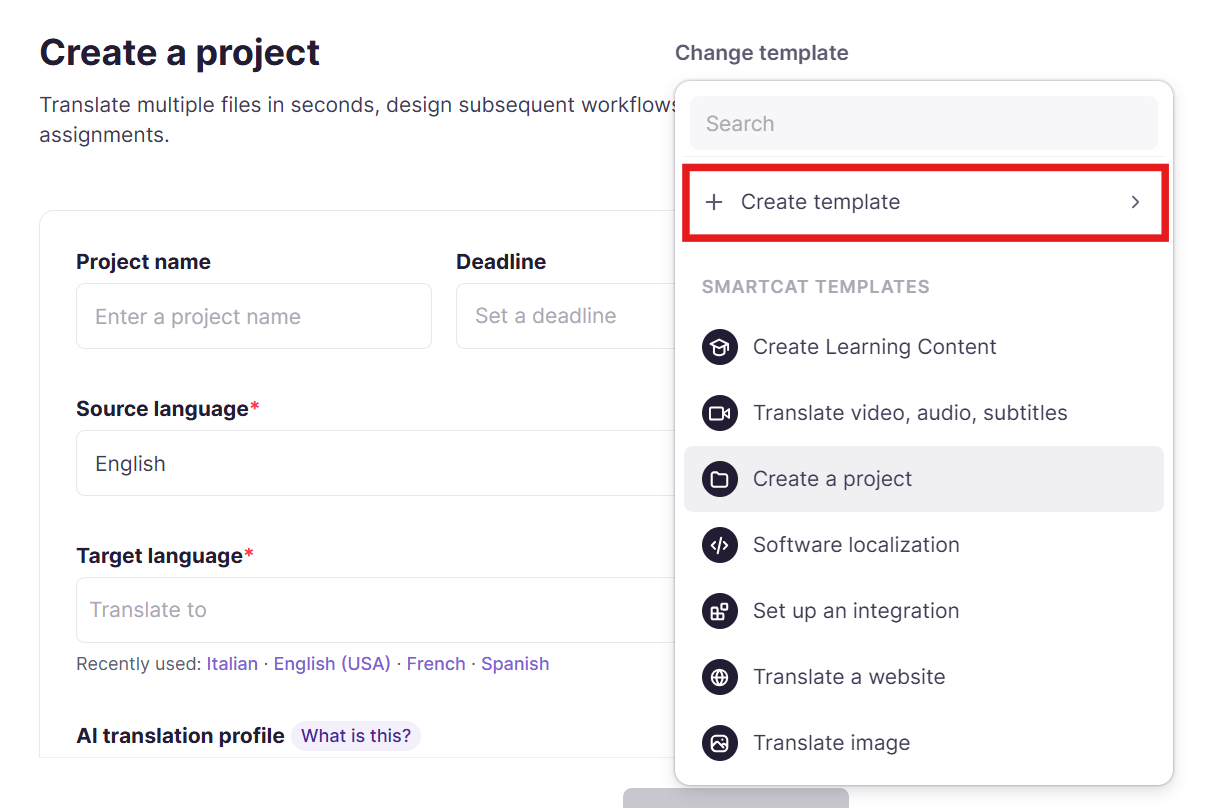
Project Templates save the structure of the work: workflow stages, source and target languages, deadlines, assignees, custom fields, and a project naming pattern. Apply one to a new project with a single click. Because the terminology and the review stage are locked into the template, a project is far less likely to start without them.
Target languages are predefined on a template. If one project needs an extra market, add that language to that project afterwards from its project settings.
AI Translation Profiles
These control the quality and behavior of the AI: which Reviewed Translations and Terminology apply, which engine handles each language pair, whether a fallback engine steps in if the first one fails, and whether AI translation runs at all for a given workflow stage. Profiles can be scoped per client, department, brand or use case, so your regulated content does not have to share a configuration with everyday copy.
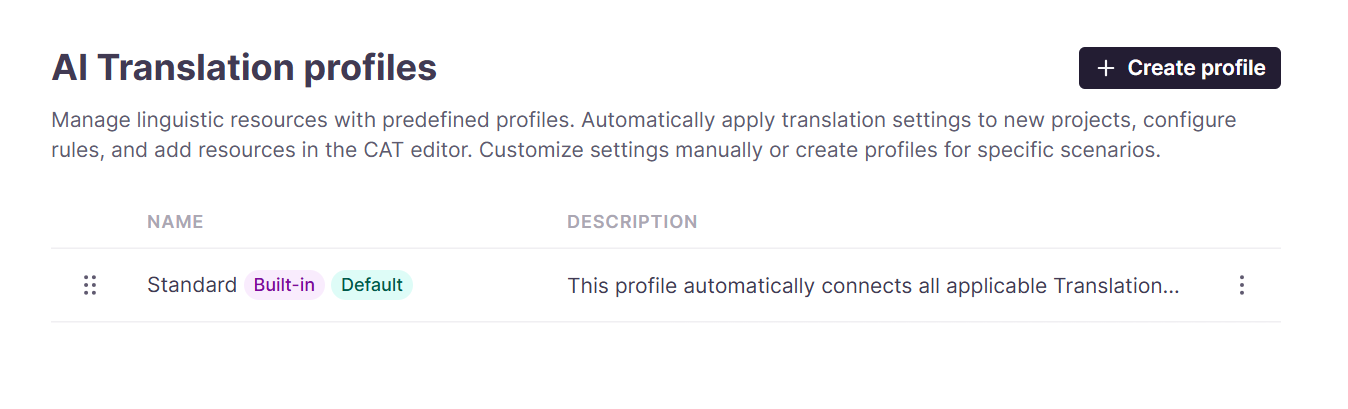
One constraint to plan around. A project takes a Project Template or an AI Translation Profile, not both. If you use a template, you configure the equivalent linguistic behaviour inside it, through its own Translation Memory Rules and AI Translation Rules, rather than pointing at a shared profile.
Go to Intelligence Fabric > Smartcat Coworkers > Translator Coworker > Translation Profiles.
Custom prompts
When Smartcat translates your content, it uses a "translation engine" behind the scenes — think of it as the AI doing the actual work. Most engines are ready to use out of the box, but Smartcat also lets you connect a more powerful AI model (like the ones behind ChatGPT or Claude) and give it custom instructions — this is called a Custom Prompt. It's a way to tell the AI not just to "translate this," but how you want it to translate: how formal, how literal, how creative.
-
You don't need to build one to use Smartcat. Custom Prompts are an advanced option. As a new user, you can safely ignore this at first and just use the engines already set up in your workspace.
-
Someone on your team (usually an admin) sets these up. They connect the AI provider, write the instructions, and adjust settings like how "creative" vs. "precise" the AI should be.
-
Once it's set up, using it is simple. You just pick the right one from a list when starting a project, the same way you'd pick any other translation engine.
-
Different engines can be tuned for different content. One might be set up for legal documents (very literal and consistent), another for marketing copy (more natural and creative). You choose whichever fits what you're translating.
-
If something reads oddly — too stiff, too loose, or missing a term you expect — that's useful feedback to pass along to whoever manages your workspace's engines, so they can adjust it.
What this means for you as a Teammate. You manage project templates and project resources directly, for every project in the account. Workspace-wide defaults, and who is allowed to change them, stay with your Administrator.
💡 Not sure whether you need a template or a profile? Describe the project to your Chief of Staff and let it apply the right setup. It holds the translation profiles that decide which engine to use and how to treat each file format, and it can write a custom prompt with you rather than leaving you to start from a blank box.
Reporting & Support
Four reports tell you how your translation work is performing. They live under Apps in the left navigation, which appears only once one or more custom apps are enabled in your workspace. Custom apps are currently in beta, so if you do not see Apps, that is why.
Go to Apps in the left sidebar, then open the report tile you need.
Translation Review Report shows trends across the whole workspace: approval rates, reviewer time, language pair performance, and project and document tables. Approval rate measures how often human reviewers accept an AI translation without changing anything, counting only the segments that were meant for human review. Filter by language pair, date period, AI pipeline or reviewer, and compare approval rates across pipelines from AI only through AI plus three review agents.
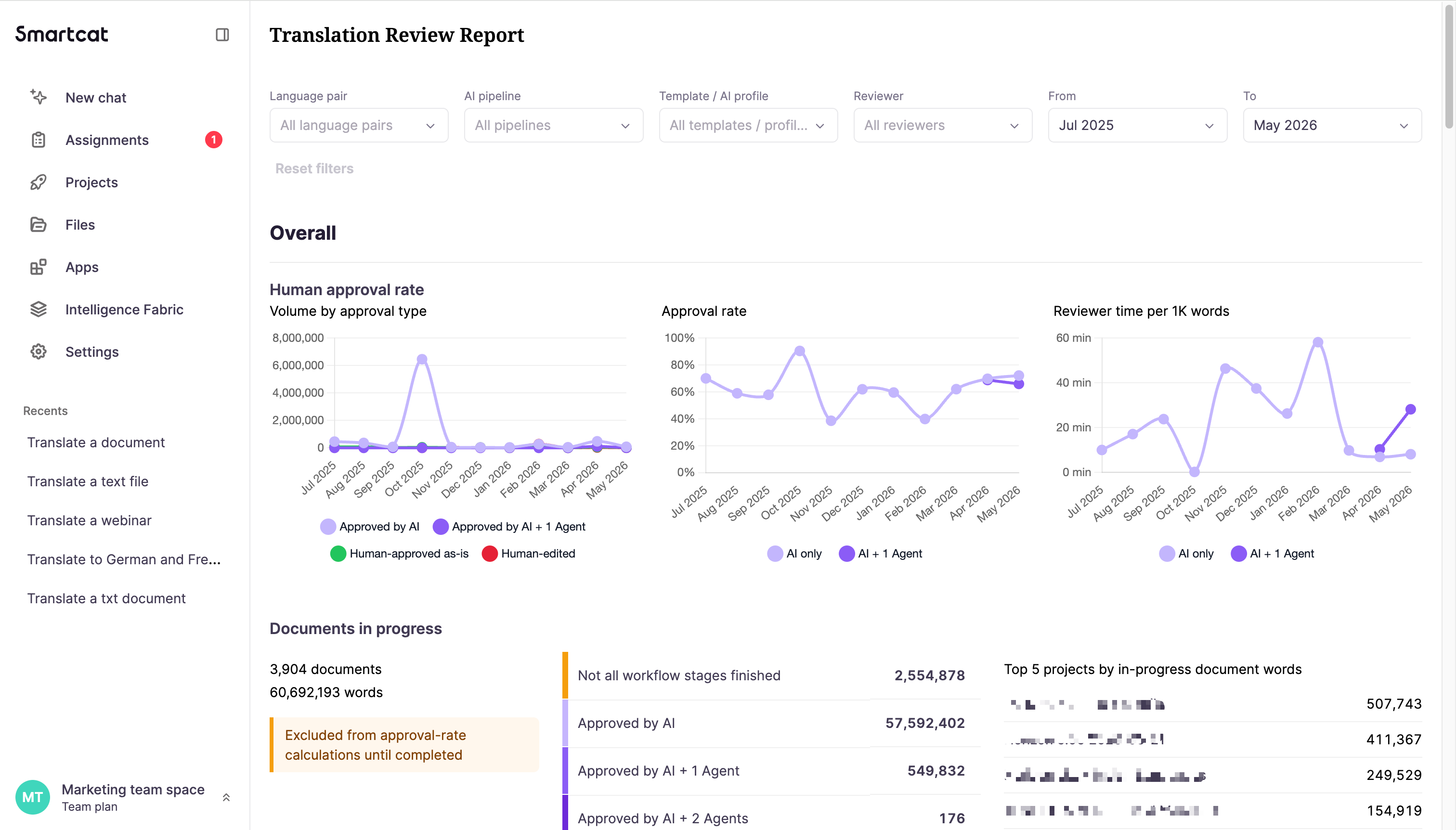
Project Report drills into a single project's review results: overall approval rate, source words, document count and turnaround time, with a document table you can expand by language pair. Open it from the Projects section of the Translation Review Report, or on its own by selecting a project.
💡 Ask your Chief of Staff about your projects in plain language, for example which are behind schedule, rather than opening a report to answer one question. On the Anticipate and Autonomous plans it can also send you project updates on a schedule, each arriving in its own new chat.
Document Edit Report shows exactly what changed between two revisions of one document, for example the AI translation against a review agent's edits, or those edits against a human reviewer's final pass. It lays out source, before, after and a comment explaining each change, with additions in green and deletions struck through.
ROI Report compares what you spent in Smartcat against what the same work would have cost with traditional vendors, grouped by subscription cycle, quarter or month. It covers text translation, image localization, video and audio, AI dubbing and Marketplace work, and you can move the rate sliders to match your own vendor rates. Click any project to see its own breakdown. This report is available to workspace Administrators.
All four export the same way: click the book icon in the top right for presentation mode, then PDF.
Note: the ROI Report and account-wide Enterprise Reports are Administrator-managed and span every project in the workspace. If you need that cross-project view, ask your Administrator.
Want to learn more?
See how Smartcat can transform your localization workflow.
Still need help?
Our support team responds within one business day.