Use supplier and client payments
Overview
This article covers the payment sections in a Smartcat corporate account. The payment process varies depending on whether the translation work is done in Smartcat or in another CAT tool, but in both cases you can pay freelancers through the automated process.
The Payments menu
You access payment options through the Payments section in the Smartcat main menu, which contains several sections and tabs for completing the process.
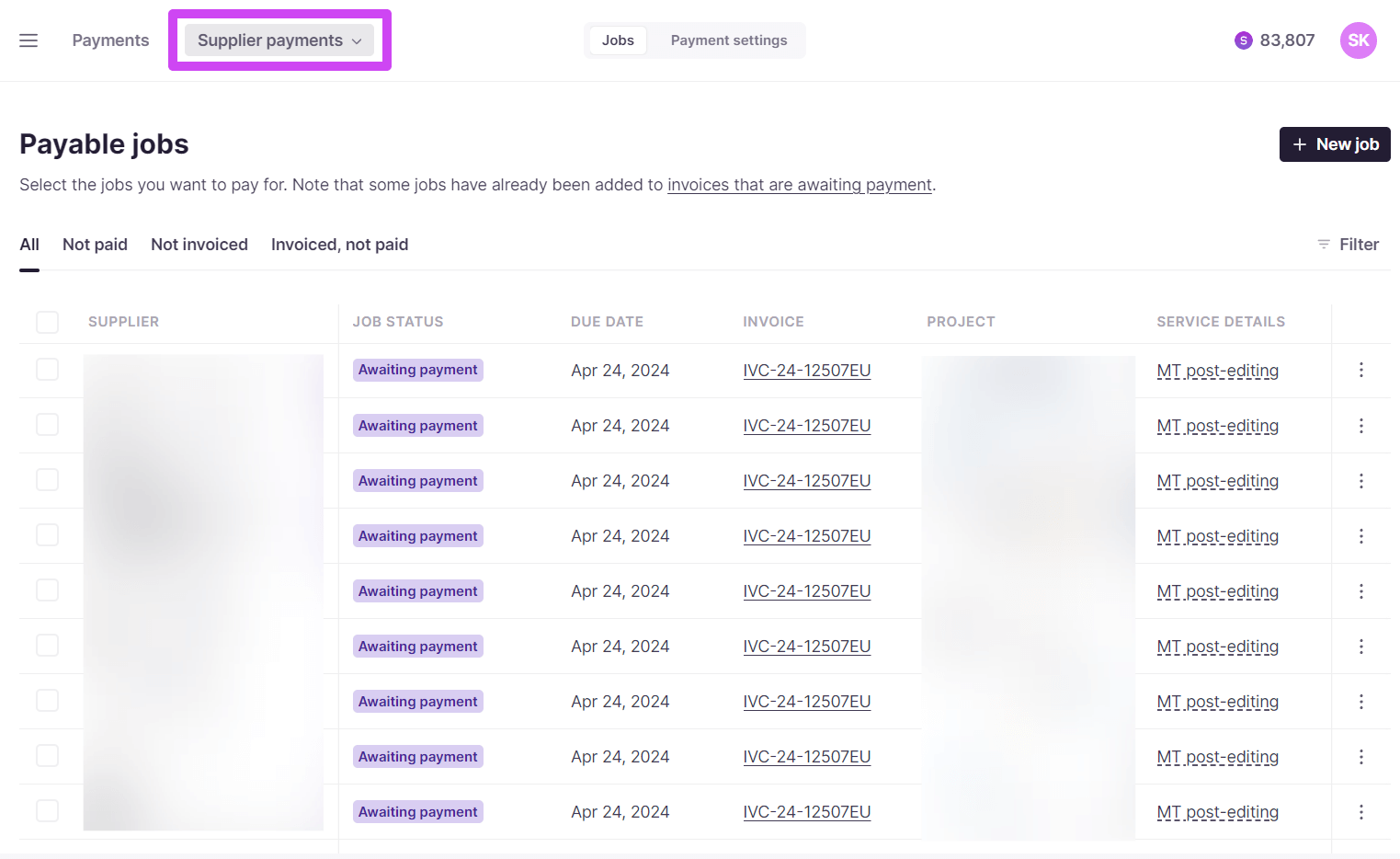
Supplier payments: Jobs
The Jobs tab lists jobs created when a freelancer completes a task in Smartcat. Each entry matches the project data — freelancer name, project name, and the cost Smartcat calculates from the freelancer's rates and match discounts — and shows an invoice number and payment status once a job is being paid or has been paid. Tasks assigned to LSP vendors are not added automatically; you add them manually.
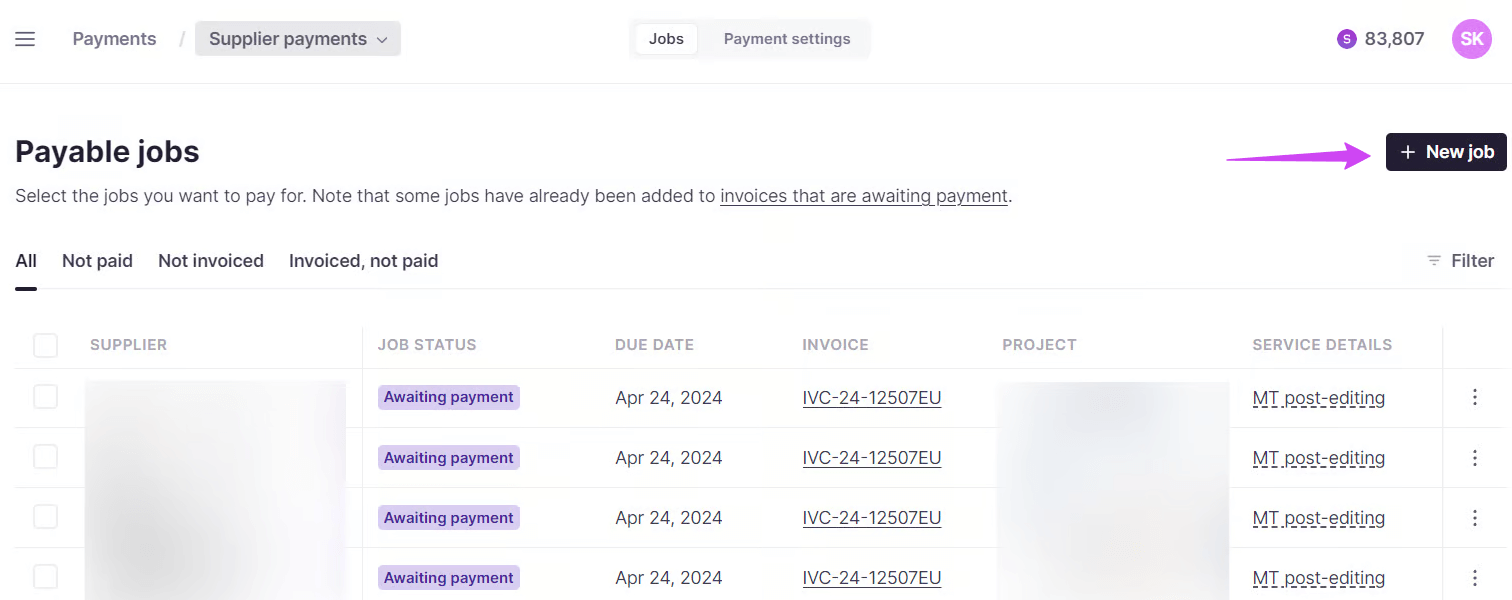
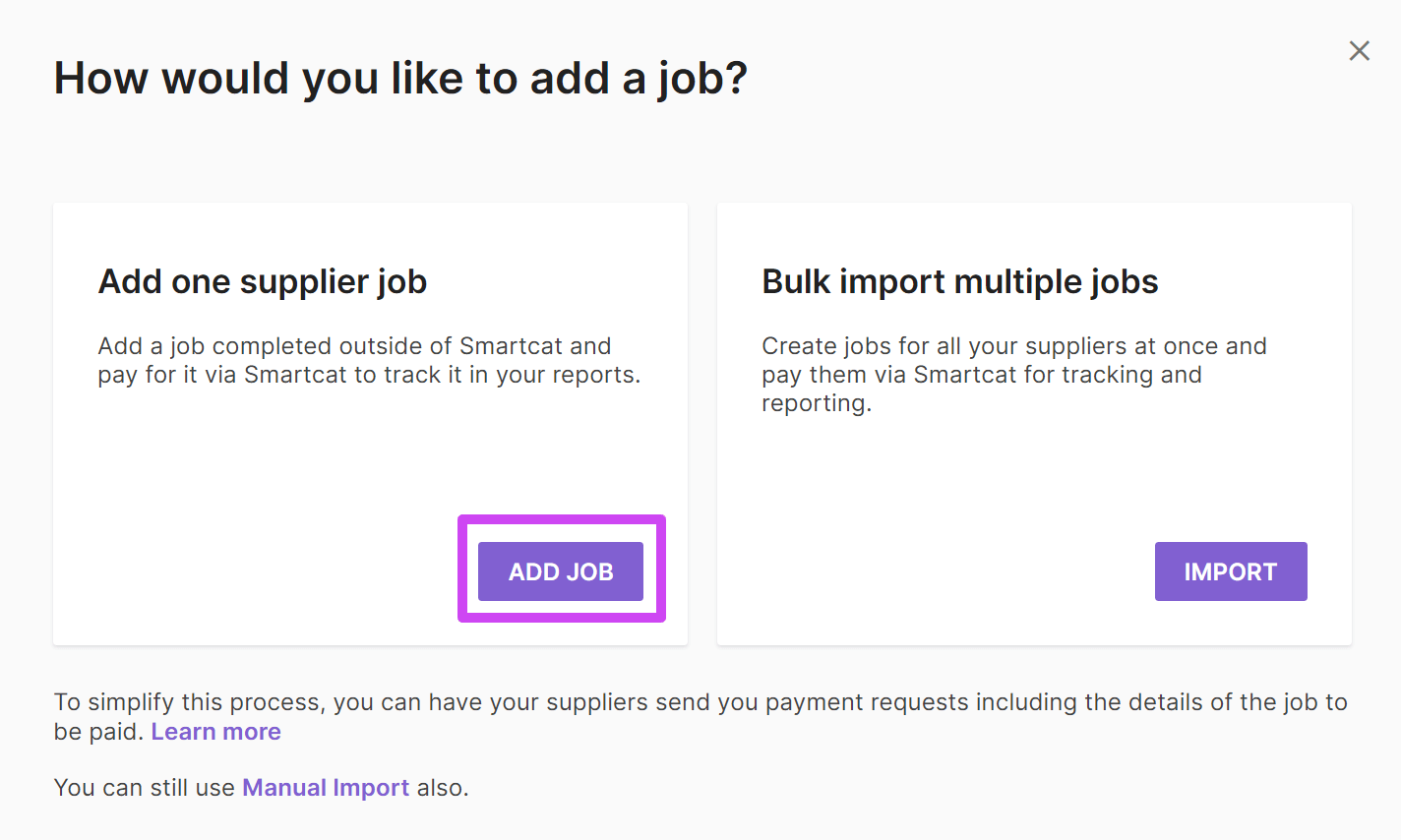
To add a job for work done outside Smartcat, or done in Smartcat by a vendor associated with your account, use the New Supplier Job option.
-
Select Add Job
-
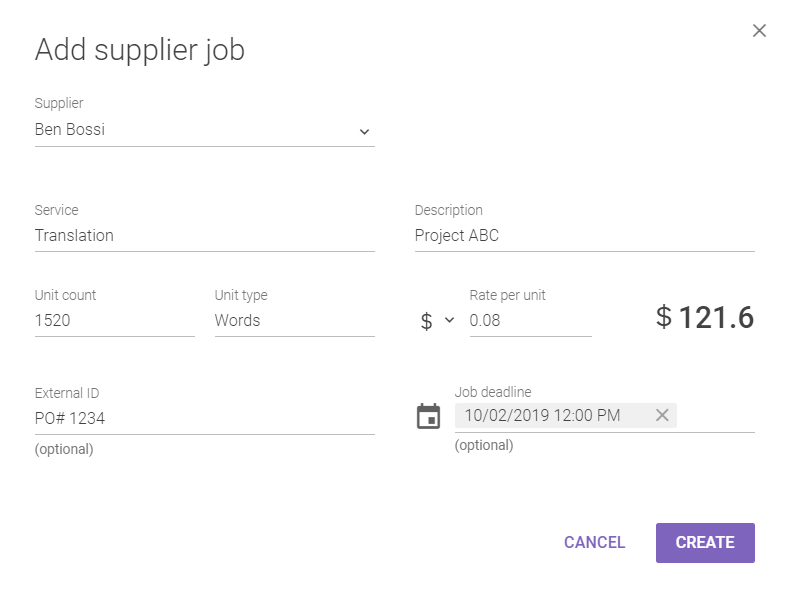
Choose a supplier from the dropdown list (prepopulated with your team and vendors) and add the information to appear on the job page — most fields are free-form, and the cost is calculated automatically from the unit count and rate
-
Click Create — the task is added to the Jobs list
Click the three dots at the right of a job listing to check its details.

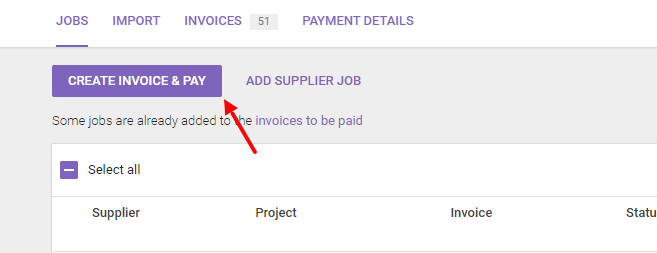
On your payment schedule, select the jobs you want to pay — individually or with Select all — to activate the Create Invoice & Pay button.
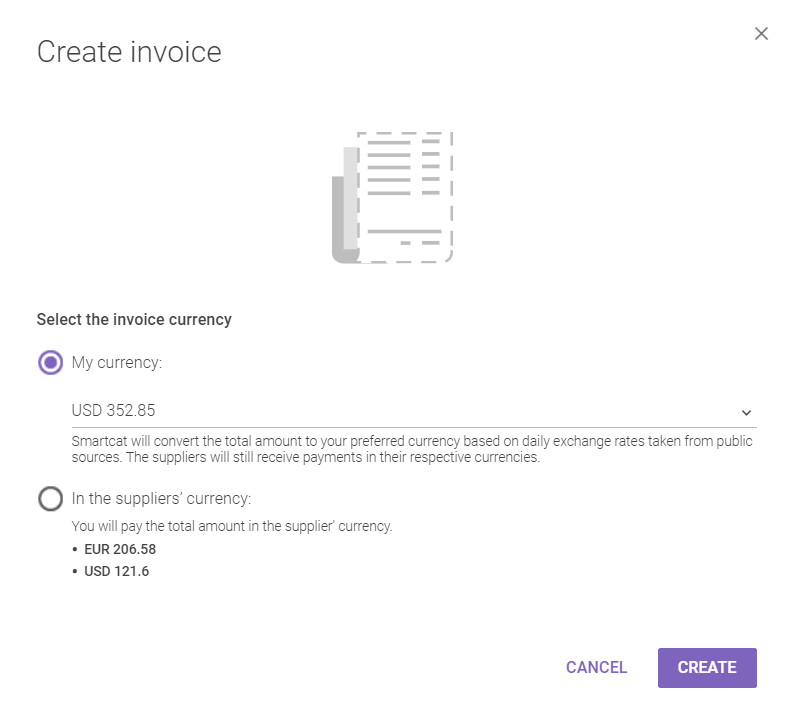
When paying mixed currencies, you choose the currency to pay the invoice in, from over 10 major currencies. Freelancers receive money in the currency their rates are set in, or you can choose to pay in the freelancer's currency.
An invoice can contain any number of tasks and includes payment instructions and details. Once your payment is received, Smartcat pays the freelancers, and the invoice is added to the Invoices tab.
Supplier payments: Import
If most of your tasks are completed outside Smartcat or stored in a TMS, you can create jobs by importing an Excel spreadsheet with the fields needed to process payments.
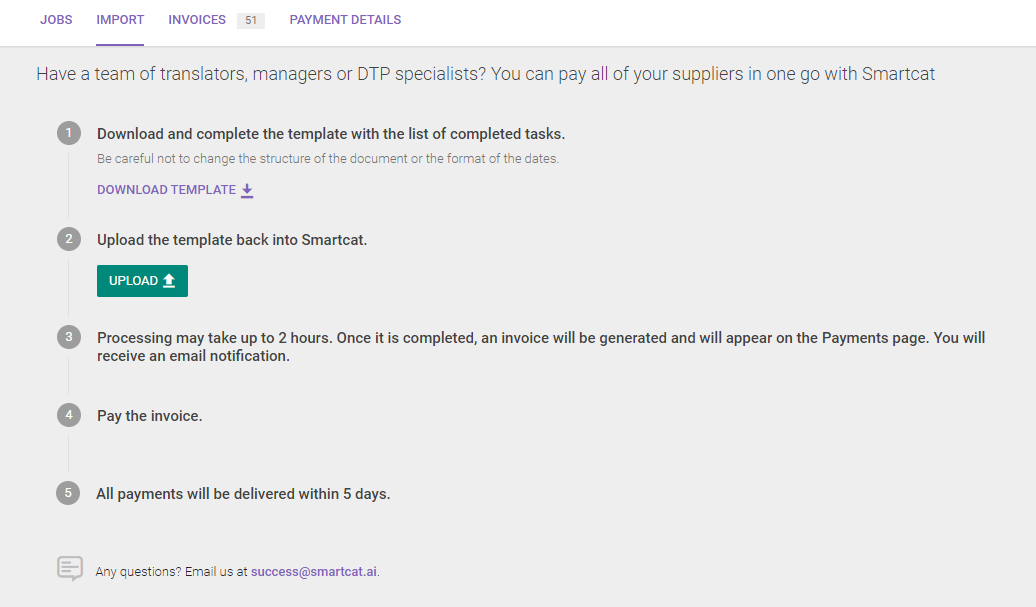
Download the preset template, fill in the information, and upload it back — Smartcat adds the individual jobs and creates an invoice automatically. You can also upload files exported from a TMS as long as they contain the required information. For more detail, see importing supplier jobs.
Supplier payments: Invoices
Invoices you create appear in the Invoices tab, awaiting payment or already paid.
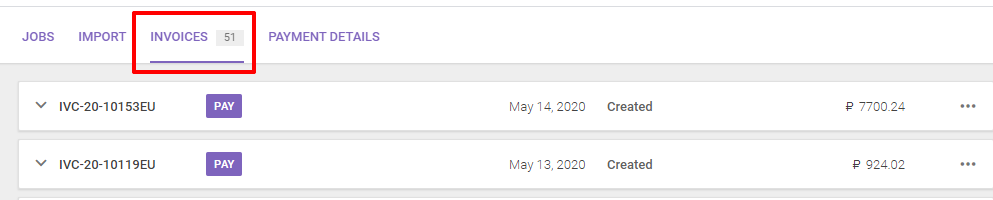
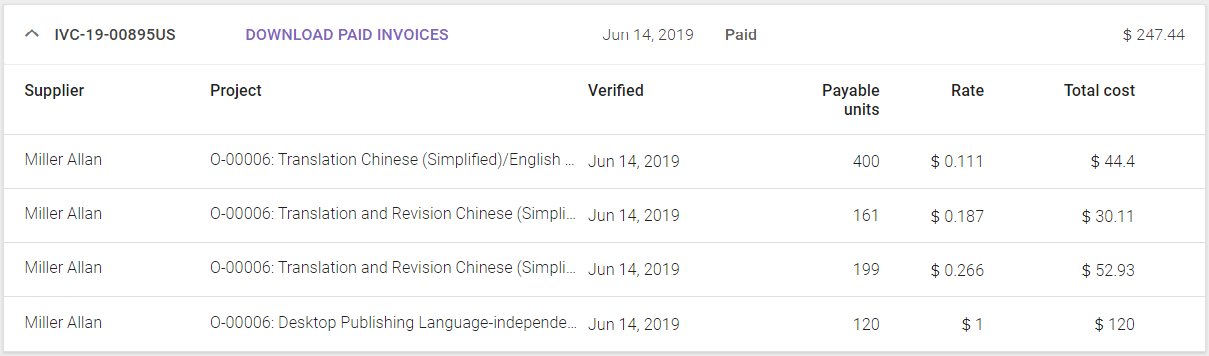
Click an invoice to see details of the jobs being paid.
Click Pay on an open invoice to see the two options:
-
Standard processing (via invoice) — download a PDF with the invoice details and payment information
-
Express processing (PayPal or bank card) — enter card details to pay instantly
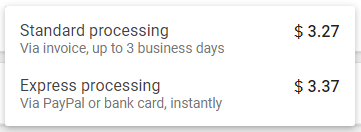
⚠️ A processing fee is added when you pay by credit card.
Once paid, the invoice status changes from Created to Paid, and you can download it at any time.
💡 You can download a CSV with all the job information in an invoice using the Download jobs in CSV button on the right of the invoice.

Supplier payments: Payment details
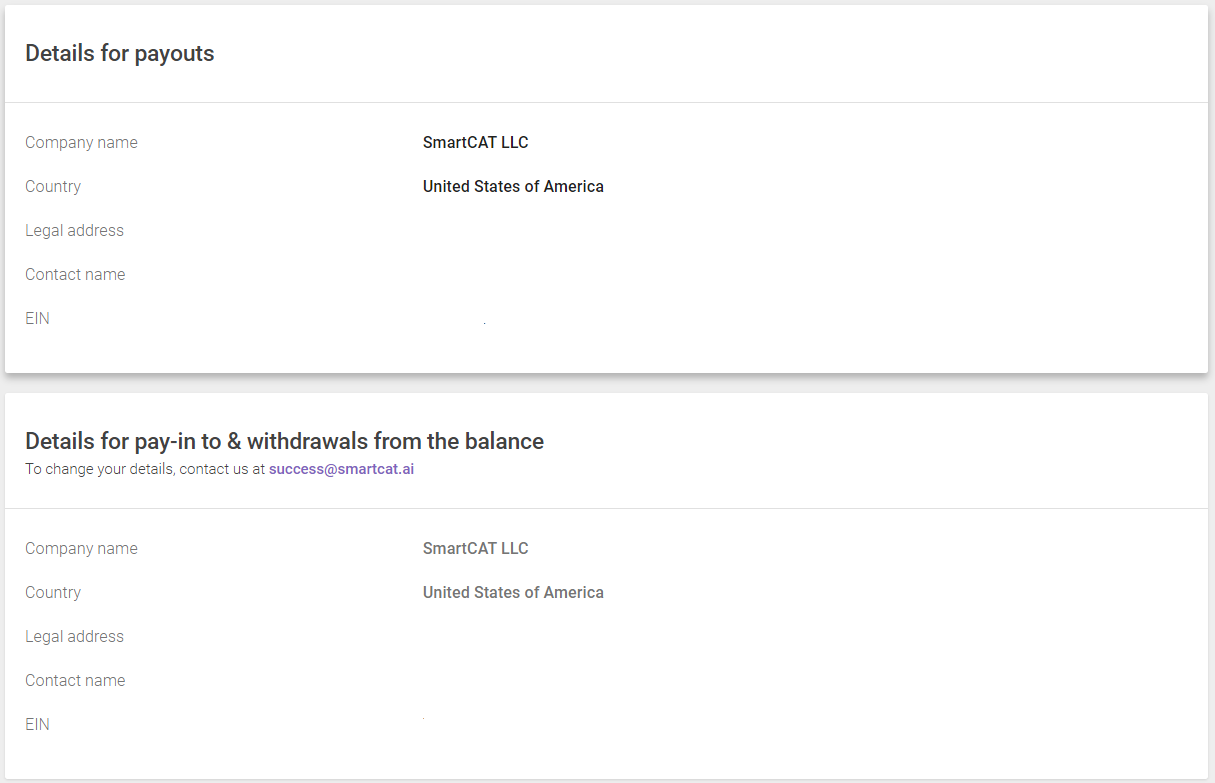
Enter your company's legal information here for Smartcat's accounting. You can also specify a different legal entity to process payouts (when you pay vendors) and a different entity to receive payments and make withdrawals from your balance.
Client payments
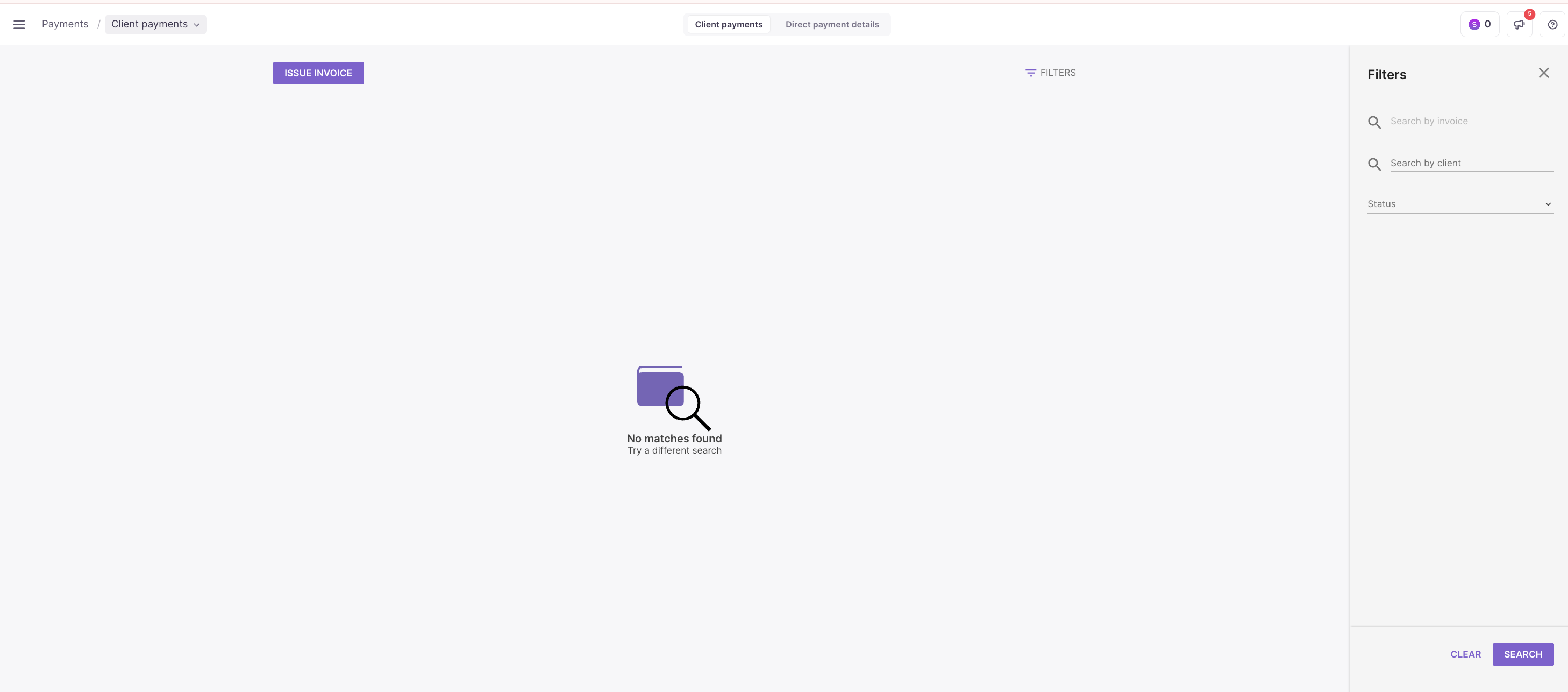
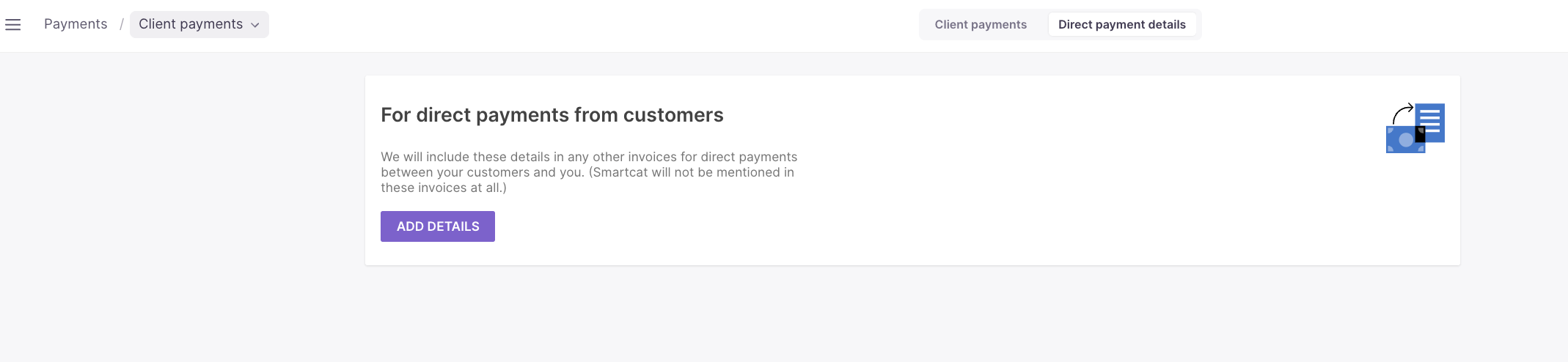
This section holds invoices for payments processed by your clients.
Settings and balance: Payment settings
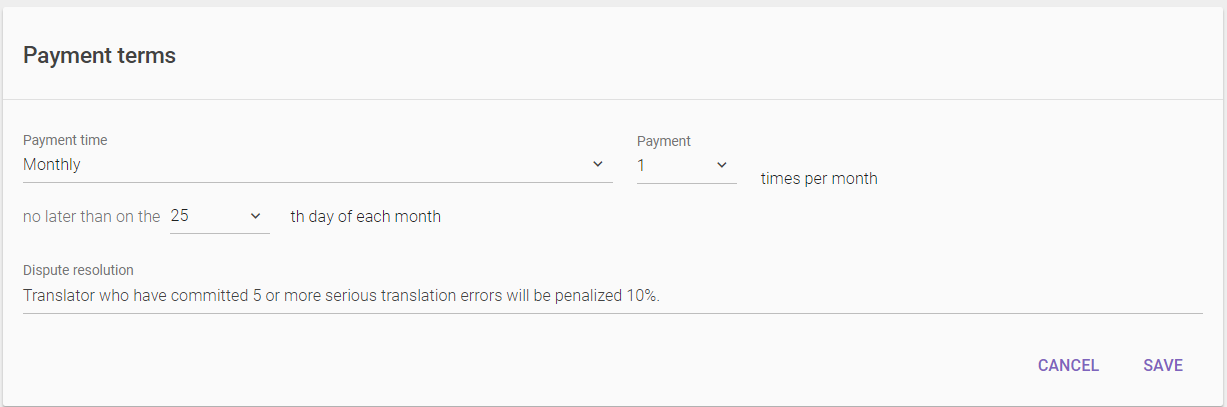
Here you enter company information that freelancers can see when considering your jobs, set your payment terms, and specify how disputes are resolved.
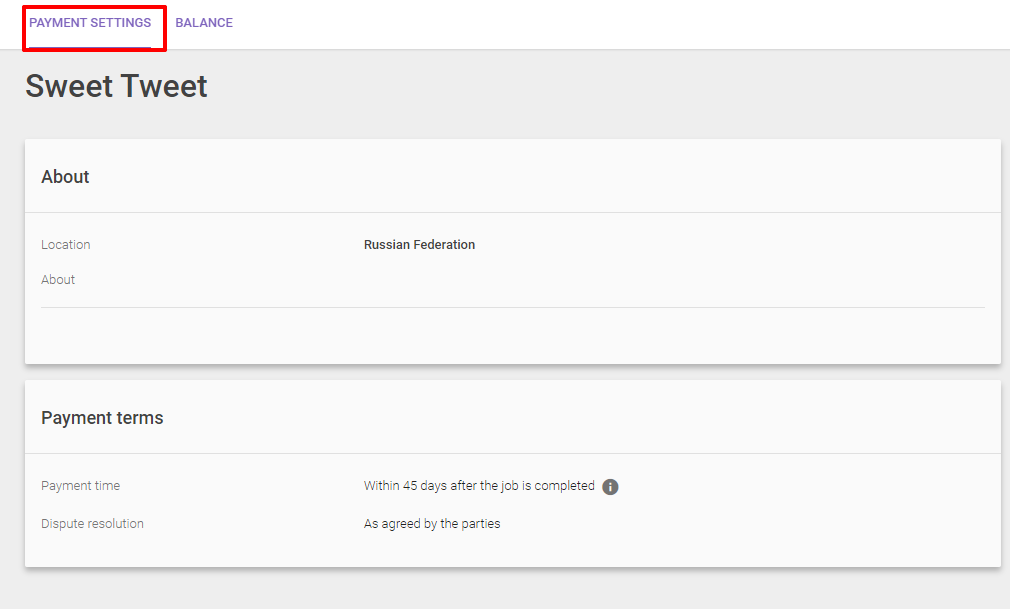
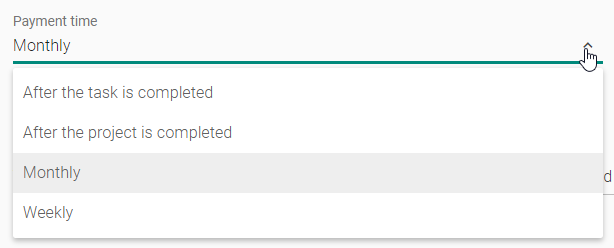
Hover over the payment time field and use the Edit option to customize it.
On this page you can also set the discount scheme used to pay translators for different match types, customized per task type. Smartcat uses it to calculate project cost and translator invoices.
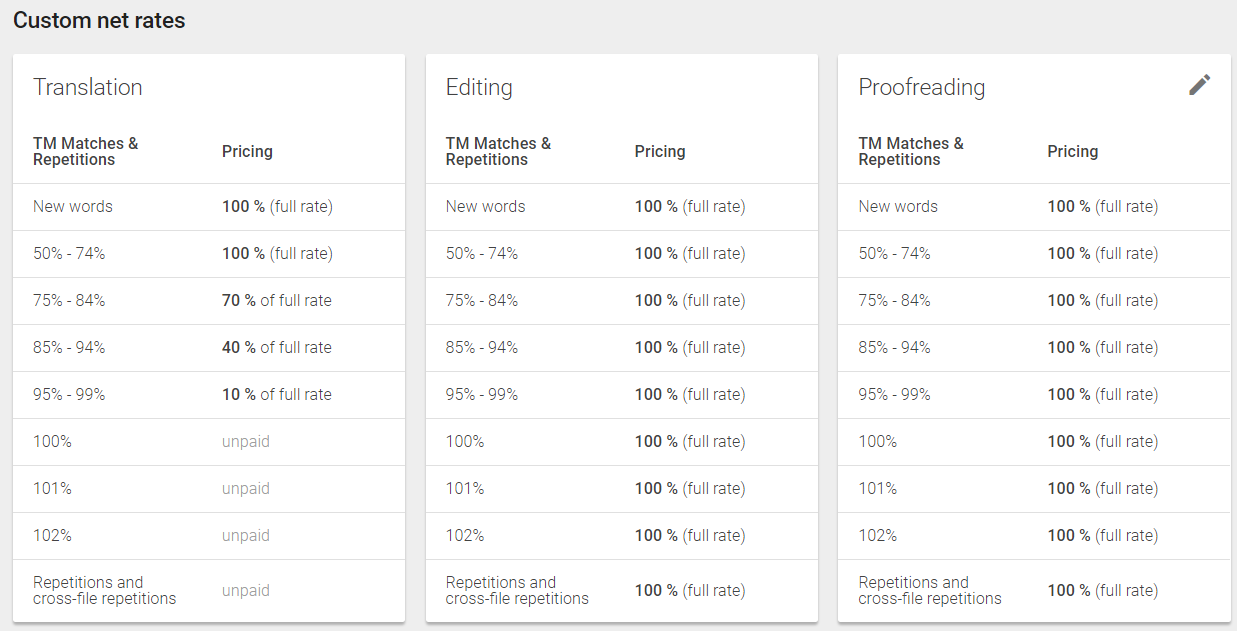
📌 Review the Supplier net rate schemes in your account to confirm they match your pricing policy — the Smartcat default can differ significantly from yours. All matches except repetitions must be paid at full rate when the stage is not the first in your workflow, because almost all segments after the first stage are full context matches (102%).
Settings and balance: Balance
Your Smartcat balance tracks payments you receive from clients.
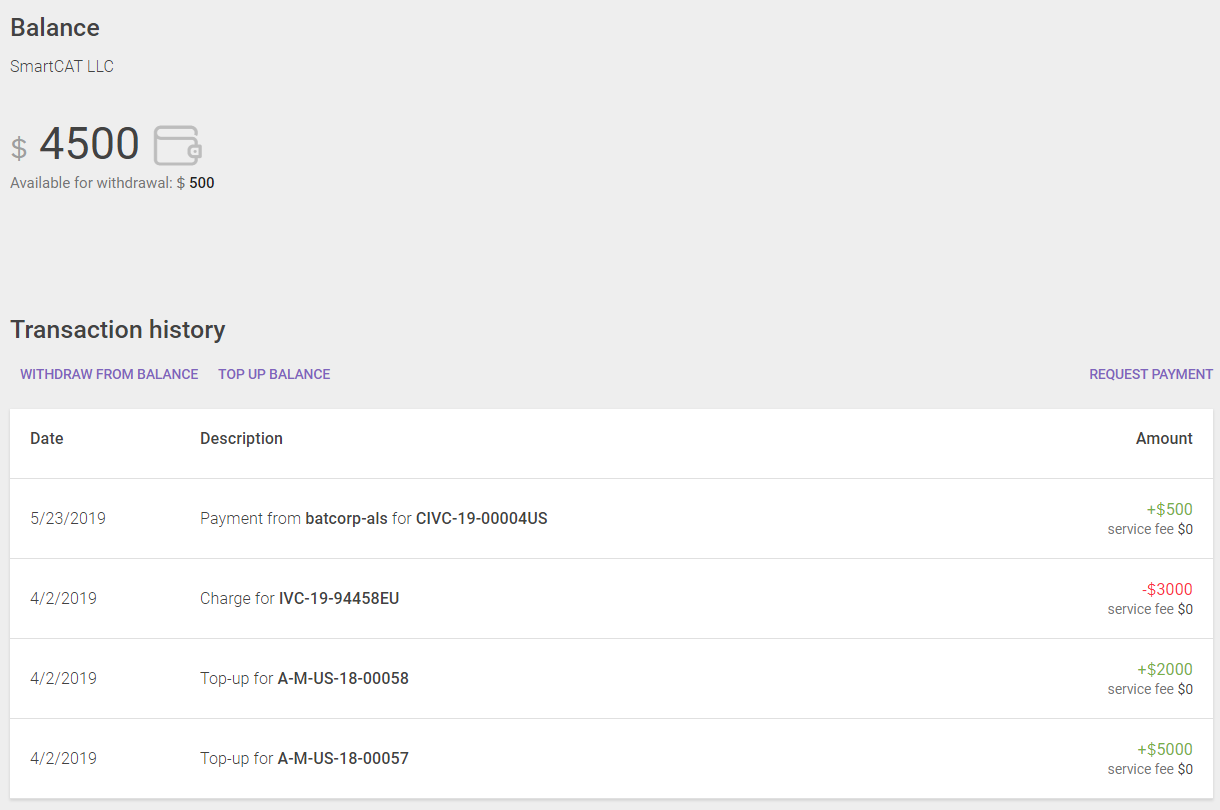
Balance payments can come from several sources:
-
Acting as a vendor for another Smartcat user — if they pay through Smartcat's payment automation, the amount is added to your balance automatically
-
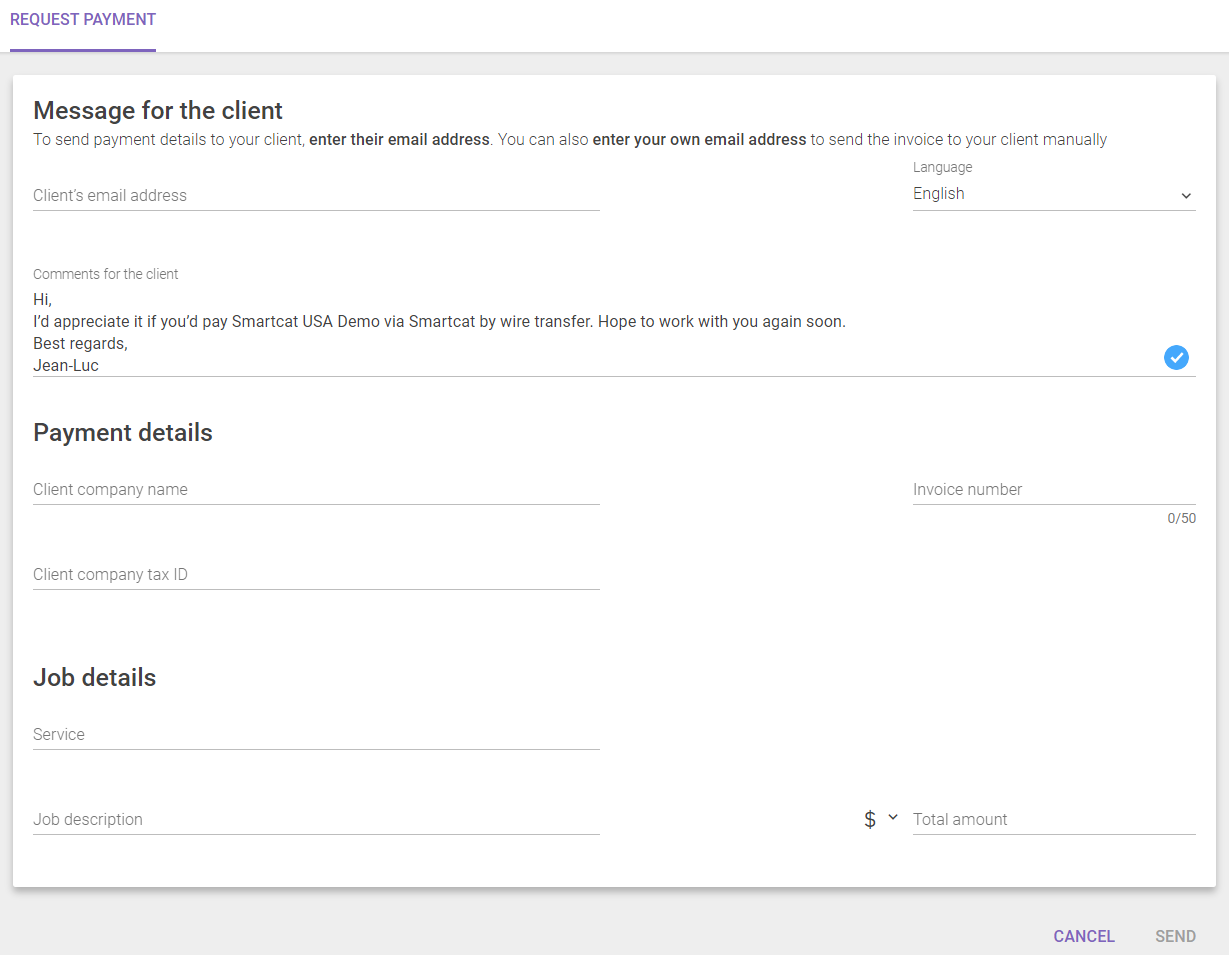
Requesting payment from your clients — use Request Payment to bill clients through the Smartcat payment network, which can be cheaper for clients abroad and can avoid currency exchange fees
-
Jobs received on the client portal — jobs completed on a Smartcat client portal are paid through payment automation, with wire transfer and credit card options
-
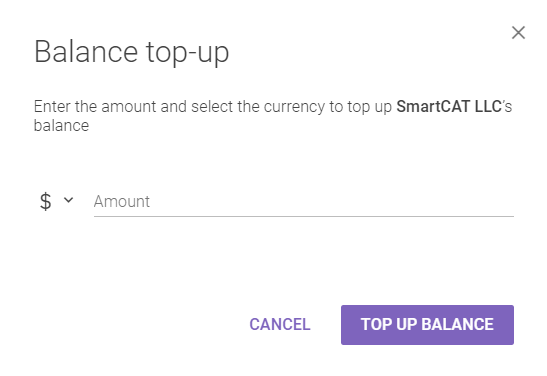
Topping up your balance — use Top Up Balance to add funds you can use to pay freelancers for upcoming jobs
You can use your balance in several ways:
-
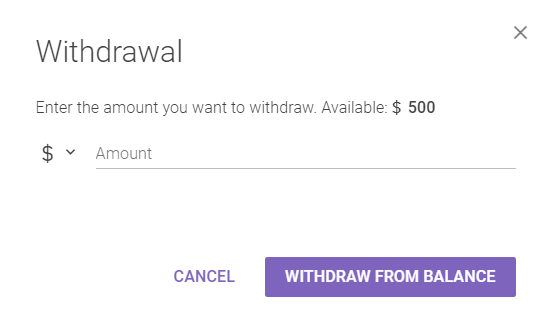
Withdraw the available balance with Withdraw from the Balance, choosing the amount and currency; the money is deposited to your specified account via your preferred payout method
-
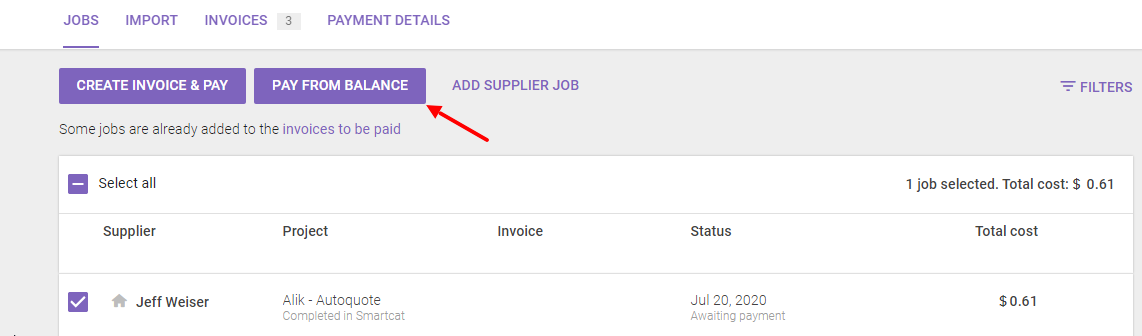
Pay vendors in the Jobs tab with Pay from Balance instead of creating an invoice first — an invoice is created but marked as paid immediately. To pay an already-formed invoice from your balance, delete it, select the jobs, and click Pay from Balance
📌 Money you add yourself with Top Up Balance cannot be withdrawn. Because you can hold a balance in different currencies, paying from your balance can help limit foreign exchange fees and transaction costs.
FAQs
I created a manual supplier invoice in the wrong workspace. Can I move the invoice to another workspace?
No. Both invoices and supplier jobs are tied to a single workspace, so there is no move function. To correct the error, delete the invoice and recreate it in the correct workspace.
Want to learn more?
See how Smartcat can transform your localization workflow.
Still need help?
Our support team responds within one business day.