Mark a project as complete
Overview
When you mark a project complete in Smartcat, you confirm that no additional work is required on that project.
You can mark a project as complete in Smartcat at any point — even if work is not finished in every workflow stage, in every target language, or by every assigned supplier. This is useful when a project isn't meant to be fully reviewed in all target languages, when you've changed your mind about a review process but can't remove a workflow stage once it has started or been assigned, or when you simply want to close out a project's remaining work.
When to use it
-
You want to close a project without running every workflow stage to 100%
-
A workflow stage isn't needed for all target languages and you want to finalize anyway
-
You can't remove a workflow stage because work on it has already started or been assigned
-
You want to stop remaining work on a project for any reason, without fully cancelling it
Requirements and limitations
-
"Mark as complete" is available from the project overview page for projects that aren't already Completed, Canceled, or Created, and that weren't assigned to you via an Order
-
You can mark a project complete at any progress, including 0%, even with no assigned executors
-
If the project has no active assignments, confirming takes a single click
-
If completing the project will trigger a payout — i.e., an assigned supplier has already completed some volume of work — you must type the project's name into the confirmation dialog to proceed
-
Any partially completed work that suppliers have recorded is retained and must be paid for; it is not discarded
-
Suppliers who haven't delivered yet are unassigned when the project completes; they are not notified of a cancellation
-
Workflow stage statuses and progress are left exactly as they were — the displayed progress stays factual, it is not forced to 100%
-
Re-opening the project later requires reassigning suppliers manually; previous assignments are not restored, and payouts already made are not reversed
How it works
Mark a project as complete
-
Open the project and go to its overview page
-
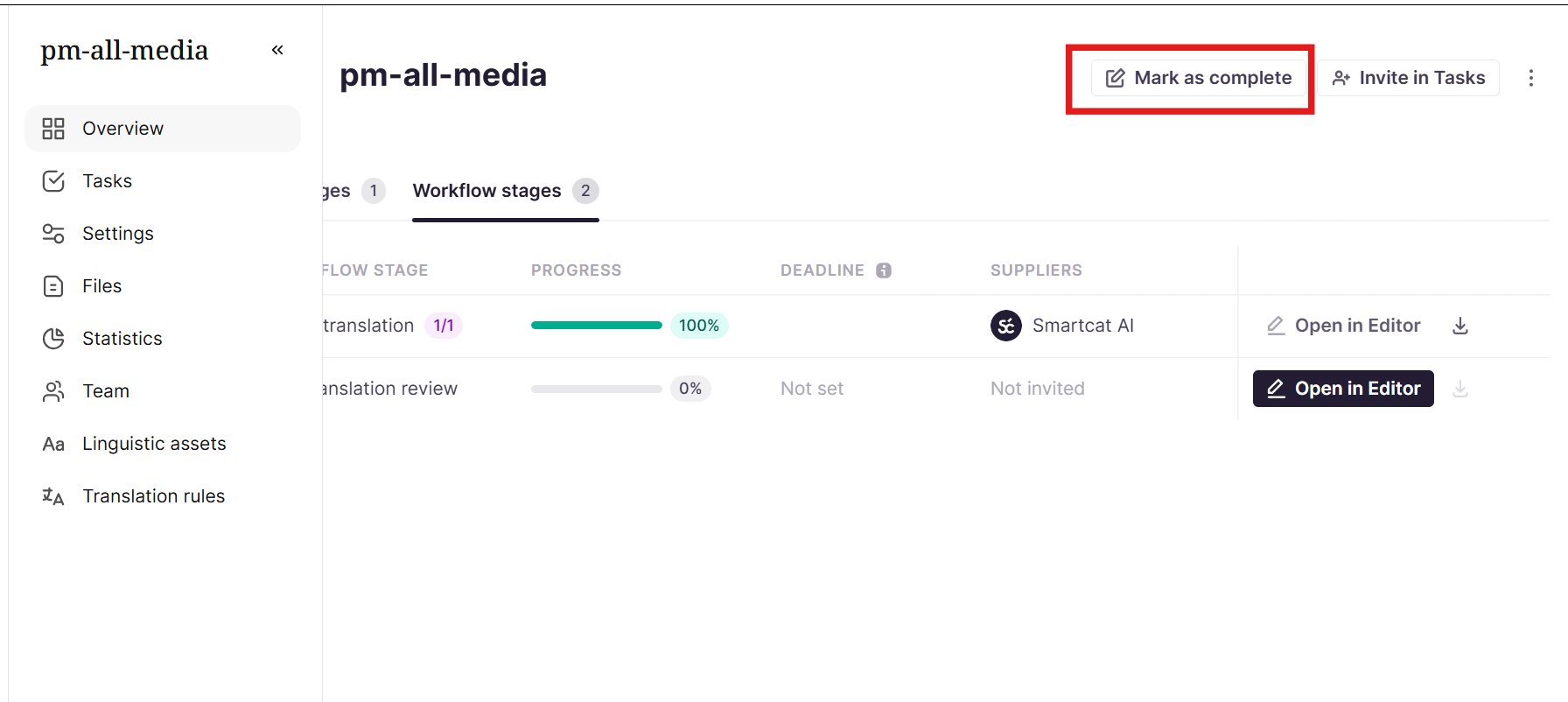
Click Mark as complete in the page header (also available from the ⋮ menu in the project list)
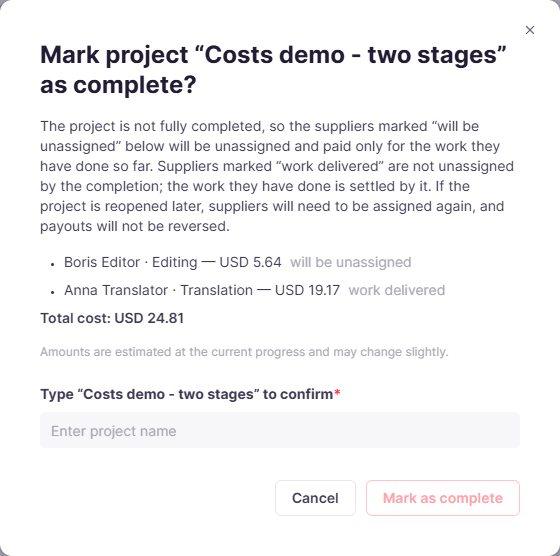
- Review the confirmation dialog — it lists every supplier and the estimated amount the you will pay for the work done so far. It is calculated as the customer rate x completed units, in your display currency, including Smartwords for Smartword-paid jobs. At the bottom it includes the total. Suppliers who have already delivered their stage are listed separately from those who will be unassigned. The figures are an estimate of the current progress and may change slightly once the job is finalized.
-
If prompted, type the project's name exactly to enable the confirm button
-
Select Mark as complete
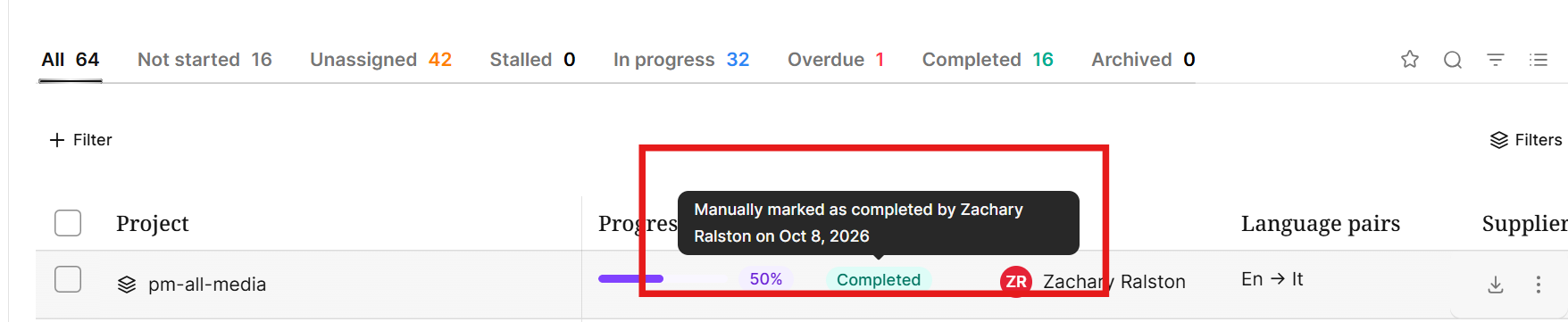
The project status changes to Completed, and — if you completed it below 100% progress — the project retains a record that it was completed manually.
Undo a manual completion
-
Open the completed project
-
Click Mark as not complete in the page header (also available from the ⋮ menu)
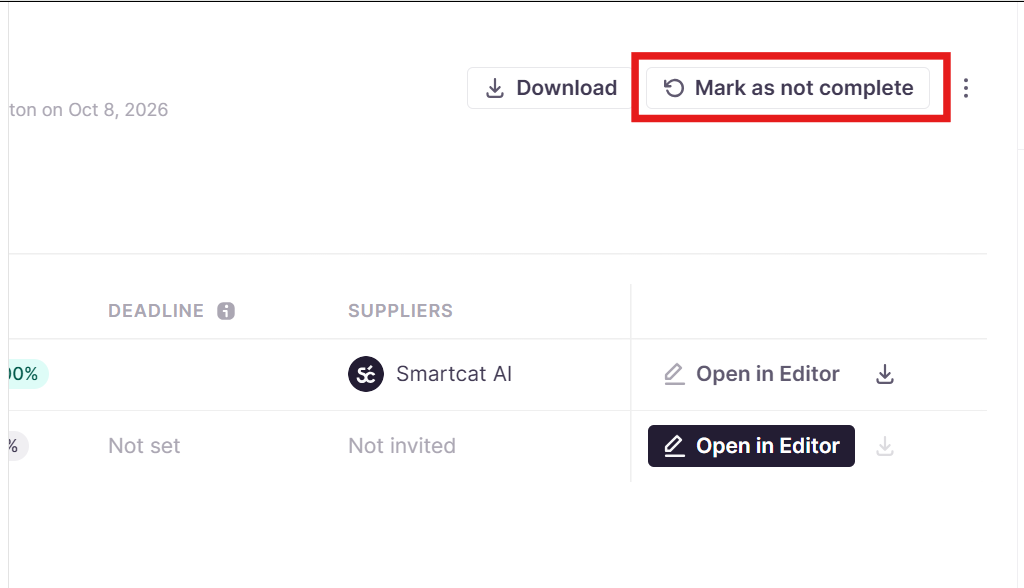
The project returns to its previous state (for example, In Progress or Manager review; a project that had reached 100% returns to Manager review). Suppliers who were unassigned during completion are not automatically reassigned, and any payouts already made for completed work are not reversed.
Reopening a project and reassigning tasks
Each task on a project keeps a history of its previous suppliers: who was assigned, invited, or hired, and when they were removed from the task.
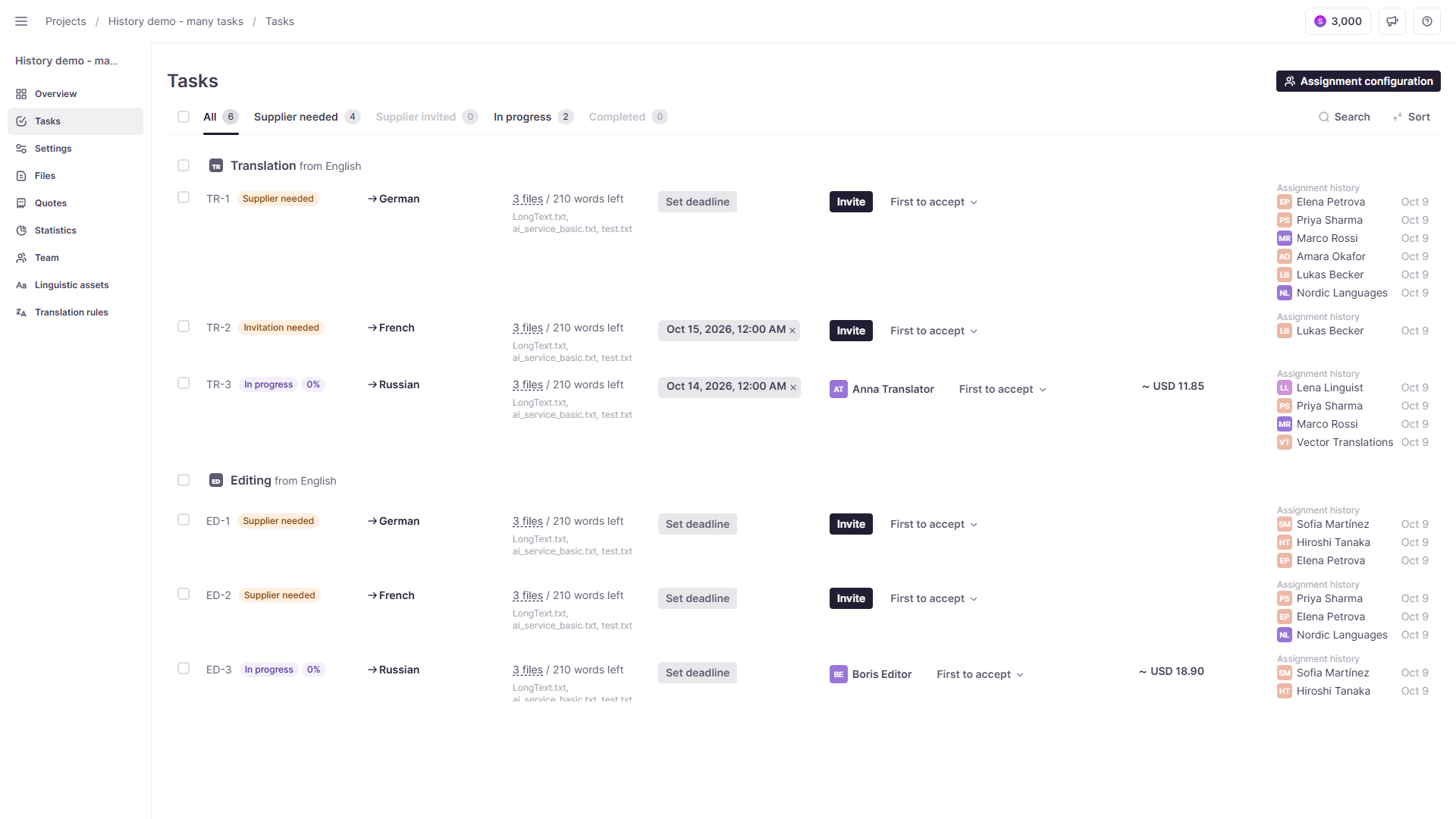
If you reopen an incomplete project, you can hover over the assignment history and click Invite again.

The invitation popup opens with the previous individual or agency and you can send the invitation as usual.
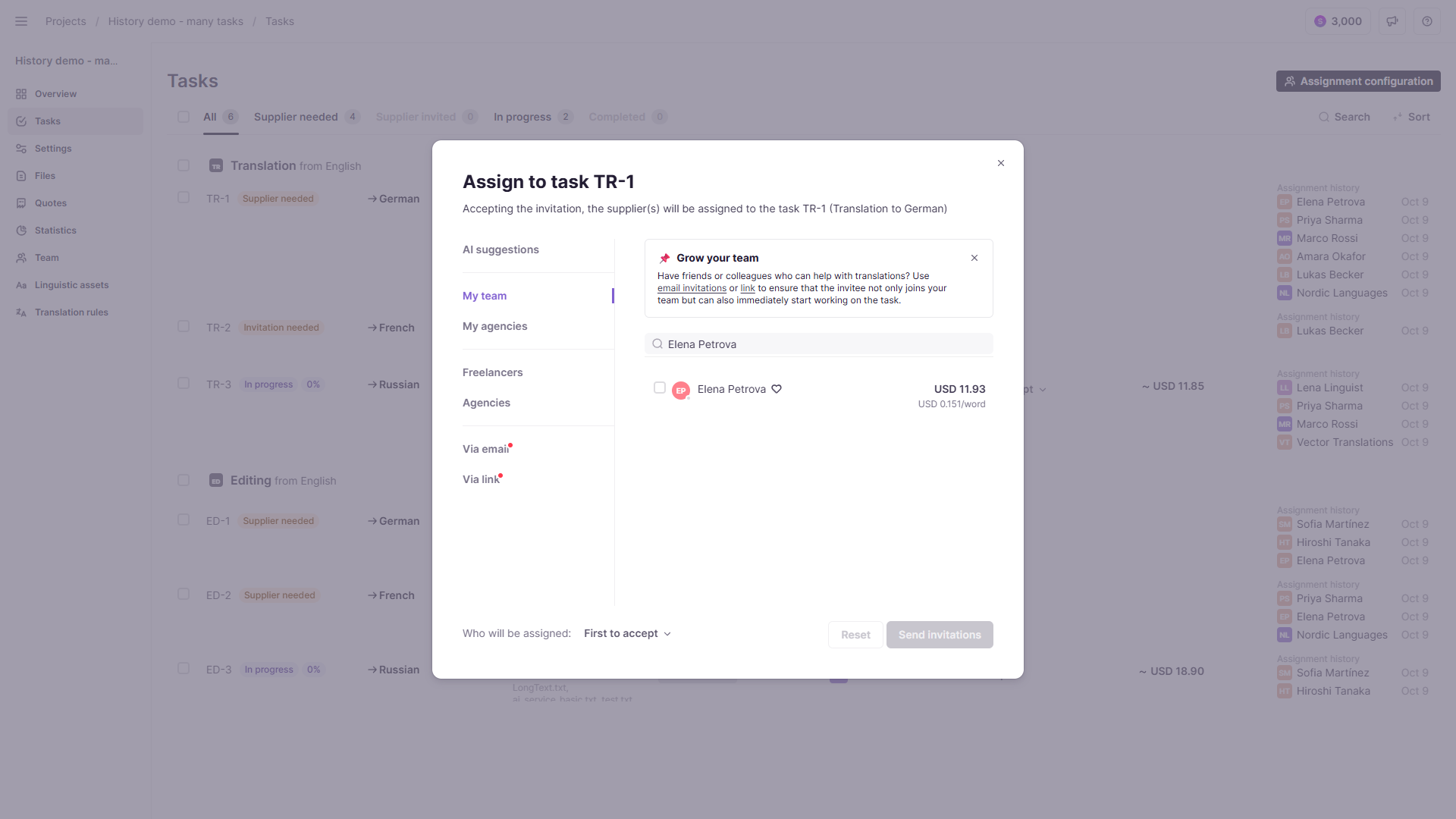
The button is disabled while the task has a current supplier.
What to do if it looks like all files are completed but the project is not
Confirm all files are completed
All files in the project must have the status Completed.
If a file shows 100% progress but is still marked In Progress, this is typically caused by one of the following:
Cause A: Segments containing only numbers
Segments that contain only numeric values (for example, "6.5" or "2024") are not included in the document progress calculation. A document can show 100% progress even if some numeric-only segments remain unconfirmed. This is expected behavior.
Resolve it:
-
Open the document in the CAT editor
-
Review any remaining unconfirmed segments. You can use a segment status filter to identify the segments
-
Confirm numeric-only segments manually if needed
Cause B: The supplier has not clicked Done
If a task was assigned to a supplier, the task status remains In Progress until the supplier clicks the Done button, even if all segments are confirmed. After the supplier clicks Done, the document status changes to Manager review. If the manager doesn't change the status to Completed, the system automatically changes the status to Completed after 7 days. This allows suppliers to make final edits before officially delivering.
Resolve it:
-
Contact the assigned supplier and ask them to click Done if their work is complete
-
If no action is taken, Smartcat automatically completes the task after thirty minutes of inactivity
Cause C: Segments still need confirmation
Some segments may still be awaiting confirmation or pending work from suppliers.
Resolve it:
-
Open the file in the CAT editor
-
Confirm that all segments are confirmed
-
Click Done
Result: The file status updates to Completed.
FAQs
I can't click Done on a file. What might be causing this?
This can happen if there is a special agreement with a supplier, or if there is a blocked status on the project. Contact support@smartcat.ai with the project name.
I completed the project but payments are still showing as pending. What should I do?
Check the payment status for each supplier in the project. If payments appear stuck, contact support@smartcat.ai.
I need the project marked complete urgently but can't reach the supplier. What should I do?
If the project is in the Manager review state, the you can change it to “In progress." You can also do this if all segments are confirmed and the status is In progress, but they consider if the assigned supplier hasn’t finish their work yet.
Will I lose in-progress translation work if I mark a project as complete below 100%?
No. The project and its documents are marked Completed, but nothing is deleted — the project and its files remain viewable, and segment data isn't touched.
Do I have to pay suppliers for partial work if I complete a project early?
Yes. Any work a supplier has already completed is recorded and billed to the client as normal. Suppliers with no completed work are simply unassigned with no payout.
Can I cancel a project after marking it complete?
No — a project that's already Completed can't be cancelled. Use "Mark as not complete" first, then cancel it if needed.
If I undo a completion, do my suppliers come back automatically?
No. You'll need to reassign suppliers manually if you want work to continue.
Want to learn more?
See how Smartcat can transform your localization workflow.
Still need help?
Our support team responds within one business day.