Import supplier jobs
Overview
Add several jobs at once to Smartcat by importing them in an Excel file. This guide explains how to prepare, save, and upload such files.
Import jobs from a file
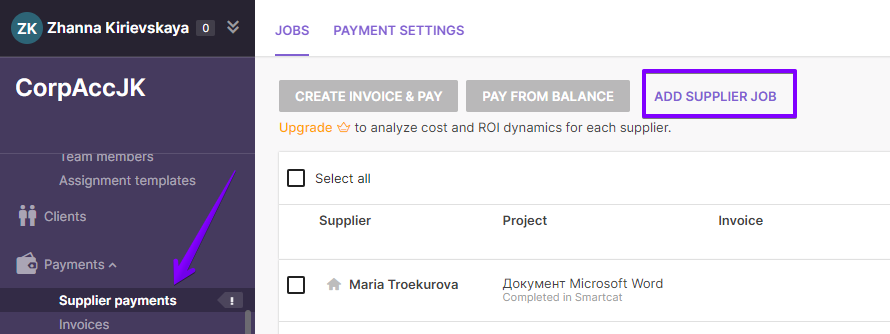
- Go to Payments, select Supplier payments, and click Add supplier job
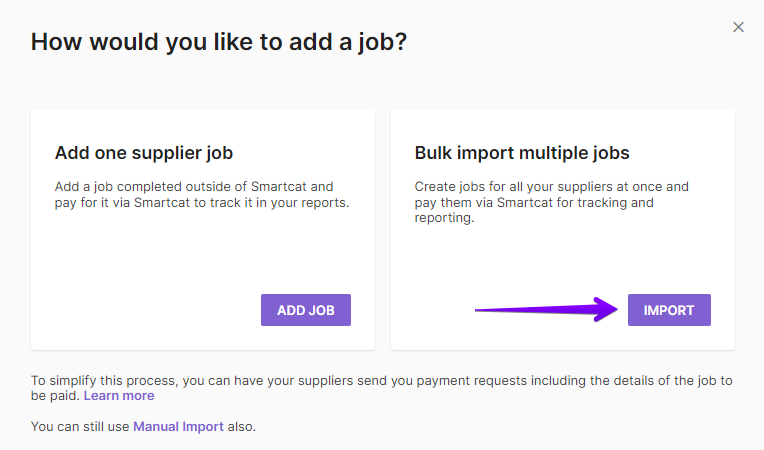
- In the Bulk import multiple jobs section, click Import
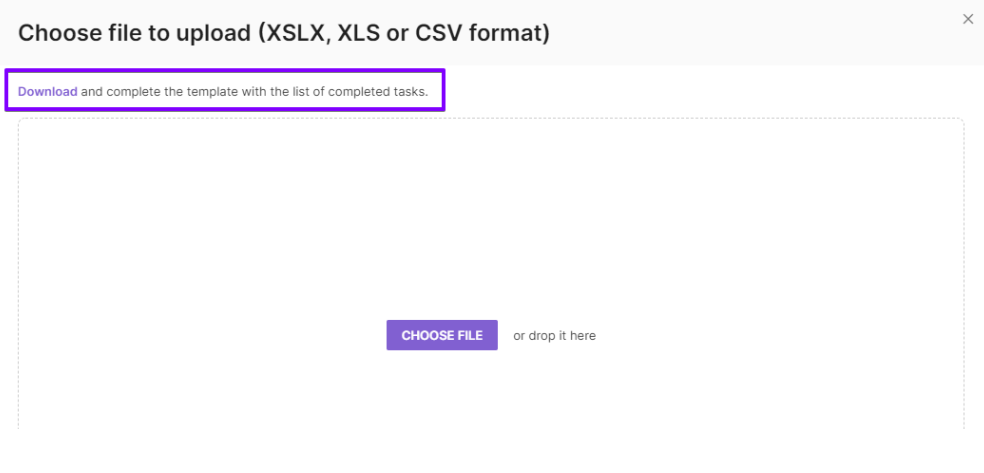
- Click Download to download the job register template, then populate the template with the details of the completed tasks
💡 For a full description of each field in the job register, see the How to fill in your register correctly section below.
-
When the job register is completed and saved, click Choose File to select it for uploading
-
If the date or decimal separator format is incorrect or invalid, click Back and correct the format
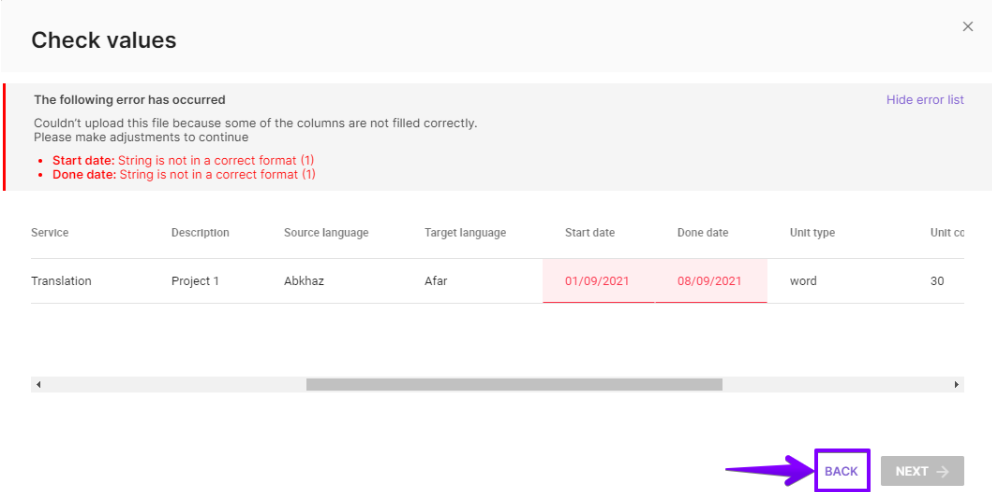
Click Next to continue reviewing the values. This window also appears in the first step of the register upload if Smartcat is unable to automatically parse the columns or the uploaded data format.
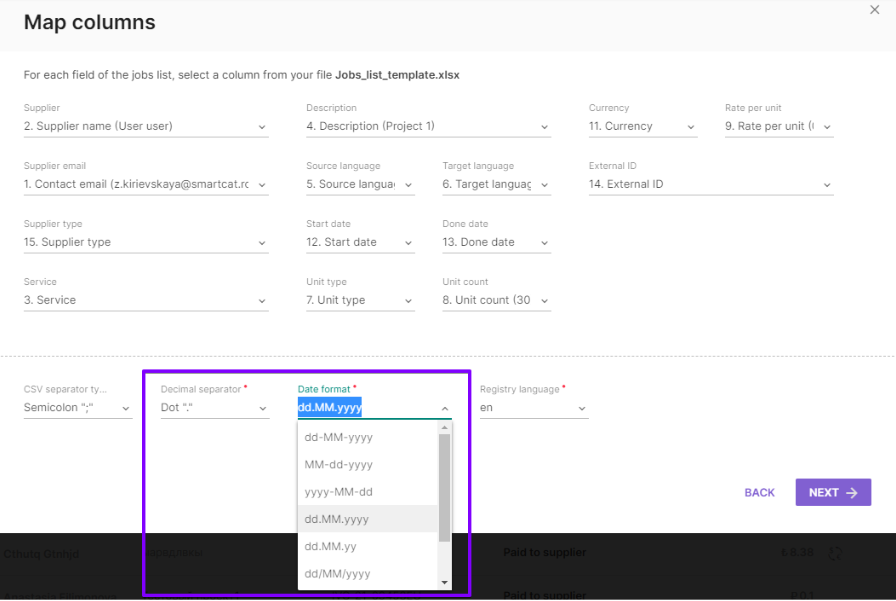
-
After uploading, you can still edit the register or fix any data entry errors by doing one of the following:
-
Double-click a cell to enter the correct value
-
Select a column to adjust from the drop-down list and enter the value to be applied to every row in that column
📌 A supplier name in this window may differ from the name that you entered in the register. This happens when a supplier is already registered in Smartcat with this email address and the name has been taken from that account. In this case the supplier's name is not editable. The job cost is calculated automatically by multiplying the rate per unit by the unit count.
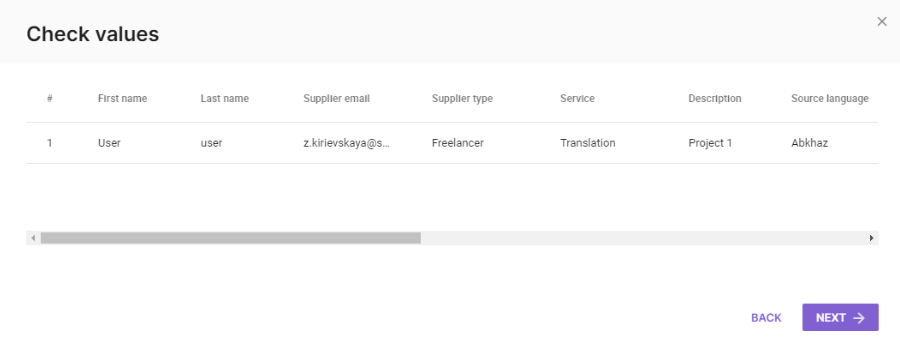
- Click Next to confirm that you would like to import the jobs

- When the jobs have been successfully imported, create an invoice for them and remit the payment by clicking Create invoice & pay. Alternatively, click Go to jobs to open the imported jobs and review them
Your supplier jobs are now imported and ready for invoicing or review.
How to fill in your register correctly
Each row in the Excel spreadsheet listing jobs for payment must contain the following fields:
| Field name | Description |
|---|---|
| Contact email | Supplier's email address |
| Supplier | Supplier's full name |
| Service | The service provided by the supplier. Select the relevant option from the drop-down list. |
| Description | Additional details on the provided service |
| Source language | The job's source language. Select the relevant option from the drop-down list. Refer to Language pair selection below for details. |
| Target language | The job's target language. Select the relevant option from the drop-down list. Refer to Language pair selection below for details. |
| Unit type | The billable unit type. Select the relevant option from the drop-down list. |
| Unit count | The amount of units in the job |
| Rate per unit | The unit rate represented in the service currency selected in the Currency field. For details, refer to Rate-per-unit ranges below. |
| Sum (formula) | The total payable for the job. This value is automatically calculated by multiplying the unit count by the rate per unit. |
| Currency | The currency in which the unit rate is represented. Select the relevant option from the drop-down list. |
| Start date | The date on which the job was started. Any date format is allowed, provided that it is used consistently across the CSV. |
| Done date | The date on which the job was completed. Any date format is allowed, provided that it is used consistently across the CSV. |
| External ID | The ID assigned to the job in the client's system. This field is optional and should be populated only if applicable. |
| Supplier type | Select Freelancer or Company from the drop-down list. Refer to the Supplier type selection section below for details. |
Language pair selection
The requirements for the language pair selection depend on the value specified in the Service field.
If one of the following services is selected, provide both Source language and Target language, and make sure that they are not identical:
| Translation | Certified translation | Transcreation |
| Glossary management | Simultaneous interpreting | Consecutive interpreting |
| Audiovisual translation | Quality assurance | TM management |
| Copywriting | Transcription | Interpretation services |
| Translation for subtitling | Subtitles translation |
For the following services, only the Target language attribute is mandatory. The Source language field can be left empty:
| Editing | Proofreading | AI translation post-editing |
| Editing translation of subtitles |
For the following services, neither the Target language nor the Source language is mandatory. Both fields can be left empty:
| Training | Project management | Desktop publishing |
| Notarization | Legalization/Apostille | Other services related to translation |
Rate-per-unit ranges
When specifying the rate per unit, make sure to remain within the pre-defined ranges. The allowed minimum and maximum values represented in USD are listed below:
| Unit | Minimum | Maximum |
|---|---|---|
| word | 0.0005 | 1 |
| page | 0.125 | 250 |
| symbol | 0.00007 | 0.14 |
| hour | 1 | 1000 |
| minute | 0.01 | 17 |
| document | 10 | 1000 |
| day limits | 10 | 1000 |
| month limits | 100 | 8000 |
Supplier type selection
When importing a job for payment, you need to indicate the payee type in the Supplier Type field. Two options are available: Freelancer or Company.
-
If the field is not populated, Smartcat assumes that the supplier type is Freelancer
-
If Company is selected as the supplier type, the payment is remitted to the corporate account balance. The payee can use these funds to pay other freelancers across Smartcat or request a cash out.
-
If Freelancer is selected as the supplier type, the payment is processed as specified in the payee's account details
FAQs
What happens if I don't specify a Supplier Type in the import file?
If the Supplier Type field is left blank, Smartcat assumes the supplier is a Freelancer.
What's the difference between choosing Freelancer vs Company as the supplier type?
If you select Company, payment goes to the corporate account balance, which that company can use to pay its own freelancers or cash out. If you select Freelancer, payment is processed according to that individual's account payout details.
Do I need to fill in both Source language and Target language for every service?
It depends on the service. Services like Translation or Transcreation require both fields (and they must differ). Services like Editing or Proofreading only require Target language. Services like Project Management or Desktop Publishing require neither.
What happens if my rate per unit falls outside the allowed range?
Smartcat enforces minimum and maximum values per unit type (for example, $0.0005–$1 per word). Rates outside these ranges won't be accepted, so check the rate-per-unit ranges table before submitting your import file.
What if the supplier's name in the review window differs from what I typed in my register?
This happens when the supplier is already registered in Smartcat under that email address — Smartcat pulls the name from their existing account, and the name field becomes non-editable in that case.
Want to learn more?
See how Smartcat can transform your localization workflow.
Still need help?
Our support team responds within one business day.