Manage repetitions in Smartcat projects
Overview
During the project word count analysis, Smartcat identifies segments that are repeated both inside individual documents and across all the documents in a project. Smartcat offers multiple options to handle these repetitions. A project manager can select these options, in which case they apply to all project participants. If the project manager selects no option, the translation team is free to choose how to handle repetitions individually.
⚠️ Leaving the choice to individual team members can lead to uneven workloads, since some users might choose not to share repetitions with the rest of the team.
On current Smartcat pricing plans (Adapt, Accelerate, Anticipate, or Autonomous), Smartwords are not consumed for repeated segments (repetitions), including cross-file repetitions. On legacy pricing plans, repetitions still consume 1 Smartword per source word.
Set repetition options as a project manager
The project manager can choose the repetition options in the Settings tab of the project page:
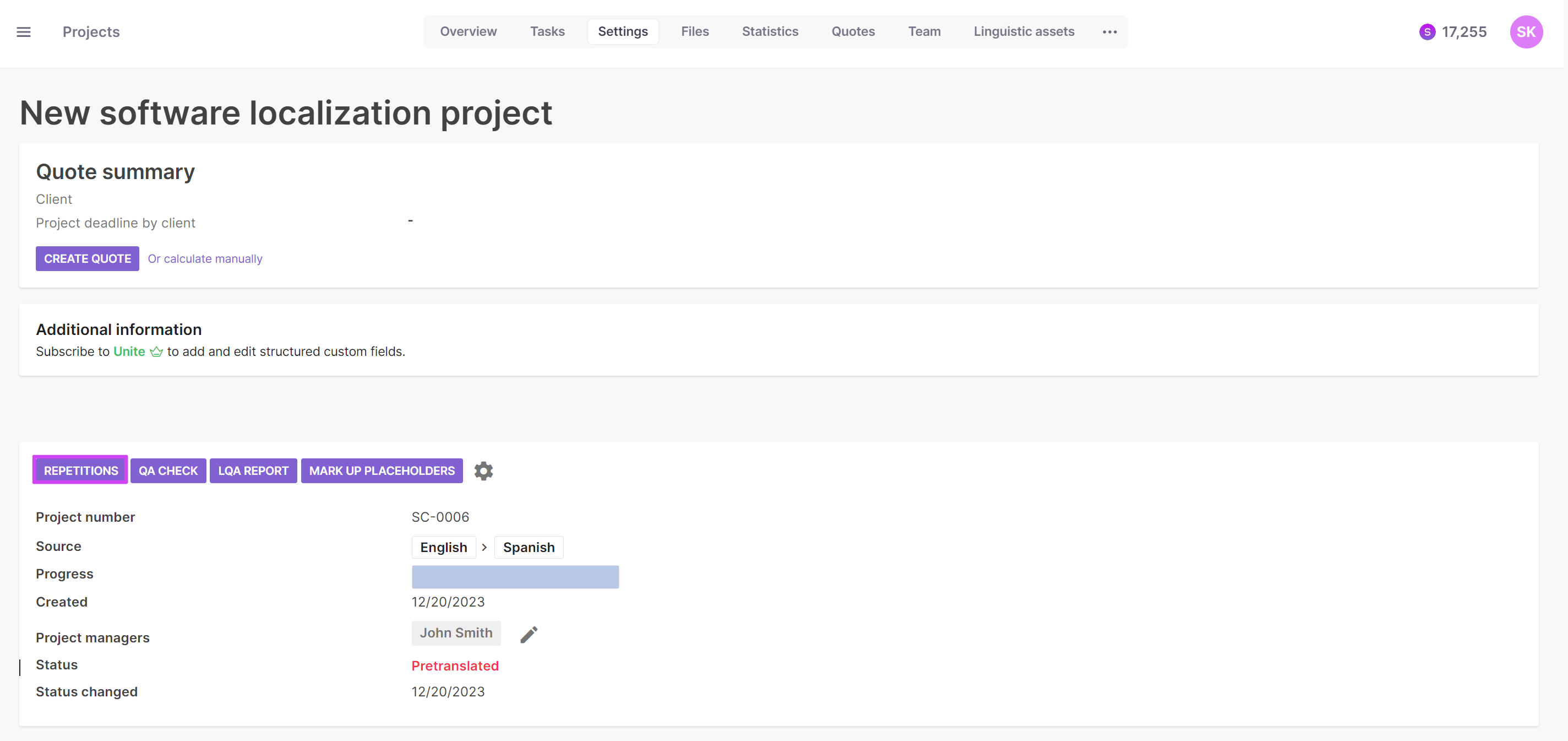
This brings up the following dialog box:
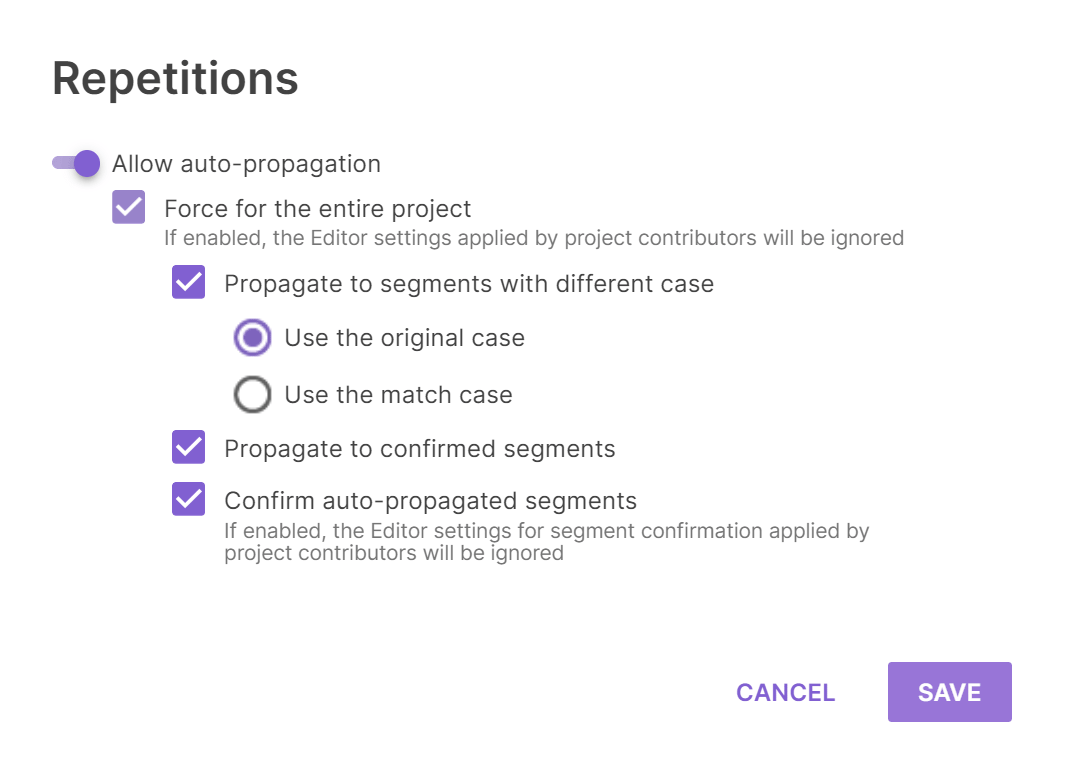
The dialog offers these options:
-
Allow auto-propagation — this main option tells Smartcat to propagate repeated segments automatically throughout the project when checked
-
Propagate to segments with different case — controls how to handle repetitions that use a different case (lower or upper)
-
Propagate to confirmed segments — instructs Smartcat to propagate the translation to segments even if they have already been confirmed. This is helpful when a translator goes back to a repeated segment and makes a change
-
Confirm auto-propagated segments — instructs Smartcat to apply the status of the current segment to all other repeated segments. Once the translator marks the segment confirmed for one stage, all other repetitions are confirmed as well for that stage
Case handling options
When you enable Propagate to segments with different case, you choose one of these:
-
Use the original case — when inserting the repetition, Smartcat matches the case of the new segment. For example, if the previous segment was "continued" but the new segment is "Continued", the text is replaced automatically because it is a text repetition, and the translation starts with an uppercase letter to match the new segment
-
Use the match case — Smartcat ignores the capitalization of the new segment and uses what was applied in the previously translated segment. In this example, the translation now starts with a lowercase letter
Change options in the CAT editor
In the CAT editor, the translation team can change the auto-propagation options if the project manager has not selected any.
The CAT editor also has an option to exclude segments from repetitions. Repetitions are indicated by a down arrow under the segment number.
-
Locate the segment marked with a down arrow under the segment number
-
Click the arrow to mark the segment as excluded from repetitions
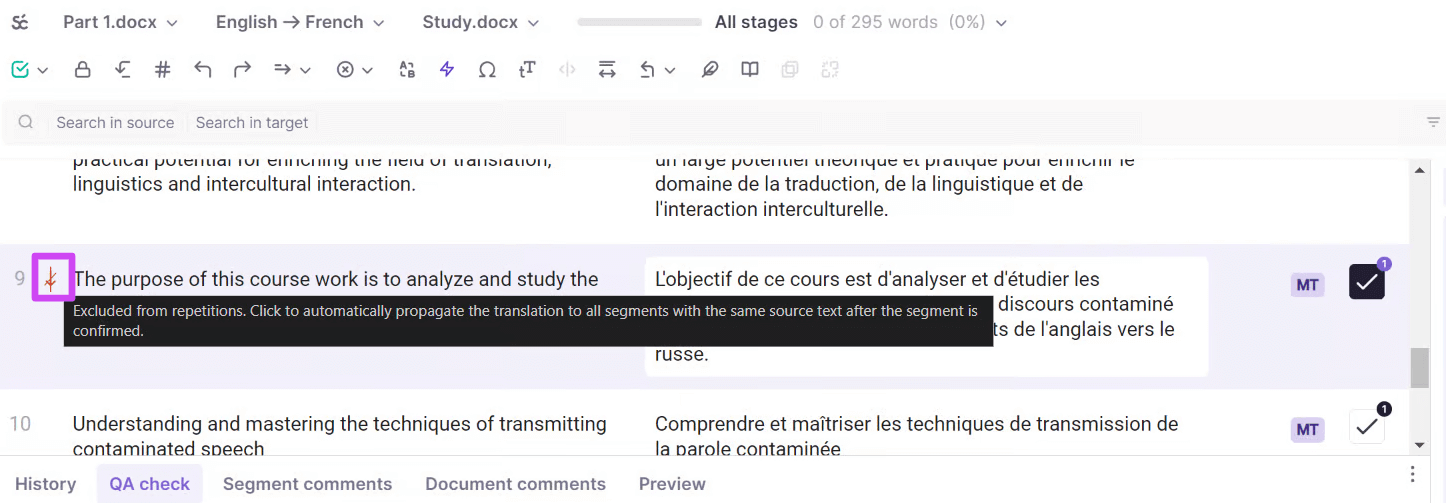
The segment is now excluded from repetition handling.
💡 Excluding segments is useful when dealing with titles or picture captions, where a sentence can be cut in half and you do not want these segments to be treated as repetitions.
FAQs
Do repeated segments cost Smartwords?
On current pricing plans (Adapt, Accelerate, Anticipate, Autonomous), repetitions do not consume Smartwords. On legacy pricing plans, repetitions still consume 1 Smartword per source word.
What does "Allow auto-propagation" actually do?
When enabled, it tells Smartcat to automatically apply the same translation across every repeated segment throughout the project, rather than requiring the linguist to retranslate each occurrence.
Can a repeated segment still be auto-propagated if it's already been confirmed?
Yes, if "Propagate to confirmed segments" is enabled — this lets a change to a repeated segment flow through even to segments that were already confirmed, which is useful if a translator later fixes a repeated segment.
What happens if the project manager doesn't set any repetition options?
The translation team is left free to choose how to handle repetitions individually, which can lead to uneven workloads since some team members might choose not to share repetitions with the rest of the team.
How do I exclude a specific segment from being treated as a repetition?
In the CAT editor, locate the segment marked with a down arrow under its segment number (indicating a repetition) and click the arrow to exclude it — useful for titles or captions that shouldn't be grouped with other repeated text.
Want to learn more?
See how Smartcat can transform your localization workflow.
Still need help?
Our support team responds within one business day.