Facilitate team communication in Smartcat
Overview
Team communication is one of the most time-consuming tasks for project managers, and one that can lead to the most errors. It generally relies on many channels that are not designed for efficient group communication.
Smartcat makes it easy for project managers to communicate with other team members, and for team members to communicate with each other, improving productivity and efficiency. This article covers the topics teams typically discuss and how Smartcat improves each one.
Progress updates
Project managers need to contact project participants for progress updates on a regular basis. They need this information to keep clients informed and to make sure projects are on track to meet promised deadlines.
Smartcat greatly reduces the need for this type of communication. As shown in the article about the Workspace, progress down to the document level is tracked in real time, so there is no need to contact project participants for an update. If progress is stuck over a certain period, the project manager can take action. The Smartcat real-time tracking system lets the project manager react to issues more quickly than collecting the information manually.
Instructions
Project managers generally provide instructions at the beginning of a project for the entire team. The challenge is to make sure these instructions are accessible to the team at any moment. On a typical project, the project manager might send the files to be translated along with instructions by email. That information is not centralized, which forces the linguist team to backtrack through email to clarify potential issues.
With Smartcat, you can add instructions at the document level in the comment section.
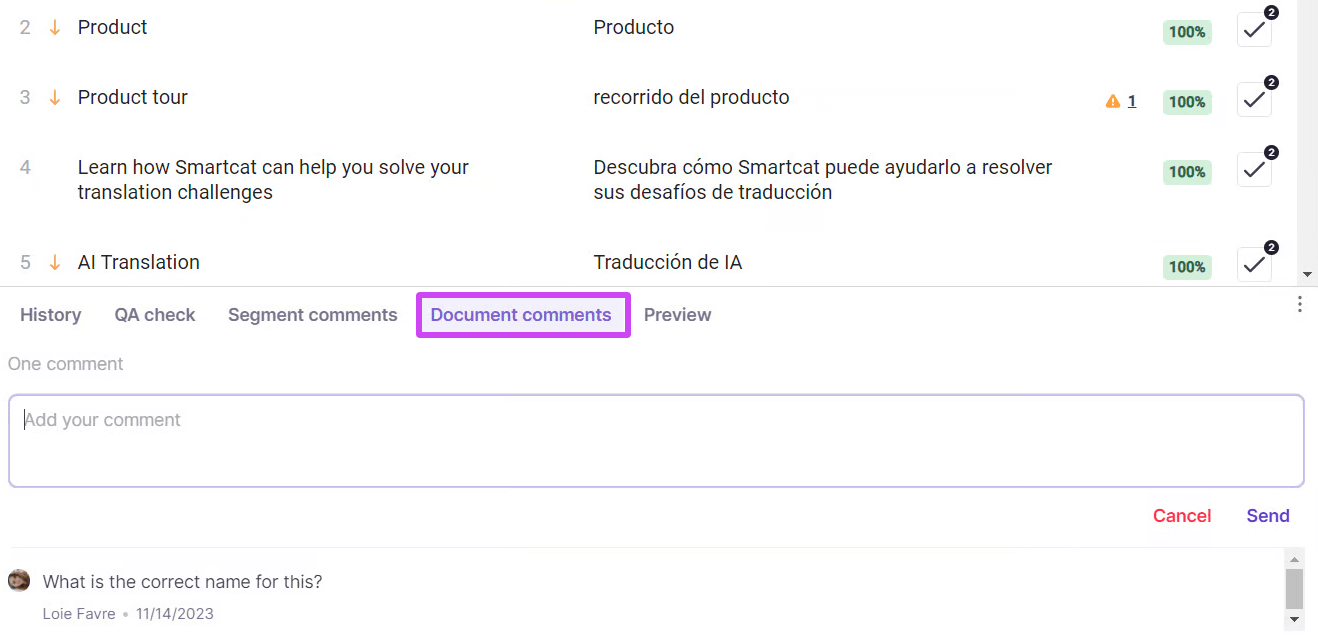
These instructions are permanent and accessible to the team at any moment. For multilingual projects, Smartcat replicates any comments automatically to all languages, so no language team misses the instructions. The language team can also query the project manager about these instructions and receive answers in real time, distributed to the entire team.
Queries
From time to time, linguists have questions about a specific segment where the project manager needs to check with the client to clarify context. These queries can be time-consuming, because the project manager needs to relay the information to the entire team, generally by email with detailed context. This can lead to errors and missed details.
Just as instructions are shared at the document level, a linguist can post queries at the segment level.
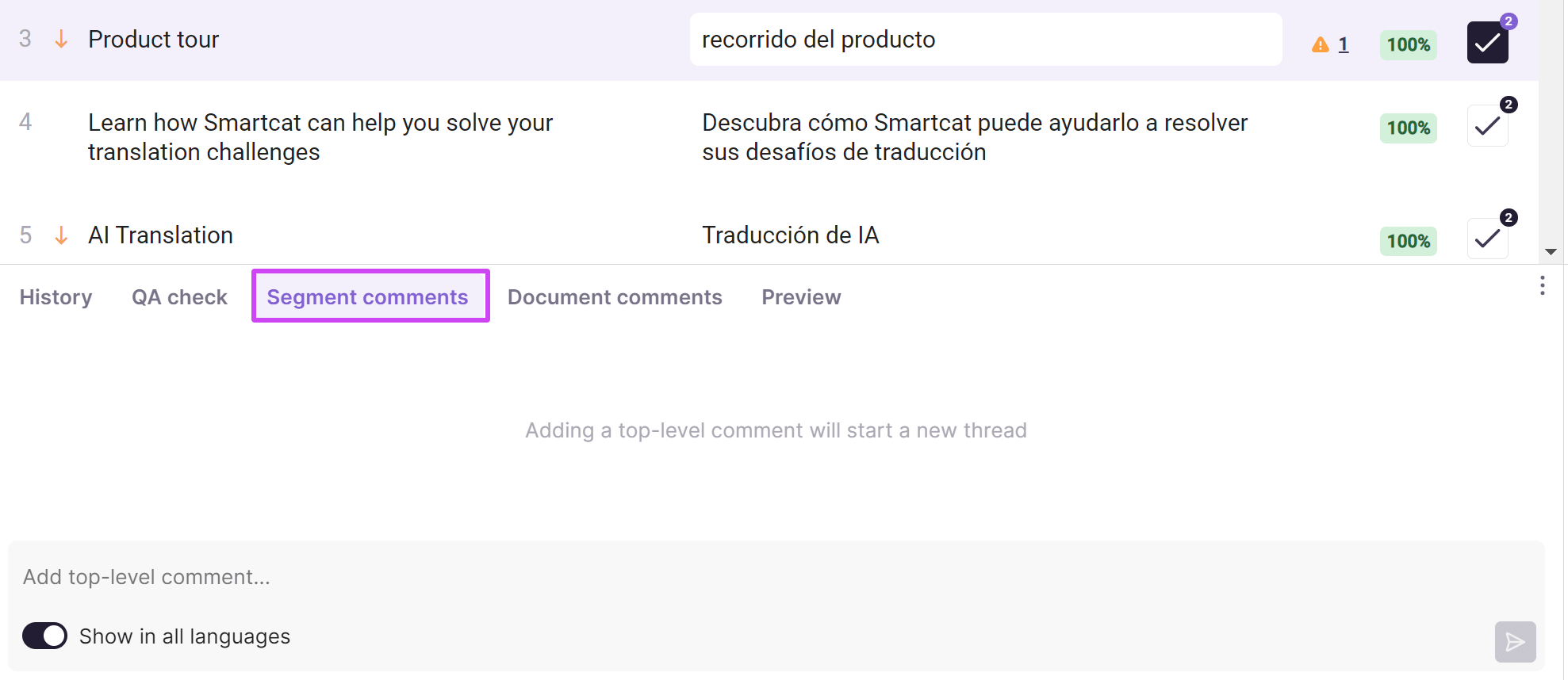
Comments to segments are also replicated automatically to the same segment in other languages. Once the project manager answers the query for one language, every team member for every language is updated at the same time.
The Comments to Segment feature can also be used for communication between team members. For example, editors and translators can discuss why a segment was translated a certain way, improving the productivity of both. Editors can be proactive with terminology use, while translators get quick feedback.
Private conversations
Sometimes the project manager needs to communicate directly with one team member only. Usually the project manager emails, calls, or chats with the linguist in an app such as WhatsApp. The downside is that there might be no permanent record of the conversation (phone), or it is hard to connect conversations with the translation work in progress (email and chat).
Smartcat offers a solution to these problems. Once a team member is added to a project team, the Send message button appears in the Team tab of the project page, next to the team member information.
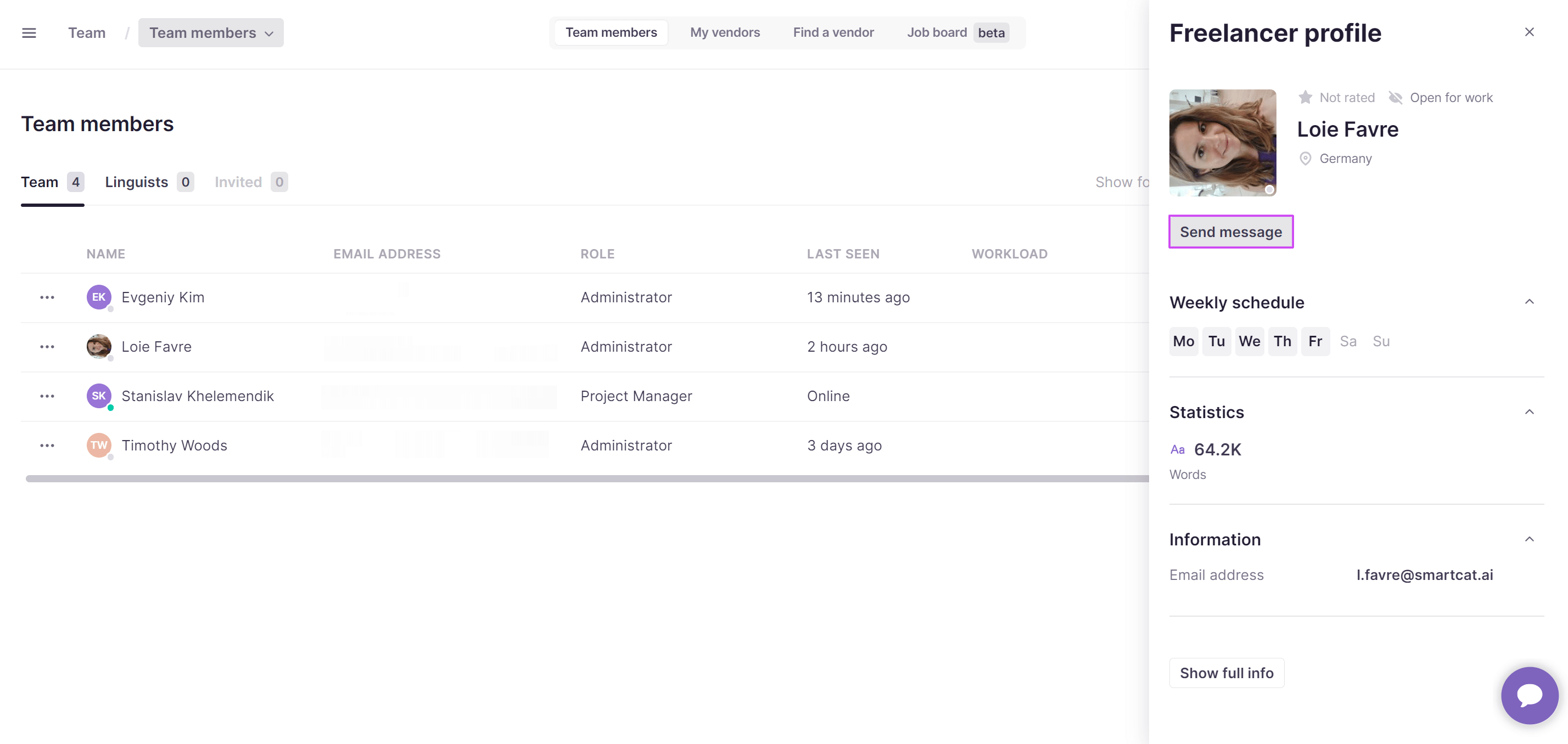
Click Start chat to open the Smartcat chat page, where you can discuss the matter with a linguist in private. Messages are recorded one after another, which limits the risk of miscommunication.
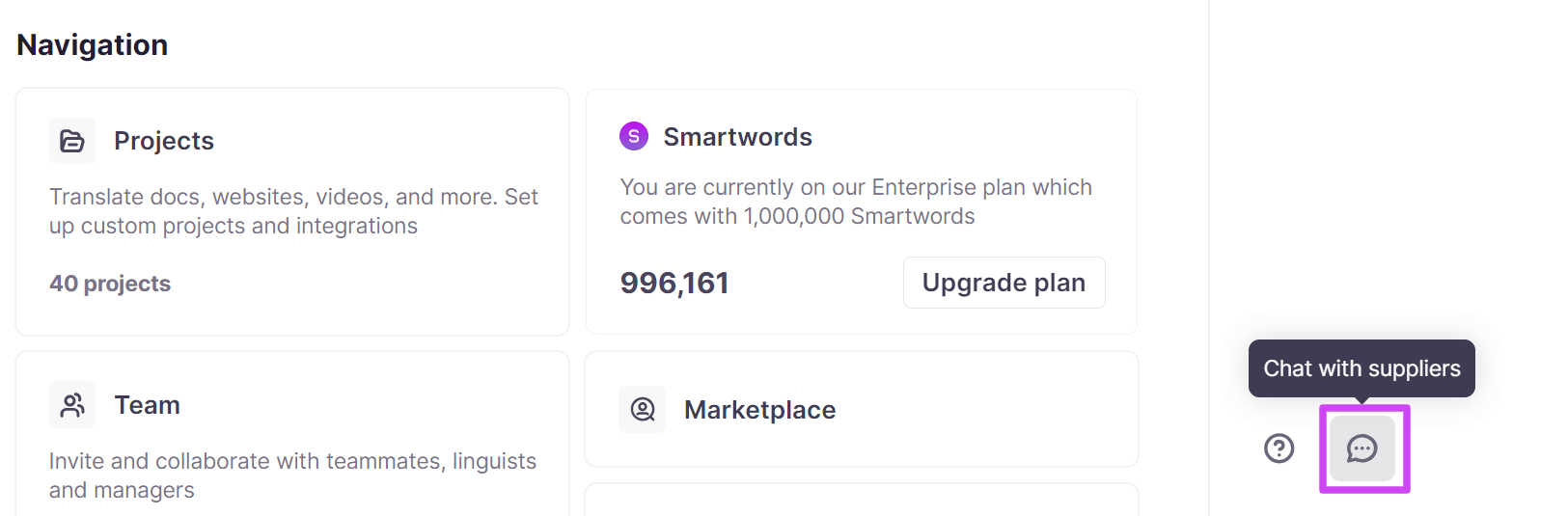
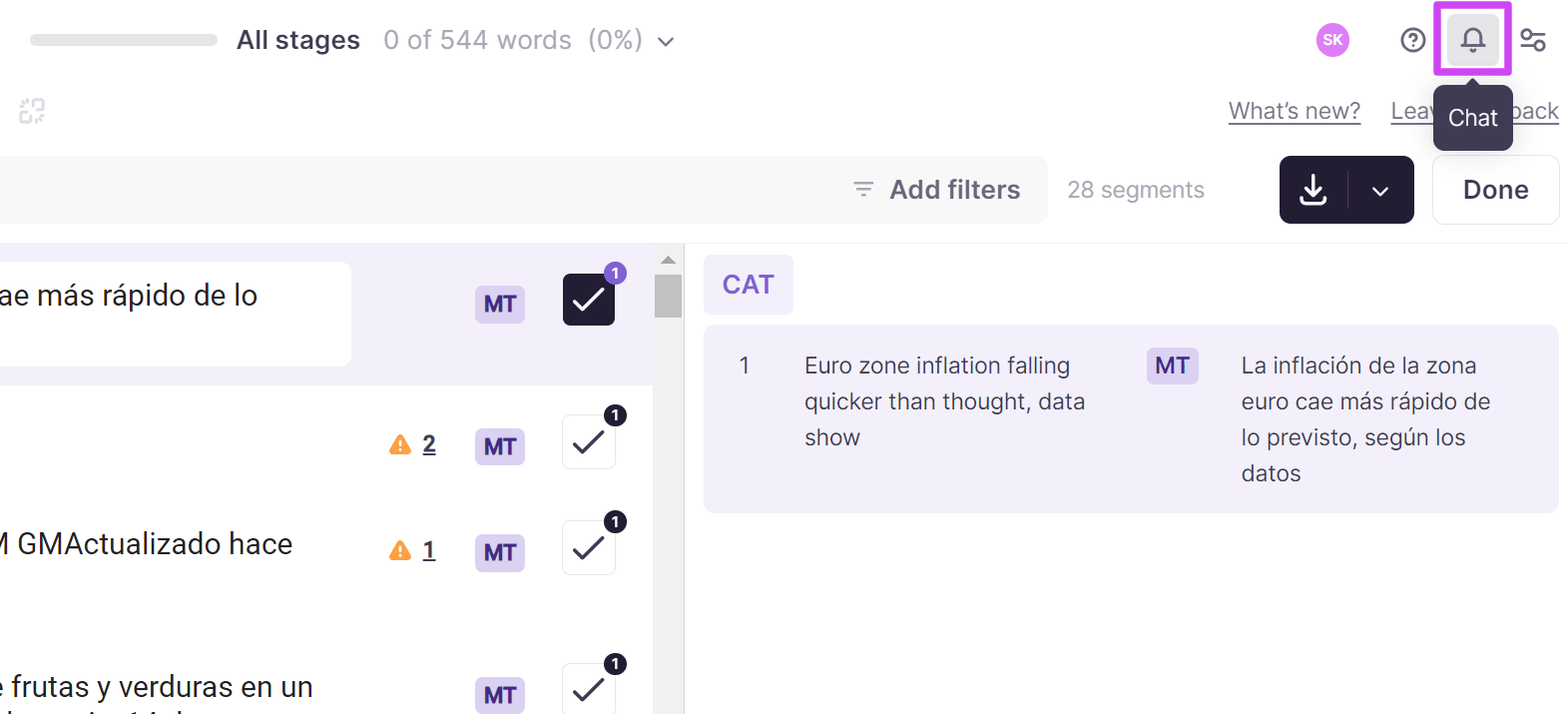
The chat page can also be used by other team members to communicate with each other privately. Access it from the bottom of the sidebar in the Workspace, or from the top-right corner of the CAT editor.
In each of these cases, Smartcat makes team communication easier and reduces the risk of errors or miscommunication.
FAQs
What's the difference between a document comment and a segment comment?
Document-level comments are used for general instructions and stay centralized and permanent for the whole team. Segment-level comments are for specific queries about a particular line of text, often requiring client clarification.
If I answer a question in one language version of a multilingual project, do other language teams see it?
Yes. Comments and their answers are auto-replicated across all language versions, so one answer updates the entire team simultaneously.
How do I have a private conversation with just one team member?
Use the "Send message" button in the Team tab to start a direct one-on-one chat, which is saved permanently and accessible from the Workspace sidebar or the CAT editor.
Why should I use Smartcat's built-in chat instead of email or an external messaging app?
Because it keeps all communication tied directly to the specific project and translation work, reducing miscommunication and centralizing the conversation history in one place.
Want to learn more?
See how Smartcat can transform your localization workflow.
Still need help?
Our support team responds within one business day.