Using the ROI Report to Track Your Translation Value
The ROI Report helps you compare your Smartcat costs against what you would have spent with traditional translation vendors. Use it to demonstrate the value of your Smartcat investment to stakeholders or to track cost savings over time.
When to use it
-
When preparing quarterly business reviews or renewal discussions
-
When you want to compare costs across different time periods
-
When you need to show project-level cost breakdowns
Where to find it
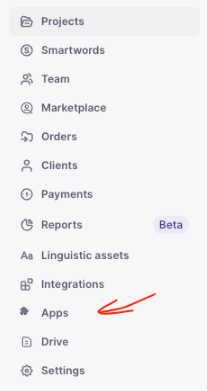
- Go to the left navigation panel in your workspace navigation, then select Apps.
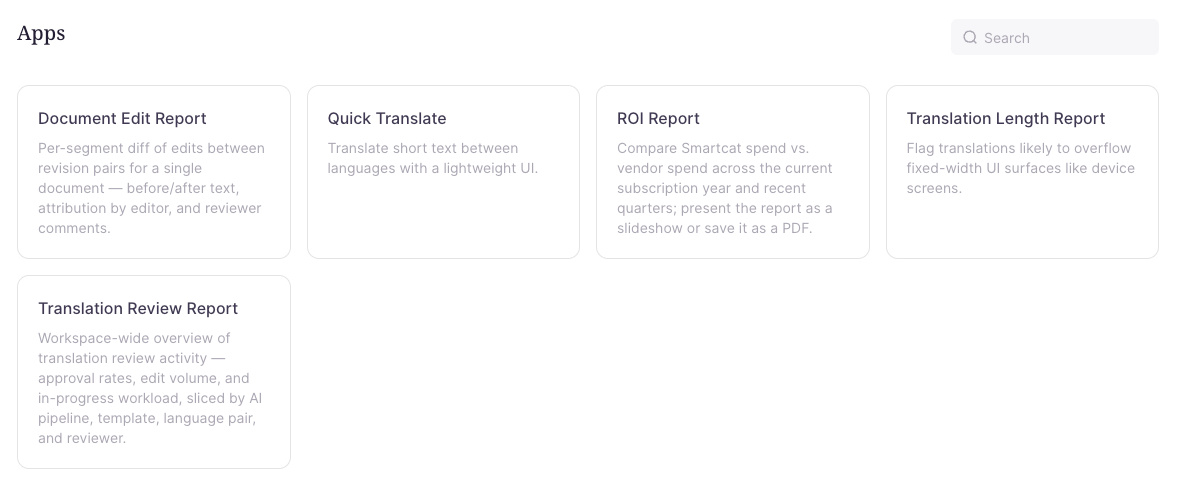
- On the Apps screen, select ROI Report
Understanding the report
Time period options
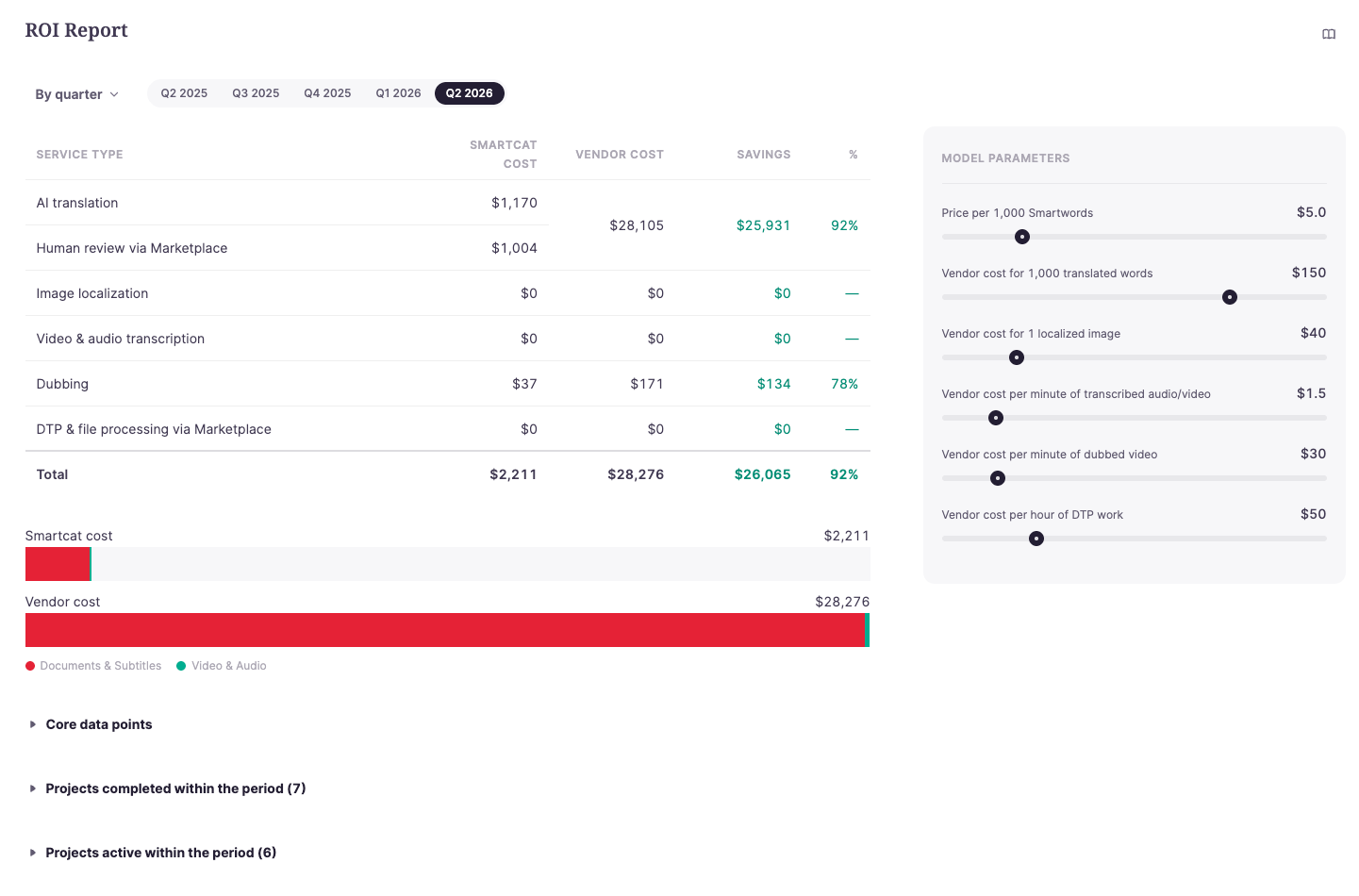
You can view your data grouped by:
-
Subscription cycle — Your full contract period (for example, your annual subscription)
-
Quarter — Q1, Q2, Q3, or Q4 breakdowns
-
Month — Monthly granularity for detailed tracking
The default view shows the current quarter.
What the report measures
The ROI Report tracks all your translation activity and calculates costs for:
Text translation
-
Words translated across all your target languages
-
Smartwords consumed for AI translation
Image localization
-
Number of images localized
-
Smartwords used for image processing
Video and audio
-
Video and audio files processed
-
Minutes of content transcribed
AI dubbing
-
Videos dubbed with AI voiceover
-
Minutes of dubbed content
Marketplace work
-
Words reviewed or translated by freelancers
-
Desktop publishing (DTP) hours
-
Actual costs paid to marketplace reviewers
How costs are compared
The report shows two cost columns:
-
Smartcat cost — What you actually spent using Smartcat
-
Projected vendor cost — What the same work would have cost using traditional translation vendors
The difference between these shows your savings.
Adjusting the comparison
The vendor cost estimates use industry-average rates by default. You can adjust these using the sliders on the right side of the report to match your actual vendor rates. This makes the comparison more accurate for your specific situation.
Adjustable rates include:
-
Cost per 1,000 words for translation
-
Cost per localized image
-
Cost per minute of transcription
-
Cost per minute of dubbing
-
Cost per hour of DTP work
Viewing project details
The report includes two project lists:
Projects active within the period
Shows all projects that had translation activity during your selected time period. Click any project to see its individual ROI breakdown.
Projects completed within the period
Shows projects that were marked complete during the period. Some may not have had activity in that specific period if they were completed from earlier work.
Exporting the report
To save or print your ROI Report:
-
Click the book icon in the top right corner to enter presentation mode
-
Click the PDF button, or press Cmd+P (Mac) or Ctrl+P (Windows)
-
Save as PDF or send to your printer
FAQs
Why do my Marketplace costs appear in a different month than expected?
Marketplace costs are recorded when jobs are marked as approved, not when the translation work was performed. If you use auto-approval (where jobs are automatically verified after 2 weeks), there may be a delay before costs appear in the report.
Why does the report show activity for a project I completed last month?
The report groups data by when the activity occurred, not when the project was completed. If a reviewer approved work this month for a project you completed last month, that cost appears in this month's data.
Can I see ROI for a single project?
Yes. Click any project name in the project lists to open that project's individual ROI report.
Who can access the ROI Report?
The ROI Report is available to workspace administrators.
Why does my AI dubbing show zero minutes even though I have dubbed videos?
AI dubbing costs are only recorded when you export a dubbed video — not when the dubbing is processed. If you haven't exported yet, those minutes won't appear in the report.
Want to learn more?
See how Smartcat can transform your localization workflow.
Still need help?
Our support team responds within one business day.